Orova

/ Orova SEO guide

Using Orova SEO
step by step.

A walkthrough of every screen in Orova SEO — and every action you can take on it — with screenshots from a real workspace.

Orova SEO lives inside a workspace — the shared space where your team and your work sit. After you sign in and open a workspace, the SEO module has ten areas, listed down the left sidebar. This guide goes through each one in order and explains what every button and action does. The fastest path for a new account is: create a project, connect your website, add keywords, then let Orova write.

01 · Overview

The Overview dashboard

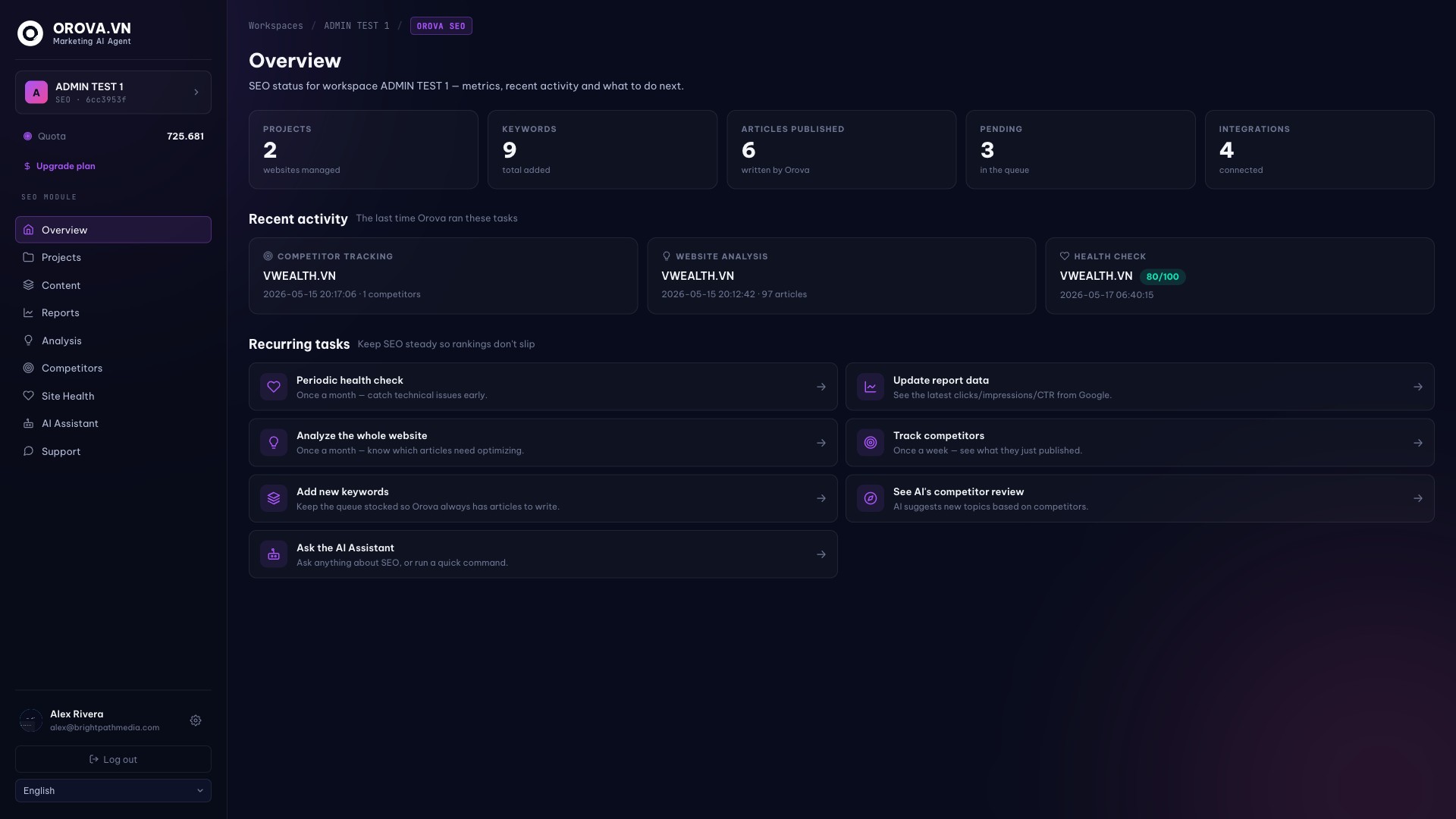
Overview is the first screen you see inside a workspace. It is a status board — it does not change anything by itself, it shows you where your SEO stands and points you to the next useful action.

Orova SEO Overview dashboard

What you can do here

  • 1

    Read the left sidebar. The sidebar lists the nine sections of Orova SEO. Click any item to open that section — the page you are on is highlighted.

  • 2

    Check the Quota counter. Near the top of the sidebar, Quota shows the credit left in this workspace. Every AI task (writing, analysis, the assistant) spends quota. Click it to open the wallet and see the transaction history.

  • 3

    Use the five stat cards. Projects, Keywords, Articles published, Pending and Integrations each show a live number. The card is also a shortcut — click it to jump straight to the matching section.

  • 4

    Open a Recent activity card. These three cards show the last time Orova ran competitor tracking, website analysis and a health check. Click a card to open that exact result.

  • 5

    Pick a Recurring task. The Recurring tasks list suggests routine jobs that keep rankings stable. Clicking one takes you to the page where you run it — it is a reminder, not an automatic action.

  • 6

    Switch language. The language selector at the bottom of the sidebar changes the dashboard language. It does not affect the language your articles are written in.

02 · Projects

Projects — one per website

A project represents a single website that Orova grows for you. Everything else (keywords, articles, reports) belongs to a project, so this is where you start.

Orova SEO Projects list

What you can do here

  • 1

    Click “+ Create project”. The button at the top right opens the create form. You can also use the dashed “Create new project” card at the end of the list.

  • 2

    Fill in the project form. Enter a Project name (required) — a label only you see — and the Website URL (optional, but needed before Orova can publish or analyse). Click Create to save. Both can be edited later.

  • 3

    Open a project card. Each card shows the website and how many connections are set up (for example “4/4 connections”). Click the card to open the project detail page.

  • 4

    Open project settings. The gear icon on a card jumps straight to that project’s detail page where every setting lives.

03 · Project setup

Setting up a project

The project detail page is where you connect your website and tell Orova how to write for it. Do this once per project — it is what lets the agent start working on its own.

Orova SEO project detail and connections

What you can do here

  • 1

    Edit project info. Use “Edit project info” to rename the project or change its website URL after creation.

  • 2

    Choose the AI quality level. Pick how Orova writes for this project: Saver (lowest cost, good for writing many articles at once), Standard (the balanced default), or Expert (highest quality, for important pillar articles). Each level spends a different amount of quota per article.

  • 3

    Connect WordPress. Click Connect on the WordPress card so Orova can publish finished articles to your site automatically.

  • 4

    Connect Google Analytics 4. Connecting GA4 lets Orova read traffic and conversions, so it can measure how each article performs.

  • 5

    Connect Search Console. Search Console is what feeds keyword rankings into Reports and Analysis. Connect it early — several sections stay empty without it.

  • 6

    Connect Google Drive (optional). Connecting Drive lets Orova index your brand documents and reference them while writing, so articles stay on-brand.

  • 7

    Pick an AI Voice. Choose one writing voice as the project default — each voice has a different tone (expert, friendly, storytelling, technical…). You can also click “Create your own voice” to define a custom style.

04 · Content

Content — keywords and articles

Content is the core working area. Each row is a keyword; Orova writes one SEO article for it, publishes it to the project’s website, and then tracks how it does.
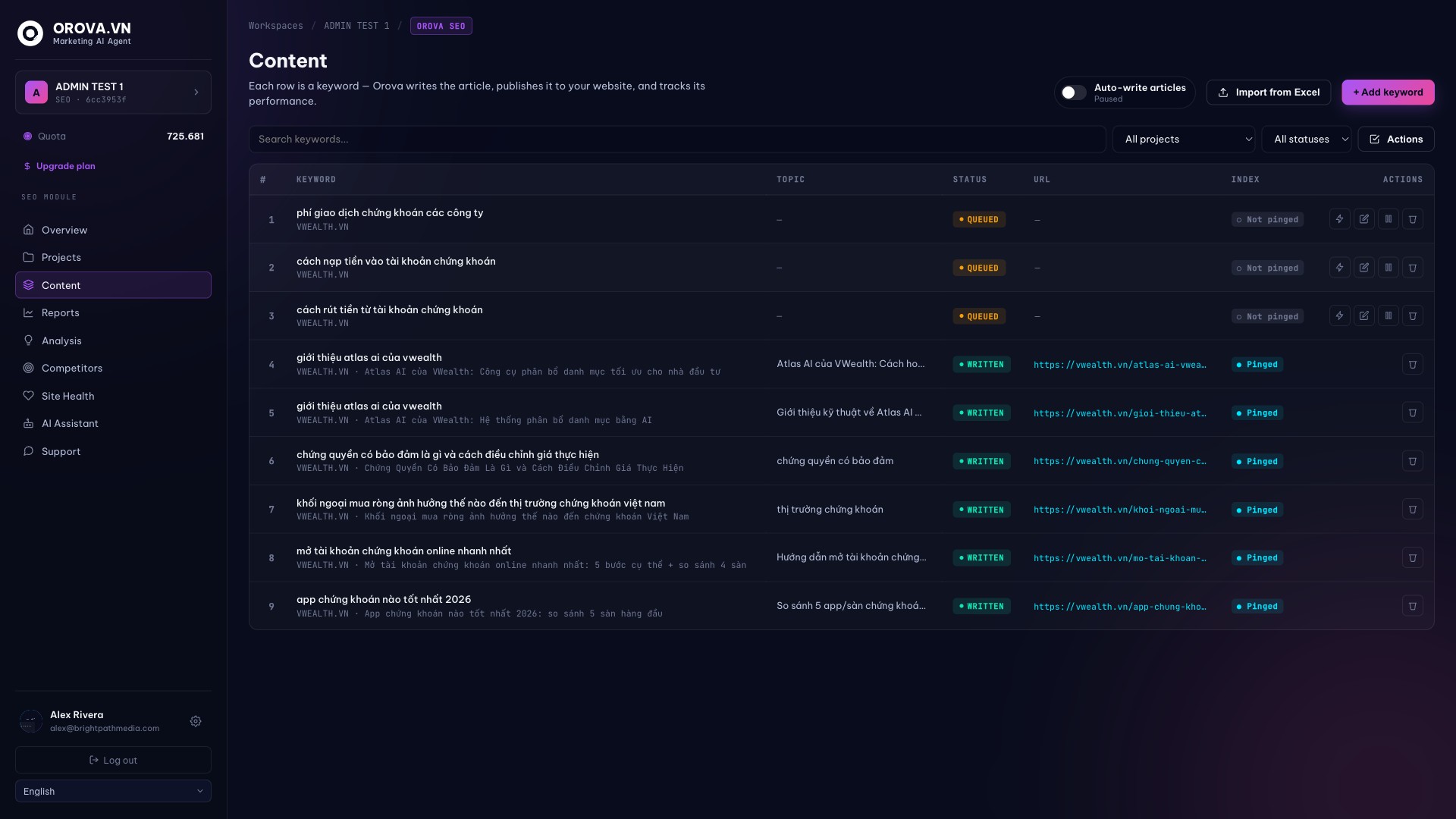
Orova SEO Content keyword table

What you can do here

  • 1

    Click “+ Add keyword”. Opens the add form. Enter the keyword and choose the project, then optionally set the search intent, writing voice, guidance for Orova, article length, number of images, reference documents and when to publish. Click Add keyword to drop it into the writing queue.

  • 2

    Import from Excel. Use “Import from Excel” to add many keywords at once instead of one by one.

  • 3

    Turn on “Auto-write articles”. When this toggle is on, Orova works through the queue on its own — writing and publishing one article after another. Turn it off to pause.

  • 4

    Use “Write now” on a row. The Write now action tells Orova to write that specific keyword’s article immediately, ahead of the queue.

  • 5

    Edit, Pause or Delete a keyword. Edit changes a keyword’s settings; Pause keeps it but stops Orova writing it; Delete removes it entirely.

  • 6

    Search and filter. Use the search box and the project / status filters to find keywords in a long list. Statuses include Written, Queued, Failed and Disabled.

  • 7

    Select rows for bulk actions. Tick the checkboxes to Pause, Reactivate, Bulk edit or Delete several keywords together.

  • 8

    Open a keyword. Click a keyword to open its detail page — the brief, the article and its status.

05 · Reports

Reports — performance from Google

Reports lists every article Orova has published, with the search numbers Google reports for it. Use it to see what is actually working.

Orova SEO Reports with Google metrics

What you can do here

  • 1

    Click “Refresh metrics”. Numbers are stored on the page and do not update by themselves. Click Refresh metrics (top right) to pull the latest clicks, impressions, CTR and average position from Search Console.

  • 2

    Filter by project and date range. Use the two selectors at the top to focus on one website and a time window (for example the last 28 days).

  • 3

    Read the summary cards. Total published posts, total clicks, total impressions and how many posts already have Google data — a quick health read for the project.

  • 4

    Connect Search Console first. Reports needs Search Console connected on the project. Also note Google has a 1–3 day delay, so very new posts usually show no data yet.

06 · Analysis

Analysis — what to optimize next

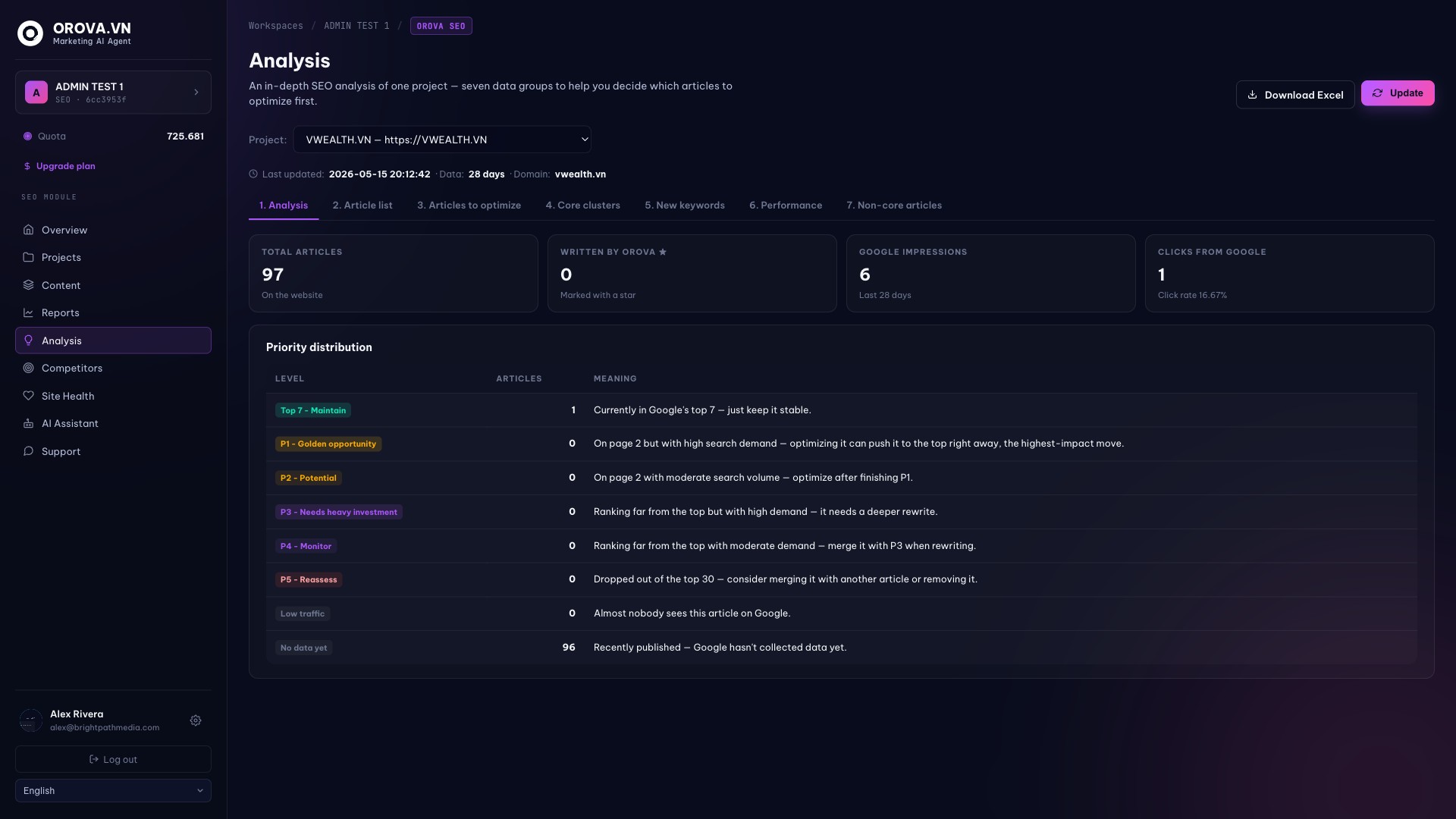
Analysis is a deep SEO read of one project. Its job is to tell you which existing articles to improve first, so you spend effort where it pays off.

Orova SEO Analysis with priority distribution

What you can do here

  • 1

    Choose the project. Use the Project selector to pick which website to analyse — Analysis covers one project at a time.

  • 2

    Click “Update”. Update re-runs the analysis with the latest Search Console data. The page shows when it was last updated.

  • 3

    Read the Priority distribution. Articles are sorted into levels — Top 7 (maintain), P1 golden opportunity, P2 potential, down to Low traffic and No data yet. Start with P1: page-two articles with high demand that a small push can lift fast.

  • 4

    Move through the seven tabs. The tabs (Analysis, Article list, Articles to optimize, Core clusters, New keywords, Performance and more) break the same data into focused views.

  • 5

    Download Excel. “Download Excel” exports the full analysis if you want to work with it outside Orova.

07 · Competitors

Competitors — watch and learn

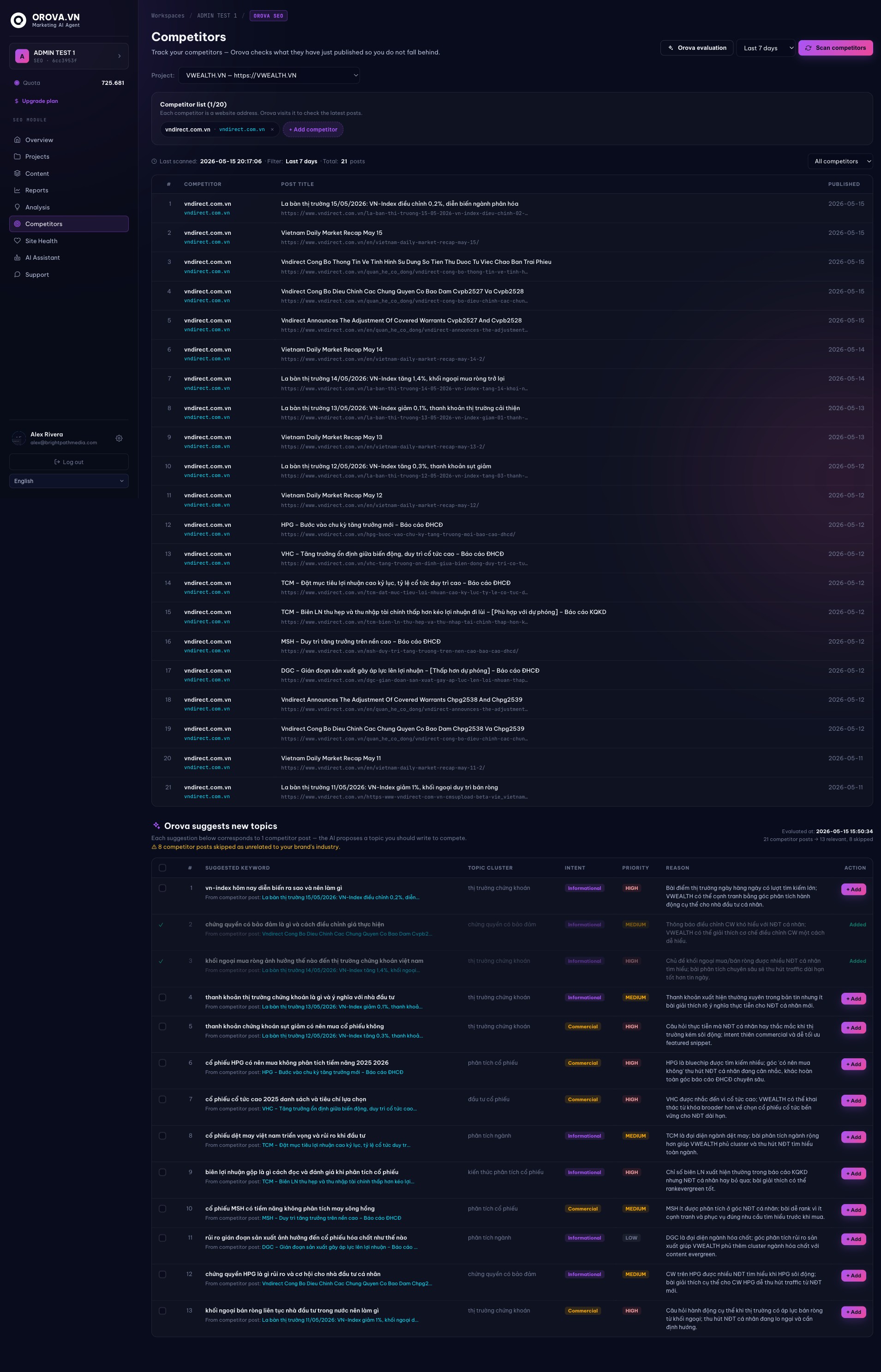
Competitors keeps an eye on rival websites: what they publish, and which topics you should cover so you do not fall behind.

Orova SEO Competitors tracking and topic suggestions

What you can do here

  • 1

    Add a competitor. Click “+ Add competitor” and enter a competitor’s website. Orova will start tracking what they publish.

  • 2

    Click “Scan competitors”. Scan fetches the latest posts from the competitor sites you track and lists them with publish dates.

  • 3

    Run “Orova evaluation”. This asks the AI to read the scanned competitor posts and assess them — what they cover and where the gaps are.

  • 4

    Review “Orova suggests new topics”. Below the post list, Orova proposes keywords to compete on, each with a topic cluster, search intent, priority and the reason it matters.

  • 5

    Click “Add” on a suggestion. Add pushes that suggested keyword straight into Content, so Orova can write an article for it. Suggestions already added are marked.

08 · Site Health

Site Health — the technical check

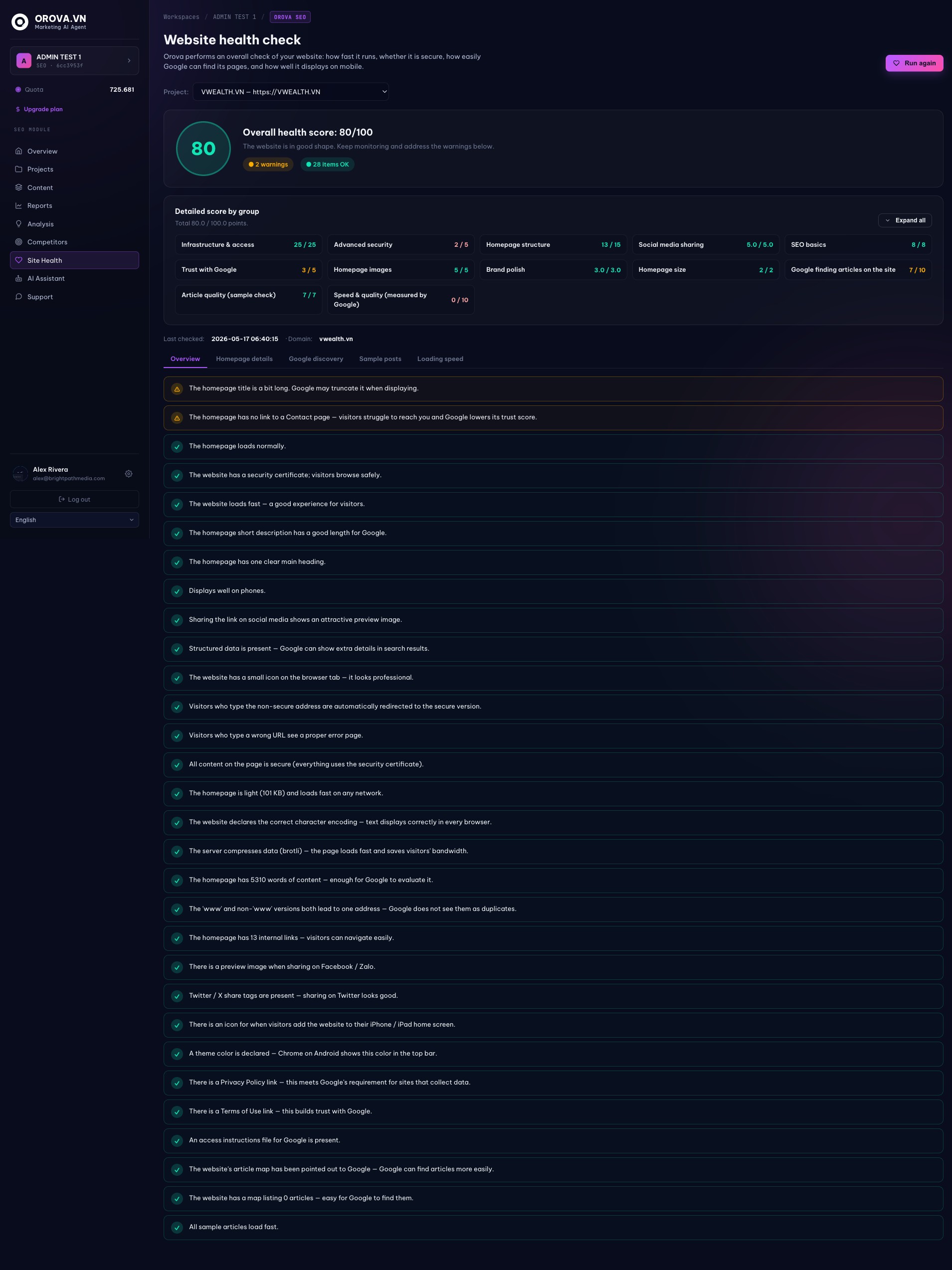
Site Health checks the things that affect SEO but are not articles: speed, security, how easily Google finds your pages, and how the site looks on mobile.

Orova SEO Site Health score and checklist

What you can do here

  • 1

    Choose the project. Health checks one website at a time — pick it with the Project selector.

  • 2

    Read the Overall health score. A single score out of 100 with a short summary, plus a count of warnings and items that are OK.

  • 3

    Open “Detailed score by group”. The score is broken down by area (hosting & access, security, structure, basic SEO, speed and more) so you can see exactly what is pulling it down.

  • 4

    Move through the tabs. Overview, Homepage details, Google discovery, Sample posts and Loading speed each zoom into one part of the check.

  • 5

    Click “Run again”. Re-runs the whole health check after you have fixed something, so the score reflects the latest state.

09 · AI Assistant

AI Assistant — run tasks by chatting

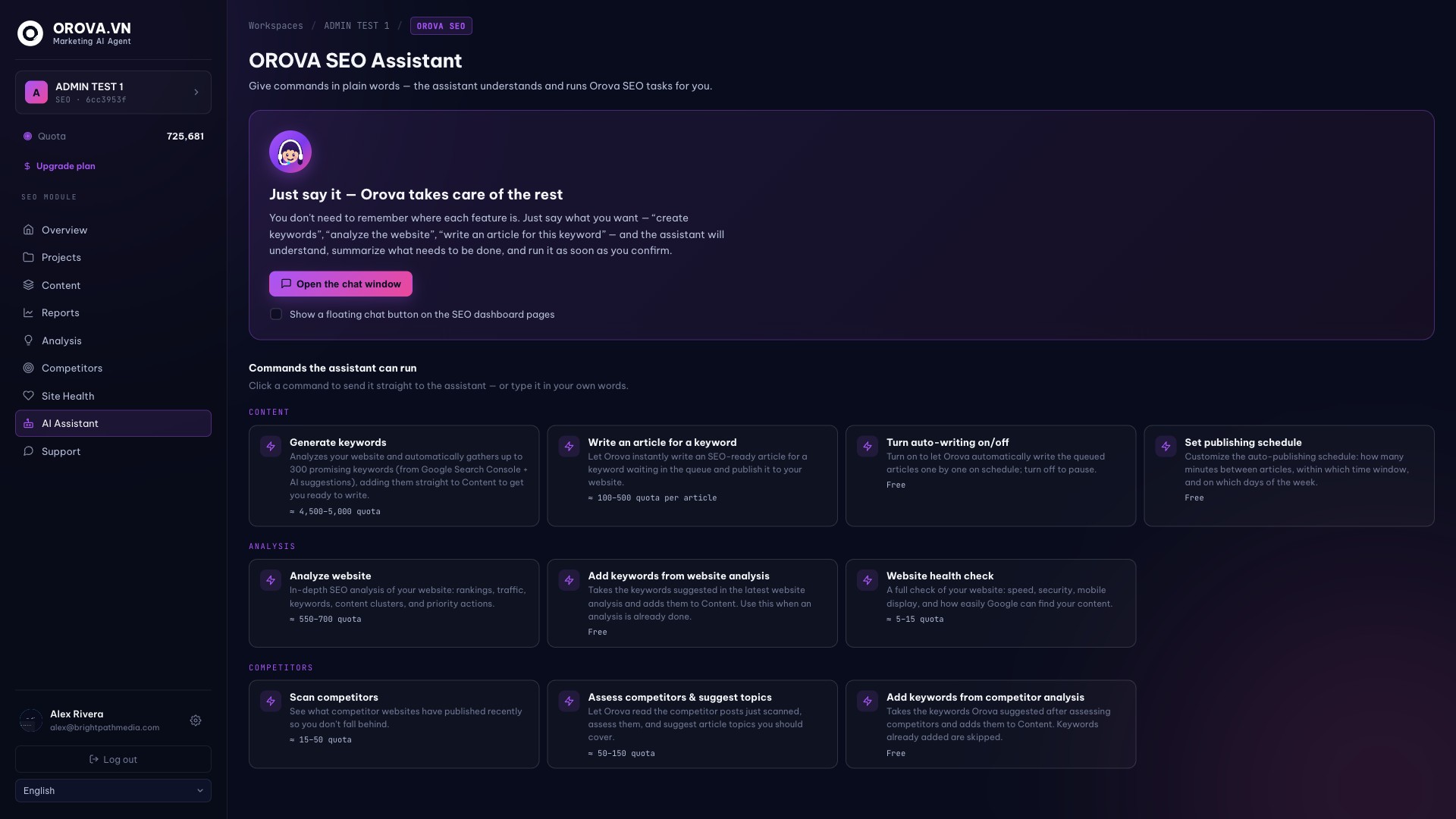
The AI Assistant lets you run Orova SEO tasks in plain words. You do not need to remember where each feature is — you describe what you want and the assistant does it after you confirm.

Orova SEO AI Assistant with command cards

What you can do here

  • 1

    Click “Open the chat window”. Opens the assistant chat. Type a request like “write an article for this keyword” or “analyse the website” and the assistant summarises what it will do before running it.

  • 2

    Toggle the floating chat button. “Show a floating chat button on the SEO dashboard pages” keeps the assistant one click away from every section.

  • 3

    Click a command card. Under “Commands the assistant can run”, cards are grouped into Content, Analysis and Competitors. Click one to send that command straight to the assistant — or type it in your own words.

  • 4

    Check the quota hint. Each command card shows its rough quota cost (or “Free”), so you know what a task will spend before you run it.

10 · Support

Support — getting help

Support is the direct line to the Orova team when something is wrong or unclear.

Orova SEO Support request topics

What you can do here

  • 1

    Pick a request topic. Choose the card that matches your issue — Technical issue, Question about a feature, WordPress / Google connection, Quota & billing, or Feedback & other. The topic helps the team route your request.

  • 2

    Send one request at a time. Only one support request can be open at a time. Finish or close the current one before opening another.

  • 3

    Review resolved requests. The “Resolved requests” list keeps your past conversations with the team, so you can reopen the context any time.

← Back to the guide library

/ Need a hand?

Can’t find what you’re looking for? Open the Support section inside your workspace, or send us a message.