
Keep every customer relationship moving
One customer book for the whole team — from lead to cash
Give your team a shared place to manage customers, move deals through each stage, send quotes and track payments. Keep notes, files and activity history in each customer record.
- Customer history in one place
- New leads reach the right person
- Know which payments need chasing
Customer notes, files and activity history give you context before you reach out.
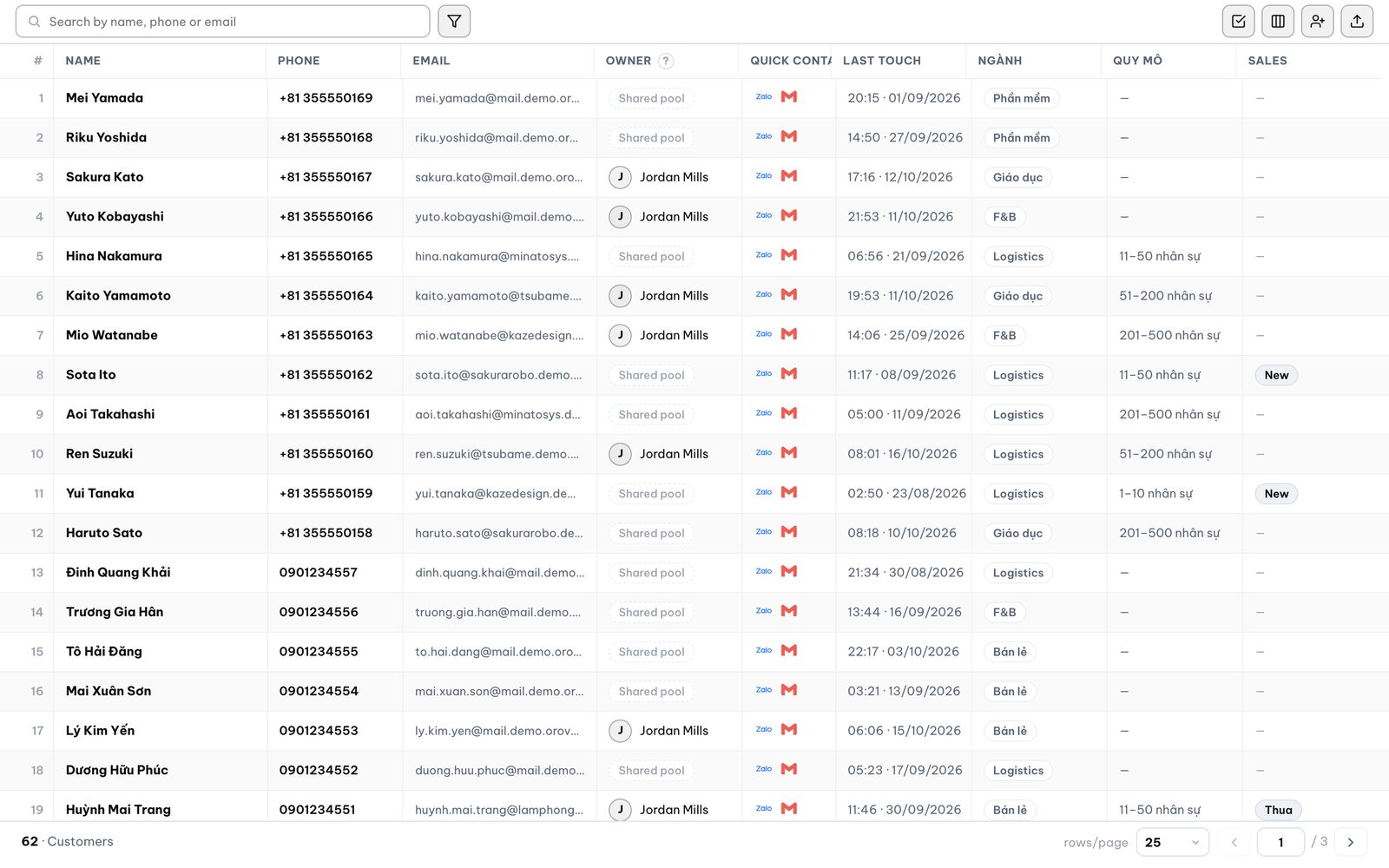
See a less scattered sales day
Open a customer record, note the next step, then drag the deal to its next stage.
Customer details scattered everywhere?
Bring records into a shared customer list, search them and merge duplicates. Spend less time hunting through files when a customer asks a question.
Everyone keeps different notes?
Choose the fields and columns that fit how your team sells. Give the next person enough context to pick up the conversation.
Losing deals without knowing why?
See lead sources, deal stages and loss reasons in the overview. Find where customers drop away so you can address the problem.
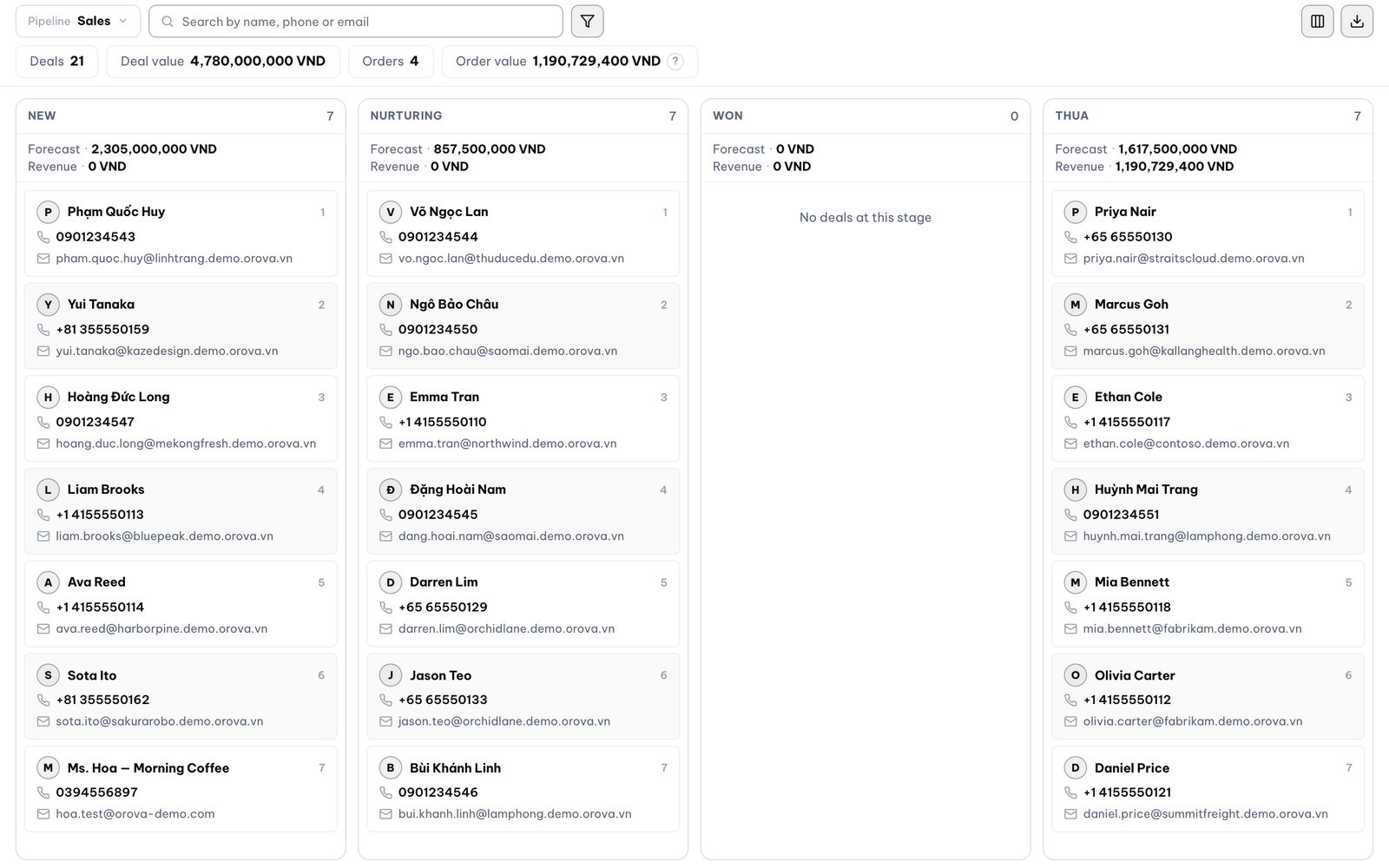
Lead management without the missed handoffs
New leads need an owner, and active customers need attention. Set assignment rules and time limits at each stage so opportunities keep moving.
See where deals get stuck
Drag deals through stages you define, with separate processes for different ways of selling. See where work is building up so you can step in.
Get leads to the right person
Route incoming leads from every source to a team or person using filters. Cut manual handoffs and give new customers an owner sooner.
Give neglected customers another chance
Set care deadlines by stage, with a reminder before reassignment. Overdue customers return to the shared pool so someone can pick them up.
Keep the reason behind each loss
Record why a deal was lost when it closes. Give your team something concrete to discuss when improving the next sales conversation.
Quote software that keeps buyers moving
Start documents from a template
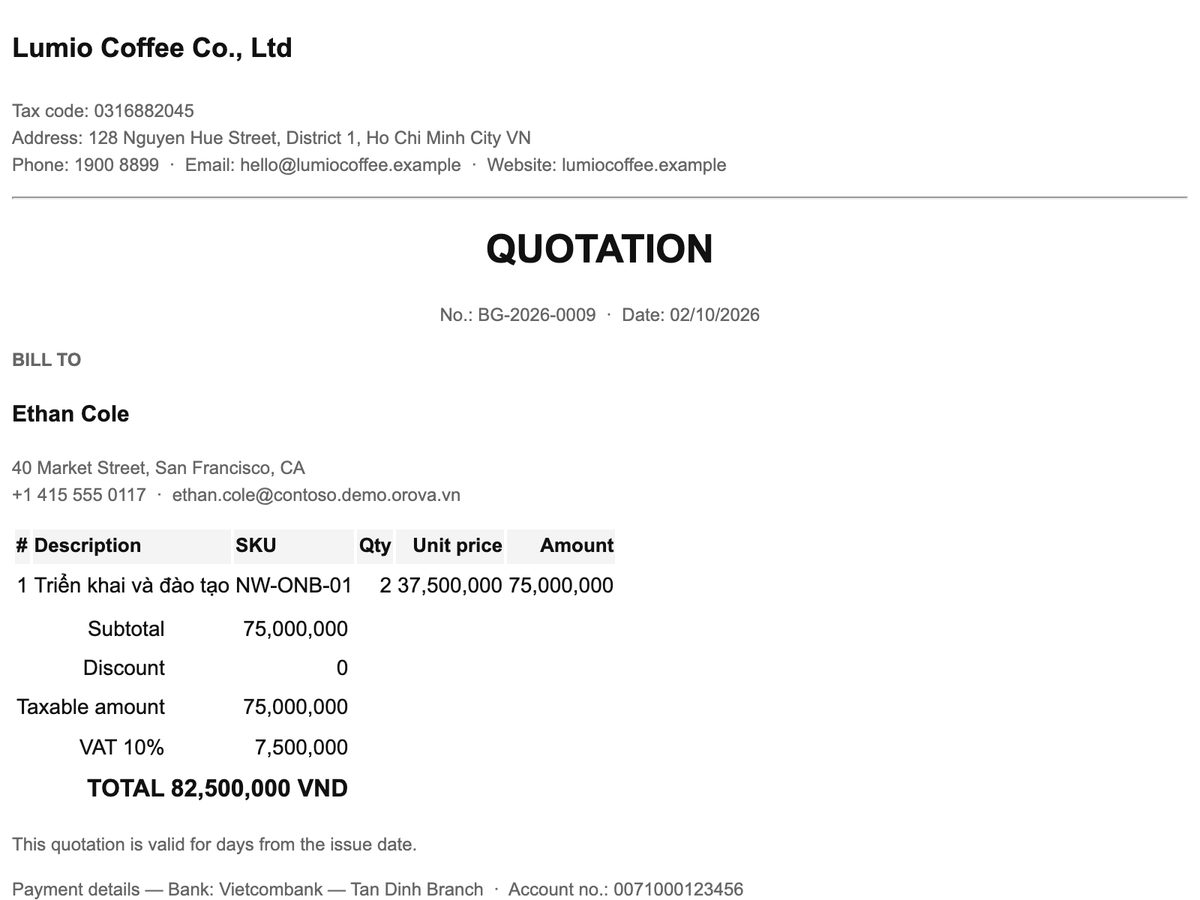
Use quote, invoice and payment request templates, then export to PDF. Spend less time rebuilding paperwork when a buyer is ready.
Put the quote in reach
Share a public quote link or email it through your Orova Connect mailbox. Give buyers somewhere to revisit the details before deciding.
Keep partial payments straight
Track order status, due dates and each payment received. Know what has been paid and what still needs attention.
Know which balances need a reminder
See outstanding and overdue balances in the overview. Know which payments to follow up on to keep money coming in.
Sales quota tracking before the month slips away
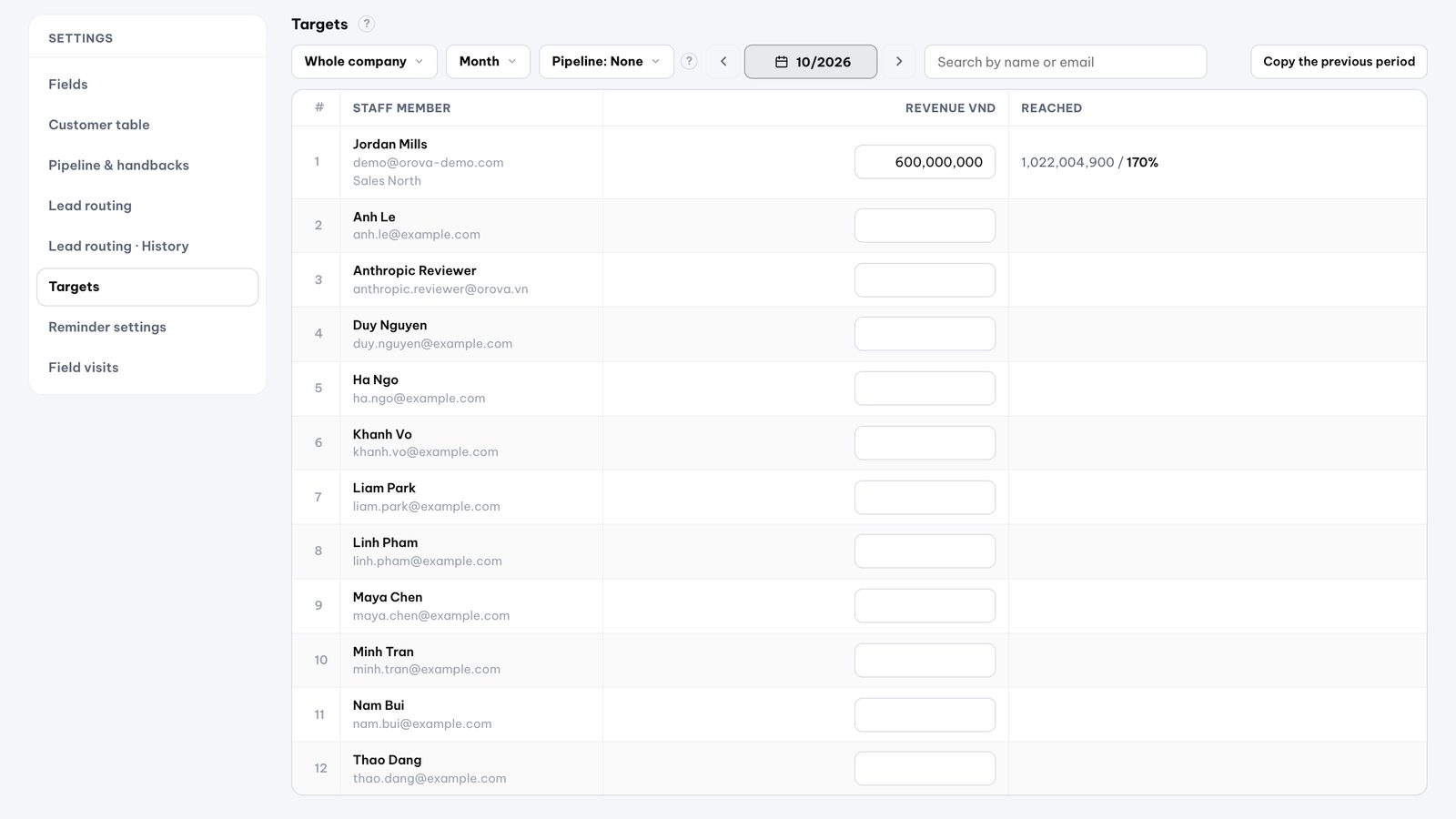
Targets
See progress while you can still help
Check target progress in the overview to see who needs support.
- Set revenue targets for departments, their subteams and individual people.
- Choose target periods that fit your sales rhythm and copy targets from the previous period.
- Add targets for customers entering each stage to follow progress toward a sale.
- See attainment by person and department for the date range you are viewing.
Access
Make responsibility and access clear
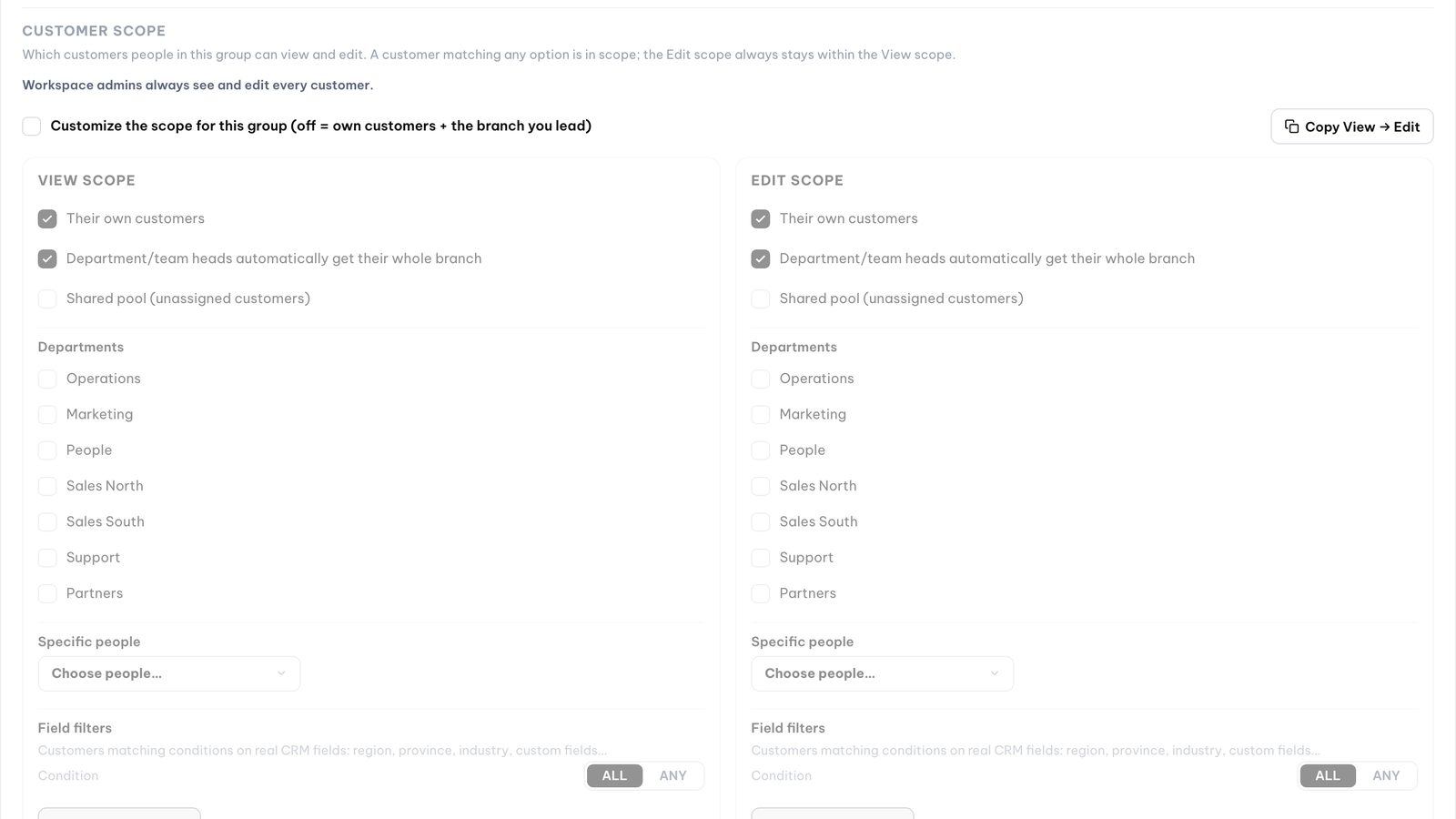
Set View and Edit scopes separately so people can read what they need and change what they own.
- Use the org chart to set scope, with or without subordinate departments.
- Scope access to owned customers, selected people, data filters or the shared pool.
- Apply permissions by group and make individual adjustments where needed.
- Keep Edit scope within View scope; workspace owners and admins can see all customers.
Who needs your attention today?
Start with the work that needs doing
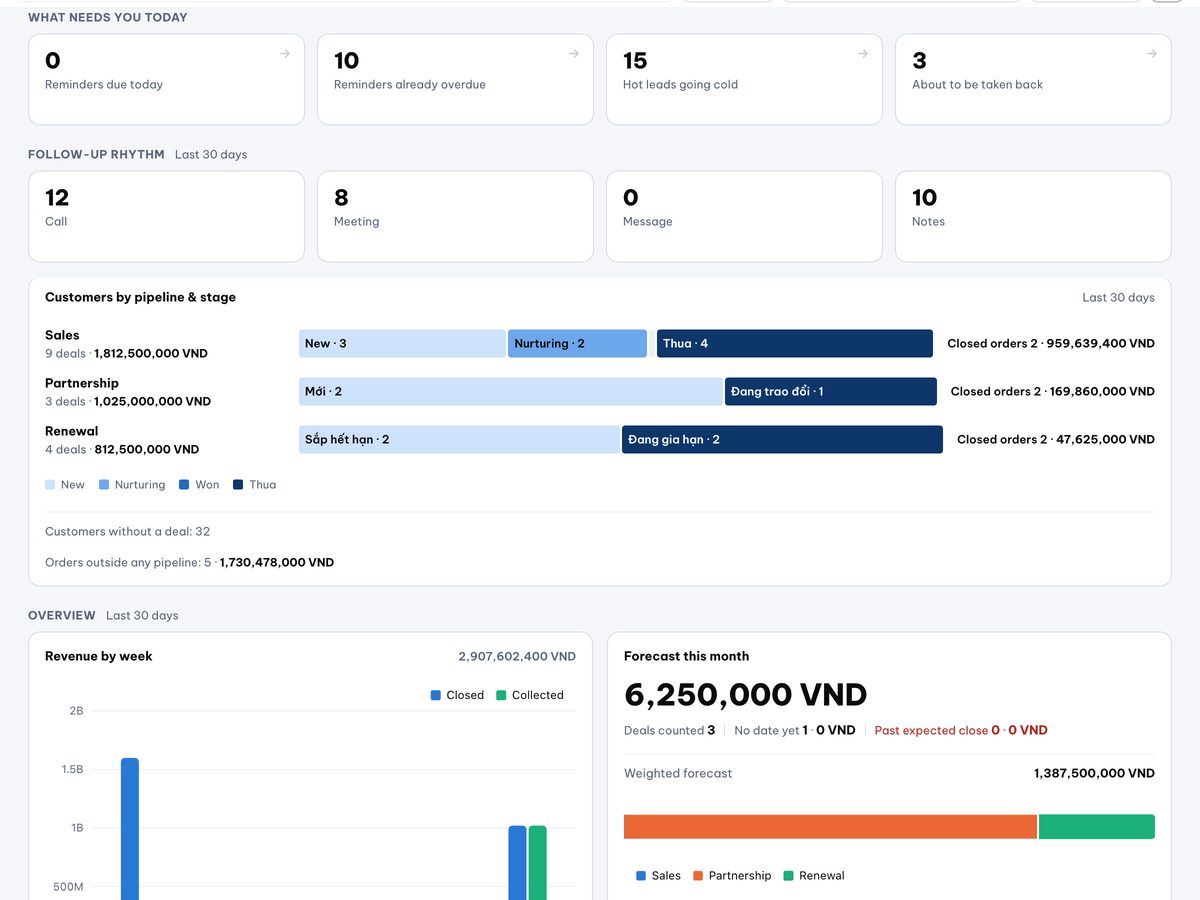
Today's to-do panel brings together due and overdue reminders, neglected hot leads and customers nearing reassignment. See what needs attention first.
Get a nudge at the right time
Receive browser push notifications, mark reminders done or snooze them. Keep less of your appointment list in your head.
Give customer visits a route
Plan routes by day and person, view the map and check in at visits. Keep track of your team's customer visits in the field.
Keep email follow-ups going
Sequences send through your Orova Connect mailbox when customers match your conditions. If they stop matching, pending emails are cancelled to avoid an ill-timed follow-up.
A new lead arrives. Does the context follow?
Connect your customer sources and working tools so you spend less time re-entering details and start conversations with the information you need.
Leads from Orova Bot
Bring Bot leads into CRM with field mapping you choose. Keep the details you need for the next conversation.
View productForms from Orova Site
Site forms feed leads into CRM through a queue, with phone number normalization and duplicate checks. Spend less time cleaning up new customer lists.
Your Orova Connect mailbox
Send quotes and run follow-up email sequences through Connect. Check sent email history in Connect when you need to look back.
View productDashboards in Orova Insight
Start with the CRM Leads & Pipeline dashboard template using file or API data sources. Get a starting point for building your sales view.
View productExcel import and export
Download an import template matching your workspace fields and export selected columns when needed. Move your existing customer list with less file cleanup.
Familiar sales work, fewer loose ends
Before: Customer details sit in spreadsheets, messaging apps and notebooks.
With Orova CRM: One shared customer list, with columns that fit your team.
Before: A lead comes in, but nobody takes ownership.
With Orova CRM: Rules assign the lead to the right team or person.
Before: A customer gets forgotten on one rep's list.
With Orova CRM: A warning comes first, then overdue customers return to the shared pool.
Before: You are unsure what to say to the customer next.
With Orova CRM: Check notes and history in the record, set a reminder, contact in one tap.
Before: Quotes are built by hand and hard to find after sending.
With Orova CRM: Use templates, export PDFs and send through Connect or share a viewing link.
Before: Partial payments are recorded in different places.
With Orova CRM: Record each payment and see overdue balances in the overview.
Before: Targets sit in a separate file until the end of the period.
With Orova CRM: See attainment by department and person for the period you are viewing.
Before: Reps can view and change each other's customer records.
With Orova CRM: Set separate View and Edit scopes using your org chart.
Where do you start with your existing list?
Step 1
Bring in your customers
Create a workspace, set the fields you need and download the Excel import template. Give your team a shared customer list to work from.
Step 2
Set up how your team sells
Choose deal stages, lead assignment rules and View and Edit scopes. Make it clear who owns each customer and what happens next.
Step 3
Pick up the next conversation
Open today's to-do panel, review the customer's history in their record, then note your next step.
Free until the end of July 7, 2027
- Orova CRM is free until the end of July 7, 2027. Sign up and start using it during this period.
- This free period has an end date. Bring in your customer list and give your team time to get familiar before it ends.
Bring your customer records over using an Excel template matched to your workspace's custom fields.
FAQ
Can I bring my customer list from Excel?
Yes. Set your workspace fields, then download the matching Excel import template. The template includes dropdown choices to help you enter valid values, and you can export selected columns when needed.
Who can see and change my customer records?
Set View and Edit scopes separately using your org chart, owned customers, selected people, filters or the shared pool. Apply settings by group and adjust them for individuals; workspace owners and admins can see all customers.
Does CRM send messages through customers' apps automatically?
No. Quick contact buttons open your calling or messaging app, such as WhatsApp or Zalo, so you can call or send the message yourself. Only email sequences sent through an Orova Connect mailbox run automatically once you have configured them.
Can I sell in different currencies?
Yes. Each order or opportunity can have its own currency code, and totals are shown separately by currency. CRM does not convert exchange rates; the default currency comes from your workspace settings.
Can I use it on my phone?
Use CRM in your phone's browser; there is no separate CRM mobile app. Reminders can use browser push notifications when you allow notifications and your browser supports them.
How does CRM work with other Orova products?
Bot sends leads using your chosen field mapping, and Site forms feed a queue with duplicate checks. Connect provides the mailbox for quotes and email sequences; Insight offers a CRM Leads & Pipeline template using file or API data sources.
Can I keep my current sales process?
Yes. Define your own stages, use multiple sales processes and choose working hours for each one. Custom fields, visible columns and saved filters help the customer list fit how your team already works.
Give the next customer a better follow-up
Keep another opportunity from sitting forgotten. Create your workspace and bring in your customer list while Orova CRM is free until the end of July 7, 2027.