
Less admin. A clearer picture of work.
Employee time tracking software that adds up
Get accurate timesheets that calculate themselves and AI that reviews your whole team fairly, using job descriptions and clear criteria. Spend less time checking hours and more time having useful conversations.
- Timesheets calculate shift and overtime credit
- Leave requests follow clear approval steps
- Team reviews backed by evidence
Employees can see their own hours, requests and leave balance.
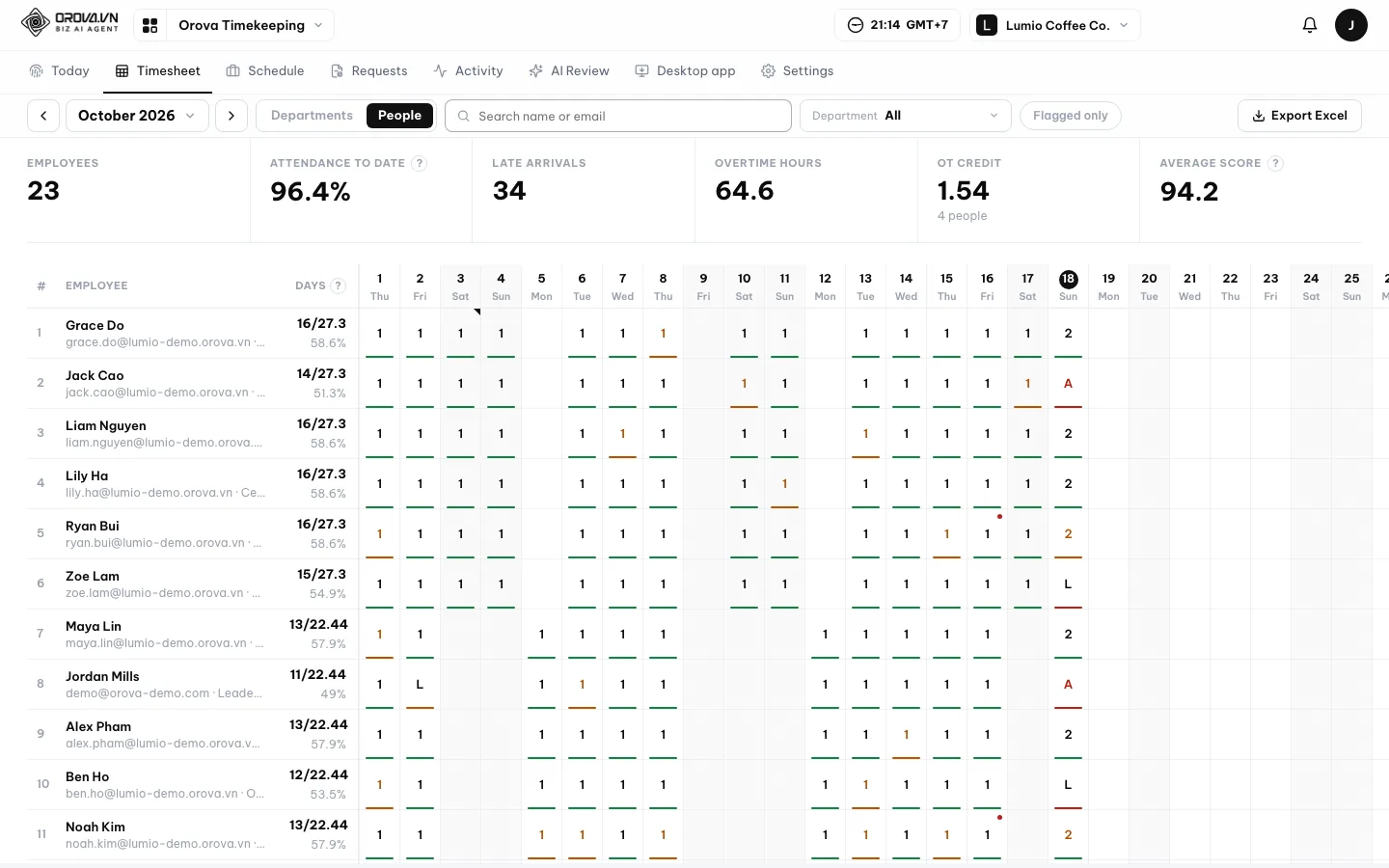
See where the hours go
Watch a workday become a timesheet, a leave request reach its approver and attendance numbers support a team review.
Still adding up hours at month-end?
Let your monthly timesheet calculate attendance, overtime and short hours, then export the totals to Excel.
Leave requests buried in chat?
Give requests a clear approval path, with reminders and leave balances that update automatically.
Unsure who is working today?
See who is working, late, absent or on approved leave across your office and remote team.
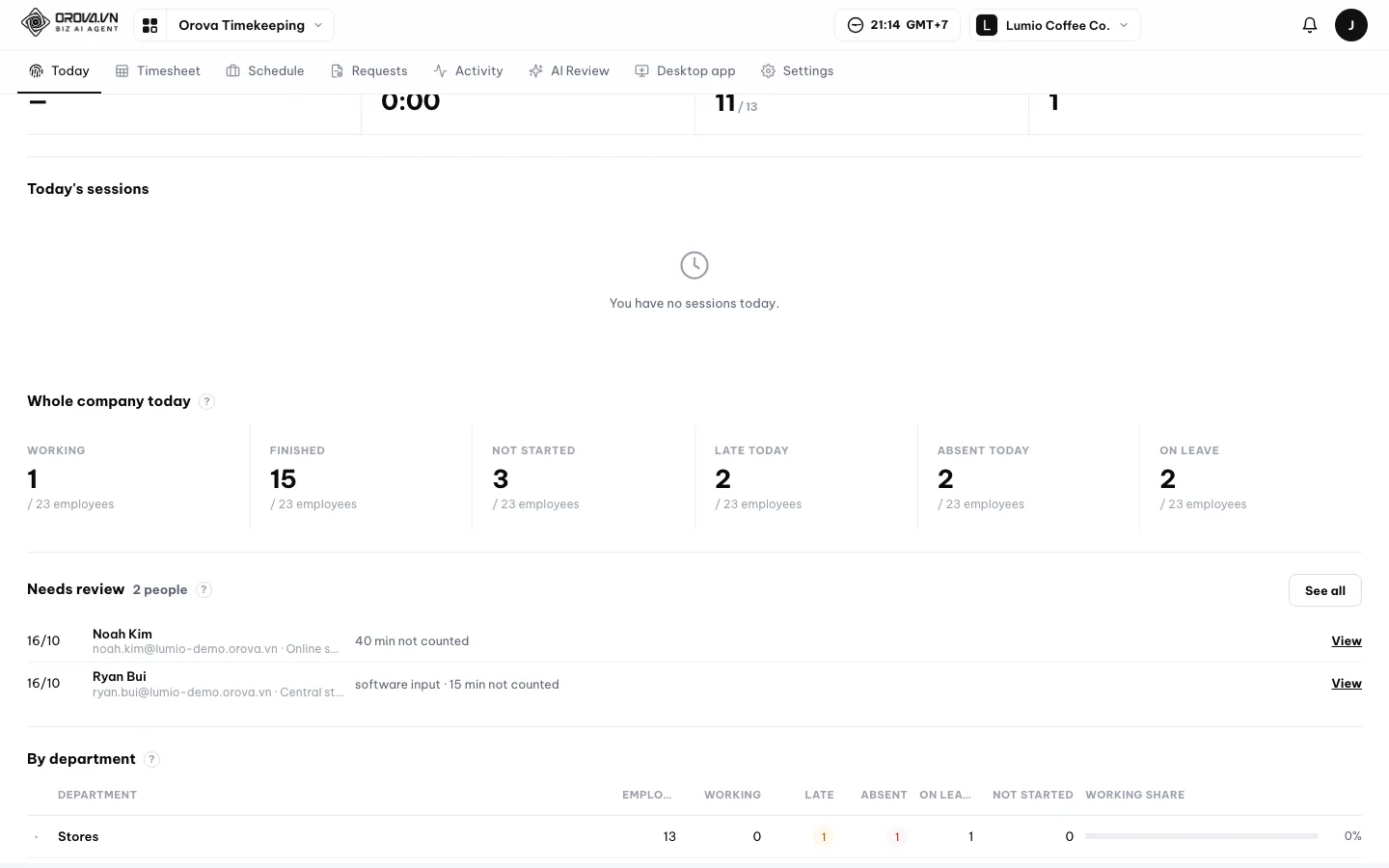
Attendance tracking without the daily guesswork
Stop piecing together arrival messages. Give employees a simple way to clock in and managers a clear view of today.
A button to start your day
Press Start or End on the Orova web and watch your live timer. Restart throughout the day without losing the hours already recorded.
Know who is working now
The Whole company today board shows who is working, late, absent or on leave. Click a status to filter people and view attendance by department.
Spot patterns worth discussing
Trends and rankings show recurring lateness, overtime and short hours. See where a conversation or schedule change may help.
Keep office check-ins consistent
Set allowed office networks and choose whether other networks trigger a flag or block clock-in. Give everyone a clear rule for office attendance.
Timesheet software without month-end math
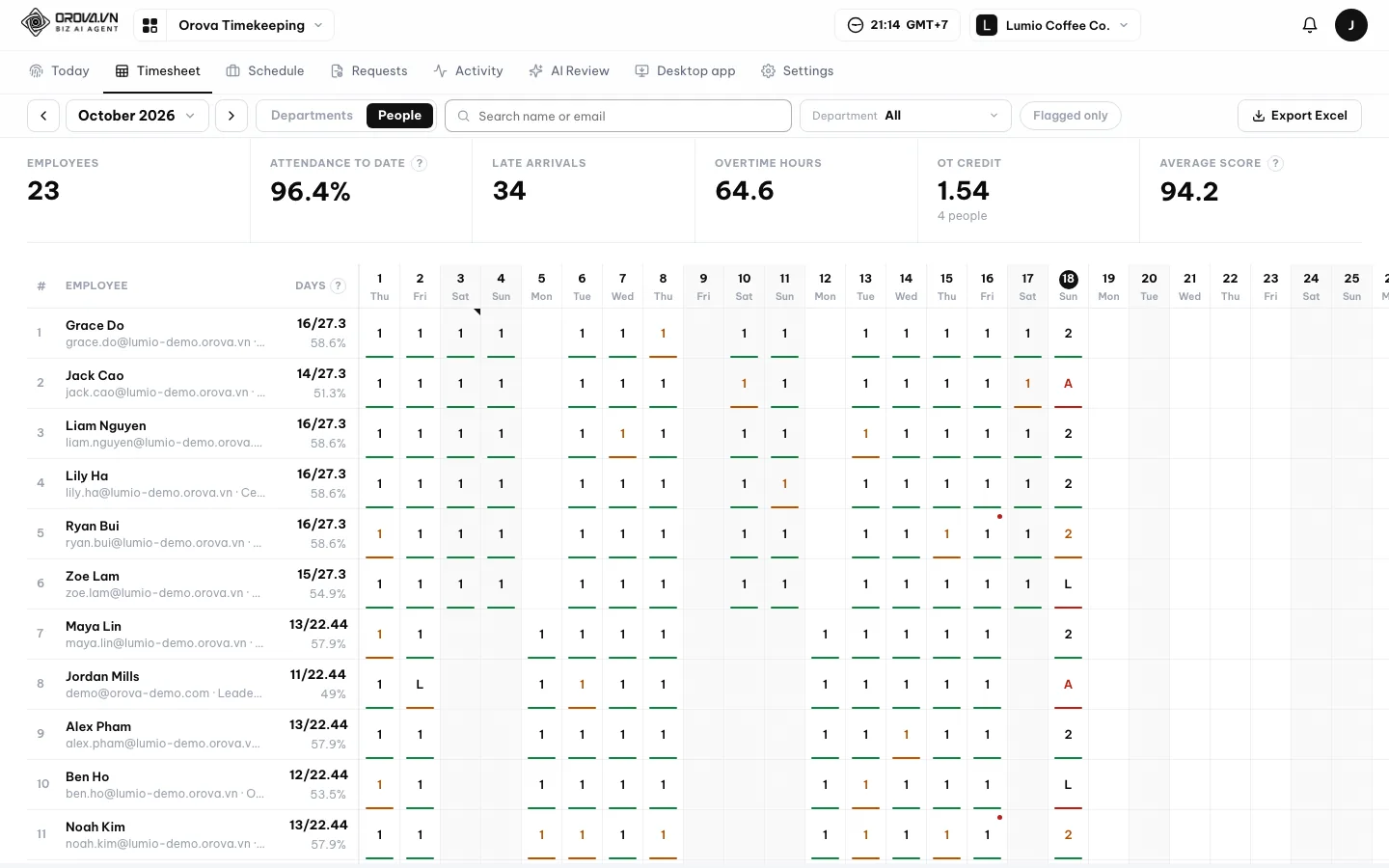
Totals ready for the next step
Your monthly timesheet calculates work credit, lateness, overtime and missing hours. Export it to Excel for your separate payroll process.
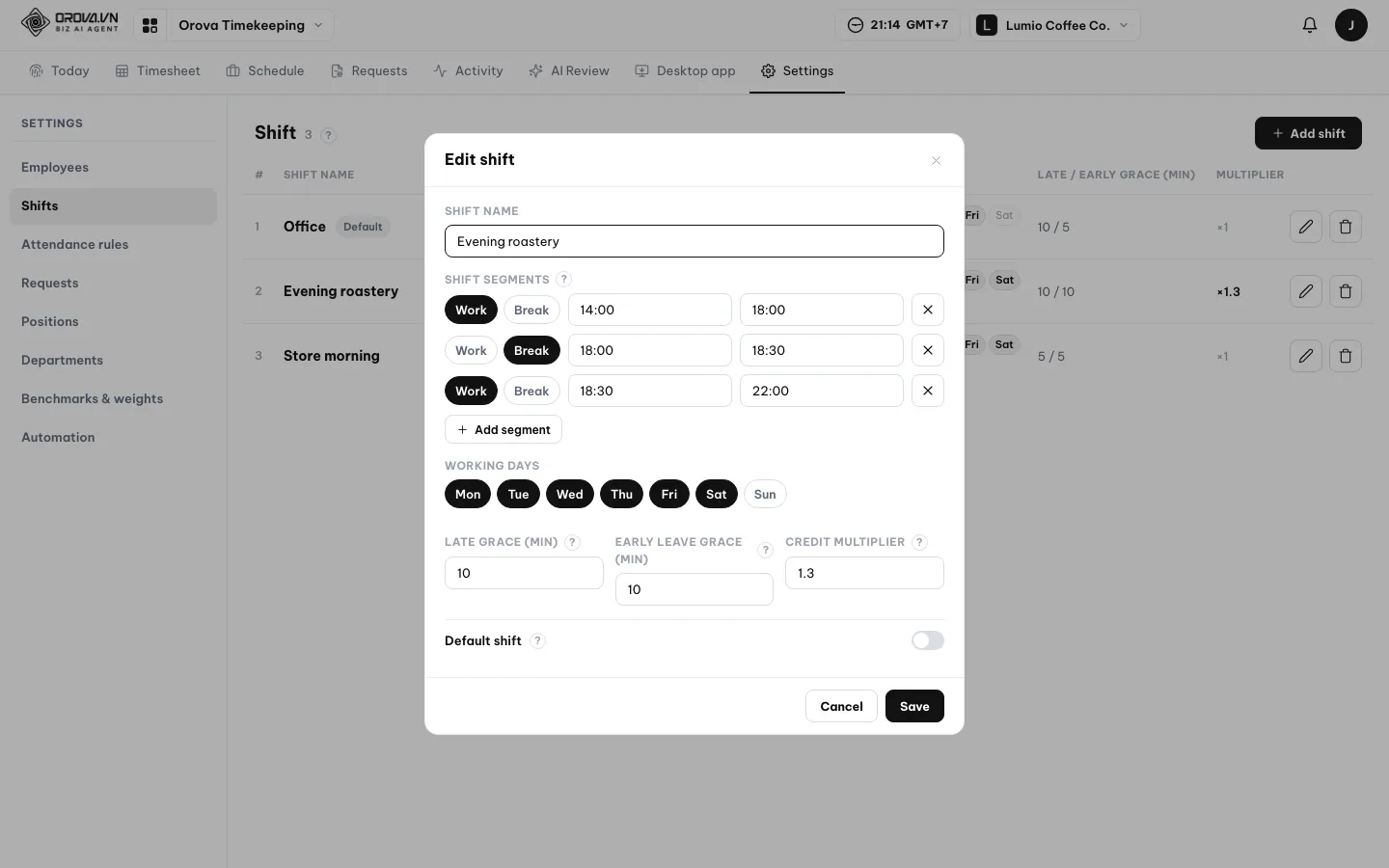
Give extra work its proper credit
Set credit multipliers for shifts and extra workdays, such as an evening shift at 1.3 or Sunday work at ×2. The timesheet applies them automatically.
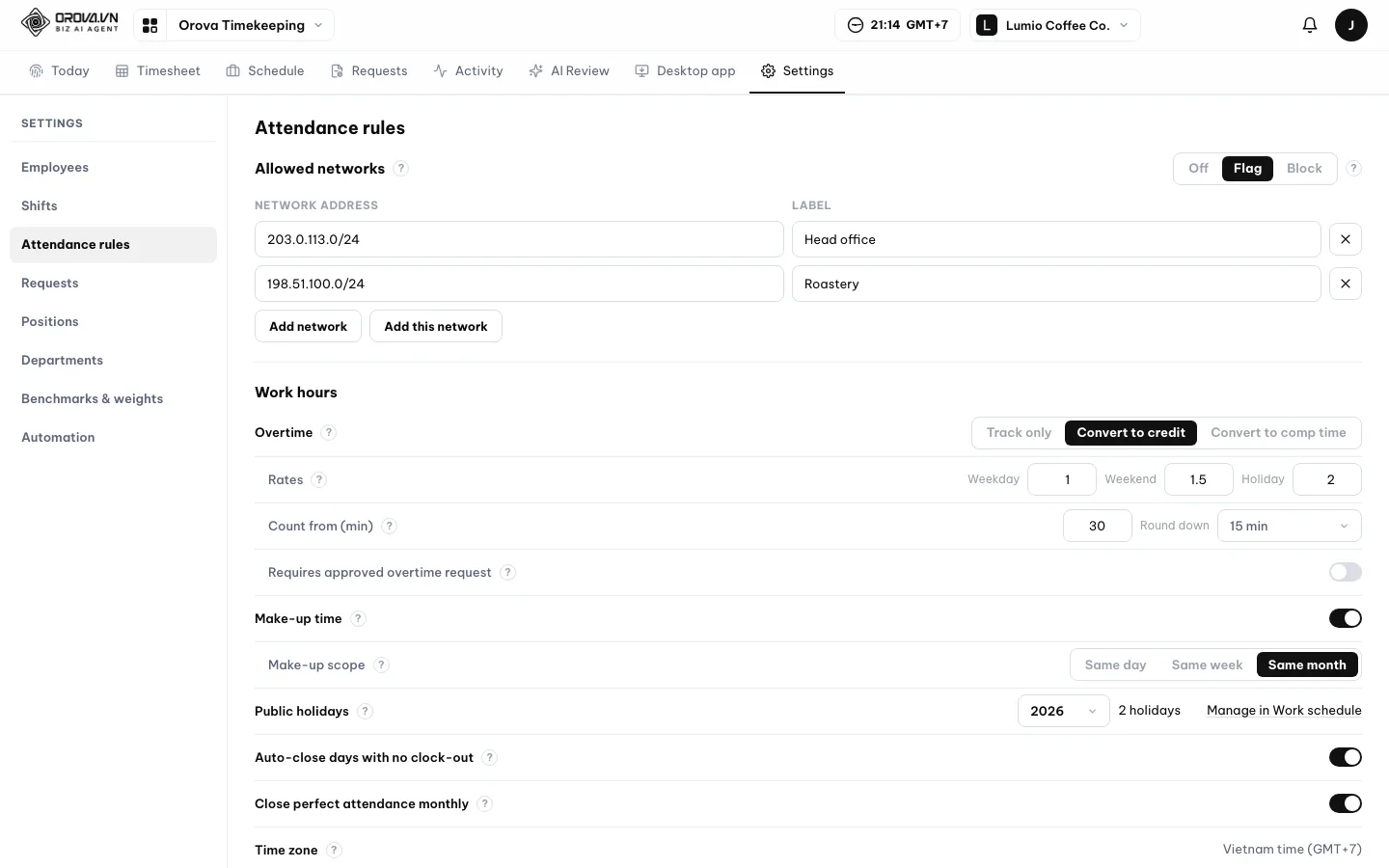
Apply your overtime rules
Track overtime only, convert it to work credit or give comp time, with separate weekday, weekend and holiday rates. Set make-up time rules within a day, week or month.
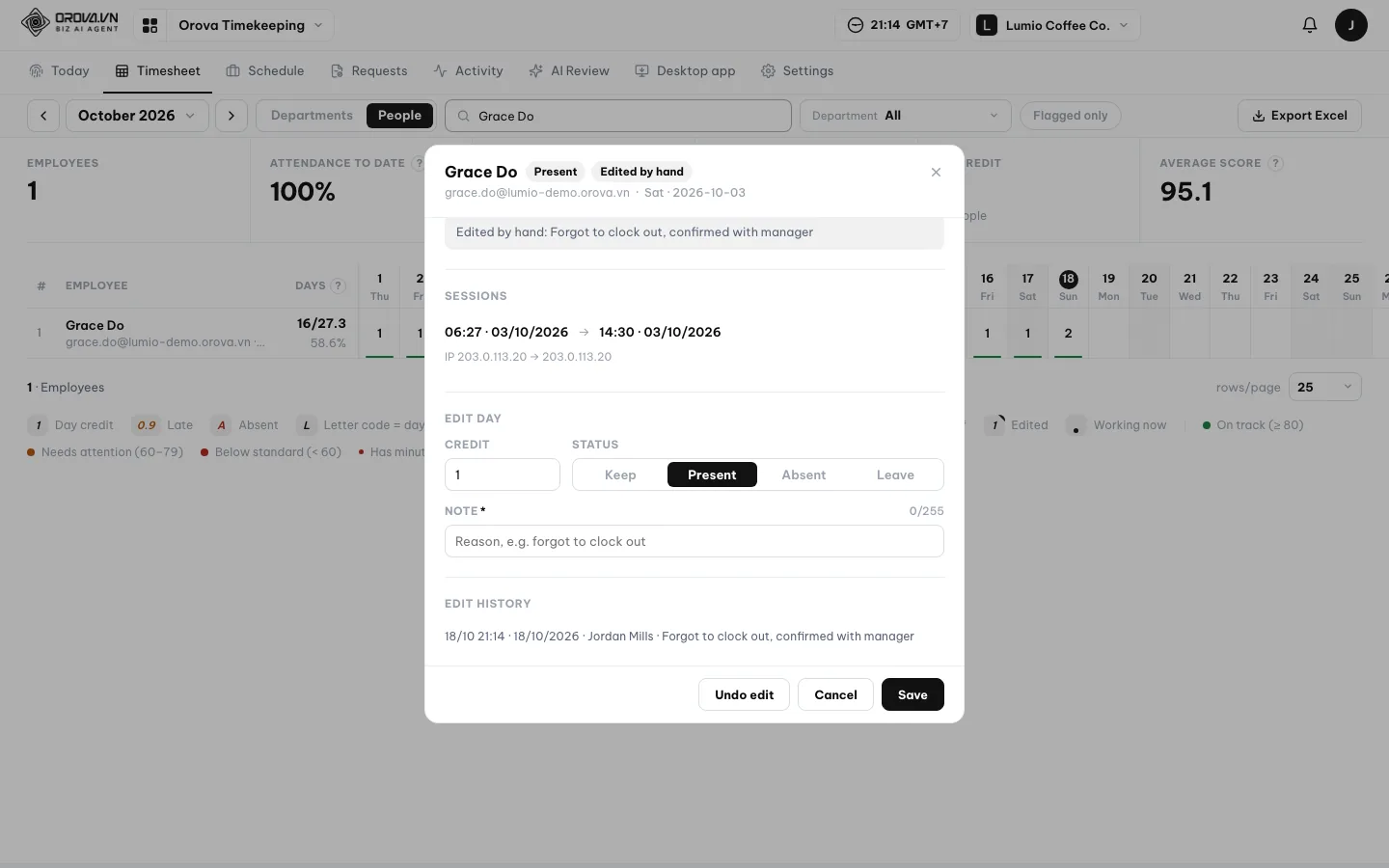
Corrections you can explain
Managers must add a note when editing attendance, and each change stays in the edit history. Nobody can edit their own attendance.
Leave management without the back-and-forth
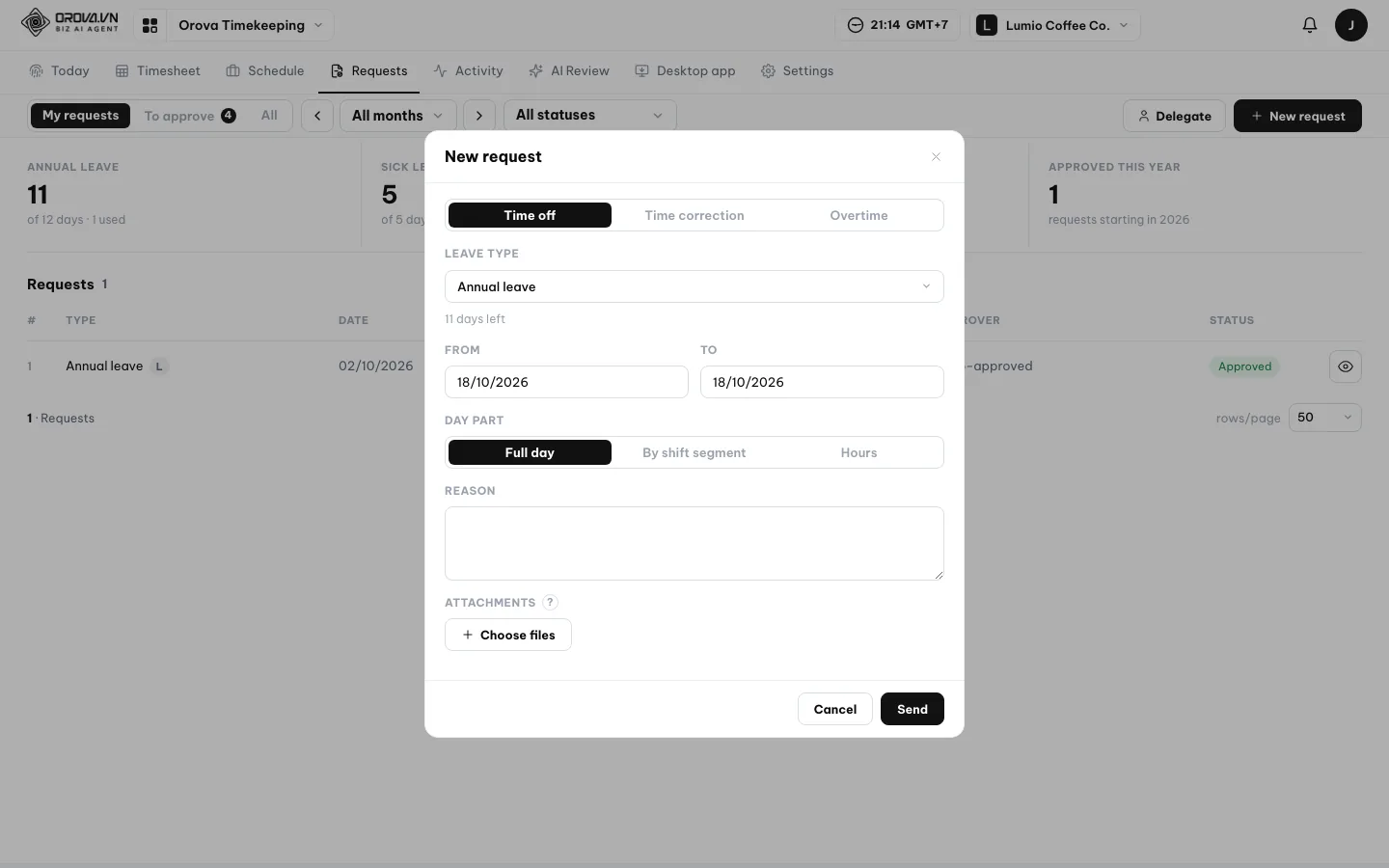
Requests
Keep requests moving
Replace scattered messages with requests employees and approvers can follow.
- Request leave for a full day, a shift segment or by the hour, submit an attendance fix or overtime request, and attach supporting files.
- Use multi-step approvals, delegate to a stand-in approver and remind approvers when a request is waiting.
- Define paid and unpaid leave types with symbols that appear directly on the timesheet.
- Calculate balances automatically from entitlement, used leave and pending requests, with extra leave based on seniority.
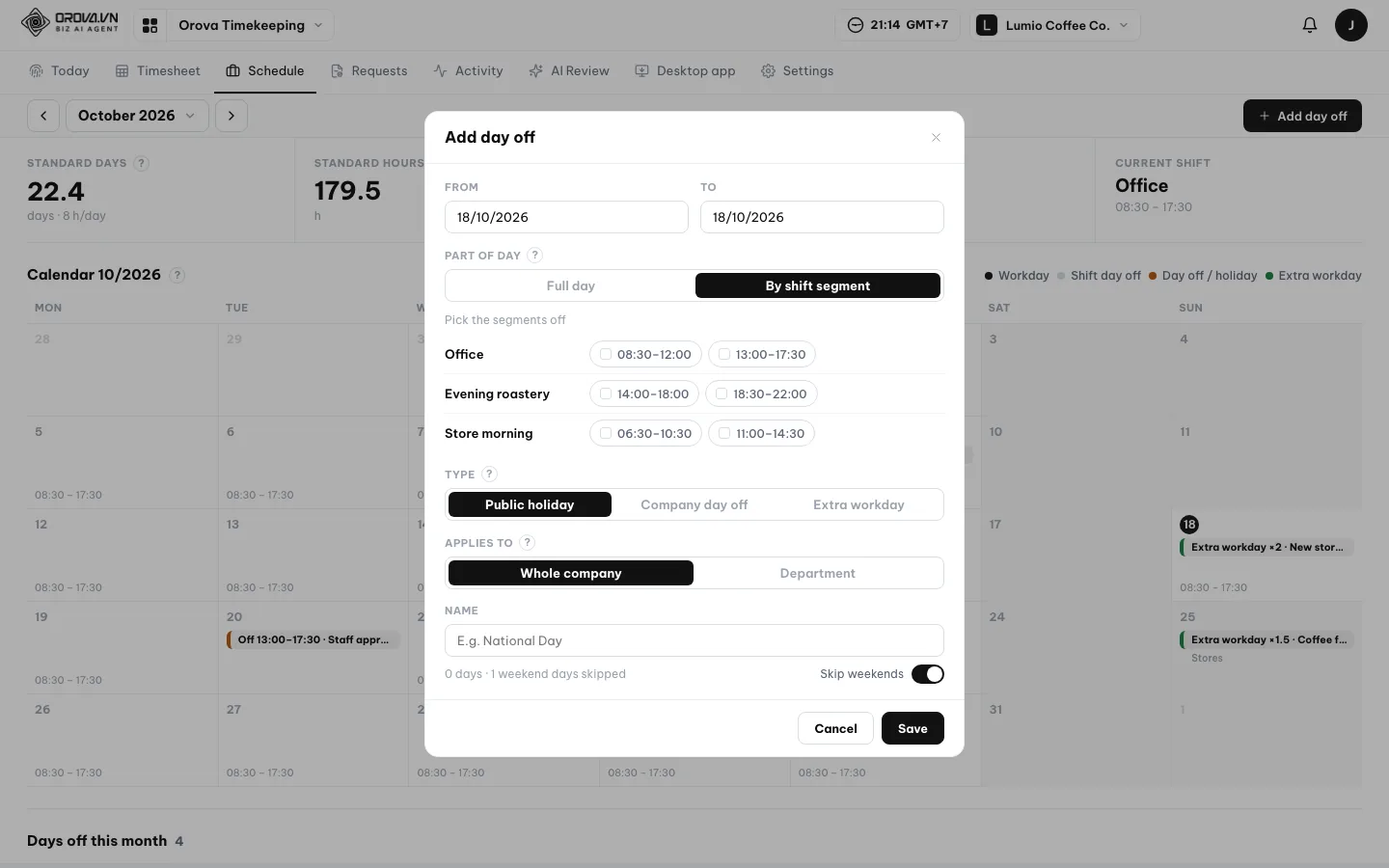
Work schedule
Make the work calendar clear
Give your team a shared basis for expected hours and time off.
- Build shifts from work and break segments, with grace minutes for late arrivals and early departures.
- Add full days off or time off by shift segment for the whole company or a department.
- Turn a scheduled day off into an extra workday with its own credit multiplier.
- Add your company's holidays in the Work schedule and automatically close days when someone forgets to clock out.
Employee activity tracking with clear boundaries
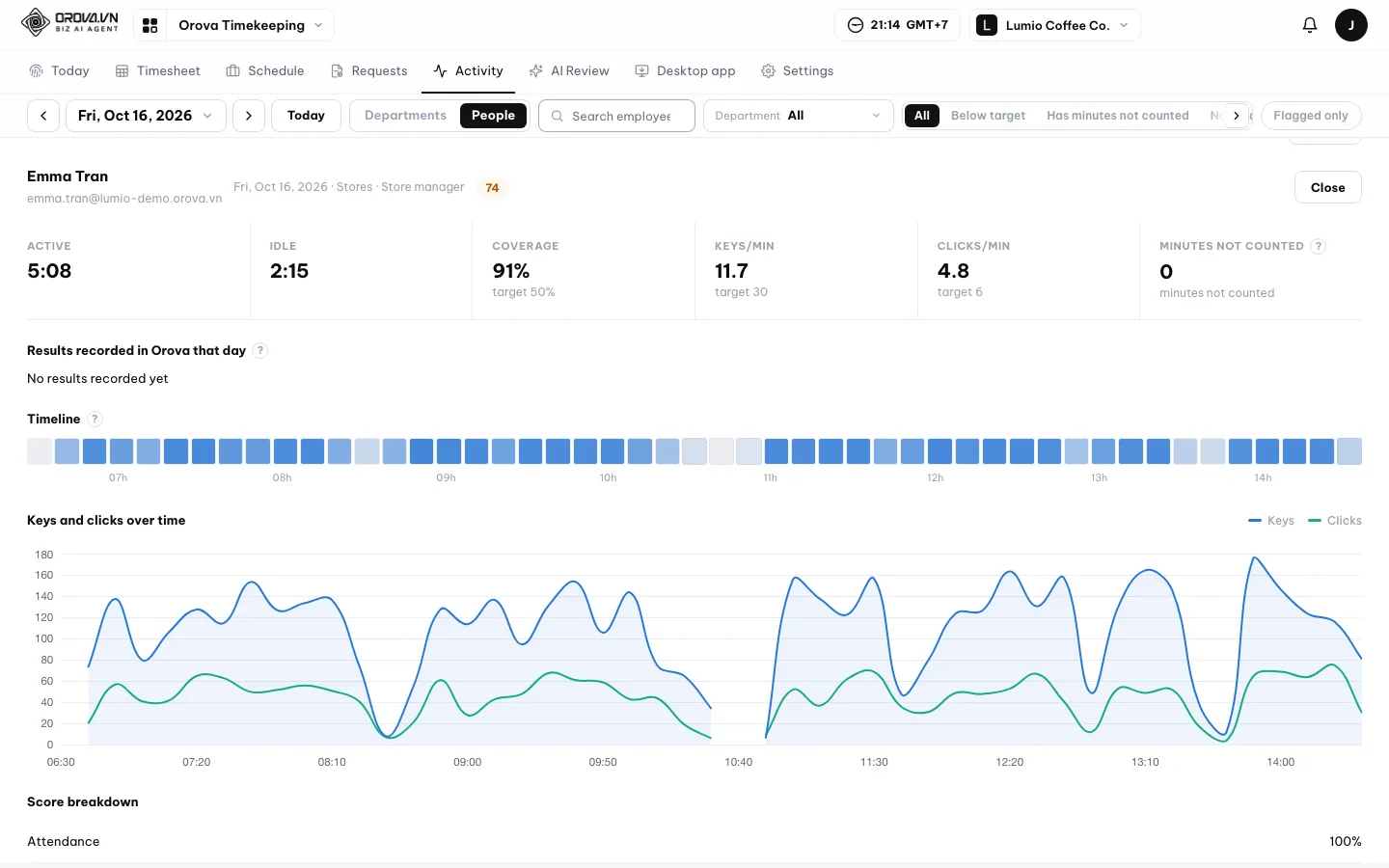
Remote hours should be easier to understand. See active and idle time, while employees see exactly what the app measures.
Connect the computer you work on
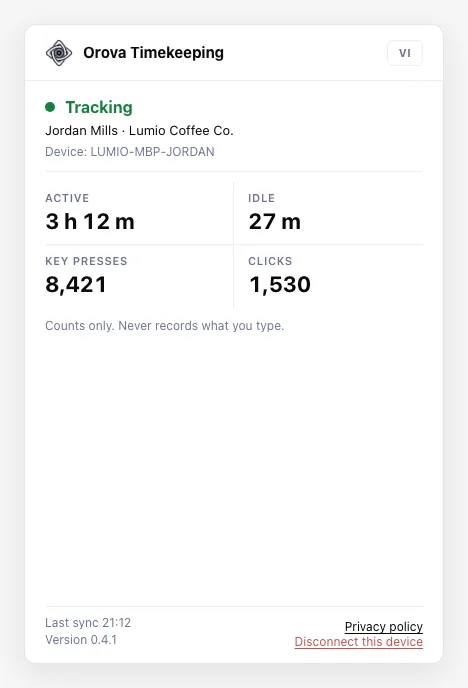
Pair the desktop app for Windows, macOS and Linux with a one-time code. Employees can view and disconnect their own computers.
Understand recorded hours
Measurement begins only after the employee presses Start on the web, showing active and idle time by minute. A timeline and coverage figures show how much of the clocked time has activity data.
Know when names are recorded
App and website names are recorded only if your company turns this on. The desktop app tells the employee when it is enabled.
Use signs to start a conversation
Minutes with activity patterns that do not look human are excluded from counted activity. Review signs are prompts to discuss the data with the employee, never verdicts.
Privacy
- Counts only; no keystroke content.
- No screenshots.
- Measures only after Start on the web.
AI performance review beyond gut feeling
Give each review a basis you can explain. Use role descriptions, company criteria and attendance evidence to guide fairer conversations across your team.
- 01
Judge work in its role
Set the weights behind a score from 0–100 and benchmarks for each position. Roles that involve less typing and clicking can have different expectations.
- 02
Review one person or the whole team
Run AI Review for a person, department or company against your criteria. Get evidence numbers, a grade, strengths, watch-outs and suggestions for the next conversation.
- 03
Put expectations into words
Give AI a few key points to draft job and department descriptions. Use those descriptions to make role expectations clearer.
- 04
Put results in the right hands
Email review results to the employee or manager and export them to Excel. Make the evidence available for follow-up discussions.
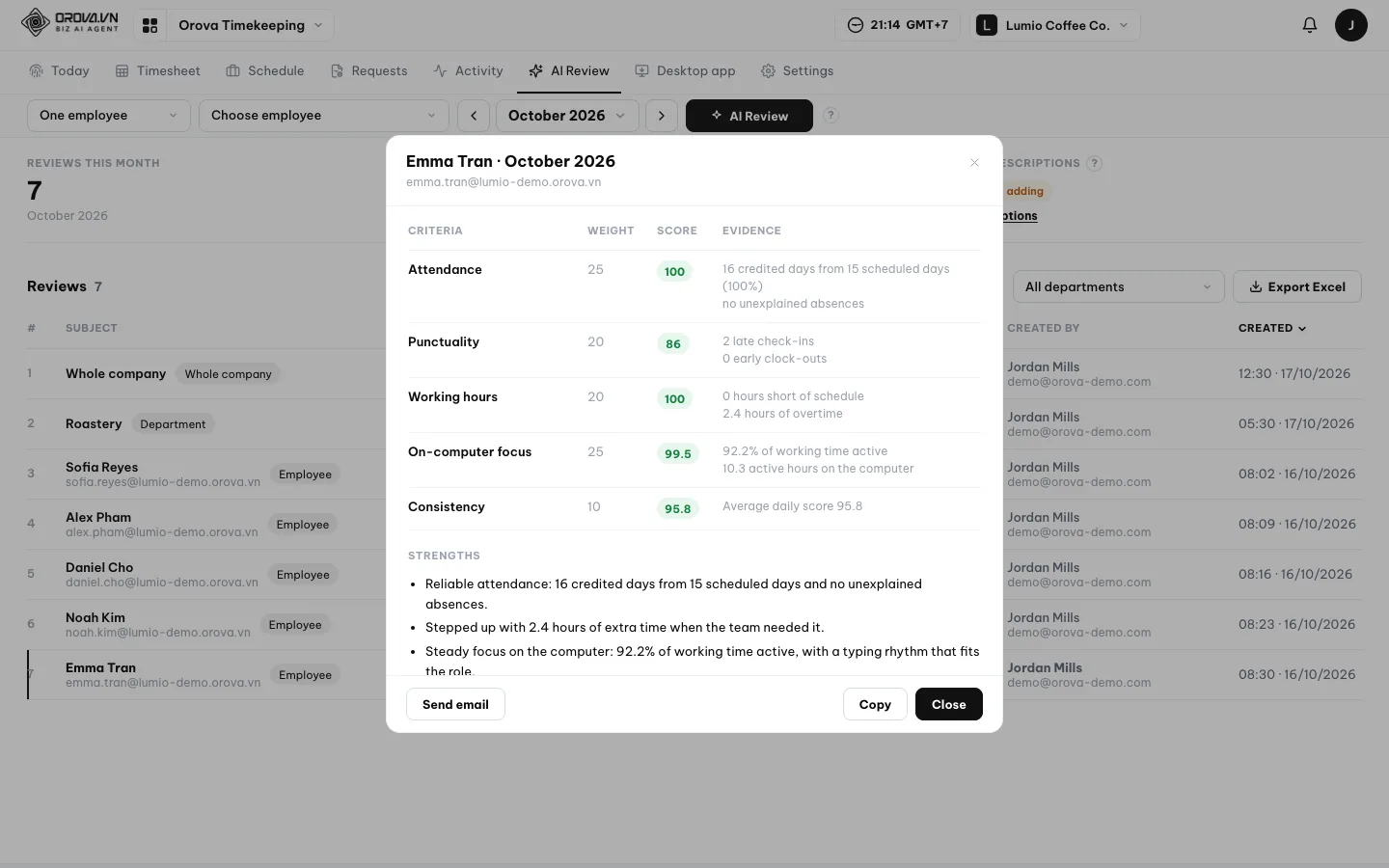
AI Review shows an estimate before you run it and uses your workspace quota at actual AI cost.
Less chasing, clearer responsibility
Let routine reminders go out
Send automatic emails for lateness, absence, missed clock-outs, monthly summaries and perfect attendance. Choose the Orova system mailbox or an Orova Connect mailbox.
Keep monthly reviews on schedule
Choose the day for monthly AI Review to run, who it covers and who receives the results. Keep the review routine moving without a manual start each month.
Give access by responsibility
Assign access to personal timekeeping, everyone's attendance, timekeeping management and AI Review. Department heads without permission to see everyone see only their own department.
Set up people together
Use your workspace members as employees and turn time tracking on per person. Assign shifts and positions in bulk to reduce repeated setup.
Still doing it the hard way?
Before: Sign-in sheets and arrival messages
With Orova Timekeeping: Start and End buttons record time straight into the timesheet.
Before: Adding up hours in spreadsheets at month-end
With Orova Timekeeping: Attendance, overtime and short hours calculate themselves, ready for Excel export.
Before: Manually multiplying evening and Sunday work
With Orova Timekeeping: Shift and extra-workday multipliers calculate the right work credit.
Before: Leave requests lost in messages
With Orova Timekeeping: Multi-step approvals, delegated approvers and automatic balance updates keep requests moving.
Before: Asking around to find out who is working
With Orova Timekeeping: Today's board shows working, late, absent and approved-leave statuses.
Before: Uncertainty about remote working hours
With Orova Timekeeping: Desktop activity counts show active and idle time without recording typed content.
Before: Employee reviews based on impressions
With Orova Timekeeping: AI Review uses your criteria and evidence numbers to support the conversation.
Before: Sending attendance reminders and monthly summaries by hand
With Orova Timekeeping: Email rules send updates when someone is late, absent or the month ends.
A clearer workday starts here
Step 1
Set your shifts and rules
Define working hours, breaks, credit multipliers and leave approvals. Assign employees to their shifts and positions.
Step 2
Let employees clock in
Employees press Start on the Orova web. Install and pair the optional desktop app if your company wants activity measurements.
Step 3
Turn records into decisions
Check the calculated timesheet, approve requests and run AI Review. Export the numbers when you need them.
Start before the free period ends
- Orova Timekeeping is free until the end of July 7, 2027.
- Start now to use the time remaining before that deadline.
Clocking in, timesheets, requests, the desktop app and Excel export use no quota. AI Review and AI-written job descriptions use your workspace quota at actual AI cost; AI Review shows an estimate before you run it.
FAQ
Does the desktop app record what I type or take screenshots?
No. It only counts active and idle seconds, key presses and clicks, and measures only after you press Start on the web. It does not record what you type or take screenshots. App and website names are recorded only if your company turns that option on, and the desktop app tells you when it is enabled.
How do employees clock in?
Employees use the Start and End buttons on the Orova web. GPS, face recognition, fingerprint check-in and hardware time clocks are not offered. Your company can restrict clock-ins to allowed office networks, flagging or blocking attempts from other networks.
Is there a phone app?
There is no phone app. Clock-in is a button on the Orova web. If your company requires the desktop app, it must be connected before you can start; it is available for Windows, macOS and Linux.
Does Orova calculate payroll or issue payslips?
No. Orova Timekeeping does not calculate payroll or issue payslips. It calculates your timesheet and exports it to Excel so you can handle payroll in your separate process.
Can we apply our evening, Sunday and overtime rules?
Yes. Set a shift credit multiplier, such as 1.3 for an evening shift, or turn a day off into an extra workday with its own multiplier, such as Sunday at ×2. Track overtime only, convert it to work credit or convert it to comp time, with weekday, weekend and holiday rates. You can also require an approved overtime request and set make-up time rules. These rules calculate time and work credit for your separate pay process.
Can leave follow our own rules and approval process?
Yes. Define paid or unpaid leave types, their timesheet symbols and entitlements, including seniority leave. Employees can request full days, shift segments or hours; balances account for used and pending leave automatically. Set multi-step approvals, delegate an approver and send reminders when requests are waiting.
What does AI Review cost, and how do we keep it fair?
AI Review uses your workspace quota at actual AI cost and shows an estimate before you run it. It reads department and position descriptions plus attendance and activity numbers, excluding emails, IP addresses and computer names. You set review criteria, score weights and position benchmarks so different roles have appropriate expectations. Treat review signs as prompts to talk with the employee, never as verdicts.
Who can see attendance and change settings?
Permissions cover using personal timekeeping, seeing everyone's attendance, managing timekeeping and using AI Review. Management access covers shifts, rules, days off, benchmarks and attendance corrections. Department heads without permission to see everyone can see only their own department. The workspace owner has full access, and nobody can edit their own attendance.
Make the next month-end easier
Get timesheets that calculate themselves and reviews grounded in your team's work. Orova Timekeeping is free until the end of July 7, 2027—start now while the free period is open.