
How to Read the Search Console Performance Tab Like a Pro

The Performance tab in Google Search Console is the single richest screen an SEO has access to, and the single most often misread. Most people open it, look at the big number at the top, notice whether the line is going up or down, and feel either reassured or worried. Then they close it. They have just looked at the most actionable report in SEO and extracted nothing actionable from it.
Reading the Performance tab like a professional is not about knowing secret features. It is about knowing which questions to ask, in which order, and how to use the four metrics and the filters together to turn a wall of data into a short list of decisions. This is a how-to. By the end you should be able to open the Performance tab and, within a few minutes, walk away with specific things to do.
The four metrics and what each one actually means
The Performance tab reports four metrics, and reading the tab well starts with understanding precisely what each one is.
Impressions count how many times a page from your site appeared in search results for a query. An impression does not mean someone saw your page properly, scrolled to it, or clicked it — only that Google placed it on a results page that was loaded. Impressions measure visibility: the size of the audience Google is willing to show you to.
Clicks count how many times someone actually clicked through from a result to your site. Clicks measure earned traffic — the share of that visibility you converted into a visit.
Average position is the average ranking of your page for the query across all the impressions in the period. Position three means your page appeared, on average, third. This is an average, which is both its usefulness and its trap, and we will return to that.
Click-through rate is clicks divided by impressions — the percentage of the people shown your result who chose it. CTR is the bridge between visibility and traffic, and it is the most diagnostic of the four, because it isolates one specific thing: how compelling your result was, given that it appeared.
The amateur reads these four metrics as four separate numbers. The professional reads them as a relationship. Impressions and position describe how Google is treating your page. Clicks and CTR describe how searchers are responding to it. The gap between those two stories is where every opportunity lives.
Step one: never read totals in isolation
The first professional habit is to distrust the headline. The four big numbers at the top of the Performance tab — total clicks, total impressions, average CTR, average position — are aggregates across your entire site, every query, every page, every country, every device. At that level of blending, the numbers are almost meaningless for decision-making.
A site-wide average position of, say, fourteen tells you nothing useful. It is the average of pages ranking first and pages ranking fortieth, of branded queries you dominate and competitive queries you barely touch. Acting on it is impossible because it does not describe any real situation. The same is true of total clicks: it can fall because one important page slipped, or because a seasonal query naturally cooled, and the total cannot tell you which.
So the first move, every time, is to stop looking at the totals as an answer and start using them as a prompt. The totals tell you whether to investigate. The filters and breakdowns tell you what you found.
Step two: master the filters and tabs
Underneath the metrics, the Performance tab offers breakdown tabs — Queries, Pages, Countries, Devices, Search Appearance — and a filter bar. These are the actual instrument. Learning to drive them is what separates a professional read from a glance.
The Queries tab shows the search terms that produced impressions and clicks. This is where you discover what Google actually associates your site with — often including queries you never deliberately targeted.
The Pages tab shows the same metrics grouped by URL. This tells you which pages are doing the work and which are invisible.
The power comes from combining them. Filter to a single page, then switch to the Queries tab, and you see every query that one page ranks for. Filter to a single query, then switch to the Pages tab, and you see every page of yours competing for that query — which is how you catch cannibalisation. The filter bar lets you narrow by date, by country, by device, by query string containing a word, by page path. Each filter you add turns a vague aggregate into a specific, readable situation. A professional barely looks at the unfiltered view. They live in the filtered ones.
Step three: the patterns worth hunting for
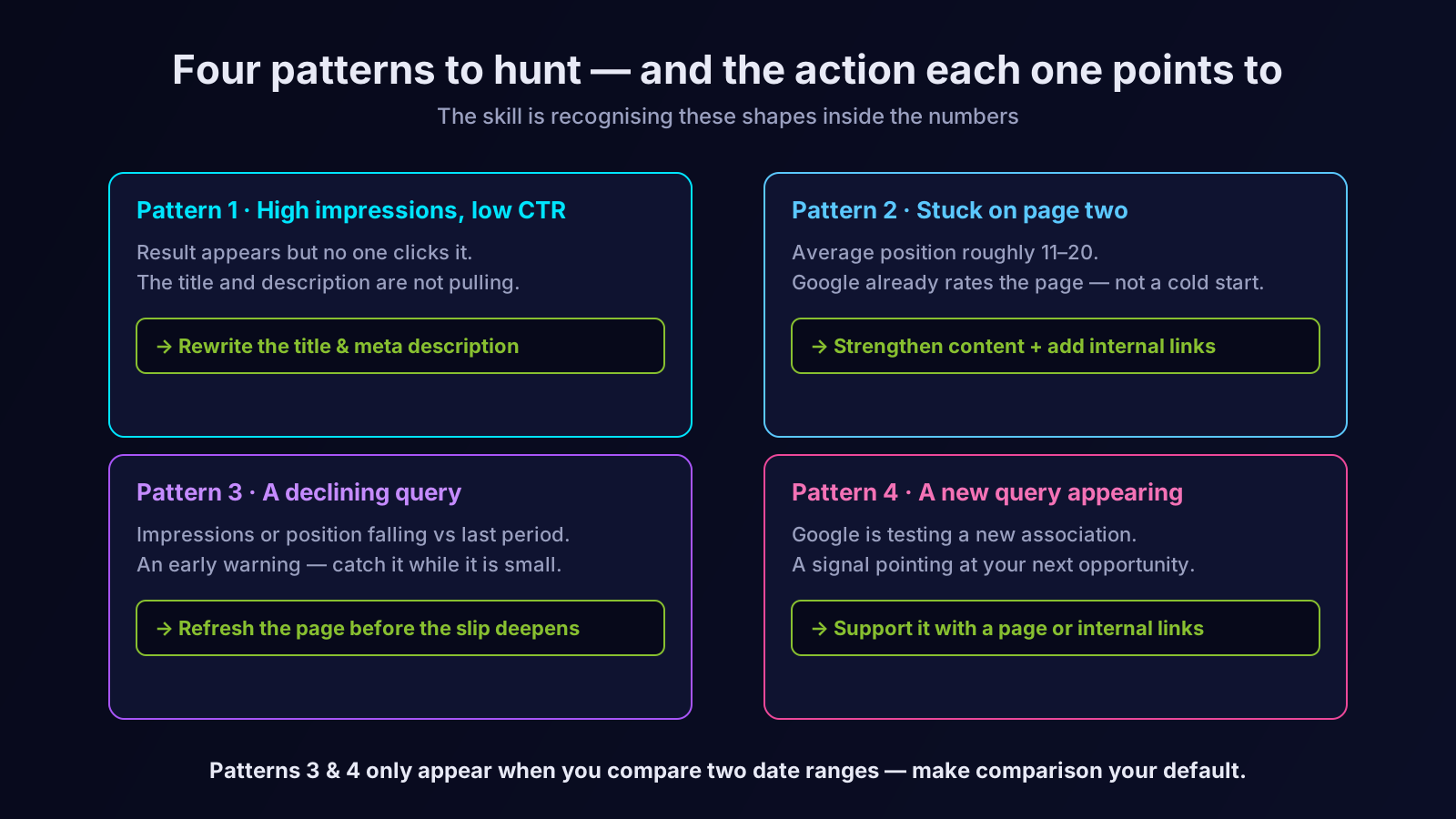
With the filters mastered, you read the Performance tab by hunting for specific patterns. Four are worth knowing by name, because each one points directly to an action.
Pattern one: high impressions, low CTR. A page or query gathering plenty of impressions but a click-through rate well below what its position would suggest. This almost always means the result appeared but failed to attract the click — a weak, vague, or off-target title and meta description. The action is concrete and low-risk: rewrite the title and description to match what the searcher wants, then watch the CTR for that query over the following weeks.
Pattern two: stuck on page two. A query where your average position sits roughly between eleven and twenty. This is the highest-value pattern in the whole tab. Google already considers the page relevant enough to rank near the first page; it is not a cold start. A focused improvement — strengthening the content, sharpening the match to intent, adding internal links from related pages — can push it onto page one, where the traffic actually lives. A list of your page-two queries is a ready-made, prioritised improvement backlog.
Pattern three: a declining query. Compare two date ranges and find queries where impressions or position have fallen. A decline is an early warning. The page may be losing relevance, a competitor may have published something stronger, or the content may simply have aged. Catching the decline while it is small means a refresh, not a rescue.
Pattern four: a new query appearing. Compare date ranges and find queries showing up for the first time. Google is testing a new association between your site and a topic. If the new query is valuable and relevant, that is a signal to support it — a dedicated page, or strengthened internal linking toward the page Google is already experimenting with. New queries are Google telling you where your next opportunity is.
Step four: use date comparison as your default view
A single snapshot of the Performance tab tells you a state. A comparison of two periods tells you a direction, and direction is what you act on.
Make date comparison your default. Compare this month with last month, or — better for cutting out seasonality — this period with the same period a year ago. The comparison is what surfaces patterns three and four automatically: declining queries and rising queries only exist relative to a previous state. Reading the tab as a comparison rather than a snapshot is one of the clearest dividing lines between an amateur and a professional read. The amateur asks "how are we doing?" The professional asks "what changed, and what does the change tell me to do?"
Step five: connect the read to a plan
A professional read of the Performance tab ends with a list, not a feeling. Each pattern you found maps to a specific action: rewrite these titles, improve these page-two pages, refresh these declining articles, support these emerging queries. That list is your SEO backlog, generated directly from Google's own data rather than from guesswork.
This is where the Performance tab connects to the wider workflow. The page-two queries feed your content-improvement queue. The new queries feed your content-expansion plan, slotting into the kind of structured plan described in our guide on turning keywords into a content plan. The cannibalisation you catch by filtering a query and viewing its pages feeds a consolidation decision. The Performance tab is not a report you file. It is the input to everything else you do.
Reading the Pages tab against the Queries tab
A professional does not read the Queries tab and the Pages tab as two separate lists. The real insight comes from reading them against each other, because the two tabs answer two different halves of the same question.
The Queries tab tells you what Google associates your site with. The Pages tab tells you which of your URLs is carrying that association. Move between them deliberately and you uncover situations a single tab would hide.
Start from a query. Filter the Performance tab to one important query, then switch to the Pages tab. If a single page appears, good — one query, one page, a clean match. If several of your pages appear for that one query, you have found keyword cannibalisation: multiple URLs competing with each other, splitting the signal, and probably holding each other back. That is a consolidation decision you would never have spotted from the Queries tab alone.
Now reverse it. Filter to one page, then switch to the Queries tab. You see every query that page ranks for — and often the surprise is a query you never targeted, one Google has decided the page is relevant to. If that accidental query is valuable, it is a free signal: the page could be deliberately strengthened for a term you did not even know it was competing on. Reading the two tabs against each other, in both directions, is one of the habits that most cleanly separates a professional read from a glance.
Segmenting by device and country
The Performance tab is not only Queries and Pages. The Devices and Countries tabs are quieter, but ignoring them is one of the most common ways a Performance read goes wrong.
Segmenting by device matters because a single page can behave very differently on mobile and desktop. A page ranking position four on desktop and position thirteen on mobile has an "average position" somewhere in between — a number that describes neither real situation. Worse, mobile and desktop searchers can behave differently even at the same position, with different click-through rates and different intent. A page that looks fine in the blended view can be quietly failing on the device where most of its audience actually is. The only way to see this is to open the Devices tab and read the segments separately.
Segmenting by country matters for the same reason. If your site serves more than one market, a blended position and a blended CTR average across countries where you are strong and countries where you are barely visible. The Countries tab lets you ask the sharper question: how is this page performing in the market that actually matters to the business? A page may be ranking well in a country you do not sell to and poorly in the one you do — a problem the blended numbers cheerfully conceal. Make device and country segmentation part of any serious Performance read, not an afterthought.
The mistakes that ruin a Performance read
Three mistakes quietly sabotage even diligent readers, and naming them helps you avoid them.
The first is treating average position as precise. It is an average, and an average can hide everything that matters. A query at "average position 8" might be ranking position three on desktop and position fifteen on mobile, or third in one country and twentieth in another. Before you trust a position figure, segment it — by device, by country — until it describes one real situation rather than a blend of several.
The second is ignoring the reporting threshold. Search Console does not show data for extremely low-volume queries, to protect user privacy. A query with a handful of impressions may simply not appear in the Queries tab. The sum of your individual query clicks will therefore not match your total clicks, and that is normal, not a bug. Absence in the Queries tab is not proof a query produced nothing.
The third is chasing CTR without respecting context. CTR varies enormously by query type and by what else occupies the results page. A branded query naturally earns a high CTR; an informational query whose answer Google shows directly in an AI overview or a featured snippet will show a structurally lower CTR no matter how good your title is. Judge a CTR against similar queries at similar positions, never against an imaginary universal benchmark.
From a professional read to a continuous one
Everything above describes how to read the Performance tab well in a single sitting. The harder discipline is doing it continuously — because patterns three and four, the declining query and the emerging query, only reveal themselves to someone watching over time. A decline caught in week one is a quick refresh. The same decline noticed six months later is lost traffic you now have to rebuild.
Continuous, pattern-aware monitoring is exactly what an SEO AI agent is built for. Orova reads your Performance data the way this article describes — filtered, compared period over period, hunting the four patterns — but does it every day instead of once a month. It flags the page-two pages worth a push, the titles with weak CTR worth rewriting, the queries slipping before the slip becomes serious, and the new queries Google has just started testing — and hands you the prioritised list this article tells you to build by hand. The method does not change. The agent simply makes sure the read happens, and happens often enough to matter.
Open the Performance tab tomorrow and resist the headline number. Filter it, compare it, hunt the patterns, and leave with a list. That is the difference between glancing at the most powerful screen in SEO and actually reading it.
Let an AI Agent handle your SEO
Orova plans, writes, optimizes, and tracks rankings on its own — you just read the results.
Try it free