
Free QR Code Generator: Types, Colours and Print Size
You need a code for a flyer that goes to print on Friday, for the Wi-Fi password at the counter, or for a product page that went live this morning. You open a free QR code generator, paste a link, press the button, download a PNG. Thirty seconds. It feels finished.
The trouble shows up later. The code on the flyer is too small, so people aim their phone at it and nothing happens. The code was tinted pale orange on cream to match the brand, which looked good on the designer's screen and turned into mush on uncoated paper. The code stuck to the table points at last season's menu file, so changing one price means reprinting every table tent. And nobody can say how many people scanned any of it.
This guide covers the parts the generator does not tell you: which type of code fits the job, what to put in the fields for the types people actually use, how far you can push the styling before a scanner gives up, whether to go static or dynamic before anything is printed, and how big the code has to be for the distance people stand. At the end there is a quick-pick table and four real codes you can scan off this page.
How do you make a QR code fastest?
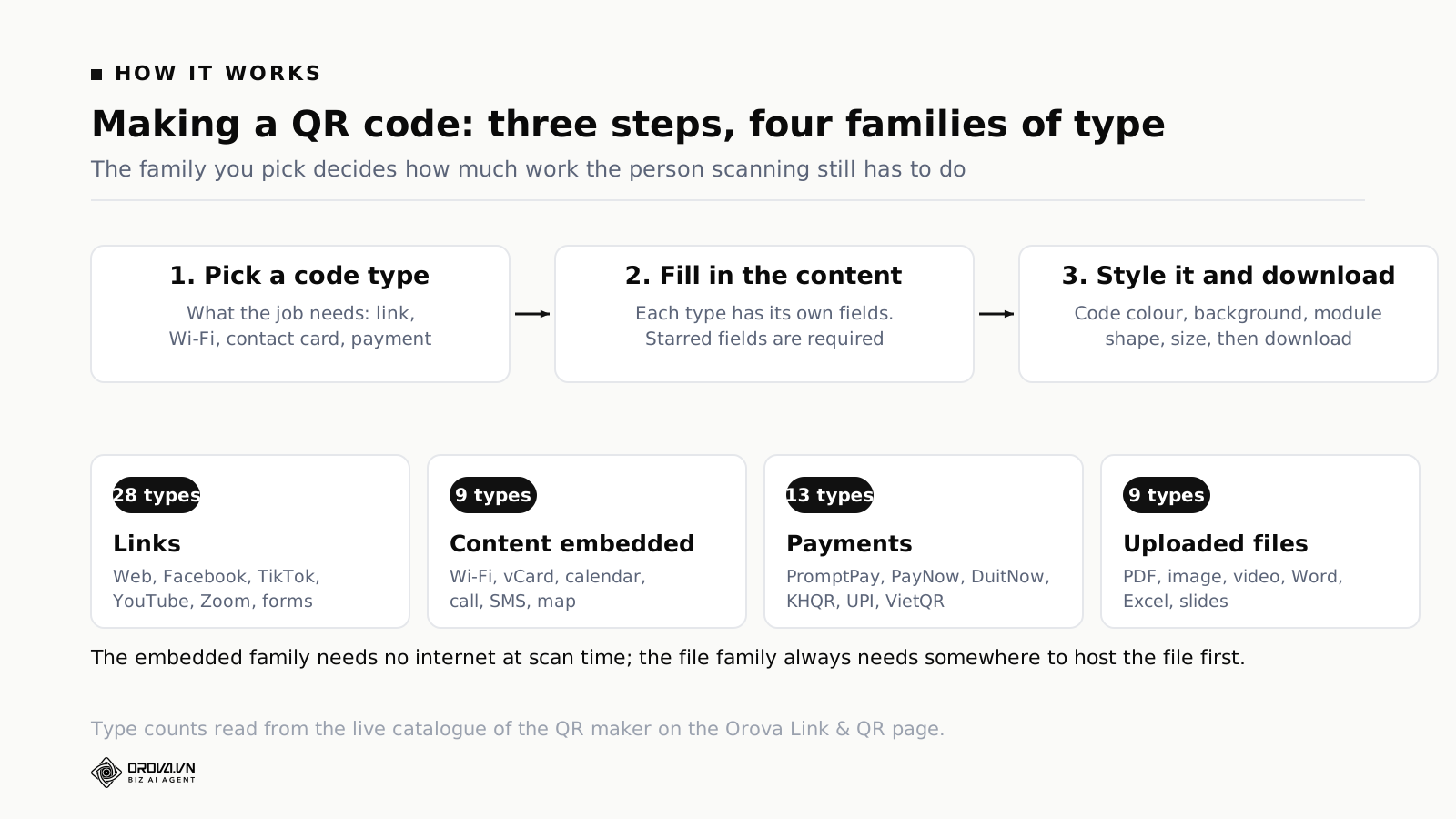
Pick the code type that matches the job (link, Wi-Fi, contact card, payment), fill in that type's fields, adjust the colours and size, then download the file. A code made this way is static: it works forever, it does not expire, and it needs no account.
Those three steps are the whole job. The place people go wrong is not the clicking. It is the first step: picking the wrong type.
Most people only know one type, the one where you paste a link. So when they want to share a Wi-Fi password, they build a little web page with the password on it and point a code at that page. When they want to hand over a contact card, they photograph the card, upload the photo somewhere, and point a code at the image. Both work. But the person scanning has to wait for a page to load, has to be online, and then has to type the details in by hand. A QR code has purpose-built formats for Wi-Fi and for contacts. Scan those and the phone offers to join the network or opens a filled-in contact screen. No internet, no middle page.
A QR code is not a way of opening a website. It is a box that holds text, and the phone reads that text and acts on a convention. There are a lot of conventions. Knowing which one fits which job saves you an entire web page.
Four families of QR code, and how to pick one
Good tools ship dozens of prepared types. The QR maker on the Orova Link & QR page has 59 of them, in four families. The number matters less than the four families, because the way you choose is the same in every tool.
Family 1: codes that point at a link
This is the biggest group, 28 types. Under the surface they are all identical: the code holds a web address, and scanning it opens that address in a browser. What differs is how much of the address the tool assembles for you.
For Facebook you type only the page name and the tool builds the full address. For YouTube you can paste a video link, a channel handle with the at sign, or a bare video ID. For WhatsApp you give a phone number and a pre-written message, so the person who scans lands in the app with the first line already typed. The same family covers Instagram, TikTok, LinkedIn, X, Telegram, LINE, KakaoTalk, Zoom, Google Meet, Google Forms, Google Docs, Google Sheets and the Google review link for a business.
The type people reach for most is the plain custom URL, which is what the phrase "create a QR code from a link" means in practice. Paste any address, the code points at it. One thing to watch: include the https at the front. Leave it out and some scanners read the content as plain text rather than as a web address, so the scan produces a line of characters instead of opening the page.
Family 2: codes that carry the content itself
Nine types, and the most wasted family of the four. The content sits inside the code, pointing at nothing, so the person scanning does not need to be online.
- Wi-Fi — network name, security type, password. Scan it and the phone offers to join.
- vCard — name, job title, company, phone, email, website, note. Scan it and the phone opens a pre-filled contact screen.
- Phone — scan it and the dialler opens with the number already in it.
- SMS — recipient number plus a pre-written message.
- Email — address, subject and body, all pre-filled.
- Calendar — event title, start, end, location. Scan it and the phone offers to add the event.
- Map — an address or a pair of coordinates, opening in the maps app.
- Text — a plain string. Useful for machine numbers, serial numbers, short instructions.
- App store — you supply both the App Store and Google Play addresses, and each phone opens its own store.
One property of this family drives everything else: the longer the content, the denser the code. A Wi-Fi code with a ten-character password is sparse and easy to read. A vCard with all eight fields filled in is a thicket, and printing that small kills it. Density decides print size, which gets its own section below.
Family 3: payment codes
Thirteen types, one standard per country. A seller in Bangkok needs PromptPay, one in Singapore needs PayNow, one in Kuala Lumpur needs DuitNow, one in Phnom Penh needs KHQR, one in Hanoi needs VietQR. The family also covers the Lao bank format, UPI for India, PIX for Brazil, a SEPA credit transfer for Europe, PayPal.Me, Alipay, WeChat Pay and crypto wallet addresses.
This is not a family you improvise. Each standard has its own field order and a check value at the end of the string. One wrong character and the banking app says the code is invalid. If you sell to customers from another country, use a tool that already has that country's type rather than assembling the string yourself.
Family 4: codes that point at a file you uploaded
Nine types: PDF, image, PNG, video, audio, Word, Excel, PowerPoint and any other file. This family differs from the other three in one important way. A QR code cannot hold a file. It can only hold text. For a code to lead to a PDF, the PDF has to be sitting on a server with a web address of its own, and the code points at that address.
So this family always needs somewhere to keep the file, which means either an account with the tool that makes the code or a file you upload to your own site. No tool anywhere produces a QR code with a PDF inside it, whatever the marketing copy says.
Making a QR code for a link or a social profile
This is most of the demand. It is easy to do, and there are four things worth settling before you press download.
Shorten the link first. A product page on a marketplace often runs to a hundred or two hundred characters once the tracking string is attached. Long content means more modules to hold it, and a dense code has to be printed larger to stay readable. Turning a long address into a short one before you generate the code produces a visibly sparser image that scans faster and survives at a smaller size.
Check the destination on a phone. Almost everyone who scans a code is holding a phone. If the destination is a page that only behaves on a desktop, or an A4 PDF you have to pinch and drag to read, your code is delivering people into a bad experience. Open the address on a phone before you print and ask what a stranger sees in the first three seconds. This is the same problem as a landing page that ranks but loses the visitor, because a person who scans a code is in exactly that state: outdoors, on a phone, patience measured in seconds.
Add tracking parameters if you intend to measure. A visit from a flyer handed out at a trade fair and a visit from a sticker on the shop door are different events, even when both land on the same home page. Adding the five UTM parameters to the address before you generate the code lets your analytics separate them. Which tool reads those parameters, and what each of them can and cannot answer, is covered in the piece on marketing analytics tools and the questions they answer.
Decide now whether the destination will change. If there is any chance you will point this code somewhere else in six months, do not make it static. The static and dynamic section below is the one to read before printing anything.
Wi-Fi QR codes for a café or an office
The Wi-Fi type pays off immediately and is barely used. Every café has a scrap of paper at the counter with the password on it, the ink fading month by month, and staff still read the password out loud dozens of times a day.
You need three things:
- Network name — copy it character for character, including capitals and spaces. Network names are case sensitive, and one wrong letter means the phone joins nothing.
- Security type — nearly every router in use today is WPA or WPA2, and both go under the WPA option. An open network with no password gets the no-password option.
- Password — copy it exactly. If the password contains a semicolon, colon, comma or backslash, change the password. Those characters are separators inside the Wi-Fi format, and plenty of scanners handle them badly.
There is also a hidden-network checkbox. Only tick it if you have deliberately stopped the network broadcasting its name. Tick it by mistake and some phones will refuse to connect.
Wi-Fi codes are usually sparse because the content is short, so they survive at small sizes. A card-sized table tent is plenty. Print the network name in small type under the code as well, so a guest with an older phone that will not auto-join can still type it in.
One thing to be clear about: a Wi-Fi QR code does not encrypt the password. Anyone who photographs the code can read the password back out with any code reader. So do not put a Wi-Fi code on the network that also carries your server, your printer and your time clock. In an office, split off a guest network first, then make the code for that.
vCard QR codes for a business card
vCard is the standard contact format and every phone reads it. Scanning one opens the add-contact screen with the fields already filled in, and the person only has to press save.
The usual fields are first name, last name, company, job title, phone, email, website and a note. You do not have to fill them all, and it is worth knowing that each one you add makes the code a little denser.
Two things to get right on a contact code:
Write the phone number in international form. A number stored as 0912345678 will not dial from a phone bought in another country. Stored as +84912345678 it dials from anywhere. If the card never leaves the country either form works, but the international one costs nothing.
Do not put a biography in the note field. This is the most common fault on contact codes. Eight filled fields plus a five-line introduction produces a code so dense that a standard business card cannot carry it at a readable size. Keep the note under one line and put the long version behind the website field.
If your number, title or company change often, consider the other approach: build a short profile page and point a plain link code at it. The code comes out far sparser, and you can edit your details without reprinting the cards.
Menu QR codes for restaurants and cafés
Menu codes have a particular problem. The content changes constantly and the sticker on the table does not. That is why almost every restaurant that starts with a static menu code reprints at least once in the first year.
Three ways to do it, weakest first.
The weakest is a code pointing straight at a PDF of the menu. Change one price and you replace the file, replacing the file usually changes its address, and the code on the table is dead. Keeping the code alive means overwriting the file under exactly the same name, forever, and remembering that rule forever too.
Better is a code pointing at a menu page on your own site. Change a dish, edit the page, the address stays the same, the sticker keeps working. This assumes you have a site and somebody who can edit it.
Most durable is a dynamic code: the code holds a fixed redirect address and you change the real destination in software whenever you like. Today it points at a PDF, next month at a web page, next year at an ordering app. The sticker never gets touched. The trade is that dynamic codes need an account.
Whichever route you take, three printing details matter for table codes. Laminate matt rather than gloss, because a gloss surface under ceiling lights throws glare and the camera sees nothing. Stand the code upright on a small holder instead of sticking it flat to the table, because a code lying face-up makes people bend over it. And print a short line of text saying where the code leads, something like "Scan for the menu"; unlabelled codes get scanned noticeably less.
Payment QR codes: one standard per country
Payment codes follow the EMVCo QR specification, which is the reason a code printed by one bank can be read by another bank's app. Each country then adds its own scheme on top: PromptPay in Thailand, PayNow in Singapore, DuitNow in Malaysia, KHQR in Cambodia, VietQR in Vietnam, UPI in India, PIX in Brazil.
To build one you need the bank or scheme identifier, the account number, and optionally an amount and a reference. Filling in the amount and reference is where the value is. The customer scans, confirms, and that is it. They cannot type the amount in wrong, they cannot invent their own reference, and you can match a payment to an order without asking anyone.
Questions that come up every time:
- Do payment codes expire? A printed code holds your account details, so it does not expire. A code with an amount already in it belongs to one specific order, so do not print that one and stick it up permanently.
- Can I stick one fixed code at the till? Yes, and a great many shops do. Leave the amount blank and let the customer enter it. The trade is that you lose automatic matching and have to read the transfer reference to work out who paid for what.
- What should the reference say? Keep it short, plain, and carrying an order number. Something like ORD1207. A long reference makes the code denser and nobody reads it.
- My code comes back invalid. It is almost always a wrong scheme identifier or a wrong account number. Those two have to match exactly; there is no guessing layer.
The schemes do not work across borders. A Thai customer paying with a Thai banking app needs PromptPay, a Singaporean needs PayNow, a Malaysian needs DuitNow. If you serve several countries, print several codes and label each one with the scheme name underneath.
Static and dynamic QR codes
This is the most consequential decision in the whole job, because it cannot be undone after printing.
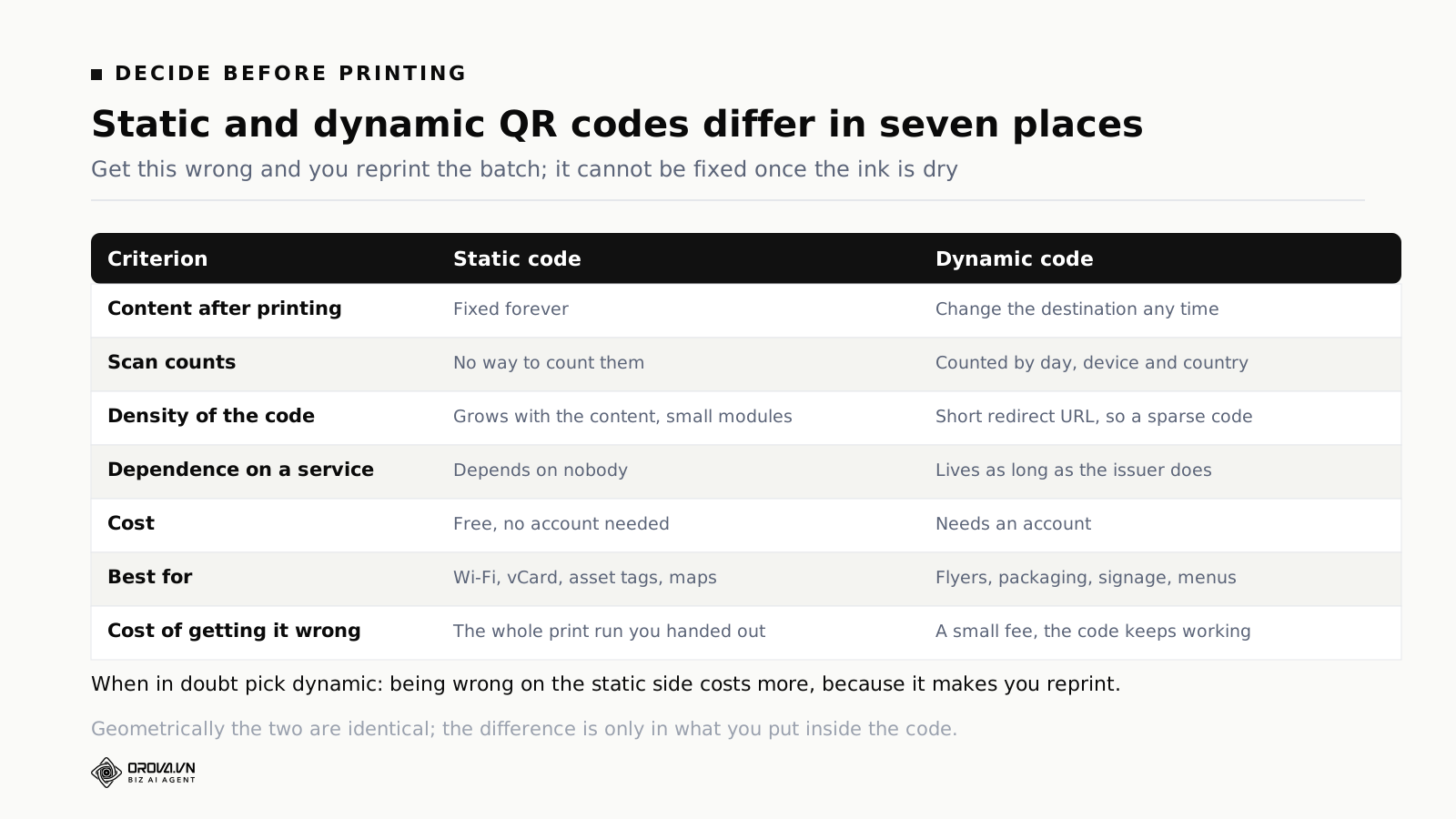
A static code holds the content directly. The address lives in those black and white squares, permanently. Download it once and it works forever, it does not depend on any service staying alive, and it costs nothing. The trade: the content cannot be changed, and there is no way to know how many people scanned it.
A dynamic code holds a short redirect address. The scan goes through that address and is forwarded to the real destination. Because the real destination lives in software rather than in the code, you can change it whenever you like and the printed code stays correct. And because every scan passes through the redirect, the system can count scans, split by day, by device and by country.
Dynamic codes have a second advantage that people rarely notice: they are sparser. A redirect address is about twenty characters, while the real address can run to hundreds. A sparse code has bigger modules, gets caught faster by the camera, and survives at a smaller print size.
How to choose quickly:
- Static when the content will not change and you do not need to measure: Wi-Fi, contact cards, maps, asset tags on equipment, a code pointing at your home page.
- Dynamic when the code is going into a large print run, when the destination might move, or when you need to know which channel produced the scans: flyers, packaging, outdoor signage, menus, trade fair material.
When in doubt, go dynamic. The two mistakes are not symmetrical. Choosing dynamic when you did not need to measure costs you a small fee. Choosing static and then having to move the destination costs you the entire print run.
One honest caveat: a dynamic code depends on whoever issued it. If that service shuts down, every code you printed stops working. For anything printed in volume and meant to last years, pick a provider with a real product behind it rather than an anonymous free tool.
Styling a QR code without killing it
Most advice on making a QR code look good covers half the problem. Changing the colour, adding a logo and rounding the modules is easy. Doing all that and still having a code that scans is the hard part.
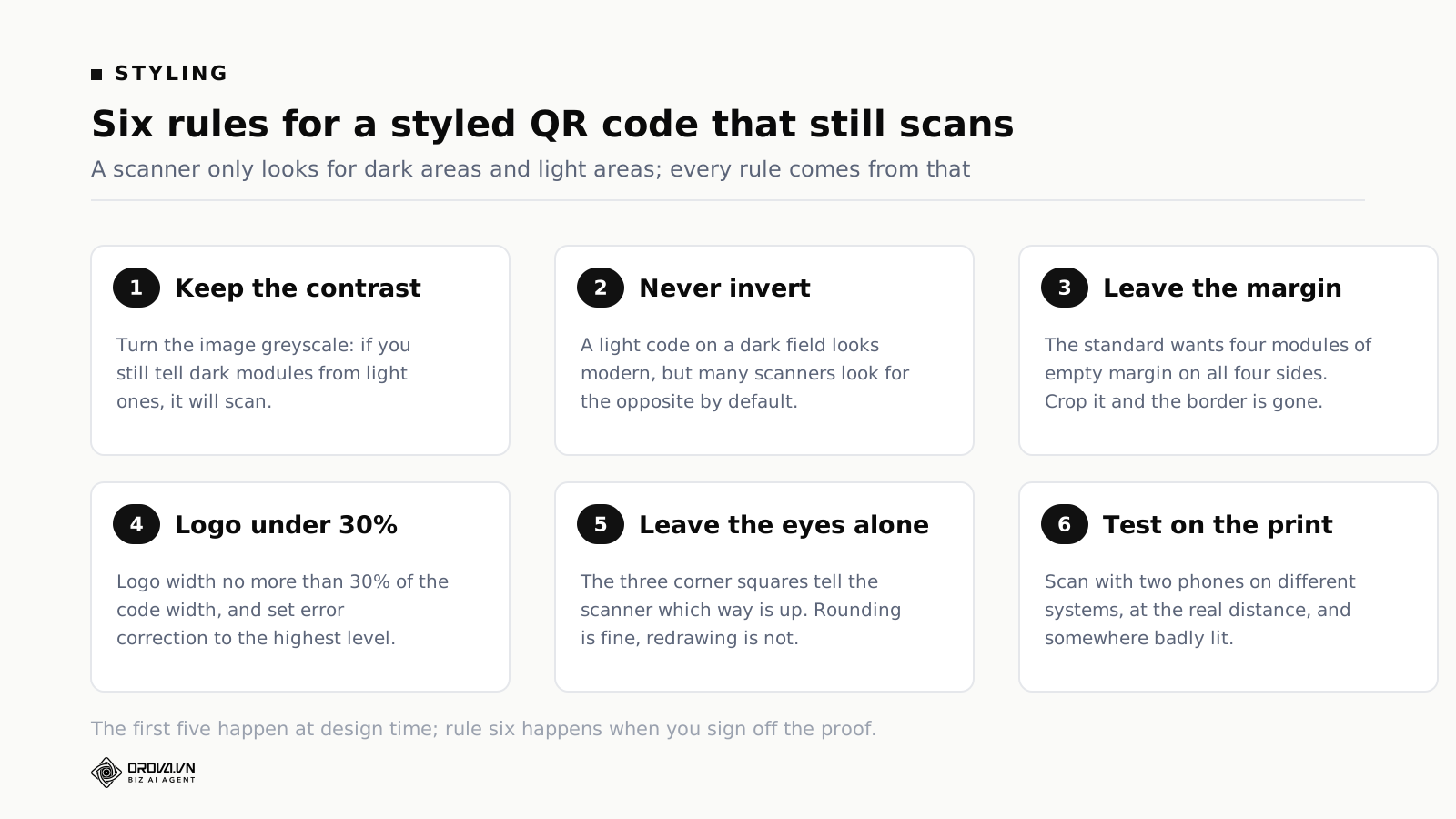
A scanner sees a QR code in a very simple way. It looks for dark areas and light areas and rebuilds the grid from them. Every rule below comes out of that one fact.
Contrast comes first
Dark modules have to be genuinely dark and light ones genuinely light. Pastels on off-white look expensive on a design screen, but on uncoated paper the ink spreads, the gap between the two tones closes, and the camera gives up. A practical test: pick a colour dark enough that if you converted the image to greyscale you could still tell the dark modules from the light ones. The simplest route is to use the dark colour from your brand palette rather than the pale accent.
Never invert
A light code on a dark background looks modern and is the most common fault in this group. Many scanners look for a dark pattern on a light field by default. Invert it and some readers cope, some do not, and you have no control over which phone a customer is carrying. For anything going to print, do not invert.
Leave the quiet zone alone
The specification asks for an empty margin four modules wide on all four sides. That margin is not spare white space, it is part of the code, and it is how the scanner finds the edges. Designers crop it off to tidy the layout, or drop the code onto a patterned background, and that is why so many beautiful codes do not work. If the background has a pattern, put the code on a solid white tile and keep the pattern away from its edges.
A logo in the middle is fine, with conditions
QR codes carry error correction, which means part of the pattern can be missing and the content still decodes. There are four levels, usually written L, M, Q and H, recovering roughly 7, 15, 25 and 30 per cent of the data. Putting a logo in the middle is deliberately hiding part of the pattern, and error correction is what absorbs it.
Two rules travel with it: the logo should be no more than 30 per cent of the code's width, and when there is a logo the error correction must be set to the highest level. Push past that and the code still looks complete, still scans on a bright screen at close range, and then fails on matt paper or in a dim room. That is the worst kind of fault, because it does not show up during testing at your desk.
One thing in fairness: a higher error correction level makes the code denser, because it needs extra modules for the recovery data. A code with a logo is always denser than a plain code with the same content, so it has to be printed larger.
Module shapes and finder patterns
The three large squares in the corners are finder patterns. They tell the scanner where the code is and which way round it sits. Rounding the data modules slightly, or softening the corners of the finder patterns, is safe. Turning the finders into a novelty shape, removing one, or stretching the proportions inside them breaks codes quickly, because the ratio of the bars inside a finder pattern is exactly what the scanner uses to recognise a QR code in the first place.
The free maker on the Orova Link & QR page covers code colour, background colour, module shape (square, rounded, dot) and finder style (square, rounded, circle), with PNG downloads in three sizes. A logo in the middle, a frame with a call to action, and dynamic codes sit behind the account, because those have to be stored somewhere to be edited later.
File format for the printer
PNG is right for the web and for small print, but it is a pixel image, so enlarging it produces jagged module edges, and jagged edges slow scanners down. For a printer, ask for a vector file, meaning SVG or EPS, which stays sharp at any size. If PNG is all you have, export at the largest size the tool offers and scale down from there. Never scale a small one up.
How much a QR code holds, and what makes it dense
This section explains what sits behind every piece of advice above.
A QR code is a grid of squares called modules. The specification defines 40 grid sizes, called versions. Version 1 is 21 by 21 modules, and each version after that adds 4 modules per side, up to version 40 at 177 by 177. The longer the content, the higher the version the tool has to choose, and the denser the code looks.
The maximum capacity, at the largest version with the lowest error correction, is about 7,089 digits, or 4,296 alphanumeric characters, or 2,953 bytes. That sounds enormous, and you should not aim anywhere near it. A code using most of that capacity has a 177-module grid, and for each module to stay big enough for a camera to see, the printed code has to be very large.
Three things make a code denser, in order of effect:
- Content length. By far the strongest factor. Shortening the link is the fastest way to thin a code out.
- Error correction level. Going from the lowest to the highest level adds a meaningful number of modules. Without a logo you do not need the highest level.
- Character type. QR codes pack digits more efficiently than letters, and unaccented capitals more efficiently than accented text. A string with accents costs several times what the same number of plain characters costs. That is the reason payment references are usually written without accents.
A quick way to check without understanding any of it: generate two codes, one with the full content and one with the shortened content, and put them side by side. If you can see the individual modules, the code is usable. If it looks like a grey speckle, it will cause trouble at the printing stage.
How big to print a QR code
There is a rule of thumb the print trade has used for years: the ten to one rule. The printed width of the code should be about one tenth of the distance the person scanning stands away.
Someone standing 30 centimetres away, at a business card or a table tent, needs a code at least 3 centimetres wide. Someone standing 3 metres away, at a poster on a wall, needs 30 centimetres. A sign read from 10 metres needs a metre.
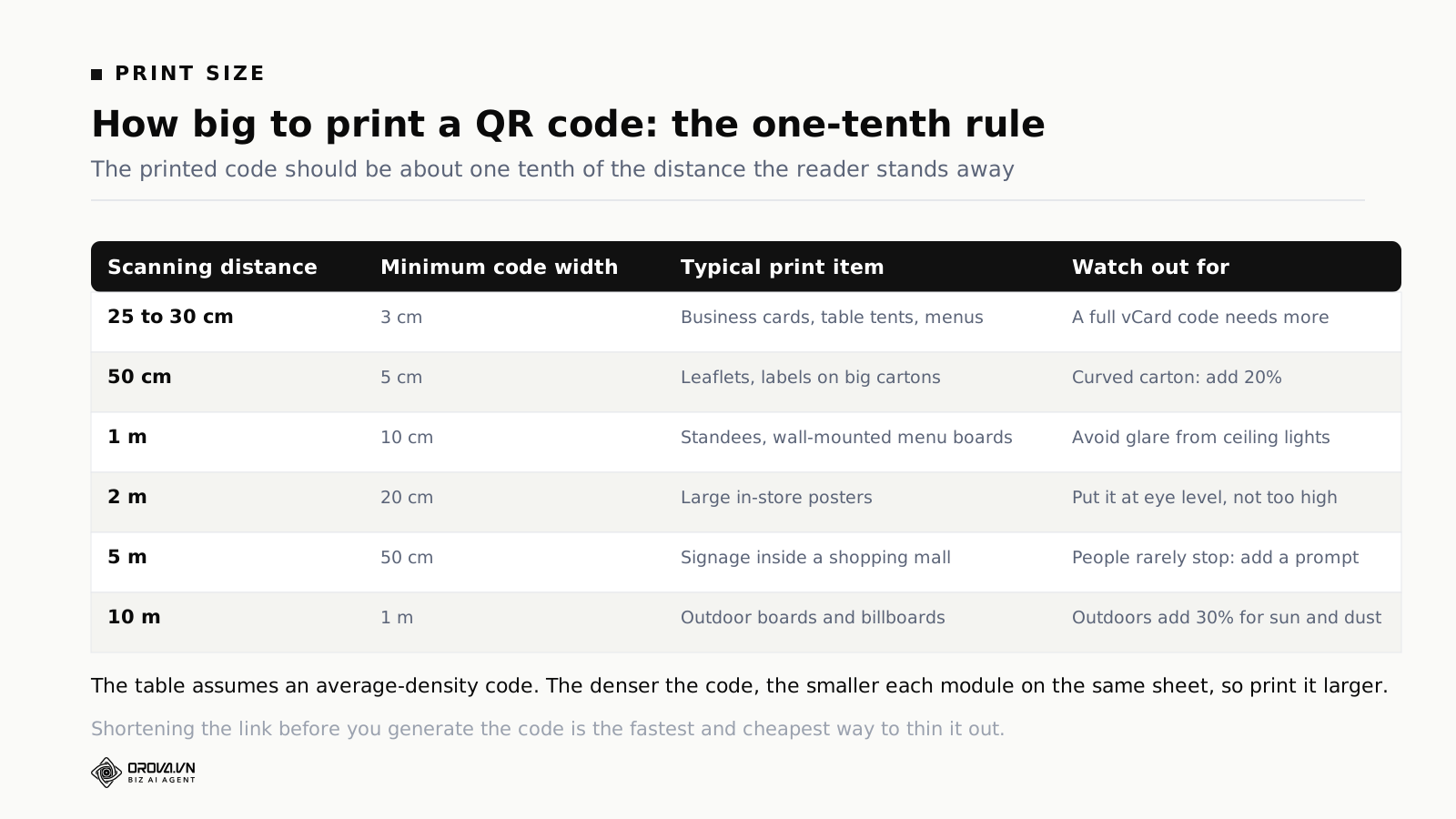
The rule assumes an average-density code. For a dense one, add to it. The principle underneath the rule is that the smallest module in the code has to be big enough for a camera to tell apart from its neighbour. On the same sheet of paper, a 25-module code has modules twice the size of a 50-module code.
Practical minimums worth remembering:
- Business cards and small labels: nothing under 2 centimetres, and only when the code is sparse. A vCard code with every field filled in is not going to work at 2 centimetres.
- Leaflets, folded flyers, menus: 2.5 to 3 centimetres is the safe band.
- Product packaging: depends where it sits, but remember that a curved surface distorts the code when viewed at an angle, so print it about twenty per cent larger than the calculation says.
- Posters and standees: work from where people really stand, not from where you wish they stood.
One detail that gets forgotten: the material. Codes printed on brown kraft, on fabric, or on a high-gloss surface are all harder to read than the same code on matt white paper. On those materials, print larger and push the contrast.
Eight faults that stop a printed QR code scanning
Ordered by how often they turn up.
- Printed too small for the scanning distance. The number one fault. Every code looks large on a 27-inch monitor; you find out on paper.
- Quiet zone gone. Trimmed tight, placed at the edge of the sheet, or a background pattern touching the code.
- Weak contrast. A pale colour on a pale background, or two different colours with the same tonal weight.
- Inverted. Light code on a dark field.
- Logo too big or badly placed. Covering more than 30 per cent, or sitting on top of a finder pattern.
- Proportions stretched. Somebody dragged a corner in the layout software and the code is no longer square. A QR code has to be exactly square.
- Glossy or curved surface. Gloss lamination, shiny film, a code wrapped round a bottle.
- Dead destination. The code scans fine but leads to a deleted page, a renamed file or an expired promotion. This is the only fault on the list where the printing is blameless.
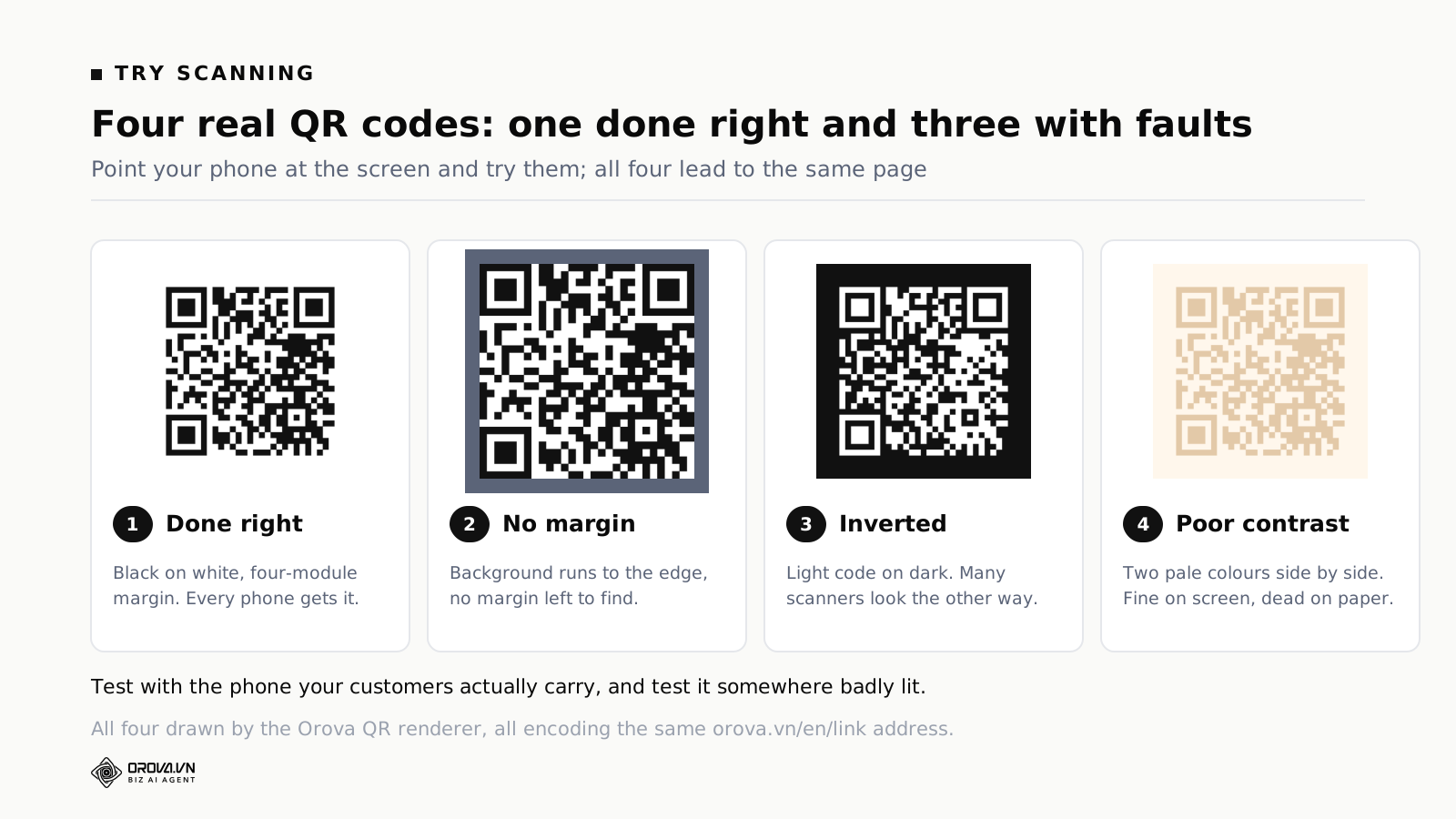
The four codes below are real. Scan them off the screen with your phone. The first is done properly; the other three carry, in order, a missing quiet zone, an inverted palette and weak contrast. Try them with the same model of phone your customers carry, and try them somewhere badly lit.
The four-minute check before you print
Modern phones scan straight from the camera app with nothing installed: iPhones from iOS 11 onwards and most current Android phones. Older handsets need a reader app, or Google Lens.
The check takes four minutes and has to be done on the printed proof, not on a screen.
- Scan with two phones on different operating systems. One iPhone, one Android. If only one of them reads it, something is wrong, usually the finder patterns or the logo.
- Scan from the real distance. Stand where the customer will stand. Do not push the phone up against it.
- Scan somewhere dim. A restaurant in the evening, a trade fair aisle, inside a car. This is where weak contrast shows itself.
- Follow the destination on the phone you just scanned with. Does the page open quickly, does it fit the screen, does it ask for a login.
For a large print run, add one step: print a single proof on the real material at the real size before the run starts. One test sheet is always cheaper than a bad batch.
Measuring how many people actually scan
Most QR codes in the world have no measurement behind them at all. A shop prints two thousand flyers with a code, hands them all out, and decides how it went by feel.
Measuring needs two things, and both require either a dynamic code or a link carrying parameters.
Scan counts. A dynamic code passes through a redirect, so every scan can be counted and split by day, by device type and by country. That answers concrete questions: how many scans came from the flyers handed out on opening day, whether the sticker in shop A beats the one in shop B, what time of day people scan.
Parameters on the destination link. Scan counts tell you how many people came through. Parameters tell you what those people did next on the site. Without them, every visit arriving from a QR code falls into the direct traffic bucket and cannot be separated. Which reports in Google Analytics are worth opening for this, and which are noise, is covered in the piece on GA4 reports worth tracking. Splitting credit across several touches when one order passes through more than one of them is the subject of multi-touch attribution models and their trade-offs.
A small habit most people skip: if the same campaign runs across several printed items, give each item its own code rather than reusing one. One code for the flyer, one for the standee, one for the packaging. They can all point at the same page. Different codes are the only way to find out which item produced the scans, it costs nothing, and the information is completely different.
Scan counts belong next to your other weekly numbers rather than on their own, because on their own they say very little. A rising scan count with flat orders is a different story from a rising scan count with rising orders.
Quick pick table
Use this when you already know the job and only want the choices.
| What you need | Code type | Static or dynamic | Minimum print size |
|---|---|---|---|
| Sharing the Wi-Fi password in a café | Wi-Fi | Static | 2.5 cm, table tent |
| Printed business card | vCard, or a link to a profile page | Static | 2 cm if the code is sparse |
| Restaurant menu | Link or PDF | Dynamic | 3 cm, stood upright |
| Flyer handed out | Custom link with parameters | Dynamic | 2.5 to 3 cm |
| Taking payment at the till | Country payment type, amount left blank | Static | 5 cm, standing on the counter |
| Taking payment per order | Payment type with amount and reference | Static, generated per order | Shown on a screen |
| Product packaging | Custom link | Dynamic | 2 cm plus extra for curvature |
| Poster on a wall | Custom link | Dynamic | One tenth of the standing distance |
| Outdoor signage | Custom link | Dynamic | One tenth of the reading distance |
| Collecting Google reviews | Google review link | Static | 3 cm, on the counter |
| Guest Wi-Fi in an office | Wi-Fi, guest network only | Static | 3 cm, in reception |
| Trade fair material | Link with parameters for the fair | Dynamic | 3 cm |
Where the table says dynamic and you would rather not open an account, there is a workaround: make a static code pointing at a page on your own site, and change the content of that page when the destination moves. You still will not have scan counts unless you install analytics on that page yourself.
Using a free QR code generator without an account
If you just need one code to use today, the sequence is short.
- Open the maker. The generator sits at the top of the page, with no login step.
- Pick the type. The type grid has a search box, so typing "wifi" or "vcard" gets you there.
- Fill in the starred fields. A star means required; leave one empty and no code appears.
- Set colours and shapes. Code colour, background, module shape, finder style. Black on white is always the safe answer.
- Pick a size and download the PNG. Three sizes are offered. For print, take the largest.
A code made this way is static. It does not expire, it has nobody's logo stamped on it, and it does not ask for your email. That is the right kind of code for most everyday jobs.
An account only becomes necessary for the rest: changing the destination after printing, counting scans, putting a logo in the middle, adding a frame with a call to action, downloading a vector file for the printer or a 3D print file, and shortening a long address into a short one that counts clicks. All of those have to be stored somewhere so they can be edited later, which a page with no login cannot do.
Questions people actually ask
Do QR codes expire?
The image itself does not expire. It is a drawing that holds text. What expires is whatever the code points at. A static code pointing at a link lives exactly as long as that link does. A dynamic code depends on the redirect service, so it also depends on your account staying active.
Does a free QR code generator add advertising?
It depends on the tool. Some free services always produce dynamic codes routed through their own servers, and at some point they insert an interstitial before forwarding, or switch codes off unless you upgrade. How to spot it: if the tool wants your email before it lets you download, or if the address inside the code is not the address you typed, it is a dynamic code. A genuinely static code scans back to exactly what you entered, with no unfamiliar domain in the middle.
Why does my code scan on my phone but not on a customer's?
Three usual causes, in order. Your phone is newer and copes with a marginal code. You scanned from a bright screen while the customer scanned printed paper in poor light. Or the code was printed under the minimum size and the customer's camera is weaker. The four-minute check above finds all three.
Can a QR code contain a PDF?
No. A QR code holds text, at most a few thousand characters. Every code that claims to contain a PDF is a code pointing at the address of a PDF sitting on a server. You always need somewhere to keep the file.
Does changing the colour make a code harder to scan?
Only if you reduce the contrast or invert the tones. A dark blue code on white scans as easily as a black one on white. A yellow code on white barely scans at all.
How many times can one QR code be scanned?
There is no limit. QR codes have no counter inside them. Any limit you meet comes from a dynamic code service, not from the standard.
Are Wi-Fi QR codes safe?
The password sits inside the code in readable form, so anyone who photographs it can extract it. That is fine for a guest network. It is not fine for an internal network with anything valuable on it.
Black and white or colour for printing?
Black and white is always safer and cheaper. Use colour only when the brand demands it and only when the chosen colour is dark enough. For a large run, or printing on a difficult material, use black and white.
Will a code still work if a corner is torn or dirty?
Up to a point. Error correction recovers roughly 7 to 30 per cent of the data depending on the level chosen. But if the damage lands on one of the three finder patterns in the corners, the code is almost certainly finished, because the scanner can no longer work out its orientation.
Static or dynamic when I genuinely do not know?
Dynamic if the code is heading for a large print run or the destination might move. Static if the content is fixed forever, like a Wi-Fi password or a phone number. Getting it wrong on the static side is the expensive mistake, because it forces a reprint.
Before you send the artwork to the printer
Generating the code takes half a minute. The four decisions around it are what decide whether it lives: picking the right type instead of defaulting to a link every time, choosing static or dynamic before printing rather than after, holding the contrast and the quiet zone while you make it look good, and sizing it for the distance people really stand at.
If you need a code today, make a static one, scan it with two phones on different systems, then send it. If it is going onto thousands of printed items, or you need to know how many people scan it, make it dynamic from the start. That is the one decision you cannot revisit once the ink is dry.
Make a QR code now, no sign-up
Pick from 59 ready-made code types, fill in the content, change the colours and module shape, then download the PNG. Dynamic codes that let you change the destination after printing, count scans and carry a logo live in the app, along with orova.vn/l/ short links that count clicks by day, device and country.
Make a QR code