
How to clean CRM data in 7 steps (2026): a practical playbook

Learning how to clean CRM data transforms an untrusted, chaotic contact database into a dependable revenue engine. When you complete this seven-step process, you will have a standardized customer database with no known unmerged duplicate profiles, automated pipeline inactivity triggers that reallocate neglected leads, and protected activity timelines that preserve every historical sales note. Before starting, you need administrative access to your customer relationship management platform, an unedited full database export stored in cold storage, and roughly three to six hours of focused time. If you run an early-stage operation with fewer than 50 total contacts managed in a simple spreadsheet, you can skip this full protocol and maintain records manually until your lead intake scales.
How to Clean CRM Data: Core Objectives and Timeline
Knowing how to clean CRM data comes down to four moves: isolate corrupted records, set deduplication rules, standardize intake fields, and archive inactive leads. The workflow below spans seven steps and typically takes three to six hours, depending on database size. If your CRM exports to CSV, a spreadsheet's Remove Duplicates and filter tools are a quick, safe way to preview the size of the problem before you touch live records, as the Excel help page below shows.
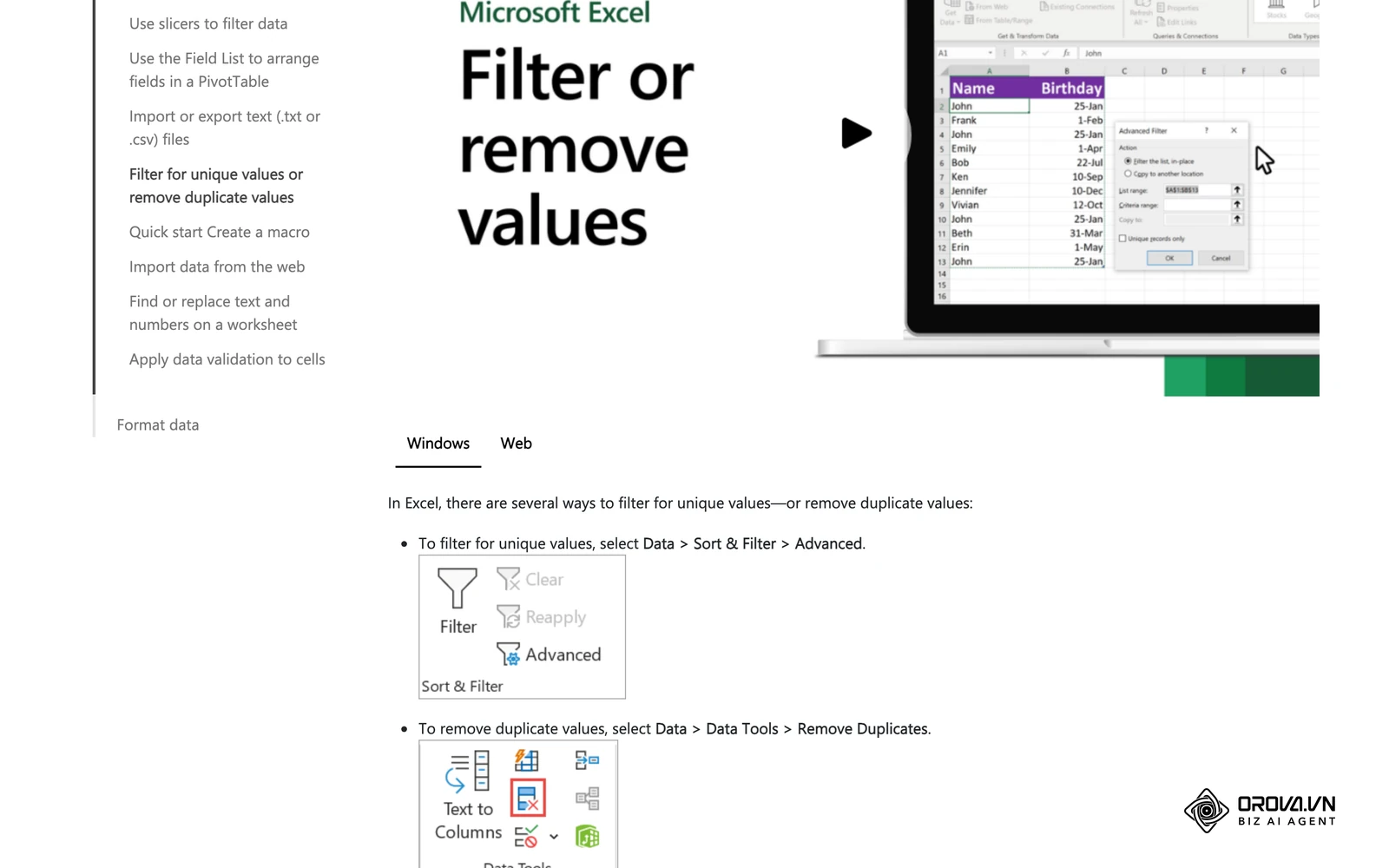
CRM data cleaning, often termed database hygiene, is the systematic auditing, deduplicating, standardizing, and purging of customer records within your commercial platform. Modern sales teams cannot scale without high data integrity. When customer phone numbers contain formatting errors, multiple sales reps call the same contact, or unworked leads sit abandoned for months, sales velocity grinds to a halt. Understanding what is CRM architecture reveals that your database is not just a digital address book; it is a live relational network where corrupt contact records directly distort revenue forecasts, commission payouts, and lead routing rules.
Essential Prerequisites Before You Touch Your CRM Records
Before touching a single live customer profile, you must establish an operational safety net. Executing bulk data modifications without adequate preparation can trigger irreversible data loss, overwrite active deal revenue values, or fire unintended email workflows to dormant enterprise prospects.
The preparation checklist below details every prerequisite, where to obtain it, and the operational risk if omitted:
| Requirement | Source / Location | Estimated Time | Consequence If Missing |
|---|---|---|---|
| Full System CSV Backup | CRM Settings ▸ Data Export ▸ Complete Backup | 15–30 minutes | Permanent record loss if a merge script fails |
| Workflow Automation Pause | Automation Engine ▸ Active Workflows / Webhooks | 10 minutes | Accidental mass email sends to archived leads |
| Super Admin Privileges | Workspace ▸ Security / Role Management | 5 minutes | Inability to modify system-level picklists and merge records |
| Staging / Sandbox Environment | CRM Developer Settings ▸ Sandboxes | 20 minutes | Untested field transformations executed on live customer data |
| Baseline Hygiene Metrics | CRM Reports ▸ Delivery Logs & Pipeline Audit | 15 minutes | Inability to quantify data quality improvement post-cleanup |
Step 1: Audit Your CRM Data Quality and Quantify Error Costs
Quantify the current level of database decay across your primary customer tables to establish your baseline error benchmarks.
Navigate to your platform reporting module or customer list view, select your primary contact object, and generate three specific filter segments: contacts with missing phone numbers, contacts with invalid email syntaxes (such as missing domain extensions or special characters), and leads without recorded sales activities in the past 90 days. Next, run an aggregate export of these filtered rows to count the total volume of corrupted rows relative to your total contact base.
Establishing the Data Quality Baseline
Your audit must evaluate four primary dimensions of database integrity: completeness (percentage of populated core fields), uniqueness (percentage of non-duplicate email addresses and phone numbers), validity (conformance to expected syntax rules like international calling codes), and freshness (recency of logged touchpoints).
Use the table below to turn those four dimensions into filters you can build in any CRM list view or in a spreadsheet export:
| Dimension | What to check | Filter or formula to build | Example finding to log |
|---|---|---|---|
| Completeness | Core fields left blank | Phone is empty OR Company is empty OR Owner is empty | 1,140 contacts without an owner |
| Uniqueness | Same person stored twice | Group by lowercased email, then by normalized phone | 312 email addresses appearing more than once |
| Validity | Values that break the expected format | Email without "@" or domain; phone without country code | 95 phone numbers missing a country code |
| Freshness | Records nobody has touched | No logged activity in the last 90 days | 2,800 contacts with no activity since spring |
The example findings are illustrative; replace them with your own counts and keep the sheet as your baseline. Teams setting up a CRM for small business can run this audit on the very first import, when fixing problems is cheapest.
The Mathematical Formula for Dirty Data Losses
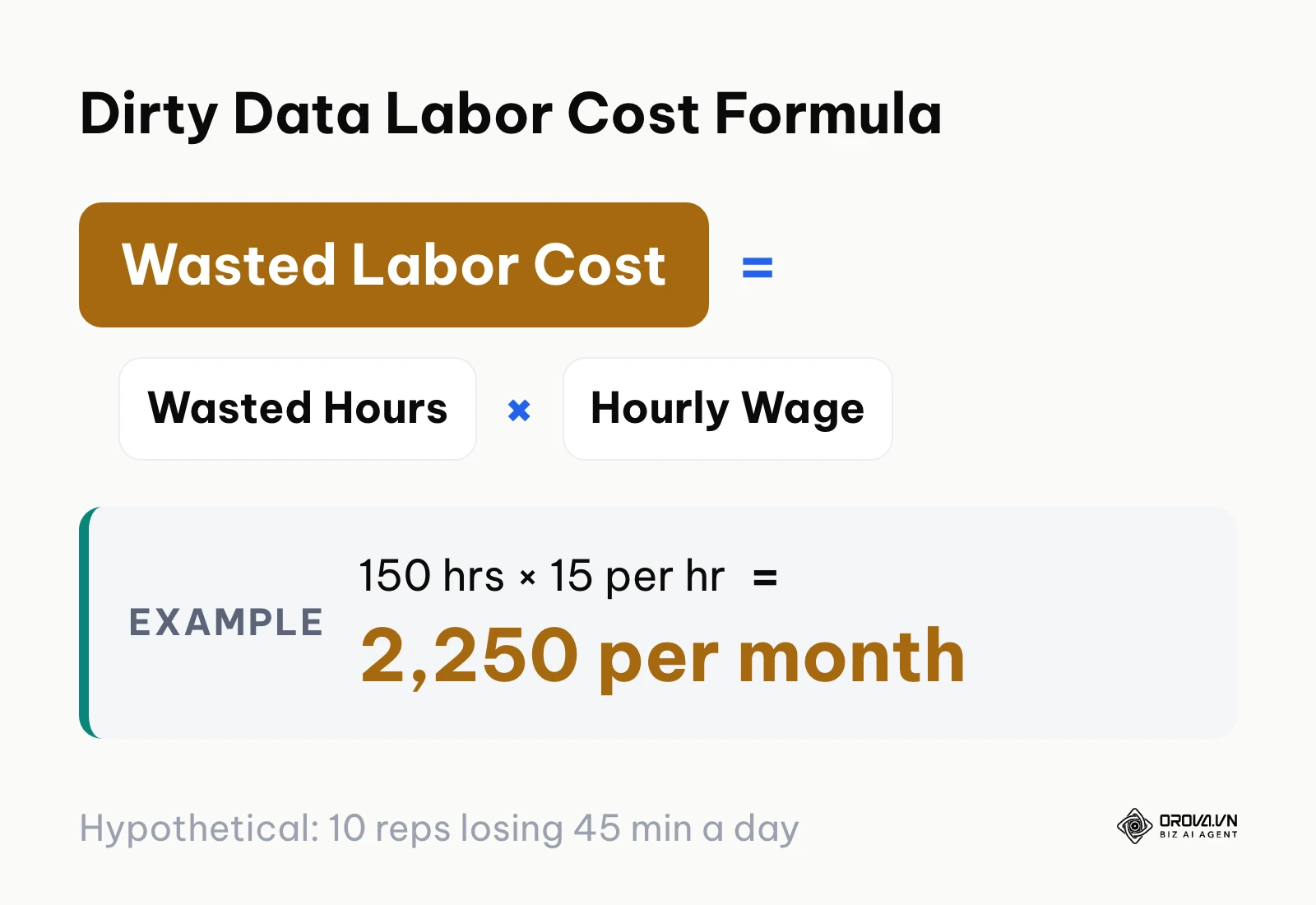
To justify dedicated operational hours for database hygiene to executive leadership, you must translate dirty records into direct currency losses. Use the mathematical relationship below to quantify the direct labor drag inflicted by bad contact records. The diagram below outlines the core calculation formula.
Total Dirty Data Cost = (Weekly Wasted Rep Hours × Fully Loaded Hourly Wage)
                      + (Monthly Bounced Marketing Emails × Domain Reputation Replacement Cost)
                      + (Mishandled Routing Leads × Average Deal Gross Margin)
Hypothetical example: take a commercial team of 10 sales representatives. If each representative wastes 45 minutes per business day hunting down accurate phone numbers, verifying corrupted company names, or dealing with split duplicate histories, the team loses 7.5 hours per day. Across a standard 20-day working month, this equates to 150 hours of lost selling capacity. At an assumed fully loaded cost of 15 currency units per hour, that is 2,250 units of paid time every month, before counting damaged sender reputation or lost deal momentum. Plug in your own wage and hours; the point is to show leadership a number built from your team, not an industry average.
Hypothetical example: a 12-person B2B logistics sales team conducted an initial database health audit across 10,000 legacy contact records. The operations lead created custom list filters isolating empty mobile phone values, generic company email domains, and accounts lacking assigned sales owners. The audit revealed that 1,200 leads possessed generic info@ addresses that masked key purchasing managers, causing severe lead drop-off. The operations lead extracted the recent email thread sender headers from inbound support tickets to re-associate true contact names and corporate email addresses. After this audit phase, the administrative dashboard confirmed unassigned leads decreased from 2,450 to 310, and sales rep pipeline assignment achieved 100% ownership mapping across the active team leaderboard.
A common error during the audit step is running aggregate reports on cached data rather than active records. This issue manifests when reported duplicate counts fail to match actual list view queries. To resolve this discrepancy, force a manual cache refresh within your reporting settings before logging your baseline metrics.
Step 2: Back Up Database Records and Quarantine System Automations
Secure an unedited offline archive of every database object and freeze all outbound system triggers before executing any bulk edits.
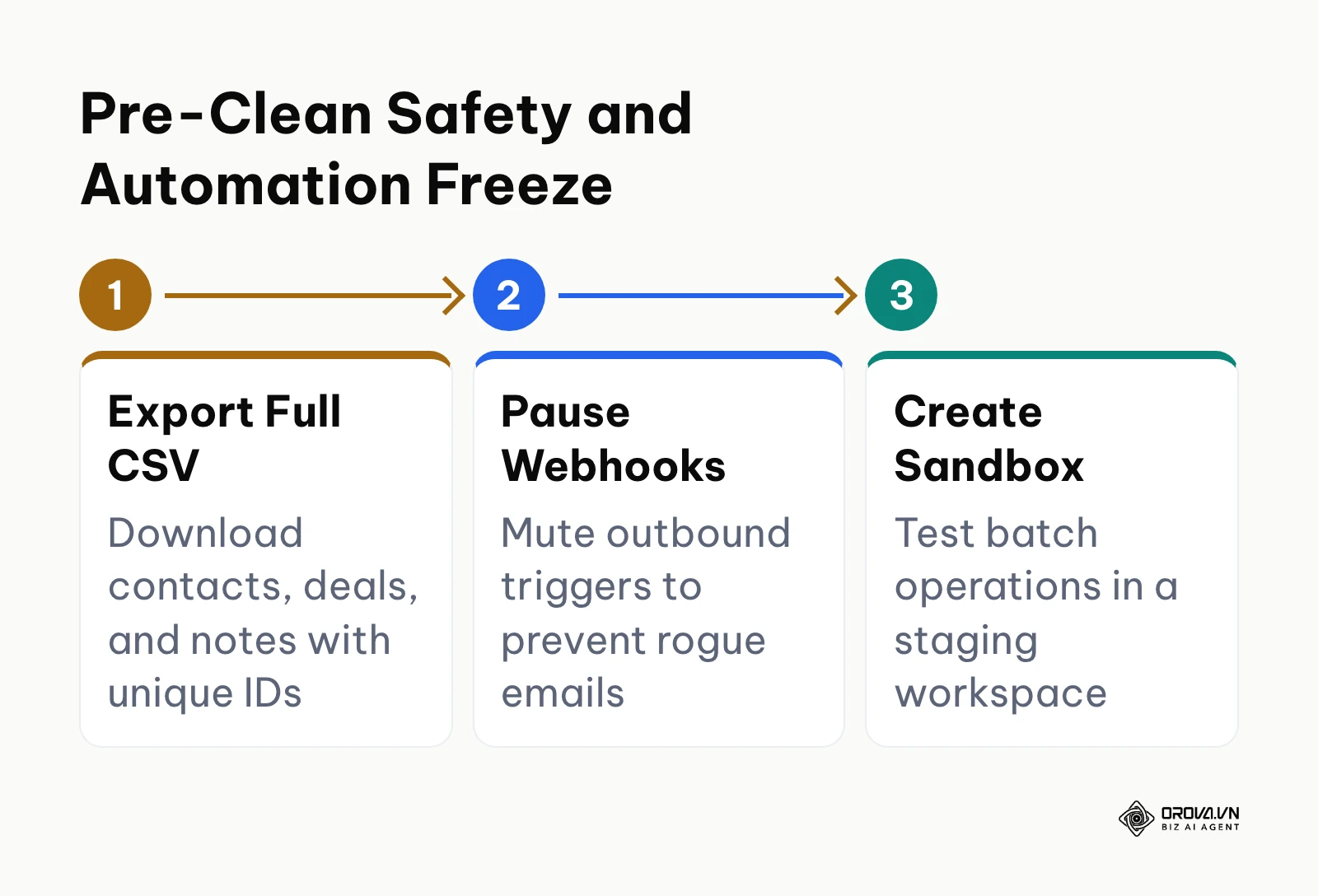
Navigate to your platform data management console, select the full export function, and choose the CSV archive format covering all database objects: Contacts, Companies, Deals, Activities, and Note Attachments. Download the compressed ZIP file to an encrypted local drive or isolated cloud storage volume, and verify that the file size matches your expected database volume. Next, enter your automation directory (such as Workflow Rules, Sequences, or Outbound Webhooks) and toggle all active triggers to inactive or draft status. The diagram below outlines the pre-clean safety sequence.
Creating Complete Offline Snapshots
When exporting database objects, you must include system-generated unique record identifiers (such as Contact ID, Account ID, and Deal ID). These alphanumeric strings represent the primary keys connecting disparate tables. If your subsequent deduplication or field-standardization script erroneously merges two distinct accounts, these system IDs allow you to execute an immediate rollback using simple spreadsheet lookups.
Freezing Active Outbound Triggers and Webhooks
Freezing outbound automations answers a vital question that plagues sales operations: how can you clean thousands of records without firing unintended notifications? Many commercial CRMs feature active webhooks that push contact changes to external marketing automation suites, automated email cadences, or messaging gateways.
If you standardize 3,000 legacy contacts whose lifecycle stage changes during cleaning, an unfrozen workflow engine might treat those updates as new prospect events and blast years-old leads with automated welcome emails. Pausing every outbound webhook and sequence trigger isolates your database manipulations inside a silent operational bubble.
A common error at this stage is exporting only contact profiles while omitting historical activity and deal tables. This mistake creates orphan deals when contacts are subsequently merged or reassigned. Verify your backup archive contains distinct CSV files for deals, notes, and tasks before proceeding.
Step 3: Standardize Custom Field Formats and Dropdown Picklists
Eliminate free-text entry fields and standardize formatting across your core contact properties to prevent future database corruption.
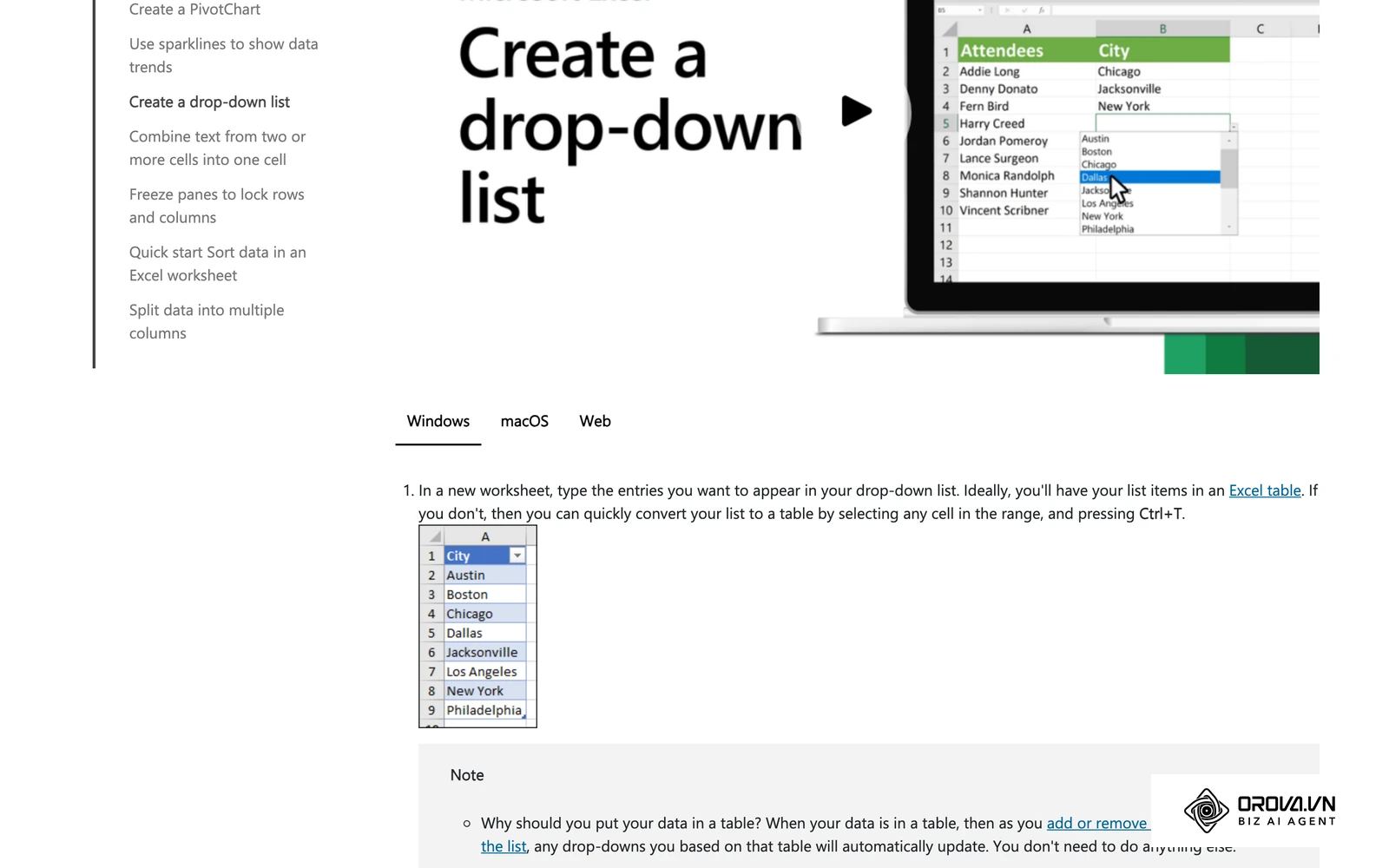
Navigate to CRM Settings ▸ Object Configuration ▸ Fields & Properties. Inspect your primary contact properties and identify any critical attributes currently configured as open single-line text inputs (such as Country, State, Industry, Lead Status, or Job Function). Change these properties into controlled dropdown picklists. For properties containing legacy free-text values, map historical variations (such as "USA", "U.S.", "United States", and "america") into a single standardized entry ("United States"). If you clean an export in a spreadsheet first, the same principle applies: a drop-down list built with data validation stops new spelling variants from creeping in, as in the Excel example below.
Converting Free-Text Fields to Controlled Picklists
Open text fields are the primary source of CRM corruption. When sales representatives type customer locations manually, minor typographical differences prevent list segmentation tools from functioning correctly. A marketing campaign targeting prospects in "California" will miss contacts entered as "CA", "Calif", or "california". The diagram below outlines the difference in data integrity between uncontrolled text inputs and controlled picklists.
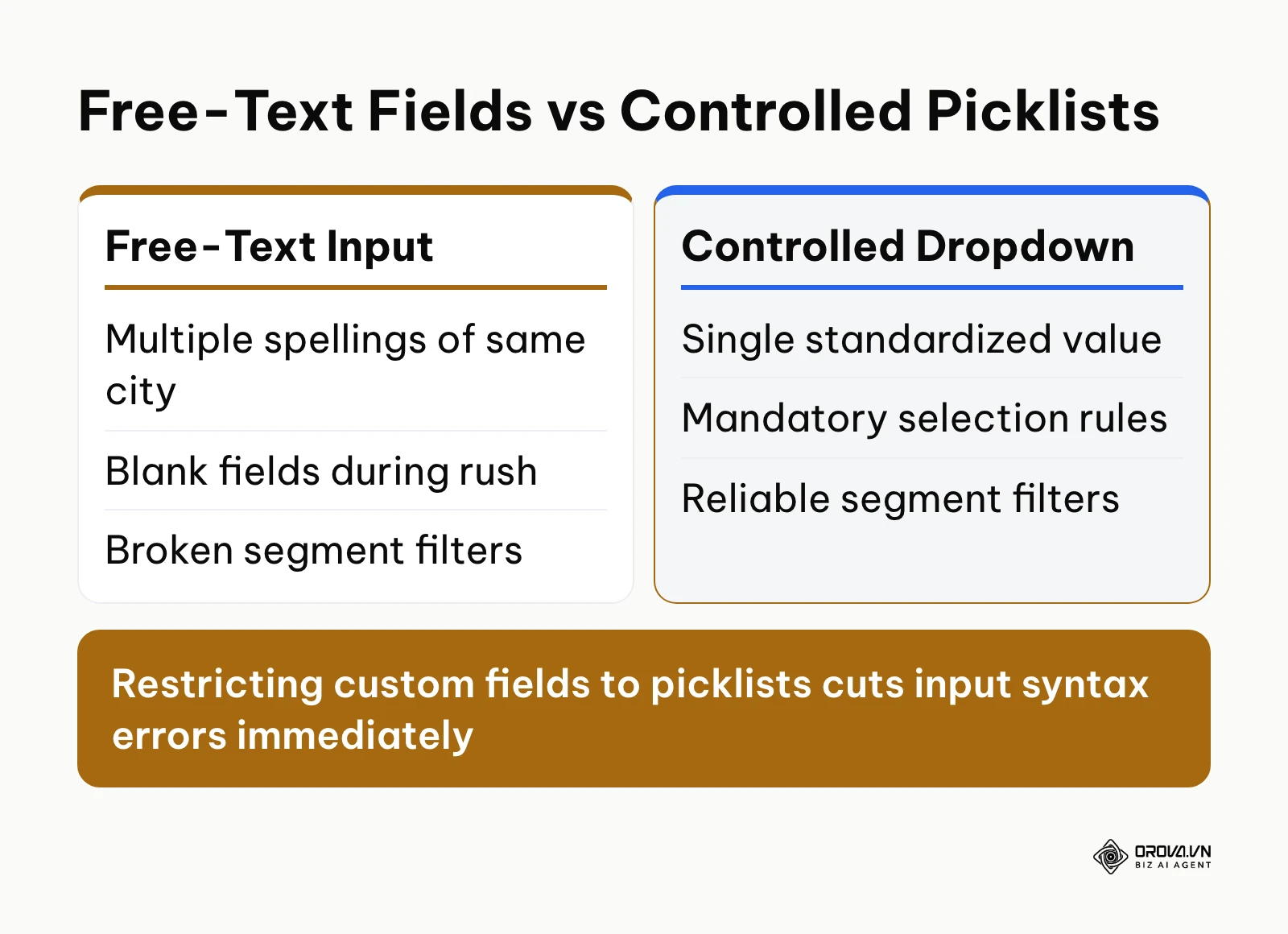
To standardize phone numbers, enforce the international E.164 telecommunications standard, which formats numbers with a leading plus sign, country code, area code, and subscriber number (for example, +14155552671). Standardizing this property keeps click-to-call buttons, dialers, and messaging apps working without manual fixes.
Optimizing Intake Form Length for High-Fidelity Entry
Standardization also requires re-evaluating the intake forms deployed on your website landing pages. A common operational challenge is determining the ideal number of intake fields. If your form requires 15 distinct properties, web conversion rates plummet and prospects enter fictitious data to bypass gates. Conversely, if your form only requests an email address, sales reps must spend billable selling time researching job titles and company sizes.
The optimal baseline for initial intake forms is between 5 and 7 essential properties: First Name, Last Name, Work Email, Phone Number, Company Name, and one qualifying dropdown (such as Primary Challenge or Company Size). Limiting forms to these essential properties maximizes submission completion rates while capturing sufficient data to route leads accurately.
You will know this step is successful when viewing the field property manager: every categorical contact attribute displays as a single-select or multi-select picklist, and zero active fields accept unvalidated free-text entry for operational categories.
A frequent error during field conversion is truncating legacy values when converting a text box into a picklist. If your historical data contains an unmapped string, certain platforms overwrite that cell with a blank value. To fix this, always execute a complete property export, create a comprehensive picklist value map that accounts for every legacy spelling, and upload the standardized mapping before locking the field type.
Cleaning duplicates and messy fields? Orova CRM gives you a Customer Book with saved multi-condition filters, a merge-duplicates action, bulk changes, and 21 custom field types, so picklists replace free text. Free until the end of July 7, 2027.
Step 4: Deduplicate Records Using Master Conflict Resolution Rules
Detect and merge duplicate contact profiles by applying strict field survival rules that preserve communication histories and active pipeline stages.
Open your CRM's duplicate-check or merge screen; most platforms have one. If yours only flags exact matches, export the contact table and use a spreadsheet to sort and flag repeats by email and phone first. Configure matching rules to scan for records sharing identical corporate email addresses, identical mobile phone numbers, or matching corporate domain names paired with identical last names. When reviewing suspected duplicate clusters, never rely on arbitrary manual choices. Apply a standardized conflict resolution matrix to determine which record survives as the master.
Identifying Match Criteria and Duplicate Clusters
Duplicate records typically emerge when an existing prospect fills out a new marketing form using a slightly different name, or when multiple sales reps manually enter the same trade show attendee. To prevent data corruption during deduplication, you must distinguish between the master record (the primary entity that retains the core database ID) and the secondary record (the entity that merges into the master before deletion).
The Master Record Conflict Resolution Matrix
When two records contain conflicting data points, sales reps often hesitate to merge them for fear of overwriting critical notes or phone numbers. The 4-column Master Record Conflict Resolution Matrix below establishes definitive field survival rules for resolving competing contact properties:
| Field Name | Conflict Scenario | Field Survival Rule / Winning Logic | Real-World Operational Example |
|---|---|---|---|
| Phone Number | Record A has an office landline; Record B has a direct mobile number | Retain the most recently verified or dialed mobile number; append the landline to the secondary phone field | Record B mobile (+1-415-555-0199) becomes primary; Record A landline moves to alternate phone |
| Work Email Address | Record A has a corporate domain; Record B has a personal Gmail address | Corporate business domain always supersedes personal or generic webmail providers | Corporate email (sarah@enterprise.com) wins; personal email is moved to secondary contact field |
| Record Owner | Record A is owned by Rep X; Record B is owned by Rep Y | If one owner has an active deal in progress, that rep wins; if neither has an active deal, assign to the most recent touchpoint owner | Rep Y has an open proposal in stage 3; Rep Y retains account ownership |
| Pipeline Stage | Record A is marked as MQL; Record B is marked as Negotiation | The record positioned further down the sales funnel takes absolute precedence | Negotiation stage supersedes Marketing Qualified Lead; opportunity stage moves forward |
| Revenue / Deal Value | Record A lists 10,000; Record B lists 15,000 on duplicate deals | If representing the same transaction, retain the value tied to the signed proposal; if separate units, consolidate line items | Signed proposal value of 15,000 is retained; the earlier 10,000 estimate is deprecated |
| Notes & Activities | Both records contain separate logged calls, emails, and internal notes | Chronologically concatenate all historical entries; never overwrite or truncate historical text | Activity timeline merges both histories in strict chronological sequence |
Preserving Chronological Activity Timelines Without Data Loss
Managers often worry that merging will break customer context. In most modern platforms a merge moves the secondary record's tasks, emails, and logged calls onto the master record, so the surviving profile shows one unbroken timeline and keeps its original creation date and ID. Test this on a few records first, because field handling differs between systems.
Hypothetical example: a 25-person SaaS sales organization discovered over 800 duplicate accounts resulting from concurrent inbound webinar registrations and outbound SDR prospecting cadences. The sales operations team configured automated matching scans based on normalized company website domains combined with contact last names. During the review, two conflicting records appeared for an enterprise procurement director: one record sat in the Qualification stage owned by an SDR, while the other sat in the Contract Sent stage with an active deal owned by an Account Executive. Applying the Master Record Conflict Resolution Matrix, the team designated the Account Executive record as the master, preserving the advanced pipeline stage and active deal value. The SDR record was merged into the master, successfully concatenating 12 historical call logs and three presentation decks into a single consolidated timeline without losing a single activity record.
The most dangerous error during deduplication is executing mass merges without verifying custom field mapping. This error causes unique notes or secondary phone numbers on the merged record to be permanently erased. To prevent this, always run a test merge on three complex sample records and visually verify that both sets of timeline notes appear on the surviving profile before initiating batch operations.
Step 5: Archive Stale Records and Hard Bounces Without Losing History
Move hard-bounced and long-inactive records out of daily views, and decide deliberately what you keep, archive, or delete.
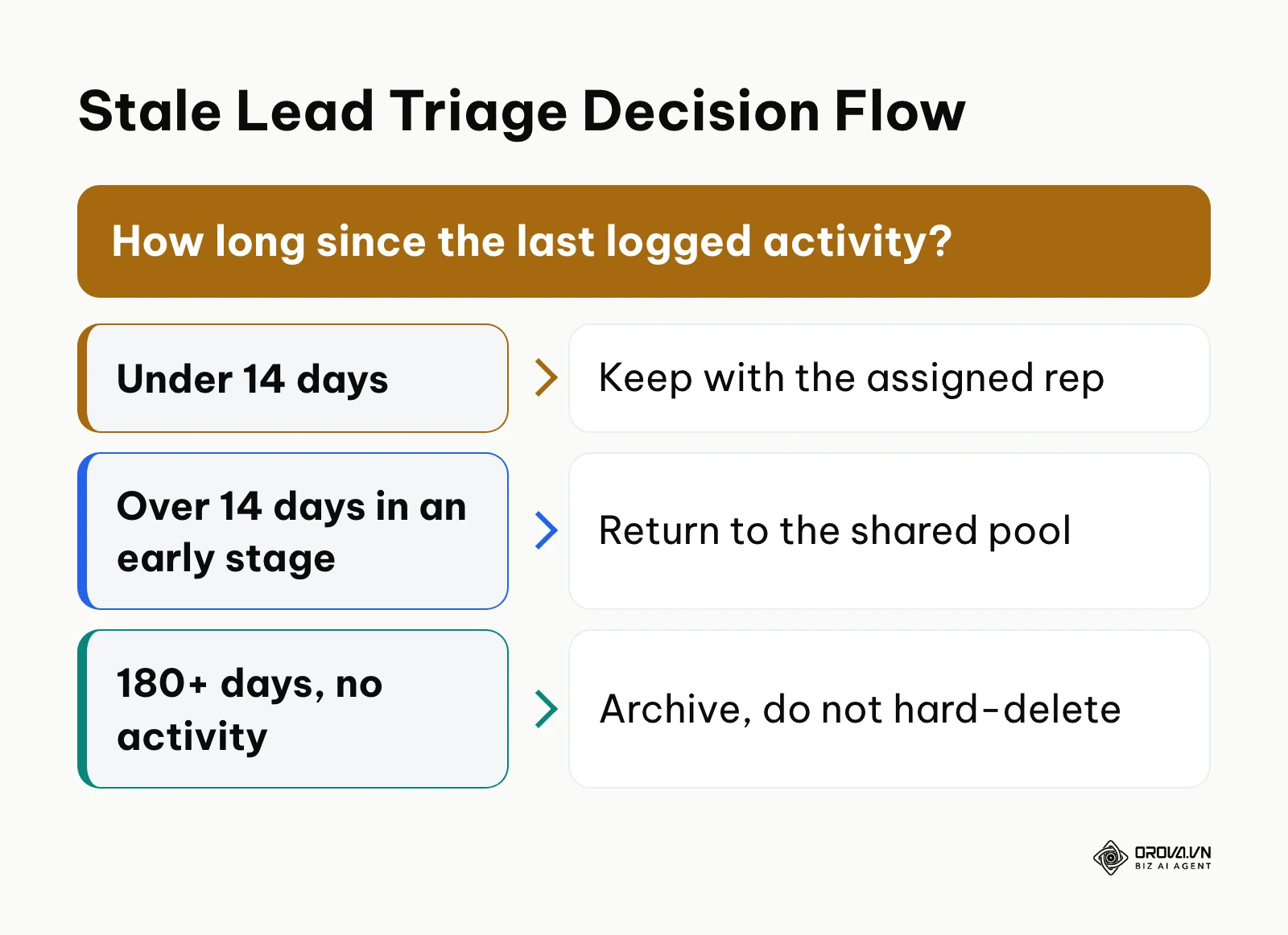
Navigate to your contact directory, construct a segmented view of hard-bounced email addresses (SMTP response codes in the 5xx range), and bulk-tag them as "Unmarketable - Hard Bounce." Next, build a dynamic list of cold leads that have logged zero email opens, form submissions, or sales interactions in the past 180 to 365 days. Archive these cold records out of your primary operational view. The diagram below shows the triage logic for stale contacts.
Pruning Invalid Deliverability Risks and Hard Bounces
Maintaining contacts with invalid email syntaxes or dead mailboxes actively degrades your sender reputation. When your marketing campaigns repeatedly strike 5xx bounce responses, internet service providers flag your sending IP address as spam. Over time, your deliverability collapses, causing sales outreach to plunge into spam folders. Purging hard bounces immediately restores sender score health.
People change jobs, companies rebrand, and mailboxes close, so every contact list goes stale over time. Use the table below to decide what happens to each group:
| Record group | Default action | Why | Check before acting |
|---|---|---|---|
| Hard bounce (5xx response) | Mark unmarketable, keep the record | Protects sender reputation while keeping deal and invoice history | Is there an open deal or unpaid order? |
| Soft bounce, three times in 30 days | Treat as hard bounce | Repeated temporary failures usually mean a dead mailbox | Was there a known outage on your side? |
| No activity for 180–365 days, never bought | Archive out of daily views | Keeps lists and forecasts honest without losing history | Did the contact opt in to newsletters? |
| Asked to be deleted, or no lawful reason to keep | Delete after export of what the law requires you to keep | Privacy rules apply to personal data you no longer need | Confirm with whoever owns compliance in your company |
Privacy Rules When You Delete or Keep Customer Data
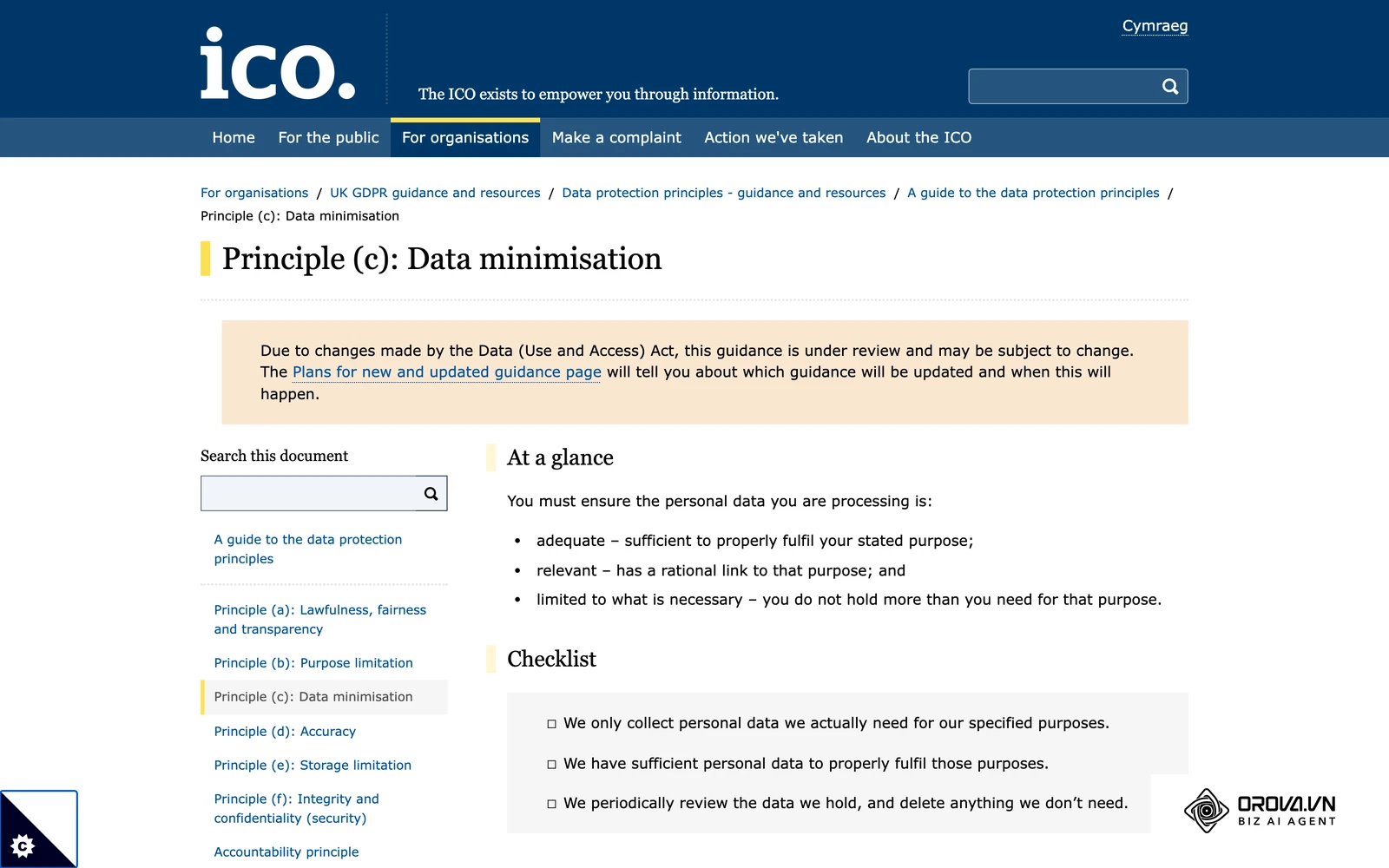
Cleaning is also a privacy decision. If you hold data on people in the EU or UK, the GDPR principles of data minimisation and storage limitation expect you to keep only what you need for a stated purpose and to review what you hold. If you serve California residents, the CCPA gives consumers rights such as asking for their personal information to be deleted. Retention periods and penalties depend on your jurisdiction and situation, so this article does not set them; agree a written retention rule with your legal or compliance owner, then apply it consistently during every cleanup. Never "refill" gaps by buying contact lists: enrich only from sources the contact gave you or from your own interaction history.
Returning Neglected Leads to a Shared Pool
Archiving handles dead records; neglected live leads need a different fix. Set a rule that returns a lead to a shared pool when it sits in an early stage, such as "New" or "Contacted", for more than 14 days without a logged call, meeting, or email. The full setup, including stage exit criteria, is covered in our guide to sales pipeline management; for data cleaning, the point is simply that ownerless or ignored records stop cluttering individual rep views.
Hypothetical example: an industrial equipment distributor with 8 field sales representatives accumulated over 15,000 legacy contacts across four years. The sales manager filtered for accounts with zero logged activity in the trailing 180 days and found 6,200 dormant cards in early pipeline stages. Reps objected, fearing they would lose client history, so the operations lead created a read-only "Dormant Archive" view instead of deleting anything and gave reps seven business days to claim genuine prospects. After the archive and a 14-day reclaim rule, the active pipeline held 1,480 real opportunities.
A common pitfall during database pruning is executing permanent hard deletions rather than soft archival. Hard deletion permanently wipes historical revenue transactions associated with past contacts, corrupting your year-over-year accounting reports. Always select the "Archive" or "Deactivate" function to retain financial audit integrity while removing records from everyday operational views.
Step 6: Limit Who Can Edit, Merge, and Bulk-Change Records
Set permissions so everyday users cannot undo the cleanup you just finished.
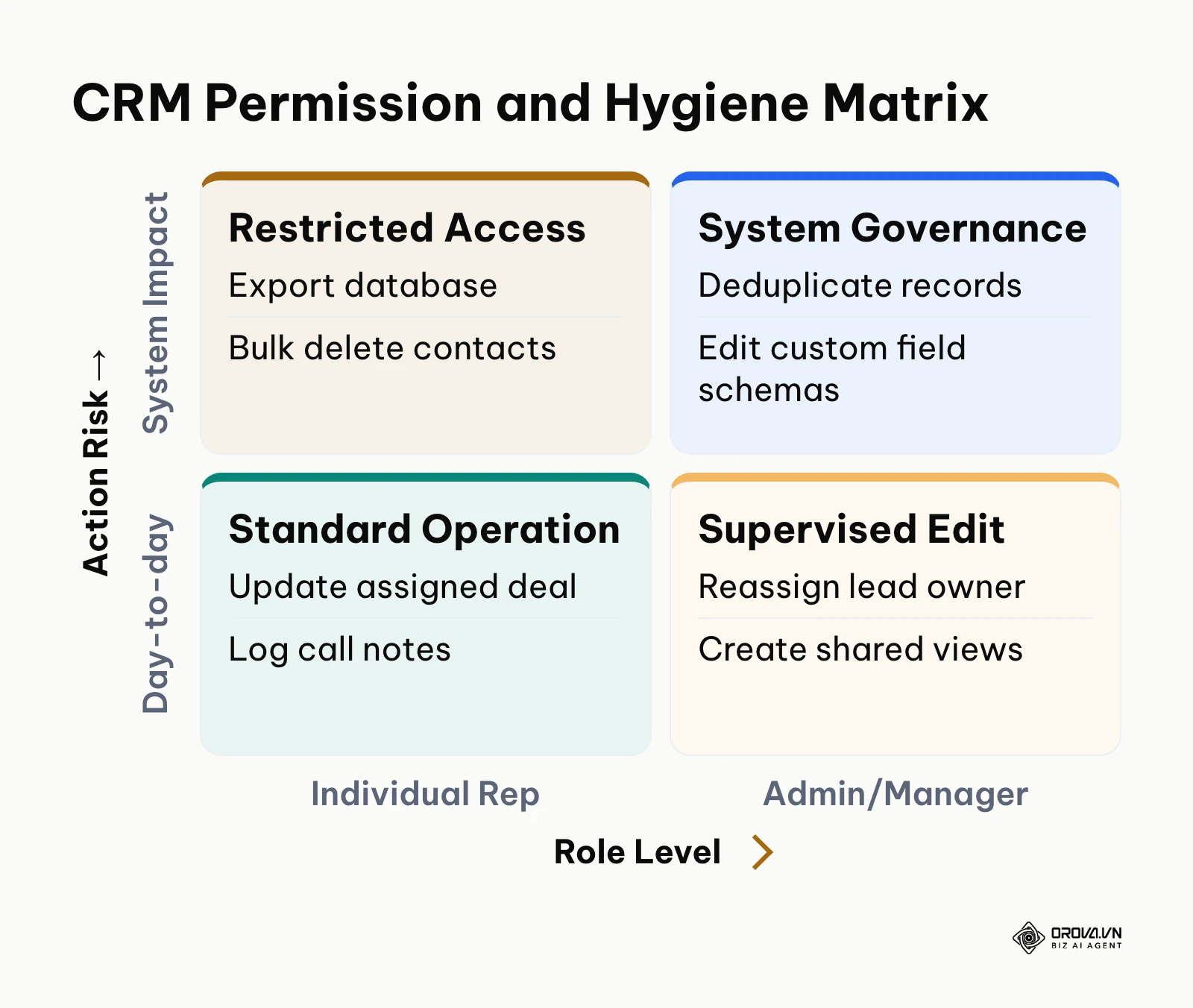
Navigate to Workspace Settings ▸ Roles & Permissions. Inspect your current security roles and divide permissions into two distinct tiers: View Scope and Edit Scope. Restrict system-level actions (including bulk data export, permanent deletion, custom property creation, and deduplication merges) exclusively to Administrators and Sales Operations Leaders. Standard sales representatives must be configured with edit access limited strictly to records they directly own or accounts assigned to their specific departmental unit. The diagram below illustrates the governance hierarchy.
Separating View and Edit Boundaries by Department Tree
When everyone can edit everything, a cleanup is undone within weeks. Separate View from Edit along your department tree: a rep can see accounts in sibling teams to avoid double outreach, but can only edit records they own or that belong to their unit.
Restricting Destructive Bulk Actions to System Administrators
One misconfigured filter plus a bulk edit can overwrite thousands of records. Keep bulk edit, bulk delete, merge, and full export with a small group of administrators, and ask for a second pair of eyes before any mass change.
You will verify that permissions are properly structured when logging in via a standard sales representative test profile: the buttons for "Bulk Edit," "Bulk Delete," "Merge Records," and "Export Database" appear greyed out or completely absent from the contact management table.
A common error in permission structuring is leaving API keys and connected third-party integrations with unmonitored write access. When a connected external application updates records without strict validation, it can inject unformatted data into clean fields. To resolve this, audit your connected app integrations and set all non-essential integrations to read-only access.
Step 7: Establish an Ongoing Three-Tier Data Hygiene Rhythm
Implement a structured, recurring maintenance cadence to ensure your database remains clean as new leads flow into your commercial engine.
Establish a calendar-based hygiene cadence divided across three operational roles: weekly self-audits by sales reps, monthly pipeline health inspections by sales managers, and quarterly database optimization sweeps by system administrators. Program automated task notifications to trigger at the beginning of each cycle, providing direct links to pre-filtered maintenance views.
The Three-Tier Operational Cadence
Treating data hygiene as an annual crisis guarantees recurring chaos. Splitting the work into small, owned routines keeps the database clean with modest effort:
| Tier | Owner | Time box | Tasks | Done when |
|---|---|---|---|---|
| Weekly (Friday) | Each sales rep | 15 minutes | Fill missing mandatory fields on "My contacts"; move lapsed close dates; log outcomes of overdue tasks | Overdue task counter reads zero |
| Monthly (month end) | Sales manager | 45 minutes | Review leads past the 14-day inactivity rule; return neglected accounts to the shared pool; read lost-deal reasons for data gaps | No lead breaks the inactivity rule |
| Quarterly | CRM administrator | 90 minutes | Run duplicate scans; review integration error logs; archive hard bounces; retire unused custom fields | Duplicate clusters below your target, for example 0.5% |
Clear Acceptance Criteria for Maintenance Tiers
Every cycle needs a yes-or-no finish line, as in the last column above. Pick the duplicate target from your Step 1 baseline rather than copying a number; what matters is that it trends down and stays flat.
You will know this step is functioning when reviewing the database health dashboard at the end of each quarter: the aggregate error rate remains consistently flat beneath your target threshold rather than spiking upward between sporadic cleanup projects.
A common error is failing to allocate dedicated working hours for hygiene routines, causing sales reps to bypass audits in favor of prospecting calls. To resolve this, incorporate data accuracy metrics into monthly sales rep performance evaluations to reward disciplined pipeline hygiene.
Keep the cleanup from sliding back: in Orova CRM, neglected customers return to the shared pool when the care deadline you set per pipeline stage passes, and View and Edit scopes follow your department tree. Free until the end of July 7, 2027.
The Complete CRM Data Hygiene Checklist
The printable operational checklist below summarizes the entire seven-step data hygiene workflow. Sales operations teams can use this reference matrix to track execution milestones, expected outcomes, and completion times:
| Step | Primary Operational Task | Definition of Done (Verifiable Sign) | Estimated Time |
|---|---|---|---|
| Step 1: Baseline Audit | Filter missing fields, syntax errors, and inactive accounts | Error percentage calculated; baseline metric log documented | 30–45 mins |
| Step 2: System Backup | Export full CSV archive; pause outbound webhooks | Backup ZIP stored safely; all active automation triggers toggled off | 20–30 mins |
| Step 3: Field Standardization | Convert free-text fields into single-choice picklists | 100% of categorical properties display as controlled dropdowns | 45–60 mins |
| Step 4: Record Deduplication | Apply conflict resolution matrix to merge duplicate records | Duplicate detection scans return zero unmatched cluster alerts | 60–90 mins |
| Step 5: Archive and Reclaim | Archive hard bounces; apply retention rule; activate 14-day reclaim | 5xx bounce addresses archived; inactive leads re-routed to common pool | 30–45 mins |
| Step 6: Edit and Merge Permissions | Restrict edit and bulk deletion rights by department tree | Rep profiles lack bulk edit, delete, and merge capabilities | 20–30 mins |
| Step 7: Ongoing Cadence | Program weekly, monthly, and quarterly maintenance schedules | Automated recurring calendar invites and task templates activated | 15–20 mins |
Troubleshooting Common CRM Data Cleaning Mistakes
Even disciplined teams encounter operational hurdles when executing database cleanups. The matrix below outlines common data cleaning failures, their operational causes, and direct corrective actions:
| Operational Error | Common Root Cause | Actionable Fix |
|---|---|---|
| Overwritten Active Deal Values | Deduplication script selected older inactive record as master | Roll back using backup CSV; re-run merge using the Master Conflict Resolution Matrix |
| Unintended Email Workflows Fired | Outbound automations and webhooks left active during bulk edits | Immediately pause workflow engines; purge pending outbound mail queues in platform settings |
| Broken Dashboard Reports | Custom field renamed or deleted without checking dependent formula references | Recreate the field property using original exact API name; update downstream dashboard metric references |
| Orphaned Child Records | Contact deleted instead of merged, leaving deals detached from accounts | Re-link deal records to parent company accounts using original Account ID lookups |
| Truncated Field Character Strings | Importing text cells exceeding character limits into rigid properties | Adjust field character ceiling in property settings or summarize text prior to batch upload |
| Sales Rep Workaround Sheets | Intake forms require excessive mandatory fields, prompting reps to use offline notes | Reduce mandatory initial properties to 5–7 fields; eliminate redundant entry gates |
If your team uses Orova CRM, the tools for this process sit in the Customer Book: filters with multiple conditions that you can save, a merge-duplicates action, and bulk actions such as changing stage or owner. Settings ▸ Fields offers 21 custom field types, including single-select and multi-select fields for picklists, and Excel import starts from a template generated from your own fields with drop-downs built into the file. Automatic reclaim returns neglected customers to the shared pool when the care deadline you set for each pipeline stage passes, with a reminder beforehand, and CRM permissions let you set View and Edit scopes separately along your department tree. These tools support the steps above; the review decisions still belong to your team.
How to Measure Success After Cleaning Your CRM Data
Measuring the success of your database cleanup requires tracking quantitative operational metrics rather than relying on qualitative impressions. You can evaluate the impact of your cleanup across three primary metrics visible in your analytics dashboards within 30 to 90 days. For advanced reporting, connecting clean records to external dashboards as demonstrated in our guide on Looker Studio data provides leadership with clear visibility into database integrity.
| Metric | Where to read it | When to check | Compare against |
|---|---|---|---|
| Email bounce rate | Email or campaign delivery report | Before cleanup, then after 30 and 90 days | Your Step 1 baseline |
| New duplicates per month | Duplicate scan or merge log | Monthly | Your own target, set in Step 7 |
| Time in early pipeline stages | Sales cycle or stage duration report | Weekly | The pre-cleanup average |
First, monitor your marketing email bounce rate. Once hard bounces are archived and invalid addresses are removed, bounces should fall because you stop sending to dead mailboxes. Record the rate before cleanup, measure it again 30 and 90 days later, and compare against your own Step 1 baseline, not someone else's benchmark.
Second, measure your duplicate record creation frequency. Following the standardization of intake properties and the deployment of deduplication rules, new duplicates should become rare; set a target such as under 1% of monthly inbound leads and track it.
Third, evaluate pipeline velocity and sales rep adoption. When representatives no longer waste billable hours sifting through duplicate cards or dialing dead numbers, the time leads spend in early pipeline stages should shrink. Track it in your weekly sales cycle reports and compare it with the pre-cleanup baseline.
Trends in CRM Data Cleaning Over the Coming Years: Author's Perspective
Looking at the trajectory of sales operations as of 2026, enterprise data management is undergoing structural shifts that will redefine how commercial databases operate over the next few years.
First, I believe cleanup after the fact will matter less than validation at the moment of entry. Today many teams accept sloppy forms and then run a reactive cleanup every quarter. Over the next few years, I expect validation at the point of entry to check phone formats, company domains, and required fields before a record can be saved. Prepare now by retiring free-text fields and adding validation to every public form. I could be wrong if CRMs keep their intake forms closed to outside validation.
Second, in my view, AI will be most useful as a quiet auditor rather than a writer. Generated customer summaries can introduce errors into profiles; flagging contradictory fields, likely job changes, and probable duplicates for a person to approve is a safer job. Teams should prepare by writing down their master-record rules now, because no automated system can resolve a conflict that the team itself has not defined. Stricter privacy rules could slow the enrichment side of this.
Third, I think CRMs will treat old records differently from fresh ones. A contact entered three years ago and never worked usually sits with the same prominence as yesterday's lead. I expect more systems to lower the visibility of untouched records based on clear inactivity rules. Prepare by agreeing on inactivity rules and on how leads get redistributed; if reps resist changes to lead ownership, this shift will be slow.
Frequently Asked Questions About How to Clean CRM Data
How does artificial intelligence assist in maintaining CRM data quality without corrupting original records?
AI tools are safest when they suggest rather than overwrite: they scan for format problems, likely duplicates across different spellings, and outdated titles, then surface merge suggestions or alerts for a person to confirm. Keep a backup and your master-record rules in place before turning any such feature on.
How do you merge duplicate records without accidentally triggering automated emails or webhooks?
Pause every active workflow, email sequence, and outbound webhook before you merge, as described in Step 2. Run the merges, check that fields and timeline notes landed on the master record, then switch the automations back on one at a time.
What is the optimal number of fields on an initial lead capture form?
A practical starting point is 5 to 7 fields: first name, last name, work email, phone, company, and one qualifying drop-down. That is enough to route the lead; more fields tend to invite fake answers, and fewer push research work onto reps. Test against your own form data.
How should conflicting order histories and timeline activities be handled during deduplication?
Never overwrite history. Move every email, call, note, and order from the secondary record to the master record so the merged profile keeps one chronological timeline, and resolve conflicting field values with the matrix in Step 4.
How often should a growing B2B company conduct a full database cleanup?
Run one full cleanup with the seven steps above, then switch to the three-tier rhythm in Step 7: a 15-minute weekly check by reps, a 45-minute monthly review by managers, and a 90-minute quarterly sweep by the CRM administrator.
Can soft-bounced email addresses be safely retained in the CRM database?
Yes, for a while. Soft bounces usually mean a temporary problem such as a full mailbox or a brief server outage. Count them, and if one address soft-bounces three times across separate sends within 30 days, treat it as a hard bounce and stop marketing to it.
Where Should You Start?
The correct entry point for cleaning your customer database depends on your current team size and the volume of records in your system. Rather than attempting a massive overhaul in a single sitting, diagnose your primary operational bottleneck and execute one high-impact action today.
If you are a small team with fewer than 2,000 contacts, start with field standardization: convert your main free-text fields into drop-down picklists today. That stops new formatting errors immediately, and you can clean the backlog afterwards.
If you are a mid-sized team whose pipeline is full of neglected deals, start with Step 5: archive dead records and set a 14-day rule that returns ignored early-stage leads to a shared pool.
If you are a larger organization preparing a migration or territory change, start with a full export and a duplicate scan: back up every core object, match on email and company domain, and resolve the biggest clusters with the Master Record Conflict Resolution Matrix. Taking these first steps gives you a clear, measurable start on how to clean CRM data.
About the author

Builder of Orova
Nguyễn Đỗ Trọng Ân has 8 years of experience in marketing, including 6 years managing market development across Asia. He builds Orova, a Biz AI Agent that never sleeps: it plans, runs and optimizes work for businesses.
Run your business with AI Agents
Orova is the always-on Biz AI Agent — it plans, runs, and optimizes the work for you.
Save time, unlock productivity.