
Video conferencing software: the 7 best options compared for 2026
Selecting the right video conferencing software directly impacts deal velocity, remote employee engagement, and annual software overhead. Choosing the wrong tool can lock teams into an ecosystem that does not fit, ask external clients to install an app before a first call, or cut a free-plan meeting short in the middle of a presentation.
Quick answer: the seven options compared here are Zoom Workplace, Google Meet, Microsoft Teams, Cisco Webex, Lark, Zoho Meeting and Orova Meet. Pick the suite your company already runs on (Microsoft 365, Google Workspace, Zoho) for internal calls, and look at a browser-first room with built-in translation when most of your meetings are with outside guests who speak another language.
This guide compares each platform on five practical criteria: guest entry friction (zero-install browser access versus mandatory app downloads), meeting length, real-time multilingual capabilities (live translated captions and AI voice dubbing), automated meeting minutes extraction, and administrative data privacy.
Whether you run a fast-moving distributed consultancy or an enterprise department, use this breakdown to match your constraints with the right online meeting platform before you start a trial.
Video Conferencing Software Comparison: 7 Platforms at a Glance
The right video conferencing software balances call reliability with minimal participant friction. Enterprise ecosystems like Microsoft Teams and Zoom prioritize internal workspace collaboration, while modern browser-native alternatives focus on quick guest access from a link, longer sessions, and built-in translated captions.
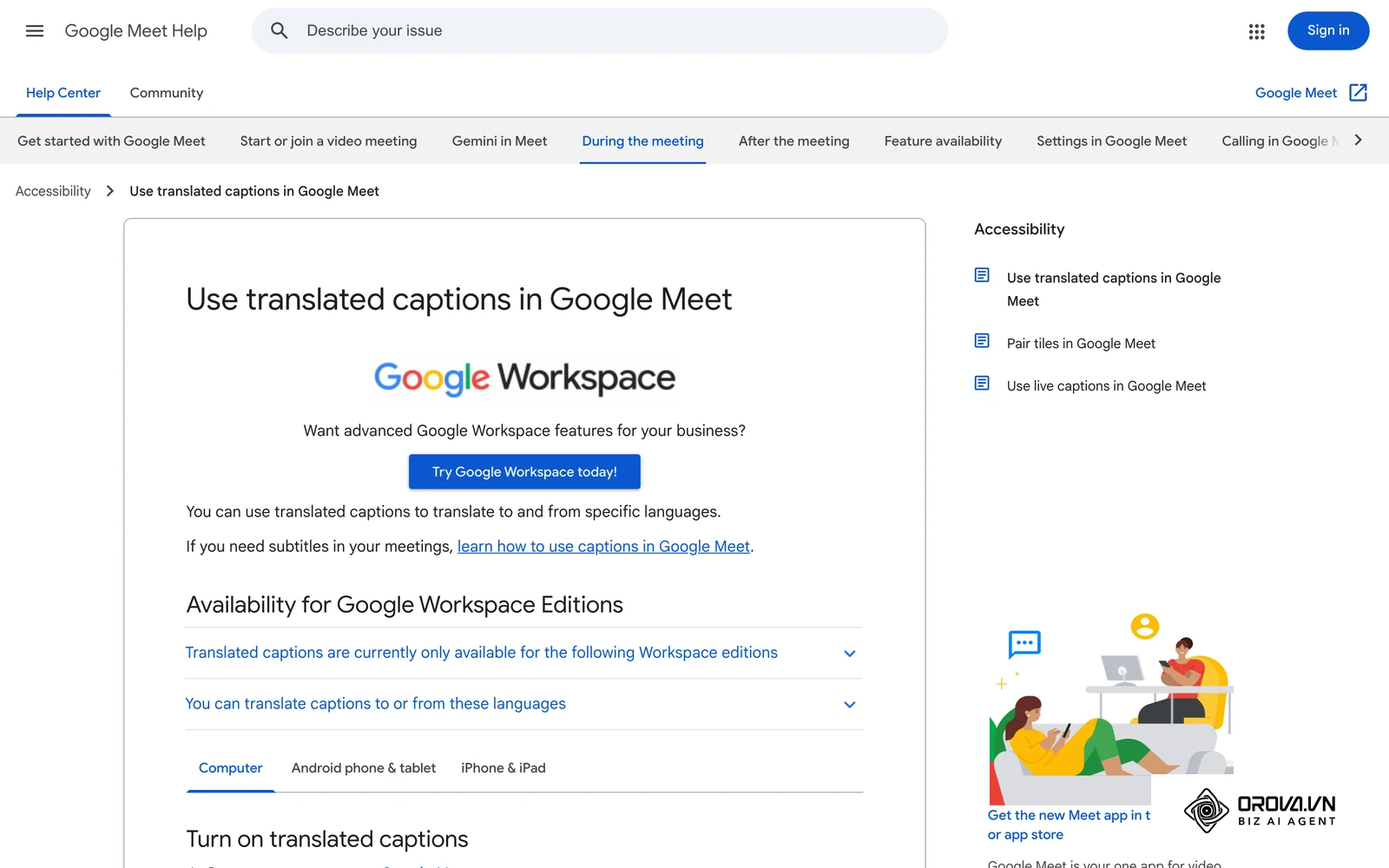
The comparison table below summarizes the core strengths and practical fit for the leading platforms available in 2026.
| Platform | Best for | Top strength | Quick verdict |
|---|---|---|---|
| Zoom Workplace | Large teams, webinars and company phone systems | Broad ecosystem and a large app marketplace | A familiar default for internal and external calls |
| Google Meet | Google Workspace organizations | Tight Calendar, Gmail and Docs integration | Simple browser experience tied to Google accounts |
| Microsoft Teams | Microsoft 365 organizations | Chat, files and meetings in one workspace | Strongest when most participants are inside your tenant |
| Cisco Webex | Regulated industries and meeting-room hardware | Security options and room devices | Fits IT-managed deployments |
| Lark | Teams consolidating chat, docs and video | All-in-one workspace with message translation | Best when you replace your whole collaboration stack |
| Zoho Meeting | Small businesses already on Zoho | Meetings and webinars connected to Zoho apps | Practical add-on for Zoho CRM users |
| Orova Meet | External guest meetings across languages | Up to 24 hours per session, no install, translated captions and voice dubbing | Browser-first room with built-in translation and AI minutes |
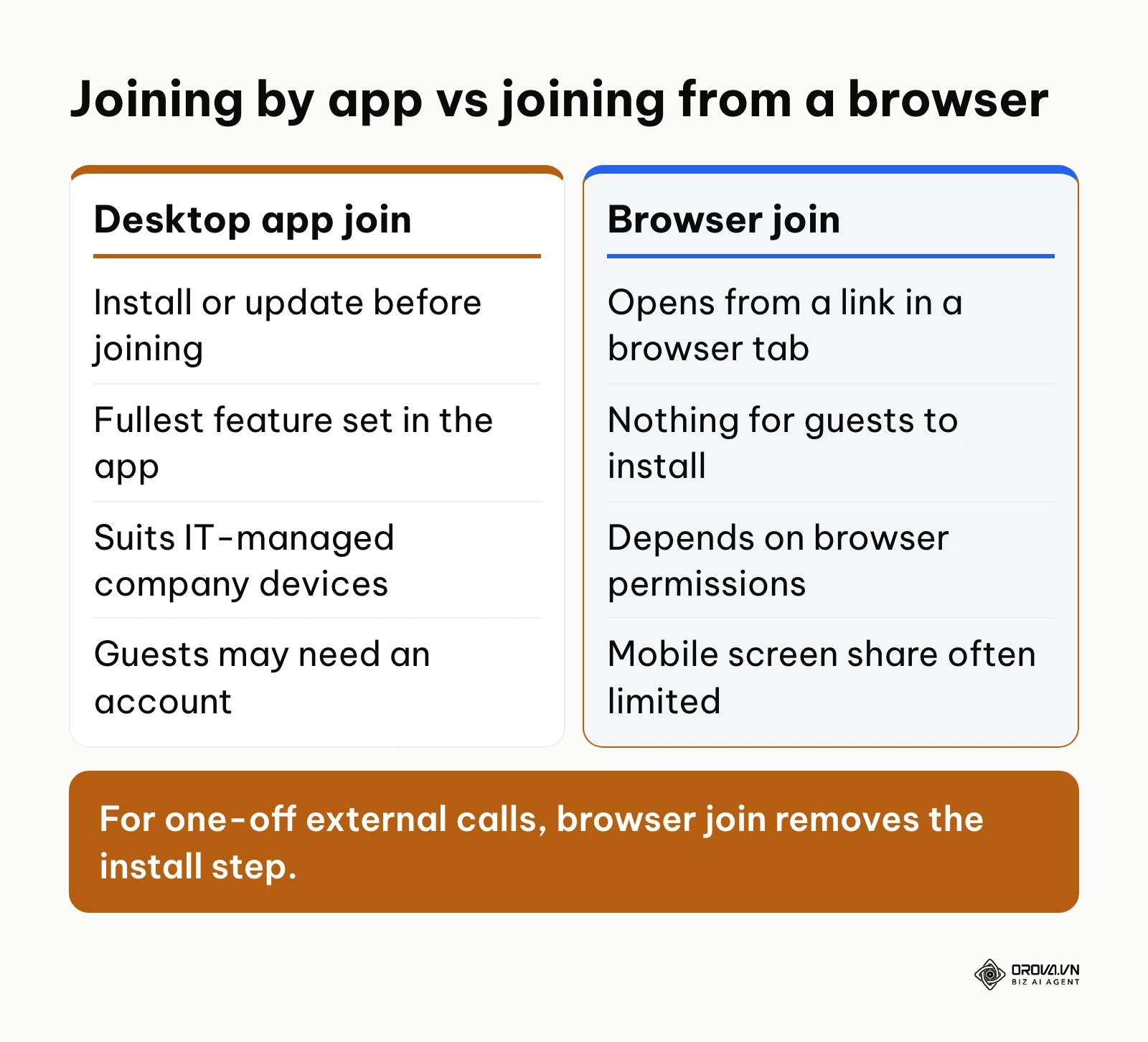
Large meeting platforms keep adding telephony, messaging and meeting AI into one client app. That suits employees who live in the app all day, but an external guest usually just wants to click a link and join.
The architectural comparison below highlights the trade-offs between joining through a desktop app and joining from a browser tab.
Overcoming Entry Friction and Time Caps in Modern Online Meetings
Guest drop-offs frequently occur before a meeting even starts. When an external partner, prospective client, or job candidate clicks a meeting invitation and meets an installer, a permission prompt from company IT, or an account sign-up screen, the meeting starts late or the guest gives up.
As defined by the World Wide Web Consortium (W3C) in WebRTC 1.0: Real-Time Communication Between Browsers (2021), modern browser engines establish direct peer-to-peer audio, video, and data channels without requiring third-party browser extensions or standalone executable installers. For guests, that removes the install step.
Meeting length matters too. While internal standups may wrap up in 15 minutes, strategic planning sessions, client discovery calls, and detailed interviews often exceed an hour. The table below shows how each tool handles guest access, meeting length and translated captions. Free-plan limits change often, so confirm them on each vendor's current pricing page.
| Platform | Guests can join from a browser | Meeting length | Translated captions |
|---|---|---|---|
| Zoom Workplace | Yes (web client; the desktop app has more controls) | Set by plan; the free plan is time-limited | On selected paid plans or add-ons |
| Google Meet | Yes (browser is the main client) | Set by plan; free group calls are time-limited | On selected Google Workspace editions |
| Microsoft Teams | Yes (Teams on the web) | Set by plan; the free version is time-limited | On selected paid plans |
| Cisco Webex | Yes (web app) | Set by plan; the free plan is time-limited | On selected paid plans |
| Lark | Yes (web join for guests) | Set by plan | Message translation built in; check plan for meeting captions |
| Zoho Meeting | Yes (browser-based) | Set by plan | Check current plan |
| Orova Meet | Yes (browser only, nothing to install) | Up to 24 hours per session | Built in (about 37 spoken languages recognized, 50 caption languages), plus voice dubbing with 30 voices |
Hypothetical example: A cross-border trade consultancy with 6 consultants organized negotiation calls with factory suppliers across three countries. The consultants previously sent standard enterprise meeting invitations that required desktop installations. Some suppliers repeatedly missed call start times because their company devices blocked software installs.
The consultancy altered its standard operating procedure: they switched to browser rooms sent as short links, where a guest only types a display name. Suppliers joined through Chrome or Safari without software prompts, and calls started on time far more often.
Zoom Workplace
Zoom Workplace is one of the most widely used meeting platforms and is well suited to hosting large-scale corporate town halls, investor webinars, and structured client presentations.
- Best for: Mid-market to enterprise companies needing enterprise telephony, webinar hosting, and established ecosystem integrations.
- Strengths: Stable audio and video on everyday connections; extensive third-party integration marketplace covering CRM, calendar, and project management tools; comprehensive host moderation controls including granular participant mute rules.
- Weaknesses: The free plan limits meeting length; guests who join from the web client get fewer controls than desktop app users.
- When to choose: Select Zoom Workplace when your team requires unified business telephony, complex webinar configurations, and hardware room integrations across corporate offices.
Google Meet
Google Meet delivers an accessible, browser-native meeting experience designed around the Google Workspace productivity suite. It requires no local desktop software installation on macOS, Windows, or ChromeOS devices.
- Best for: Companies running on Google Workspace who want friction-free browser meetings tied directly to Google Calendar and Gmail.
- Strengths: Zero desktop software download requirement for desktop browser participants; native integration with Google Docs, Sheets, and Slides for in-call document collaboration; fast URL generation directly within calendar invite creation windows.
- Weaknesses: Free group calls are time-limited; recording and several AI features require paid Google Workspace editions.
- When to choose: Choose Google Meet if your company already runs daily operations on Google Workspace and values frictionless browser calling over standalone desktop apps.
Microsoft Teams
Microsoft Teams serves as the centralized collaboration and communications engine for enterprise organizations heavily invested in Microsoft 365. It merges group chat, file management, and video conferencing into a single persistent workspace.
- Best for: Large enterprises, healthcare providers, and educational institutions utilizing the full Microsoft 365 licensing framework.
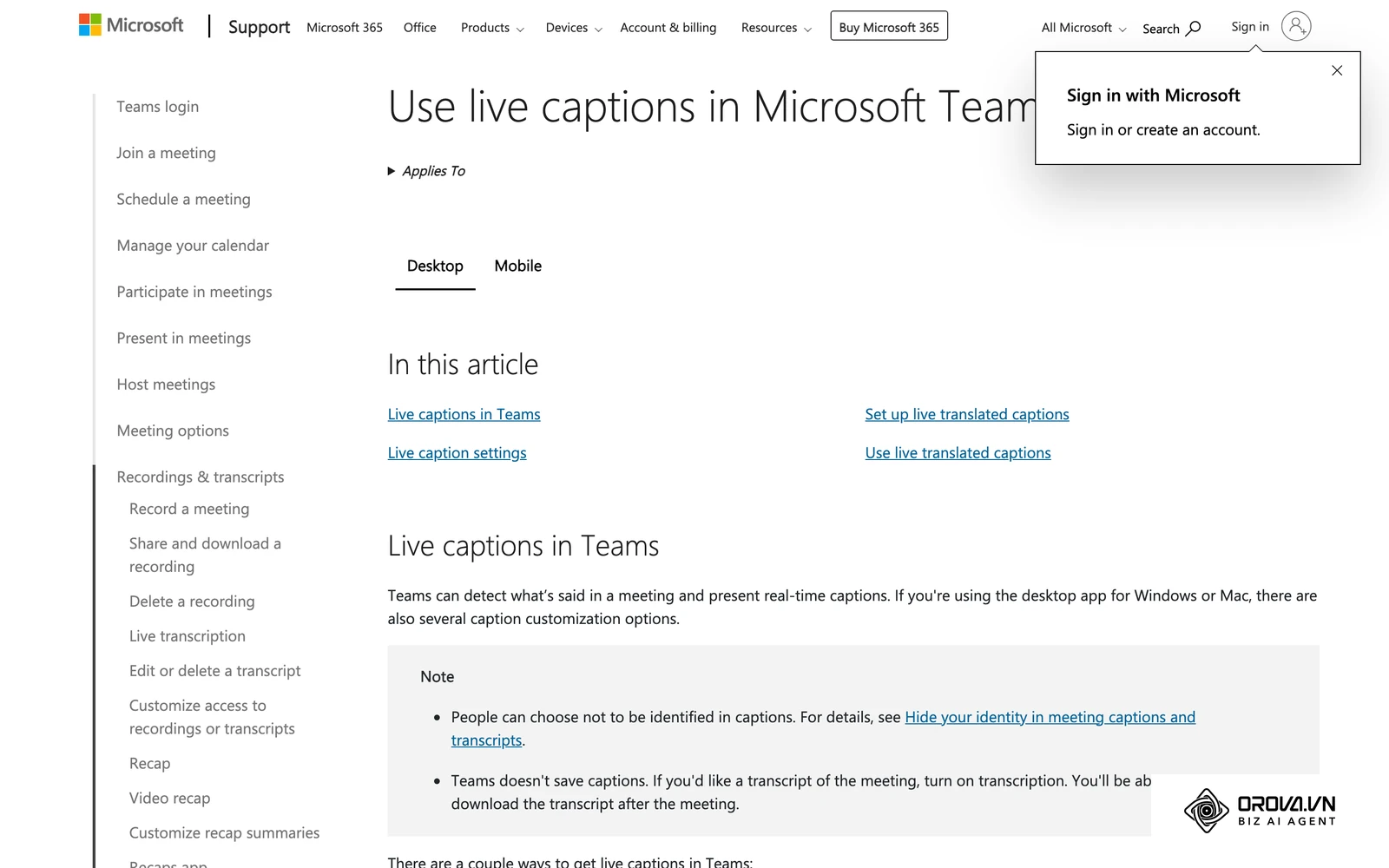
- Strengths: Deep security synchronization with Microsoft Entra ID and conditional access policies; live captions in meetings, with live translated captions on selected paid plans; co-authoring Office documents directly within active meeting windows; structured channel-based meeting archives and chat persistence.
- Weaknesses: Built for people inside a Microsoft 365 tenant, so external guests may get fewer options than internal members, depending on admin settings.
- When to choose: Select Microsoft Teams when your organization enforces strict Microsoft IT governance, depends on SharePoint document libraries, and conducts primarily internal team communications.
Cisco Webex
Cisco Webex targets security-focused organizations and companies that run dedicated conference room hardware. It includes background noise removal and compliance controls.
- Best for: Financial institutions, legal firms, and enterprises requiring dedicated hardware video endpoints and rigorous compliance controls.
- Strengths: Noise removal that reduces typing and background chatter; a hardware range from desktop devices to boardroom systems; end-to-end encryption options for meetings.
- Weaknesses: The admin settings are extensive, which suits IT-managed rollouts more than a one-off call with an outside guest.
- When to choose: Choose Cisco Webex if your corporate IT department mandates specialized compliance audits, hardware boardroom codecs, and advanced network security controls.
Lark
Lark combines team chat, collaborative document editing, calendar management, and video conferencing into a singular, highly integrated workspace application.
- Best for: Fast-growing remote teams, cross-border e-commerce brands, and operations-heavy teams seeking an integrated digital headquarters.
- Strengths: Built-in translation for chat messages and documents; smooth transition from asynchronous chat threads into active multi-party video calls.
- Weaknesses: Adopting Lark requires replacing your entire collaboration stack rather than swapping out just the meeting tool; external clients invited for a single call may not need the full workspace.
- When to choose: Select Lark if you are looking to consolidate messaging, document creation, and video calls into a single unified platform rather than paying for multiple disconnected subscriptions.
Meeting with clients who speak another language? Orova Meet opens a browser meeting room that runs up to 24 hours, guests join from a link without an account, and translated captions plus voice dubbing follow the speaker within seconds.
Zoho Meeting
Zoho Meeting provides a straightforward online meeting platform tailored specifically for small business owners and freelancers already leveraging the Zoho software ecosystem.
- Best for: Budget-conscious small businesses, solo consultants, and sales reps using Zoho CRM for lead prospecting.
- Strengths: Plans aimed at small businesses; lightweight browser-based architecture requiring no heavy software installations; embedded webinar registration pages and email tracking.
- Weaknesses: Most valuable inside the Zoho ecosystem; teams on other suites get less from its integrations.
- When to choose: Choose Zoho Meeting if you need simple client video calling that connects directly into your existing Zoho CRM lead pipelines.
Orova Meet
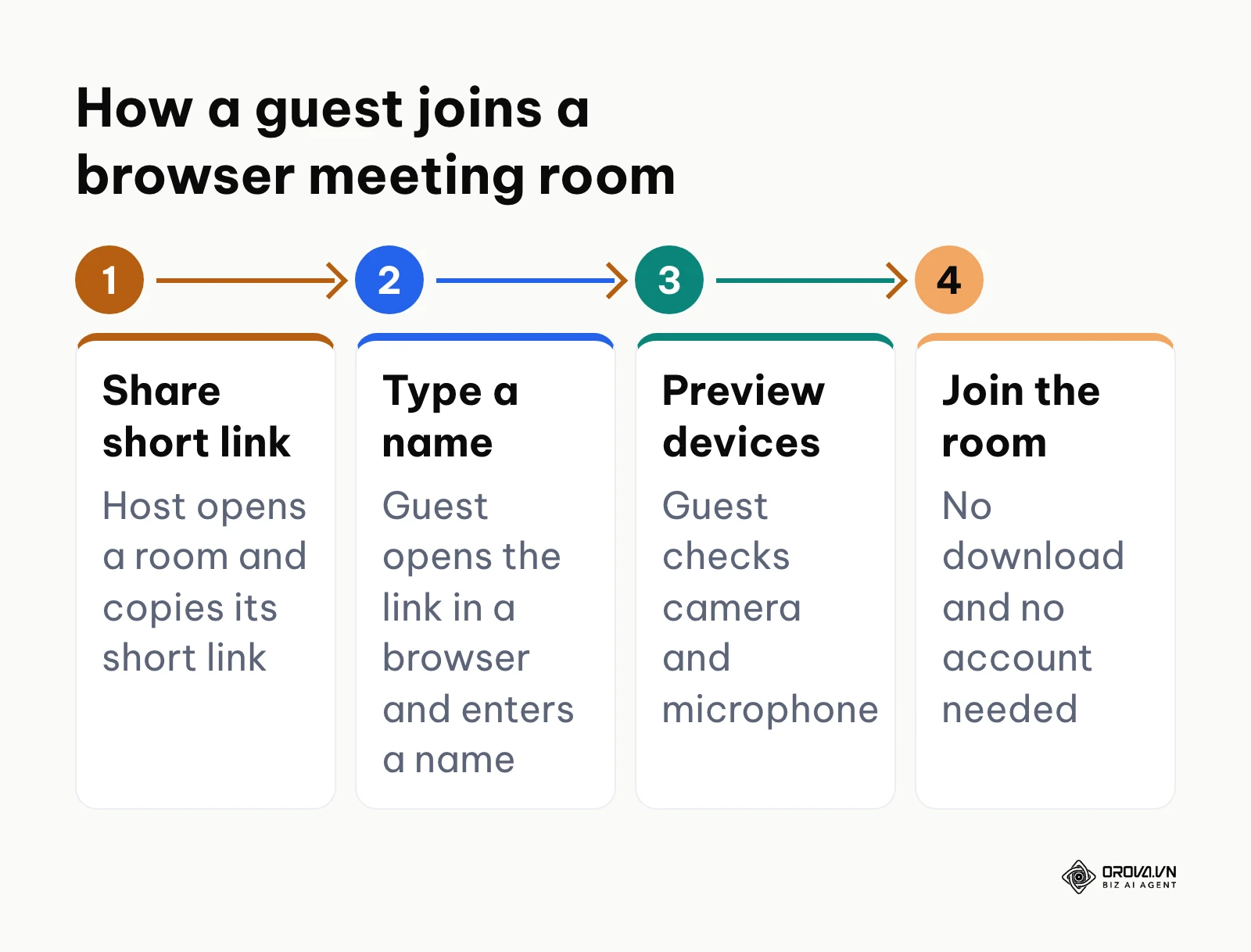
Orova Meet is a browser-based online meeting platform for international trade calls, candidate interviews, and external partner meetings. A host opens a room in one click and shares a short link; guests join from a browser without creating an account.
- Best for: Cross-border businesses, international agencies, recruitment teams, and consultants who host extended client sessions across different languages.
- Strengths:
- Sessions run continuously up to 24 hours without forced cutoffs, opening 15 minutes before scheduled times to accommodate early arrivals.
- Built-in two-way translation subtitles supporting approximately 37 speech recognition languages and 50 text translation languages, paired with 30 distinct AI dubbing voices. Each participant speaks their own language and reads or hears the translation in the language they pick. In internal tests, captions appeared about 1.5 seconds after the speaker and the dubbed voice started about 3 to 4.5 seconds after a sentence ended, similar to a booth interpreter.
- In-browser recording saves 720p video (WebM, or MP4 on Safari) plus a separate audio file to the computer of the person recording; recordings are not stored on Orova's servers.
- AI minutes turn an in-room recording or an uploaded file into a timestamped transcript with speaker names and a 4-part recap (Key Topics, Decisions, Action Items with who, what and deadline, Open Questions); an attendance log exports to Excel. No separate bot joins the call.
- Weaknesses:
- Does not include breakout rooms, digital whiteboards, or native in-meeting poll widgets.
- Operates purely via web browsers without dedicated native mobile or desktop apps, meaning mobile screen sharing is limited by mobile browser permissions.
- Event calendar scheduling is currently fixed to the Asia/Ho_Chi_Minh timezone, requiring hosts in other regions to manually adjust invite time slots.
- Translated captions, voice dubbing and AI minutes use workspace quota; rooms, invitations and local recording carry no AI charge.
- Cost: The platform is free until July 7, 2027; AI features use workspace quota.
- When to choose: Choose Orova Meet when you need to conduct extended partner negotiations or client calls without forcing attendees to install apps, and where built-in translation can replace an interpreter for routine calls.
Breaking Multilingual Barriers: Real-Time Subtitles and AI Voice Dubbing
Global commerce requires negotiating with international suppliers, overseas distributors, and distributed technical contractors. Historically, cross-language virtual meetings required hiring dedicated human cabin interpreters at substantial commercial expense.
Modern meeting platforms now place speech recognition, translation and synthetic voices inside the call itself, so each participant can follow the conversation in their own language without a separate interpreter line.
The table below shows who controls each translation setting in Orova Meet and what participants actually see or hear.
| Setting | Who turns it on | What each participant gets |
|---|---|---|
| Live captions (CC) | Host; everyone in the room, including guests, can view them | A panel on the right with sentence-by-sentence captions and history |
| Caption language | Each participant | Reads captions in their chosen language (50 available) |
| Spoken language | Each speaker | Recognized in about 37 languages |
| Voice dubbing | Host; participants can request it | Hears the translation in a chosen voice (30 voices) and can mute the original audio |
| Changing language mid-call | Each participant | Recent lines (up to 40) are re-translated into the new language |
| Delay | Not adjustable | Captions about 1.5 seconds after speech; dubbed voice about 3 to 4.5 seconds after a sentence ends |
Hypothetical example: An e-commerce distributor with 8 team members negotiated directly with machinery manufacturers across East Asia. The company's English-speaking procurement lead routinely struggled through broken audio calls, relying on text email threads that delayed sourcing decisions by weeks.
The procurement team set up a browser meeting room with translated captions in both directions. The procurement manager spoke English, while the overseas supplier spoke Mandarin. Each participant enabled the side panel: English speech appeared as Mandarin captions on the supplier's screen a moment later, while the supplier's responses were translated into spoken English audio via AI voice dubbing. Both parties reviewed contract specifications live, clarified component tolerances, and finalized the supplier agreement during a single 90-minute session.
When coordinating global technical teams or managing remote workforce logistics, virtual meetings work best when they fit alongside your HR and recruitment software and onboarding workflows.
AI Meeting Minutes and Local Recording Security
The primary failure point of online meetings is the breakdown of post-meeting execution. When team members spend calls manually typing notes, they miss crucial conversational nuances. Inviting a third-party transcription bot into a private call also raises questions about where the recording goes.
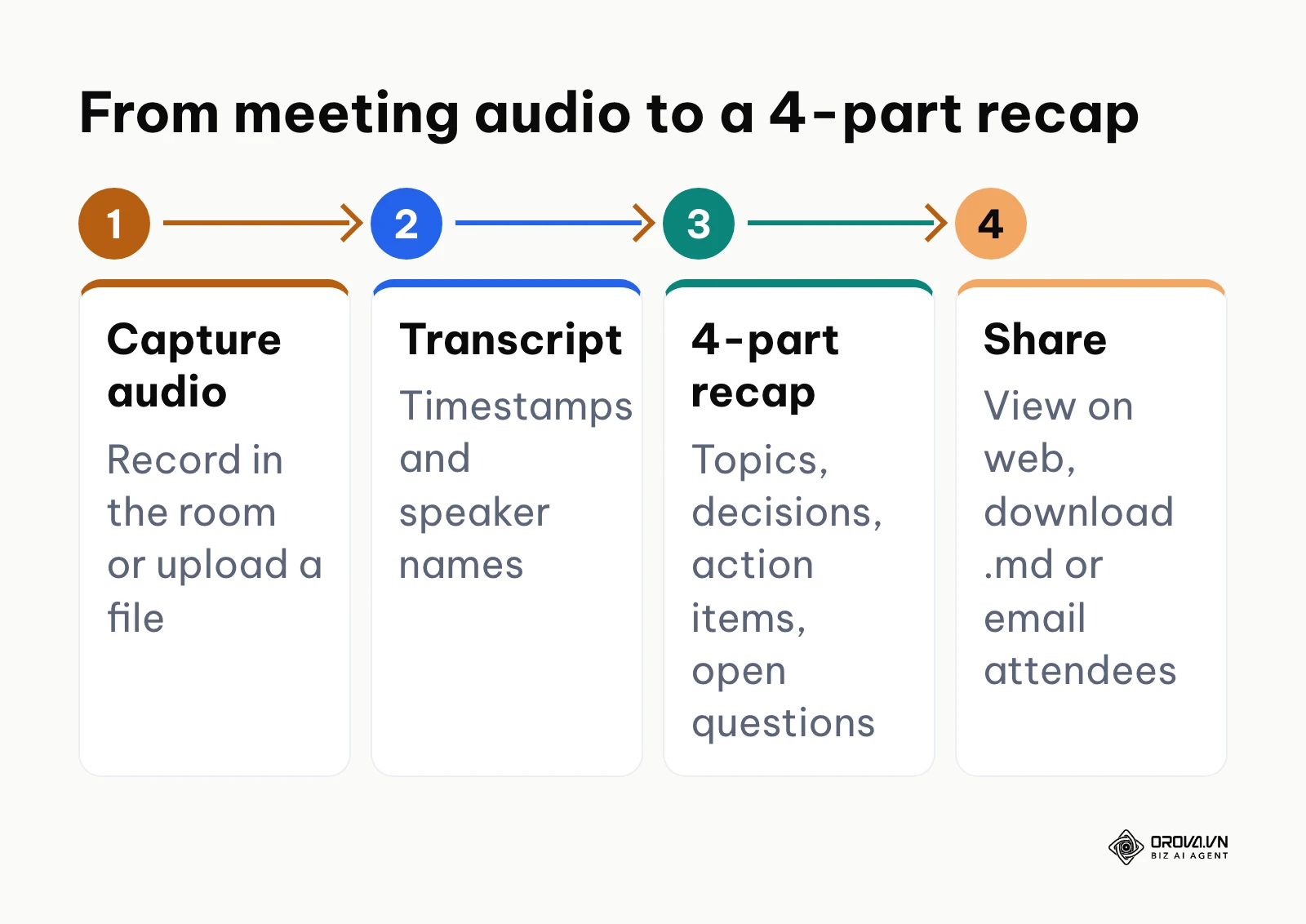
Some organizations restrict outside bots from joining calls. A practical alternative is a meeting tool that produces the transcript and recap itself, with video recordings kept on your own computer.
The diagram below maps the path from audio to a structured recap.
To ensure your team captures clear accountability without manual overhead, use the structured 4-part action template below.
# Executive Meeting Summary & Action Protocol

**Session Name:** [Project / Topic]
**Date & Timestamp:** [YYYY-MM-DD | Duration: HH:MM]
**Participants:** [Speaker 1 Name, Speaker 2 Name, Speaker 3 Name]

---

### 1. Key Discussion Topics
- High-level overview of primary topics covered during the session.
- Contextual updates regarding project dependencies and architectural constraints.

### 2. Formal Decisions Made
- [Decision ID 1]: Exact consensus reached by stakeholders.
- [Decision ID 2]: Operational parameters approved for immediate execution.

### 3. Action Items & Accountability Matrix
| Assignee (Who) | Deliverable (What) | Hard Deadline (When) | Verification Artifact |
|---|---|---|---|
| [Name/Role] | [Specific task output] | [YYYY-MM-DD] | [PR / Document / Link] |
| [Name/Role] | [Specific task output] | [YYYY-MM-DD] | [PR / Document / Link] |

### 4. Open Questions & Deferred Items
- Unresolved issues requiring additional research or departmental sign-off.
- Agenda items deferred to subsequent operational checkpoints.
Teams managing remote candidate interviews through an applicant tracking software can paste this structured summary into the candidate's profile right after the call.
8-Step Checklist for Frictionless Multilingual Business Meetings
Conducting high-stakes international client meetings requires disciplined technical preparation. Use the 8-step execution checklist below to reduce technical problems and miscommunication during cross-border calls.
| Step | Action Phase | Specific Operational Task | Verification Criteria |
|---|---|---|---|
| 1 | Link Distribution | Generate a short browser room link (nothing to install) | Link opens without app download or login prompts |
| 2 | Invite Dispatch | Issue calendar invite with integrated ICS attachment | Recipient calendar registers auto-updating RSVP |
| 3 | Audio Greenroom | Test input gain, microphone clarity, and headphone routing | Audio level bar registers steady green in preview |
| 4 | Lighting & Framing | Position primary camera at eye level with front-facing light | Facial framing clear without strong backlighting glare |
| 5 | Language Mapping | Select speech input language and target translation output | Side subtitle panel indicates active speech listener |
| 6 | Voice Dubbing Check | Preview synthetic AI voice profile and balance master volume | Dubbing playback clear with original audio muted |
| 7 | Storage Check | Make sure the recording computer has free disk space | Space available for a 720p recording saved through the browser |
| 8 | Minutes Setup | Turn on captions or record audio in the room | A 4-part recap can be produced after the room ends |
Hypothetical example: An enterprise software training provider conducting remote technical workshops for international clients previously suffered constant interruptions. Instructors often forgot to hit cloud recording buttons or encountered audio configuration errors when running remote sessions.
The operations lead adopted this exact 8-step pre-flight checklist. Before starting a 3-hour session on employee training software implementation, the instructor tested microphone levels in the pre-join greenroom, selected bilingual captions for attendees in Latin America, and checked disk space for the browser recording. The workshop ran without technical hitches, the 720p recording saved to the instructor's laptop, and after the session the instructor reviewed the 4-part recap and emailed it to the 18 attendees.
Start a meeting now with Orova Meet: no sign-up for a basic room and no card required. The platform is free until July 7, 2027; translated captions, dubbing and AI minutes use workspace quota.
How to Choose Video Conferencing Software by Scenario
No single online meeting platform fits every operational reality. The ideal selection depends on team size, technical sophistication, client profile, and compliance boundaries.
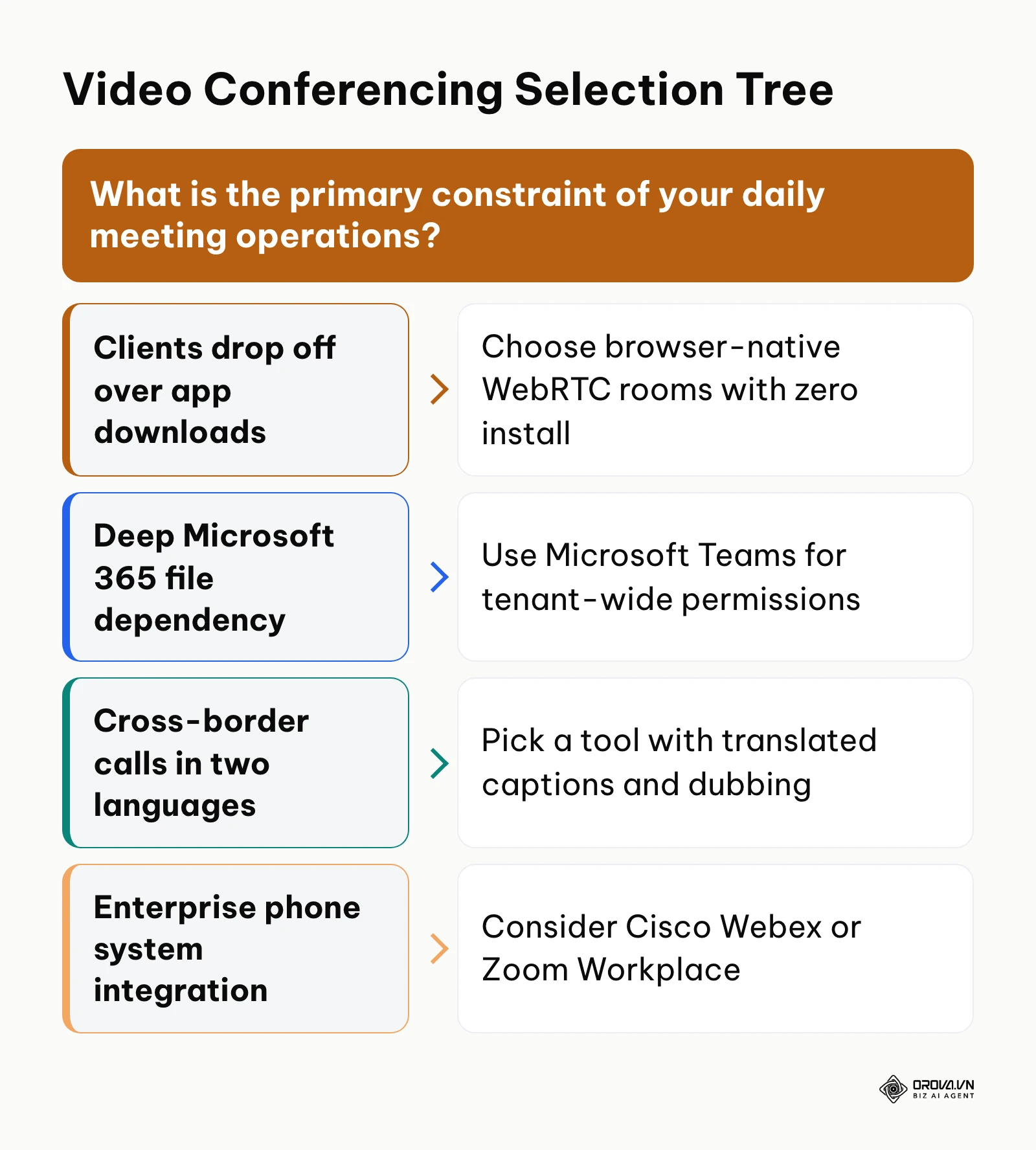
The decision framework below maps specific company operating constraints to the most effective video conferencing software.
| Operating Scenario | Recommended Software | Core Operational Rationale |
|---|---|---|
| Enterprise Microsoft Ecosystem | Microsoft Teams | SharePoint permissions, Entra ID sign-in, and Office files inside meetings. |
| Google Workspace Standard | Google Meet | Native Google Calendar booking and nothing to install on desktop. |
| International Trade & BPO Agencies | Orova Meet | Translated captions both ways, 30 dubbing voices, sessions up to 24 hours, and nothing for clients to install. |
| Large Corporate Webinars & PBX | Zoom Workplace | Webinar tools, a large integration marketplace, and company phone options. |
| High-Security & Hardware Boardrooms | Cisco Webex | Compliance-focused deployments, room hardware, and noise removal. |
| Small Businesses on Zoho | Zoho Meeting | Simple meetings and webinars connected to Zoho CRM. |
The decision tree below summarizes the primary operational filter you should apply when auditing your team's meeting tools.
Trends in Video Conferencing Software Over the Next Few Years: Author's Perspective
As of 2026, I see a steady shift from heavy desktop client hubs toward lighter, browser-based meeting tools. In my view, the video conferencing industry will evolve across three major operational vectors over the next two to three years.
First, I believe hiring human interpreters for routine business calls will become less common. Translated captions and dubbed voices already arrive within a few seconds of the speaker, which is close to what a booth interpreter delivers. I expect synthetic voices to sound more natural over time, and I think many cross-border teams will keep human interpreters for high-stakes sessions while moving routine calls to built-in translation.
Second, I expect external meeting participants will increasingly reject mandatory desktop application downloads. Many company IT teams restrict what employees can install on managed devices. In my view, tools that ask outside guests to install software first will feel increasingly awkward next to rooms that open in a browser tab. Business leaders should audit their client-facing touchpoints immediately to ensure prospects can join discovery calls with a single web click.
Third, I expect more organizations to question third-party transcription bots that join calls and store recordings on yet another vendor's servers. My guess is that teams will prefer minutes produced inside the meeting tool they already approved, with clear rules on where recordings live.
However, these predictions could prove inaccurate if mobile operating systems place restrictive background processing caps on web browsers, or if enterprise telecom carriers successfully lobby for proprietary hardware standards.
Frequently Asked Questions About Video Conferencing Software
How can two people speaking different languages meet without hiring human interpreters?
Participants can use modern video conferencing platforms that offer translated captions in both directions. Each attendee speaks their native language into their standard microphone. The system transcribes the speech into text subtitles in the listener's chosen language, and voice dubbing can read the translation aloud a few seconds after the speaker.
Which video conferencing software lets guests join without downloads or accounts?
Browser-native platforms built on WebRTC standards, such as Google Meet and Orova Meet, permit guests to join calls directly inside standard web browsers. Orova Meet allows hosts to generate short room links where guests type a display name and join without downloading software or registering an account.
How do you generate automated meeting minutes with action items without using external AI bots?
You can use meeting platforms that possess native, on-platform transcription capabilities. Rather than inviting an external bot like Otter or tl;dv into your call, these platforms transcribe the meeting audio themselves and produce a structured summary featuring key discussion points, formal decisions, and accountability tables with specific assignees and deadlines.
What is the role of AI in modern video conferencing software?
Artificial intelligence has evolved beyond cosmetic background blurs and noise suppression. In 2026, AI in video conferencing also covers translated captions, voice dubbing, speaker identification, and post-meeting action items.
Why do free video conferencing plans limit meeting length?
Many providers cap group meeting length on their free plans to encourage teams to upgrade to a paid subscription. Exact limits change, so check each vendor's current pricing page before you rely on a free plan for client meetings.
Is recording video calls directly to a local computer more secure than cloud storage?
It can be. Keeping a recording on your own computer means it is not sitting in another provider's cloud, so you control who receives a copy. You still need to protect that computer and follow your company's retention and consent rules.
Where Should You Start with Video Conferencing Software?
Upgrading your company's virtual communications does not require an immediate, disruptive overhaul of your entire IT stack. Identify which of the three operational situations below mirrors your current business reality, and take the single practical step outlined.
If your team often loses clients and onboarding friction, audit your next five external meetings. Replace the downloadable app invitation link with a zero-install browser meeting room, and measure whether your calls start promptly without technical troubleshooting.
If your organization conducts business with overseas suppliers or international candidates, test an integrated translation session. Instead of booking an expensive interpreter, run a 30-minute pilot call with translated captions and voice dubbing to check how well both sides understand each other.
If your budget is strained by compounding software tool stack fees, review your active recurring subscriptions. Check whether you pay for a separate note-taker bot that overlaps with minutes your meeting tool can already produce, and consolidate where it makes sense. Small, targeted steps like these make your video conferencing software easier for everyone who joins.
About the author

Builder of Orova
Nguyễn Đỗ Trọng Ân has 8 years of experience in marketing, including 6 years managing market development across Asia. He builds Orova, a Biz AI Agent that never sleeps: it plans, runs and optimizes work for businesses.
Run your business with AI Agents
Orova is the always-on Biz AI Agent — it plans, runs, and optimizes the work for you.
Save time, unlock productivity.