
Time Clocking: How to Track Shifts and Work Hours in 7 Steps (2026)

Implementing a standardized time clocking procedure gives your organization definitive visibility into shift coverage, meal breaks, and gross working hours so that payroll runs smoothly without recurring disputes. When you replace informal honor systems or scattered spreadsheets with structured digital time tracking, you protect your bottom line from unintended overtime while ensuring hourly employees receive exact compensation for their labor. Building this operational framework requires setting up your shift policies, configuring overtime multipliers, deploying non-invasive tracking tools, and establishing clear approval hierarchies for missed punches.
To complete this implementation, you need administrative access to your workforce management software, your current employee roster, verified company shift schedules, and statutory overtime rules under your local labor framework. The entire configuration and pilot process takes approximately two to three hours. Solo business owners and salaried executive teams operating on strictly asynchronous project deliverables with no statutory hourly wage requirements do not need to follow this guide.
What Time Clocking Is and How the Setup Workflow Operates
Time clocking records the exact timestamps when employees start work, pause for breaks, and complete their shifts. Setting up a standardized time clocking system eliminates timesheet guesswork, guarantees accurate wage calculations, and protects labor compliance. This seven-step implementation takes approximately three hours and yields an automated timesheet system ready for payroll export.
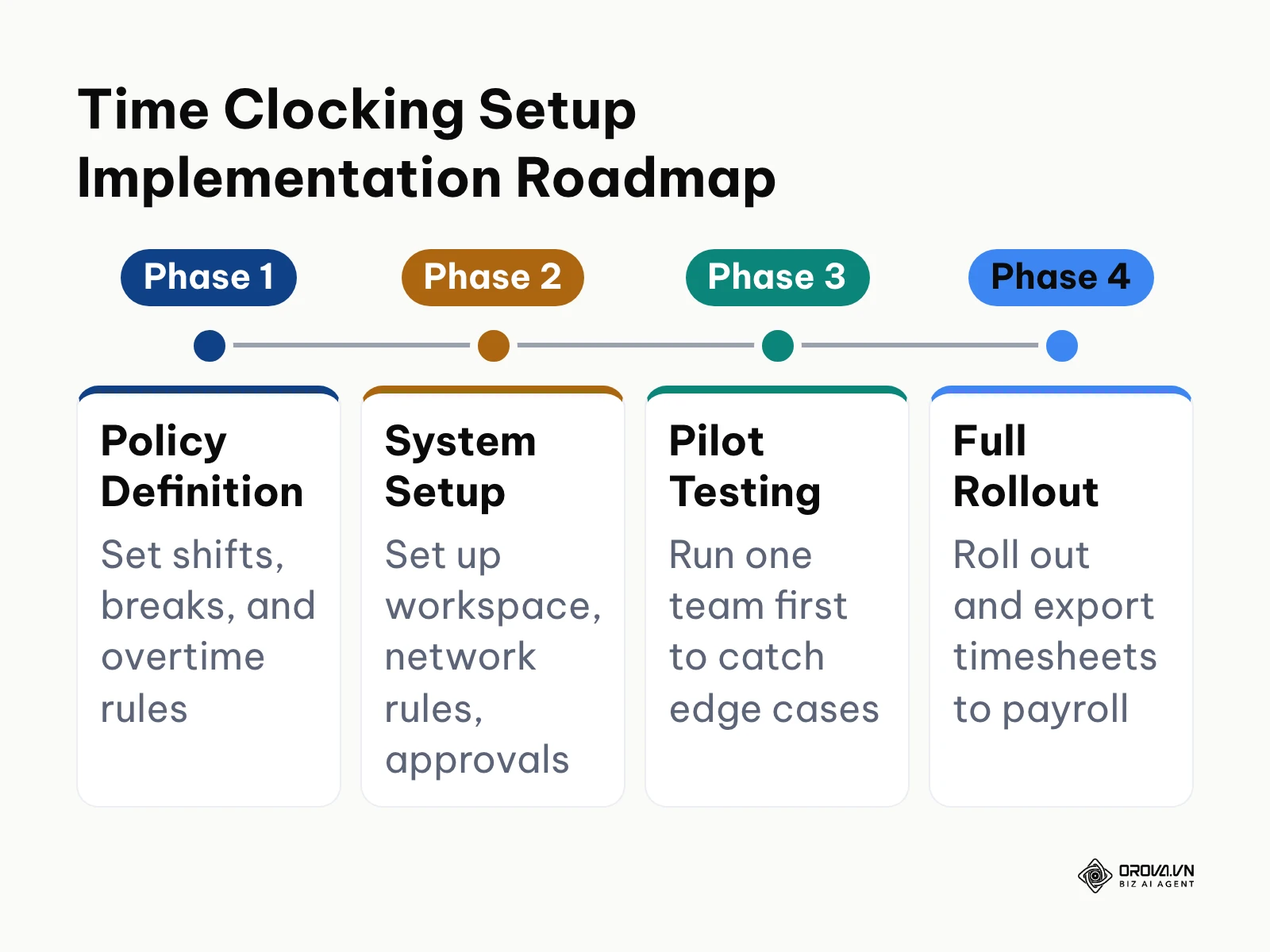
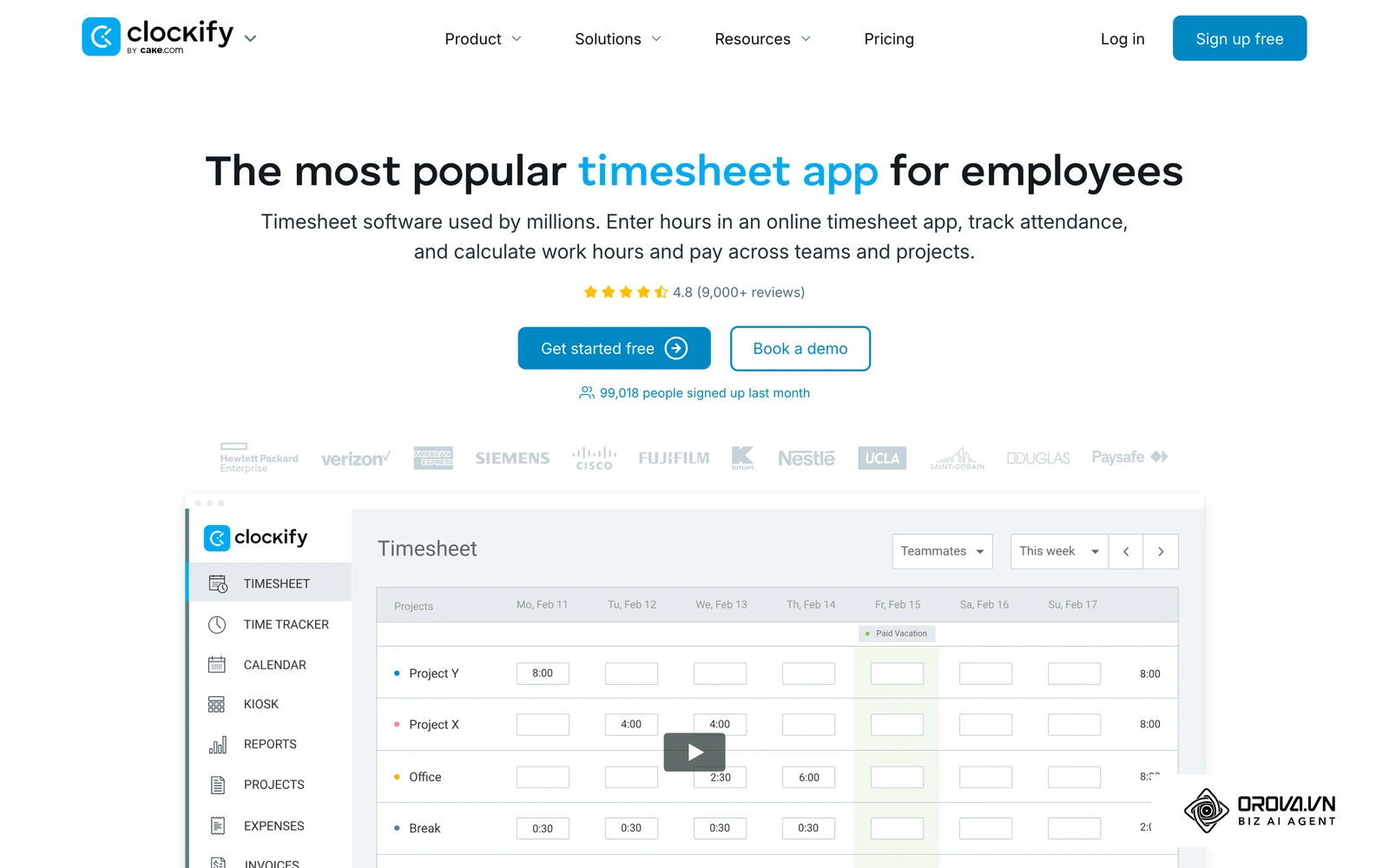
Modern workforce administration has evolved far beyond the mechanical punch cards introduced in manufacturing plants in the nineteenth century. Today, organizations manage distributed, hybrid, and shift-based teams through cloud platforms and lightweight desktop clients. The underlying operational requirement remains unchanged: organizations must maintain verifiable, tamper-evident logs of daily work duration to calculate gross pay and fulfill statutory compliance mandates. The diagram below summarizes the four primary phases of deploying a time clocking system across your organization.
Preparation Required Before Implementing Time Clocking
Before configuring rules in your workforce platform, gather your organization operational parameters. Attempting to build shift schedules or multiplier logic without documented policies leads to retroactive edits and payroll disputes.
The following table details the necessary assets, where to locate them, and the operational risks of proceeding without them.
| Required Item | Source / Location | Estimated Time | Impact if Missing |
|---|---|---|---|
| Department Staff Roster | HR database or payroll directory | 15 minutes | Cannot map employees to specific teams or reporting managers |
| Shift Schedules & Break Rules | Employee handbook or operations manual | 30 minutes | System cannot distinguish standard hours from unapproved overtime |
| Statutory Overtime Multipliers | State/federal labor regulations or contracts | 20 minutes | High risk of FLSA non-compliance and wage miscalculation |
| Corporate Network IP Addresses | IT department or office router admin console | 15 minutes | Cannot restrict punches or flag suspicious out-of-office check-ins |
| Platform Administrator Access | Workspace management settings | 5 minutes | Inability to create shifts, assign permissions, or adjust timesheets |
Once you assemble these prerequisites, you can begin the step-by-step technical configuration.
Step 1: Define Shift Windows, Split Shifts, and Unpaid Break Deductions
Setting up structured shift boundaries ensures your time tracking system measures attendance against expected operational windows rather than treating all logged minutes identically.
What to Do
Configure core shift templates that establish standard start and end times, define split shifts for teams with split daily duties, and establish automatic unpaid meal break deductions.
Where and How to Operate
In your workforce platform, navigate to Settings > Shifts (or Work Schedules). Click Create Shift and complete the following inputs:
- Shift Name: Enter a distinct identifier such as "Day Standard 08:00–17:00" or "Split Service 10:00–14:00 & 17:00–21:00".
- Working Segments: For a standard shift, set Segment 1 as 08:00 to 12:00, configure an unpaid break segment from 12:00 to 13:00, and set Segment 2 as 13:00 to 17:00. For split shifts, define two active working segments separated by an unpaid multi-hour gap.
- Grace Period Thresholds: Locate the Lateness Grace Period field and enter 10 minutes. Locate the Early Departure Tolerance field and enter 5 minutes.
- Assigned Days: Select the working days of the week (such as Monday through Friday) and save the configuration as your default team schedule.
+-----------------------------------------------------------------------------+
| SHIFT CONFIGURATION: SPLIT SERVICE                                         |
+-----------------------------------------------------------------------------+
| Segment 1 (Morning Active):     10:00 - 14:00 (4.0 hrs paid)                |
| Midday Intermission (Unpaid):   14:00 - 17:00 (3.0 hrs non-working break)   |
| Segment 2 (Evening Active):     17:00 - 21:00 (4.0 hrs paid)                |
| Lateness Grace Period:          10 minutes                                  |
| Default Shift Coefficient:      1.0x (Standard)                             |
+-----------------------------------------------------------------------------+
Verifiable Visual Result
Open your weekly shift calendar view. The shift block must appear with distinct colored working segments separated by a gray hatched band representing the unpaid break. The total planned hours must calculate to exactly 8.0 hours rather than 11.0 continuous hours.
Common Errors and Fixes
A frequent configuration error is designating a meal break as a paid rest period. As a general principle under US federal wage-and-hour guidance (FLSA), short rest breaks are usually treated as paid work time, while a genuine meal period in which the employee is fully relieved of duties is usually unpaid. Check the exact rules that apply to your state and contracts with a qualified advisor before you configure break deductions. If your system totals 9.0 paid hours instead of 8.0, check the break segment properties and ensure the Deduct from Total Hours checkbox is enabled.
The table below illustrates the exact arithmetic applied to a split shift with an unpaid break, showing how standard hours, break deductions, and premium shift coefficients combine into payable credits.
| Employee Scenario | Scheduled Window | Actual Punch In / Out | Unpaid Break Deducted | Premium Multiplier Applied | Final Calculated Credits |
|---|---|---|---|---|---|
| Morning Standard | 08:00 - 17:00 | 08:00 - 17:00 | 1.0 hour (Lunch) | 1.0x (Base) | 8.0 Work Credits |
| Split Shift Core | 10:00 - 21:00 | 10:00 - 14:00 & 17:00 - 21:00 | 3.0 hours (Midday Gap) | 1.0x (Base) | 8.0 Work Credits |
| Evening Split Extension | 17:00 - 22:00 | 17:00 - 22:00 | 0.0 hours | 1.3x (Evening Differential) | 6.5 Work Credits |
| Rest Day Call-In | 09:00 - 17:00 | 09:00 - 17:00 | 1.0 hour (Lunch) | 2.0x (Rest Day Rate) | 14.0 Work Credits |
| Split Shift + Late Out | 10:00 - 21:00 | 10:00 - 14:00 & 17:00 - 22:30 | 3.0 hours (Midday Gap) | 1.5 hrs at 1.5x Overtime | 10.25 Work Credits |
Hypothetical example:
- Context: A regional logistics dispatch facility with 45 hourly dispatchers operated split shifts to cover morning freight arrivals and evening departures.
- Steps taken: The operations manager created a two-segment shift template from 06:00 to 10:00 and 15:00 to 19:00, marked the 5-hour intermission as unpaid off-duty time, and set a 10-minute lateness grace period.
- Obstacle and resolution: Dispatchers who clocked back in at 14:50 were having their early arrival counted as unauthorized overtime. The manager set the Early Arrival Window to ignore punches until 10 minutes prior to the shift start unless authorized by a supervisor.
- Verifiable visual outcome: The monthly timesheet showed clean 8.0-hour daily totals for all dispatchers without accidental overtime accruals from the midday split.
Step 2: Establish Overtime Multipliers and Rest Day Coefficients
Configuring custom pay coefficients automates complex rate calculations for evening shifts, weekend work, and statutory overtime before data reaches payroll.
What to Do
Set up base multipliers for premium operational windows (such as a 1.3x multiplier for evening shifts) and a 2.0x multiplier for mandatory rest days or holiday coverage.
Where and How to Operate
In your management dashboard, click Settings > Policies (or Overtime & Multipliers).
- Select Overtime Rules and choose Daily Threshold. Enter 8.0 hours as the standard daily cap. Set any time worked beyond 8.0 hours up to 12.0 hours to compute at 1.5 times base rate.
- Select Shift Differentials. Create a rule titled "Evening Premium" with an active window of 18:00 to 06:00, assigning a coefficient of 1.3.
- Open Work Calendar > Special Days. Select an upcoming calendar rest day (such as a Sunday) and toggle the option Convert to Working Day. Assign a special coefficient of 2.0 and select the specific department to which the rate applies.
- Set the rounding rule to Round to Nearest 5 Minutes to avoid single-minute payroll noise.
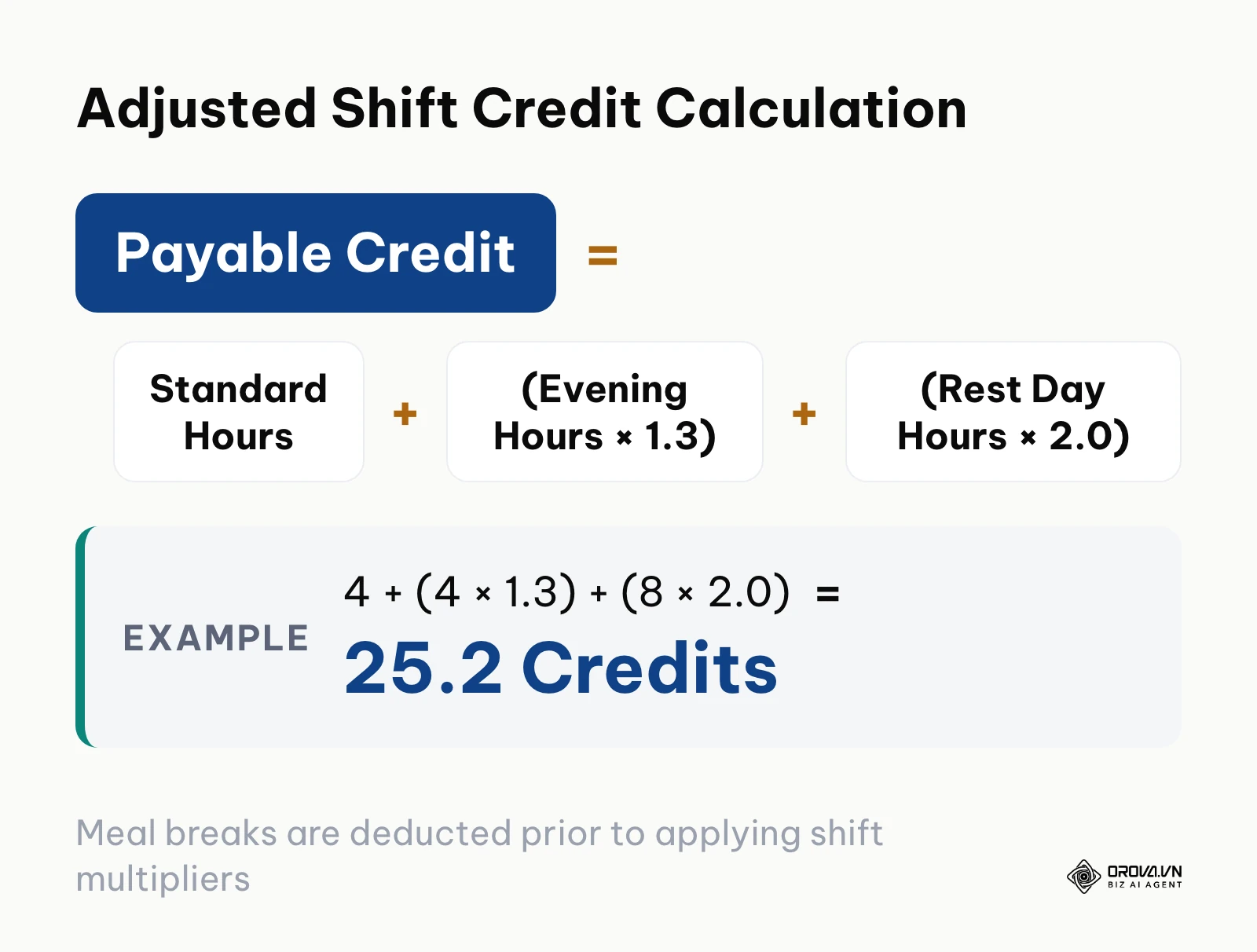
The formula below shows how the platform aggregates standard daily hours, evening differential hours, and rest-day shifts into standardized payable units.
Verifiable Visual Result
Navigate to your Timesheet Review screen for an employee who worked an 8-hour shift that extended into the evening window (for example, 14:00 to 22:00). The first four hours (14:00 to 18:00) must reflect 4.0 standard credits, while the final four hours (18:00 to 22:00) must reflect 5.2 credits (4.0 hours multiplied by 1.3), displaying a combined total of 9.2 payable credits.
Common Errors and Fixes
A frequent pitfall is compounding multipliers unintentionally, where an evening shift worked on a rest day calculates as 1.3 multiplied by 2.0 (yielding an excessive 2.6x rate). In your Multiplier Priority Settings, select Highest Single Rate Applies or Explicit Rule Priority instead of Additive Multiplication.
Step 3: Configure Network Boundaries and Web Punch Protocols
Establishing network boundaries ensures that employee punches originate from authorized physical or virtual workspaces.
What to Do
Define company office network addresses to verify on-site attendance and set clear system responses for off-network punch attempts.
Where and How to Operate
Under Settings > Security & Network (or Punch Locations):
- Select Add Allowed Network. Enter the public static IPv4 and IPv6 addresses of your physical office facilities.
- Under Action for Unlisted Networks, choose your organizational policy: select Flag for Review if your team operates in a hybrid model, or select Block Punch if staff must be on-premises to clock in.
- Navigate to Punch Interface Options and verify that the primary time tracking dashboard is set to One-Button Web Punch.
- Enable the Live Second Counter display so employees see an active timer showing their current elapsed shift time.
+-----------------------------------------------------------------------------+
| NETWORK ACCESS CONTROL                                                      |
+-----------------------------------------------------------------------------+
| Primary Office IP (Static):     198.51.100.42                               |
| Secondary Warehouse IP:         203.0.113.19                                |
| Policy for Unlisted Networks:   [X] Flag Anomaly with Amber Badge           |
|                                 [ ] Block Punch Entirely                    |
| Punch Method Enabled:           Web Browser Widget (Single Click)           |
+-----------------------------------------------------------------------------+
Verifiable Visual Result
Log into an employee test account from a device connected to an unauthorized cellular hotspot. Click the Start Shift button. The employee dashboard must register the check-in time immediately, but a visible amber warning banner must appear indicating "Off-Network Punch Recorded". On the manager dashboard, this record must display an amber flag icon beside the employee name.
Common Errors and Fixes
Organizations with dynamic office IP addresses often encounter situations where all legitimate office staff are suddenly flagged as off-network. If your company Internet service provider rotates your external IP address, coordinate with your network administrator to assign a static IP address to your office gateway, or switch the system rule from Block Punch to Notify Manager on Out-of-Range Event.
When establishing digital check-in protocols for expanding teams, aligning attendance tracking with your broader HR and recruitment software stack ensures sales and service personnel maintain accountability across varied field assignments.
Tired of untangling disputed timesheets before every pay run? With Orova Timekeeping, your team clocks in with a single web button, the monthly timesheet is calculated from each shift and its coefficient, and missed punches go through a request with a recorded reason, so you can export a clean Excel file for payroll.
Step 4: Implement Non-Invasive Desktop Activity Tracking
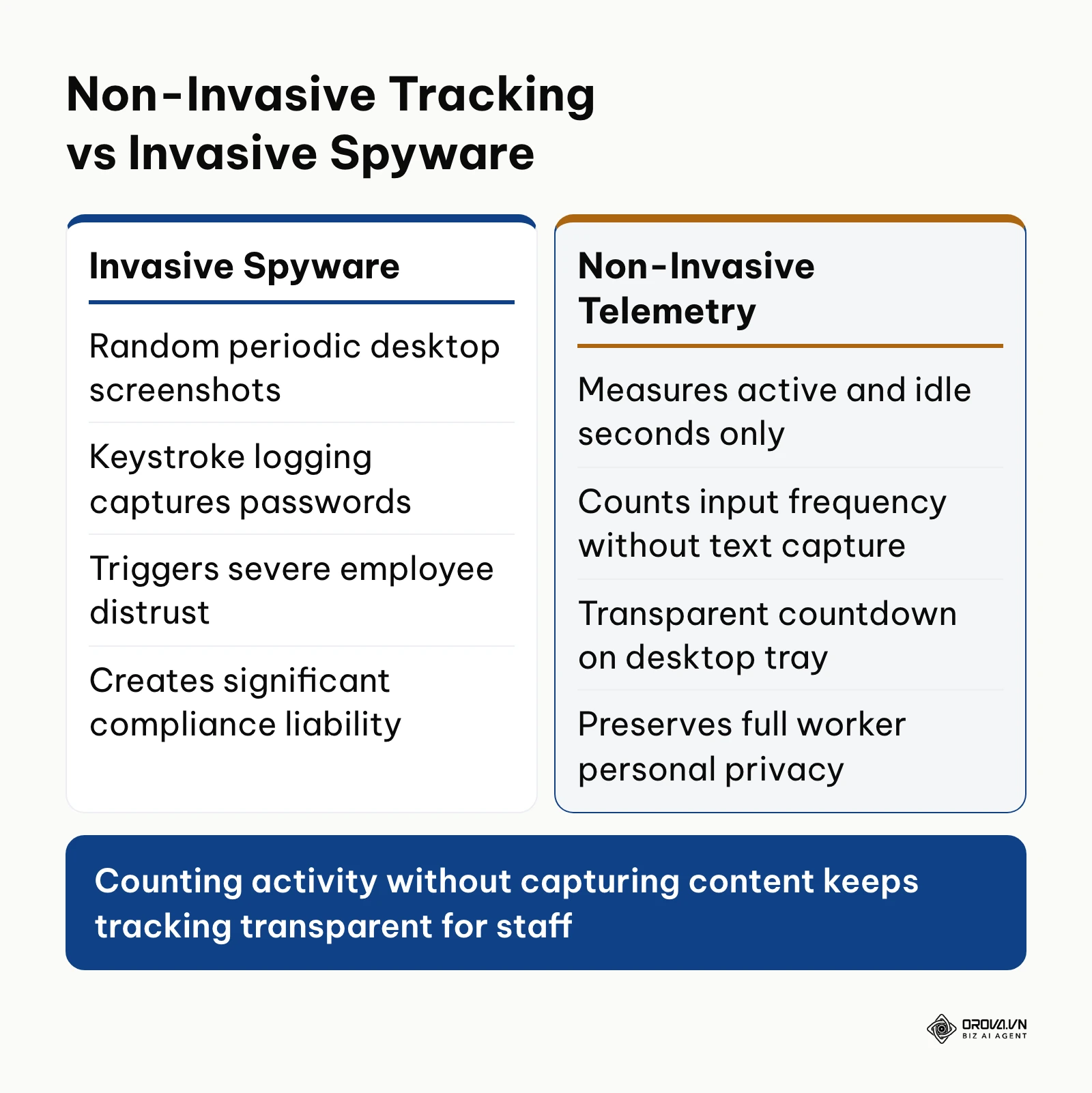
Measuring genuine working cadence without resorting to intrusive surveillance protects employee trust while delivering objective activity data.
What to Do
Deploy a lightweight desktop tracking client that counts active work seconds, idle durations, and aggregate keyboard and mouse event frequencies without recording sensitive keystroke text or capturing desktop screens.
Where and How to Operate
In your administration console, open Settings > Desktop Agent (or Time Tracker Settings):
- Download the desktop client package appropriate for your operating systems (Windows 64-bit, macOS, or Linux).
- Toggle Measurement Mode to Telemetry Only (Active/Idle Seconds).
- Confirm that the options for Screen Capture, Video Recording, and Keylogger / Keystroke Logging are permanently disabled.
- Under Inactivity Threshold, specify 10 minutes. If an employee produces no mouse or keyboard inputs for ten continuous minutes, the system automatically transitions their status from "Active" to "Idle".
- Toggle the option Require Desktop Agent for Shift Start if you want to ensure the tracker runs concurrently with the web punch timer.
The matrix below compares invasive surveillance practices against ethical, telemetry-based activity tracking across key operational criteria.
| Operational Criteria | Traditional Invasive Spyware | Non-Invasive Activity Telemetry | Pure Honor-System Punch Clock |
|---|---|---|---|
| Data Collection Method | Random screen snapshots & keystroke logs | Input frequency counts & active/idle duration | Raw start and stop timestamps only |
| Employee Privacy Protection | High risk of capturing personal messages/passwords | Absolute privacy: no screen text or keystrokes captured | Complete privacy, but zero activity verification |
| Legal Compliance Exposure | High liability under privacy and wiretapping laws | Fully compliant with workplace privacy statutes | Minimal compliance risk |
| Impact on Workplace Morale | Generates resentment and active evasion tactics | Builds transparency and objective performance data | High trust, but vulnerable to buddy punching |
| Payroll Audit Reliability | Cluttered with unstructured, invasive imagery | Structured numerical metrics ready for review | Relies entirely on trust without work verification |
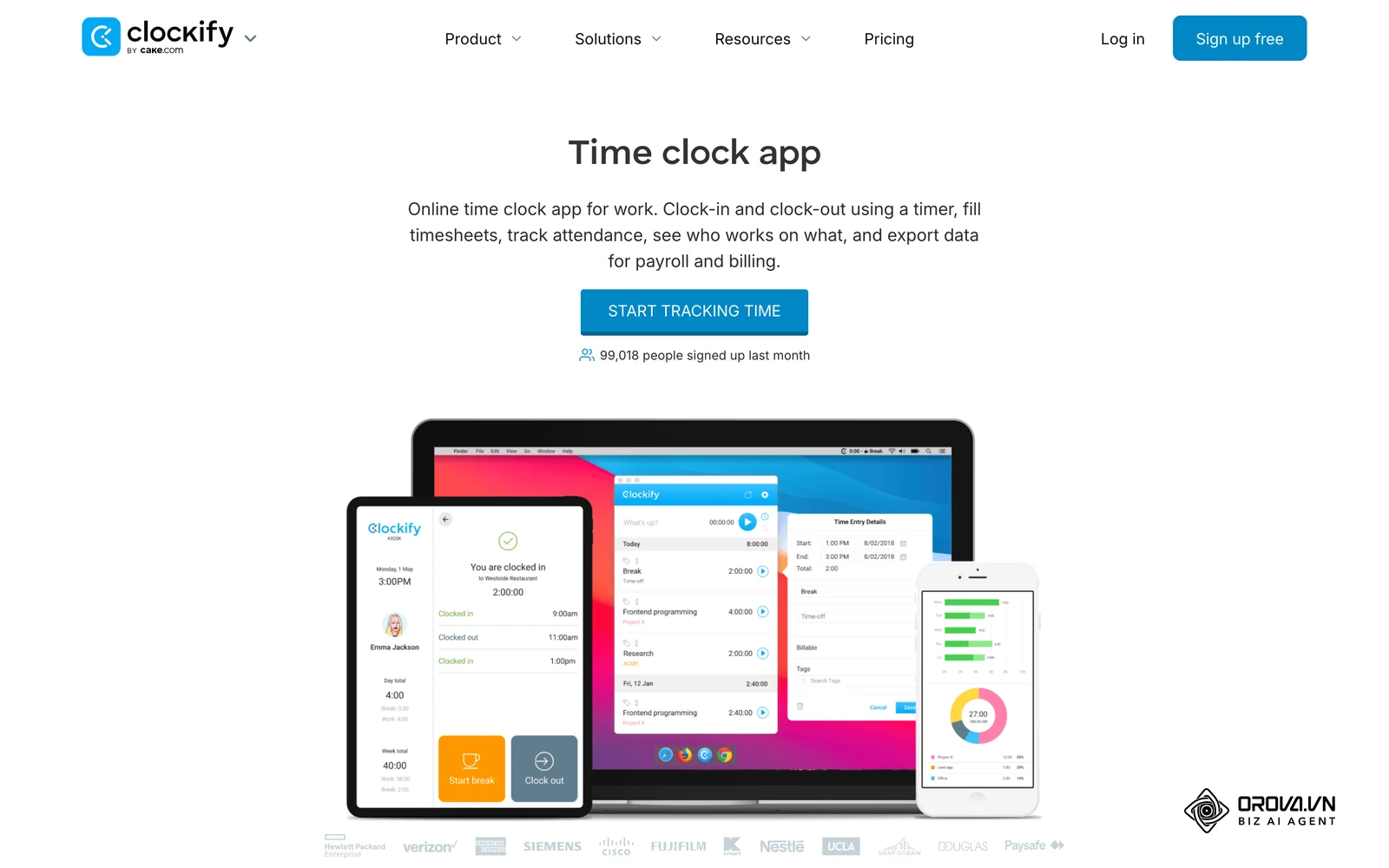
Using a modern time clock app alongside lightweight desktop telemetry enables distributed teams to maintain transparent records of focused working hours without compromising personal privacy.
Verifiable Visual Result
Launch the desktop client on an employee workstation. Pair the software using the single-use authorization token generated in their user profile. The system tray icon must turn green upon clocking in. Click the system tray icon: the interface must state clearly, "Measuring active and idle duration only. Keystroke content and screens are never recorded."
Common Errors and Fixes
A frequent obstacle involves operating system permission blocks on modern workstations. On macOS environments, users must grant accessibility permissions under System Settings > Privacy & Security > Accessibility so the client can register hardware input cadence. If the desktop software registers zero active seconds despite the employee typing, verify that accessibility permissions are toggled on in the operating system.
Hypothetical example:
- Context: A 28-person remote architectural drafting studio needed to verify billing hours for commercial client contracts without micromanaging designers.
- Steps taken: The studio director installed desktop telemetry software across all workstations, disabled screen capture features, and configured a 10-minute idle threshold.
- Obstacle and resolution: Several designers felt anxious that personal banking passwords might be logged during brief personal breaks. The director organized an all-hands demonstration showing that the tracking client only increments a raw numerical counter for keystroke frequency and does not store text strings.
- Verifiable visual outcome: The weekly activity report displayed clean numerical charts showing 85 percent focus coverage during project modeling sessions without capturing a single private screen or document.
Integrating clean operational tracking during early company expansion also complements a clear employee onboarding training plan, establishing objective working baselines for new team members from their first day on the job.
Step 5: Build the Three-Step Exception Workflow for Missed Punches and Lateness
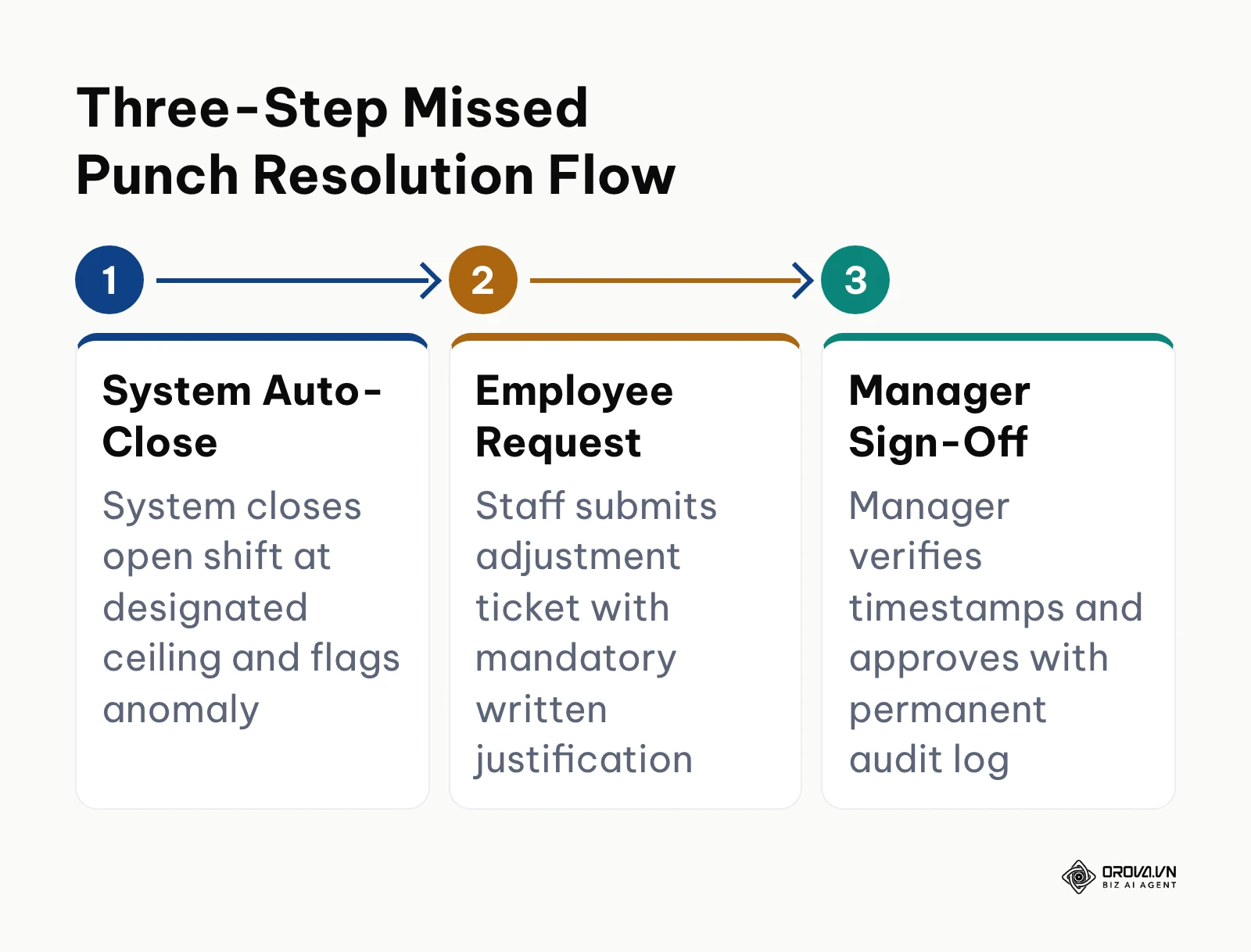
Every organization encounters instances where staff forget to clock out at the end of the day, arrive late due to emergencies, or experience connectivity failures. A structured exception workflow prevents these issues from corrupting your payroll records.
What to Do
Implement an automated shift auto-close protocol, a formal digital adjustment request mechanism, and a multi-level managerial review workflow with mandatory audit notes.
Where and How to Operate
In your management settings, open Settings > Exceptions & Approvals:
- Auto-Close Rules: Enable Auto-Close Unfinished Shifts. Configure the system to automatically close any shift left running more than 4 hours past its scheduled end time. The system must tag the closed shift with a status of "System Auto-Closed: Pending Correction".
- Adjustment Request Permissions: Open Employee Self-Service > Requests. Enable the Timesheet Adjustment Request form. Require employees to enter two mandatory fields: Adjusted Out-Time and Written Explanation.
- Approval Hierarchy: Open Approval Workflows. Create a two-tier approval sequence: Tier 1 routes the ticket to the employee direct department supervisor; Tier 2 routes tickets with overtime implications to the operations director.
- Permanent Audit Trail: Check the box for Preserve Original Timestamp History. The system must never overwrite the original raw punch; it must store the adjustment as an approved override layer.
+-----------------------------------------------------------------------------+
| TIMESHEET ADJUSTMENT REQUEST TICKET                                         |
+-----------------------------------------------------------------------------+
| Employee Name:          Marcus Vance (ID: #4092)                            |
| Date of Incident:       Thursday, October 15, 2026                          |
| Scheduled Shift:        08:30 - 17:00                                       |
| Raw Punch In:           08:28                                               |
| Raw Punch Out:          [MISSING - System Auto-Closed at 21:00]             |
| Requested Out-Time:     17:05                                               |
| Reason Category:        [X] Forgot to Clock Out                             |
| Mandatory Explanation:  "Completed final client inventory handoff at 17:00   |
|                         and left building without accessing web portal."    |
| Supervisor Sign-Off:    [ Approved by S. Jenkins on Oct 16 at 08:15 ]       |
+-----------------------------------------------------------------------------+
Verifiable Visual Result
Simulate a forgotten punch by leaving an active shift running past the auto-close limit on a test profile. The shift status must automatically change to "Auto-Closed" with an alert badge on the supervisor dashboard. Log into the test employee portal: an alert prompt must appear stating, "You have an unclosed shift from yesterday. Click here to submit an adjustment ticket."
Common Errors and Fixes
A frequent breakdown occurs when supervisors verbally agree to correct timesheets but fail to submit the digital adjustment, leaving the shift frozen at payroll cut-off. To eliminate this bottleneck, enable Automated Manager Reminders to send an email notification every 24 hours until all pending adjustment tickets are formally approved or denied.
US federal recordkeeping rules generally expect employers to keep accurate records of hours worked and to retain payroll and time records for a set period; confirm the current retention periods for your jurisdiction with your advisor. Keeping a digital history of every manual punch adjustment, with the reason recorded, makes those records far easier to defend in an audit.
Step 6: Validate Real Work Cadence with Role-Based Benchmarks and AI Review
Comparing raw attendance timestamps against objective work activity benchmarks ensures that recorded hours reflect genuine task contribution according to each employee job description.
What to Do
Establish role-specific productivity baselines (such as keyboard cadence expectations for copywriters versus low-cadence requirements for design consultants) and configure an automated AI review to evaluate monthly attendance patterns against job roles.
Where and How to Operate
In your administration panel, navigate to Settings > Performance Benchmarks (or Scoring Rules):
- Configure Metric Weights: Set the composite attendance score across six parameters:
- Working Day Completion: 25%
- Punctuality: 20%
- Schedule Adherence (Full Hours): 20%
- Active Work Coverage: 15%
- Keystroke Rhythm Cadence: 10%
- Mouse Activity Cadence: 10%
- Assign Role Benchmarks: Assign lower input frequency benchmarks to engineering roles (where thoughtful code design involves intermittent typing) and higher input benchmarks to customer support representatives.
- Run AI Performance Review: Navigate to the AI Review tab. Select your department and choose Run Evaluation. The system compares the logged attendance data, active hours, and input cadence against the saved department job description, generating an objective evaluation grade from A to D alongside supporting numerical evidence.
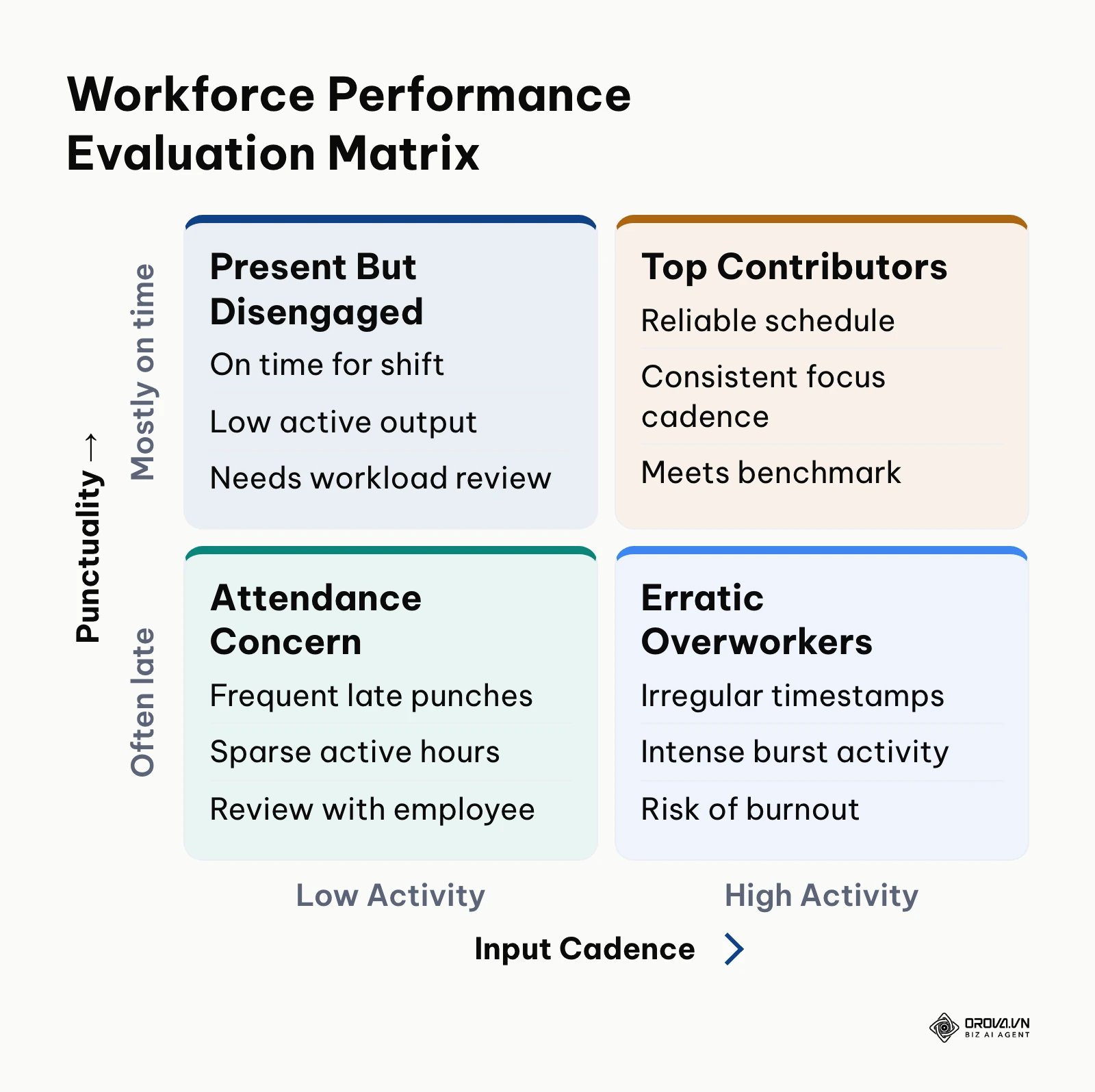
The performance matrix below illustrates how attendance reliability and active work cadence interact to classify employee performance profiles.
Verifiable Visual Result
Open the generated AI Performance Summary report. Each team member must display an overall composite score from 0 to 100, a letter grade (A through D), and specific numerical highlights (for example: "Maintained 98% punctuality with consistent 45-minute focus intervals; active coverage matched senior analyst benchmark").
Common Errors and Fixes
A critical operational mistake is treating AI evaluation scores as grounds for automatic disciplinary action. Artificial intelligence evaluations and activity telemetry flags must always serve as diagnostic signals for managers to review collaboratively with employees, rather than definitive proof of disengagement. If an employee shows low input cadence despite completing their deliverables, adjust the role benchmark to reflect non-typing duties such as research, phone calls, or physical documentation.
When managing growing departments, reviewing how your time tracking system complements the split between your ATS and HRIS (see ATS vs HRIS) helps align recruitment expectations with actual operational shift demands.
Step 7: Reconcile Monthly Timesheets and Export Payroll-Ready Data
The final technical step transforms raw, validated time clocking entries into a structured financial export file ready for your external payroll processor.
What to Do
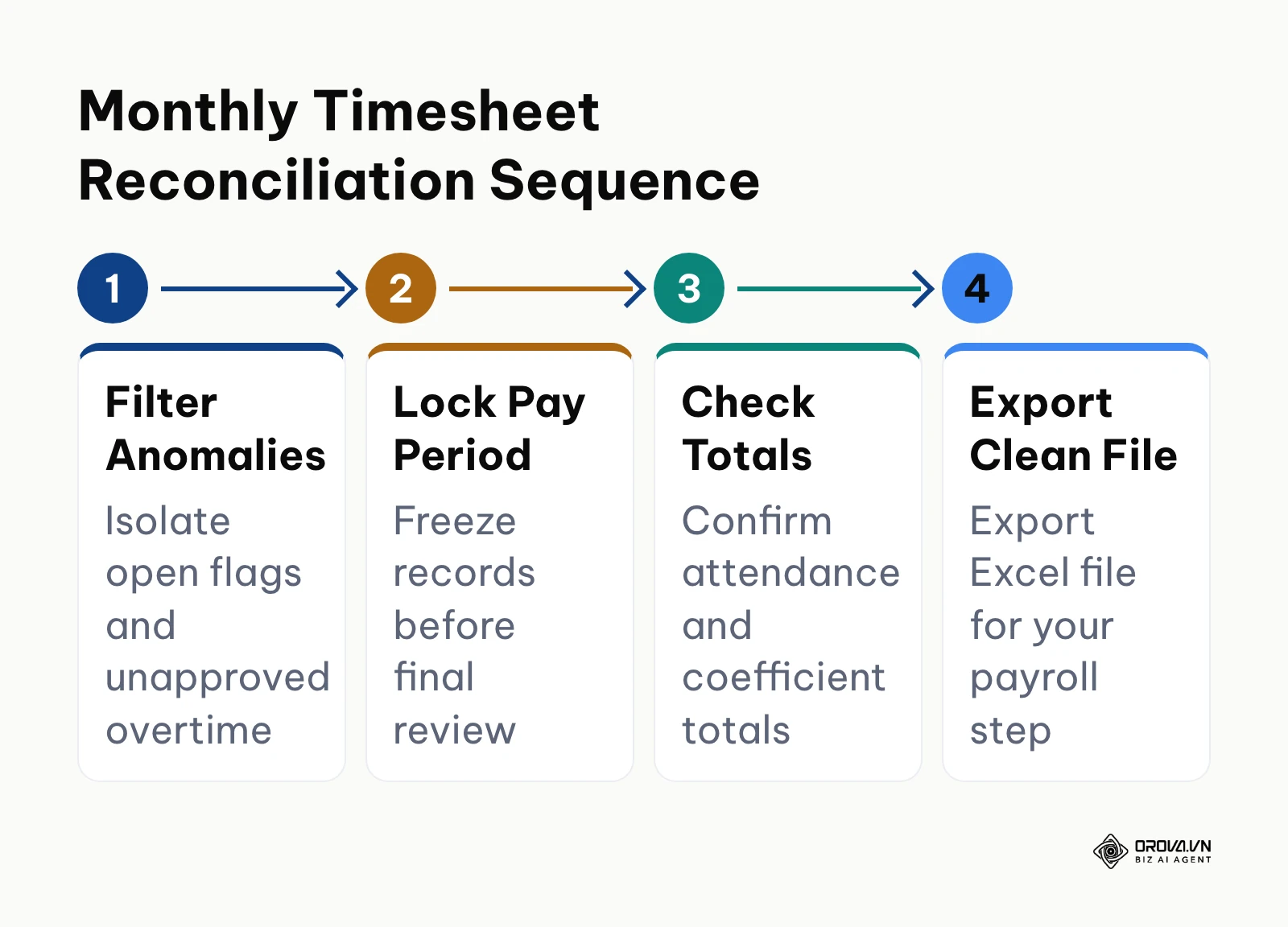
Filter all open shift anomalies, lock the monthly pay period to prevent tampering, calculate attendance bonuses, and export a finalized CSV or Excel payroll document.
Where and How to Operate
Navigate to the Timesheets (or Monthly Attendance Overview) module:
- Apply the filter Show Anomalies Only. Review and resolve any outstanding flags, such as unapproved overtime or pending adjustment tickets.
- Verify that total payable credits reflect all split-shift deductions and premium overtime multipliers calculated in Steps 1 and 2.
- Click the Lock Pay Period button. Select the date range (such as the 1st through the 30th of the month) and confirm the lock. Once locked, standard users and managers cannot alter historical records.
- Click Export and choose Payroll Standard (Excel / CSV). Ensure the export columns include: Employee ID, Full Name, Standard Hours, Premium Shift Hours, Overtime Hours, Unpaid Absences, and Perfect Attendance Status.
The sequence below outlines the four-stage verification protocol for closing a monthly pay period.
+-----------------------------------------------------------------------------+
| PAYROLL EXPORT PREVIEW (OCTOBER 2026 PAY PERIOD)                            |
+-----------------------------------------------------------------------------+
| Emp ID | Employee Name     | Std Hrs | Evening (1.3x) | Rest (2.0x) | OT Hrs|
|--------+-------------------+---------+----------------+-------------+-------|
| #1042  | Elena Rostova     | 160.00  | 20.00 (26.0 cr)| 0.00        | 4.50  |
| #1043  | David Kim         | 152.00  | 0.00           | 8.00 (16 cr)| 0.00  |
| #1044  | Sarah Al-Mansoor  | 160.00  | 35.00 (45.5 cr)| 0.00        | 8.00  |
|--------+-------------------+---------+----------------+-------------+-------|
| STATUS: AUDITED & LOCKED   | TOTAL PAYABLE WORK CREDITS: 562.00             |
+-----------------------------------------------------------------------------+
Verifiable Visual Result
Open the downloaded spreadsheet file in your office software. Check that the row count matches your active employee roster exactly. The sum of standard hours, differential hours, and overtime hours must reconcile perfectly with your preliminary dashboard totals.
Common Errors and Fixes
A frequent payroll complication occurs when an employee submits an adjustment request after the pay period has been locked. Never unlock the entire company pay period to accommodate a late submission. Instead, process the single late correction as an adjustment credit in the subsequent pay cycle, documenting the reason in your payroll audit register.
Hypothetical example:
- Context: A healthcare equipment maintenance provider with 18 field technicians had recurring payroll discrepancies due to technicians working emergency weekend call-outs.
- Steps taken: The payroll supervisor established an automated cut-off on the 28th of each month, ran the anomaly filter to catch unapproved weekend call-outs, and verified that rest-day call-outs were credited at the 2.0x multiplier.
- Obstacle and resolution: Two technicians had missing punch-out times from an overnight hospital equipment installation. The supervisor contacted the technicians, approved their pending adjustment tickets with mandatory client work-order numbers attached, and re-ran the export.
- Verifiable visual outcome: The exported payroll file loaded into the company accounting software on the first pass with zero calculation errors or manual overrides.
Want shifts, approvals, and real work hours in one place? Orova Timekeeping combines one-button web clocking, multi-step approval for leave, punch corrections, and overtime, a desktop app for Windows, macOS, and Linux that only counts activity, and AI Review against each role's job description. Free until the end of July 7, 2027.
Master Checklist for Time Clocking Implementation
Use this operational checklist to track your implementation progress across all departments. You can print this table or replicate it in your internal operations wiki.
| Implementation Step | Primary Operational Action | Verifiable Completion Signal | Estimated Duration |
|---|---|---|---|
| 1. Shift Setup | Configure core windows, split shifts, and unpaid breaks | Shift calendar shows colored active bands and unpaid gaps | 30 minutes |
| 2. Multiplier Rules | Set 1.3x evening and 2.0x rest-day pay coefficients | Timesheet preview calculates premium credits correctly | 25 minutes |
| 3. Network Setup | Input office IP addresses and set off-network flags | Amber alert flag appears when punching from mobile data | 20 minutes |
| 4. Desktop Telemetry | Install agent with privacy protection (no screenshots) | System tray icon confirms active/idle counting only | 35 minutes |
| 5. Exception Flow | Set auto-close rules and two-tier ticket approval | Unclosed test shift automatically prompts ticket creation | 25 minutes |
| 6. AI Role Review | Assign role benchmarks and run pilot evaluation | Dashboard displays objective A-to-D score with evidence | 20 minutes |
| 7. Payroll Export | Lock pay period and export reconciled CSV timesheet | Clean spreadsheet with matching departmental hours | 15 minutes |
Reviewing these criteria ensures your time tracking framework is technically sound and ready for company-wide use.
Common Time Clocking Errors and Troubleshooting
Even well-designed attendance systems encounter operational friction during daily use. The table below consolidates the most frequent systemic errors, their root causes, and immediate technical remedies.
| Operational Error | Common Root Cause | Corrective Technical Action |
|---|---|---|
| Runaway 24-Hour Shifts | Employee forgets to punch out; auto-close rule is disabled | Enable automatic shift closure at four hours past scheduled end |
| Accidental Overtime Accrual | Unpaid meal break segment not marked as deductible | Toggle "Deduct from Total Hours" inside the shift segment settings |
| False Off-Network Alarms | Office ISP rotated the dynamic external IP address | Assign a static corporate IP or set policy to "Flag" rather than "Block" |
| Zero Active Seconds Recorded | Operating system blocked desktop accessibility permissions | Grant input monitoring permissions in OS security settings |
| Compounded Multipliers | Evening differential and holiday rates multiplying together | Set multiplier priority to "Highest Single Rate Applies" |
| Stalled Adjustment Tickets | Supervisor fails to approve or reject pending requests | Set automated manager alert notifications to recur every 24 hours |
| Retroactive Shift Tampering | Pay period remained unlocked after payroll generation | Enforce mandatory pay period locking immediately upon CSV export |
For organizations seeking an integrated solution that natively eliminates these administrative bottlenecks, Orova Timekeeping brings these pieces into one workspace. It offers single-button web clocking, multi-segment shifts with a coefficient per shift, multi-step approval for missed-punch and overtime requests, and a monthly timesheet you can export to Excel for your payroll step. Additionally, its lightweight desktop client (Windows, macOS, and Linux) counts active and idle seconds and the number of key presses and mouse clicks without capturing screens or logging what anyone types, while an integrated AI Review module benchmarks monthly attendance and activity against departmental job descriptions.
Measuring Results After Setting Up Time Clocking
To confirm that your time clocking system is functioning effectively, monitor key operational metrics over the first 30 to 90 days following deployment:
- Timesheet Reconciliation Turnaround: Measure the hours required for HR to finalize payroll data at month-end. Track this number before and after the rollout so you can see the change in your own team.
- Unapproved Overtime Expense: Track gross payroll spend attributed to unapproved early check-ins or unrecorded meal breaks.
- Exception Ticket Resolution Velocity: Check the average hours elapsed between an employee submitting a missed-punch ticket and supervisor sign-off. Healthy organizations maintain an average resolution time under 24 hours.
- Active Focus Coverage: Review department-level activity percentages in your desktop dashboard. Consistent baseline metrics across teams confirm that workloads are evenly distributed.
Check these metrics weekly during your first month in your platform analytics dashboard to identify any shift rules that require fine-tuning.
Trends in Time Clocking Over the Next Few Years: Author's Perspective
As of 2026, the global workforce is rapidly rejecting heavy-handed workplace surveillance software. Over the past several years, organizations that deployed intrusive tools featuring continuous webcam feeds, random desktop screen captures, and secret keyloggers experienced severe employee pushback and heightened regulatory scrutiny under evolving privacy laws. Today, forward-thinking employers are adopting non-invasive telemetry that measures aggregate focus duration without inspecting personal communications.
I think traditional punch clocks and manual timesheets will keep losing ground in knowledge and hybrid workplaces. I also believe workforce administration will move toward context-aware tools, where platforms help verify shift presence and task progress by analyzing objective business interactions, such as closed customer tickets, repository code commits, and active software engagement. Instead of forcing employees to perform mechanical clock-ins, systems will construct verifiable attendance records based on authenticated work outputs. This shift will happen because companies need objective operational truth without destroying internal trust or micro-managing skilled professionals.
However, this transition could slow down if enterprise software vendors over-engineer automated monitoring tools into invasive surveillance suites under the guise of productivity scoring. If workers perceive that background telemetry is being used punitively rather than transparently, organizations will face renewed union resistance and compliance pushback. I expect the teams that adapt best will be the ones that drop intrusive monitoring tools early, establish transparent shift multiplier rules, and adopt ethical platforms that separate raw attendance data from subjective human performance reviews.
Frequently Asked Questions About Time Clocking
How should a system handle an employee who forgets to clock out at the end of the day?
The system should automatically close the open shift once a predetermined ceiling is reached, such as four hours past the scheduled shift end. The platform must tag the entry as an incomplete shift and prompt the employee to submit a digital adjustment ticket stating their actual departure time with a mandatory written reason. Once the direct supervisor reviews and approves the ticket, the record updates with an immutable audit log preserving both the raw system timestamps and the approved manual adjustment.
How can companies verify remote employee work hours without installing invasive spyware?
Companies can deploy lightweight desktop telemetry that measures active work seconds, idle periods, and general keyboard and mouse interaction frequency without recording screen images or logging keystroke characters. This approach confirms that an employee was actively engaged at their computer during scheduled shift hours while completely safeguarding their personal privacy, passwords, and private correspondence.
What is the most accurate formula for calculating split shifts with evening overtime multipliers?
The correct method deducts the unpaid intermission between shift segments first, identifies the base hours worked, and then isolates the hours falling within the premium evening window. Standard hours are calculated at the 1.0x base rate, while evening hours are multiplied by the designated coefficient (such as 1.3x). If the employee exceeds daily statutory overtime thresholds, the statutory overtime premium is applied to the excess hours according to your corporate multiplier priority rules.
How does artificial intelligence improve modern employee time clocking?
Artificial intelligence analyzes broad attendance patterns, punctuality trends, and active work cadence against published departmental job descriptions to provide objective performance evaluations. Rather than relying on gut feelings or raw punch timestamps alone, AI evaluations highlight consistent contributors, identify emerging burnout risks from excessive overtime, and provide managers with structured, evidence-based coaching insights.
What are the recordkeeping requirements for employee time cards under labor laws?
In the United States, the Fair Labor Standards Act generally requires employers to keep accurate records of hours worked and wages paid, and to retain payroll and time records for a defined period. Typical records include employee identification details, daily start and stop times, daily and weekly hour totals, and any overtime premiums or meal-period deductions. Retention periods and state rules vary, so confirm the current requirements with a qualified advisor.
Where Should You Start with Time Clocking?
Transitioning your company to a structured time tracking framework depends on your current operational maturity and existing administrative bottlenecks.
If you currently track hours using paper sign-in sheets or informal spreadsheets, your immediate first step is to document your core shift boundaries and unpaid meal break policies on a single page, then configure a basic one-button web punch system for a single department during an upcoming two-week pay cycle.
If your organization already uses digital tracking but suffers from frequent payroll disputes regarding overtime and split shifts, dedicate your first half-day session to standardizing your shift coefficients, setting an explicit 10-minute lateness grace period, and programming automatic shift closures to eliminate unverified 24-hour time entries.
If you manage a distributed or hybrid team concerned about privacy and micromanagement, begin by replacing legacy screenshot-monitoring software with a non-invasive desktop tracking client that counts active seconds without recording screens or keystroke text, sharing the privacy policy openly with your team before deployment.
Standardizing your operational shift policies, configuring transparent overtime multipliers, and deploying ethical telemetry will turn time clocking into a dependable asset that keeps your payroll accurate and your team fully aligned.
About the author

Builder of Orova
Nguyễn Đỗ Trọng Ân has 8 years of experience in marketing, including 6 years managing market development across Asia. He builds Orova, a Biz AI Agent that never sleeps: it plans, runs and optimizes work for businesses.
Run your business with AI Agents
Orova is the always-on Biz AI Agent — it plans, runs, and optimizes the work for you.
Save time, unlock productivity.