
How to merge duplicate contacts in CRM in 7 steps (2026)

Learning how to merge duplicate contacts in crm databases is the difference between accurate revenue reporting and costly sales chaos. When multiple entries exist for the same prospect, your sales reps chase overlapping accounts, marketing sequences send duplicate emails, and executives read distorted pipeline reports. A disciplined deduplication process unifies fragmented communication history, aligns deal attribution, and protects legal compliance flags without deleting valuable customer context.
To complete this process safely, you need CRM administrative privileges, an uncompressed CSV export of your contact and deal tables, and 30 to 45 minutes of focused review. If you are a solo operator with fewer than 50 total records who can manually delete test submissions, you do not need this complex governance workflow. For growing teams handling active marketing funnels, following these exact operational steps guarantees zero lost customer data.
How to Merge Duplicate Contacts in CRM: Core Scope and Timeline
Merging duplicate contacts in a CRM combines two or more redundant customer profiles into a single verified master record while consolidating notes, activities, and commercial opportunities. This 7-step process requires 35 to 45 minutes for an initial batch of 100 duplicate clusters, ensuring clean pipeline attribution, intact opt-out compliance, and zero lost communication history.
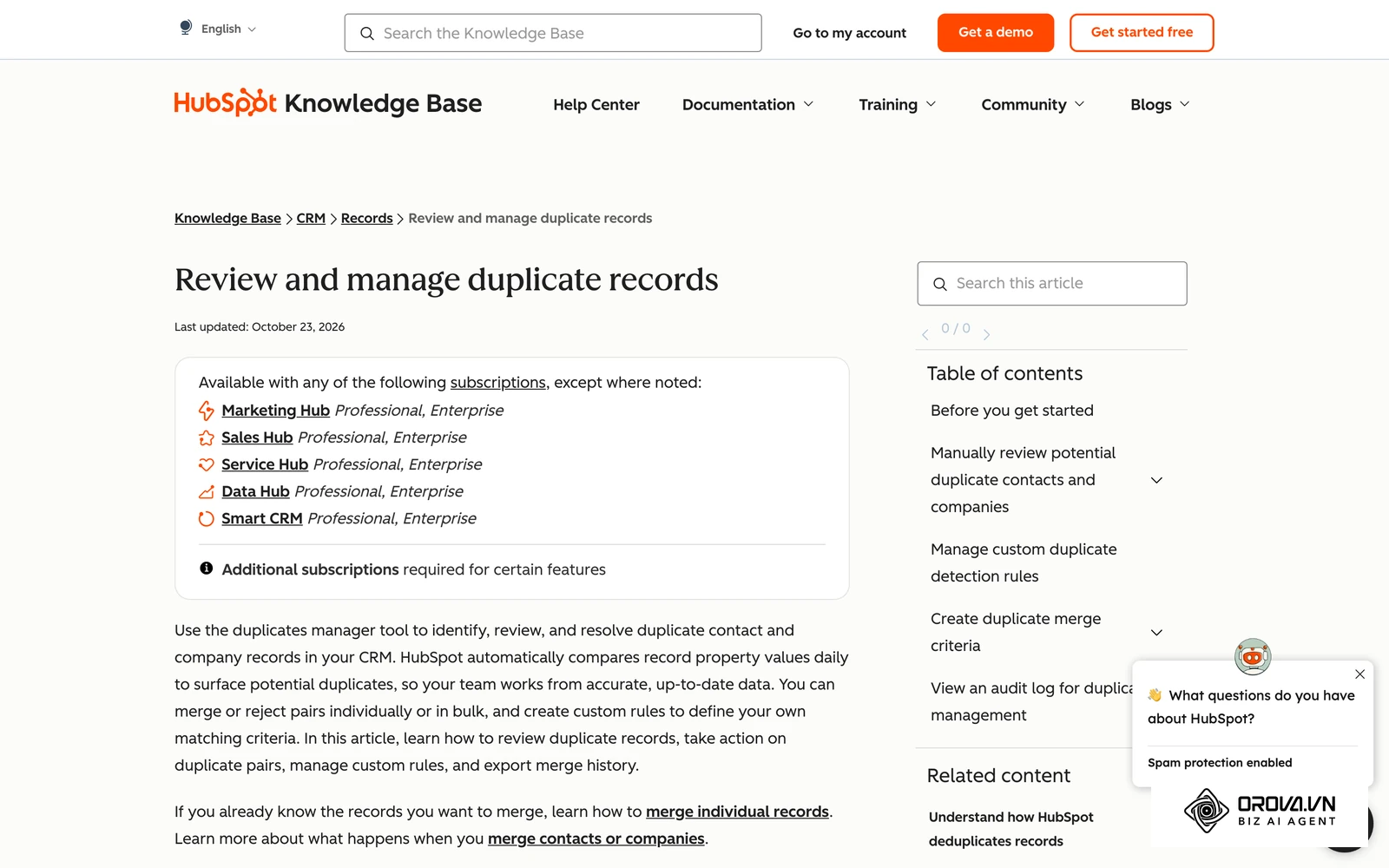
A contact duplicate occurs whenever your database stores multiple records representing the exact same human individual or corporate buyer under slight variations. Common causes include mismatched email addresses (such as personal versus corporate inboxes), inconsistent phone formatting, or simultaneous imports from event spreadsheets and website forms. Before executing any merge command, teams must establish strict rules determining which record survives and how conflicting field values resolve.
What to Prepare Before Merging CRM Contacts
Never execute a contact merge directly inside live customer records without gathering foundational system assets. Merging permanently alters record identifiers and cannot always be undone with a simple click. Taking ten minutes to assemble your administrative resources prevents accidental data loss and sales commission conflicts.
The following table details the essential items you must prepare before starting the deduplication process:
| Preparation Asset | Where to Find It | Estimated Time | Impact if Missing |
|---|---|---|---|
| Full Contact and Deal CSV Backup | CRM Settings ▸ Data Management ▸ Export Data | 5–10 minutes | Inability to restore overwritten custom fields or lost historical notes |
| Webhook and Integration Log | Developer Settings ▸ API / Webhooks ▸ Outbound Triggers | 5 minutes | Third-party billing tools fail when secondary contact IDs disappear |
| Sales Ownership and Commission Policy | Internal Sales Playbook or Sales Operations Director | 10 minutes | Internal commission disputes when merging accounts owned by different reps |
| Field Conflict Priority Rulebook | Operations Documentation or Team Wiki | 5 minutes | Inconsistent manual decisions resulting in deleted mobile numbers or job titles |
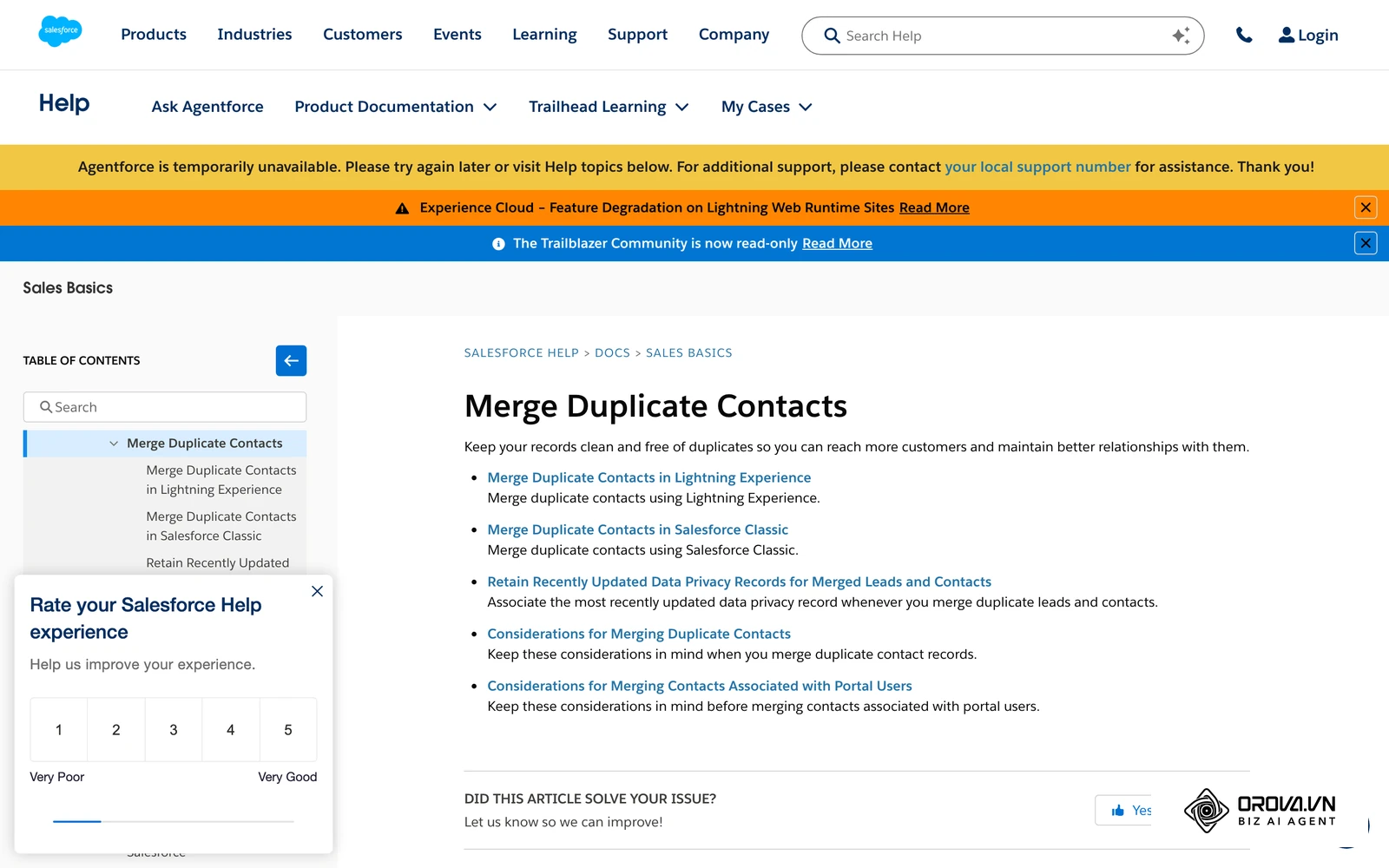
The decision framework below summarizes when you should merge records, delete junk submissions, or maintain separate accounts:
Evaluating your database against this structure ensures you do not accidentally merge two distinct buyers who happen to share a common corporate domain or family surname.
Step 1: Export a Full CSV Backup and Log Active Webhooks
Your objective in this first step is to create a complete, point-in-time snapshot of your contact and deal records while documenting external endpoints that rely on existing contact IDs.
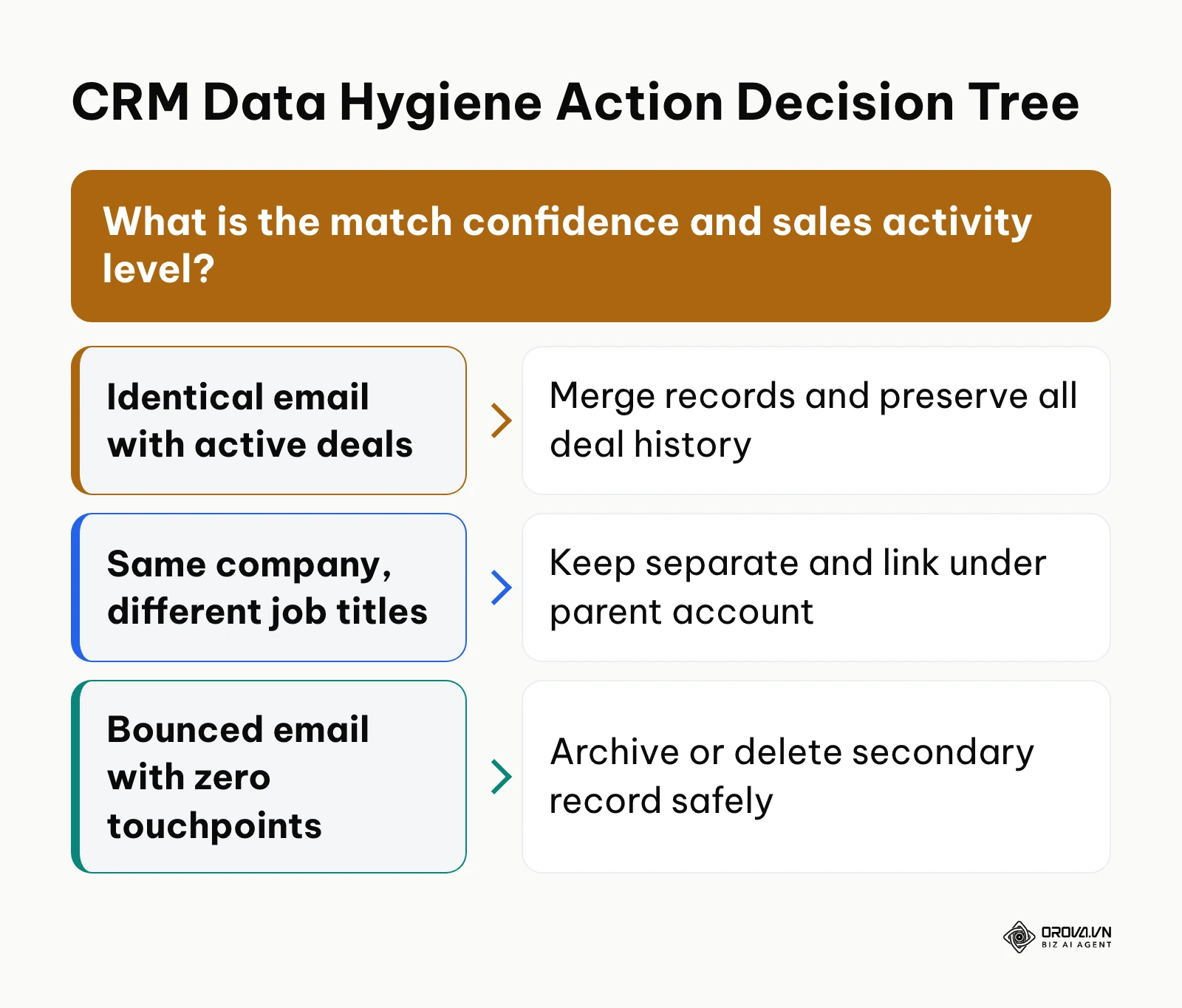
Navigate to your CRM settings menu, select the data management section, and locate the export utility. In platforms like HubSpot, choose Settings ▸ Data Management ▸ Import & Export ▸ Export data, select both Contacts and Deals, and include all available properties. In Salesforce, open Setup ▸ Data Export ▸ Export Now, and verify that the contact, account, and opportunity objects are selected. Export the uncompressed CSV files to a secure internal drive. Next, review your active webhook integrations. Check whether your accounting software, marketing automation engine, or customer support ticketing tool references secondary contact IDs that could be invalidated once merged.
You know this step is complete when you open your local spreadsheet viewer and confirm that the exported CSV contains all custom fields, historical creation timestamps, and associated deal values.
A frequent error during backup is exporting only visible table columns rather than all system properties. If you export a filtered view containing only name and email, you will permanently lose custom lifecycle dates and billing addresses if a merge conflict overwrites them. Always select the option to export all database properties.
Example scenario: A mid-sized logistics consultancy with 12 sales representatives initiated a bulk cleanup across 8,000 customer records. The administrator exported all default system fields but overlooked custom fields tracking regional tax identification numbers. When two vendor contacts were merged, the secondary profile tax ID was overwritten by an empty field on the primary profile. Because the team had exported a full uncompressed CSV containing all custom properties five minutes earlier, the operations specialist restored the missing tax numbers within ten minutes using a simple lookup function, preventing an invoicing delay during end-of-month reconciliation.
Step 2: Identify Duplicate Clusters Using Match Criteria
The goal of this step is to systematically scan your contact database to group potential duplicates into manageable review clusters based on deterministic and probabilistic criteria.
Access your CRM customer list view or native deduplication workspace. Look for features named Deduplicate contacts, Duplicate Rules, or Merge Duplicates. Configure your search parameters to identify matches across three primary anchors: primary email address, normalized phone number (E.164 standard), and exact first name combined with last name and company domain.
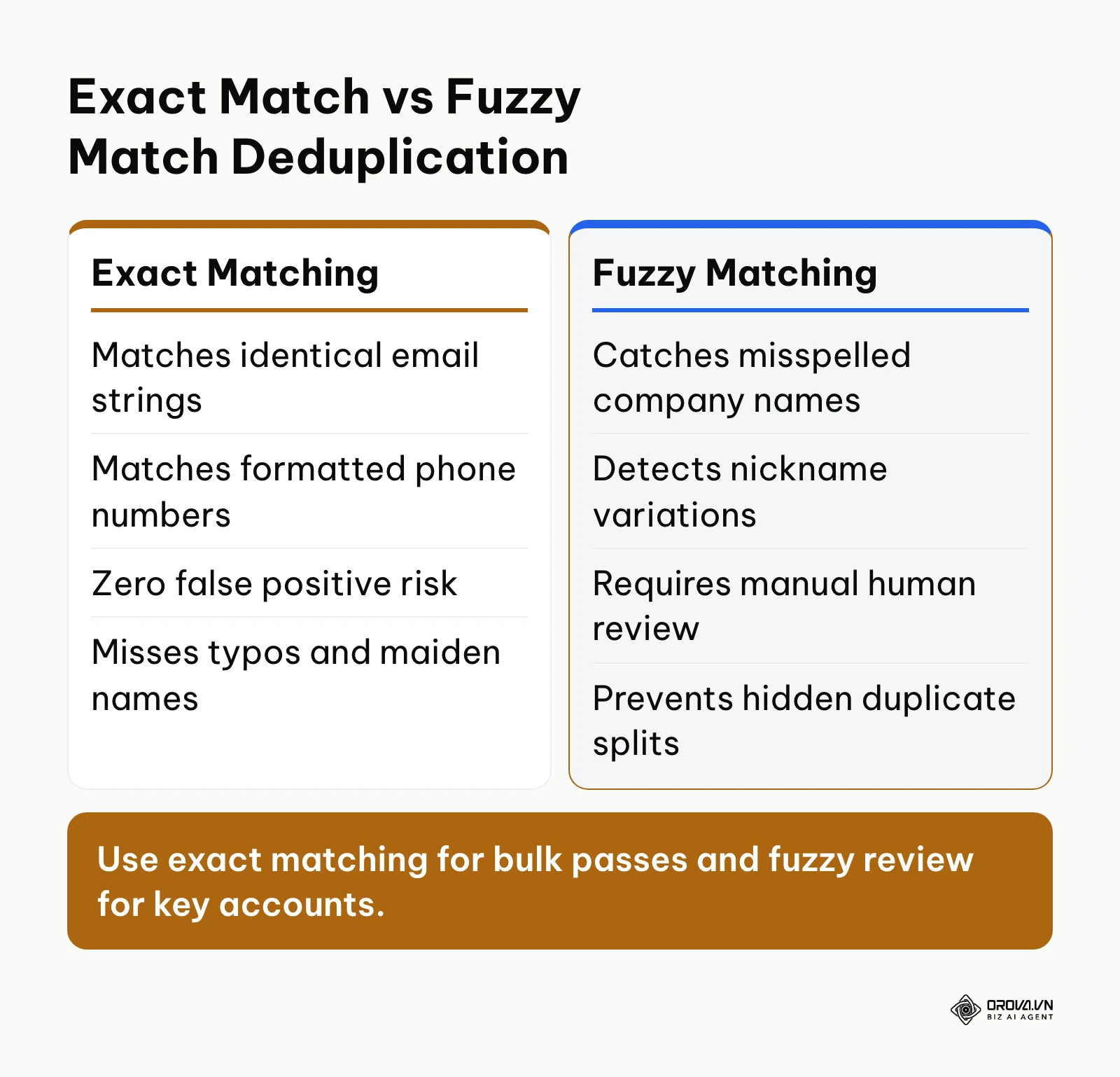
The comparison below outlines the operational differences between exact and fuzzy matching approaches:
When evaluating enterprise accounts, apply fuzzy matching rules to catch typographical discrepancies like "Inc" versus "Incorporated" or hyphenated family names. If your software lacks native fuzzy logic, sort your customer table alphabetically by last name and email domain to visually spot clusters.
You know this step is successful when the system generates a structured queue displaying potential duplicate pairs side by side, highlighting matching properties such as identical mobile numbers or shared website URLs.
A common pitfall is relying solely on first and last name matching without validating the email domain or organization. In a large database, searching for common names like "David Miller" without domain filtering produces false positive clusters that risk merging two entirely unrelated customers. Always require at least two matching data anchors before queueing contacts for consolidation.
Step 3: Select the Master Record and Resolve Field Conflicts
Your objective here is to select the surviving master record and execute a definitive field resolution policy across all conflicting data attributes.
In your side-by-side comparison screen, designate the Master Record (also called the Primary Record). The master record preserves its original CRM system ID, creation date, and tracking cookies. As a standard rule, choose the record with the oldest creation timestamp, the most extensive activity timeline, or the confirmed commercial contract.
The 4-Column Field Conflict Resolution Matrix
To eliminate guesswork during manual or automated reviews, evaluate conflicting properties against this explicit governance matrix:
| Field Name | Record A Value | Record B Value | Winning Priority and Governance Rationale |
|---|---|---|---|
| Contact Owner | Senior Rep (Account Executive) | Junior Rep (SDR) | Keep Senior Rep if active deal exists; log SDR in notes to preserve commission attribution. |
| Lifecycle Stage | Customer (Closed-Won) | Lead (Inbound Subscriber) | Customer status wins unconditionally; never downgrade an existing customer to a lead. |
| Deal Association | Open Proposal (12,000 dollars) | Discovery Call (0 dollars) | Consolidate both deals under master; do not overwrite stage data. |
| Mobile Phone | Direct Mobile (+1-555-0144) | Generic Office (+1-555-0100) | Mobile phone wins; copy generic office number into Secondary Phone custom field. |
| Email Opt-Out | Unsubscribed (True) | Subscribed (False) | Unsubscribed wins unconditionally to maintain legal compliance under privacy regulations. |
| Activity Timeline | 14 logged calls, 2 meetings | 1 web form submission | Master record absorbs both timelines chronologically without deleting activity logs. |
| Notes & Files | Customer contract PDF attached | Initial discovery note | Master retains both assets; file attachments must merge into the surviving profile. |
| Billing Address | Verified Corporate Headquarters | Branch Office Location | Verified Headquarters wins for primary billing; branch saved in secondary address. |
| Lead Source | Organic Search | Paid Social Campaign | Keep the earliest documented acquisition source to preserve first-touch ROI attribution. |
| Document ID / Tax ID | Complete 9-digit Tax ID | Blank / Unspecified | Populated valid string wins over blank or partially entered values. |
You know this step is completed correctly when every property on the comparison interface has an explicit selection marker, with zero high-priority fields left ambiguous or blank.
The most dangerous error in this step is allowing a blank field on the designated master record to overwrite a populated, verified field on the secondary record. Many native merge tools default to retaining whatever sits on Record A; always inspect each row to verify that valuable data like mobile numbers or job titles are not erased by blank cells.
Step 4: Resolve Sales Ownership and Deal Stage Collisions
The objective of this step is to resolve rep assignment conflicts and restructure overlapping deals to prevent doubling your sales pipeline forecast.
When duplicate contacts belong to two different sales representatives, merging them can spark severe internal commission disputes. Open the sales assignment settings and examine the activity history on both records. If Rep A initiated contact six months ago but abandoned outreach, while Rep B booked a qualified demo last week, CRM governance dictates that Rep B retains lead ownership. However, you must document Rep A's initial contribution in the record notes or split-commission tracking table.
Next, audit open deals linked to both contacts. If Rep A created a 5,000-dollar opportunity for "Software License" and Rep B created an identical 5,000-dollar opportunity for "Enterprise License" with the same decision-maker, simply merging the contacts will leave two open deals totaling 10,000 dollars in your pipeline. This creates a severe pipeline forecast distortion.
Unmerged Pipeline Value:
Rep A Deal (5,000 dollars) + Rep B Deal (5,000 dollars) = 10,000 dollars Phantom Pipeline

Corrected Post-Merge Pipeline:
Consolidated Opportunity = 5,000 dollars Verified Pipeline Value
Inspect both deals directly inside your pipeline board. Consolidate notes into the more advanced deal stage, mark the redundant opportunity as Closed-Lost with the explicit reason "Merged Duplicate Deal", and link the surviving opportunity to the master contact. Understanding effective CRM sales pipeline management is critical to maintaining clean forecasting while handling multi-threaded sales cycles.
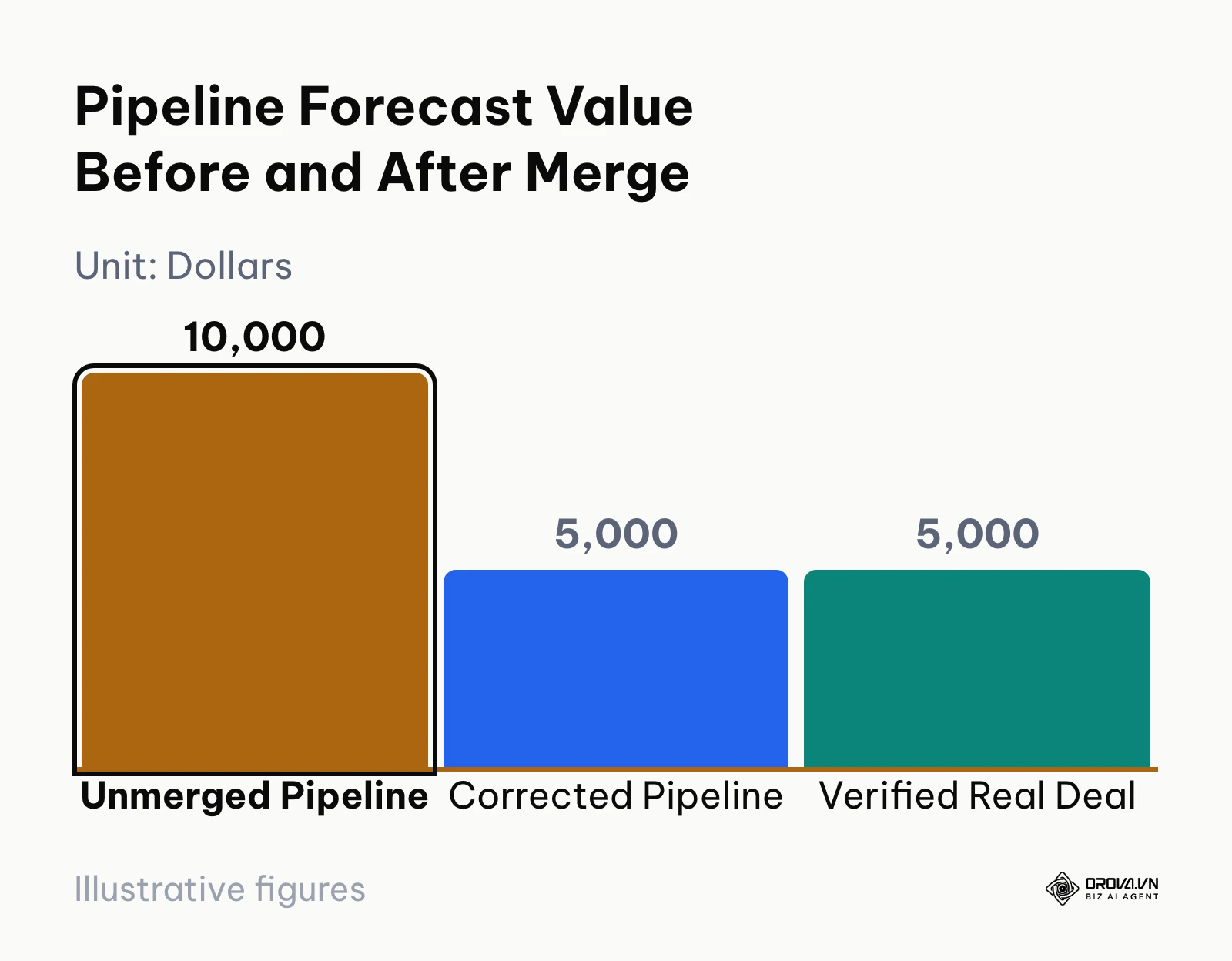
The chart below highlights how resolving duplicate deals restores real revenue projections:
You know this step is successful when the contact card reflects a single designated owner and the pipeline report displays exactly one active commercial opportunity representing the true contract value.
A frequent error is deleting the secondary deal entirely rather than closing it as a duplicate. Deleting a deal breaks sales analytics by distorting stage conversion velocity and historical rep activity counts. Always update the stage to Closed-Lost with a duplicate tag instead of purging the database object.
Example scenario: An enterprise software firm operating a multi-tier outbound team discovered that an SDR and an Account Executive were working separate contact entries for the same VP of Engineering. The SDR had logged an open deal for 8,000 dollars, while the Account Executive had quoted 8,000 dollars on a second record. Left unresolved, the weekly executive forecast reported 16,000 dollars in projected revenue. The operations director conducted a merge audit, awarded primary contact ownership to the Account Executive, logged the SDR's sourcing credit for commission, and marked the duplicate opportunity as closed-lost. The active pipeline immediately reflected the true 8,000-dollar figure, eliminating an artificial revenue spike before board reporting.
Tired of duplicate records corrupting your sales figures? Orova CRM features a dedicated Customer Book with built-in search and merge tools, automated lead routing, and granular department-level view and edit permissions to keep your database pristine without manual friction.
Step 5: Enforce Email Opt-Out Flags and Marketing Sequence Rules
Your goal in this step is to protect your organization from regulatory penalties by ensuring that unsubscribe preferences and active email sequences merge without compliance breaches.
According to the Federal Trade Commission's CAN-SPAM Act Compliance Guide for Business (2023), companies must honor opt-out requests across all entity records within ten business days, regardless of database duplicates. If a prospect unsubscribed from your marketing newsletter using their corporate email, but later downloaded a whitepaper using a personal email address, merging these contacts requires strict compliance enforcement.
Navigate to the communication preferences tab on both records. If either record has the Email Opt-Out, Unsubscribed, or Do Not Contact checkbox enabled, the consolidated master record must inherit that opt-out flag across all stored email addresses. Next, check active marketing sequences. If the secondary contact is currently enrolled in an automated onboarding sequence, remove them before merging. Failing to pause active workflows can cause the system to trigger conflicting emails simultaneously from both accounts. Before launching broader campaigns, teams must understand how to safely start email marketing using clean, unified recipient lists.
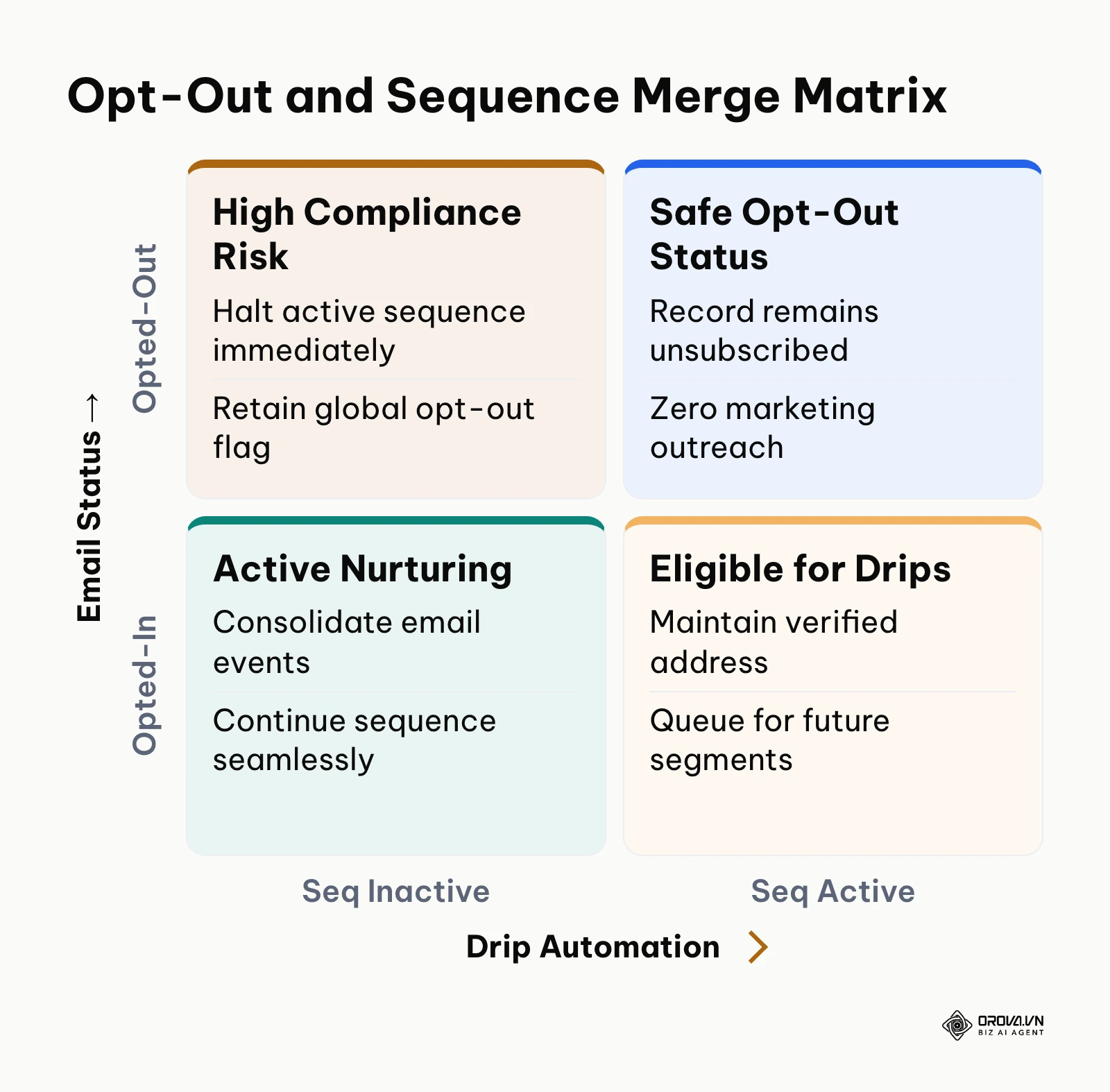
Review the compliance and automation matrix below to guide your sequence handling:
You know this step is completed when the master profile clearly displays the opt-out badge and the workflow history confirms that all active marketing automations on the secondary profile were safely terminated.
A critical mistake is assuming the CRM will automatically apply opt-out flags from the secondary record. In several legacy CRM systems, if the master record has the opt-out box unchecked, it overwrites the secondary record's unsubscribed status. This creates a direct violation of international spam legislation. Always manually confirm that the opt-out status wins during record reconciliation.
Step 6: Execute the Merge and Consolidate Associated Objects
The objective of this step is to execute the final consolidation command and confirm that all associated objects, including quotations, orders, and tickets, transition seamlessly to the master record.
With field selections confirmed and ownership settled, click the Merge confirmation button. Most platforms will prompt you with a final warning stating that this action cannot be undone. Confirm the prompt. Once the merge finishes, open the surviving contact profile immediately.
Check the associated objects panel on the right-hand side of your screen. Confirm that historical quotes, open customer support tickets, invoices, and completed tasks are visible on the consolidated activity feed. If you manage formal commercial documentation, verify that the master contact links correctly to previous estimates. Reviewing standard procedures for how to clean CRM data will help your team establish systematic checks across all secondary transaction tables.
The following matrix summarizes how key associated CRM objects consolidate during a record merge:
| Associated Object Type | Standard Merge Consolidation Behavior | Post-Merge Verification Action |
|---|---|---|
| Open Deals & Opportunities | Consolidated under the surviving master record | Review deal stages, consolidate notes, close redundant opportunities |
| Quotes & Commercial Invoices | Re-associated automatically with master record ID | Verify customer billing address and active quotation PDF preview links |
| Customer Support Tickets | Combined into unified customer service history | Confirm open high-priority tickets remain assigned to active service agents |
| Activity Timeline & Call Logs | Combined in strict chronological timeline order | Ensure recent meeting logs and call recordings render without duplication |
| Custom Notes & Attachments | Inherited entirely by the surviving primary contact | Verify uploaded contracts, tax certificates, and NDA files open correctly |
You know this step is successful when the secondary contact ID redirects automatically to the master profile URL, and all historical notes, invoices, and email threads appear in a unified, chronological activity timeline.
A common issue in this stage is orphaned child objects. In custom-configured CRMs, third-party plug-ins storing payment data or PDF contracts may fail to re-parent if they rely on rigid external ID keys. If a previous quotation disappears from the timeline, open your data management error logs immediately to remap the orphaned document ID to the new master record.
Step 7: Audit Role Permissions and Re-Index Automation Triggers
Your objective in this final step is to audit user access scopes across your department tree and re-index automation triggers to verify that the merged record functions properly in daily sales operations.
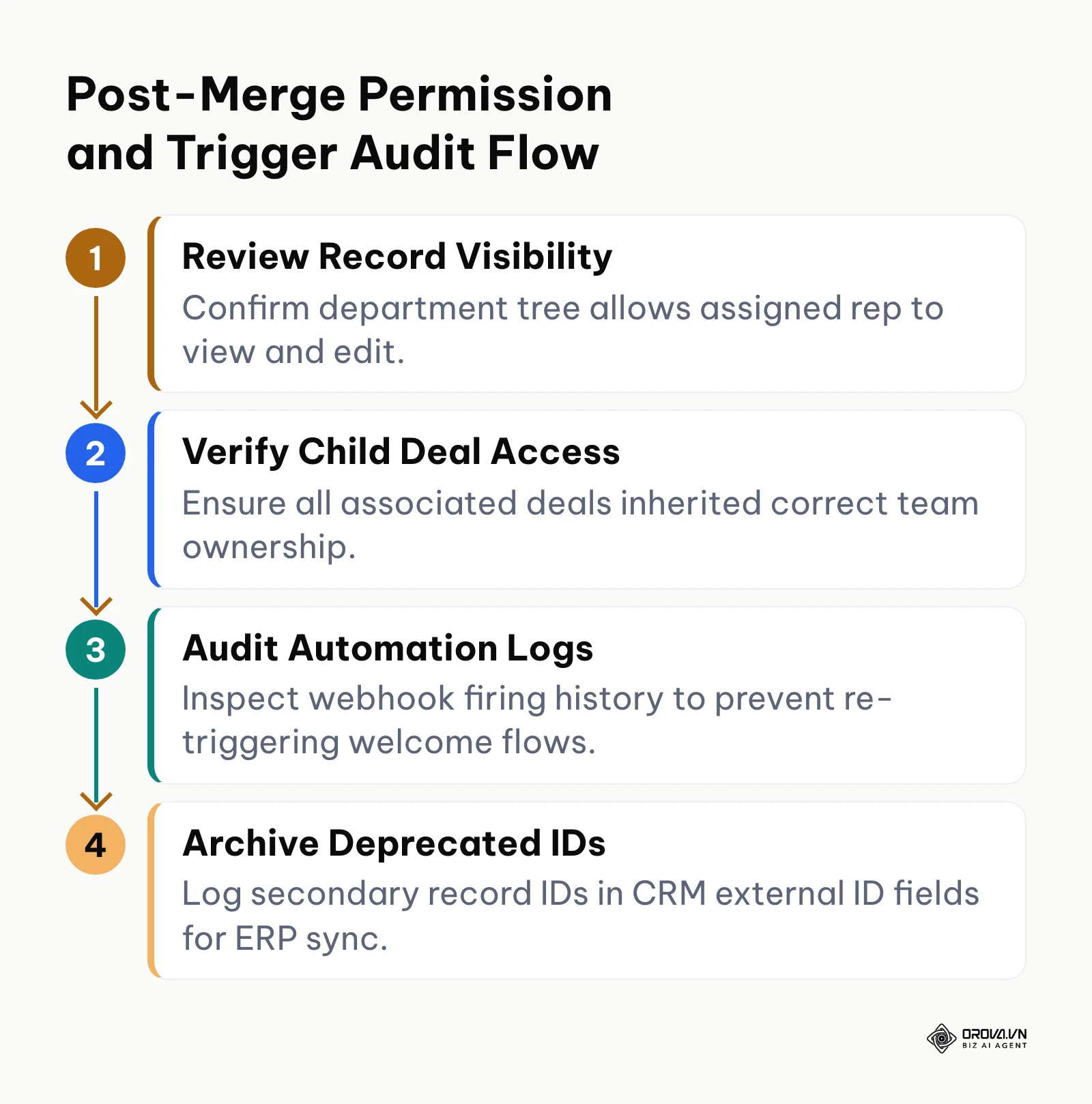
Open your CRM administrative settings and review user permissions. In organizations structured by territory or product division, contact records are often restricted so reps can only view profiles assigned to their specific group. If a contact from an unassigned shared pool is merged into a rep's private book, verify that team leads and collaborating sales engineers still have appropriate view and edit permissions.
Following this permission review, run a manual sync check on any active webhooks. If your marketing automation platform or enterprise resource planning (ERP) system caches contact identifiers, update those downstream records with the surviving master ID to prevent broken synchronization cycles. Smaller organizations evaluating software options should consult our guide to CRM for small business to choose systems that support transparent role hierarchies.
The audit flowchart below illustrates the systematic post-merge verification flow:
You know this step is complete when the assigned sales representative logs into their dashboard, views the newly consolidated profile without permission errors, and successfully saves a test note on the timeline.
A recurring error is failing to notify team members that a merge took place. A sales rep searching for a secondary contact by an old phone number or alternate email might assume the lead was deleted if they do not see a system note explaining the consolidation. Always leave an automated or manual note on the master timeline documenting the original IDs of all merged profiles.
Example scenario: A healthcare software provider operating distinct Enterprise and SMB sales teams merged two duplicate prospect records for a regional clinic. The master profile was assigned to an Enterprise representative, but the CRM role settings automatically restricted the SMB sales engineer who had previously conducted technical scoping. When the sales engineer attempted to review architecture requirements for an upcoming call, the system returned an access denied error. Following the post-merge audit checklist, the operations lead adjusted the record visibility scope to include the cross-functional project group, restoring access in under five minutes without disrupting the sales cycle.
Complete CRM Contact Merge Checklist
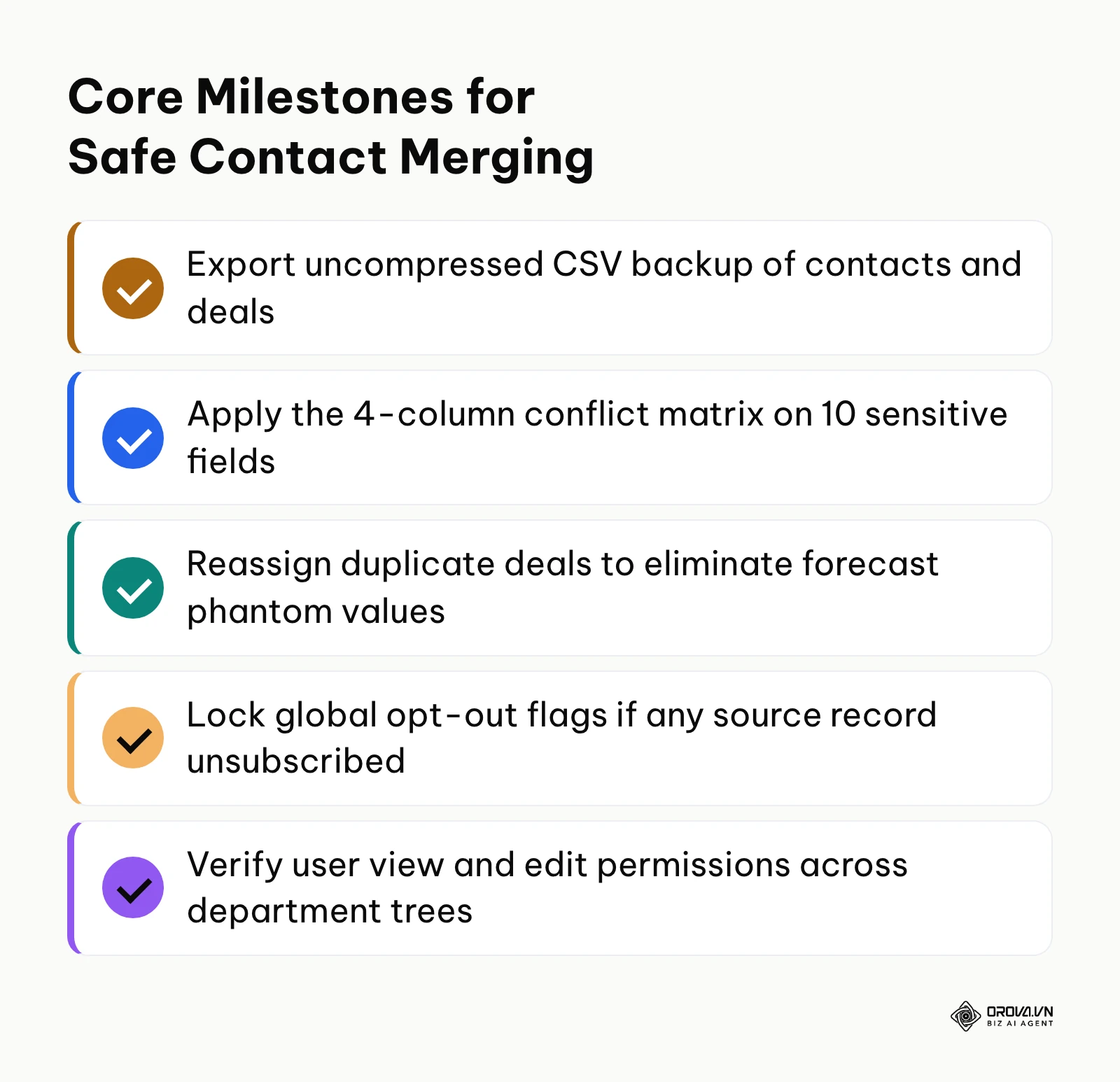
To maintain database hygiene across ongoing sales operations, use this consolidated reference checklist covering every major milestone from initial backup through post-merge validation:
| Step Number | Phase | Primary Action | Done Criteria | Estimated Time |
|---|---|---|---|---|
| Step 1 | Pre-Merge | Export uncompressed CSV backup of contacts and deals | Local file verified with all custom properties intact | 5–10 mins |
| Step 2 | Pre-Merge | Audit active webhooks and external billing integrations | Integration endpoints logged to prevent sync breaks | 5 mins |
| Step 3 | Identification | Scan database using exact and fuzzy matching rules | Structured queue of duplicate pairs generated | 10 mins |
| Step 4 | Execution | Designate master record based on data completeness | Surviving system ID confirmed for long-term tracking | 5 mins |
| Step 5 | Execution | Apply 4-column conflict matrix on 10 sensitive fields | All properties mapped; no blanks overwriting valid data | 10 mins |
| Step 6 | Execution | Reassign duplicate deals and log rep commission notes | Single active deal retained; redundant deals closed-lost | 5 mins |
| Step 7 | Execution | Lock global opt-out status if either profile unsubscribed | Master contact displays active unsubscribe status | 3 mins |
| Step 8 | Execution | Terminate duplicate marketing workflow enrollments | Secondary record removed from active nurture drips | 2 mins |
| Step 9 | Execution | Confirm merge command and inspect activity timeline | Single unified customer card with all historical notes | 2 mins |
| Step 10 | Post-Merge | Remap orphaned quotes, invoices, and support tickets | All historical billing and service objects visible | 5 mins |
| Step 11 | Post-Merge | Verify view and edit permissions across department tree | Assigned reps and managers access record smoothly | 5 mins |
| Step 12 | Post-Merge | Add consolidation note with deprecated secondary IDs | Audit trail logged directly on the master activity feed | 2 mins |
Common CRM Contact Merge Pitfalls and Fixes
Even experienced operations managers encounter unexpected errors when consolidating complex customer databases. Understanding why these issues occur enables you to resolve them quickly before they distort commercial reporting.
The table below outlines six common CRM merge mistakes, their root causes, and immediate remediation steps:
| Mistake | Root Cause | Practical Fix |
|---|---|---|
| Inadvertent Unsubscribe Override | Master record had an active opt-in flag that overwrote a valid opt-out on the secondary record | Manually toggle the master contact status to Unsubscribed; resync email preferences across connected marketing tools. |
| Double-Counted Deal Values | Reps merged contact cards but left two identical opportunities open in different pipeline stages | Mark the earlier-stage opportunity as Closed-Lost with the tag Merged Duplicate Deal; consolidate notes into the surviving deal. |
| Overwritten Mobile Numbers | System default retained empty cells from the primary record over populated numbers on the secondary | Retrieve the secondary contact mobile number from your pre-merge CSV backup and paste it into the primary phone field. |
| Broken Outbound Webhooks | Third-party billing software cached the secondary contact ID, which was invalidated after the merge | Access your accounting software integration and update the customer mapping using the surviving master record ID. |
| Sales Commission Friction | Contact ownership transferred to a single rep without documenting previous outreach by a second rep | Create an internal activity note recording both reps' contributions; add a split-commission flag in your sales compensation tracker. |
| Rep Access Lockout | Merged record inherited a restrictive department tag, hiding the profile from assigned field reps | Adjust the record sharing settings to grant department-level or multi-user read/write access according to your organizational tree. |
Addressing these challenges requires a customer database built with transparent governance controls. Orova CRM supports this deduplication process through its centralized Customer Book, offering native search and merge functionality directly within the contact table. Its automated lead distribution engine routes incoming prospects according to customizable rule filters across web forms and inbound channels, while Orova Site forms automatically normalize telephone numbers and block duplicate leads at the point of capture. Furthermore, Orova CRM enforces department-level view and edit permission scopes, ensuring that consolidated customer records maintain proper organizational visibility across all sales tiers.
Ready to unify your customer records and secure deal attribution? Try Orova CRM to automate lead routing, manage pipelines, and maintain clean customer histories. Start in minutes with no credit card required, free until the end of July 7, 2027.
How to Measure CRM Data Quality After Merging
Tracking data hygiene metrics proves the business impact of your deduplication efforts and ensures that duplicate records do not silently accumulate again over time.
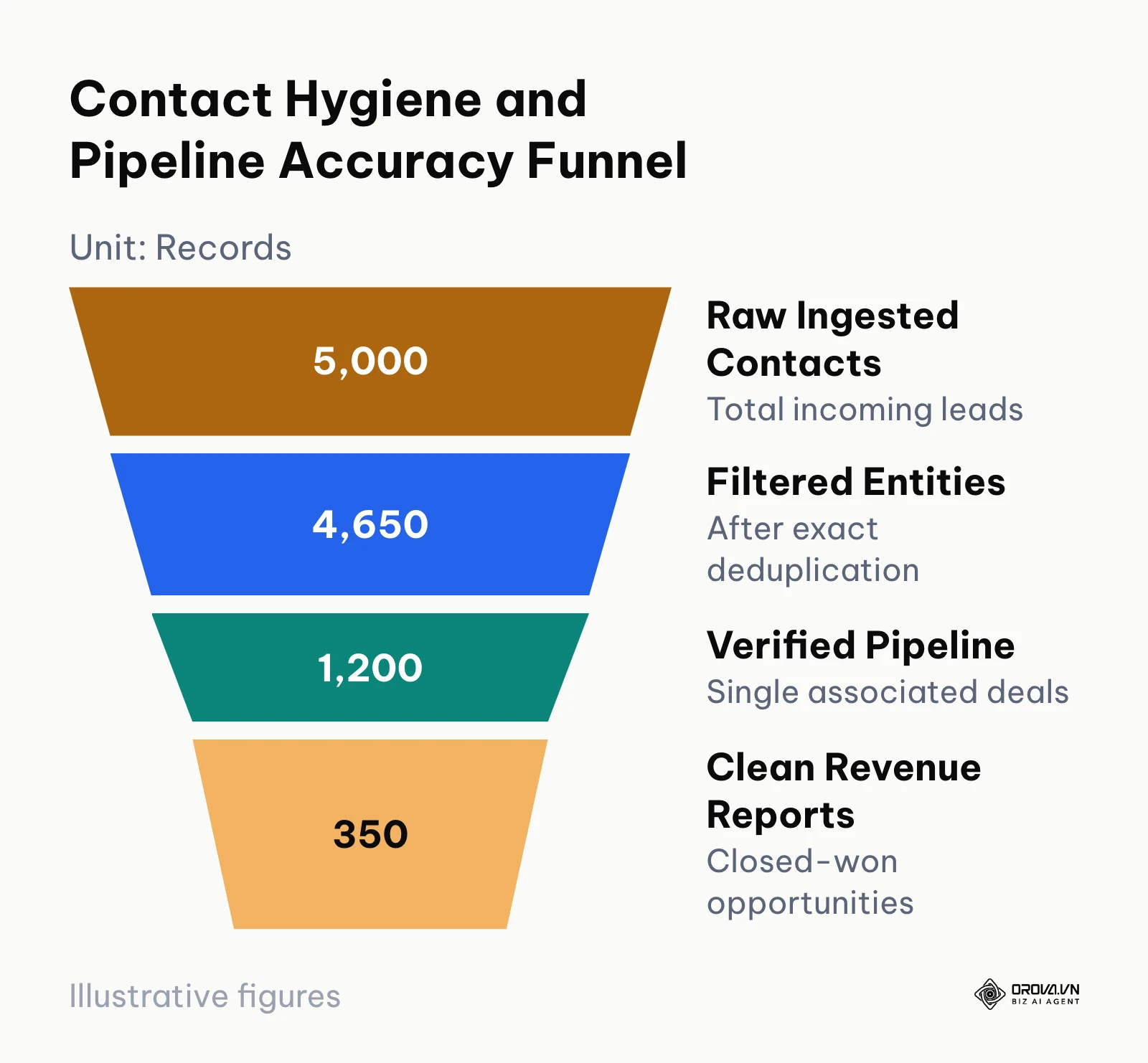
Monitor your Duplicate Contact Rate by dividing the number of identified duplicate clusters by your total active contact count. In a well-maintained CRM, this figure should remain below 2 percent. Check this metric monthly inside your CRM data management dashboard. Next, monitor your Pipeline Forecast Variance. Cross-reference your weekly weighted pipeline report against closed-won revenue; eliminating duplicate deals should reduce pipeline forecasting variance to within 5 percent of actual closed business within 30 to 60 days.
Finally, audit your Lead Routing Dispute Rate by tracking the number of internal tickets filed by sales reps contesting account ownership. A successful merge policy should reduce lead ownership disputes to zero within two weeks of establishing clear governance rules.
The hygiene funnel below demonstrates how filtering duplicate contacts preserves reporting clarity from initial lead capture down to final revenue reporting:
Reviewing these metrics monthly ensures your team maintains an accurate, high-performing sales database.
Future Trends in CRM Data Deduplication: Author's Outlook
Looking at enterprise database management as of 2026, I believe the way companies handle duplicate customer records is undergoing a permanent structural shift. The traditional model of accumulating messy records and conducting painful quarterly cleanups is no longer viable for modern sales operations.
First, I observe that leading organizations are moving toward deterministic real-time intake protection rather than post-entry batch deduplication. As of 2026, modern web forms, webhook receivers, and API gateways increasingly validate identity before a database write occurs. Over the next two to three years, I expect legacy periodic merge projects to decline by half, replaced by automated gatekeeping rules that normalize phone formats and cross-reference tax IDs at the point of capture. To prepare, operations teams should audit their inbound lead forms today and enforce strict unique-identifier rules across every public entry point.
Second, the role of artificial intelligence in entity resolution will fundamentally change manual data hygiene. In my view, probabilistic machine learning models will soon replace rigid exact-match formulas by analyzing semantic context across unstructured email signatures, meeting transcripts, and corporate ownership changes. Rather than asking an administrator to pick surviving fields from a two-column table, autonomous agents will evaluate data recency and confidence scores to resolve field collisions in the background. However, this shift could be delayed if tightening corporate data privacy regulations restrict automated decision-making on customer personal information without explicit human verification.
Third, I lean toward the emergence of decentralized identity standards that will give business buyers control over their own B2B profiles. Instead of vendors guessing whether a contact changed jobs or updated their phone number, shared business network protocols will allow contacts to update their information once and have that change propagate to verified vendor CRMs automatically. To prepare for this shift, organizations should standardize their custom field dictionaries and eliminate proprietary, non-standard property labels that complicate cross-platform synchronization.
Frequently Asked Questions About Merging Duplicate Contacts in CRM
How do you resolve sales rep commission disputes when merging duplicate contacts?
When duplicate contacts belong to two different representatives, commission disputes should be resolved using a documented sales governance policy rather than informal negotiation. Award primary account ownership to the representative who logged the most recent qualified commercial interaction or actively advanced a deal stage within the last 30 days. To preserve team morale and credit, document the secondary representative's sourcing effort in the master timeline notes and configure a split-commission attribution percentage in your sales tracking sheet.
What happens to open deals when two contacts merge to avoid doubling pipeline value?
Merging contacts does not automatically delete open deals; both opportunities will attach to the surviving master record, which can artificially double your projected pipeline value. To correct this, open both deals, verify whether they represent separate products or an identical commercial opportunity, and consolidate the notes into the more advanced stage. Update the redundant deal stage to Closed-Lost with the specific reason marked as Merged Duplicate Deal, preserving historical rep activity while restoring accurate revenue forecasting.
If a secondary contact unsubscribed, does the merged record keep the opt-out status?
Yes, the merged record must unconditionally retain the unsubscribed or opt-out status if either profile was previously opted out. Overwriting an unsubscribed secondary contact with an active opt-in master profile violates international anti-spam legislation, including the CAN-SPAM Act and GDPR. Administrative rules must ensure that a positive opt-out flag always takes precedence over an opt-in state during field reconciliation.
How can AI assist in merging duplicate CRM contacts without risking data loss?
Artificial intelligence assists contact deduplication by performing semantic entity matching, identifying subtle nickname variations, corporate acquisitions, and domain shifts that traditional exact-match filters miss. However, AI should operate in an advisory capacity for high-value accounts, surfacing confidence-scored merge recommendations for human review rather than executing autonomous deletions. This approach eliminates hours of manual data comparison while ensuring that complex deal associations and custom fields remain protected from unexpected algorithmic overwrites.
How do you prevent duplicate contacts at intake rather than fixing them later?
Preventing duplicates requires implementing strict validation gates across all lead generation channels before records enter your database. Configure website forms to require normalized work email domains and international phone numbers (E.164 standard), and set your CRM intake endpoints to update existing records via unique email lookup keys rather than creating new entries. Furthermore, train sales representatives to run a comprehensive name and domain search in your customer directory before manually logging any prospective account.
Where Should You Start?
Optimizing your customer records does not require an overwhelming overhaul of your entire database in a single afternoon. Where you should begin depends entirely on the current size and health of your sales pipeline.
If you are a solo sales lead or small team with under 500 contacts, begin by opening your primary customer table, sorting all records alphabetically by email domain, and manually resolving the top five duplicate pairs you spot. Completing these five reconciliations will familiarize you with your CRM field selection rules and immediately clean up your active sales pipeline.
If you lead a mid-sized sales team of 5 to 20 representatives with active marketing automation, your immediate first step is to download a full CSV backup of your contact and deal records today. Once that safety snapshot is secured on an internal drive, review your email opt-out field settings to guarantee that unsubscribe flags take automatic precedence during future team cleanups.
If you are an operations leader inheriting a legacy enterprise database with tens of thousands of unmanaged records, avoid the temptation to execute bulk merge scripts immediately. Your single task for this week is to draft and publish an internal Field Conflict Resolution Matrix with your sales managers, establishing agreed-upon rules for lead ownership and deal reconciliation before anyone initiates automated deduplication batches.
Taking deliberate, systematic action ensures your customer records remain reliable assets for accurate reporting and sustainable revenue growth. Mastering these foundational hygiene steps provides the blueprint for every growing team seeking to master how to merge duplicate contacts in crm environments safely.
About the author

Builder of Orova
Nguyễn Đỗ Trọng Ân has 8 years of experience in marketing, including 6 years managing market development across Asia. He builds Orova, a Biz AI Agent that never sleeps: it plans, runs and optimizes work for businesses.
Run your business with AI Agents
Orova is the always-on Biz AI Agent — it plans, runs, and optimizes the work for you.
Save time, unlock productivity.