
Facebook boost post not working? A step-by-step diagnostic guide

You have crafted the perfect post, the creative is sharp, the copy is engaging, and you are ready to drive traffic. But when you click on your Page, you encounter a frustrating roadblock: the facebook boost post not working. The button is grayed out, unclickable, or throwing an ambiguous error message about unavailability. You refresh the app, switch network connections, and still, nothing happens.
Most generic advice online tells you to "check your internet" or simply "try again later." Some suggest blindly adding a new credit card, which can actually trigger a fraud alert and lock your account permanently. These surface-level tips ignore the underlying mechanics of how Meta's ad delivery system operates.
This deep diagnostic guide will help you isolate the exact technical, financial, or policy-related reason your boost button is disabled. By following this systematic approach, you will stop guessing, identify the root cause, and restore your campaign delivery today without risking a permanent account ban.
What to do when Facebook boost post not working?
When the boost button fails, Meta has blocked your organic post from becoming a paid ad, either because the app could not load your permissions or because something in your role, billing, post format or policy status stops it. You must immediately stop clicking the button repeatedly. Instead, you need to systematically isolate the variable causing the block to determine if it is a frontend interface glitch, a backend payment gateway rejection, or a policy violation. Diagnosing the exact layer of the failure determines whether you need to clear your cache, update a billing threshold, or submit a formal identity verification appeal.
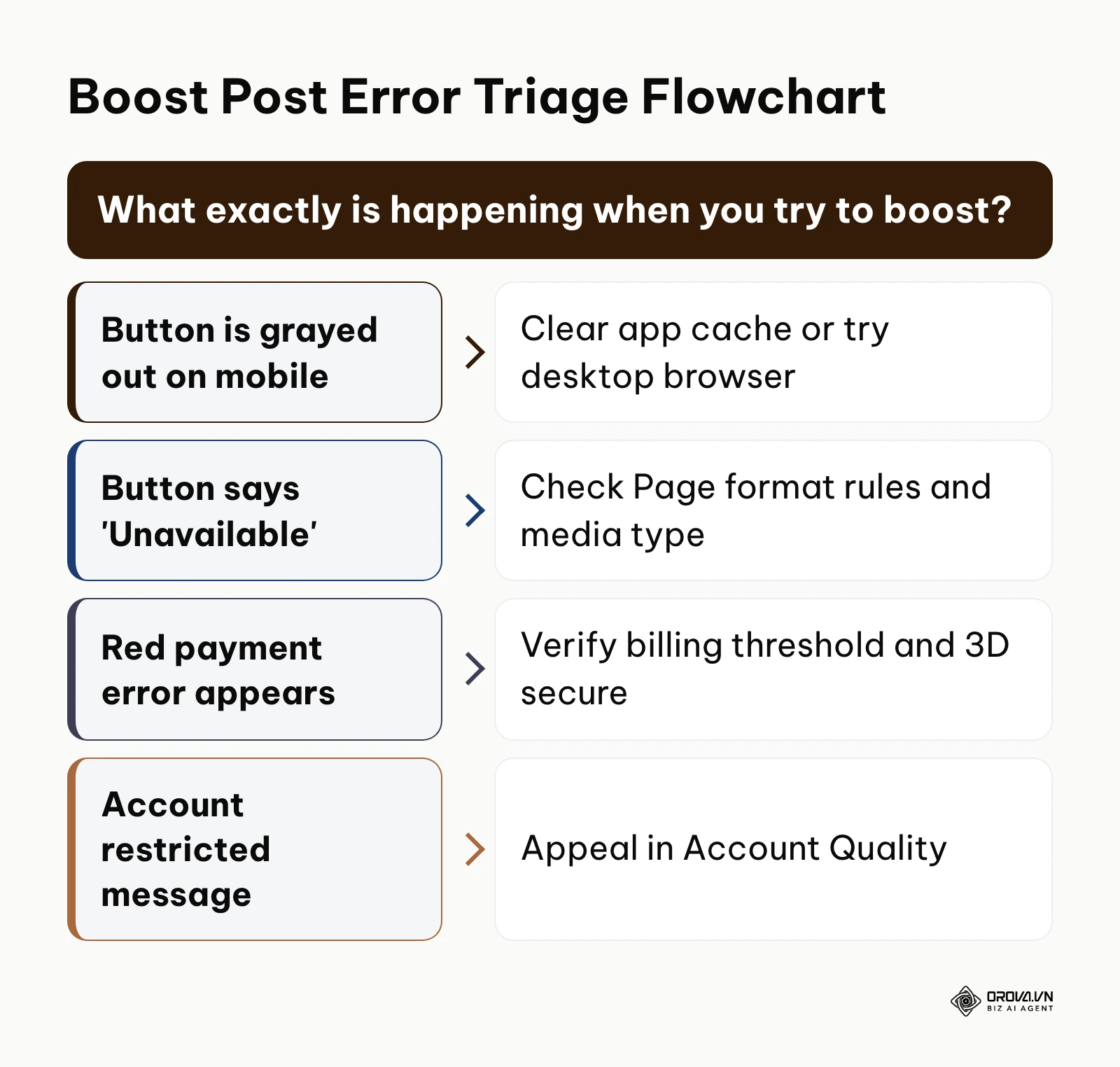
Pre-diagnostic checklist: What to verify first
Before diving into complex account settings, you need to rule out local environmental factors. Often, the issue is not with your Meta account, but with the browser, network, or device you are using to access the platform. Many advertisers waste days waiting on support tickets when the problem was entirely on their own machine.
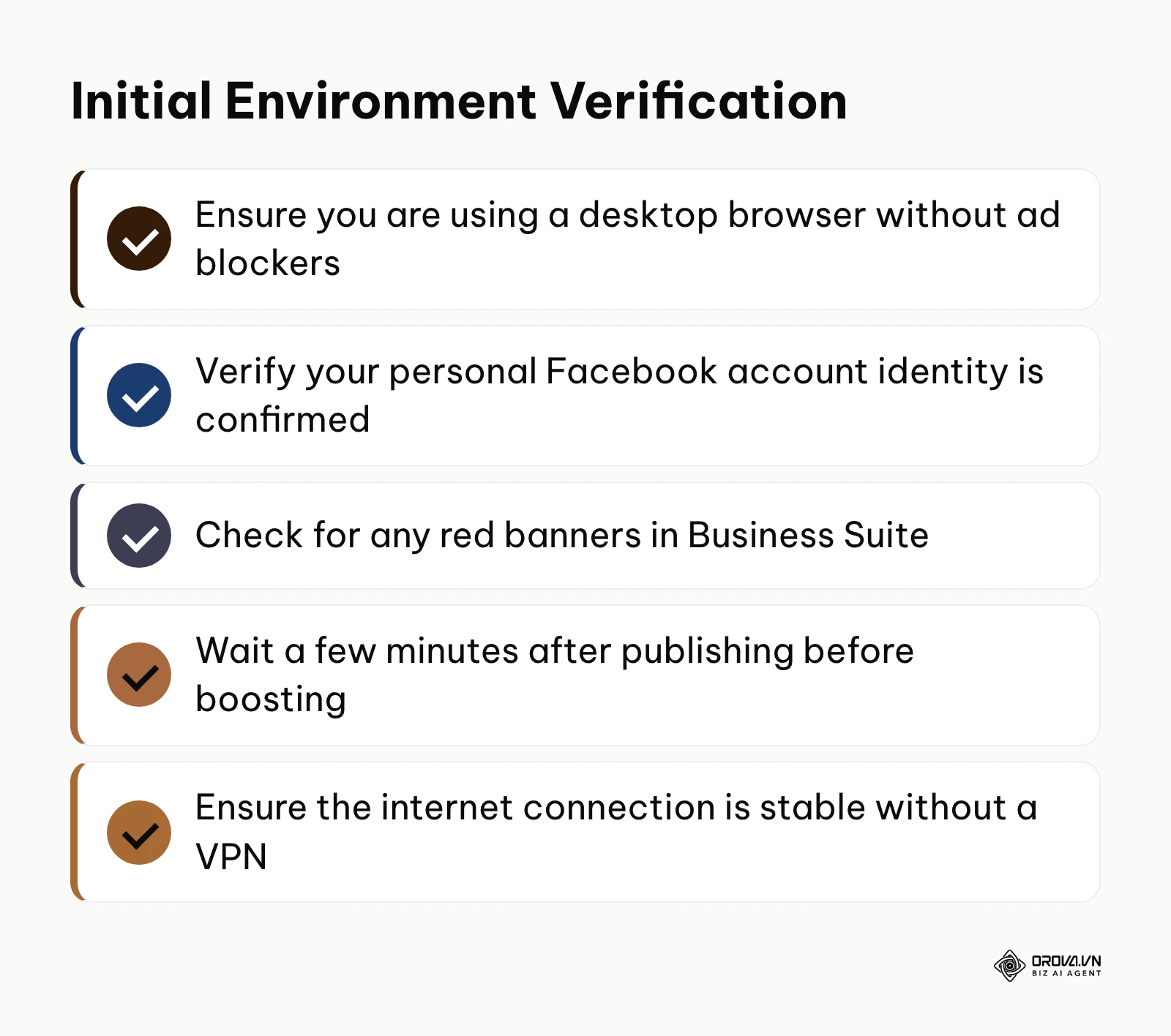
First, check your browser extensions. Aggressive ad blockers, privacy shields, or script blockers frequently block the JavaScript required to load Meta's payment and ad configuration modules. If the popup window for the boost configuration cannot render properly, the button will remain unresponsive. Disable your ad blocker temporarily or open a private browsing (Incognito) window to test the button.
Second, verify the age of the post. If you just hit publish, Meta’s servers take a few minutes to index the content, verify its format, and distribute it across their Content Delivery Network (CDN). Trying to boost a post within seconds of publishing often results in a "Boost Unavailable" error simply because the backend database has not synchronized. Give a freshly published post a few minutes before you try to boost it.
Third, ensure you are not operating through a high-latency Virtual Private Network (VPN). Meta's security algorithms are highly sensitive to sudden changes in IP addresses. If you normally log in from London but your VPN routes your traffic through Tokyo, the system may preemptively disable ad creation features to protect the account from suspected unauthorized access.
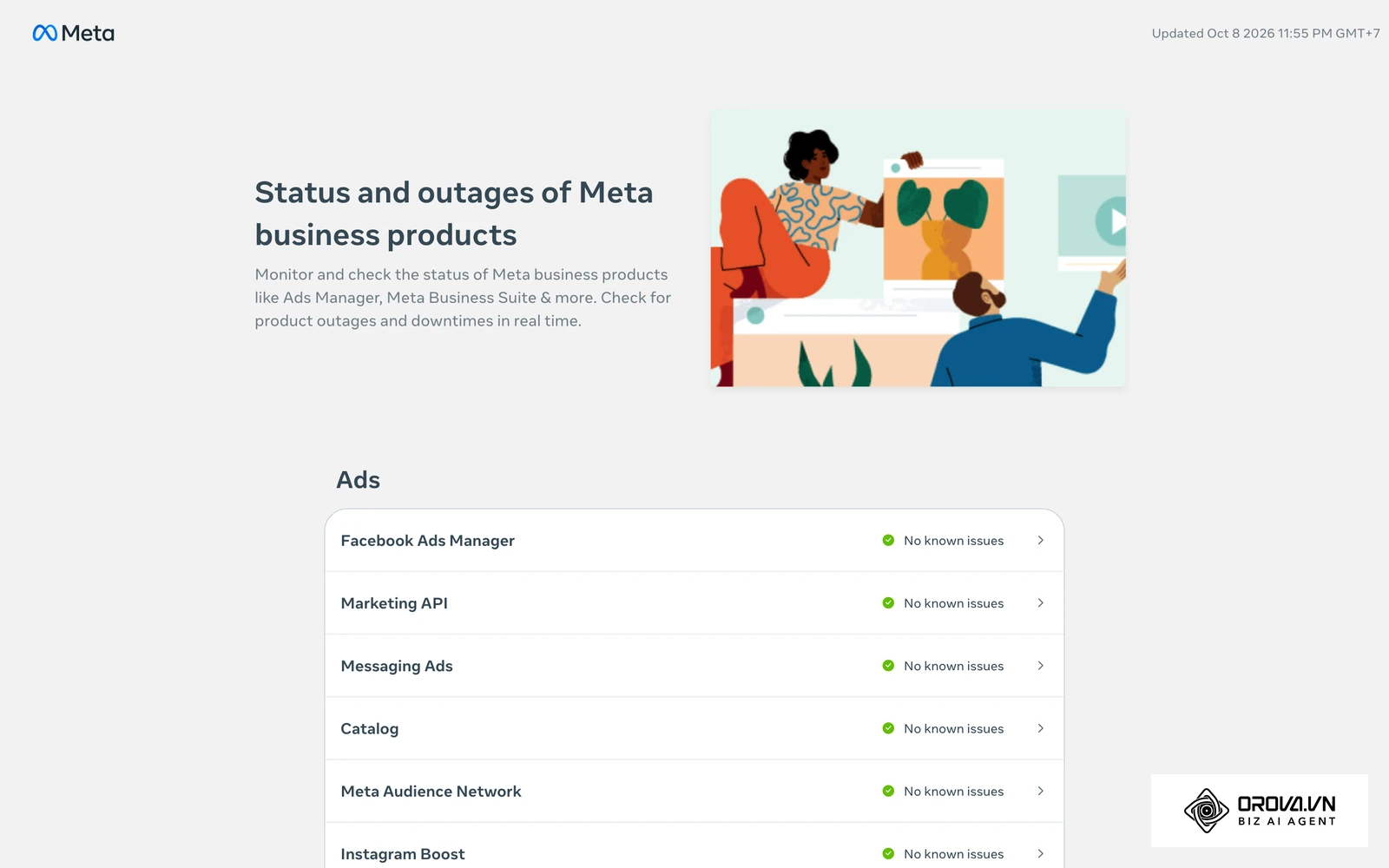
Finally, confirm your personal Facebook profile identity status. In recent years, Meta has pushed heavily for authentic identity representation. If your personal profile lacks two-factor authentication or has pending identity verification requests, your administrative actions on associated Pages may be restricted. Check your personal profile settings for any red banners before assuming the Business Page is at fault. It is also worth checking Meta's public status page, metastatus.com, to see whether Meta is reporting a problem with its ads tools at that moment.
6 steps to fix Facebook boost post not working
Step 1: Verify your Page role and account status
The transition from Classic Pages to the New Page Experience has completely overhauled how administrative permissions work. Having standard access to a Page does not automatically grant you the authority to spend money on behalf of that business. Meta separates content creation rights from financial authorization to prevent unauthorized spending.
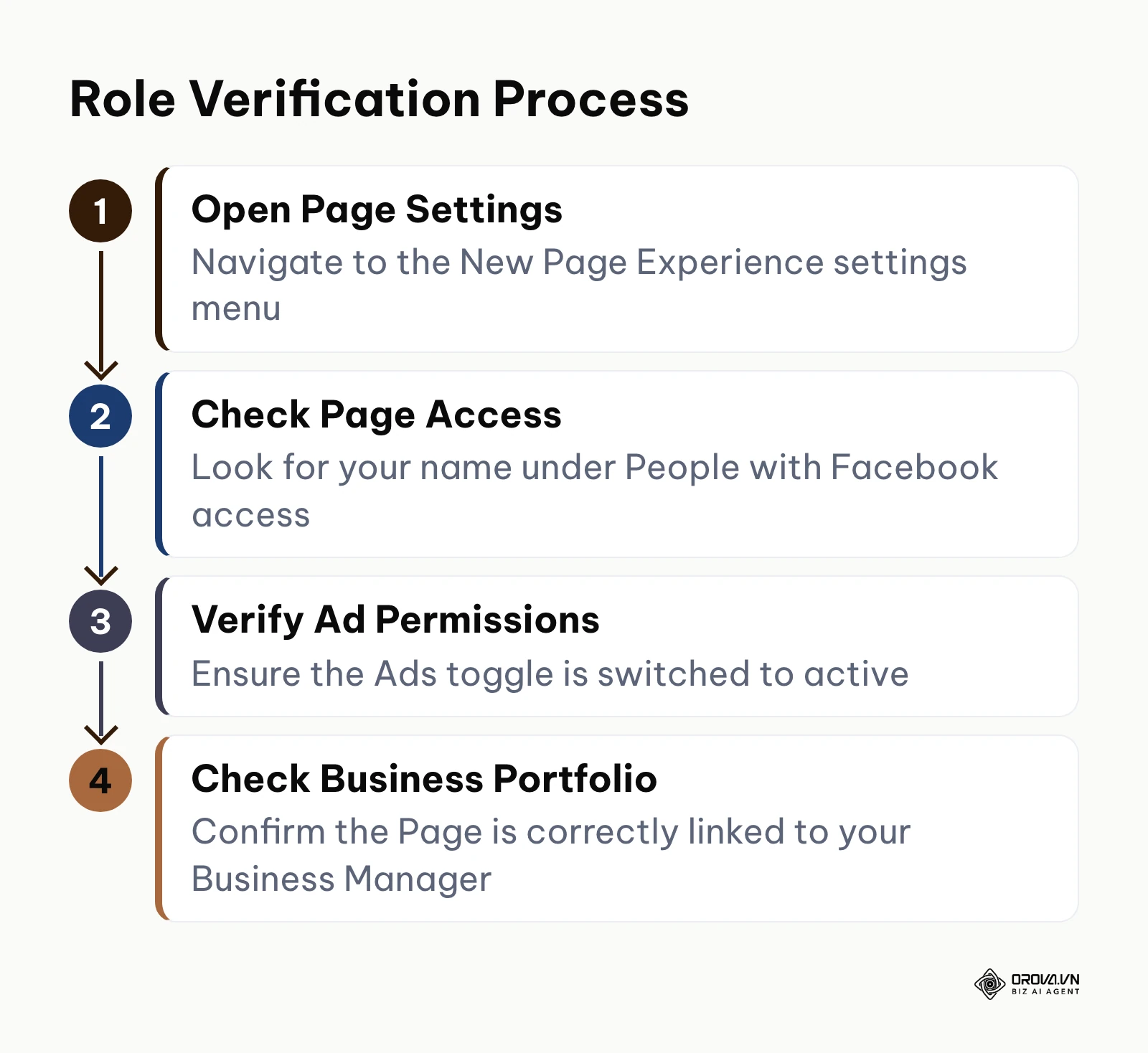
You must navigate to your Page settings and look at the "Page Access" menu. Your name must be listed under "People with Facebook access," and crucially, the specific toggle for "Ads" must be active. If you only have task access for content creation, community moderation, or insights analysis, the system will intentionally gray out the boost button.
Beyond the Page level, you need to understand how the Business Portfolio (formerly Business Manager) overrides individual Page roles. In practice, a restriction or missing permission at the Business Portfolio level can block ads even when you are a Page admin. If the Page is claimed by a Business Portfolio, the administrators of that portfolio dictate who can utilize the ad accounts linked to the Page. If you are not assigned as an asset operator within the Business Settings dashboard, you will face authorization errors.
To fix this, you must coordinate with the primary owner of the Business Portfolio. They need to log into the Business Settings, navigate to "Accounts," select "Pages," find your name, and explicitly assign you the "Create Ads" permission. This step is critical for proper facebook ad account setup. If you attempt to bypass this by creating a personal ad account, you will fragment your billing data and complicate your pixel tracking.
The sign that you have done this correctly is that the boost button immediately turns blue, and clicking it opens the audience targeting interface without requesting you to create a new ad account. A common mistake here is assuming that being an "Admin" in a Facebook Group related to the Page gives you ad rights on the Page itself; these are entirely separate permission structures.
Step 2: Clear mobile app cache and switch to desktop
Many "Boost Unavailable" complaints originate from users trying to manage their advertising via the standard Facebook mobile app. The mobile app stores temporary data (cache) to load the interface faster. However, when Meta updates their backend APIs or when your secure session token expires, the cached interface falls out of sync with the server.
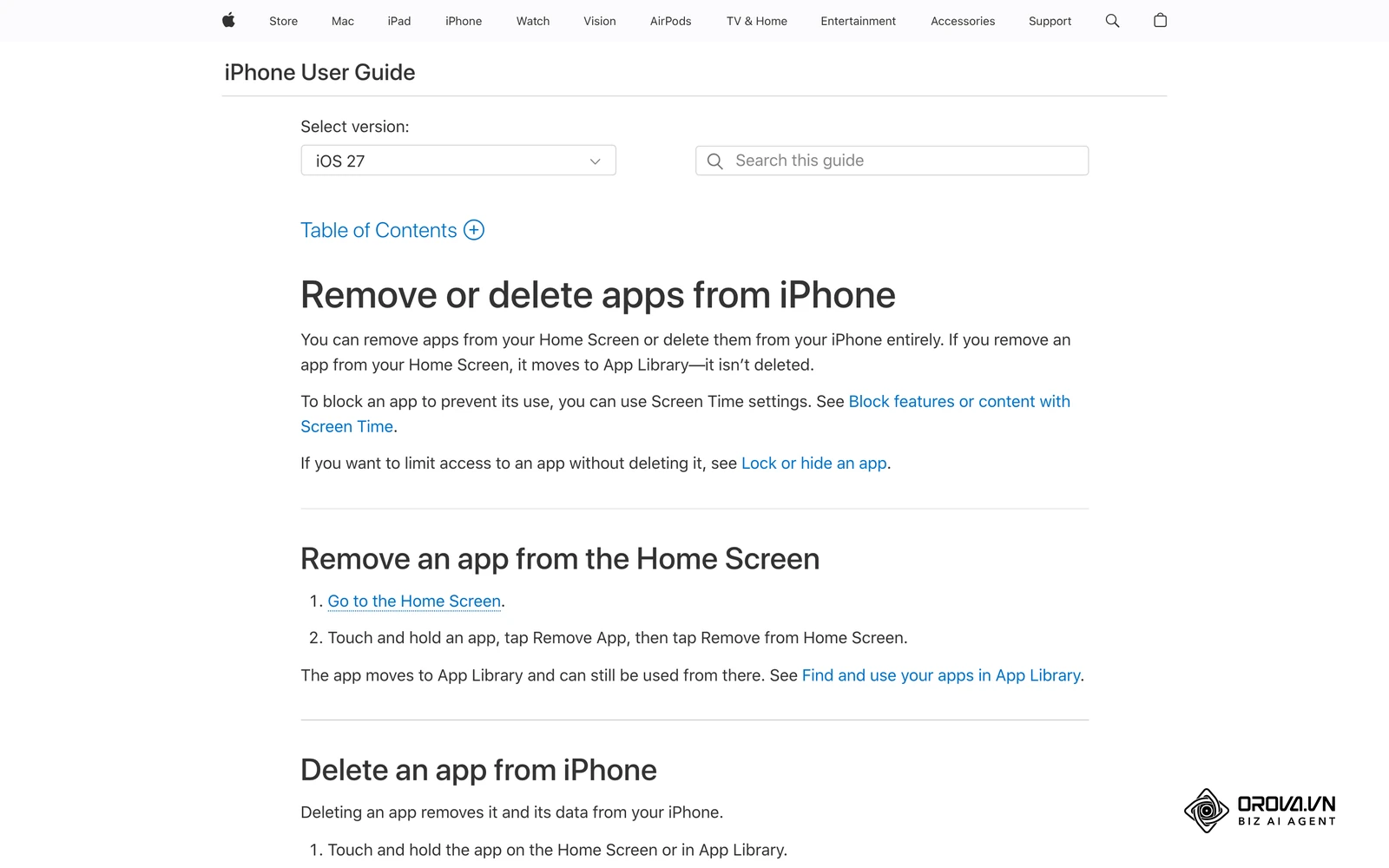
This results in a visual bug where the button appears grayed out, even though your account is in perfect standing. The mobile app fails to retrieve the updated authorization status and defaults to a restricted state as a fail-safe mechanism. This is a client-side rendering issue, not an actual account ban.
To resolve this, you must first switch to a desktop computer and access the Meta Business Suite via a standard web browser. The desktop web environment forces a fresh API call to Meta's servers, bypassing any corrupt local cache on your phone. If the button works perfectly on the desktop, you have confirmed it is purely an app issue.
To fix the mobile app, Android users should navigate to Settings > Apps > Facebook > Storage, and tap "Clear Cache" and "Clear Data." iOS users must uninstall the Facebook app entirely and reinstall it from the App Store, as Apple does not provide a native "Clear Cache" button for third-party applications. Logging out and logging back in is often not enough to clear corrupted token data.
Example scenario: A local cafe owner wanted to boost a post announcing a weekend special on Friday morning. Operating entirely from her smartphone, she found the boost button grayed out. She wasted two hours trying to edit the post text, assuming she violated a rule. The stumbling block was her outdated app cache holding onto an expired login session. By simply opening her laptop, logging into Facebook on a browser, and clicking boost, the interface loaded instantly. The visible result was the campaign launching within five minutes, driving a noticeable increase in foot traffic that weekend, proving the account was never actually restricted.
Step 3: Check billing and payment method health
Advertising on Meta requires a frictionless pipeline between their ad servers and your bank. The moment this pipeline experiences a hiccup, Meta halts all delivery and disables new ad creation across the entire ad account to prevent unpaid debt accumulation.
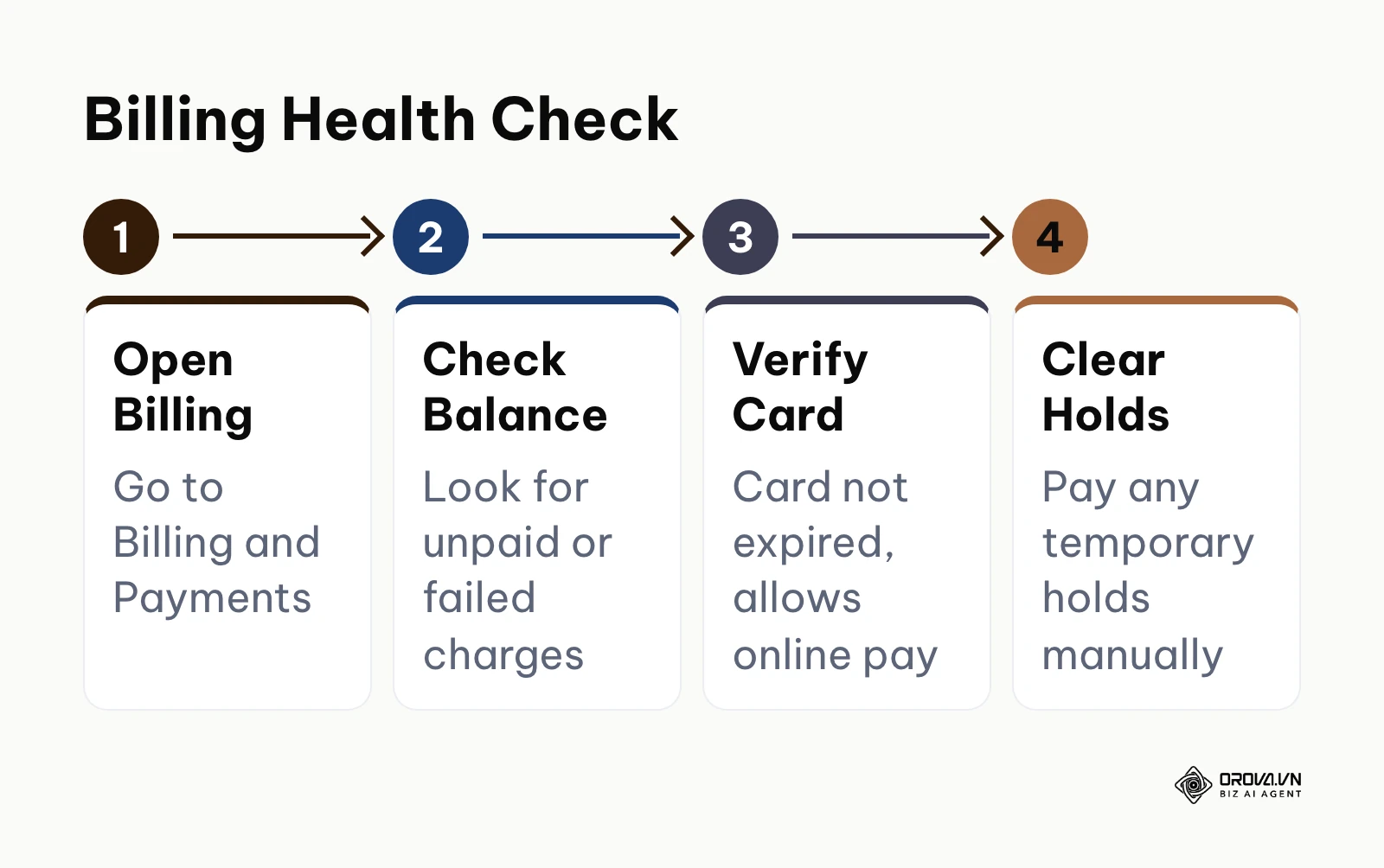
The most frequent culprit is a failed payment attempt. This often happens when you hit your billing threshold. Meta operates on threshold billing, meaning they charge you when your ad spend reaches a specific amount, or at the end of the monthly billing cycle. If your credit card declines this automated charge—due to insufficient funds, expiration, or bank fraud blocks—the system immediately locks the account and grays out the boost button.
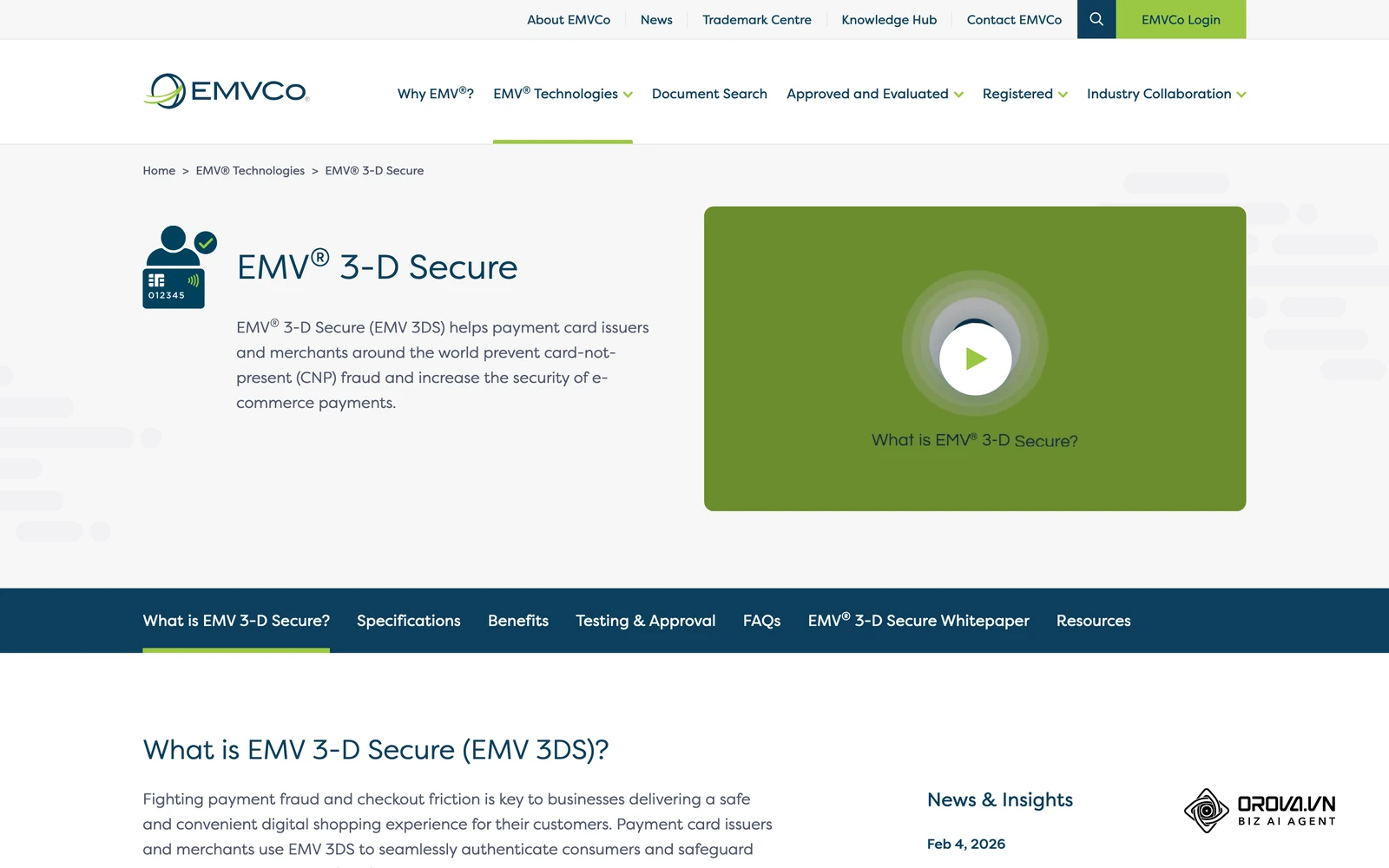
In regions operating under Strong Customer Authentication (SCA) laws, such as Europe or parts of Asia, banks require 3D Secure verification for online transactions. Sometimes, a recurring charge from Meta fails because the bank expects a manual OTP (One-Time Password) confirmation that never occurs automatically.
To resolve this, you must navigate to the "Billing and Payments" section within your Meta Business Settings. Look for any outstanding balances marked in red. You cannot simply add a new credit card and expect the system to automatically try it. You must manually click the "Pay Now" button and authorize the charge on the existing card or assign the debt to a new card.
Another invisible issue is the temporary authorization hold. Meta sometimes places a small, temporary charge on your card to verify it has sufficient funds before allowing you to scale your daily budget. If your bank flags this small, unusual charge as suspicious and blocks it, Meta will freeze your boosting capabilities. You must contact your bank to whitelist charges from "FACEBOOK ADS" to ensure continuous delivery.
Example scenario: An e-commerce store manager faced a sudden stop in ad delivery during a major flash sale, and all boost buttons on the Page turned gray. He assumed his account was banned for policy violations. The stumbling block was a temporary authorization hold placed by his bank because the ad spend scaled too quickly. By calling the bank's fraud department to clear the hold, and then manually clicking "Pay Now" in the Meta billing dashboard, the restriction lifted. The visible result was the campaigns resuming active delivery within twenty minutes, saving the remainder of the flash sale event.
Step 4: Audit the post format for unsupported elements
Not every piece of content published on a Facebook Page is eligible for the simplified boosting process. The Boost button relies on a streamlined API that only supports standard media formats. If your post deviates from these rigid standards, the system will reject it outright.
Some post types are simply not eligible for boosting. For instance, you cannot boost profile picture updates, cover photo changes, or posts that simply share an album of photos. Similarly, if you share a link from a third-party website that lacks proper metadata (like a missing thumbnail image or broken Open Graph tags), Meta will refuse to put advertising spend behind a poor user experience.
Video content introduces another heavy layer of complexity. If you published a Facebook Reel or a standard video that uses licensed mainstream music added for organic use, that track is generally not cleared for paid advertising. In that case the boost option is usually unavailable for the post, and you need a version with audio that is licensed for ads, such as tracks from Meta's Sound Collection.
Additionally, posts containing expired offers, draft event invitations, 360-degree photos, or interactive features like certain types of polls may not be supported by the current iteration of the boost infrastructure.
The solution is to review the architecture of your post meticulously. If it contains a shared memory, an unsupported third-party integration, or music not licensed for ads, you cannot fix it by tweaking account settings. You must create a new, native post featuring a standard single image, a carousel of images, or a video with audio cleared for advertising. Once the clean post is published, the boost button should become active immediately.
Step 5: Review recent policy strikes and restrictions
Meta enforces a strict, multi-layered policy ecosystem managed by advanced machine learning models. If your boost button is missing or replaced by a stark "Account Restricted" message, you have likely tripped an automated moderation filter.
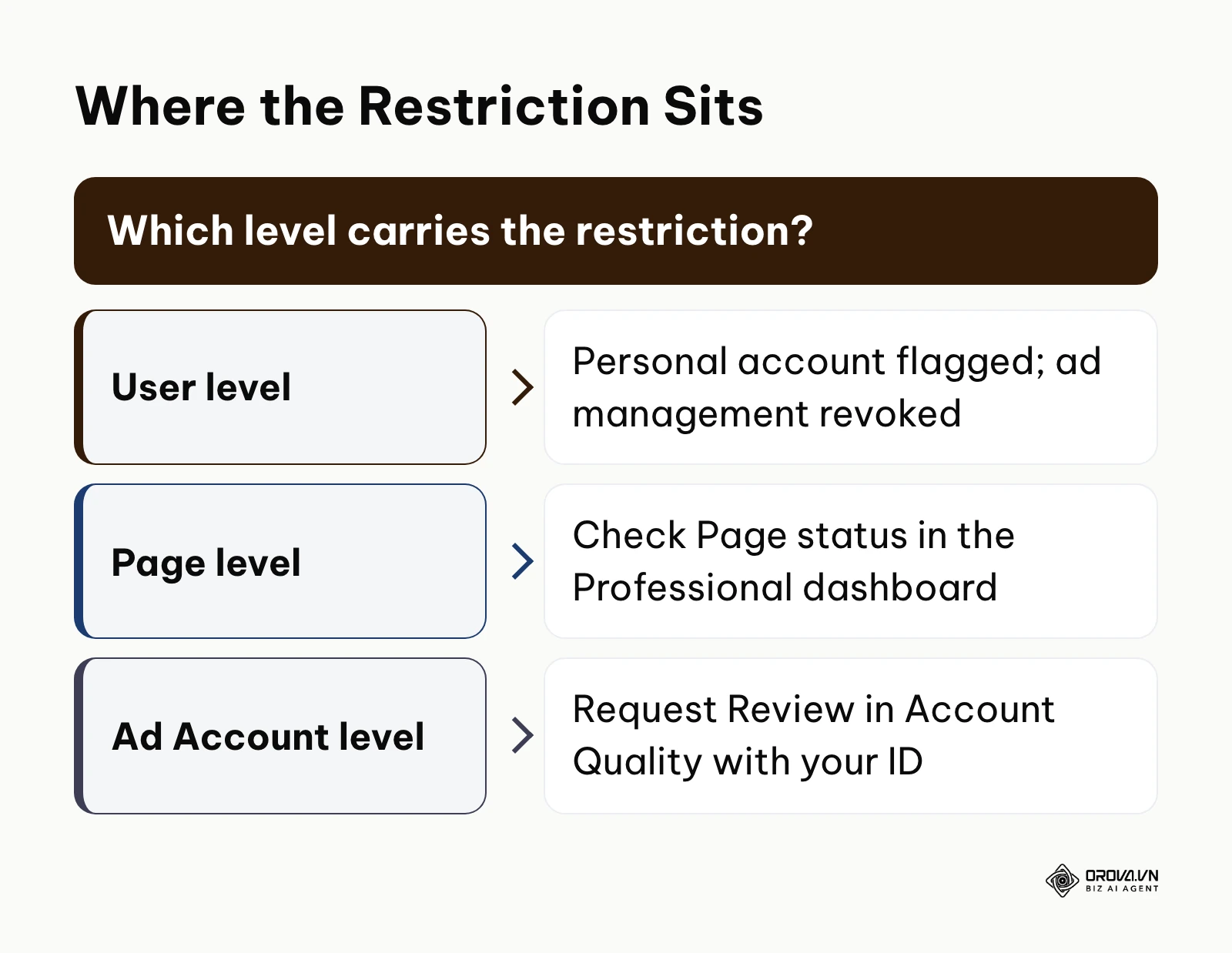
These restrictions happen at three distinct levels: the User level, the Page level, and the Ad Account level. If your personal user account is flagged for suspicious behavior (such as mass messaging, using automation scripts, or creating multiple fake profiles), your ability to manage ads is revoked entirely, even if the Page and Ad Account are perfectly clean.
Page-level restrictions occur when the Page itself accumulates strikes for sharing misinformation, deceptive practices, or severe community standard violations. You can check this in the Page status section of your Professional dashboard. If the Page shows active restrictions, advertising features are heavily restricted until the strikes expire or are successfully appealed.
The most common restriction, however, is at the Ad Account level. This is managed in Account Quality (accountquality.facebook.com). Here, Meta logs every rejected ad, identity verification request, and business verification failure. If your business operates in a Special Ad Category (like housing, employment, credit, or politics) and you fail to declare it during campaign setup, your account will be swiftly restricted.
To fix a policy restriction, you must navigate to Account Quality and look for the "What you can do" section. This usually involves clicking "Request Review" and submitting a clear photo of your government-issued ID or official business registration documents. Do not attempt to bypass a restriction by creating a new Page or Ad Account; this is considered circumventing systems and will result in a permanent, unappealable ban across all your assets.
Step 6: Promote the post from Facebook Ads Manager instead
The Boost button on your Page is essentially a simplified frontend interface built on top of the complex Meta advertising infrastructure. It is designed for speed and convenience for beginners, but this simplicity makes it highly prone to frontend bugs. When the button fails for no logical reason, professional media buyers do not waste time arguing with the interface; they promote the same post from Ads Manager instead. If you are still deciding which route suits your campaigns, see our comparison of boost post vs Ads Manager.
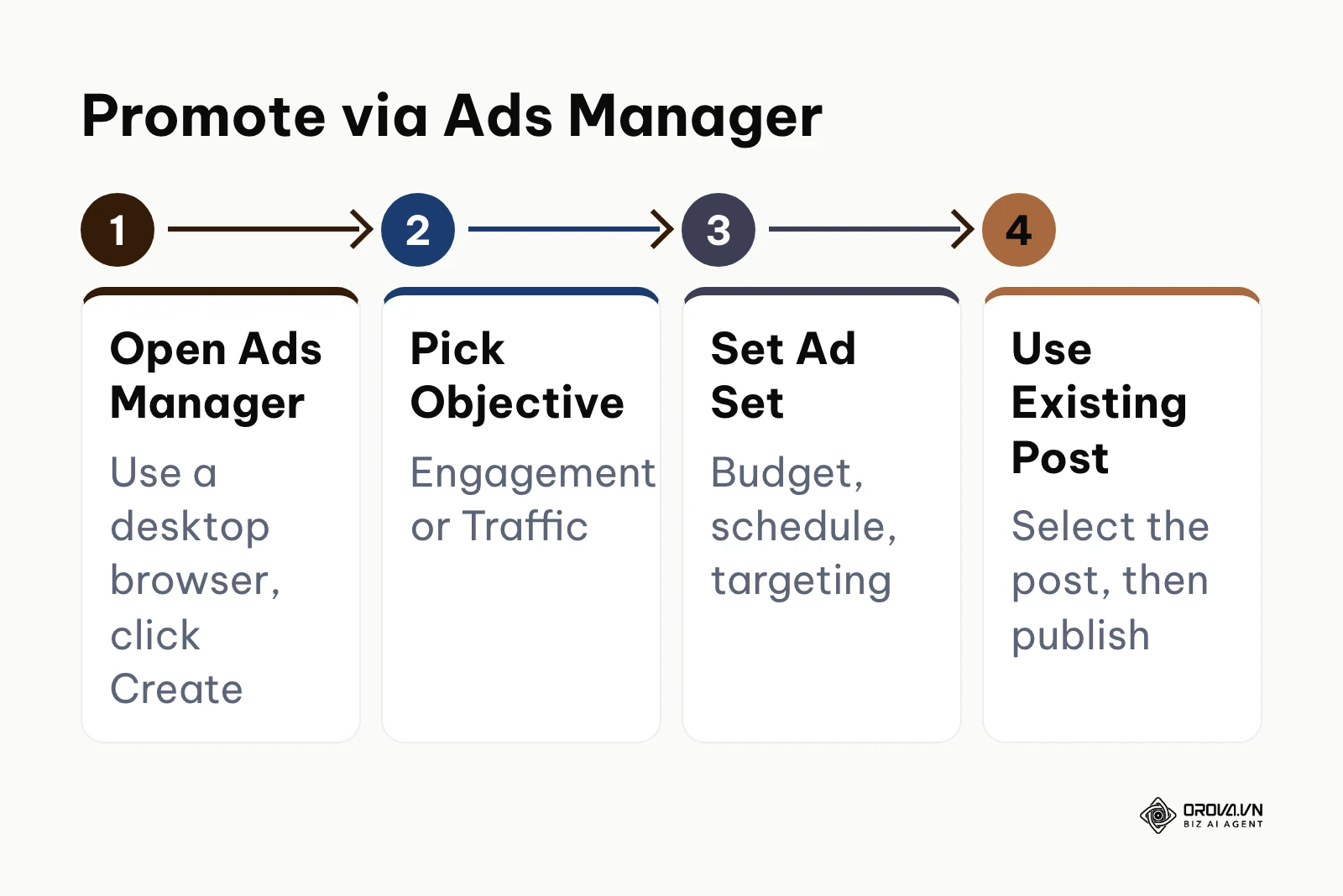
You can achieve the exact same result—turning an organic post into a paid advertisement—by using the comprehensive facebook ads manager. Ads Manager uses a different creation flow from the Page-level boost button, so a glitch in the button does not necessarily affect it.
To do this, log into Ads Manager via a desktop browser and click the green "Create" button. Choose an objective that aligns with your goal, typically "Engagement" if you want post interactions, or "Traffic" for link clicks. Proceed through the Campaign and Ad Set levels, defining your budget, schedule, and detailed targeting exactly as you would on the frontend popup.
When you reach the Ad level, look for the "Ad Setup" section. Instead of selecting "Create Ad," click the dropdown menu and choose "Use Existing Post." The interface will allow you to select your Facebook Page and then browse through a chronological list of your published posts. Select the post you want to promote and hit publish.
Example scenario: An agency team managing a real estate client tried to boost a high-quality property walkthrough video directly from the Page. The button displayed an "Unsupported Format" error, despite the video being a standard MP4 format. The stumbling block was the Page-level boost flow failing to process the large video file. By opening Ads Manager, creating an engagement campaign, and selecting "Use Existing Post," the team avoided the Page-level error. This is not a way around policy: the same ad review applies in Ads Manager. The visible result was the campaign launching smoothly, generating dozens of qualified lead inquiries over the weekend without needing to compress or re-upload the heavy video file.
OROVA ADS applies AI Agent to automate and optimize ad performance on Google, Meta and TikTok. Scale your budget safely, monitor 24/7 and expand your business quickly.
Experience the solution at orova.vn/ads
Deep analysis: Why the boost button grays out vs. active account restrictions
Understanding the technical distinction between an interface failure and a systemic restriction is crucial for rapid diagnosis. When you click the boost button, Meta has to confirm three things: that your login session is valid, that the post format is eligible, and that the linked ad account is in good financial standing.
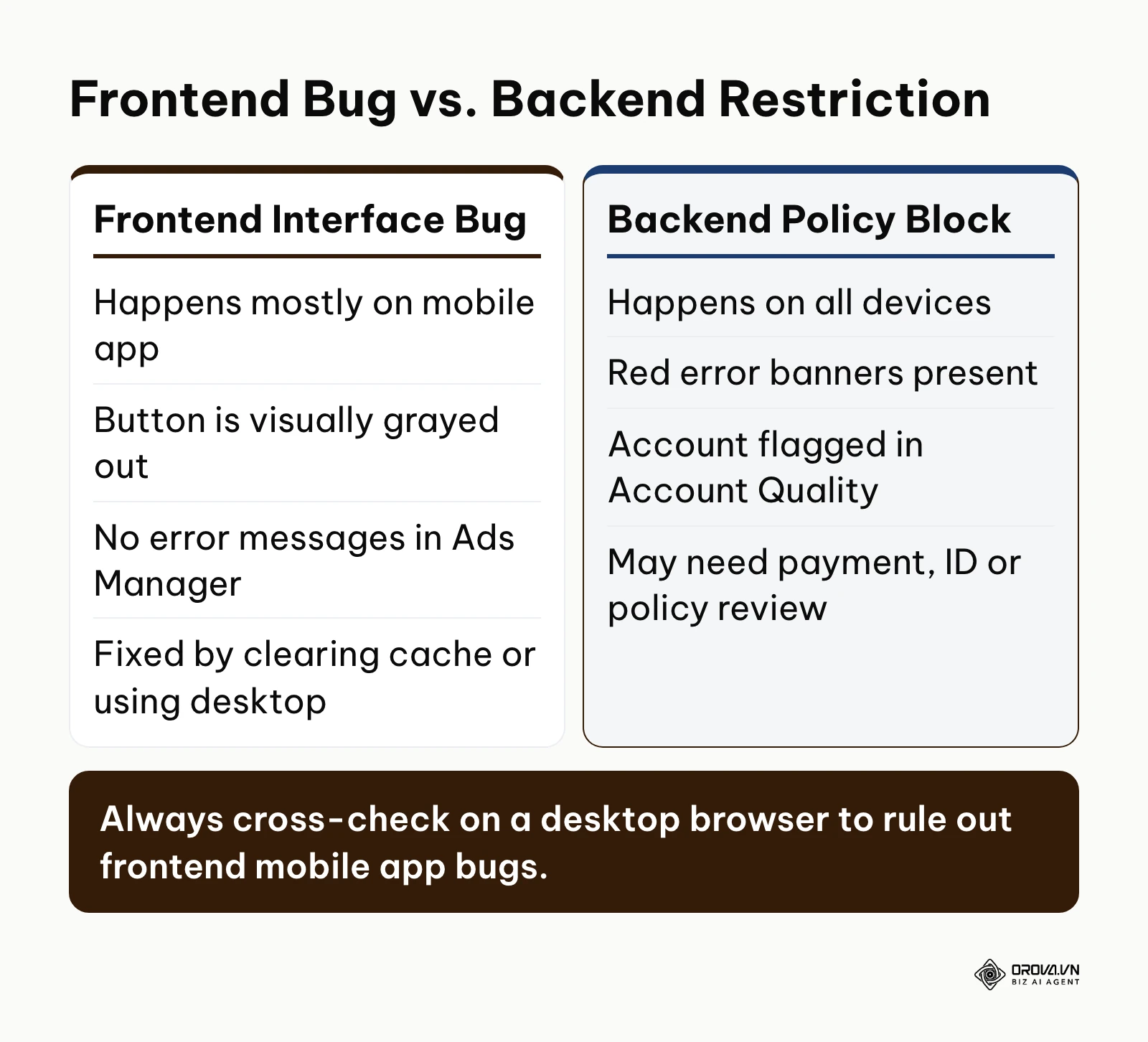
If the session token is malformed or expired—which is incredibly common on mobile apps transitioning between Wi-Fi and cellular data—the app may fail to load your permissions and simply show the button as gray. This is a pure client-side failure. The backend has not judged your account; it simply hasn't received a valid, authenticated request.
Conversely, a systemic restriction is a backend enforcement action. In this scenario, the server successfully receives your request, checks it against policy and billing status, and returns an explicit reason such as a violation or an unpaid balance. The interface then shows specific error text, often with banners pointing you to Account Quality.
| Diagnostic Factor | Client-Side Interface Bug | Backend Policy/Financial Restriction |
|---|---|---|
| Primary device affected | Usually isolated to the mobile app environment | Affects all devices, browsers, and API calls equally |
| Visual indicator | Button is gray, silent failure, no popup renders | Red warning banners, explicit error text displayed |
| Ads Manager status | Fully functional, existing post can be used | Completely disabled, red alerts on the dashboard |
| Required resolution | Clear app cache, update app, use desktop browser | Pay balance, submit ID, request manual policy review |
You must evaluate this trade-off: spending hours troubleshooting an app glitch versus immediately pivoting to Ads Manager. Professional marketers prioritize the latter. If the asset can be successfully selected and published in Ads Manager, you have proven the issue is purely a Page-level interface bug. If Ads Manager is also locked and preventing publication, you are definitively dealing with a severe backend restriction that requires formal administrative action to resolve.
Measuring your diagnostic success: Key indicators
Once you have executed a fix—whether clearing a payment hold, assigning proper roles, or submitting an identity review—you need to monitor specific metrics to confirm the system has successfully restored your delivery capabilities. Do not simply look at the blue button and assume everything is fine; you must verify that the ad server is actively pushing your content to users.
You should monitor these indicators within your facebook ads report to ensure the troubleshooting was successful and your budget is being utilized effectively:
| Metric Indicator | What it means in this context | The warning threshold |
|---|---|---|
| Delivery Status | Shows if the algorithm is actively spending money. | Stays stuck in "In Review" status for more than 24 hours. |
| Reach vs. Impressions | Confirms the ad has successfully entered the auction. | Zero impressions 3 hours after the status turns "Active". |
| Amount Spent | Proves the payment gateway is fully unlocked and processing. | Spend freezes exactly at your billing threshold limit. |
| Frequency | Shows how often the same users see the ad. | Spikes above 3.0 quickly, indicating a micro-audience bug. |
If you cleared a payment issue, the most critical metric to watch is "Amount Spent." Sometimes, Meta will change the frontend status to "Active," but the delivery engine remains throttled on the backend until a secondary financial review completes. If the campaign is marked active but is spending zero dollars after several hours, you may need to duplicate the campaign to force a fresh entry into the bidding auction.
Want to scale your budget but afraid of breaking performance? 📉
Integrate OROVA ADS now - an AI Agent that automatically monitors and optimizes Google, Meta, TikTok ads 24/7. Now, expanding and replicating your Performance Ads team is just one click away.
🚀 Try it now at: orova.vn/ads
Common mistakes when troubleshooting boost post errors
Troubleshooting under pressure often leads to hasty decisions that compound the original problem. When campaigns are delayed, advertisers panic and trigger security algorithms by acting erratically, turning a minor glitch into a permanent ban.
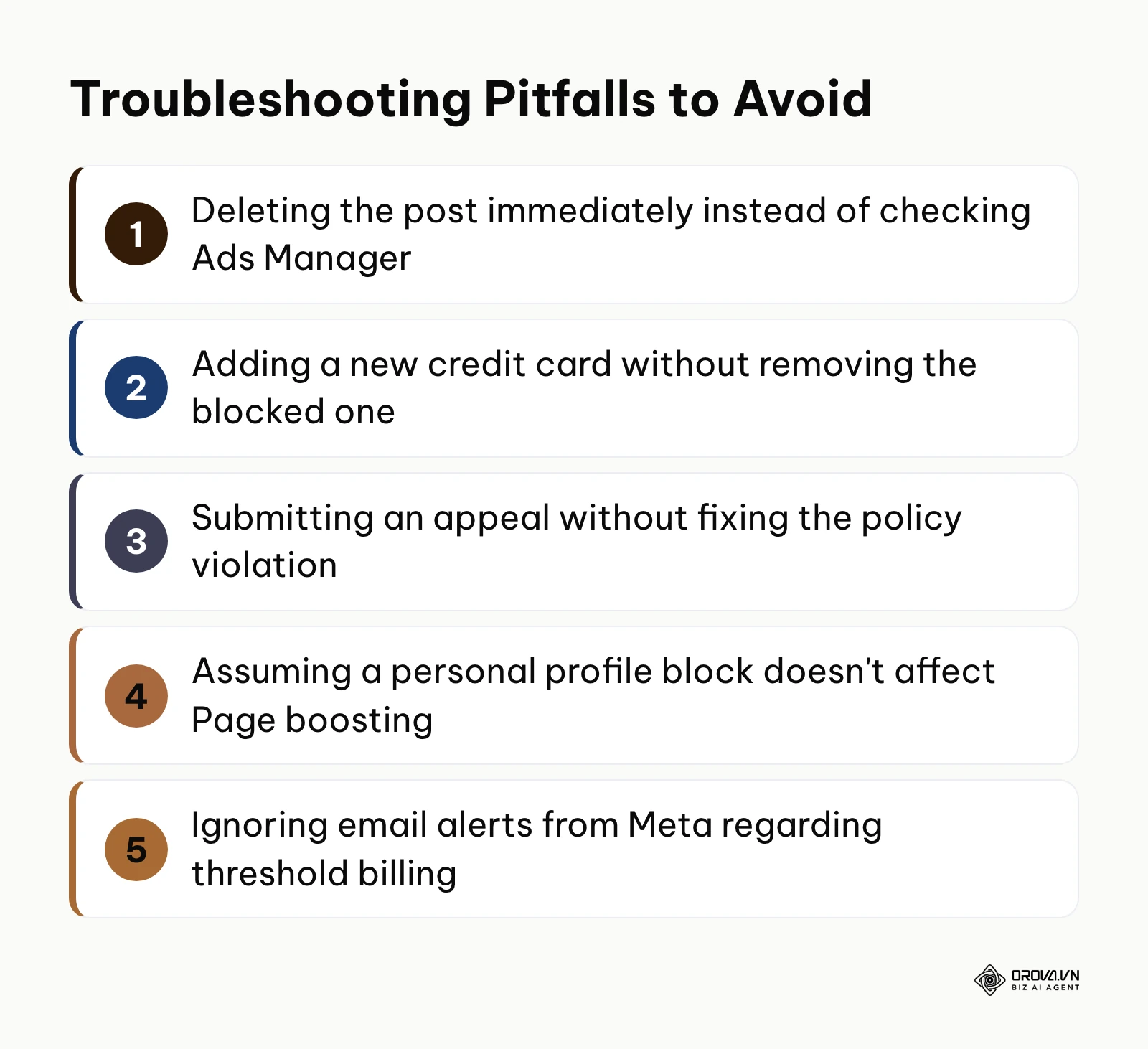
The first major mistake is aggressively deleting and re-uploading the post. If the issue is a payment hold or a Page role error, deleting the post destroys your organic engagement and resets the algorithm's understanding of the content. You should always diagnose the account health and payment status before altering the creative asset itself.
The second mistake is adding multiple new credit cards rapidly when one fails. If a card declines due to a 3D Secure failure, adding three different cards from different banks in the span of ten minutes looks exactly like credit card testing fraud to Meta's automated security systems. This will instantly result in a permanent ad account suspension. Always resolve the issue with the bank on the original card first.
The third mistake is submitting an appeal without reading the specific policy violation. If Meta flags a post for having deceptive text, and you hit "Request Review" without editing the text or understanding the rule, a human reviewer will reject the appeal. Repeated unsuccessful appeals make recovery harder. You must fix the underlying violation, if possible, before requesting a review.
Another oversight is ignoring the relationship between personal profile health and business page health. Advertisers often assume that because they are acting as a "Business," their personal profile status is irrelevant. In Meta's ecosystem, every action is tied to a human identity. If your personal account is locked for a seemingly unrelated reason, your Business Portfolio access can be cut off with it.
Finally, relying solely on the Boost button for long-term strategy is a fundamental flaw. The Boost button is a gateway tool, not a professional scaling mechanism. It lacks advanced attribution settings, complex exclusion audiences, and robust bidding controls.
Future trends in Facebook ad troubleshooting: My predictions
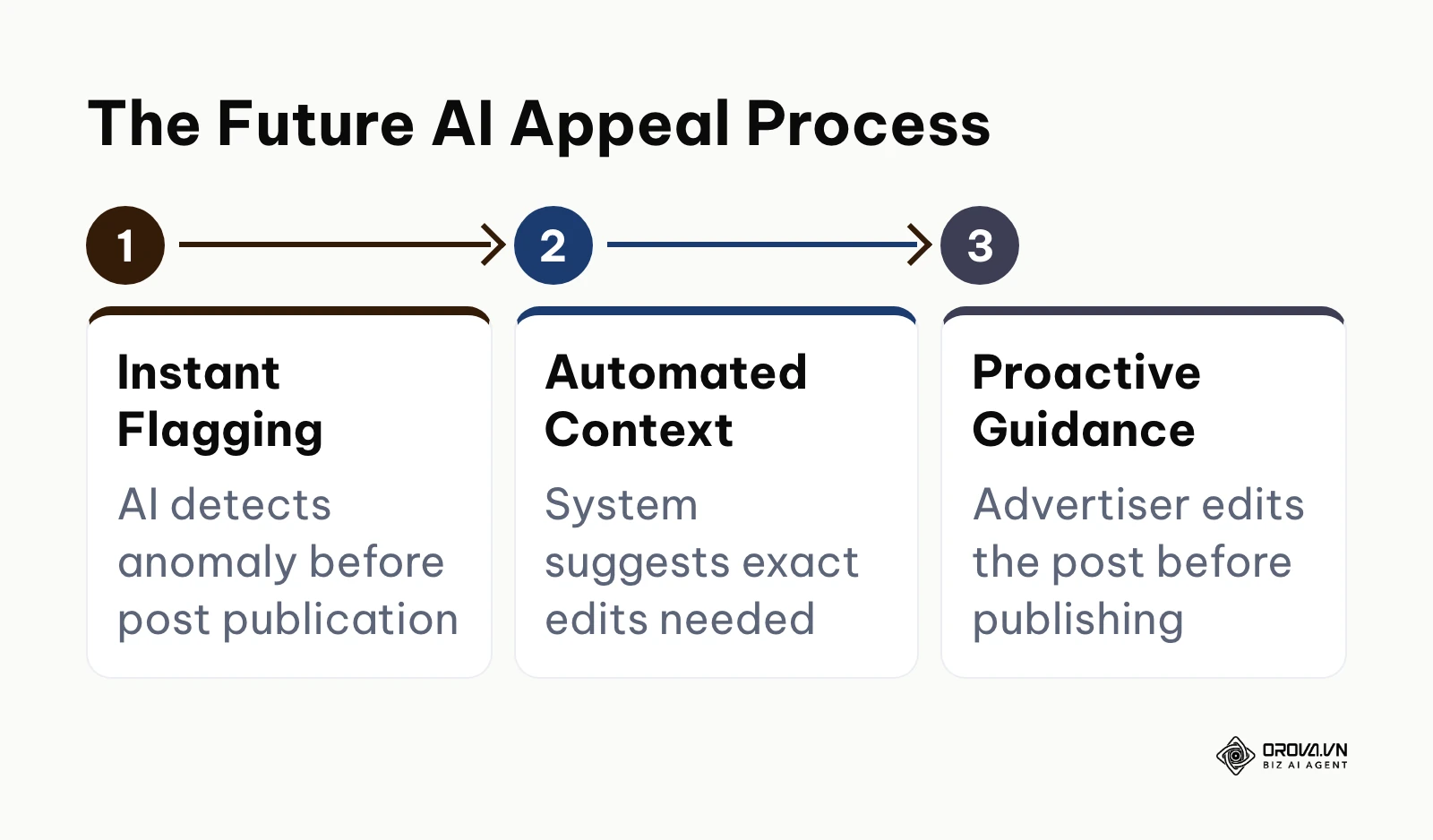
Predictive Compliance AI will replace reactive bans I think the frustrating cycle of publishing a post, attempting to boost it, and waiting for an unpredictable rejection will gradually shrink. I expect more predictive compliance checks to appear directly into the Page publishing composer. Before you even hit publish, the system will analyze the text, image weights, and external links, highlighting elements that would prevent a future boost. This will shift the ecosystem from a reactive penalty model to a proactive guidance model, which should reduce the number of support tickets.
Unified cross-platform asset portfolios I believe that over time, the fragmented nature of Page roles, Business Portfolios, and Instagram permissions will collapse into a single, unified digital identity matrix. The current system requires navigating three different settings menus to verify if a user has advertising rights. I expect Meta to move toward a single verified identity that authenticates a user's spending authority across all properties simultaneously, eliminating the "role mismatch" errors that plague advertisers today.
Automated financial reconciliation agents Payment failures currently require stressful manual intervention, often involving phone calls to banks to clear temporary holds. I suspect ad platforms will integrate more deeply with banks and payment providers. Instead of failing a transaction and locking an account, automated systems could handle the 3D secure process in the background, verifying payments through mobile prompts with fewer pauses in campaign delivery. You should start familiarizing yourself with automated billing rules and API-based accounting tools now to prepare for this shift.
Frequently asked questions about Facebook boost post errors
Why is my boost post button available but the ad never delivers?
This usually indicates an issue with your audience targeting or bid cap, not a technical error. If your audience is too narrow or your manual bid is significantly below the auction clearing price, Meta's algorithm will accept the ad but refuse to spend your budget because it cannot find cheap enough placements. You should broaden your targeting parameters to exit the learning phase.
Can I boost a post if it contains a link to a restricted website?
No. Meta's web crawlers evaluate the destination URL before approving a boost. If the landing page contains malware, deceptive pop-ups, or violates community standards (such as selling counterfeit goods), the ad will be rejected, and the boost button will effectively become useless for that specific post.
Does the 20% text rule still prevent me from boosting images?
No. Meta retired the strict rule that rejected images with more than 20% text, so a text-heavy image will not gray out the boost button on its own. Meta still recommends keeping text on images light, because clean visuals tend to perform better.
How is AI changing the way we handle ad account restrictions?
AI is fundamentally accelerating the initial review process. Most initial restrictions are now applied by machine learning models identifying pattern anomalies, not human reviewers. Appeals may also be handled by automated review first, with some cases going to human reviewers, which makes it crucial that your account setup is technically flawless to satisfy the automated checks.
Where to start your fix today?
If you are staring at a disabled boost button right now, you need to take immediate, targeted action based on your specific scenario. Do not attempt to fix everything at once.
If you are working on a mobile device and suddenly lost the ability to boost a routine post, your first step is to log into a desktop computer and check the Page from a web browser. This single action immediately confirms or rules out a corrupted mobile app cache, which is one of the most common causes of a temporarily gray button.
If you know your account recently hit a billing threshold or your credit card was recently reissued, your first step is to navigate directly to the Meta Billing and Payments dashboard. Do not touch the post or the ad creative. Focus entirely on manually authorizing any outstanding balances and ensuring the bank has not placed a fraud hold on Facebook transactions.
If you are managing a client's Page and are completely locked out of advertising functions despite being an "Admin," your first step is to contact the client's Business Portfolio owner. Request that they log into Business Settings and explicitly assign you the "Create Ads" permission at the portfolio level, overriding the basic Page access.
Example scenario: A social media manager started a new job and couldn't boost any posts on her first day, despite her boss making her an Admin on the Page. The stumbling block was the boss's lack of understanding of the Business Portfolio hierarchy. The manager's first step was guiding the boss to the correct settings menu to grant explicit ad access. The visible result was the immediate activation of the boost button, allowing her to schedule the Facebook post properly and launch the campaign scheduled for that afternoon.
About the author

Builder of Orova
Nguyễn Đỗ Trọng Ân has 8 years of experience in marketing, including 6 years managing market development across Asia. He builds Orova, a Biz AI Agent that never sleeps: it plans, runs and optimizes work for businesses.
Run your business with AI Agents
Orova is the always-on Biz AI Agent — it plans, runs, and optimizes the work for you.
Save time, unlock productivity.