
How can I schedule a Facebook post? A workflow for Pages, Groups and profiles

How can I schedule a Facebook post? For a Page, open Meta Business Suite, create a post or Reel, switch the publishing option from "Publish now" to "Schedule", and pick a date and time. For a Group, write the post in the Group composer and use the clock icon next to the Post button. For a personal profile, turn on Professional mode first, then look for the scheduling option before you publish. The rest of this guide shows how to turn those clicks into a repeatable weekly system.
Logging into a social media account at 8 PM on a Sunday just to hit the "publish" button is a fast track to burnout. For years, digital marketers, community managers, and solo creators have struggled with the chaotic reality of manual posting. It disrupts your weekend, breaks your deep work concentration, and often leads to inconsistent content delivery when life inevitably gets in the way. The old way of setting a phone alarm, copying text from a notes app, and downloading an image from a cloud drive in real-time simply does not scale.
If you are trying to build a serious presence online, you need to step away from the daily grind of manual execution. The fundamental question you should be asking is how to schedule Facebook posts in a way that reclaims your time while keeping your feed active. This article will dismantle the exact workflows you need to master. We will go far beyond basic button-clicking, diving deep into comprehensive content batching strategies, specific instructions for Fanpages, Groups, and Profiles, and the critical troubleshooting steps required when Facebook's system inevitably fails to publish your carefully planned content.
How can I schedule a Facebook post to maintain consistency
Scheduling a Facebook post is the technical process of uploading your text, images, videos, and links into a staging environment, then instructing Facebook's servers to automatically push that data live to your audience at a specific future timestamp. You do the work once, and the system handles the delivery.
This workflow is absolutely essential for social media managers, agency owners, small business operators, and community leaders who need to maintain a persistent online presence without being physically chained to their devices 24/7. It allows you to build a cohesive narrative across weeks rather than scrambling for daily ideas. However, automated scheduling is not a blanket solution for everything. You should never use scheduling tools during breaking industry news, real-time event coverage, or periods of public crisis, as pre-written content can appear highly insensitive or out-of-touch when the surrounding context abruptly changes.
Preparation phase: Assets required for automated Facebook scheduling
Before you even open a scheduling interface, you must have your raw materials fully prepared. The biggest mistake beginners make is treating the scheduling tool like a drafting board. If you try to write copy, edit photos, and pick times all within the Facebook interface, you will become frustrated by browser timeouts and lost drafts. You need a separate, robust preparation phase.
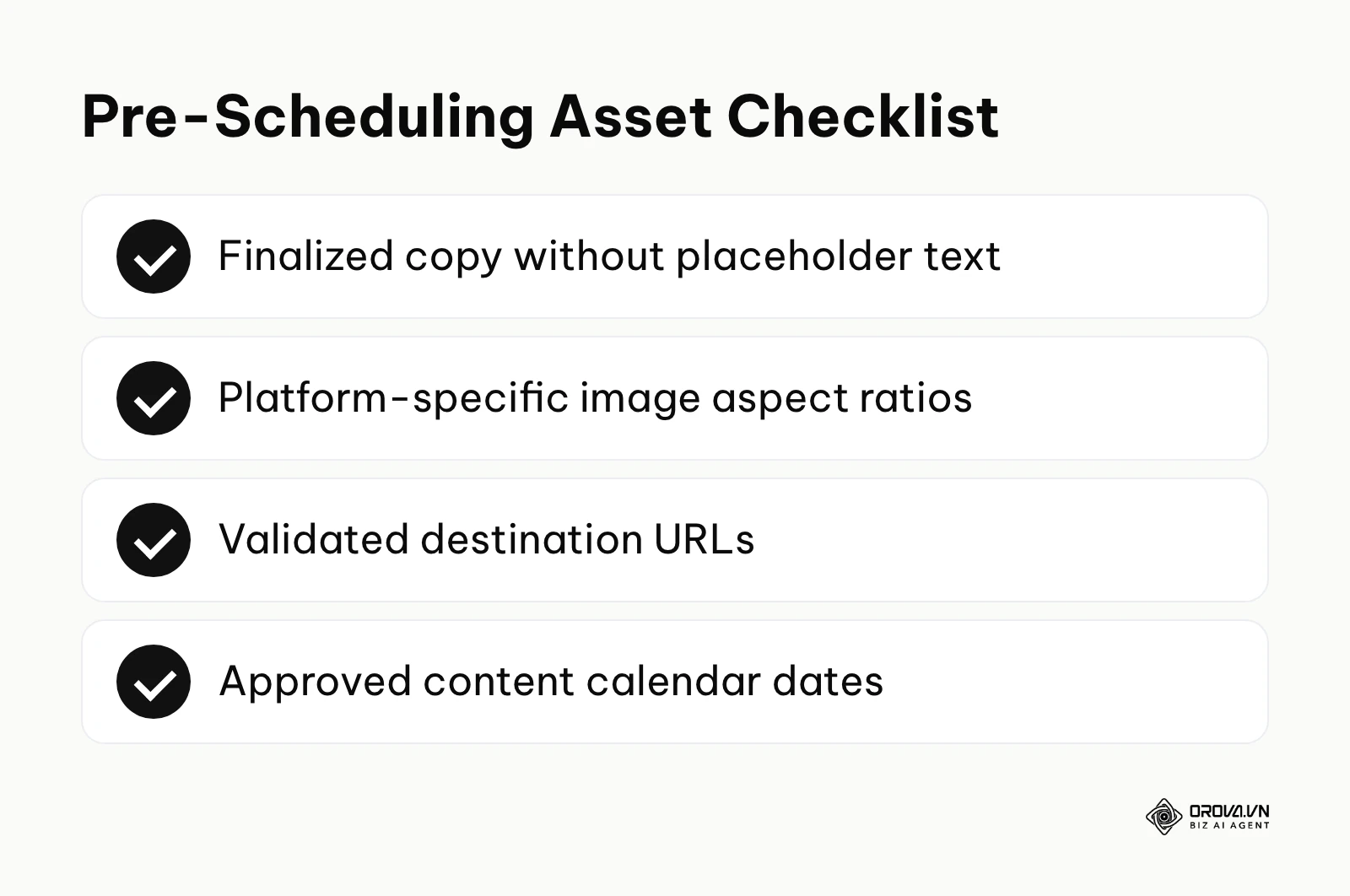
The foundation of this phase is a central content repository. You need a structured format to organize your thoughts before they become digital assets. A simple spreadsheet is often the most effective tool for this.
| Content Date | Topic Pillar | Drafted Copy | Media Asset Location | Destination Link | Current Status |
|---|---|---|---|---|---|
| Oct 15 | Product Update | "Check out our newest..." | /Drive/Images/update1.jpg | domain.com/update | Ready |
| Oct 18 | Team Culture | "Meet the engineering..." | /Drive/Videos/team.mp4 | N/A | Needs Edit |
| Oct 22 | Industry News | "The latest changes in..." | /Drive/Images/news.png | domain.com/news | Drafting |
This table represents the minimum viable structure for your preparation. Let us break down what you actually need to gather:
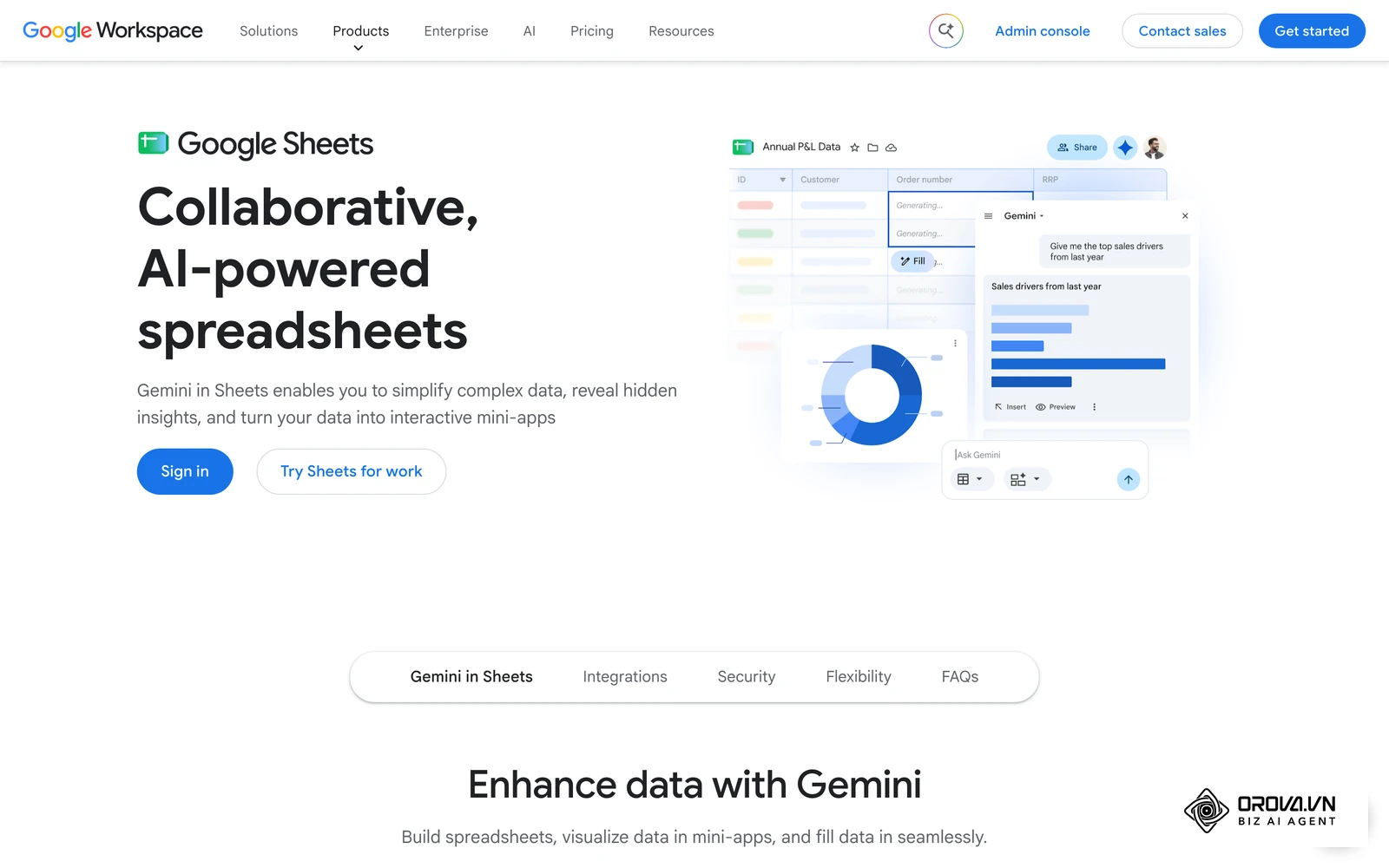
- Finalized Copy: Your text must be completely finished, including all emojis, line breaks, and hashtags. Do not leave placeholder text like "[INSERT LINK HERE]" in your spreadsheet, as it is incredibly easy to accidentally schedule and publish that placeholder.
- Formatted Media: Your images and videos must be exported in the correct aspect ratios. Facebook generally prefers 1080x1080 for square posts or 1080x1350 for vertical image posts. Videos should be clearly labeled so you do not upload the wrong version.
- Validated Links: If you are driving traffic off-site, you need the exact destination URL tested and working. This is also the stage where you should apply tracking parameters.
- Strategic Timestamps: You must decide the exact day, hour, and minute the post should go live based on when your specific audience is most active, rather than guessing on the fly inside the scheduling tool.
Step-by-step workflow: From planning to publishing
To truly master Facebook scheduling, you cannot look at it as a single action. It is a comprehensive, multi-stage workflow. Batching content, meaning preparing many posts in one sitting, tends to reduce the time you spend actively managing your accounts. The following steps will guide you through creating a scalable system for any type of Facebook property.
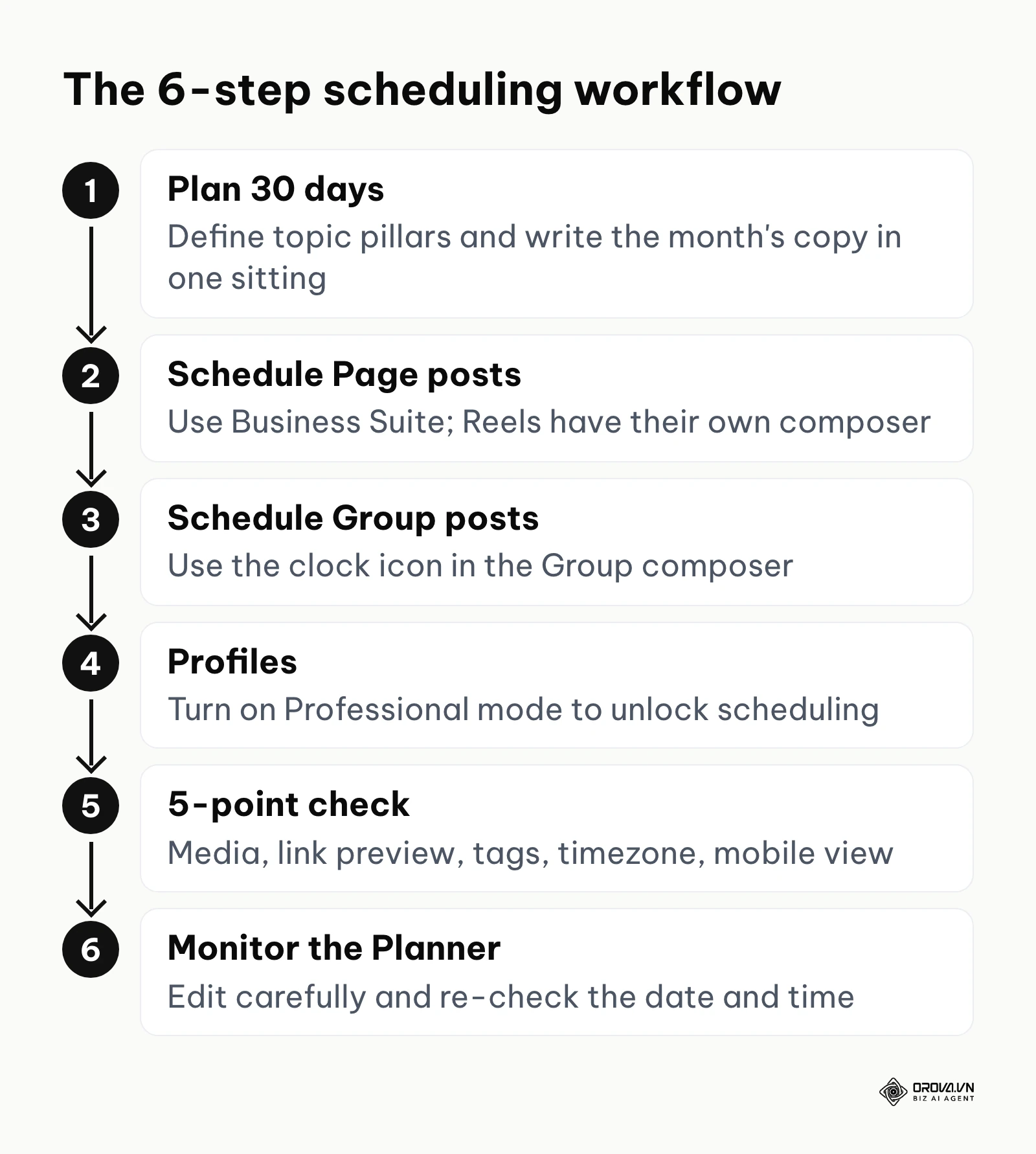
Step 1: Draft a 30-day content plan
The first step has nothing to do with Facebook itself. You need to transition from a reactive mindset (waking up and wondering what to post) to a proactive strategy (knowing exactly what will go live three weeks from now). This requires establishing a content matrix. Sit down with a blank document and define four or five core themes related to your brand. For example, a fitness coach might choose: Workout Tips, Nutritional Advice, Client Success Stories, and Personal Mindset.
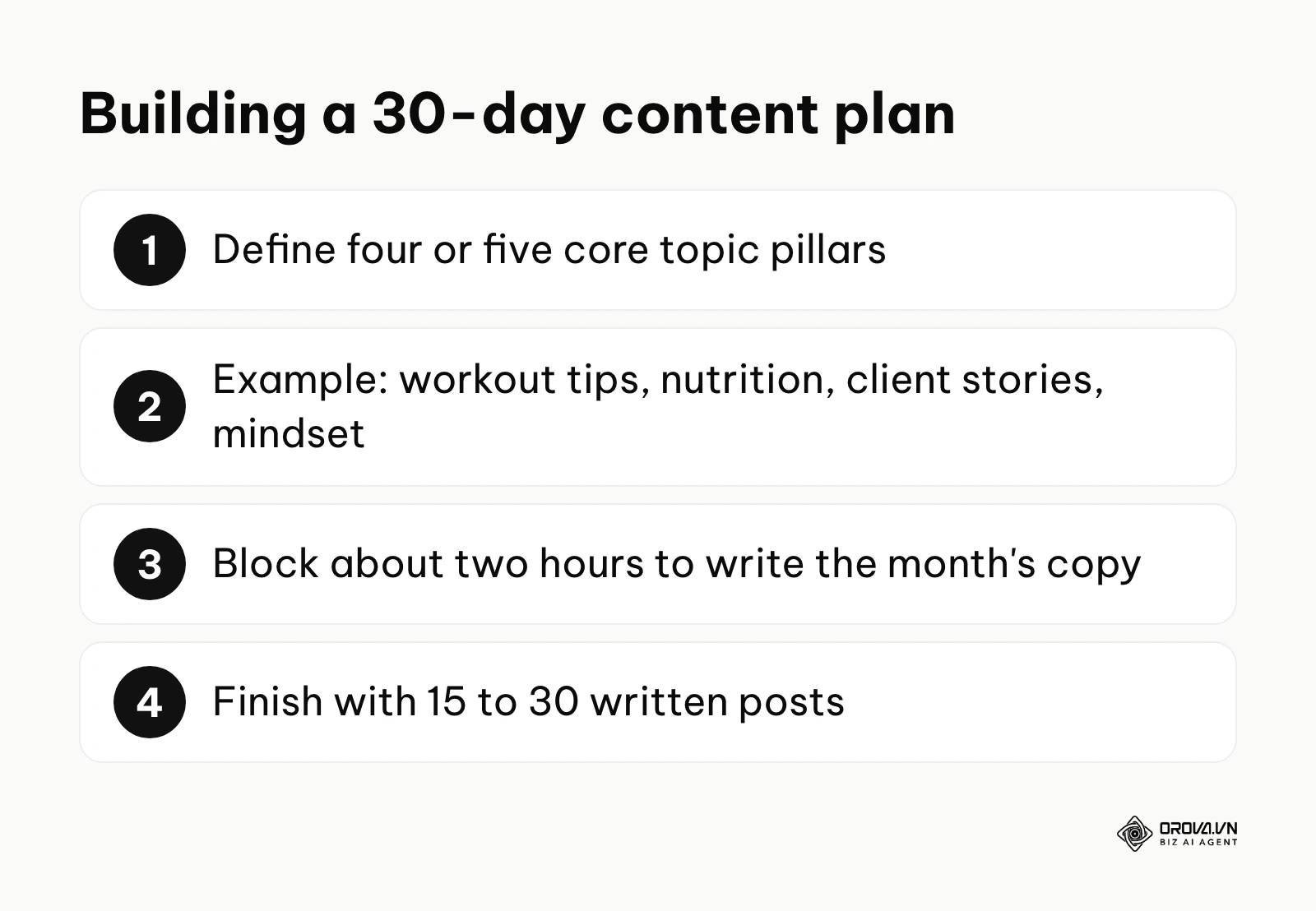
Once you have your pillars, dedicate a specific block of time—perhaps two hours on a quiet Friday afternoon—to write out the raw text for the entire upcoming month. Do not worry about images or exact formatting yet; just get the core messages written down. If you struggle with writer's block during this intense drafting phase, you might utilize an guide to writing captions with AI to help spark ideas or refine your tone of voice. The goal is to finish this step with a document containing 15 to 30 solid pieces of written content.
Step 2: Schedule standard posts and Reels for Fanpages
Fanpages (often called Business Pages) have the most robust native scheduling options. Meta's own help documentation points Page owners to Business Suite as the native place to schedule Page content. To access this, navigate to business.facebook.com on a desktop browser. Look at the left-hand menu and click on "Planner" or "Create post" (Meta renames menu labels from time to time, so look for the closest match).
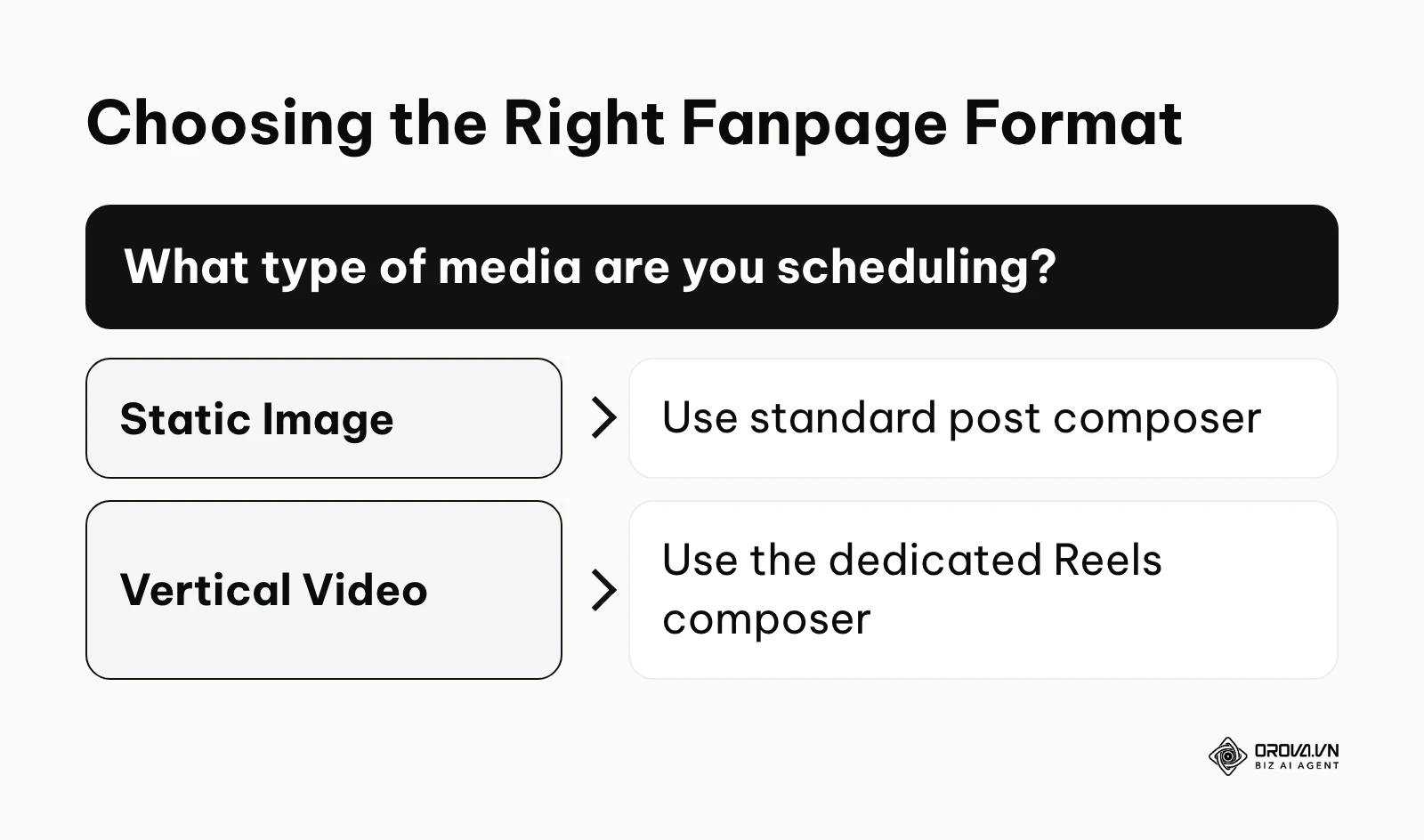
When the composer window opens, you will first select your Fanpage from the dropdown at the top. Paste your finalized copy into the text box and upload your prepared image or video. If you are uploading a standard video, you will use this main interface. However, if you are attempting to schedule a vertical, short-form Reel, you should use the separate "Create reel" option instead, because Reels have their own composer in Business Suite. Once your media is attached and processing is complete, find the scheduling options near the bottom of the composer. Switch from "Publish now" to "Schedule", select your exact date and time from the calendar pop-up, and hit the blue confirmation button.
Illustrative example: A local bakery owner needed to maintain an active presence on weekends without actually working on Sunday mornings. They established a workflow where every Thursday afternoon, they photographed their weekend specials. They logged into Meta Business Suite, drafted three separate promotional posts for Friday, Saturday, and Sunday, and scheduled them. Initially, they stumbled because they mistakenly selected "AM" instead of "PM" for a Friday afternoon promotion, causing the post to go live at 3:00 AM to nobody. By actively reviewing the "Planner" visual calendar tab and carefully auditing the time settings before final confirmation, they resolved this. The visible result was a consistent stream of weekend promotional content that drove foot traffic, while the owner completely stepped away from their computer during those critical weekend hours.
Step 3: Schedule community discussions directly inside Facebook Groups
Managing a Facebook Group requires a completely different technical approach. Meta Business Suite is built around Pages and Instagram accounts, not Groups, and most third-party schedulers can no longer publish into Groups since Meta retired its Groups API for outside apps. To schedule a Group post, you navigate directly to your Group's main feed on Facebook.com.
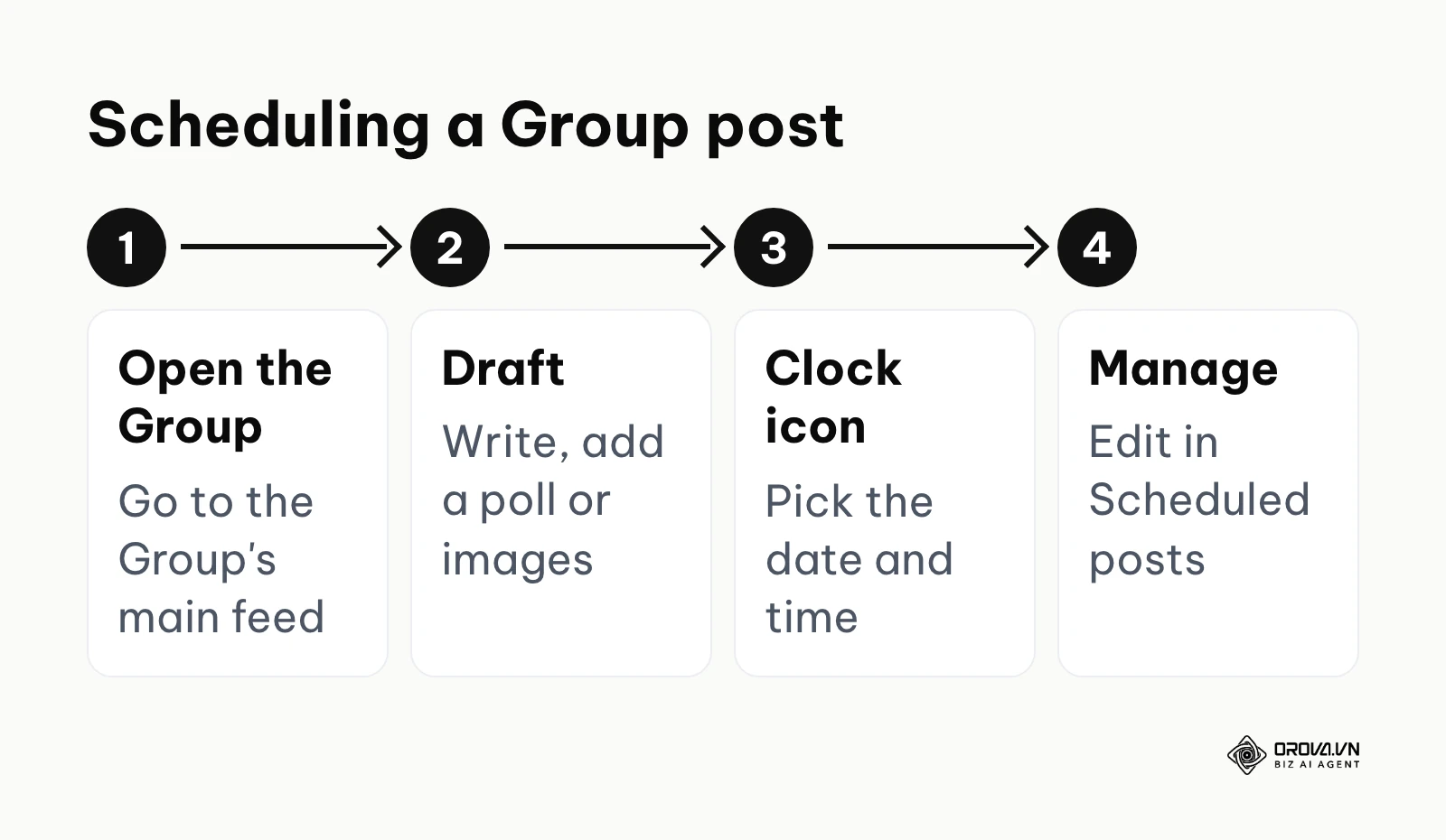
Click into the standard "Write something..." box just as you would for an immediate post. Type out your discussion prompt, add your polls, or upload your images. Before you click the standard "Post" button, look closely at the bottom of the composer window. Admins and moderators usually see a small icon that looks like a calendar or a clock. Clicking this icon opens the group scheduling parameters. Choose your date and time, and then confirm. To manage these queued posts later, you must look at the left-hand admin menu inside the Group and find the "Scheduled posts" section to make any edits or deletions.
Step 4: Utilize Professional Mode for personal profiles
Historically, Facebook strictly prohibited automated scheduling for personal profiles to prevent spam. However, with the introduction of Professional mode for creators, scheduling has gradually become available to many individual accounts. If your personal profile is geared toward building a personal brand, you must first ensure Professional Mode is activated in your profile settings.
Once activated, the scheduling option tends to be easiest to find in the Facebook mobile app. Open the app, navigate to your profile, and begin drafting a post. After entering your text and media, look for "Next" or a settings option before the final publish step. Within these options, look for a scheduling choice such as "Schedule for later". The exact wording and availability vary by account and region, so if you cannot find it, check that Professional mode is switched on. Remember that you cannot schedule posts into the past, and Meta limits how far ahead you can schedule, so check the latest range shown in the date picker. If you are linking out to external articles or portfolios from your profile, consider using a UTM codes to track exactly how much traffic your personal brand efforts are generating.
Step 5: Run the 5-point verification checklist before confirming
Pressing the schedule button without a final review is a recipe for embarrassing public errors. You must implement a strict verification routine. Never assume the platform parsed your data perfectly. Run through this 5-point checklist every single time:
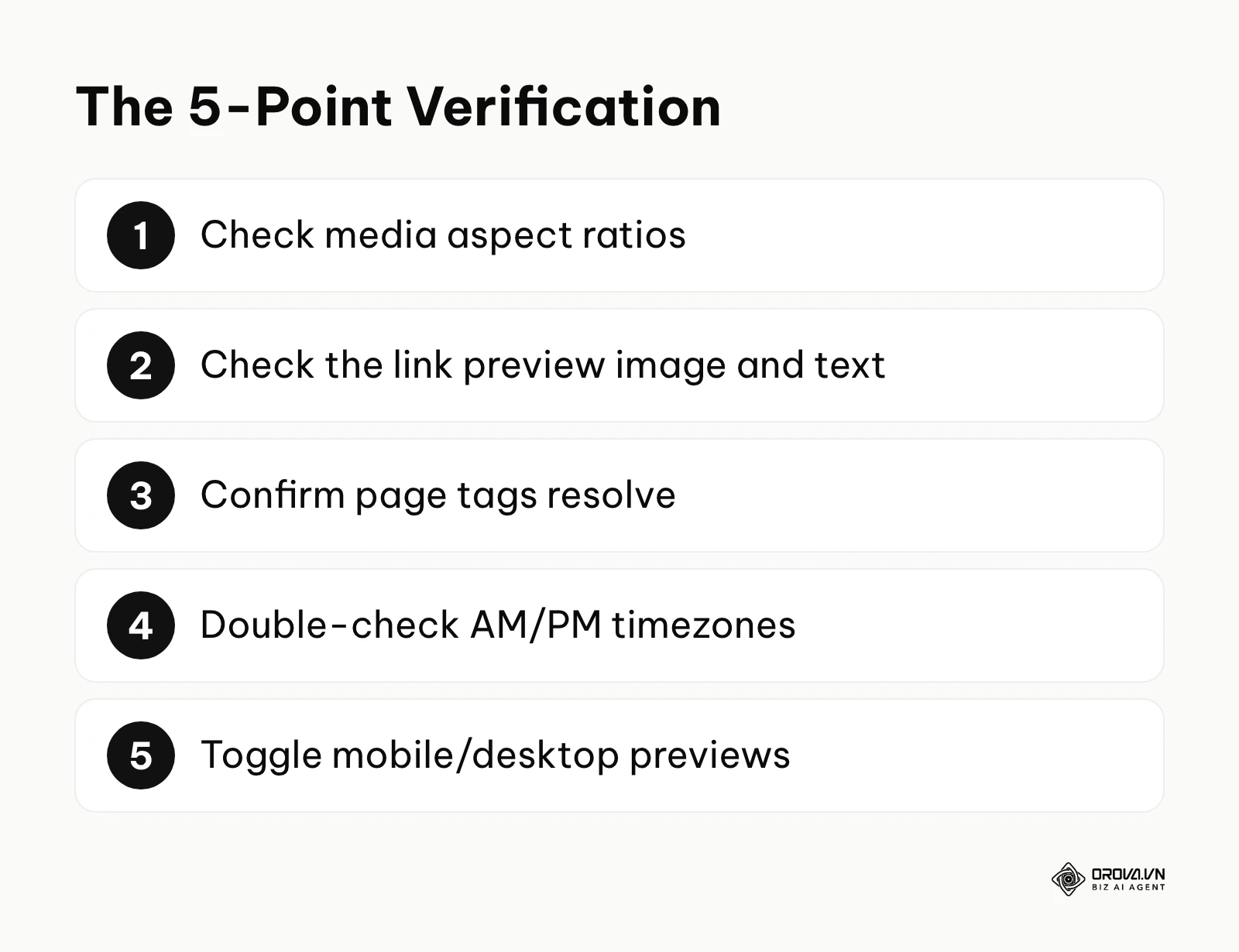
- Media Aspect Ratios: Did your vertical image get cropped into an ugly square? Check the preview pane to ensure heads are not cut off.
- Link Previews: If you pasted a URL, did Facebook pull the correct thumbnail image and meta description? Sometimes it pulls an old, cached version of a webpage.
- Tagging and Mentions: If you typed "@companyname", did it actually create a clickable blue hyperlink to their page, or did it remain plain text? You often have to delete and retype tags in the composer so Facebook searches for the Page and links it properly.
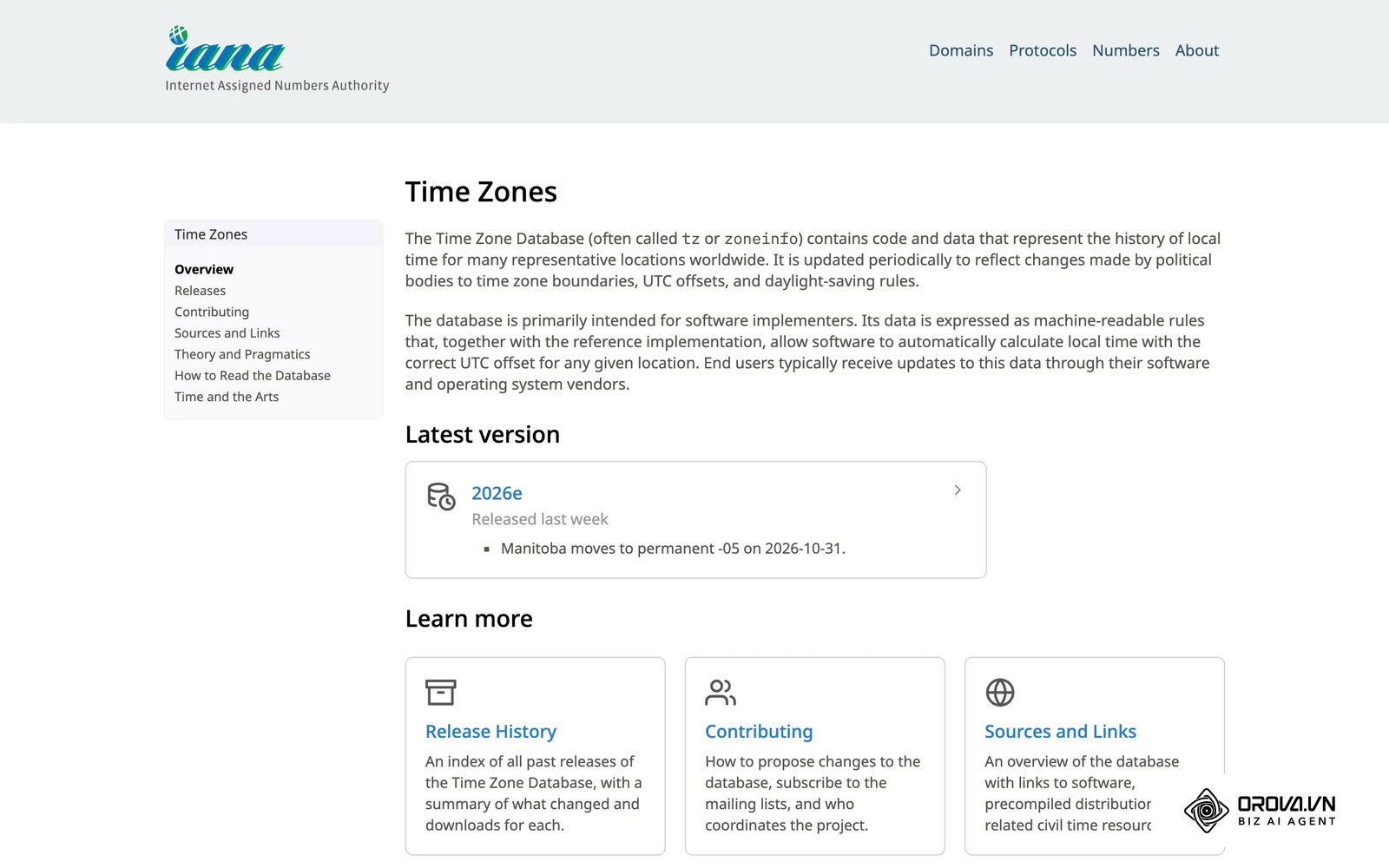
- Date and Timezones: Double-check the AM/PM designation. Furthermore, verify that your Business Suite timezone matches your local timezone, especially if you travel frequently.
- Desktop vs. Mobile View: Toggle the preview icon at the top of the composer to see how your text breaks on a mobile screen versus a wide desktop monitor. Ensure your most important hook is not buried under the "See more..." button on mobile.
Step 6: Monitor the planner and edit scheduled content safely
Once your posts are in the queue, your job is not entirely finished. You need to know how to safely manipulate them if circumstances change. Inside Meta Business Suite, navigate to the "Planner" tab to see a visual calendar of everything you have queued.
If you spot a typo in a post scheduled for tomorrow, you must proceed with caution. Click on the post to open its details, then click the three dots (options menu) and select "Edit Post". Important: after editing the text of a scheduled post, always re-check that the date and time are still the ones you set before you save. Interfaces change, and it costs ten seconds to confirm. If you only want to change the time, use the "Reschedule" option rather than "Edit post".
Struggling to keep up with consistent posting? Orova Social allows you to compose your message once and schedule it across 8 channels, including Facebook, Instagram, and LinkedIn. Use the AI to generate on-brand captions and never worry about missing a posting window again.
Deep analysis: Native Meta Business Suite versus dedicated software
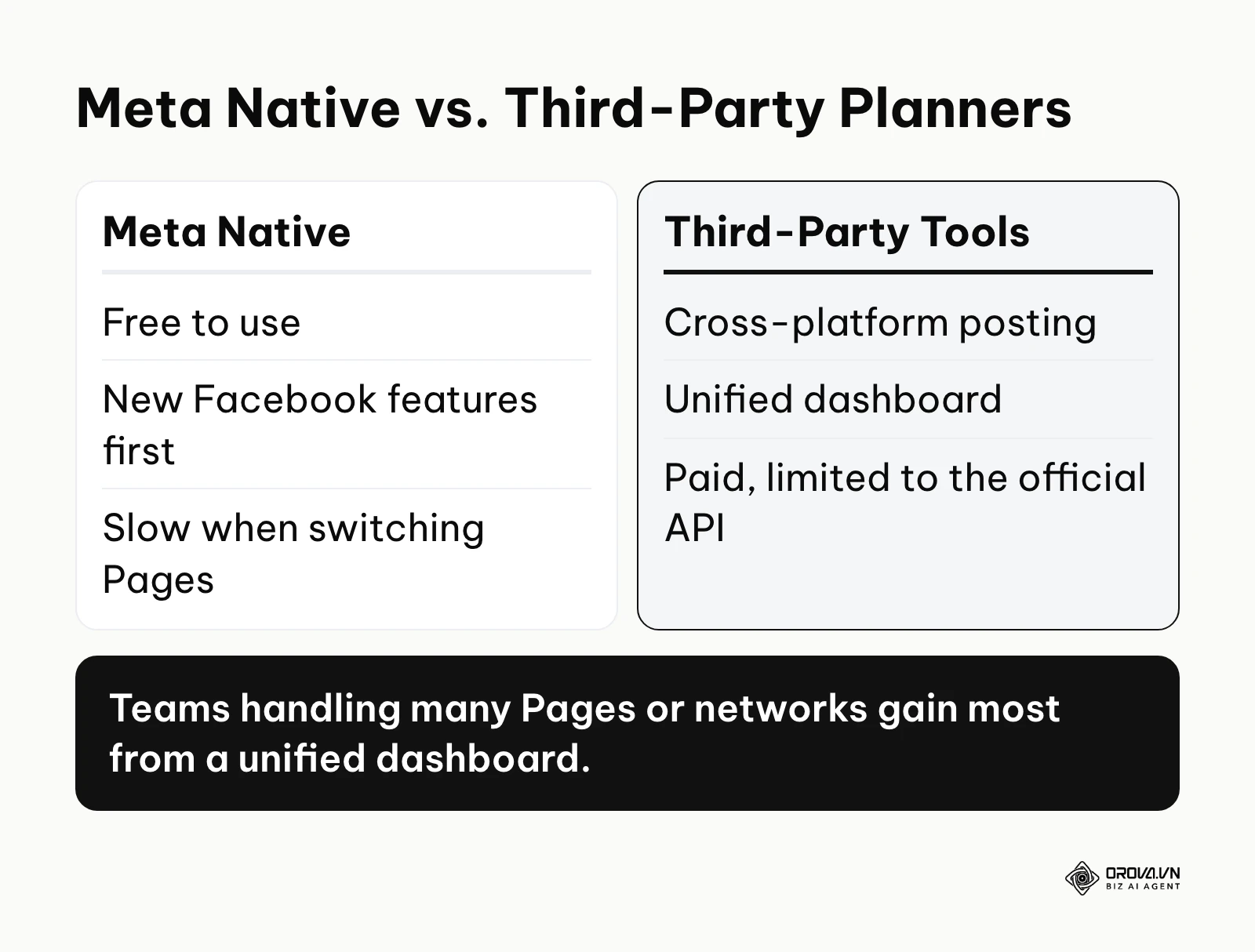
As your social media operations scale, you will inevitably face a choice: do you continue using Meta's free, built-in tools, or do you pay for a third-party software solution? This is a crucial decision that impacts your entire workflow. Both paths have distinct advantages and significant limitations.
| Platform Type | Best Suited For | Core Weakness |
|---|---|---|
| Meta Business Suite | Solo businesses focusing only on FB/IG | Clunky interface, slow switching between pages |
| Third-Party Tools | Agencies, multi-channel brands | API limits, cannot access all native features |
Native Meta tools give you the deepest, most accurate access to Facebook's features. When Facebook releases a new Reels feature or post format, it usually reaches Business Suite before outside tools. It is free to use, and you do not have to worry about third-party connections breaking. However, many users find the interface slow when they work across several Pages. If you manage five different businesses, constantly toggling between their respective Business Suites can be maddening.
Third-party dedicated software solves the interface problem. They offer unified dashboards where you can view your entire social presence at a glance. They also allow you to break out of the Meta ecosystem entirely. A strong Instagram post scheduler provided by a third party will often let you push that exact same content to LinkedIn or X (Twitter) simultaneously. The trade-off is cost, and the fact that third-party tools can only do what Meta's official API allows. In practice, outside tools may not support every tag, carousel variation, or interactive element (such as native polls) that the Facebook composer offers. If you post to several networks, our overview of social media scheduler tools explains what to look for when you compare options.
Illustrative example: A freelance social media manager was handling daily posting for five different client Fanpages. They started by using Meta Business Suite natively. Contextually, they had to log in, switch the active account profile, navigate to the specific planner, schedule the post, and then repeat the entire slow process four more times. The major obstacle was the sheer latency of the Meta interface; logging in and out took more time than actually writing the content. The fix was migrating all five accounts into a single third-party scheduling dashboard. The visible result was cutting their weekly scheduling time from four hours down to just 90 minutes, as they could now view all five content calendars on one unified screen.
Measuring outcomes: Post performance metrics after publishing
Scheduling your content is only half the battle; understanding how that content performs once it goes live is what drives long-term growth. When you automate your publishing, you must become disciplined about checking your analytics retrospectively. If you are blindly scheduling posts without reviewing the data, you are essentially speaking into a void. You can view these metrics inside the "Insights" tab of Business Suite, or by utilizing more advanced social analytics tools for deeper cross-platform comparisons.
| Metric | What it actually indicates | Warning Threshold to watch |
|---|---|---|
| Organic Reach | The number of unique screens that displayed your post | A sharp week-over-week drop with no change in posting volume |
| Engagement Rate | The percentage of people who saw it and interacted (clicks, likes, comments) | Consistently falling below your own recent average |
| Link Click-Through | How effectively your copy drove users off Facebook to your website | Near zero on posts intended to sell |
| Video Retention | How long people watched before scrolling past | Massive drop-off before the 3-second mark |
When analyzing a post that was scheduled versus one posted manually, you are primarily looking for consistency in Reach. Reliable posting gives you a stable baseline, so changes in performance are easier to read. If you notice that posts scheduled for 9:00 AM consistently achieve lower Engagement Rates than posts scheduled for 7:00 PM, you have gained actionable data to adjust your future batching strategy. Do not obsess over vanity metrics like raw follower count; focus intensely on whether the content you took the time to schedule is actually generating meaningful interactions or traffic.
Common scheduling mistakes and troubleshooting failed posts
Even with perfect preparation, technology fails. Scheduled posts can fail or publish differently than expected, sometimes without an obvious warning, and that can disrupt a carefully planned campaign. Understanding why posts fail and how to troubleshoot them is what separates amateurs from professionals.
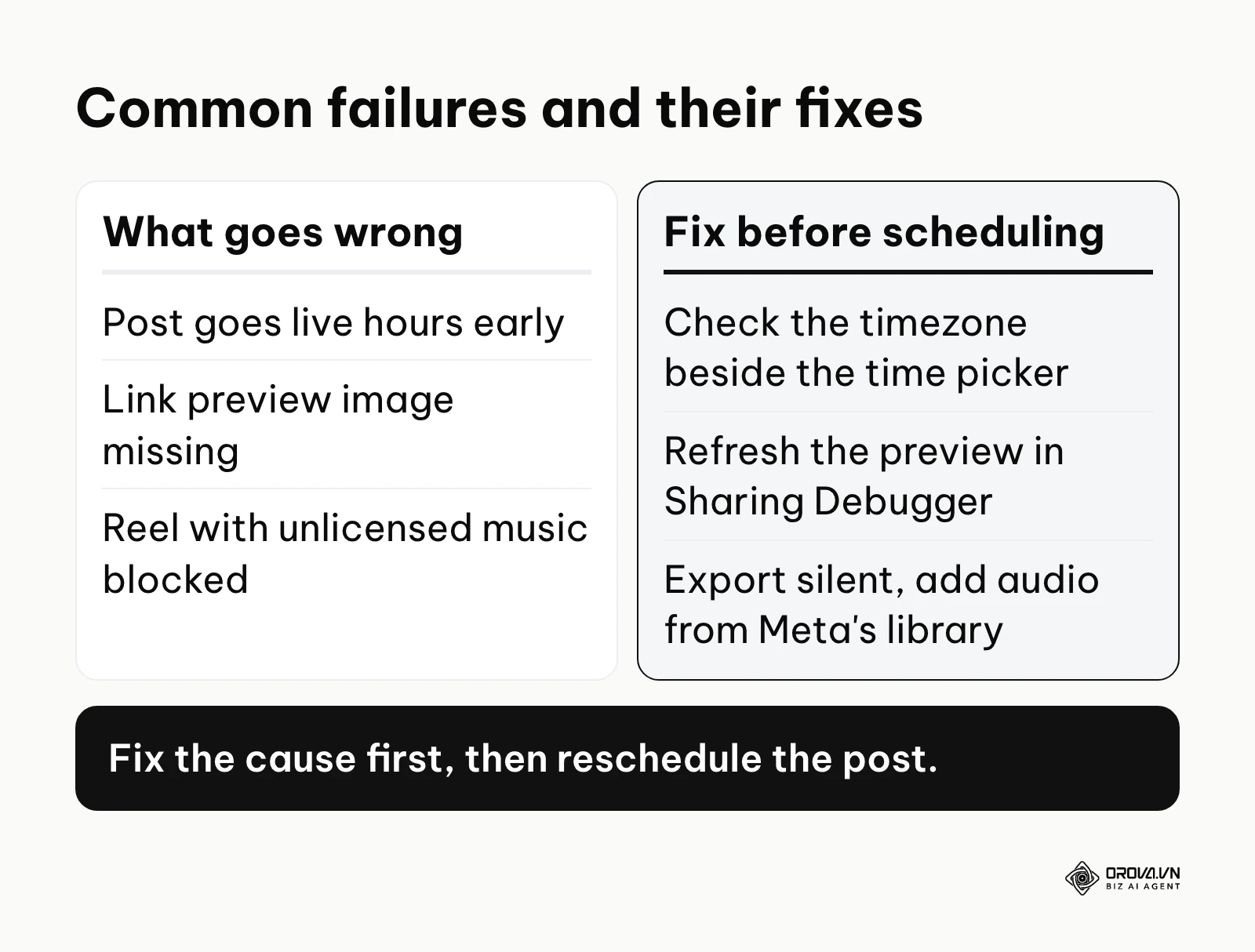
The first major mistake is timezone misalignment. You might be physically located in New York, but if the account or tool you schedule from is set to London time, a post you meant for 9:00 AM Eastern will publish hours early. To fix this, check the timezone shown beside the time picker in the composer every time you schedule, and confirm the timezone setting of any outside tool you use.
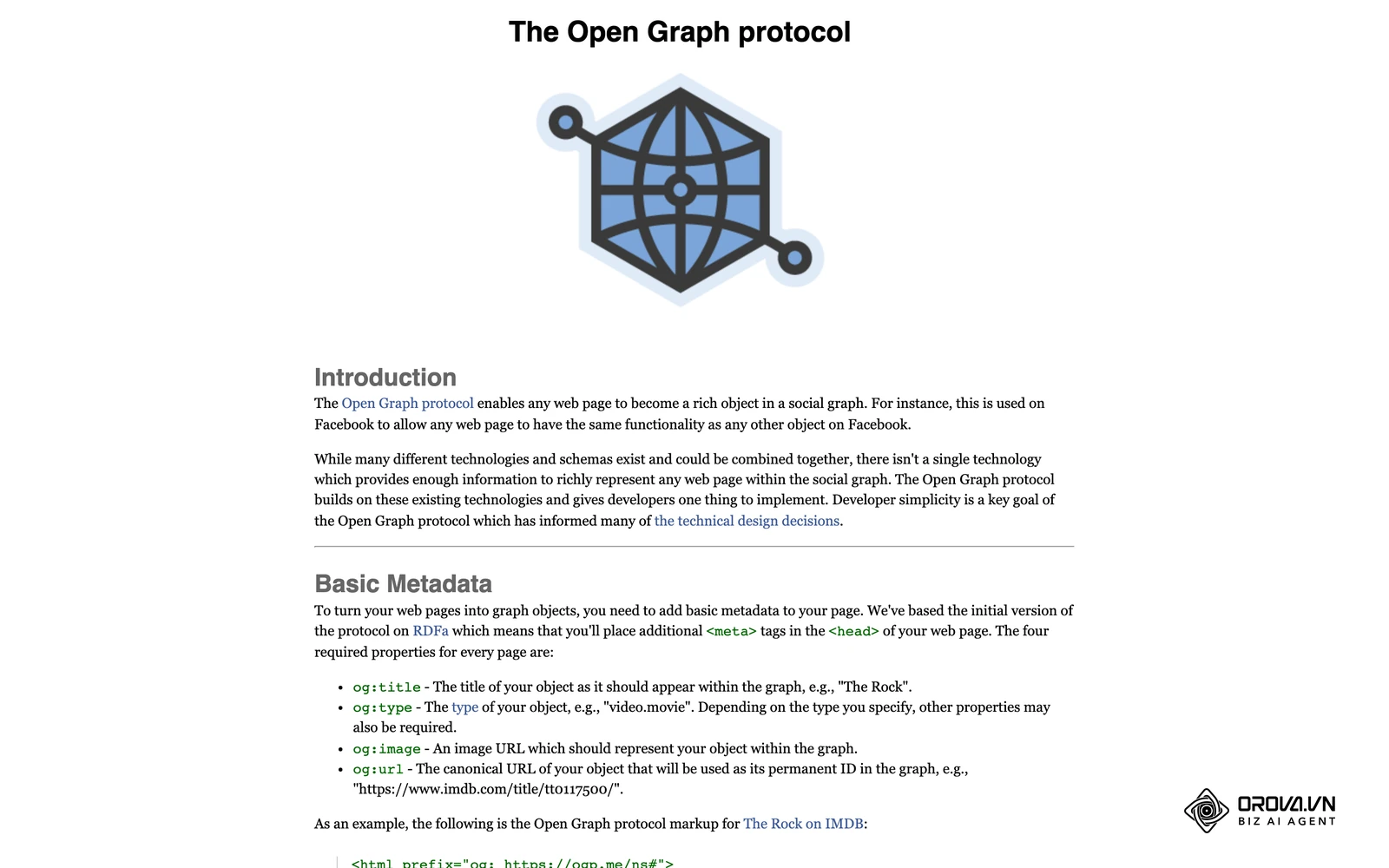
The second common error involves broken link previews. You schedule a post containing a link to your new blog, but when it goes live, the preview image is entirely missing, leaving just an ugly text URL. This often happens because Facebook could not read your page's preview tags (Open Graph metadata) when it processed the link, or it is still using an old cached version. To prevent this, run your destination URLs through Meta's Sharing Debugger to make Facebook re-read the page and refresh the preview before you schedule the post.
The third issue plagues video creators: copyright flags on Reels. If you edit a Reel in external software and add a popular copyrighted song, Facebook's rights checks may mute the audio, limit where the video can be shown, or stop it from publishing. Business and brand accounts generally have access to less commercial music than personal creators. The safer route is to export the video without the song and, where the composer offers it, add audio from Meta's own library, which only shows tracks available to your account type.
Illustrative example: An admin for a highly active, 10,000-member pet care Facebook Group wanted to maintain engagement while on a two-week vacation. They batched 14 daily discussion prompts and scheduled them natively within the group. The context seemed perfect, but on day three, a post containing a link to a third-party pet food recall list failed to publish entirely. The obstacle was a silent failure; the post did not go live, and the admin only noticed when the topic was missing from the feed. The admin's fix, executed from their phone on vacation, was to clear the link preview cache using the Debugger tool, remove the automated preview, and reschedule the post natively as a plain text update with the link in the first comment. The visible result was the critical safety information finally reaching the community, albeit a few hours late.
Stop posting manually on weekends. With Orova Social, you can plan your content calendar by day, week or month, have any missed time slot published automatically, and cut long videos into 9:16 vertical clips with subtitles. Try it free until July 7, 2027, and streamline your workflow today.
Future Facebook scheduling trends in the next few years: author's perspective
As we look toward the next iteration of social media management tools, the mechanical act of picking a date on a calendar will become obsolete. The workflow of scheduling is on the precipice of a massive transformation driven by machine learning and shifting user behaviors.
The death of static time selection
Currently, marketers spend hours debating whether 9:00 AM or 11:30 AM is the optimal time to reach their audience. I expect manual time selection to become the exception rather than the rule. Instead, you will load your batched content into a staging area, and the tool will suggest or choose publishing windows based on when your audience has engaged in the past. We are already seeing the foundational elements of this with "recommended times" features, and I think more teams will hand timing decisions to these suggestions, keeping a human check on sensitive posts.
Native generative asset pipelines
I think much of the friction of moving between a design tool, a copywriting document, and a scheduling tool will fade. I anticipate that the scheduling interface of the future will simply ask for a core concept. You will input "Promote our new winter jacket," and the system will natively generate the variations of copy, render the specific image dimensions required for Facebook, Instagram, and Threads, and queue them up automatically. The human role will shift from "creator and scheduler" to "editor and approver." You need to start preparing for this by heavily documenting your brand voice and visual guidelines now, so you have the rules ready to feed these future AI pipelines.
Decentralized scheduling for micro-communities
While Fanpages continue to lose organic reach, Facebook Groups are thriving. However, scheduling tools have historically neglected community features. I suspect we will see more scheduling capabilities specifically built for micro-communities. This means tools that do not just schedule a top-level post, but can schedule an automated first comment, schedule a timed poll to appear mid-discussion, or automatically schedule a welcome message for new members joining on a Friday. For many marketers, that means balancing broadcasting on Pages with more deliberate community work inside Groups.
Frequently asked questions about Facebook scheduling
How can I edit a scheduled post without changing the time?
Editing scheduled content in Meta Business Suite can be frustrating. When you click "Edit post" to fix a typo, check the scheduling section at the bottom of the composer before you save, and make sure your original date and time are still selected. If you only need a new time, use "Reschedule" from the Planner instead.
Why is the schedule option missing on my mobile app?
Scheduling for Pages is easiest in the dedicated Meta Business Suite app, which you can download for free, because the standard Facebook app does not always show the option. Switch to your Page inside Business Suite and you will find the schedule choice in the composer. Alternatively, if you are trying to schedule to a personal profile, you must manually enable "Professional Mode" in your account settings to reveal the scheduling toggle.
Can I schedule Reels that use copyrighted trending music?
Scheduling Reels with commercial music from third-party editing apps is highly risky. Facebook's rights checks can detect unlicensed music, and the Reel may then be muted, restricted, or blocked from publishing. To ensure your scheduled Reels go live, edit your video without music, upload the silent video to the Business Suite scheduler, and where the composer offers it, add a track from Meta's own audio library, which only lists music available to your account type.
Can AI help me schedule posts better?
Yes. AI is increasingly part of the scheduling workflow. AI tools can drastically reduce the time spent in the preparation phase. They can analyze your past performance to suggest optimal posting windows, generate bulk variations of captions to prevent repetitive language, and reformat long-form content into bite-sized scheduled updates.
Where should you start today?
Reading about workflows is useless without immediate execution. Depending on your current situation, do not try to implement everything at once. Choose the single most relevant starting point below and execute it this week.
If you are a solo creator overwhelmed by daily posting, your immediate next step is to build a Content Matrix. Do not even open Facebook tomorrow. Instead, open a blank spreadsheet, define three core topics, and force yourself to write out the text for seven complete posts. The goal is to experience the mental relief of having a full week of content completely written and waiting for deployment.
If you run a small business and struggle with consistency on weekends, your task is to master the native Business Suite interface. If you are already running campaigns through Facebook Ads Manager, your Page is likely already connected to a business account, so Business Suite is close at hand. This Thursday, take two promotional images, navigate to business.facebook.com, and schedule them specifically for Saturday morning and Sunday afternoon. Verify the timezones, check the link previews, and completely ignore your business page over the weekend to test the automation.
If you are managing an agency with multiple clients, your first step is to conduct an API limitation audit. If you are currently using a third-party tool, take one complex post (e.g., a multi-image carousel with specific tags) and attempt to schedule it via your software. Then, do the exact same thing natively in Meta Business Suite. Compare the published results to see exactly what formatting or tagging data your third-party tool is losing in the API translation, and adjust your clients' expectations accordingly.
If you are an agency or a team managing several Pages, your first task is to audit where your scheduling actually breaks. For one week, note every post that went live late, early, without its preview, or not at all, and write down which Page, which tool, and which format was involved. Then fix the most frequent cause first, whether that is a timezone setting, a link preview, or a Reel with unlicensed music. Once the queue runs cleanly for two straight weeks, you can decide calmly whether native Business Suite is enough or whether a multi-channel scheduler would save your team more time.
About the author

Builder of Orova
Nguyễn Đỗ Trọng Ân has 8 years of experience in marketing, including 6 years managing market development across Asia. He builds Orova, a Biz AI Agent that never sleeps: it plans, runs and optimizes work for businesses.
Run your business with AI Agents
Orova is the always-on Biz AI Agent — it plans, runs, and optimizes the work for you.
Save time, unlock productivity.