
SCORM Cloud: How to test and distribute courses in 6 steps (2026)

Testing course packages inside SCORM Cloud gives instructional designers and enterprise training teams an exact benchmark to verify that content communicates properly before committing files to a production learning management system. Following this end-to-end implementation workflow produces a verified, error-free eLearning module that tracks learner scores, records completion states reliably, and exports secure dispatch packages for external distribution. To complete this procedure, you need a published course archive, administrative access to a free or commercial sandbox account, a standard text or code editor, and approximately thirty to forty-five minutes of focused configuration. Teams that maintain a dedicated internal LMS with built-in runtime diagnostics and do not distribute third-party content to client platforms can bypass dispatch configuration entirely and focus solely on the sandbox diagnostic stages outlined below.
SCORM Cloud Architecture and Testing Workflow Overview
SCORM Cloud functions as the reference runtime engine for modern eLearning standards, enabling developers to isolate authoring defects from host platform incompatibilities in under thirty minutes. The complete workflow spans six operational stages: setting up your sandbox realm, validating the archive manifest, executing runtime debug sessions, auditing data model commits, issuing controlled invitations, and generating secure dispatch packages.
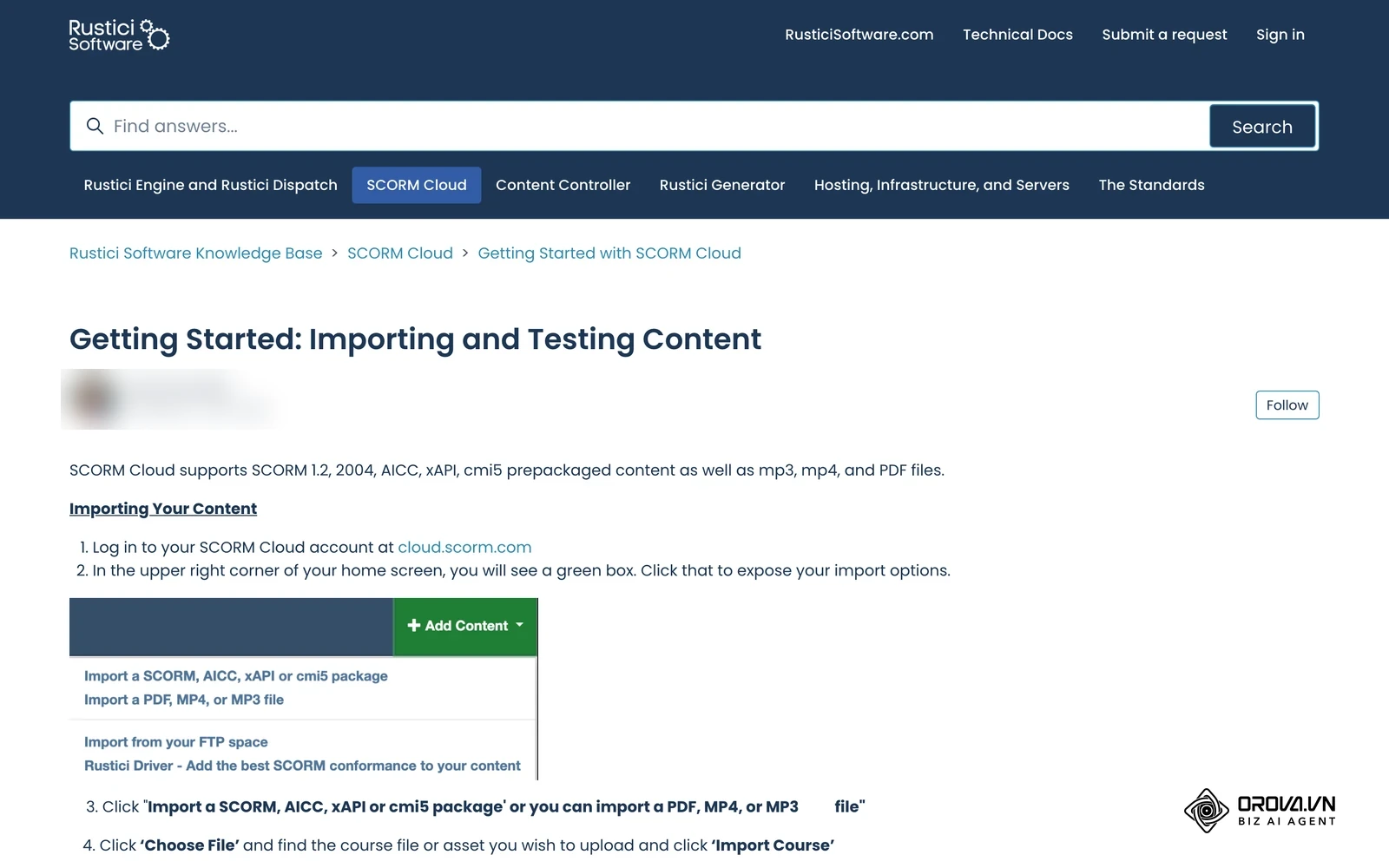
The platform was engineered by Rustici Software to serve as the definitive testbed for SCORM 1.2, SCORM 2004, Experience API (xAPI), cmi5, and AICC specifications. When a course behaves erratically in a proprietary corporate environment, testing that package within this reference engine reveals whether the fault stems from corrupted script triggers inside your authoring tool or non-compliant runtime handling by your host platform.
Prerequisites and Asset Checklist Before Testing in SCORM Cloud
Executing a rigorous diagnostic cycle requires several prerequisite assets and configuration settings before you import your first zip archive. Gathering these components in advance prevents interrupted sessions and false-positive tracking failures during runtime analysis. If you have not settled on an authoring tool yet, our overview of eLearning authoring tools walks through the common options.
The following checklist identifies the technical assets required to validate course modules and configure distribution channels effectively:
| Required Asset | Source / Retrieval Method | Estimated Setup Time | Impact if Missing |
|---|---|---|---|
| Published Course Zip Archive | Authoring tool export (Articulate Storyline, Adobe Captivate, Lectora) | 5 minutes | Cannot initiate file upload or manifest validation |
| SCORM Cloud Account | Self-service registration at cloud.scorm.com | 3 minutes | Inability to access diagnostic sandbox or dispatch tools |
| Code / Manifest Editor | VS Code, Notepad++, or Sublime Text | 2 minutes | Inability to edit root imsmanifest.xml or repair syntax errors |
| Standard Test Script | Departmental QA test plan detailing pass/fail conditions | 10 minutes | Incomplete verification of quiz branching and score thresholds |
| Third-Party LMS Destination | External test tenant (Moodle, Canvas, or partner portal) | 15 minutes | Inability to test remote dispatch shell compatibility |
Step 1: Create a Sandbox Account and Access the Course Dashboard
Establishing a testing environment begins with provisioning an administrative realm on the central server. The goal of this step is to access the primary Course Sandbox dashboard with full debugging privileges enabled.
Navigate to cloud.scorm.com in your web browser and select the Sign Up option located in the upper right header. Enter your operational email address, specify your organization name, and establish your account credentials. The platform will automatically provision a free trial realm that accommodates up to ten active registrations without requiring credit card details. Once your email verification is confirmed, log into the web interface to land on the primary management console. From the left navigation menu, click Courses to open the active inventory screen where all test packages, version histories, and diagnostic reports reside.
[cloud.scorm.com]
       │
       ▼
 [Sign Up / Login] ──► [Provision Realm] ──► [Navigation Menu] ──► [Courses Dashboard]
A properly configured workspace displays an empty Course List table featuring a prominent green Add Content button in the upper right corner, alongside an account summary widget indicating zero consumed registrations out of your trial quota.
If the dashboard displays an Invalid Realm ID alert or redirects in an endless authentication loop, browser cookie isolation is blocking session tokens. Clear your browser cache for the domain or switch to a private browsing window to establish a clean authentication state.
Step 2: Upload and Validate the SCORM Package Zip File
Ingesting your training package into the sandbox validates that your archive structure satisfies standard packaging requirements. The goal of this step is to upload your packaged zip file and confirm that the system successfully parses the root manifest schema.
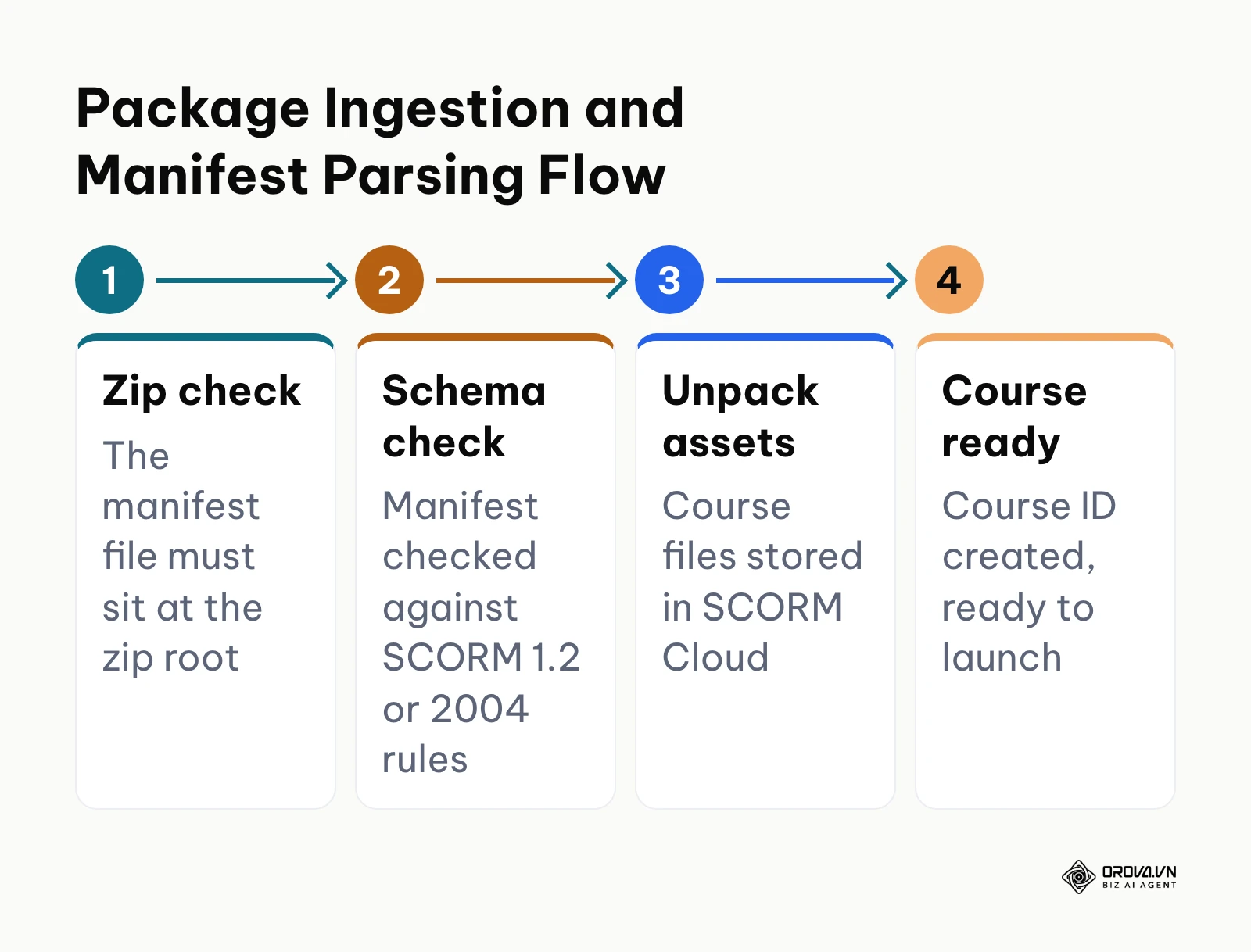
From the Courses dashboard, click Add Content and select Import a SCORM, AICC, xAPI or cmi5 package from the drop-down selector. In the modal dialogue, click Choose File to browse your local file system, select your packaged course zip archive, and click Import Course. The platform initiates a two-phase ingestion routine: first streaming the raw archive to the server, and then unpacking the contents to scan for the root imsmanifest.xml file. During this extraction, the parser verifies that all referenced HTML launch files, media assets, and XML schema definitions match the paths specified in your organizational tree.
Successful processing redirects your browser to the individual Course Details screen. The course title parsed from your manifest appears in bold at the top of the interface, accompanied by an automatically generated Course ID, a format badge indicating your technical standard (such as SCORM 1.2 or SCORM 2004 4th Edition), and a populated metadata table displaying package size and version timestamps.
Two common errors occur frequently during archive ingestion:
| Error You See | Likely Cause | How to Fix It |
|---|---|---|
| The manifest file could not be found | The authoring tool compressed the course into an extra enclosing folder, so imsmanifest.xml is not at the archive root | Extract the zip locally, select imsmanifest.xml together with your asset folders, and compress those items into a fresh archive without a parent directory |
| XML Schema Validation Failed | The manifest references outdated DTD or XSD definitions that do not resolve | Open imsmanifest.xml in your code editor and check that the <schemaversion> node specifies 1.2 or CAM 1.3 (for SCORM 2004) |
Both fixes bring the package in line with SCORM runtime standards; our SCORM compliant LMS testing guide covers how to verify the receiving LMS side.
Step 3: Launch the Course Sandbox and Enable the Console Debugger
Executing the course within an instrumented runtime environment allows you to monitor API communication between your course slides and the tracking engine. The goal of this step is to launch your module in sandbox mode while recording live API calls in the diagnostic console.
Launching with Diagnostic Hooks
On the Course Details screen, locate the primary control panel situated directly below the course title. Click the Launch button. The system opens your course in a dedicated secondary browser window while simultaneously generating a persistent tracking session.
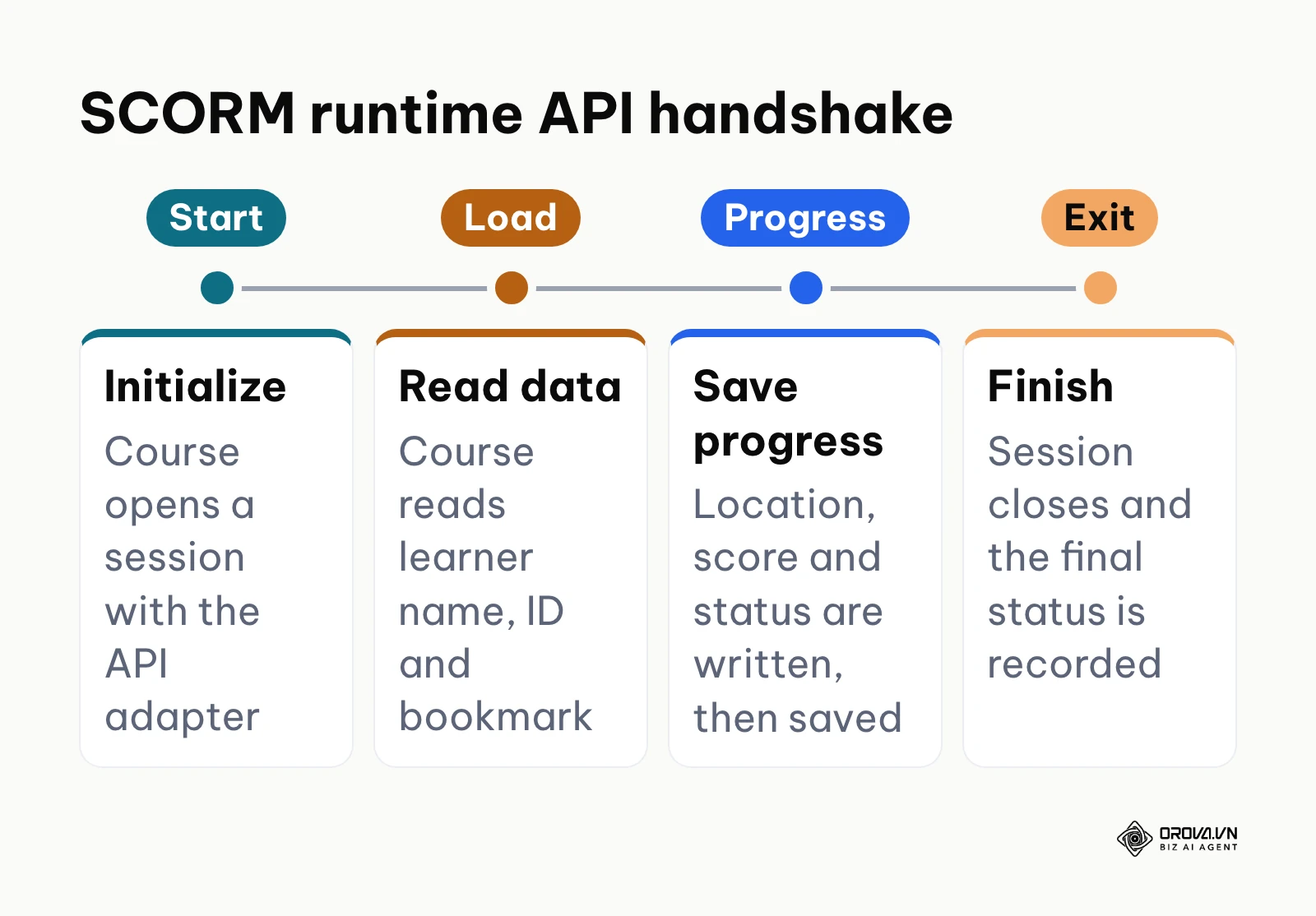
To inspect underlying runtime transactions, return to the master browser tab after the session and open the registration's launch history, where SCORM Cloud keeps a debug log of every API call the course made. Exact menu labels can shift between interface updates, so look for the launch history or debug log entry attached to your test registration.
+-------------------------------------------------------------------------+
| SCORM Cloud Console Debugger (Active Session)                          |
+-------------------------------------------------------------------------+
| [10:14:02] LMSInitialize("") = "true"                                   |
| [10:14:03] LMSGetValue("cmi.core.student_name") = "Doe, Jane"           |
| [10:14:05] LMSGetValue("cmi.core.lesson_mode") = "normal"               |
| [10:14:18] LMSSetValue("cmi.core.lesson_location", "slide_4") = "true"  |
| [10:14:35] LMSSetValue("cmi.core.score.raw", "85") = "true"            |
| [10:14:36] LMSSetValue("cmi.core.lesson_status", "passed") = "true"    |
| [10:14:40] LMSCommit("") = "true"                                       |
| [10:14:42] LMSFinish("") = "true"                                       |
+-------------------------------------------------------------------------+
When operating correctly, the live debugger window displays a continuous stream of sequential timestamps paired with standard API commands. You should see an initial LMSInitialize("") (or Initialize("") in SCORM 2004) returning "true", followed by queries retrieving the learner identity and initial lesson location.
If the debugger console remains completely empty or outputs an error stating Unable to find an API adapter, your course content is executing inside an unlinked browser frame that cannot reach the parent window. Ensure your browser allows pop-ups and third-party script communication between tabs, and confirm that your authoring tool export settings did not wrap the content in a legacy, multi-frame frameset that severs JavaScript object inheritance.
Illustrative Example: An L&D specialist at a 250-person financial services firm was tasked with validating a new compliance course built in Articulate Storyline. They imported the package into SCORM Cloud, launched the sandbox with the console debugger open, and navigated through all twelve quiz questions. The debugger flagged that cmi.core.lesson_status remained stuck on incomplete because the completion trigger was tied to media completion rather than the quiz result slide. After updating the trigger in the authoring tool and re-importing the zip file, the console confirmed a successful cmi.core.lesson_status = passed commit.
Step 4: Audit Runtime Communication and Completion Status
Validating data exchange requires systematically triggering every assessment, interaction, and exit event in your course to confirm that the LMS records completion flags accurately. The goal of this step is to audit specific data model values to guarantee that passing scores and lesson bookmarks persist across sessions.
Navigating the Module to Trigger Data Model Writes
Use this table as your audit sheet while you click through the course:
| What to Confirm in the Debug Log | When It Should Appear |
|---|---|
| cmi.core.lesson_location updates | On every slide change |
| cmi.core.score.raw, score.min and score.max are sent | When you submit the quiz |
| cmi.core.lesson_status is set to passed or completed | At the end of the course |
| LMSCommit("") fires right before LMSFinish("") | When you click Exit |
| Registration shows Complete and Passed | After you refresh Course Details |
Keep the course window open alongside your active debug log. Progress through your course slides, click every interactive tab, complete the end-of-module assessment, and navigate to the final conclusion slide. Watch the debugger console as you execute these actions. Confirm that your course triggers LMSSetValue calls updating cmi.core.lesson_location (or cmi.location in SCORM 2004) whenever you change slides.
When you submit the final quiz, verify that the package sends numeric values to cmi.core.score.raw, cmi.core.score.min, and cmi.core.score.max. Finally, click the explicit Exit button inside your course to ensure the package fires an LMSCommit("") call immediately followed by LMSFinish("").
[Slide Navigation] ──► LMSSetValue("cmi.core.lesson_location", "slide_N")
        │
[Submit Quiz]      ──► LMSSetValue("cmi.core.score.raw", "92")
        │
[Click Exit]       ──► LMSSetValue("cmi.core.lesson_status", "completed")
        │
[Session Close]    ──► LMSCommit("") ──► LMSFinish("")
After closing the course playback window, refresh the Course Details screen in your management console. In the Debug Logs & Registration History panel, look for your completed session. The visual status indicators must display Completion: Complete and Success: Passed (or your designated threshold), accompanied by your exact test score recorded as a distinct percentage.
If your session displays Completion: Incomplete despite finishing all content, your authoring tool likely employs conflicting completion rules. Open your authoring tool's reporting settings and ensure the reporting status is configured as Passed/Incomplete rather than Passed/Failed, as certain LMS engines misinterpret the latter when learners exit mid-course.
When packaging courses for multiple learning platforms, authoring errors and manifest syntax issues slow down deployment. Orova Training reduces manual packaging work by converting your source documents into structured courses, interactive quizzes, and standards-compliant exports within an intuitive interface. Build training materials, evaluate learners with AI-graded assessments, and export SCORM 1.2 packages for LMSs such as Moodle or Canvas.
Step 5: Configure Direct Invitations and Public Access Links
Delivering courses directly to end users without deploying a full learning management system can be achieved using invitation mechanisms. The goal of this step is to generate public or tracked invitation URLs that grant authorized learners direct access to your validated course.
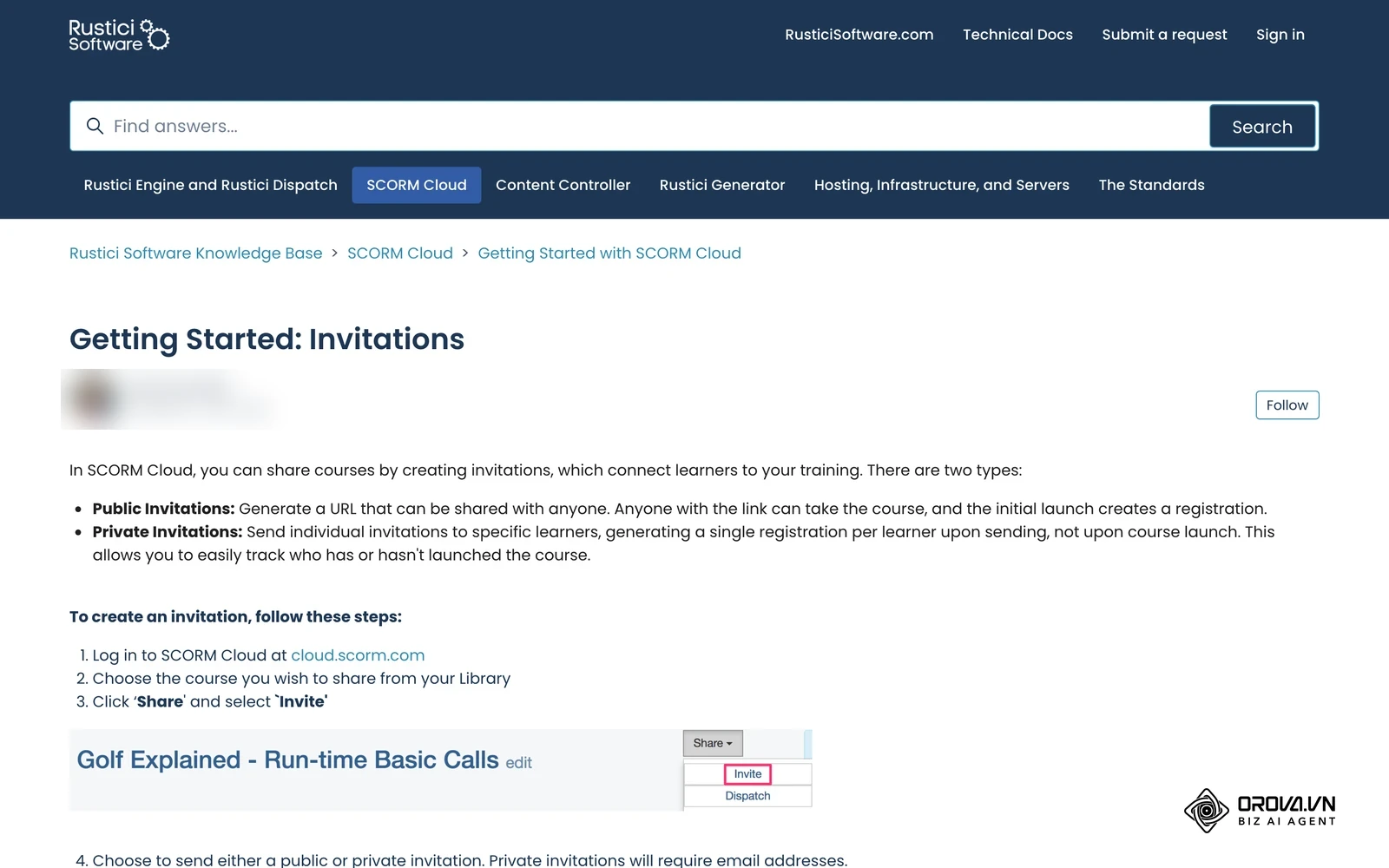
Open the course in your SCORM Cloud Library, click Share, and select Invite. Then choose between the two invitation types:
- Public Invitation: Generates a shareable link. Anyone with the link can take the course, and each learner's first launch creates a registration.
- Private Invitation: Sends individual invitations to the learner email addresses you enter. Each learner gets a personal link, and a registration is created when the invitation is sent, not when the course is launched, so you can see who has or hasn't started.
Specify an optional expiration date to restrict access after your testing window closes, and enter an optional registration cap to prevent unmetered usage. Click Create Invitation to finalize the parameters.
+-------------------------------------------------------------------+
| Invitation Configuration Modal                                    |
+-------------------------------------------------------------------+
| Invitation Type:    (•) Public Link     ( ) Private Email List    |
| Access Expiration:  [ 2026-11-30 ]                                |
| Registration Limit: [ 50         ]                                |
| Authentication:     [ Require Learner Email ]                     |
|                                                                   |
| [Cancel]                                 [Create Invitation Button]
+-------------------------------------------------------------------+
The interface generates an active invitation record displaying a shareable URL on the cloud.scorm.com domain. A live counter appears alongside the link showing Registrations: 0 / 50, updating as learners launch the module.
If a learner receives an Invitation Limit Reached screen upon clicking the URL, the link has exceeded its configured registration quota. To restore access, open the invitation settings in your management console, click Edit, and increase the numerical threshold in the registration cap field.
Step 6: Create Dispatch Packages and Enforce License Controls
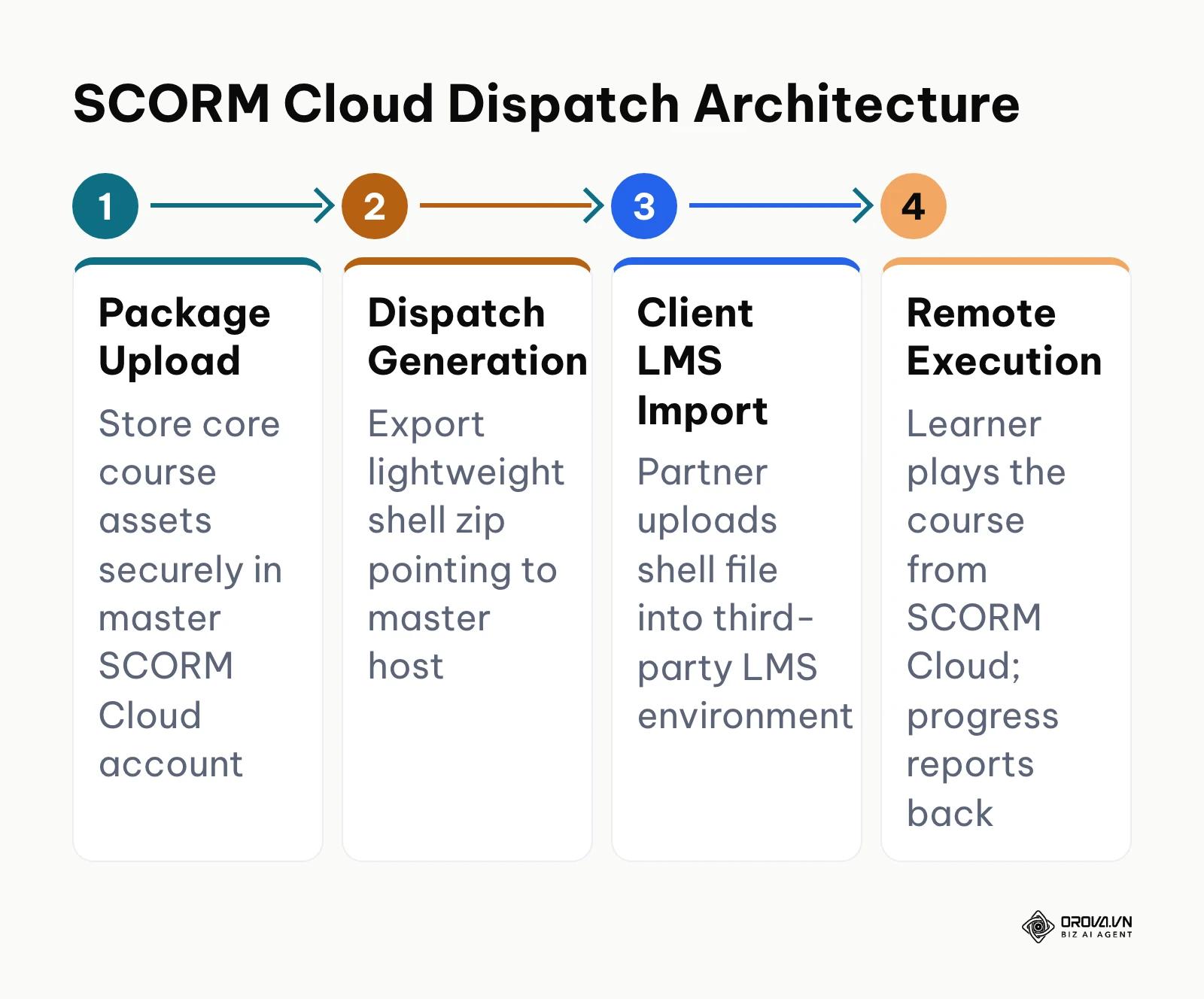
Distributing proprietary training content into client learning platforms without relinquishing your raw source files requires dispatch proxy architecture. The goal of this step is to generate a lightweight dispatch shell zip file and configure licensing restrictions that protect your intellectual property.
Generating the Dispatch Proxy Shell
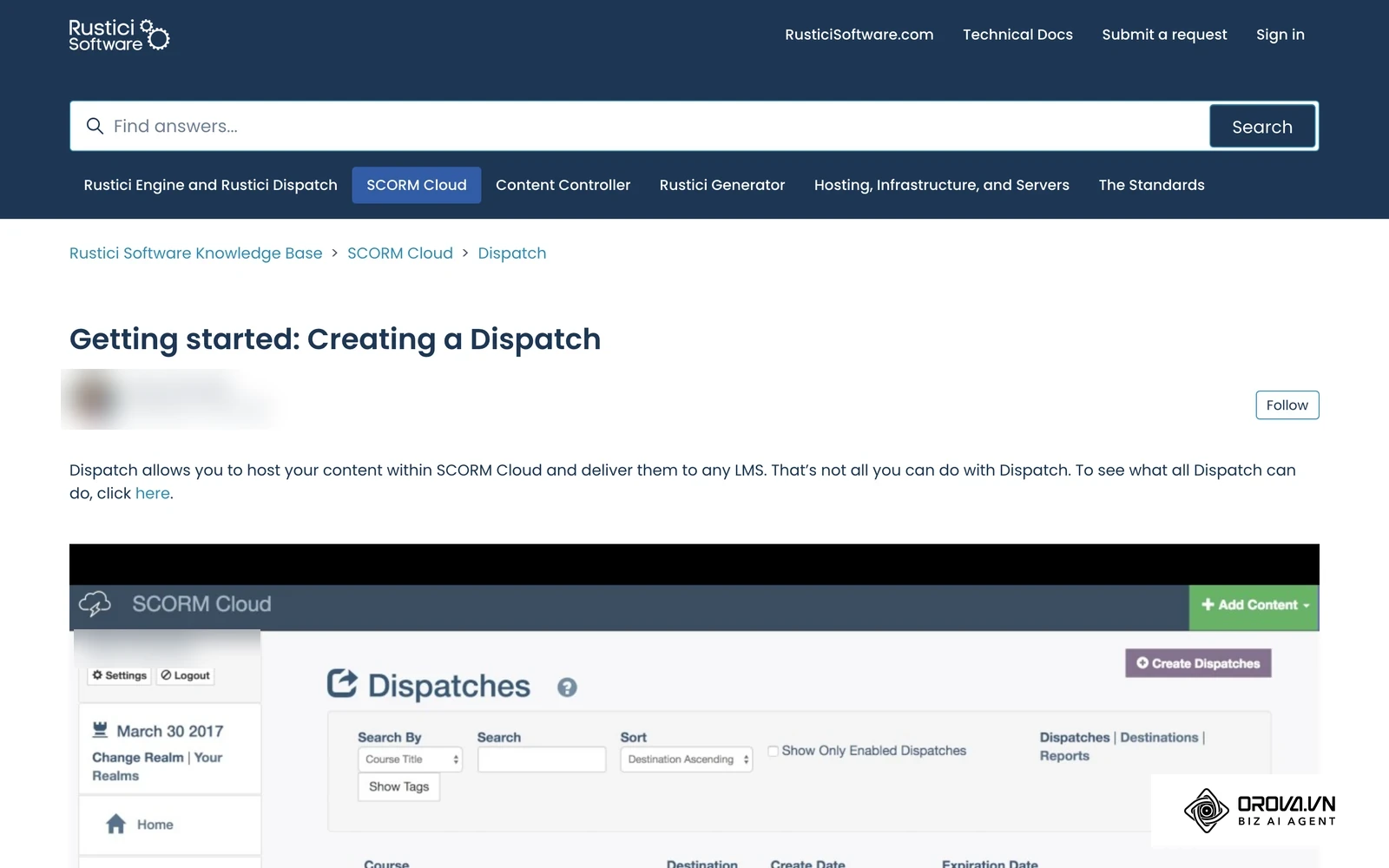
In your SCORM Cloud administrative menu, select Dispatch from the left navigation bar and click Create Dispatch. In the configuration interface, select your target course from the drop-down inventory. Next, assign or create a Destination profile representing the specific corporate client or external LMS receiving the package.
Under the Licensing & Access Controls section, establish operational boundaries:
- Set a strict Registration Cap representing the exact number of employee enrollments contracted by the partner.
- Set an Expiration Date that aligns with the commercial license agreement.
- Select the tracking standard desired by the partner (SCORM 1.2 or SCORM 2004).
Click Save, check the box next to your new dispatch item, and click Download. The platform generates a tiny zip file (typically under 200 kilobytes). This shell file contains only an imsmanifest.xml and lightweight JavaScript communication bridges that point securely back to your central host servers.
[Master Course Assets] (Hosted on SCORM Cloud)
        ▲
        │ Secure Encrypted Stream
        ▼
[Dispatch Shell Zip] (<200 KB Proxy File)
        ▲
        │ Uploaded to
        ▼
[Client Corporate LMS] (Moodle, Workday, Cornerstone)
The downloaded dispatch archive appears in your local downloads folder. When inspected, the zip file measures a fraction of your raw course archive and contains zero proprietary video, audio, or text assets.
If the client imports the dispatch file and their LMS outputs a Cross-Origin Resource Sharing (CORS) Blocked error, their firewall or LMS security headers are blocking external frame streaming. To resolve this, navigate to your Destination settings in SCORM Cloud, toggle Launch Behavior to New Window (Pop-up), and advise the client administrator to allow cross-origin iframe embedding from the cloud.scorm.com domain.
Illustrative Example: A boutique training provider licensing cybersecurity modules to enterprise clients needed to deliver content into three separate client LMS portals. They uploaded the master course to SCORM Cloud, generated three distinct dispatch packages with 500-registration caps, and embedded an expiration date matching each client's contract anniversary. When one client renewed early for additional seats, the administrator increased the registration limit directly in the SCORM Cloud dispatch console without re-exporting or re-uploading any files into the client LMS.
Comprehensive Master Checklist for the SCORM Cloud Testing Lifecycle
This master checklist consolidates the end-to-end testing, auditing, and dispatch distribution lifecycle into an operational reference table:
| Step Number & Name | Core Technical Action | Visual Completion Verification | Estimated Time |
|---|---|---|---|
| 1. Account Setup | Provision realm at cloud.scorm.com and configure admin profile | Clean Course List screen with active trial registration allotment | 5 minutes |
| 2. Package Ingestion | Upload zip file via Add Content dialog | Populated Course Details page with parsed standard and Course ID | 3 minutes |
| 3. Sandbox Launch | Open course in Normal mode with Debug Console enabled | Active diagnostic window streaming timestamped API calls | 2 minutes |
| 4. Communication Audit | Navigate entire course and complete all scoring assessments | Registration history displays Complete and Passed status | 15 minutes |
| 5. Invitation Creation | Generate public or email-based access links with caps | Live URL generated with zero consumed registration counter | 5 minutes |
| 6. Dispatch Licensing | Create proxy shell tied to specific Destination with caps | Downloaded lightweight zip archive (<200 KB) ready for export | 5 minutes |
Common SCORM Cloud Errors and Debugging Solutions
Resolving communication anomalies requires understanding the underlying error codes returned by the SCORM API adapter. According to the Sharable Content Object Reference Model (SCORM) 2004 4th Edition Specification published by the Advanced Distributed Learning (ADL) Initiative in 2009, runtime communication requires a strict two-way handshake between the Sharable Content Object and the host environment. When this handshake degrades, the console debugger outputs specific standardized fault codes.
Five Critical SCORM Console Debugger Errors and How to Fix Them
The following checklist identifies the five most common console error codes, their structural causes in the manifest or authoring setup, and practical remediation steps:
| Console Error Code | Error Description & Cause | Affected Manifest / Authoring Element | Technical Fix in Storyline / Captivate |
|---|---|---|---|
| Error 301 (Not initialized) | Course scripts attempted to read or write data before the API handshake finished | Initial slide load trigger or missing LMSInitialize call | Delay auto-advancing slides; ensure first trigger executes after player_ready event |
| Error 401 / 403 (Not implemented / Element is read only) | Course attempted to use an unsupported element (401) or write to a read-only one (403) | Data model call (e.g., trying to write to read-only cmi.core.student_id) | Change authoring tool export settings to target standard read-write variables |
| Error 405 (Incorrect data type) | Course passed a value of the wrong type or format to a data model variable | Scoring or status trigger (e.g., passing string to numeric cmi.core.score.raw) | Ensure raw score variable outputs clean integer or floating-point values between 0 and 100 |
| Silent Status Hang (cmi.core.lesson_status stuck on incomplete) | Course fails to record completion upon reaching the final slide | Completion trigger tied to slide timeline rather than explicit user action | Reassign tracking trigger to the final quiz submit button or an explicit complete button |
| Manifest Namespace Error (XML Parse Error) | Parser cannot locate valid schema definition files in package | Root imsmanifest.xml schema definition nodes | Validate XML tags against standard ADL schema definitions; remove empty sub-elements |
+-----------------------------------------------------------------------------------------+
| SCORM Debugger Console: Anatomy of an Error 301                                         |
+-----------------------------------------------------------------------------------------+
| [10:15:01] LMSGetValue("cmi.core.lesson_location")                                      |
| [10:15:01] --> Error: 301 - LMSNotInitialized                                           |
| [10:15:01] --> Diagnostic: The LMS has not yet acknowledged communication initialization|
| [10:15:02] LMSInitialize("") = "true"                                                   |
| [10:15:02] --> Fix: Reorder scripts so LMSInitialize executes prior to Get/Set queries |
+-----------------------------------------------------------------------------------------+
Measuring Course Performance and Tracking Metrics in SCORM Cloud
Auditing educational outcomes requires interpreting the diagnostic data captured inside SCORM Cloud Reportage.
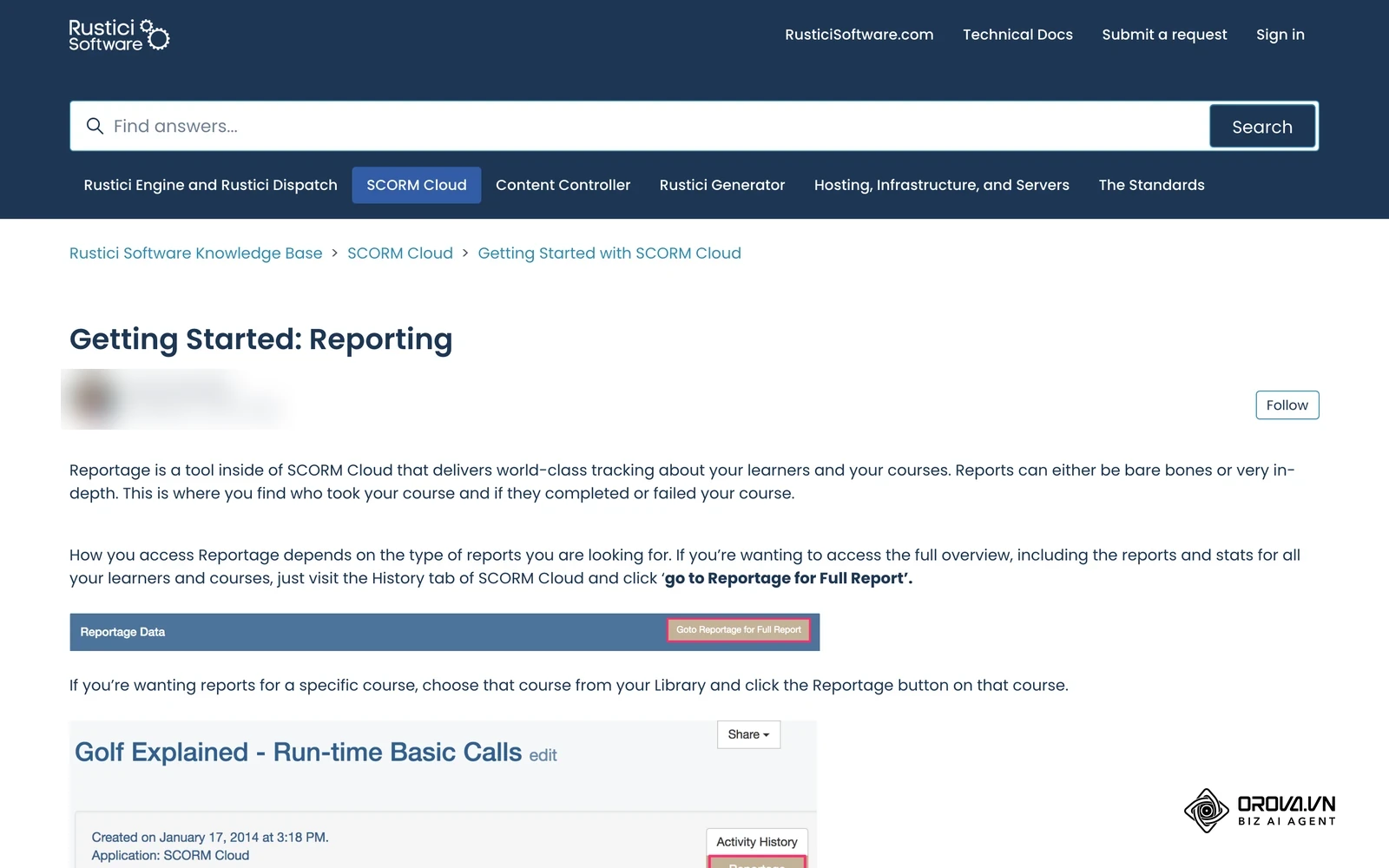
To evaluate learner performance, open your course details screen and click Reportage. The reporting engine aggregates interaction data into four core operational dimensions:
- Completion Ratio: Measures the percentage of learners who satisfy your module's completion criteria versus those who abandon mid-session.
- Success Ratio: Records the proportion of attempts that achieve or exceed your passing score threshold.
- Average Dwell Time: Calculates total session duration across all launches, identifying whether learners are skipping content too rapidly.
- Item-Level Question Analytics: Breaks down performance across individual quiz questions, highlighting specific assessment items with disproportionate failure rates.
According to the IEEE 1484.11.1 Standard for Learning Technology - Data Model for Content to Learning Management System Communication published by the IEEE Learning Technology Standards Committee in 2004, standardized data model elements govern how scores, session time, and completion flags pass between client-side scripts and LMS adapters. These metrics populate in Reportage within seconds of a learner clicking exit, providing instant verification that your package behaves correctly.
Registration-Based Cost Simulation vs All-in-One Corporate LMS
While SCORM Cloud excels as a diagnostic testbed, its pricing architecture is structured around monthly active registrations. A registration is triggered whenever an individual learner launches a course for the first time in a billing month. If that same employee relaunches the course in a later billing period, another registration can be counted. This model makes budgets harder to predict when the same employees revisit courses repeatedly.
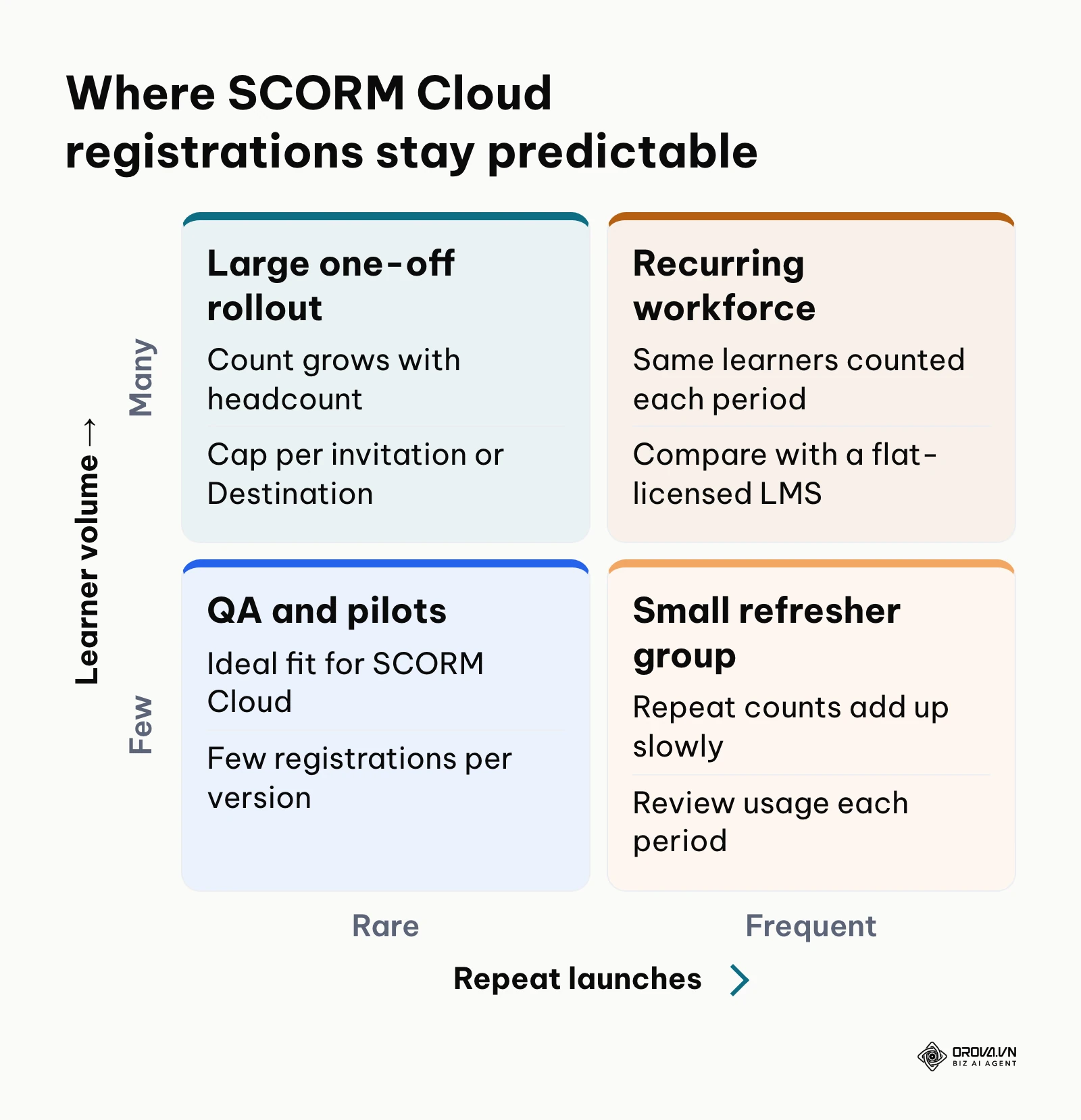
Rustici Software publishes its current plan tiers and registration allowances on the official SCORM Cloud pricing page, and those figures change over time, so check that page before you budget. What matters for planning is how registrations accumulate under different usage patterns:
| Usage Pattern | How Registrations Accumulate | Cost Behavior | What to Consider |
|---|---|---|---|
| Package QA only (a few testers) | A handful of test registrations per course version | Stays within the free trial or the smallest paid tier | SCORM Cloud is a natural fit for pre-release testing |
| Small pilot group | One registration per learner per course launched in the billing period | Grows in line with pilot size | Economical while the group stays small and short-lived |
| Recurring internal refreshers | The same learner can be counted again in each billing period they relaunch | Climbs with every review cycle, not just headcount | Model repeat launches before committing; a flat-licensed LMS is often more predictable |
| External distribution via Dispatch | Registrations consumed by partner learners count toward your account | Tied to partner volume, which you can cap per Destination | Set registration caps that match each contract |
Illustrative Example: A regional hospital network with 1,200 staff implemented annual clinical safety refreshers across two separate departments. The training coordinator uploaded the module to SCORM Cloud and invited personnel via direct email links, tracking initial completions across 600 nurses. Two months later, when clinical supervisors assigned refresher reviews, nurses re-launched the same module, causing SCORM Cloud to record new billable registrations under a subsequent billing cycle. The organization resolved the unexpected cost escalation by migrating recurring internal modules to a unified learning platform while reserving SCORM Cloud strictly for vendor package pre-testing.
Decision Matrix: When to Use SCORM Cloud vs a Dedicated Corporate LMS
Determining whether to operate SCORM Cloud as your permanent delivery infrastructure or invest in a full corporate LMS depends on organizational scope and commercial intent. If you are leaning toward a full platform, our guide on how to choose an LMS covers the wider selection process.
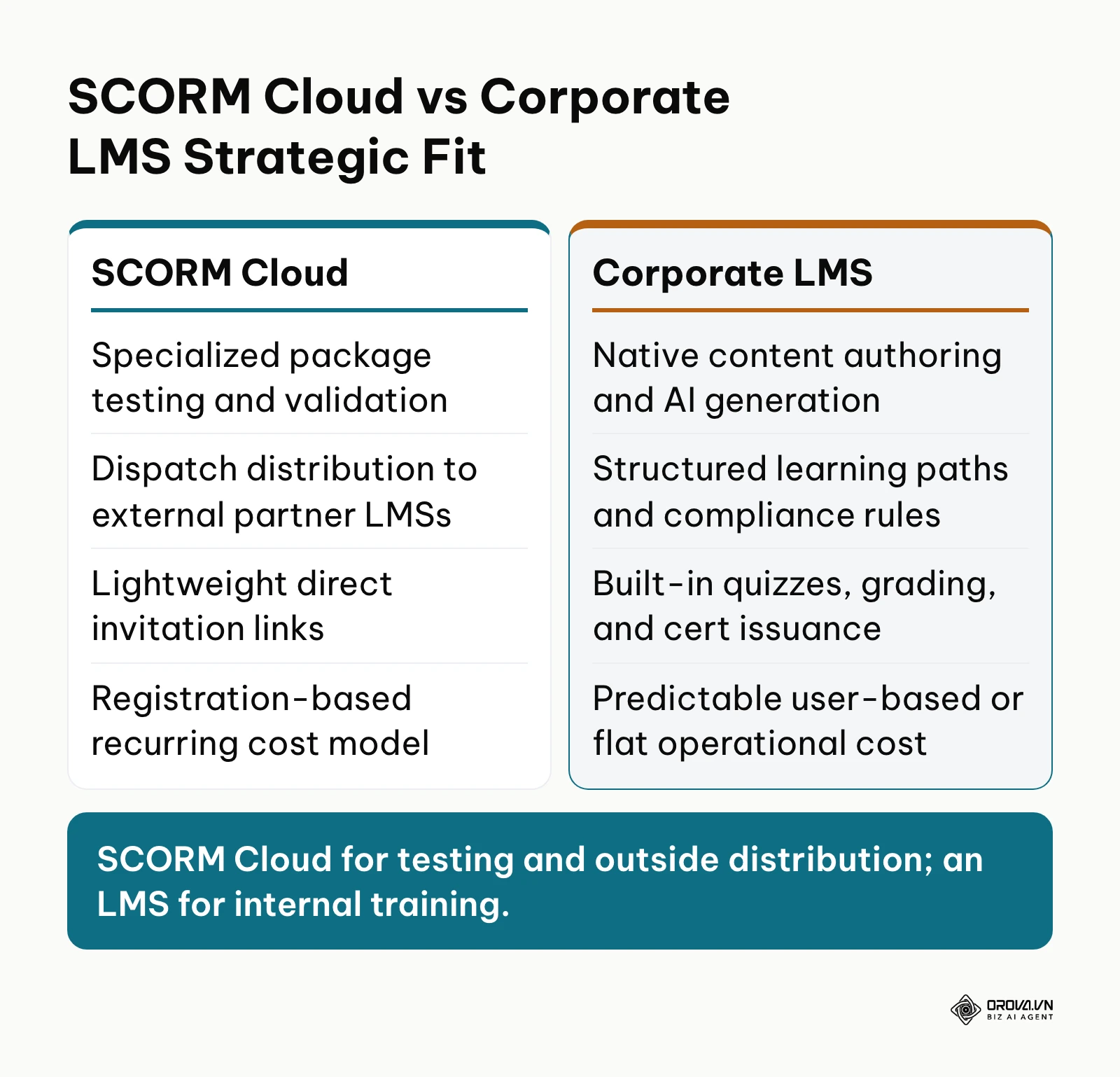
The decision matrix below outlines six strategic criteria to guide your platform architecture:
| Operational Criterion | SCORM Cloud Standalone | All-in-One Corporate LMS | Strategic Recommendation |
|---|---|---|---|
| Primary Workflow Purpose | Testing packages, debugging code, and dispatching shells | Comprehensive workforce training, onboarding, and compliance | Use SCORM Cloud for QA; use Corporate LMS for employee growth |
| Content Authoring Capability | None (requires external Articulate, Captivate, or HTML files) | Built-in AI authoring, slide generators, and video modules | Choose Corporate LMS if your team lacks external authoring licenses |
| User Management & Groups | Basic invitation links and Destination grouping | Role-based permissions, department trees, and team workflows | Choose Corporate LMS for structured organizational hierarchies |
| Assessment & Certification | Captures raw SCORM quiz scores only | Native question banks, AI rubrics, and automated certificate issuance | Choose Corporate LMS if automated credentials are required |
| Cost Scaling Predictability | Variable monthly fees tied to registration counts | Predictable per-seat or annual platform licensing | Choose Corporate LMS when training recurring internal workforces |
| External Vendor Licensing | Native Dispatch proxy controls and instant revocation | Typically restricted to internal domain users | Choose SCORM Cloud Dispatch when selling content to third-party LMSs |
Testing external packages is only half the battle; scaling corporate training requires an integrated system that automates delivery, enforces learning compliance, and issues verifiable certificates. Experience Orova Training completely free until July 7, 2027, with no credit card required. Generate AI slides, video modules, and ranked assessments directly in your browser to streamline workforce education today.
SCORM Cloud Trends Over the Next Few Years: Author's Outlook
As of 2026, the eLearning interoperability ecosystem is undergoing significant structural shifts driven by AI automation and evolving web standards. Looking at the technical developments unfolding today, I believe three major transformations will reshape how teams test and distribute training modules over the next two to three years.
First, I expect manual SCORM manifest configuration to shrink as authoring tools add automated packaging checks. Today, instructional designers spend hours editing XML nodes and resolving handshake timeouts in text editors. I think more authoring tools are likely to add pre-flight testing that simulates headless LMS launches in the background, validating data model conformity before the zip file is even exported. If universal container standards stall, manual manifest debugging will persist, but I lean toward rapid adoption of automated pre-flight validation.
Second, I believe new projects will gradually lean toward cmi5 and xAPI, even though SCORM 1.2 remains widely supported. Organizations increasingly require deep learning analytics that capture granular micro-behaviors, mobile offline progress, and simulated software interactions that SCORM 1.2 simply cannot record. As enterprise procurement mandates tighter data governance, I suspect distribution tools like SCORM Cloud Dispatch will be pushed to evolve into full API data gateways that bridge modern enterprise data warehouses.
Third, I think the line between testing and delivery will blur. Teams that once used a sandbox only for QA are weighing whether to host courses centrally or keep them inside their own LMS, a choice that mirrors the wider cloud-based LMS vs on-premise decision. To prepare, training leaders can audit their existing course archives, remove non-standard JavaScript dependencies, and keep content in modular, standards-based formats so it can move between platforms.
Frequently Asked Questions About SCORM Cloud
Why does SCORM Cloud report "LMSInitialize was not called" and how do I fix it?
This error occurs when a course's client-side JavaScript attempts to query or save data before establishing a valid communication session with the API adapter. Open your authoring project and verify that initial slide actions or media triggers do not fire before the player fully loads. In raw HTML packages, ensure your custom initialization script calls LMSInitialize("") (or Initialize("") for SCORM 2004) before executing any LMSGetValue or LMSSetValue calls.
How does SCORM Cloud billing scale if an employee takes the same course in multiple months?
SCORM Cloud meters usage based on active monthly registrations. If an employee launches a course in March, one registration is billed. If that same employee opens the module again in April to review material, the system treats this as a separate registration event for the new billing cycle, which can raise that month's bill. To prevent unexpected overage fees, organizations with recurring refresher requirements typically deploy internal LMS solutions rather than direct SCORM Cloud links.
How can you immediately revoke access to a dispatched course when a partner contract ends?
To terminate external access, navigate to the Dispatch section in your management console, select the specific Destination assigned to that client, and locate the active dispatch item. You can either uncheck the Enabled toggle or change the Registration Cap to match the current count. Because the client LMS holds only a lightweight proxy shell, the course will instantly refuse to stream content, displaying an access expired notification without requiring any file deletions on the client LMS.
What role does artificial intelligence play in SCORM testing and packaging in 2026?
AI currently streamlines course generation and pre-flight diagnostics by inspecting archive manifests, identifying missing asset paths, and synthesizing realistic learner navigation behavior during automated sandbox tests. Modern platforms utilize AI to parse raw text documents directly into standards-compliant learning units, eliminating the manual trigger configuration errors that historically triggered SCORM runtime debugging failures.
What is the fundamental operational difference between SCORM Cloud and a corporate LMS?
SCORM Cloud is primarily a developer diagnostic sandbox and content distribution switchboard designed to test compliance, inspect API logs, and stream proxy shells into third-party systems. A complete corporate LMS provides native user management, hierarchical departments, automated enrollment workflows, native assessment creation, compliance tracking, and credential issuance for managing internal workforce education.
Where Should You Start?
The fastest way to achieve operational results depends on your current technical challenge and role within the training deployment lifecycle. Rather than attempting to master every diagnostic feature simultaneously, select the single action below that matches your immediate operational bottleneck.
If you are an Instructional Designer Debugging a Broken Package, open your authoring tool and export your module as a standard SCORM 1.2 zip file with Passed/Incomplete reporting. Register for a free trial sandbox at cloud.scorm.com, import your archive through the Course Sandbox, and execute a single test run with the Debug Console open. Inspect the log to confirm that your final quiz submit button fires a clean LMSSetValue("cmi.core.lesson_status", "passed") call before you submit the package to your production LMS administrator.
If you are a Commercial Training Vendor Preparing to Distribute Content, establish your master course archive inside the sandbox and navigate directly to the Dispatch menu. Create a dedicated Destination record for your trial client, apply a temporary registration cap of ten users, and download the resulting dispatch proxy shell. Transmit this lightweight zip file to your client's LMS administrator to verify that their platform can successfully launch and track the remote stream prior to executing your formal software agreement.
If you are an Enterprise L&D Leader Auditing Training Infrastructure Costs, calculate your total annual course launches across all active employees. If your organization serves a large group of recurring learners, model your projected registration expenses against an integrated learning platform to establish your financial break-even point. Reserving sandbox tools for third-party vendor verification while managing internal employee education through an all-in-one system protects departmental budgets and ensures reliable long-term performance across every deployment in SCORM Cloud.
About the author

Builder of Orova
Nguyễn Đỗ Trọng Ân has 8 years of experience in marketing, including 6 years managing market development across Asia. He builds Orova, a Biz AI Agent that never sleeps: it plans, runs and optimizes work for businesses.
Run your business with AI Agents
Orova is the always-on Biz AI Agent — it plans, runs, and optimizes the work for you.
Save time, unlock productivity.