
Content calendar template google sheets: 7 best picks for 2026

Choosing the right content calendar template google sheets layout directly dictates whether your marketing team delivers campaigns predictably or loses momentum in manual coordination chaos. If you are new to the concept, start with what a content calendar is and why teams use one; this guide focuses on picking and upgrading a ready-made Google Sheets file. When a team uses an unstructured spreadsheet, common failure modes emerge quickly: collaborators overwrite formulas, dates are formatted inconsistently, tracking parameters are omitted, and campaign themes skew heavily toward promotional pitches while educational topics are neglected.
To select a system that withstands real-world operational stress, every template in this guide was evaluated against five non-negotiable criteria: data structure clarity across distribution channels, data validation controls such as dropdown menus and date locks, multi-stage workflow visibility from ideation to approval, native fields for emerging short-form video specifications, and technical extensibility into reporting platforms or automated publishing software.
Whether you run a solo creator business or manage a cross-functional corporate content department, this comparative breakdown examines seven verified options. It reveals their operational trade-offs and exact use cases, helping you implement a working system without trial and error.
Comparison of 7 content calendar template google sheets options
The seven best Google Sheets content calendar templates serve distinct operational scales, ranging from lightweight weekly execution trackers to complex cross-channel publishing databases. Each option balances ease of onboarding against structural governance. The following comparison highlights key strengths and practical suitability to help you choose the right spreadsheet framework immediately. Publishers update their template files from time to time, so after you make a copy (File > Make a copy), check that the tabs and columns described here are still present.
| Template Name | Best For | Key Strength | Quick Verdict | |
|---|---|---|---|---|
| HubSpot Social Media Calendar | Multi-channel brand marketers | Dedicated platform tabs with automated character counters | Comprehensive and proven for cross-channel planning | |
| CoSchedule Marketing Calendar | Growth marketing teams | Unified campaign theme tagging and cross-functional task tracking | Structured for strategic campaign alignment | |
| Buffer Editorial Calendar | Solo creators and lean teams | Clean weekly execution grid with minimal visual clutter | Fast to deploy with zero learning curve | |
| Backlinko Content Calendar | SEO-focused content teams | Search intent mapping and organic milestone management | Optimal for search-driven editorial workflows | |
| Smartsheet Multi-Channel Calendar | Mid-sized agencies and enterprise | Advanced stage-gate approvals and hierarchical row grouping | Best for complex stakeholder review loops | |
| Hootsuite Social Media Calendar | High-volume social media teams | Granular day-part scheduling and engagement tracking fields | Reliable for brands publishing multiple posts daily | |
| Vertex42 Content Calendar | Operations managers and spreadsheet purists | Lightweight perpetual calendar logic and clean formula hygiene | Mathematically elegant and easy to customize |
Pick 1: HubSpot Social Media Content Calendar Template for Google Sheets
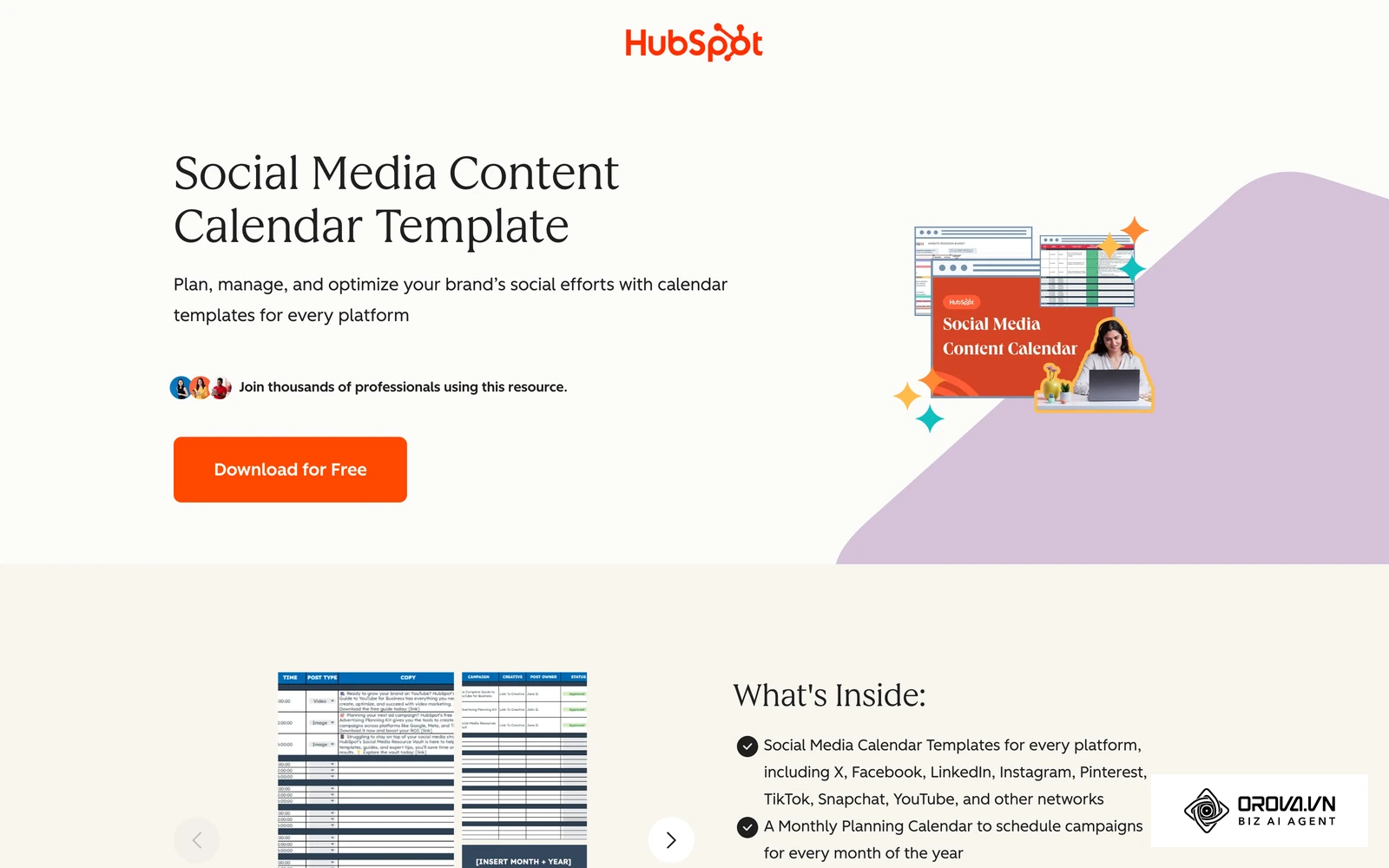
The HubSpot Social Media Content Calendar Template for Google Sheets is designed for marketing generalists and social media teams managing three or more active brand profiles. It organizes publishing schedules across dedicated tabs for major networks, including Facebook, LinkedIn, Instagram, and X, alongside a centralized monthly planning master sheet.
| Structure | Main tabs and fields | Best for |
|---|---|---|
| Separate tab per network (Facebook, LinkedIn, Instagram, X) plus a monthly master tab | Social copy, target URL, creative asset link, character count | Teams running 3 or more brand profiles |
Best For
In-house marketing teams and digital agencies that require a standardized multi-tab layout where social copy, target URLs, and creative asset links are organized by platform.
Key Strengths
- Platform-specific planning tabs: Each social channel has its own dedicated sheet pre-formatted with character count formulas, helping copywriters stay within network limits before submitting drafts.
- Monthly theme consolidation: A centralized calendar tab aggregates daily publishing cadences across all channels, giving marketing leads high-level visibility over campaign coverage.
- Structured reference repository: The template includes designated sections to document evergreen brand hashtags, standard campaign tracking conventions, and core target audience personas.
Real Weaknesses
- Data fragmentation across tabs: Because each social platform lives in a separate tab, generating an aggregated cross-channel schedule requires manual formula linking or complex query functions.
- High manual maintenance: As publishing volume scales beyond 20 posts per week, copy-pasting entries across multiple monthly worksheets creates administrative drag.
When to Choose
Choose the HubSpot template when your team manages distinct social media channels and needs built-in character limit safeguards without building a spreadsheet from scratch.
Pick 2: CoSchedule Marketing Content Calendar Template for Google Sheets
The CoSchedule Marketing Content Calendar Template for Google Sheets prioritizes campaign-level alignment over tactical daily social media drafting. It connects high-level quarterly marketing initiatives directly to individual blog posts, email newsletters, and promotional social blasts.
| Structure | Main tabs and fields | Best for |
|---|---|---|
| Campaign-level calendar linking quarterly initiatives to blog, email and social deliverables | Campaign theme, production stage, owner role (Writer, Designer, Reviewer, Publisher) | Integrated marketing departments |
Best For
Integrated marketing departments where content creators, product marketing leads, and demand generation specialists share a unified production calendar.
Key Strengths
- Integrated marketing project tracking: Organizes deliverables by overarching marketing campaign rather than isolated distribution channels, ensuring multi-channel messaging stays aligned.
- Color-coded milestone stages: Uses pre-set conditional formatting to highlight production bottlenecks across concept, outline, design, and staging phases.
- Cross-functional responsibility mapping: Assigns explicit roles (Writer, Designer, Reviewer, Publisher) to every row, eliminating confusion regarding ownership.
Real Weaknesses
- Complex hierarchy for small teams: Solo creators and small teams may find the multi-tier campaign structure unnecessarily complex for basic publishing cadences.
- Limited short-form video fields: The layout lacks dedicated tracking columns for vertical video hooks, audio links, and thumbnail safe zones.
When to Choose
Choose the CoSchedule template when your primary goal is coordinating multi-asset marketing campaigns across different functional roles rather than managing day-to-day social media posts.
Pick 3: Buffer Editorial Content Calendar Template for Google Sheets
The Buffer Editorial Content Calendar Template for Google Sheets focuses on lean execution and visual clarity. It strips away complex nested formulas in favor of a single master grid that tracks weekly publishing cadences across core channels.
| Structure | Main tabs and fields | Best for |
|---|---|---|
| One master grid tracking the weekly cadence across core channels | Date, channel, content, status dropdown (Idea, Writing, Approved, Posted) | Solo creators and lean teams publishing 3 to 10 assets weekly |
Best For
Solo entrepreneurs, early-stage startup marketing leads, and boutique creators who publish 3 to 10 assets weekly and need minimal administrative friction.
Key Strengths
- Minimalist single-sheet architecture: Avoids complex inter-tab formulas, allowing team members to master the interface within minutes.
- Fast status identification: Features clean, high-contrast dropdown status indicators (Idea, Writing, Approved, Posted) that make team stand-ups efficient.
- Low file latency: Because the spreadsheet avoids heavy query formulas and array functions, it loads instantly on mobile devices during field production.
Real Weaknesses
- Lacks advanced analytical tracking: The template offers no built-in formulas for calculating content pillar distribution, campaign ROI, or performance attribution.
- Inadequate for complex approval tiers: Teams requiring legal compliance review, multi-client sign-offs, or external stakeholder comments will outgrow this linear grid quickly.
When to Choose
Choose the Buffer template when you operate with a small team and need a lightweight, clutter-free publishing tracker that takes less than ten minutes to maintain each week.
Pick 4: Backlinko Content Calendar Template for Google Sheets
The Backlinko Content Calendar Template for Google Sheets is specifically engineered for organic search practitioners, editorial bloggers, and technical content teams. Unlike social-heavy alternatives, this template structures every content piece around search intent, primary keywords, target search volumes, and internal linking architectures.
| Structure | Main tabs and fields | Best for |
|---|---|---|
| Editorial calendar built around search intent | Target keyword, secondary queries, search intent, keyword difficulty, word count, refresh date | SEO and long-form content teams |
Best For
SEO managers, affiliate publishers, and content marketing teams focused on growing organic search traffic through long-form articles and authoritative resource guides.
Key Strengths
- SEO-first data schema: Includes mandatory tracking columns for target keywords, secondary search queries, search intent categories, and estimated keyword difficulty.
- Editorial quality control: Features structured criteria for tracking word count targets, internal links to add, and target bottom of funnel content conversion goals.
- Content refresh monitoring: Contains dedicated date fields to track when published articles require historical optimization, updating, or technical re-auditing.
Real Weaknesses
- Poorly suited for social media publishing: The row structure is optimized for long production cycles (days to weeks) and fails to accommodate high-velocity, multi-post daily social schedules.
- No media asset previewing: Provides minimal space for managing creative video briefs, multiple carousel image slides, or platform-specific social captions.
When to Choose
Choose the Backlinko template when your content strategy centers primarily on organic Google rankings, content refreshes, and long-form editorial production.
Pick 5: Smartsheet Multi-Channel Content Calendar Template for Google Sheets
The Smartsheet Multi-Channel Content Calendar Template for Google Sheets provides enterprise-grade structure adapted to standard spreadsheets. It uses a rigorous relational row hierarchy that mimics project management databases, supporting detailed sub-tasks, asset version numbers, and multi-department sign-offs.
| Structure | Main tabs and fields | Best for |
|---|---|---|
| Project-style row hierarchy with parent deliverables and child tasks | Stage-gate status, asset link, revision number, sign-off | Agencies and departments with multi-stakeholder approvals |
Best For
Mid-sized marketing departments, enterprise content divisions, and creative agencies managing complex multi-stakeholder approval workflows across multiple brands.
Key Strengths
- Robust stage-gate approval workflows: Incorporates granular status dropdowns that differentiate between draft reviews, creative asset approvals, and client sign-offs.
- Hierarchical task nesting: Allows editors to nest child tasks (e.g., copywriting, thumbnail design, legal review) under a single parent content deliverable.
- Asset version control: Dedicated columns track Google Drive asset links alongside explicit revision numbers to ensure teams never publish outdated drafts.
Real Weaknesses
- Steep learning curve: Contributors unfamiliar with database-style spreadsheet logic can easily break row hierarchies or disrupt sorting filters.
- Slow initial onboarding: Customizing the template's dropdown categories and conditional formatting rules requires substantial initial setup time.
When to Choose
Choose the Smartsheet template when your organization requires strict governance, formal editorial sign-off gates, and multi-asset version tracking across distributed teams.
Illustrative example:
- Context: A 6-person B2B marketing department managing LinkedIn, YouTube, and an editorial blog with three distinct client stakeholders.
- Steps taken: The lead editor adopted the Smartsheet multi-channel template, configured data validation dropdowns for five sequential stages (Briefed, In Progress, Internal Review, Client Sign-off, Live), and locked the formula columns using Google Sheets protected ranges.
- Stumbling block & resolution: External client reviewers frequently sorted individual columns instead of the entire sheet range, scrambling author names across publication dates. The editor resolved this by creating filtered views (Data > Filter views) specifically for clients, preventing their sorting actions from modifying the master sheet layout.
- Visible result: Editorial status check-ins were reduced from 45 minutes to a 10-minute glance at color-coded status badges, and zero unauthorized draft versions reached final distribution channels across 48 monthly deliverables.
Pick 6: Hootsuite Social Media Content Calendar Template for Google Sheets
The Hootsuite Social Media Content Calendar Template for Google Sheets is built for social media teams operating at high publication frequencies. It divides editorial workflows into distinct daily time slots, enabling granular day-parting and multi-channel synchronization across major consumer networks.
| Structure | Main tabs and fields | Best for |
|---|---|---|
| Day-part layout split into morning, afternoon and evening slots | Post format (image, carousel, Reels, link), channel, paid boost flag, planned spend | High-volume social teams posting several times a day |
Best For
Consumer brands, e-commerce retailers, and social media managers publishing 3 to 10 posts per day across Facebook, Instagram, TikTok, LinkedIn, and YouTube.
Key Strengths
- Granular day-part scheduling: The sheet layout is divided into morning, afternoon, and evening time slots, simplifying time-zone-targeted campaign management.
- Multi-format asset tracking: Provides structured columns to differentiate single-image feed posts, multi-slide carousels, vertical video Reels, and link shares.
- Promotion budget integration: Features dedicated columns to record whether an organic post is earmarked for paid boosting, including planned ad spend figures.
Real Weaknesses
- High visual density: The detailed time-block layout makes the spreadsheet visually dense and overwhelming when viewed on smaller laptop screens.
- Inefficient for long-form editorial content: The template does not accommodate long-form blog drafting, white paper production, or complex search engine optimization tracking.
When to Choose
Choose the Hootsuite template when your core operational objective is coordinating a high-volume, multi-post-per-day social media schedule with strict posting hour requirements.
Pick 7: Vertex42 Content Calendar Template for Google Sheets
The Vertex42 Content Calendar Template for Google Sheets is built with a focus on mathematical spreadsheet integrity and clean formula design. Built by professional spreadsheet architects, it utilizes perpetual calendar formulas that dynamically adjust dates, weekdays, and holiday markers based on the user's selected planning year.
| Structure | Main tabs and fields | Best for |
|---|---|---|
| Perpetual calendar driven by a single year cell, with print-ready views | Dates, weekdays, holiday markers; social fields added by you | Spreadsheet-savvy operations managers who want to customize |
Best For
Marketing operations managers, data analysts, and spreadsheet purists who want an uncluttered, formula-stable foundation that they can extend with custom scripts and formulas.
Key Strengths
- Dynamic perpetual calendar logic: Changing a single year cell automatically updates all calendar grids, day-of-week alignments, and conditional formatting rules.
- Flawless formula hygiene: Uses lightweight native Google Sheets functions without unnecessary volatility, ensuring the file operates smoothly without lag.
- Printable planning views: Specially formatted print areas allow marketing leads to export clean PDF summaries for executive briefings or offline planning workshops.
Real Weaknesses
- Zero pre-built social workflows: The template lacks out-of-the-box fields for social media copy drafting, hashtag lists, or creative asset links.
- Requires manual customization: Users must manually build their own dropdown menus, campaign tagging columns, and tracking formula tabs.
When to Choose
Choose the Vertex42 template when you want a clean, perpetual date-engine framework that you plan to customize with your company's proprietary editorial formulas.
When managing multiple channels in spreadsheets becomes cumbersome, keep the sheet for planning and schedule from Orova Social. You can compose a post once and publish it to 8 social channels, write captions in your brand voice with AI, and see everything on a day, week or month calendar.
How to choose a content calendar template google sheets by your scenario
Selecting the right spreadsheet structure depends on your publishing frequency, team size, content mix, and workflow complexity. Implementing an over-engineered template wastes administrative hours on non-essential fields, while choosing an overly simplistic layout causes publishing bottlenecks when your team expands.
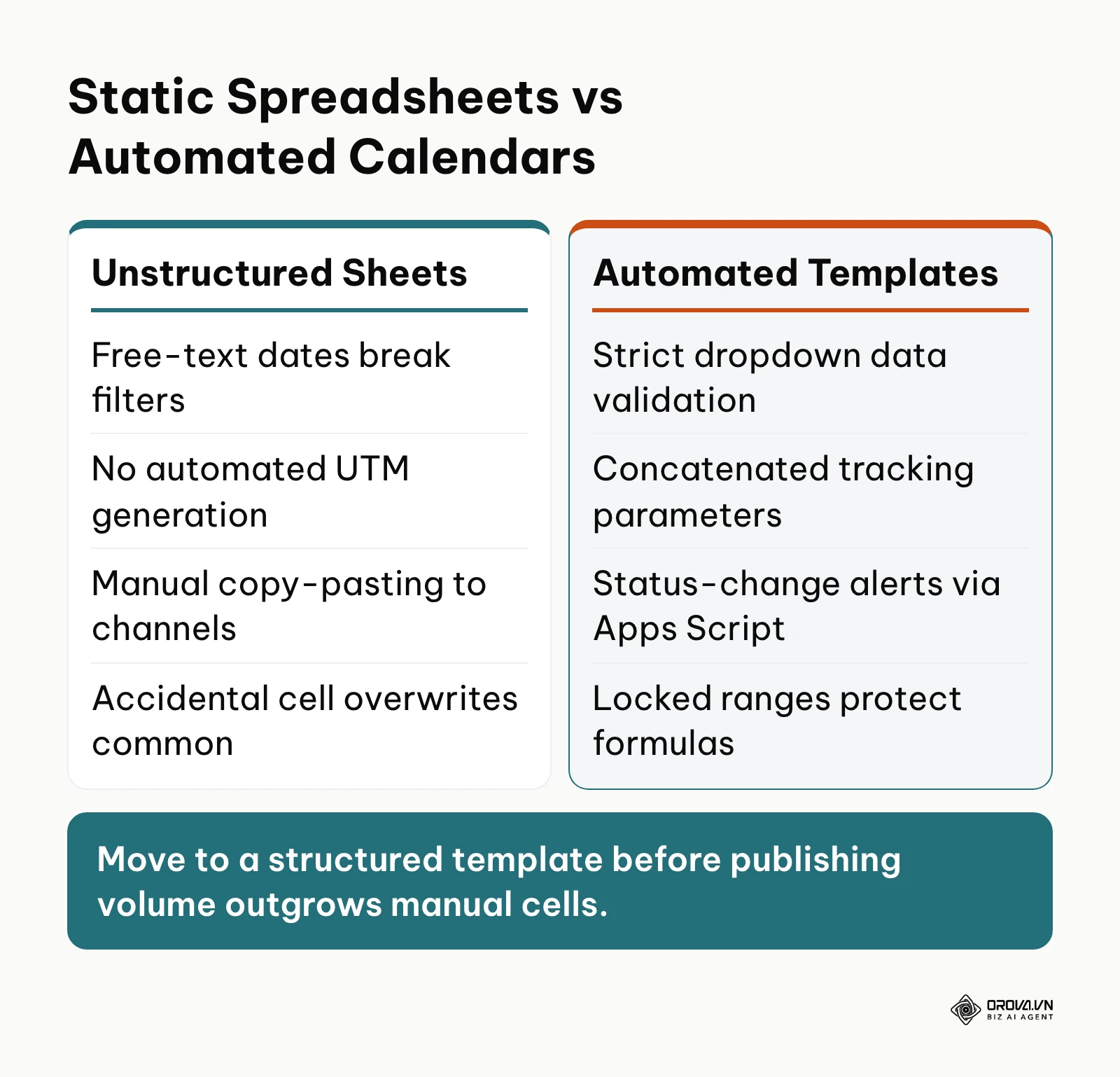
To evaluate which system aligns with your current operational state, compare your situation against the decision criteria detailed below.
| Operating Scenario | Recommended Template | Core Decision Rationale |
|---|---|---|
| Solo founder or freelance creator publishing 3-5 posts weekly | Buffer Editorial Calendar | Eliminates administrative drag; requires under ten minutes per week to maintain while preventing missed dates. |
| In-house marketing team managing 3-5 social profiles | HubSpot Social Media Calendar | Provides pre-configured platform tabs with native character counters to enforce copy compliance. |
| SEO and content team focused on ranking long-form blog articles | Backlinko Content Calendar | Connects editorial topics directly to target keywords, search volume, search intent, and refresh cycles. |
| Integrated marketing department executing multi-channel launches | CoSchedule Marketing Calendar | Unifies blog posts, emails, and social promotions under shared campaign themes with designated cross-functional roles. |
| High-volume social brand publishing multiple times per day | Hootsuite Social Media Calendar | Structures scheduling by specific hour blocks to manage time-sensitive promotions and multi-region timing. |
| Multi-stakeholder creative agency with strict review tiers | Smartsheet Multi-Channel Calendar | Features multi-tiered status validation to ensure no draft moves to production without client sign-off. |
Advanced content calendar template google sheets architecture: pillars and UTM tracking
Most publicly available spreadsheet templates suffer from a critical architectural limitation: they function purely as passive text repositories. They capture post copy and dates, but provide zero feedback on strategic messaging balance or marketing attribution.
To transform a basic spreadsheet into a strategic content strategy framework, your Google Sheet must incorporate two automated calculation modules: a real-time content pillar balance calculator and an automated UTM tracking URL builder.
Real-time content pillar balance calculator with target variance
A common editorial failure is content skew. A team intends to publish a balanced mix of educational, thought-leadership, product-focused, and community content, but gradually defaults to publishing whatever is easiest to produce (often excessive promotional pitches or random culture posts).
Audiences tend to reward a predictable publishing cadence, and when brands over-index on aggressive sales messaging, unfollow rates increase.
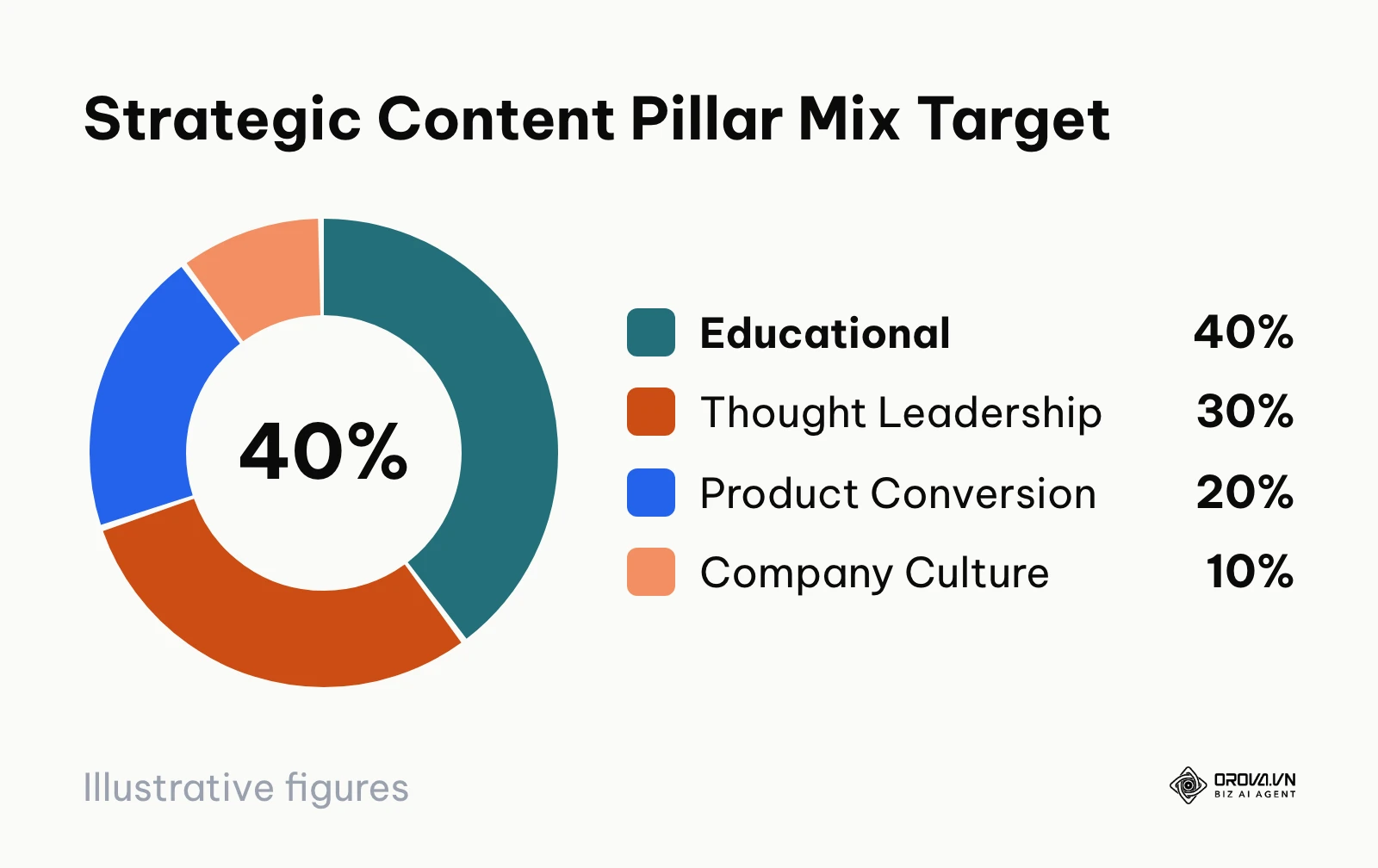
A high-performing spreadsheet enforces strategic balance using a dedicated Pillar Metrics dashboard that compares target allocations against actual scheduled posts using real-time formulas. The target allocation follows proven content mix principles (such as the 4-1-1 rule or the 80/20 educational-to-promotional balance):
- Educational / How-To (40% target): Solves specific customer pain points without aggressive sales pitches.
- Thought Leadership / Industry Insights (30% target): Original analysis, proprietary benchmarks, and contrarian perspectives.
- Product / Conversion (20% target): Direct product walkthroughs, feature announcements, and customer case studies.
- Company Culture & Community (10% target): Behind-the-scenes stories, hiring updates, and community spotlights.
The following data table illustrates how an automated calculation tab tracks actual scheduled content counts and flags percentage variances:
| Content Pillar | Target Allocation (%) | Actual Scheduled Posts | Actual Distribution (%) | Allocation Variance (%) |
|---|---|---|---|---|
| Educational / How-To | 40.0% | 16 | 40.0% | 0.0% |
| Thought Leadership | 30.0% | 11 | 27.5% | -2.5% |
| Product / Conversion | 20.0% | 9 | 22.5% | +2.5% |
| Company Culture | 10.0% | 4 | 10.0% | 0.0% |
| Total Pipeline | 100.0% | 40 | 100.0% | 0.0% |
To automate this table in your spreadsheet, assume your master editorial queue lives in a tab named 'Editorial Queue', where Column D contains the validated content pillar dropdown (Educational, Thought Leadership, Product, Culture).
In your Pillar Metrics tab, use the following formula structure to calculate the actual distribution dynamically:
=COUNTIF('Editorial Queue'!D2:D41, "Educational") / COUNTA('Editorial Queue'!D2:D41) * 100
By linking this calculation table to an embedded Donut chart on your spreadsheet dashboard, your editorial lead can visually verify whether the monthly publishing queue aligns with business priorities before any copy is moved to production.
Illustrative example:
- Context: A B2B software marketing team with an editor-in-chief and two writers planning a 40-post monthly editorial schedule.
- Steps taken: The editor built a dedicated Pillar Analytics tab with target allocation percentages (40% Educational, 30% Thought Leadership, 20% Product, 10% Culture), connected Column D of the master schedule via COUNTIF formulas, and set up a conditional formatting rule to flag any variance exceeding ±3% in red.
- Stumbling block & resolution: Midway through the monthly planning sprint, the product marketing team submitted five unplanned feature announcements, pushing the Product allocation to 32.5% (+12.5% variance) while Thought Leadership dropped to 17.5%. The editor used the automated variance metric during the weekly editorial meeting to demonstrate the imbalance, successfully postponing three feature posts to the following month and replacing them with high-intent educational tutorials.
- Visible result: The final publishing queue rebalanced to within 1.5% of target allocations, maintaining audience engagement metrics while successfully launching two primary product updates.
Automated UTM link builder using spreadsheet concatenation
Tracking digital marketing performance across multiple channels requires standardized Urchin Tracking Module (UTM) parameters. However, in most marketing teams, individual contributors construct tracking links manually using external web tools, leading to common errors: mixed capitalization (LinkedIn vs linkedin), inconsistent medium naming (social vs social-organic), and omitted campaign tags that corrupt Google Analytics 4 attribution data.
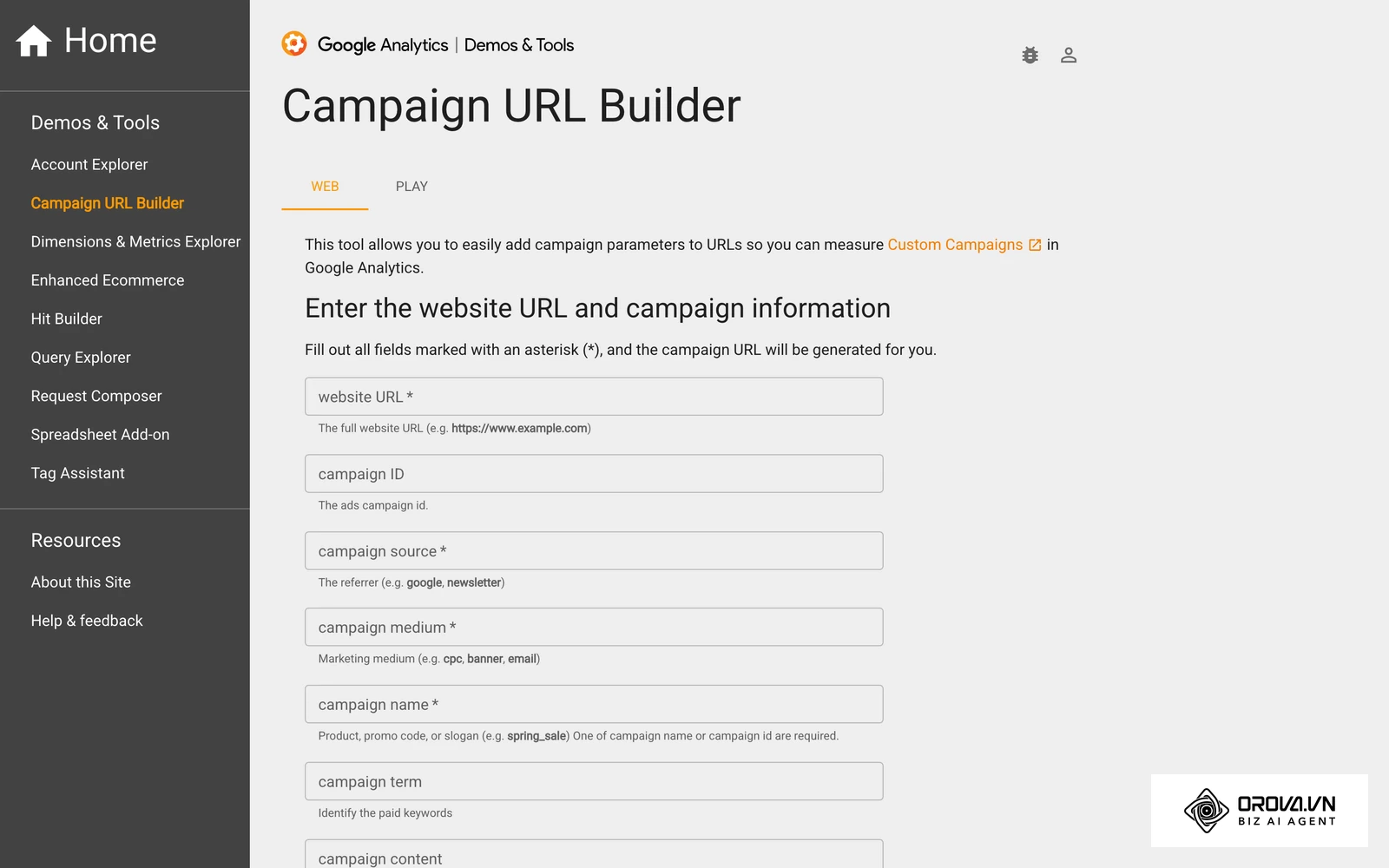
An advanced Google Sheets content calendar eliminates this problem by generating standardized tracking URLs automatically using a native CONCATENATE formula with LOWER and TRIM sanitization.
To configure this in your spreadsheet, structure five dedicated input columns:
- Column A: Destination URL (e.g., https://example.com/blog/growth-guide)
- Column B: Campaign Source (e.g., linkedin, facebook, youtube)
- Column C: Campaign Medium (e.g., social_organic, social_paid, newsletter)
- Column D: Campaign Name (e.g., q2_leadgen, brand_awareness)
- Column E: Campaign Content (e.g., carousel_infographic, video_reels_hook1)
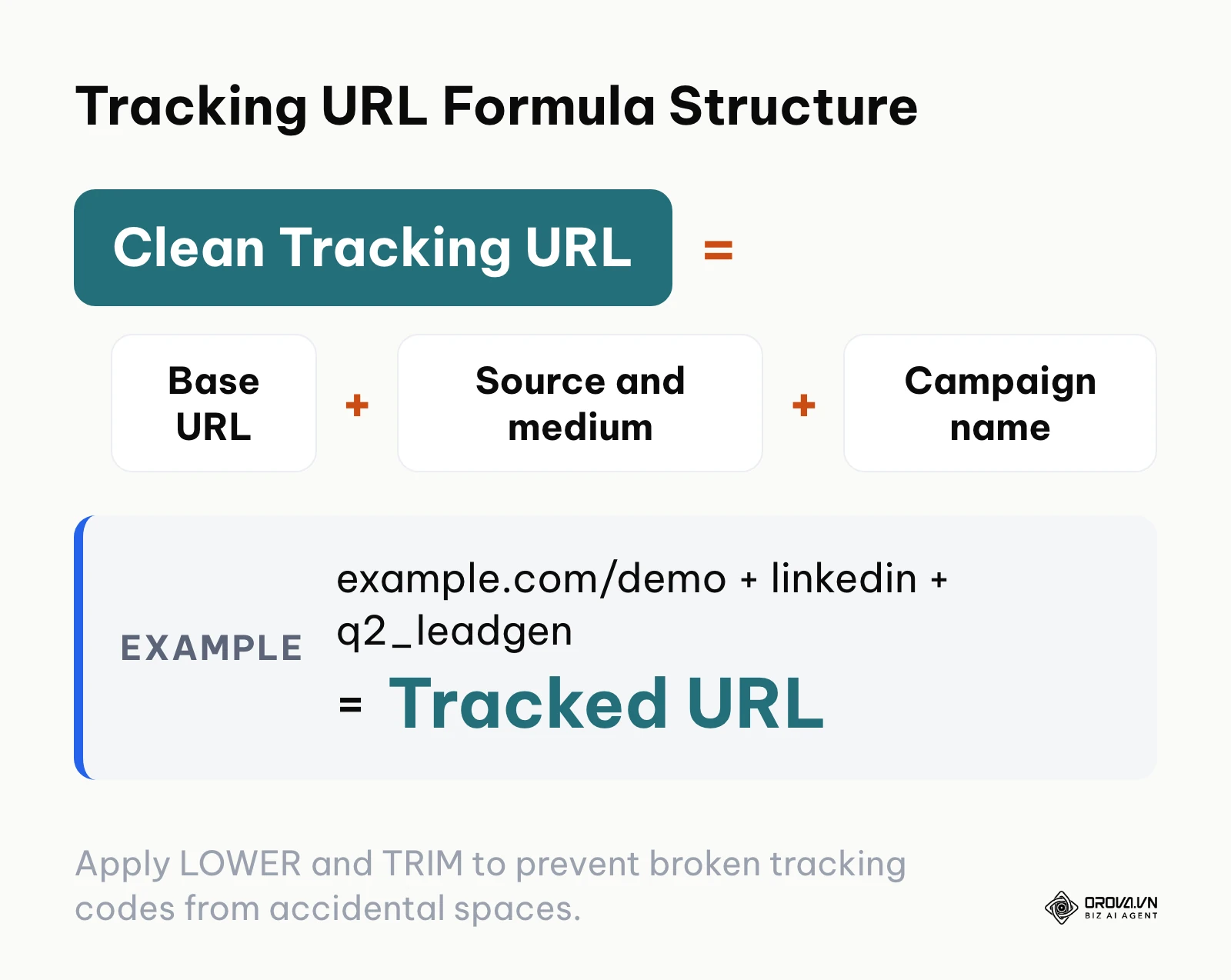
In Column F (Final Tracking URL), paste the following formula:
=CONCATENATE(A2, "?utm_source=", LOWER(TRIM(B2)), "&utm_medium=", LOWER(TRIM(C2)), "&utm_campaign=", LOWER(TRIM(D2)), IF(E2<>"", CONCATENATE("&utm_content=", LOWER(TRIM(E2))), ""))
The table below illustrates how the automated formula generates clean, standardized destination links across common campaign scenarios:
| Base Destination URL | utm_source | utm_medium | utm_campaign | utm_content | Generated Tracking URL |
|---|---|---|---|---|---|
| https://example.com/demo | social_organic | q2_leadgen | infographic_stat | https://example.com/demo?utm_source=linkedin&utm_medium=social_organic&utm_campaign=q2_leadgen&utm_content=infographic_stat | |
| https://example.com/report | social_paid | annual_survey | video_teaser_v1 | https://example.com/report?utm_source=facebook&utm_medium=social_paid&utm_campaign=annual_survey&utm_content=video_teaser_v1 | |
| https://example.com/signup | threads | social_organic | founder_story | text_thread_link | https://example.com/signup?utm_source=threads&utm_medium=social_organic&utm_campaign=founder_story&utm_content=text_thread_link |
| https://example.com/webinar | telegram | community | summer_series | pinned_bulletin | https://example.com/webinar?utm_source=telegram&utm_medium=community&utm_campaign=summer_series&utm_content=pinned_bulletin |
Short-form video fields and 10-step content quality assurance checklist
The rapid growth of vertical video across TikTok, Instagram Reels, and YouTube Shorts requires modern editorial spreadsheets to capture video-specific assets. Managing short-form video in a traditional spreadsheet that only offers "Title" and "Body Copy" columns leads to failed productions.
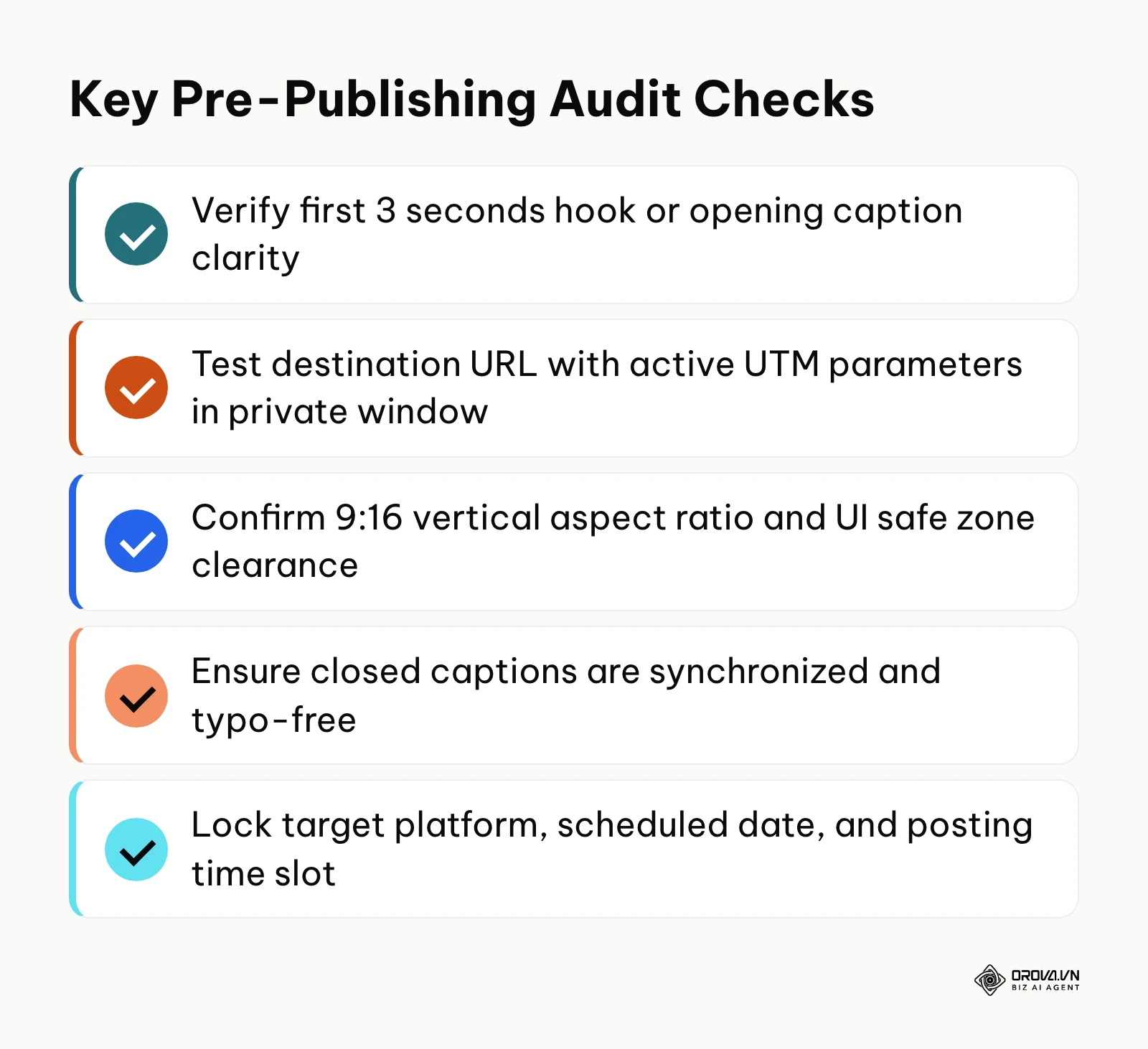
To execute a modern short-form video plan (see what short-form video content is), expand your Google Sheets columns to include:
- Hook Script (0-3s): The exact spoken line and on-screen text hook designed to retain scrollers.
- Trending Audio URL: Direct link to the approved platform audio clip or commercial library track.
- Aspect Ratio & Safe Zone Clearance: Checkbox confirming that captions and graphical overlays remain within the 9:16 safe zone, away from platform UI icons.
- B-Roll & Visual Asset Links: Cloud storage path for raw video clips, background graphics, and subtitle files (.srt).
Before any row in your spreadsheet transitions from Drafting to Scheduled, it must pass a rigorous verification audit. The following 10-step Content Quality Assurance (QA) Checklist establishes clear criteria to maintain consistent quality:
| Step # | QA Checkpoint | Verification Standard | Assigned Role |
|---|---|---|---|
| 1 | Hook & Headline Efficacy | Opening hook delivers core value within the first 3 seconds or 80 characters | Copywriter |
| 2 | Strategic Pillar Alignment | Row confirms pre-assigned pillar classification without promotional drift | Managing Editor |
| 3 | Media Asset Specifications | Video conforms to 1080x1920 (9:16) resolution; images conform to 1080x1080 or 1080x1350 | Video Editor / Designer |
| 4 | Safe Zone Compliance | Subtitles, graphics, and logos sit clear of native platform buttons and captions | Video Editor |
| 5 | Tracking Link Validation | Concatenated UTM link tested in a private browser window to confirm active destination | Social Media Manager |
| 6 | Copy & Typographic Audit | Captions, on-screen text, and hashtags pass spell-check without grammatical errors | Copy Editor |
| 7 | Brand Voice Consistency | Copy adheres to established tone guidelines without generic or exaggerated clichés | Managing Editor |
| 8 | Copyright & Audio Clearance | Background audio and video assets possess verified commercial usage rights | Operations Lead |
| 9 | Accessibility & Subtitles | Accurate closed captions or hardcoded subtitles are synchronized with dialogue | Video Editor |
| 10 | Scheduling Lock | Target channel, scheduled date, and posting time slot confirmed and locked | Social Media Manager |
Stop pasting the same post into every network one by one. With Orova Social, your team can schedule the approved posts from your sheet across Facebook, Instagram, TikTok, LinkedIn and more from one place. All features are free until July 7, 2027. Sign up directly, no credit card required.
Operational workflows for your content calendar template google sheets
Cross-functional collaboration and governance friction are common bottlenecks when a marketing team tries to scale content output. If your calendar also covers long-form articles, the editorial calendar template guide shows how to plan blog production alongside social posts.
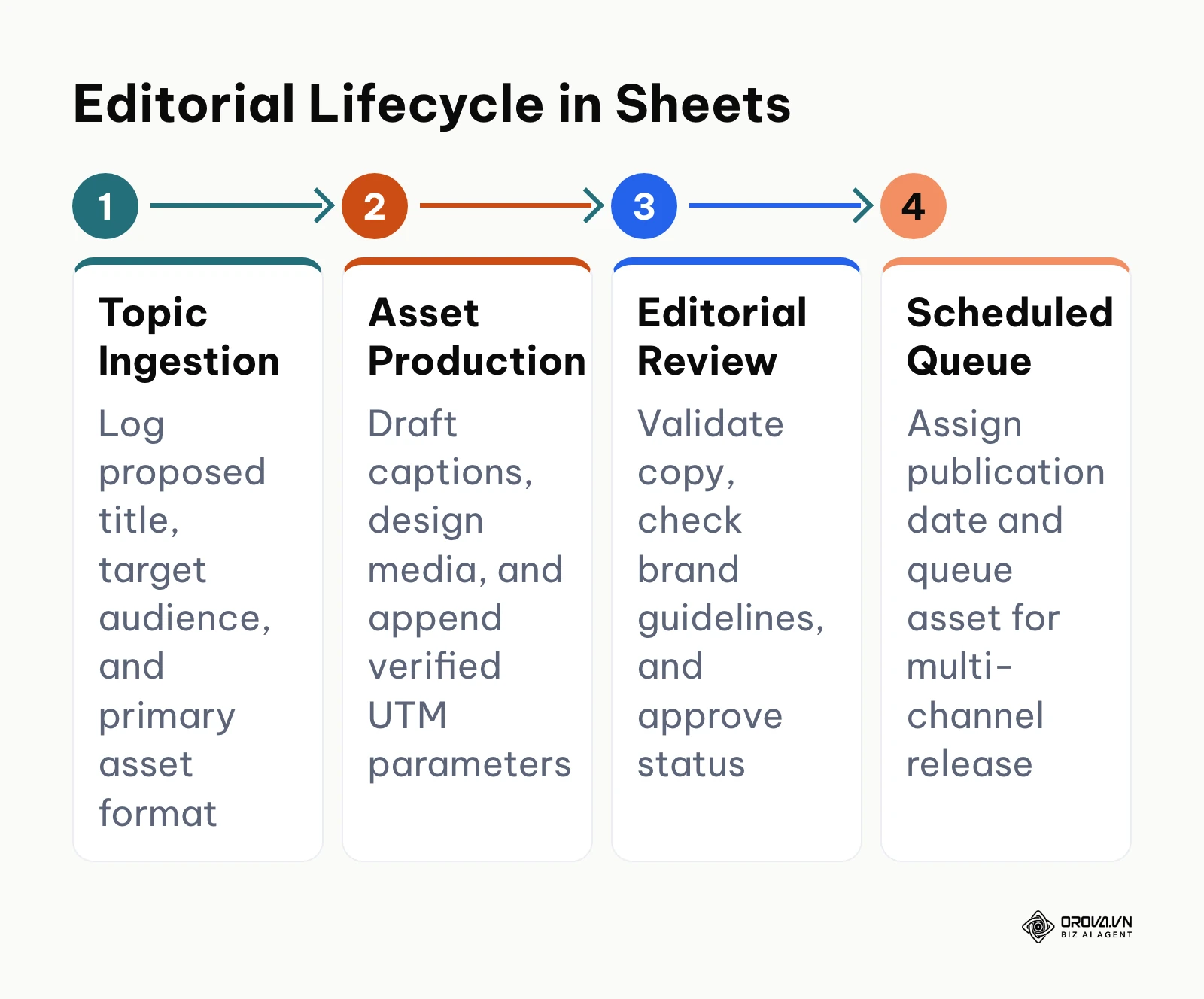
A spreadsheet template is only as reliable as the operating workflows that govern it. Without strict access controls, automated notification triggers, and emergency pause protocols, a shared spreadsheet quickly degenerates into broken formulas, accidental deletions, and missed publishing deadlines.
Setting protected ranges and collaborator access permissions
When multiple internal writers, freelance contributors, and external agency partners collaborate in a single Google Sheet, accidental edits are inevitable. An inexperienced contributor can easily sort a single column instead of the entire sheet, mismatching 50 rows of copy with the wrong publishing dates, or accidentally overwrite complex UTM formulas.
To prevent spreadsheet corruption, configure Google Sheets Protected Sheets and Ranges (Data > Protect sheets and ranges):
- Lock Master Layout and Formula Sheets: Set the Pillar Metrics, UTM Builder, and Archive tabs to "Only You and Specific Editors" (restricting permissions to the Managing Editor and Operations Lead).
- Protect Formula Columns in the Active Queue: Within the active planning tab, highlight the calculated columns (e.g., Column F for UTM generation, Column H for character counting) and apply range protections that prevent non-admin contributors from editing them.
- Open Specific Input Ranges for Contributors: Designate Columns A through E as open editing ranges where copywriters and designers can input draft copy, hooks, and asset links.
- Enforce Strict Data Validation: Apply dropdown data validation (Data > Data validation) across Status and Channel columns, checking the "Reject input" box so collaborators cannot enter non-standard values that disrupt filtering formulas.
Use this access map when you share the file:
| Collaborator role | Access level | Ranges they can edit |
|---|---|---|
| Freelance copywriter | Editor on input ranges only | Draft copy and media URL columns (A to E) |
| External client or stakeholder | Commenter | None; comments on review cells only |
| Managing editor | Full editor | Schedule dates, status, formula tabs and protections |
Handing approved rows from Google Sheets to Orova Social
The most glaring inefficiency in traditional spreadsheet management is the execution gap. Marketing teams meticulously plan editorial calendars in Google Sheets, but when a post is marked Approved, a team member must still copy the text, download the media assets, log into individual social media accounts, and schedule each post separately on Facebook, Instagram, and TikTok.
Doing that once per channel multiplies transcription errors and wasted effort. The fix is to keep Google Sheets as the planning and approval layer, then hand each approved row to a single scheduling tool once instead of once per network.
The handoff works in four clear stages:
| Stage | Who | What happens |
|---|---|---|
| 1. Editorial finalization | Copywriter | Completes the copy, attaches creative asset links, and verifies the automated UTM link in Google Sheets. |
| 2. Status sign-off | Managing editor | Reviews the row against the 10-step QA checklist and changes the status dropdown from In Review to Approved. |
| 3. Approval alert | Google Apps Script | The script in the next section detects the status change and messages the publisher on Telegram, so nobody has to keep checking the sheet. |
| 4. One-time scheduling | Publisher | Pastes the approved copy and UTM link into Orova Social once, selects the target channels among the 8 supported (Facebook, Instagram, TikTok, YouTube, Threads, LinkedIn, Zalo OA, and Telegram), and sets the publish time. |
In Orova Social, scheduled posts appear on a day, week, or month calendar view, a post whose slot was missed is published automatically afterwards, and the schedule can be exported to an Excel file for reporting.
It is equally important to acknowledge the boundaries: Orova Social does not import rows from a spreadsheet in bulk, so the copy step in stage 4 stays manual, and it does not reply to comments or inbox messages. Also note that Zalo OA and LinkedIn do not accept video posts in Orova Social. Understanding these boundaries helps your team split the work sensibly between spreadsheet planning and software execution.
Free Google Apps Script for automated Telegram notifications
To alert editorial team members the moment a post requires review or gets approved without checking the spreadsheet manually, deploy this lightweight Google Apps Script.
Open your spreadsheet, navigate to Extensions > Apps Script, paste the code below, and replace the placeholder credentials with your Telegram Bot Token and Chat ID:
/**
 * Automated Google Sheets Editorial Notification Script
 * Dispatches instant Telegram alerts upon row status updates.
 */
function onEdit(e) {
  var range = e.range;
  var sheet = range.getSheet();

  // Apply trigger only to the active planning sheet and Status column (Column E)
  if (sheet.getName() !== "Editorial Queue" || range.getColumn() !== 5) {
    return;
  }

  var statusValue = range.getValue();
  var row = range.getRow();

  // Ignore header row modifications
  if (row <= 1) {
    return;
  }

  // Extract key deliverable details from the edited row
  var publishDate = sheet.getRange(row, 1).getDisplayValue();
  var channel = sheet.getRange(row, 2).getValue();
  var title = sheet.getRange(row, 3).getValue();
  var author = sheet.getRange(row, 4).getValue();

  // Trigger notifications for actionable status changes
  if (statusValue === "Needs Review" || statusValue === "Approved") {
    sendTelegramAlert(statusValue, publishDate, channel, title, author);
  }
}

function sendTelegramAlert(status, date, channel, title, author) {
  var botToken = "YOUR_TELEGRAM_BOT_TOKEN";
  var chatId = "YOUR_TELEGRAM_CHAT_ID";

  var message = "Editorial Update: " + status + "\n" +
                "Date: " + date + "\n" +
                "Channel: " + channel + "\n" +
                "Title: " + title + "\n" +
                "Author: " + author;

  var payload = {
    "chat_id": chatId,
    "text": message,
    "parse_mode": "HTML"
  };

  var options = {
    "method": "post",
    "contentType": "application/json",
    "payload": JSON.stringify(payload),
    "muteHttpExceptions": true
  };

  var url = "https://api.telegram.org/bot" + botToken + "/sendMessage";
  UrlFetchApp.fetch(url, options);
}
Crisis management protocol: pausing scheduled spreadsheet content during breaking events
During major breaking news, natural disasters, or unexpected corporate PR crises, continuing to publish pre-scheduled promotional posts or lighthearted memes can cause severe brand damage. Without a pre-established crisis protocol, marketing teams scramble to identify what is queued across multiple platforms, often missing scheduled posts until they go live.
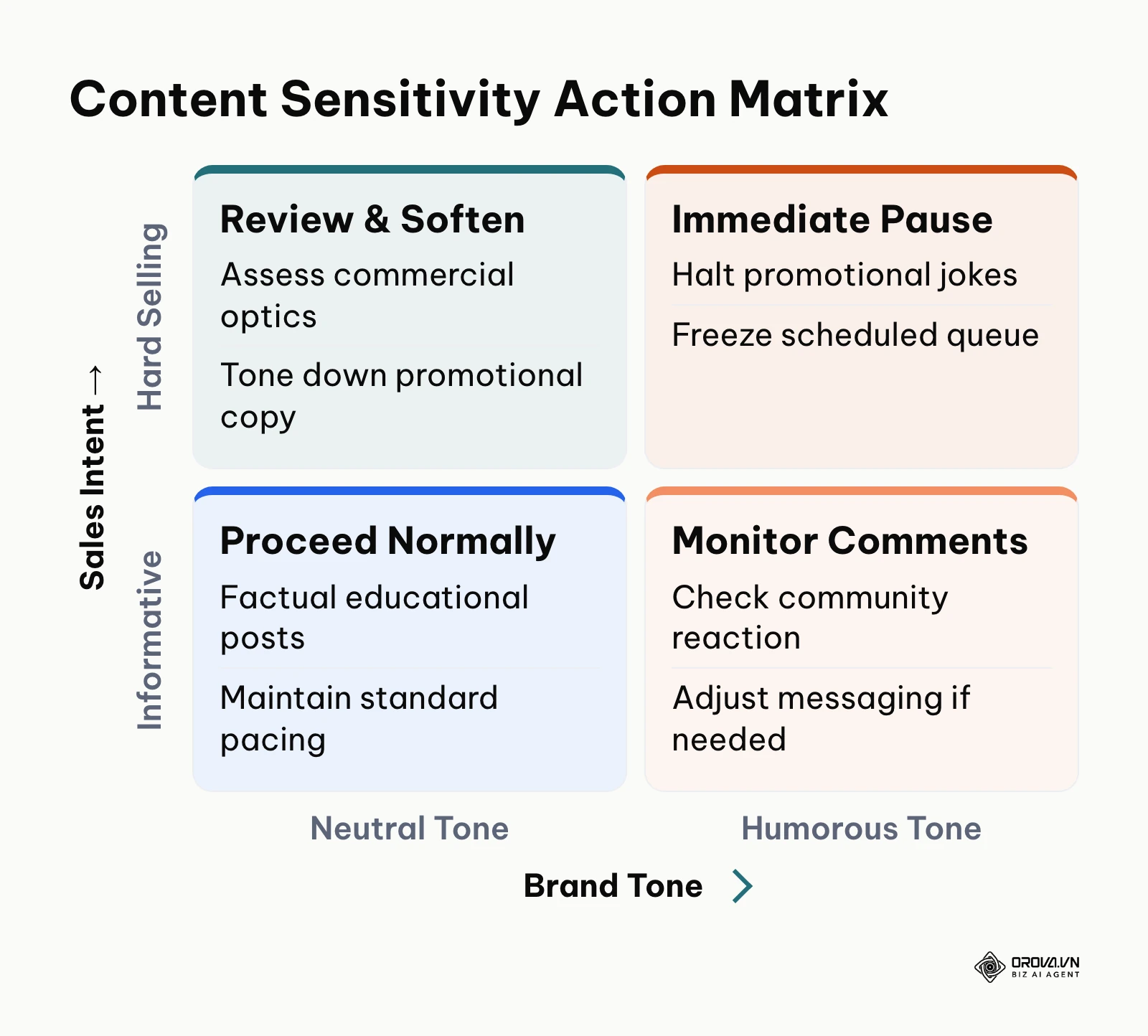
To maintain crisis preparedness within your Google Sheet:
- Implement an Emergency Global Kill Switch: In your dashboard configuration tab, establish a cell labeled Global Publishing State with a validated dropdown (Active, HOLD - CRISIS PAUSE).
- Configure Global Conditional Formatting: Apply a sheet-wide conditional formatting rule across your active schedule. When the Global State is switched to HOLD - CRISIS PAUSE, the entire sheet highlights in soft amber, alerting all contributors that active publishing is suspended.
- Categorize Scheduled Rows by Sensitivity: Review all upcoming posts over the next 72 hours against the Content Sensitivity Action Matrix below:
- High Commercial Intent / Humorous Tone: Immediately pause and unschedule.
- Promotional Offers / Contests: Pause until the external environment stabilizes.
- Educational & Factual Technical Guides: Review context; maintain standard release only if completely neutral.
- Batch Reschedule Using Offset Formulas: Never delete rows during a crisis, as this breaks tracking records. Instead, use an offset formula (e.g., =Original_Date + 7) in a dedicated Revised Date column to cleanly shift the entire queued inventory forward by one week once normal operations resume.
Future trends in content calendar template google sheets: author perspectives
Looking ahead at editorial planning as of 2026, I observe distinct shifts in how marketing teams manage content operations, along with clear signs of where spreadsheet workflows are headed over the next few years.
In my view, spreadsheets are evolving from passive record sheets into automated execution hubs. Today, teams increasingly treat Google Sheets as a relational database interface, connecting formulas directly to webhooks, external APIs, and business intelligence dashboards. I expect the habit of copy-pasting each post into every network by hand to become less common in mature marketing departments. Organizations that fail to build structured data architectures into their spreadsheets today will face severe operational drag as publishing volume and platform fragmentation expand.
I believe generative AI will integrate directly into spreadsheet cells to automate quality control rather than just drafting generic text. Today, most teams use external AI chat interfaces to write copy, then manually paste it into cells. I anticipate that native spreadsheet extensions powered by large language models will automatically audit draft cells against brand style guides, evaluate vertical video hook strength, and generate UTM campaign codes directly inside cell functions. Marketers should prepare for this shift by standardizing their editorial rubrics into explicit, machine-readable rules today.
I consider the total dominance of vertical video as the catalyst that will force a complete redesign of legacy content calendars. Standard editorial spreadsheets were originally architected for horizontal blog posts and 280-character text snippets. Today, vertical short-form video dominates audience consumption across major networks. Over the coming years, templates that fail to incorporate video-specific technical specifications (such as on-screen caption safe zones, audio licensing tags, and dynamic visual hooks) will become obsolete. Content leads must modernize their spreadsheet schemas now to accommodate multi-asset video production pipelines.
These projections assume continued API openness across major social networks and software platforms; if platform providers restrict API endpoints or impose walled gardens, automated spreadsheet workflows could face new integration barriers.
Frequently asked questions about content calendar template google sheets
How often should a marketing team update its Google Sheets content calendar?
Your team should maintain the spreadsheet dynamically as production occurs, rather than treating it as a once-a-week administrative chore. Copywriters should update task stages daily as drafts progress, while editorial leads should conduct a formal weekly pipeline review to balance upcoming content pillars and verify scheduled dates.
How can multiple team members collaborate in Google Sheets without breaking formulas?
To prevent accidental formula corruption, use Google Sheets Protected Sheets and Ranges to lock calculated columns, dashboard metrics, and UTM generation formulas. Pair this with strict data validation dropdowns on status and channel columns, and create individual Filter Views so team members can sort data without disrupting the master view for others.
What is the primary difference between a content calendar in Google Sheets and dedicated social media scheduling software?
A Google Sheets template is a collaborative planning and governance tool where teams brainstorm, draft copy, track approvals, and analyze content pillar ratios. Dedicated social media scheduling software serves as the distribution engine that connects directly to platform APIs to publish assets automatically at designated times.
What role does artificial intelligence play in Google Sheets content calendar templates as of 2026?
As of 2026, AI is primarily utilized within spreadsheet calendars to automate quality assurance, validate character counts, generate platform-specific caption variations from a single master theme, and suggest data-backed posting windows. Advanced teams connect Google Apps Script to AI APIs to automatically generate initial drafting outlines directly within designated template rows.
How should a team handle emergency schedule adjustments or PR crises in Google Sheets?
Establish an emergency protocol by configuring a Global Status kill switch in your spreadsheet that triggers conditional formatting across all rows. Rather than deleting scheduled rows during an unexpected news event, apply a date-offset formula to shift the entire publication queue forward by several days while keeping UTM parameters and asset links intact.
Where should you start with your content calendar template google sheets?
Adopting an effective content calendar does not require building an enterprise-grade spreadsheet system on day one. Your immediate action step depends entirely on your current operational maturity.
If you are a solo creator or founder starting completely from scratch, do not overwhelm yourself with complex multi-tab databases. Begin this afternoon by downloading the Buffer Editorial Calendar template or setting up a clean single-sheet grid with six essential columns: Publish Date, Channel, Topic / Title, Draft Copy, Asset Link, and Status. Populate your next five planned posts to establish a weekly habit before introducing advanced formulas.
If you are part of a growing marketing team struggling with messy, unformatted spreadsheets, your single afternoon priority is structural hygiene. Open your existing document and implement strict data validation dropdowns across your Status (Idea, Drafting, In Review, Approved, Scheduled) and Channel columns. Next, lock your formula columns using Google Sheets protected ranges to eliminate accidental cell overwrites.
If you are an established marketing department managing high publishing volumes across multiple channels, your biggest friction point is the manual handoff between planning and execution. Spend an afternoon establishing an automated formula bridge: integrate the standardized UTM builder formula detailed in this guide and implement the Google Apps Script notification trigger to alert editors on Telegram whenever a post is marked Approved. Taking that single initial step transforms your content calendar template google sheets setup from a static document into a reliable engine for cross-channel growth.
About the author

Builder of Orova
Nguyễn Đỗ Trọng Ân has 8 years of experience in marketing, including 6 years managing market development across Asia. He builds Orova, a Biz AI Agent that never sleeps: it plans, runs and optimizes work for businesses.
Run your business with AI Agents
Orova is the always-on Biz AI Agent — it plans, runs, and optimizes the work for you.
Save time, unlock productivity.