
How to audit a website for SEO without paid tools in 7 steps (2026)

Learning how to audit a website for SEO without paid tools gives you complete visibility into your site's technical foundation, indexation health, and content bottlenecks without paying for enterprise software subscriptions. By following this operational workflow, you will build a clean, prioritized audit dashboard in Google Sheets that identifies indexation drops, eliminates cannibalized search queries, and fixes hidden crawl traps.
To complete this audit, you need verified administrator access to Google Search Console, a free Google Sheets account, the free edition of Screaming Frog SEO Spider, and a standard Chromium browser. The entire diagnostic process takes approximately 3 to 4 hours. If your website was launched less than 48 hours ago or has zero search performance data, wait until Google has crawled your initial sitemap before running these diagnostic checks.
How to Audit a Website for SEO Without Paid Tools: Overview and Scope
Auditing your website without paid software uncovers critical crawl errors, unindexed pages, and keyword cannibalization by combining native search engine consoles with free local crawlers. The full framework consists of 7 sequential steps and requires 3 to 4 hours to produce an actionable engineering fix list.
An effective website audit splits into two primary domains: technical infrastructure and on-page architecture. Technical infrastructure covers crawl directives, response codes, rendering behavior, and page speed. On-page architecture examines title tags, heading hierarchies, internal link equity distribution, and search intent alignment.
Many digital marketing practitioners believe enterprise SaaS platforms are mandatory to diagnose search drop-offs. In reality, commercial SEO crawlers simply scrape what search engine bots see and approximate proprietary metrics. Google Search Console provides the actual source of truth directly from Googlebot. When you pair native console data with free desktop crawlers and spreadsheet calculations, you achieve the exact same diagnostic depth without ongoing software expenses.
Essential Prerequisites Before Starting Your Free SEO Audit
Before modifying code or inspecting URLs, assemble your free audit stack. Having these assets configured in advance prevents workflow interruptions when compiling diagnostic reports.
| Prerequisite Item | Where to Obtain | Estimated Setup Time | Consequence if Missing |
|---|---|---|---|
| Google Search Console (Domain Property) | search.google.com/search-console | 15 minutes (DNS verification) | Inability to inspect real indexation status or export search query logs. |
| Screaming Frog SEO Spider (Free Edition) | screamingfrog.co.uk | 5 minutes (Local download) | Inability to run bulk response code and metadata crawls across URLs. |
| Google Sheets | sheets.google.com | 1 minute | No centralized matrix to merge exports, run pivot tables, or score fixes. |
| Google Chrome & DevTools | Built into Chrome browser | Immediate | Inability to diagnose client-side JavaScript rendering issues. |
| PageSpeed Insights | pagespeed.web.dev | Immediate (Web-based) | Lack of real-user Core Web Vitals performance benchmarks. |
Ensure your Google Search Console property is verified at the Domain level rather than the URL-prefix level. A Domain property aggregates all protocols (http:// and https://) and all subdomains (www versus non-www), ensuring no sub-assets or accidental staging environments slip past your audit.
Step 1: Inspect Crawl Directives and XML Sitemaps
The objective of this step is to confirm that search engine spiders can access your primary pages while blocking administrative directories, staging environments, and duplicate resource paths.
Open your browser and navigate directly to yourdomain.com/robots.txt. Examine the syntax to ensure your primary content directories are not blocked by accidental Disallow: declarations. Look specifically for rules like Disallow: / (which blocks the entire site) or rules targeting critical resource directories such as /wp-content/, /assets/, or /static/ that search engine bots require to render CSS and JavaScript. Ensure your primary XML sitemap location is declared at the bottom of the file using the format Sitemap: https://yourdomain.com/sitemap_index.xml.
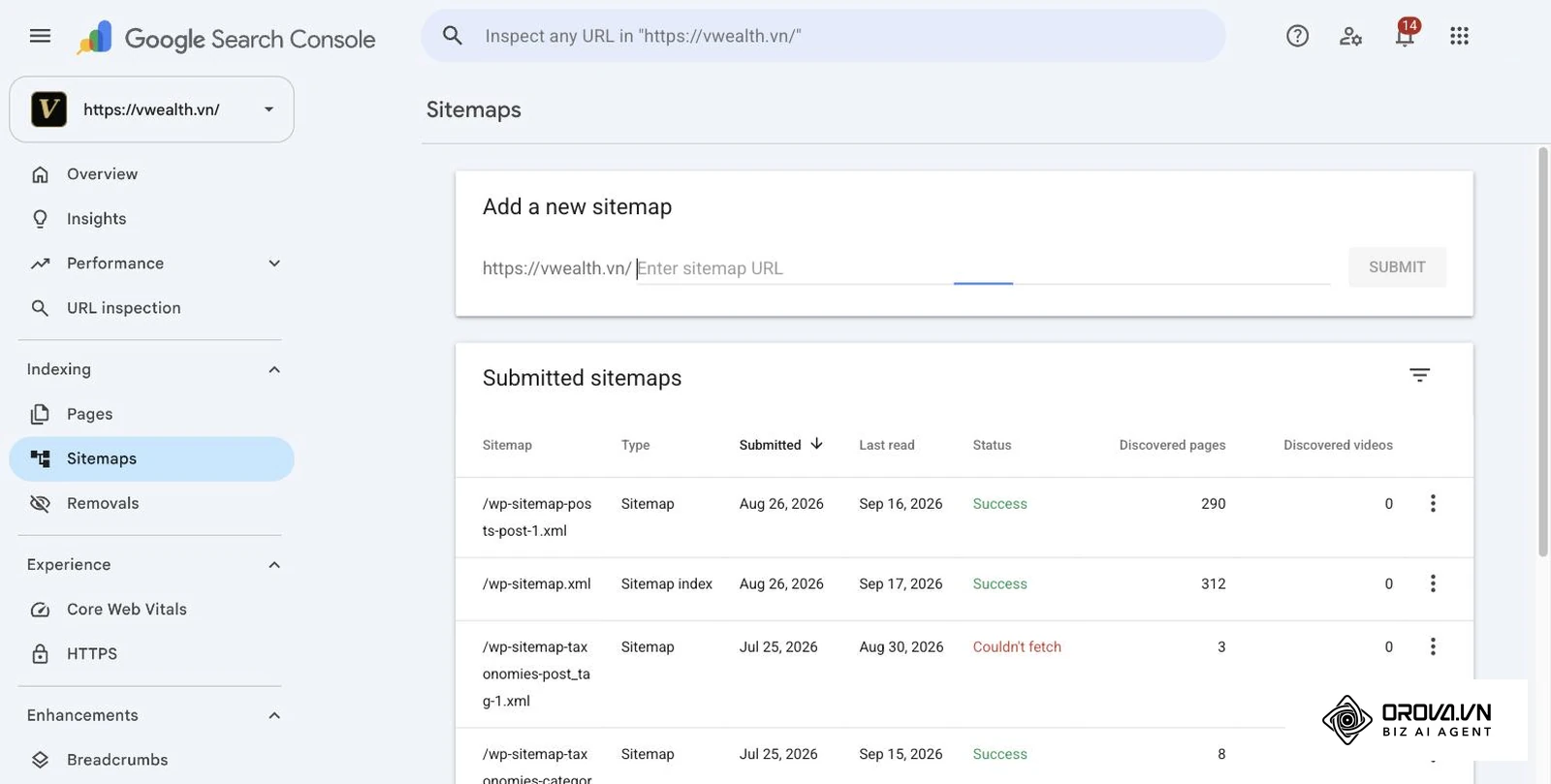
Next, log in to Google Search Console and navigate to the left-hand navigation menu under Indexing > Sitemaps. Inspect the "Submitted sitemaps" table. Check that your index sitemap displays a status of "Success" highlighted in green. Click into each nested sub-sitemap (such as your post sitemap and page sitemap) to verify that the number of discovered URLs matches your expectations.
You can verify success visually when the robots.txt file returns an HTTP 200 response in your browser, Google Search Console shows a status of "Success" under the Sitemaps tab, and the discovered URL count reflects your live public inventory.
A common pitfall at this stage occurs when CMS plugins automatically block query parameters or filter URLs using blanket wildcards like Disallow: /?. This rule can inadvertently block legitimate paginated URLs or product variants. If your live pages drop suddenly, check your Google Search Console URL Inspection tool by entering a sample URL and clicking Test Live URL. If the live test displays "URL is blocked by robots.txt", locate the offending line in your text file and remove the wildcard restriction.
Illustrative example: An e-commerce store with 800 active products noticed that their organic impressions flatlined following a site update. The developer had added Disallow: /cdn-cgi/ to prevent bot scraping, but a typo in the same file added Disallow: /c on the line above it. Because robots.txt rules match by prefix, this blocked every URL starting with /c, including the entire /category/ taxonomy. By inspecting the raw robots.txt file and testing category URLs within the GSC URL Inspection tool, the team identified the rogue rule. Removing the line and re-submitting the sitemap index via GSC let Googlebot crawl the category pages again.
Step 2: Crawl Site Architecture Using Screaming Frog (Even for 500+ Pages)
The goal of this step is to inventory all internal links, HTTP status codes, redirect chains, and missing metadata across your entire domain.
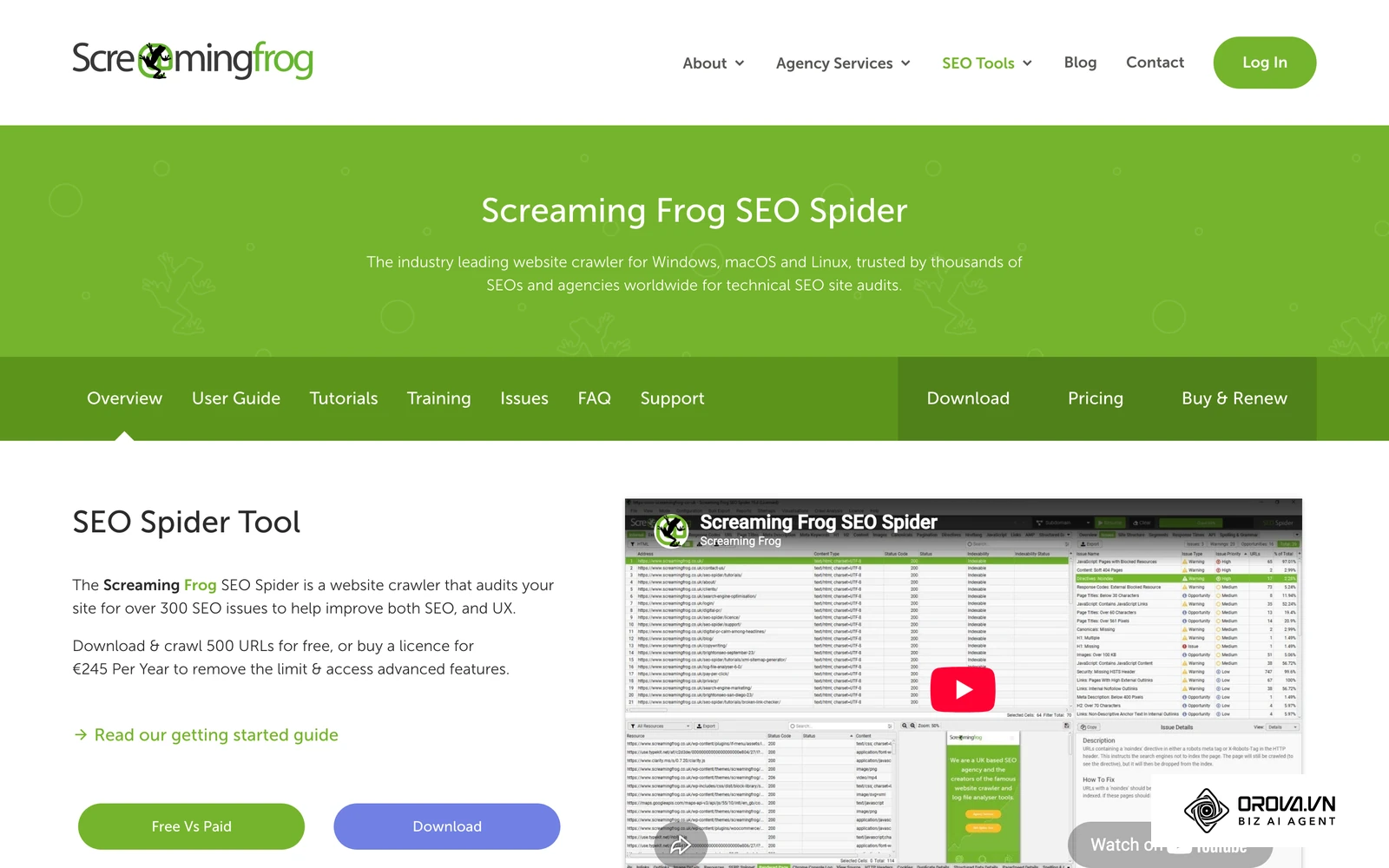
Download and open the free version of Screaming Frog SEO Spider on your computer. By default, the software runs in Spider Mode, which is capped at 500 URLs in the free tier. If your website has fewer than 500 pages, enter your homepage URL into the top search bar and click Start.
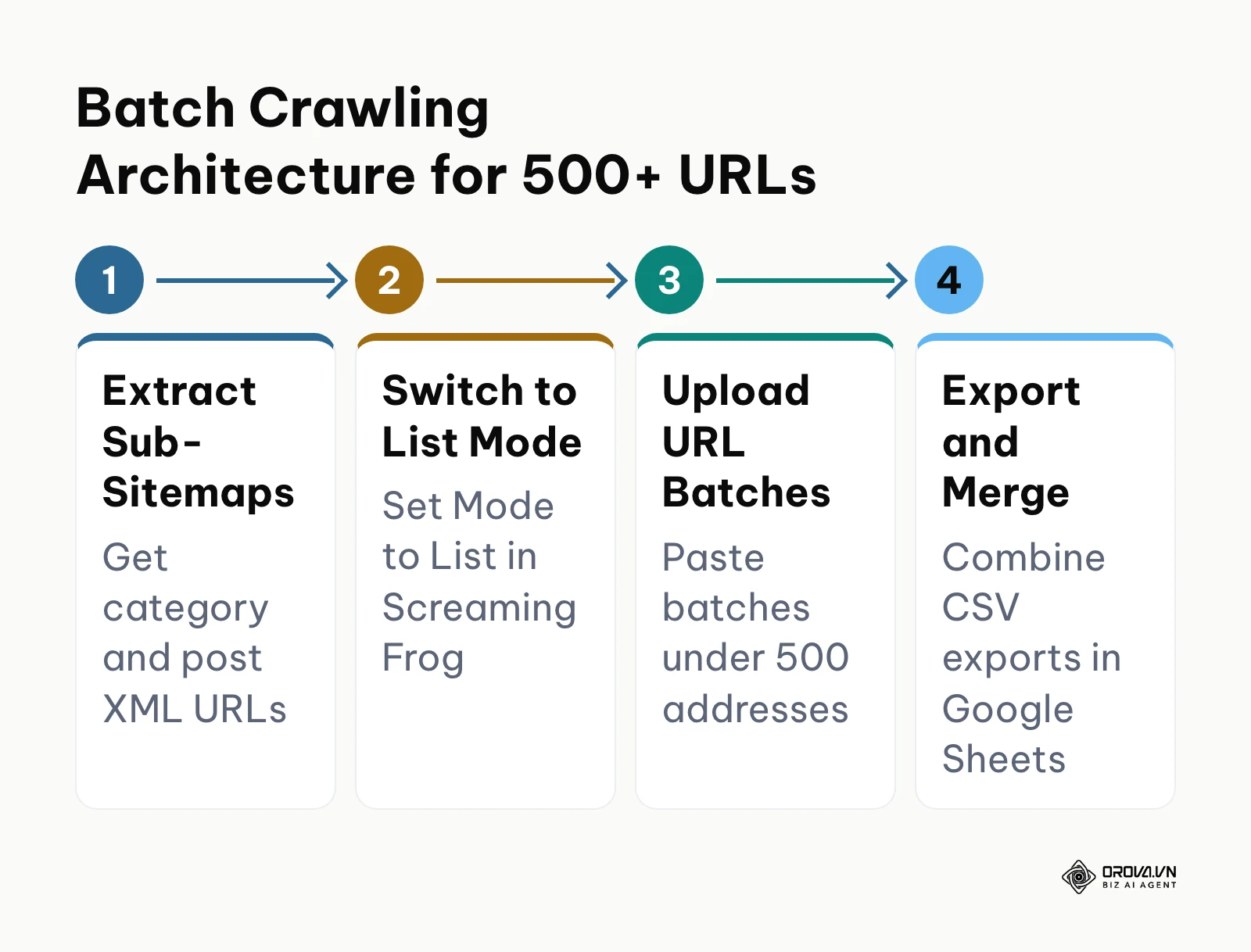
If your website contains more than 500 URLs, you can easily bypass this limitation without purchasing a commercial license by switching to sub-sitemap batch crawling. In your browser, open your sitemap_index.xml file. Note the distinct sub-sitemaps listed inside, such as category-sitemap.xml, page-sitemap.xml, post-sitemap-1.xml, and post-sitemap-2.xml. Most sub-sitemaps contain fewer than 500 URLs.
In Screaming Frog, navigate to the top menu bar, click Mode, and select List. Click the Upload button at the top, select Download Sitemap, and paste the URL of your first sub-sitemap (for example, yourdomain.com/post-sitemap-1.xml). The crawler will fetch only the URLs contained within that specific sub-sitemap. Once the crawl completes, click the Export button under the Internal tab to download your spreadsheet. Repeat this process for each sub-sitemap, and merge the resulting sheets in Google Sheets to review your entire architecture without hitting software paywalls.
Reviewing your crawl requires analyzing the Response Codes column in the main interface. Sort the table by status code to identify broken links (404 errors) and redirect hops (301 or 302 redirects). Navigate to the Redirection (3xx) report to ensure no internal links point to URLs that redirect elsewhere, as chained redirects waste crawl budget and dilute link equity. For a broader overview of technical analysis tools, consult this curated list of best SEO tools to complement your desktop environment.
A common pitfall during batch crawls is forgetting to exclude external links and image files, which quickly consume your 500-URL allocation. To prevent this, go to Configuration > Spider in Screaming Frog. Under the Crawl tab, uncheck Crawl Images, Crawl CSS, Crawl JavaScript, and Crawl External Links. This preserves your crawl capacity exclusively for indexable HTML documents.
Step 3: Diagnose Indexation Bottlenecks and Recover "Crawled – Currently Not Indexed" URLs
The objective of this step is to find out why Google chooses not to index certain pages and restore them to the active search index.
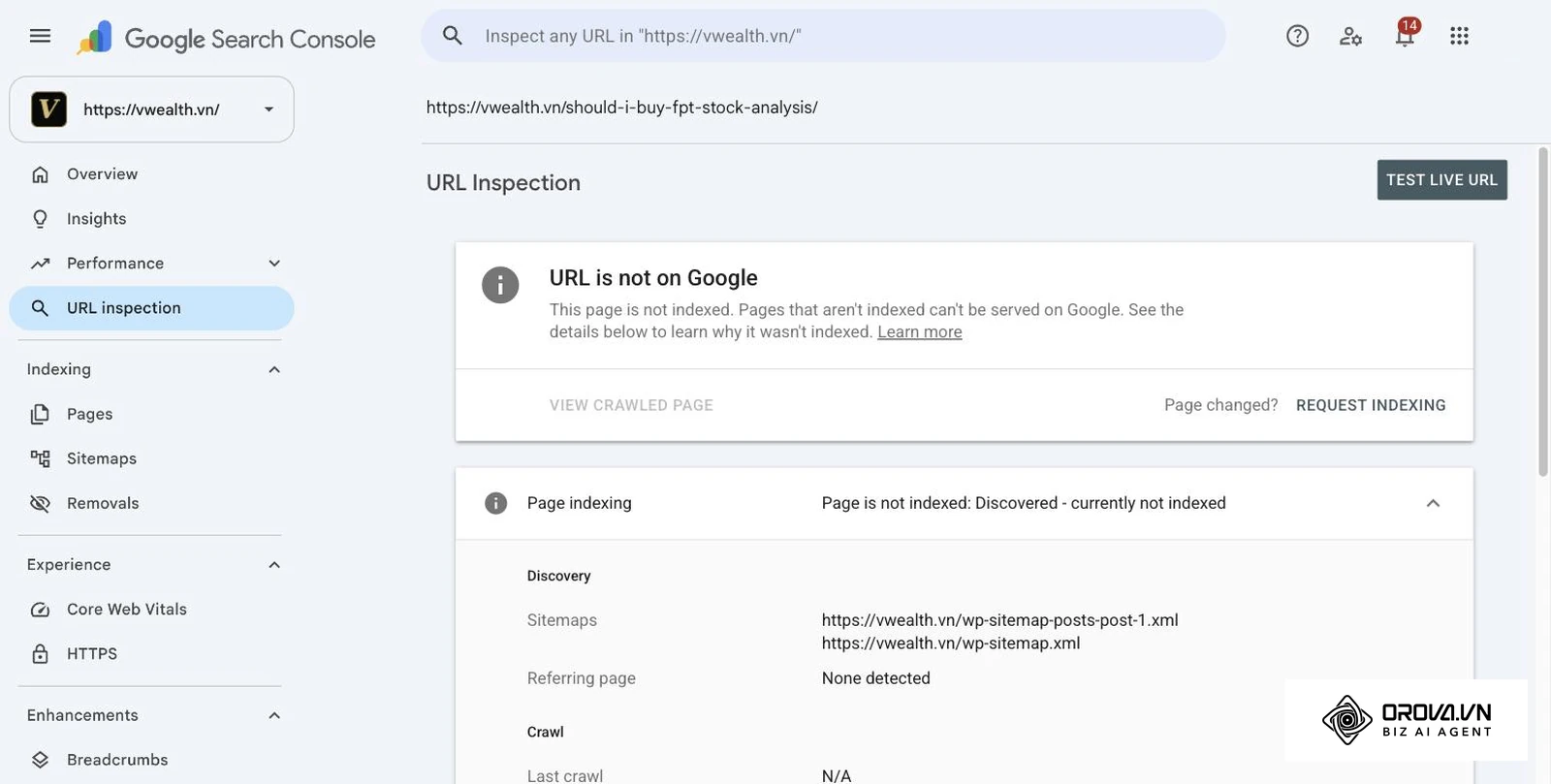
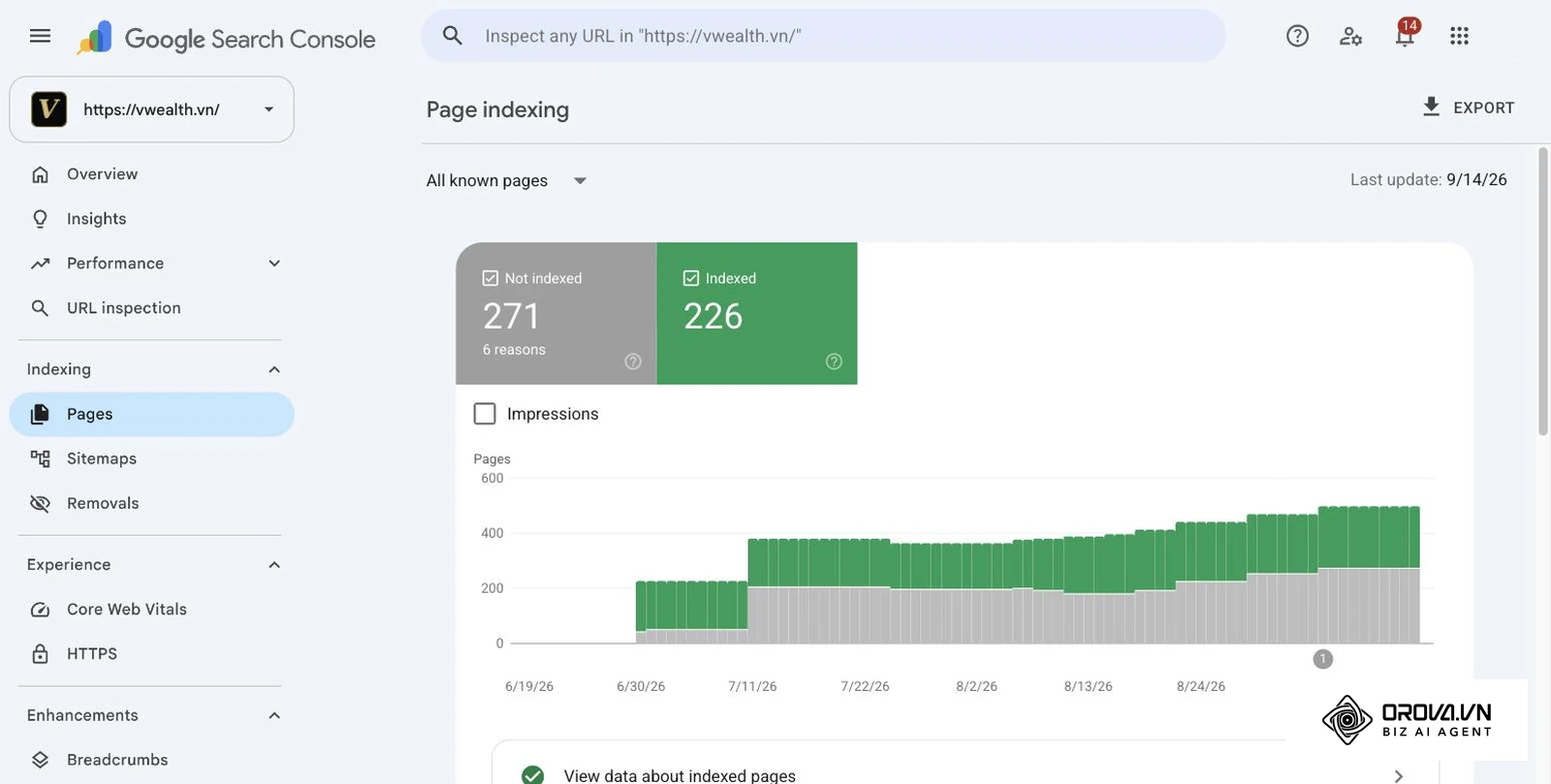
Open Google Search Console and navigate to Indexing > Pages. Below the primary coverage graph, scroll down to the table labeled Why pages aren't indexed. Here, Google categorizes the exact technical and algorithmic reasons preventing URLs from ranking.
Pay close attention to two specific statuses: Discovered – currently not indexed and Crawled – currently not indexed. The "Discovered" status indicates that Google knows the URL exists, but its crawl budget was exhausted or server response times were too slow to schedule an immediate fetch. The "Crawled – currently not indexed" status is more critical. Google's Search Console Help page for the Page indexing report describes it as a page that Google crawled but did not index, and notes that it may or may not be indexed in the future. In practice, the usual causes are thin content, near-duplicates of other pages, and weak internal linking.
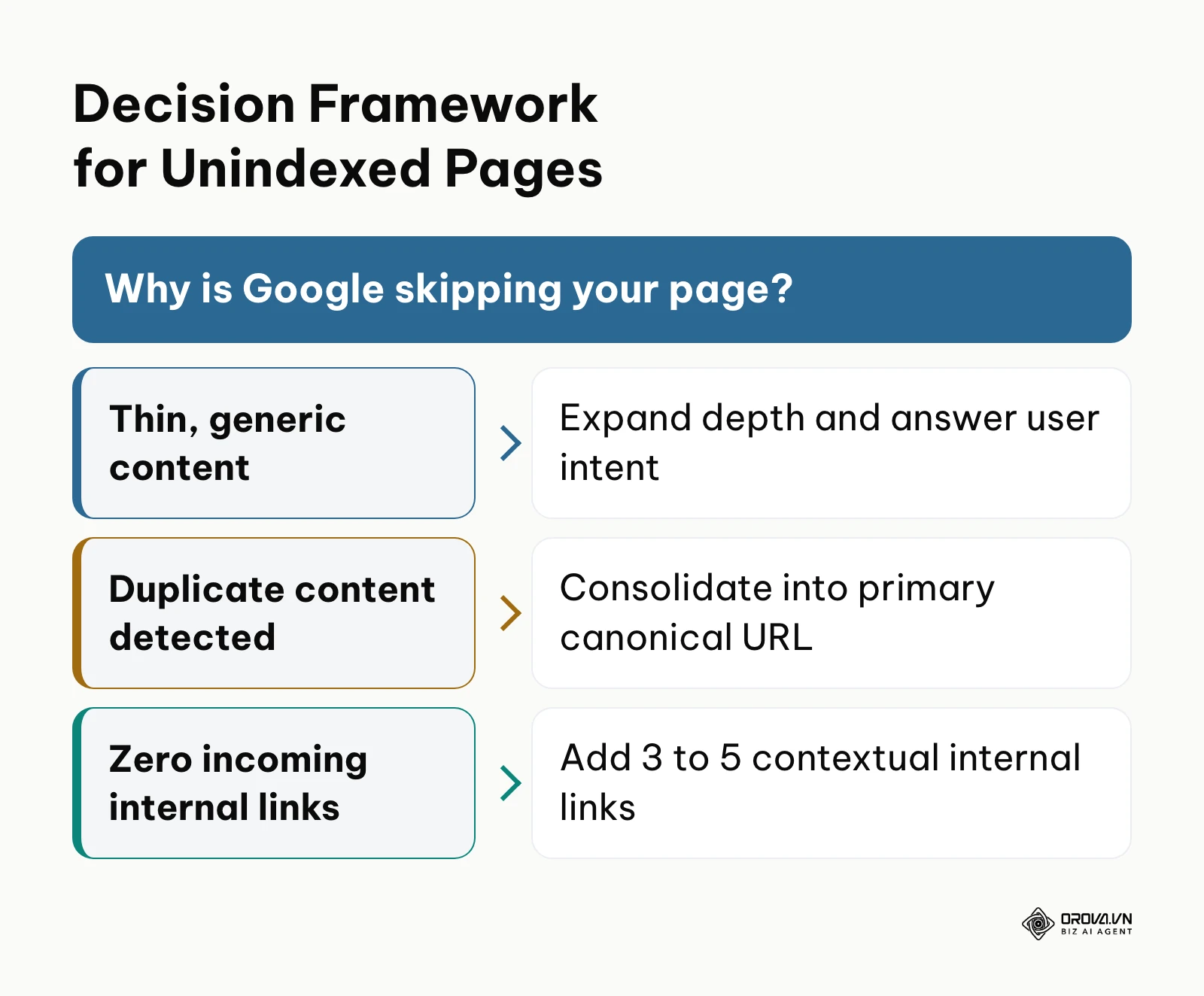
To systematically resolve URLs trapped in the "Crawled – currently not indexed" state, apply this three-step decision framework:
- Content Depth & Search Intent Audit: Click into the status row to view the affected URLs. Open each URL in your browser. If the page contains a few hundred words of generic copy, lacks unique data, or fails to satisfy search intent better than existing top-ranking pages, it suffers from thin content. Expand the article with unique analysis, practical steps, or original data.
- Originality and Near-Duplicate Check: Compare the unindexed URL against existing indexed pages on your site. If two pages cover virtually identical topics with minor phrasing differences, Google will deliberately drop one. Consolidate the two pages into the stronger URL using a server-side 301 redirect, or edit the unindexed page to target a distinct, non-overlapping search intent.
- Internal Link Equity Reinforcement: Many pages remain unindexed because Googlebot considers them orphan or low-priority assets. Find 3 to 5 related, indexed articles on your website with strong traffic. Add contextual internal links pointing directly to the unindexed URL using descriptive anchor text. For an example of how structural recovery impacts organic reach, read this in-depth SEO audit case study.
Once you implement these updates, navigate to the URL Inspection tool in Search Console, paste the modified URL, and click Request Indexing. Then check the URL again over the following weeks; Google does not guarantee when, or whether, it will be indexed.
Illustrative example: A B2B software blog had 45 articles stuck in the "Crawled – currently not indexed" category for six months. The marketing team evaluated all 45 URLs against the decision framework. They discovered that 15 articles were near-duplicates of existing product guides, while the remaining 30 articles were under 500 words with no internal links pointing to them. The team 301-redirected the 15 redundant pages into primary pillar posts, expanded the remaining 30 articles with step-by-step instructions, and added 3 contextual internal links to each from high-authority categories. Within 25 days, 28 of the 30 updated articles moved into the "Indexed" group of the Page indexing report.
Step 4: Audit Client-Side JavaScript Rendering with Chrome DevTools
The goal of this step is to verify that client-side JavaScript frameworks (such as React, Vue, or Next.js) render essential content and internal links into the Document Object Model (DOM) so search bots can read them.
Open a representative page on your website in Google Chrome. Right-click anywhere on the page and select View Page Source (or press Ctrl + U). This displays the raw HTML delivered by your web server before any browser JavaScript executes. Press Ctrl + F and search for your primary H1 heading, an introductory sentence, or key navigation links. If the source code returns an empty container element such as <div id="root"></div> without your written copy, your site relies on client-side rendering.
To inspect what Googlebot actually parses, right-click on the page and select Inspect to launch Chrome DevTools. The Elements panel displays the rendered DOM after script execution. Alternatively, press F12, press Ctrl + Shift + P to open the Command Menu, type Disable JavaScript, and press Enter. Reload the page. If the page becomes completely blank or loses its primary text and navigation menus, search engines that run constrained rendering passes will struggle to index your content.
You can also test rendering fidelity inside Google Search Console. In the top search bar, enter your target URL and click Test Live URL. Once the test completes, click View Tested Page. Click on the Screenshot tab to verify that the visual layout rendered properly without missing text blocks, and click the HTML tab to ensure all internal <a> tags and schema markup are present in the parsed code. For advanced content architectures that bridge modern discovery engines, consider this framework for unifying SEO, AEO, and GEO.
Use this comparison to read the three views side by side:
| View | What it shows | What a problem looks like |
|---|---|---|
| View Page Source (Ctrl + U) | Raw HTML sent by the server, before JavaScript runs | Empty container such as <div id="root"></div>, no body copy or links |
| DevTools Elements panel | The rendered DOM after scripts run | Text and links appear here but not in the page source |
| Search Console live test (HTML and Screenshot tabs) | What Google rendered for this URL | Missing text blocks, links or schema compared with the live page |
A common rendering defect occurs when developers build interactive menus using button clicks like <div onclick="goToCategory()"> instead of standard HTML hyperlinks. Search crawlers do not execute click events. Verify in DevTools that all internal navigation links are real <a> anchor tags with an href attribute pointing to the destination URL.
Discover Orova.vn – a Biz AI Agent platform with OROVA SEO, a complete solution for every website. The system supports search engine optimization from A to Z with features including keyword research, writing new SEO-ready articles, optimizing existing content, rank tracking, plus competitor analysis and in-depth technical analysis. Sign up today to experience OROVA SEO completely free (offer valid through July 7, 2027).
Step 5: Audit On-Page Metadata, Heading Hierarchy, and Internal Linking
This step focuses on identifying missing, duplicate, or improperly structured titles, meta descriptions, headings, and orphan pages that dilute on-page relevance.
Open the spreadsheet you exported from Screaming Frog in Step 2. Create a clean worksheet in Google Sheets and review your metadata elements by filtering columns. Use this table as your filter plan:
| Element | Column in the Screaming Frog export | What to flag | Typical fix |
|---|---|---|---|
| Page title | Title 1, Title 1 Length | Empty, duplicate, under 30 or over 60 characters | Write a unique title with the main keyword near the front |
| Meta description | Meta Description 1 | Empty, duplicate or over 160 characters | Write a specific summary that earns the click |
| H1 | H1-1, H1-2 | Missing H1, a second H1, or H1 identical to the title | Keep one descriptive H1 per page |
| Crawl depth | Crawl Depth | Depth of 4 or more | Link the page from a category or a related article |
| Inlinks | Inlinks | Sitemap URLs with 0 inlinks (orphans) | Add contextual links or remove the URL from the sitemap |
Page Titles and Meta Descriptions
Filter the Title 1 column to identify empty cells, titles shorter than 30 characters, or titles exceeding 60 characters (which get truncated in Google's search snippets). Use the conditional formatting formula =COUNTIF(A:A, A2)>1 to highlight duplicate page titles. Every indexable page on your site must have a unique title tag incorporating its primary target keyword near the front. Review the Meta Description 1 column for empty cells or text exceeding 160 characters. While meta descriptions do not directly influence search algorithms, compelling copy significantly improves organic Click-Through Rate (CTR).
Semantic Heading Hierarchy
Examine the H1-1 column in your spreadsheet. Filter for pages that have missing H1 tags, multiple H1 tags, or H1 tags that duplicate your title tag word-for-word. The W3C Web Accessibility Initiative's headings tutorial recommends nesting headings by rank and not skipping levels, which also makes the structure easier for crawlers to parse. Aim for one H1 that defines the primary subject, followed by logical H2 and H3 subheadings.
Internal Link Depth and Orphan Pages
In your Screaming Frog crawl data, check the Crawl Depth column. URLs with a depth of 4 or higher take four or more clicks from the homepage to reach, signaling to search engines that they are low-priority assets. Identify orphan pages by comparing your XML sitemap URL list against your internal crawl list using the =VLOOKUP() function in Google Sheets. Any URL present in your sitemap that receives zero incoming internal links (Inlinks = 0) must either be integrated into your site navigation and contextual content or removed from the sitemap.
A common pitfall occurs when CMS theme updates inadvertently wrap logo images in an <h1> tag across every page of the website. This forces articles to have two competing H1 elements. To fix this, inspect your template header file and ensure the logo uses a standard <div> or <p> tag, reserving the H1 strictly for the page's unique title.
Step 6: Detect and Resolve Keyword Cannibalization with Google Search Console and Google Sheets
The goal of this step is to find queries where multiple pages compete against each other in Google, splitting clicks, confusing search intent, and causing volatile rankings.
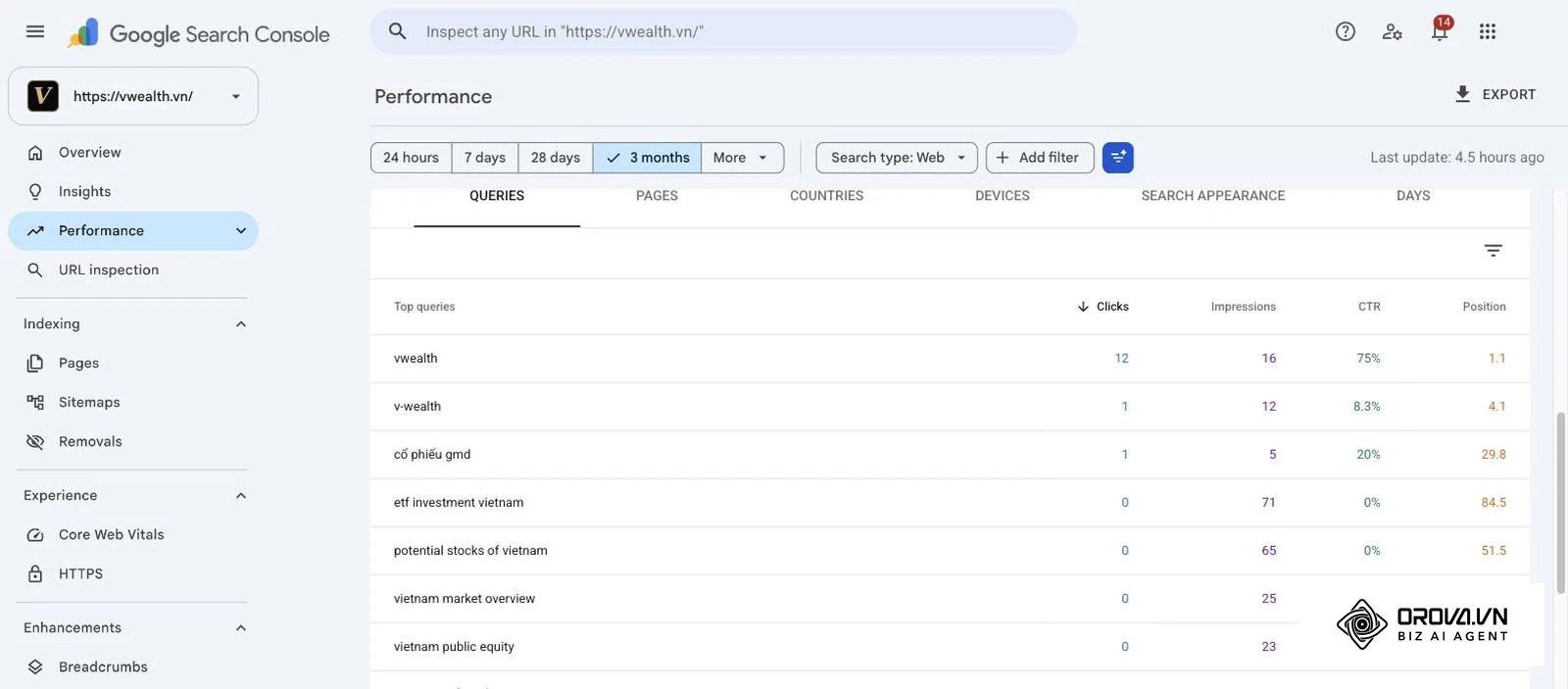
Open Google Search Console and navigate to the Performance > Search results tab. Set the date filter to Last 3 months. Ensure that Total clicks, Total impressions, and Average position are all checked at the top of the report. Click the Export button in the upper right corner and select Google Sheets.
The standard export splits data into separate tabs (Queries, Pages, Countries and so on), so it cannot tell you which page ranks for which query. To detect keyword cannibalization, you need to correlate queries against landing pages. Start with a manual spot check:
- In Google Search Console, click on the Queries tab, click the Filter icon, and select a high-priority topic query (for example, "website audit checklist").
- While the query filter remains active, click over to the Pages tab.
- Review the list of URLs receiving clicks and impressions for that single query. If you see two or more distinct URLs competing for clicks with average positions between 6 and 20, your site is suffering from keyword cannibalization.
To audit this across your entire site, you need a table where each row is one query and one page. Open Looker Studio (free), add the Search Console connector, choose your site and the URL Impression table, then build a table with Query and Landing Page as dimensions and Clicks, Impressions and Average Position as metrics. Export that table to Google Sheets. In the sheet:
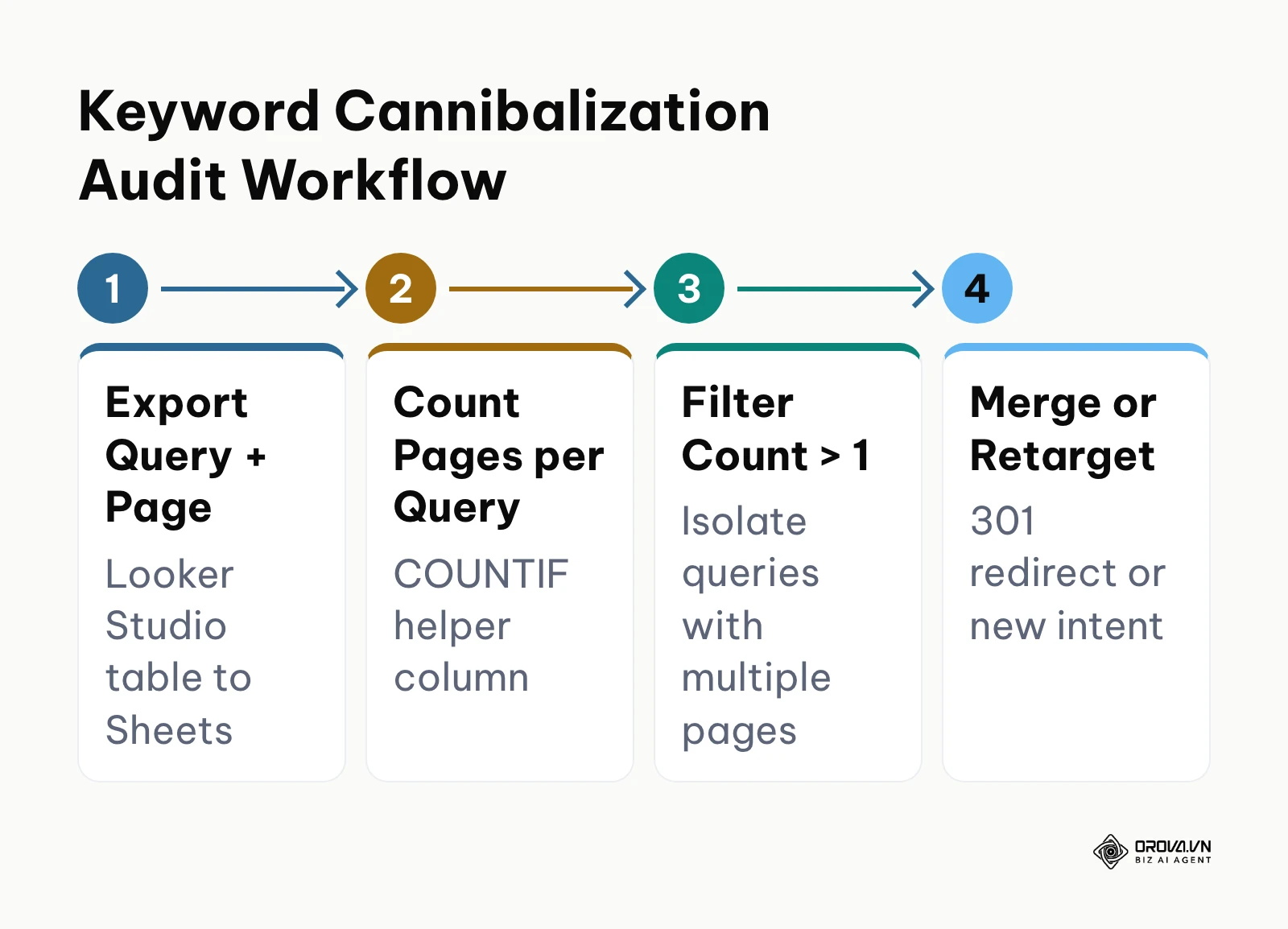
- Add a helper column Pages per query with =COUNTIF(A:A, A2), where column A holds the query.
- Filter the helper column to values greater than 1.
- Click Insert > Pivot table, add Query and then Landing Page to Rows, and add Clicks, Impressions and Average Position to Values.
Review the resulting table. When you identify two URLs competing for the exact same commercial or informational intent, apply one of two corrective actions:
- Consolidation: If one page is outdated and the other is comprehensive, transfer any unique sections into the primary page and set a 301 redirect from the weaker URL to the stronger one.
- De-optimization & Differentiation: If both pages serve distinct user needs (such as a broad conceptual guide versus an actionable template), rewrite the title, H1, and internal anchor text of the secondary page to target a narrower modifier keyword. If you are refining your long-term organic roadmap, follow this practical roadmap to improve website ranking.
A common mistake is automatically redirecting cannibalized pages without auditing historical backlinks. Always check whether the secondary URL has external websites linking to it. If it does, merging content and 301-redirecting preserves that accumulated backlink equity.
Step 7: Audit Core Web Vitals and User Experience with PageSpeed Insights
The objective of this final step is to benchmark real-world loading speed, interactivity, and visual stability to ensure your technical infrastructure passes search engine user experience thresholds.
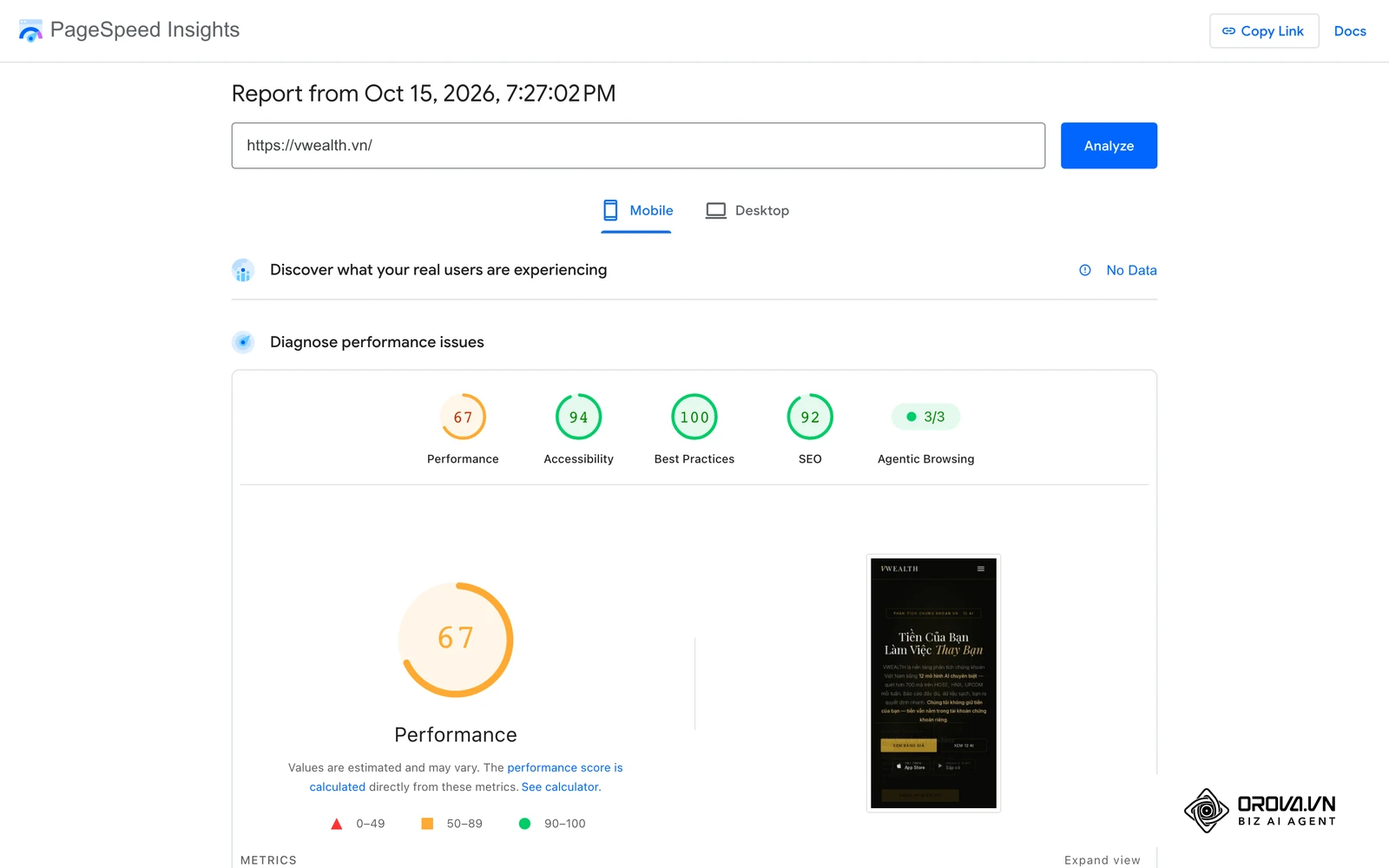
Navigate to pagespeed.web.dev. Rather than testing only your homepage, paste the URLs of your core template archetypes: your primary blog post template, your main category page, and your primary service or product page. Click Analyze.
PageSpeed Insights divides its diagnostic data into two sections: Core Web Vitals Assessment (Field Data) and Diagnose Performance Issues (Lab Data). Always prioritize the field data at the top, which aggregates actual user experiences over the trailing 28-day period from the Chrome User Experience Report (CrUX).
Focus your audit on the three core metrics:
- Largest Contentful Paint (LCP): Measures how long it takes for the largest visual element (hero image or heading block) to render on screen. A passing score is 2.5 seconds or faster. If LCP fails, scroll down to the Diagnostics section to see if uncompressed images, slow server response times (Time to First Byte / TTFB), or render-blocking CSS files are responsible.
- Interaction to Next Paint (INP): Measures user interface responsiveness during user interactions like clicks, taps, and keyboard inputs. Since March 2024, INP has replaced First Input Delay (FID) as a Core Web Vital, and web.dev rates an INP of 200 milliseconds or less as good. Failing INP is often caused by heavy third-party JavaScript tracking scripts running long tasks on the main thread.
- Cumulative Layout Shift (CLS): Measures unexpected layout shifts while the page loads. A passing score is 0.1 or lower. Failing CLS occurs when images or ad banners lack explicit width and height attributes in their HTML code, causing text blocks to jump suddenly when assets render.
Verify your audit results by documenting the scores for both Mobile and Desktop versions. Give mobile results the most weight, because Google uses mobile-first indexing and crawls most sites with its smartphone crawler.
Illustrative example: A digital publisher experienced high bounce rates and failing Core Web Vitals on mobile blog posts, with an INP of 380 milliseconds and a CLS score of 0.28. In PageSpeed Insights, the lab diagnostics revealed that two advertising scripts and an unreserved header banner were breaking layouts during page rendering. The developer added fixed CSS aspect-ratio properties to all image wrappers and ad containers, and deferred non-critical analytics scripts using async loading tags. Upon re-testing, CLS dropped from 0.28 to 0.02, and INP decreased to 140 milliseconds, moving the entire mobile template into the passing green tier.
Master Website SEO Audit Checklist
Use this structured table to track your audit progress across all seven operational phases. You can replicate this layout directly inside your project management software.
| Step | Core Task | Completion Indicator | Estimated Time |
|---|---|---|---|
| Step 1: Crawl Directives | Verify robots.txt syntax and validate XML sitemap status in GSC. | HTTP 200 on robots.txt and "Success" status on all submitted sitemaps in Search Console. | 20 mins |
| Step 2: Site Architecture | Run Screaming Frog crawl (in List Mode for 500+ URLs) to map status codes. | Clean spreadsheet export identifying all 3xx redirect chains and 4xx broken links. | 45 mins |
| Step 3: Indexation Health | Audit "Pages" report in GSC and apply decision tree to unindexed URLs. | Thin or duplicate pages identified; internal links added; re-indexing requested in GSC. | 45 mins |
| Step 4: JavaScript Rendering | Compare raw page source against rendered DOM in DevTools and GSC Live Test. | Verified that internal links, H1 tags, and schema render properly without JS execution bugs. | 25 mins |
| Step 5: On-Page Elements | Filter Screaming Frog data in Google Sheets for titles, H1s, and orphan pages. | Zero duplicate titles, single semantic H1 on every URL, and no orphan pages with 0 inlinks. | 35 mins |
| Step 6: Cannibalization | Export GSC performance logs and generate Pivot Table to find multi-URL queries. | Identified competing URLs consolidated via 301 redirects or differentiated search intents. | 30 mins |
| Step 7: Core Web Vitals | Test core templates on PageSpeed Insights for real-user field data. | Green passing scores documented for LCP (<2.5s), INP (<200ms), and CLS (<0.1) on mobile. | 20 mins |
With OROVA.VN and the OROVA SEO module, you put an end to the exhausting days of manual work for good. Instead of struggling for hours to write articles and compile reports, the entire process is now optimized and completed in just 5 minutes.
Common SEO Audit Mistakes and How to Fix Them
Auditing a website generates dozens of technical observations. The most dangerous mistake practitioners make is treating all audit findings with equal urgency, leading to paralysis by analysis.
| Audit Mistake | Common Root Cause | Practical Engineering Fix |
|---|---|---|
| Attempting to fix all 404 errors | Assuming every missing URL harms search performance. | Ignore 404s for low-value pages that receive 0 traffic and have 0 external backlinks; let them drop naturally. Only redirect URLs with traffic or authority. |
| Over-optimizing meta tags on zero-impression pages | Spending hours writing custom descriptions for pages Google does not crawl. | Audit indexation and search intent before fine-tuning metadata. Ensure the page is indexed and driving impressions first. |
| Forcing trailing slashes incorrectly | Misconfigured server rewrite rules creating redirect loops between /url and /url/. | Standardize one canonical URL structure across your server configuration and update all internal links to match it. |
| Adding noindex tags to robots-disallowed pages | Misunderstanding crawler behavior. | If a page is blocked via robots.txt, search bots cannot read the noindex tag on the page. Remove the robots.txt disallow rule first so bots can parse the directive. |
| Relying exclusively on synthetic lab speed tests | Ignoring CrUX field data in favor of isolated Lighthouse runs. | Optimize for real-user metrics reported in the Google Search Console Core Web Vitals tab rather than striving for a cosmetic 100/100 score in lab tools. |
| Launching sitewide redirect chains | Stacking redirects over multiple redesigns (URL A -> URL B -> URL C). | Update old database references and hardcoded internal links to point directly to the final 200 OK destination URL. |
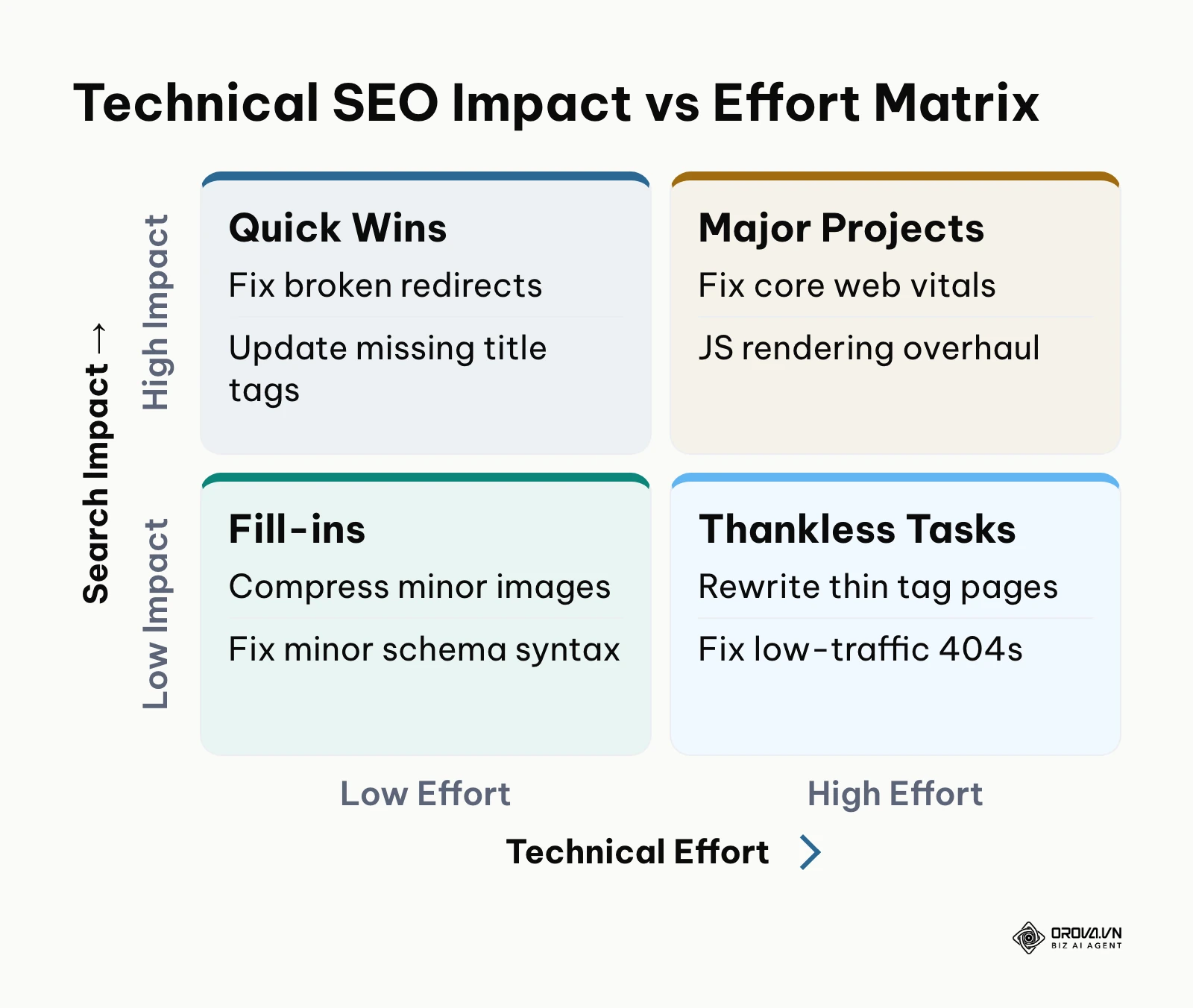
To manage this remediation process systematically, organize your findings using an Impact versus Effort Matrix. Every discovered issue is assigned an Impact score from 1 (negligible) to 5 (transformative) and a Technical Effort score from 1 (trivial) to 5 (complex engineering project). Calculate the final priority using this formula:
$$\text{Priority Score} = (\text{Impact} \times 2) - \text{Effort}$$
| Discovered Issue | Category | Search Impact (1–5) | Technical Effort (1–5) | Priority Score | Quadrant / Action |
|---|---|---|---|---|---|
| Sitewide Disallow: / blocking crawl | Crawlability | 5 | 1 | 9 | Quick Win: Fix immediately |
| Broken 301 redirect chains on top pages | Architecture | 4 | 1 | 7 | Quick Win: Update internal links |
| Duplicate title tags across category pages | On-Page | 3 | 2 | 4 | Quick Win: Rewrite dynamically |
| Client-side rendering hiding text content | Technical | 5 | 4 | 6 | Major Project: Implement SSR/SSG |
| High mobile INP (>350ms) across templates | Web Vitals | 4 | 3 | 5 | Major Project: Defer third-party JS |
| Missing alt text on decorative footer icons | On-Page | 1 | 1 | 1 | Fill-in: Batch fix during downtime |
| Stale tag archives with zero impressions | Indexation | 2 | 3 | 1 | Thankless Task: Deprecate or ignore |
Once you compile your manual spreadsheet, verifying ongoing technical health across thousands of pages can become labor-intensive. If you want a quick baseline scan of a single URL, Orova SEO Check (free until 7 July 2027, no sign-in) checks 92 technical criteria in 12 groups and adds Google PageSpeed scores and a domain-level backlink profile in one report. It does not crawl your whole site, so keep the manual steps above for full coverage.
How to Measure SEO Audit Impact and Track Progress
Technical fixes do not produce overnight ranking surges. Understanding what indicators to monitor and where to view them ensures you accurately measure ROI.
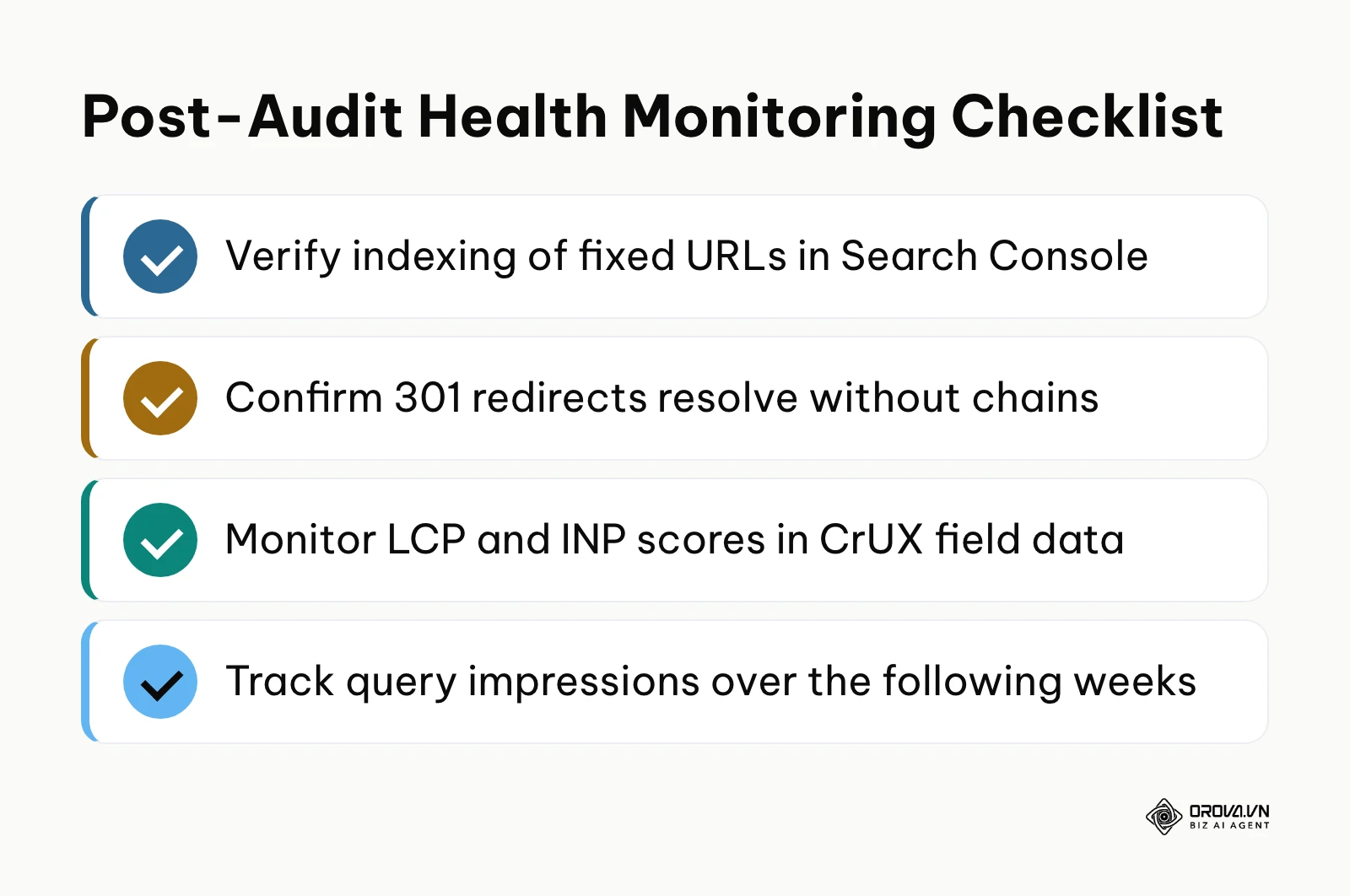
Monitor three primary data points in Google Search Console:
- Indexed Pages: Located under Indexing > Pages. Following technical remediations, your count of indexed URLs should steadily climb, while "Not Indexed" errors should trend downward over a 3 to 6-week window.
- Crawl Requests Volume: Located under Settings > Crawl stats. After fixing broken links and optimizing robots directives, Googlebot's daily crawl requests should stabilize, and the average response time should stay flat or fall.
- Query Impressions and Click Trends: Located under Performance > Search results. Impressions serve as the leading indicator. When technical debt and cannibalization are resolved, impressions for core topic clusters will expand first, followed by ranking gains and organic clicks 4 to 8 weeks later.
Do not expect immediate rank adjustments the day you deploy code fixes. Search engine bots operate on asynchronous recrawl schedules determined by domain authority and update frequency.
Trends in Website Auditing Over the Next Few Years: Author's Perspective
As of 2026, the traditional SEO audit is undergoing a fundamental transformation driven by autonomous search crawlers, browser rendering shifts, and generative search environments. I believe three trends will change how practitioners audit websites over the next few years.
First, technical auditing will pivot from basic crawlability to render-budget economics and AI agent visibility. Rendering JavaScript costs search engines more than reading plain HTML, and in my view that cost will push heavy client-side sites further down the crawl queue. Auditing will no longer focus merely on whether a page can be indexed, but on whether its machine-readable entities and semantic data can be extracted by automated agents within a sub-second processing window. Readers should prepare now by deprecating client-heavy single-page applications in favor of modern server-rendered frameworks with clean HTML outputs.
Second, I expect the quarterly manual audit to matter less as continuous diagnostic pipelines become common. Currently, most organizations run static manual audits every three to six months, by which time technical debt has already depressed organic traffic for weeks. I believe auditing workflows will shift toward event-driven monitoring systems that integrate with continuous integration (CI/CD) pipelines. In the coming years, automated build checks will flag indexation conflicts, redirect loops, and layout shifts before code ever deploys to production servers. Practitioners should begin integrating automated headless crawler scripts into their development deployment pipelines today.
Third, AI-assisted content auditing will prioritize semantic conciseness over raw word counts. I expect search discovery platforms to reward informational density, penalizing repetitive text that wastes crawler compute. To prepare, auditors should shift their evaluation from checking minimum word counts to auditing answer density and structural clarity.
This perspective could prove inaccurate if search engines transition entirely to closed data licensing partnerships with major publishers, or if bot traffic protocols change drastically, rendering traditional web discovery secondary to proprietary chat ecosystems.
Frequently Asked Questions About How to Audit a Website for SEO Without Paid Tools
Can a free SEO audit completely replace paid software like Ahrefs or Semrush?
Yes, for technical infrastructure, on-page optimization, and internal site health, free tools cover most needs because they use first-party data directly from Google Search Console. Paid software is primarily advantageous for historical third-party backlink intelligence, competitor keyword estimates, and cross-domain tracking, which are non-essential for on-site technical audits.
How do I audit websites with thousands of URLs without paying for enterprise crawlers?
You can bypass the 500-URL free limit in tools like Screaming Frog by extracting individual sub-sitemaps from your XML sitemap index and crawling them in List Mode in batches under 500 URLs. Alternatively, export your entire URL performance log directly from Google Search Console into Google Sheets, where you can analyze indexing and click patterns across your pages (the Search Console interface export is capped at 1,000 rows per table; the Looker Studio connector gives you more).
What should I do first when a URL is marked "Crawled – currently not indexed"?
First, compare the unindexed URL with existing indexed pages on your site to ensure it is not an accidental near-duplicate. If the content is genuinely unique, expand its depth to fully satisfy user intent, and add 3 to 5 contextual internal links pointing to it from related, high-authority articles on your website before requesting re-indexing via the Search Console URL Inspection tool.
How often should a small business conduct a free SEO audit?
A small business should run a quick health check in Google Search Console once a month to review the Pages indexing report and Core Web Vitals metrics. A comprehensive 7-step audit should be performed quarterly, as well as immediately following any major website redesign, CMS migration, or structural URL update.
How does AI impact the way we perform website audits today?
AI accelerates spreadsheet data analysis, script generation for custom crawl extractions, and the detection of content gaps across large datasets. However, AI cannot replace the manual verification of server response codes, rendered DOM elements, or technical directives in Google Search Console, requiring practitioners to validate diagnostic findings directly against search engine guidelines.
Where Should You Start?
The most effective starting point depends entirely on your website's current operational state and recent performance trajectory. Choose the single action below that matches your situation:
- If you recently launched a new website or completed a design migration: Begin immediately with Step 1. Open your browser, inspect your live robots.txt file at yourdomain.com/robots.txt, and verify that your XML sitemap displays a status of "Success" inside Google Search Console to eliminate any sitewide crawl blockers.
- If your organic traffic suffered a sudden drop: Go straight to Step 3. Log in to Google Search Console, open the Indexing > Pages report, and inspect the specific reasons listed under "Why pages aren't indexed" to determine if critical revenue-generating URLs have fallen into the "Crawled – currently not indexed" category.
- If your rankings have stagnated between positions 6 and 20: Jump to Step 6. Export your trailing three months of Google Search Console performance data into Google Sheets, generate a Pivot Table of queries mapped to landing pages, and identify cannibalized URLs splitting your organic search equity.
By executing this systematic process step by step, you master how to audit a website for SEO without paid tools while building a durable foundation for long-term organic search performance.
About the author

Builder of Orova
Nguyễn Đỗ Trọng Ân has 8 years of experience in marketing, including 6 years managing market development across Asia. He builds Orova, a Biz AI Agent that never sleeps: it plans, runs and optimizes work for businesses.
Run your business with AI Agents
Orova is the always-on Biz AI Agent — it plans, runs, and optimizes the work for you.
Save time, unlock productivity.