
Click tracking 101: an actionable guide to monitoring user behavior

You launched a meticulously designed landing page and poured budget into advertising, but conversions remain painfully flat. You stare at the basic analytics dashboard and see thousands of pageviews, yet you have absolutely no idea what those visitors are actually doing on the screen. Are they reading the complex pricing table? Did they completely ignore the primary call-to-action button? Click tracking is the process of recording which links, buttons and other elements people click, on your website, in emails, in ads or on links you share, so you can see what they actually do instead of guessing. Without proper click tracking, you are operating entirely in the dark. Relying solely on basic pageview metrics is a fundamentally flawed approach because it treats all user sessions identically. A pageview merely tells you someone arrived; it completely ignores the specific micro-interactions and digital body language that ultimately lead to a sale or signup. This comprehensive guide helps you implement a practical strategy to monitor user behavior. We will explore exactly how to reveal where users click, why they bounce, and how to surgically fix a broken user journey.
What is click tracking and who actually needs it?
Click tracking is the technical process of recording, measuring, and analyzing precisely where and when users click on a website, email, or digital advertisement. It is essential for marketers, UX designers, and product managers who need to optimize conversion rates, but unnecessary for simple, static digital brochures where deep user interaction isn't the primary goal.
Understanding user intent is the holy grail of modern digital marketing. When a user lands on your website, every cursor movement and subsequent click acts as a digital footprint revealing their internal thought process. Did they hesitate significantly before clicking the purchase button? Did they furiously click on a static product image expecting it to enlarge, only to experience frustration when absolutely nothing happened? This granular behavioral data transforms highly subjective design debates into objective, data-driven decisions. Instead of arguing about whether a button should be green or blue, you deploy tracking to see which color actually generates more pipeline revenue. If you manage an e-commerce platform, a software-as-a-service product, or a high-volume media publication, mastering this measurement discipline is mandatory for survival.
Preparation: The click tracking toolkit and landing page checklist
Before diving recklessly into code editors and tag managers, you need a highly structured approach. Implementing tracking indiscriminately across every single web element leads to a polluted database where finding actionable insights becomes practically impossible. You must gather the right tools and define your scope.
| Essential Asset | Where to Acquire | Estimated Time |
|---|---|---|
| Google Tag Manager (GTM) Account | tagmanager.google.com | 15 minutes |
| Google Analytics 4 (GA4) Property | analytics.google.com | 20 minutes |
| Measurement Plan Spreadsheet | Internal creation | 2 hours |
| Developer Console Access | Browser (F12 or Inspect Element) | Instant |
Building a solid foundation requires patience. You cannot rush the preparation phase without suffering severe data quality issues later on. Your measurement plan spreadsheet is arguably more important than the software tools themselves. This document will serve as the single source of truth connecting technical triggers to real-world business objectives.
The ultimate click tracking checklist for landing pages
You cannot improve what you do not measure. However, measuring everything creates an unmanageable data swamp that will overwhelm your analysts. For a standard high-converting landing page, you must strictly restrict your initial focus to these critical elements.
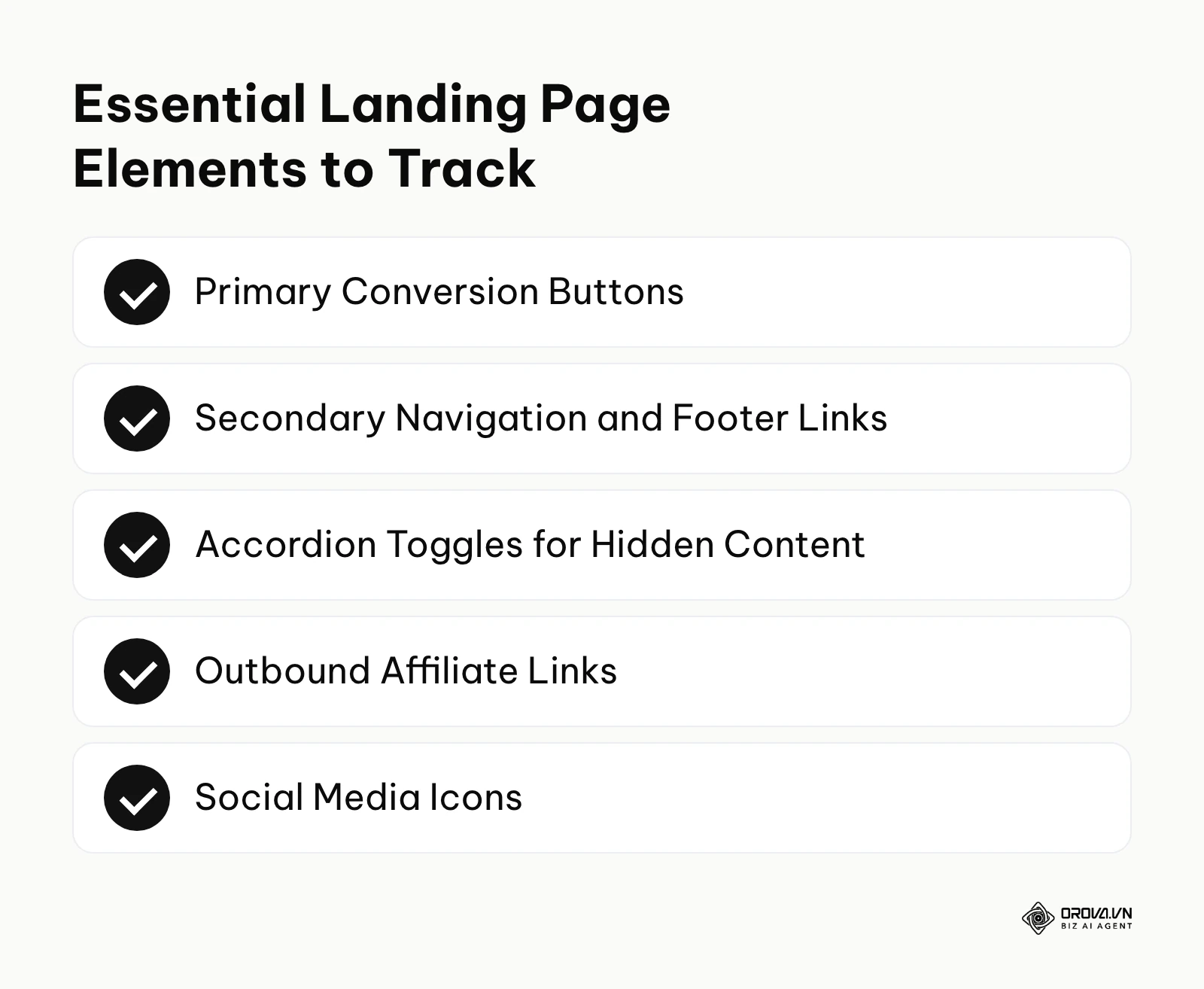
- Primary Call-to-Action (CTA) Buttons: These are your main conversion drivers, such as the "Start Free Trial" or "Request Demo" buttons. Track not just the click itself, but the specific location if the exact same button appears multiple times across the page.
- Secondary Navigation Links: This includes footer links, secondary feature pages, or detailed pricing pages. Tracking these reveals if users desperately need more specific information before committing to a purchase.
- Accordion and Tab Toggles: Designers often use these elements to hide frequently asked questions or dense feature lists. Tracking these toggles reveals exactly what hidden information users care enough about to actively uncover.
- Outbound Affiliate Links: This is absolutely crucial for revenue tracking if your entire business model relies on directing traffic to third-party partners.
- Form Field Interactions: While not traditional link clicks, tracking clicks into specific form fields can instantly highlight exactly where users abandon a lengthy or complex signup process.
- Social Media Icons: Tracking clicks on these icons helps you understand if you are successfully driving traffic to your community or if you are simply leaking potential conversions away from your sales funnel.
Selecting your tools: Free vs. Paid vs. Enterprise
The software market is heavily flooded with analytics platforms, each claiming to revolutionize your understanding of user behavior. Choosing the right analytics stack is a real challenge for growing businesses, so you must evaluate these tools objectively.
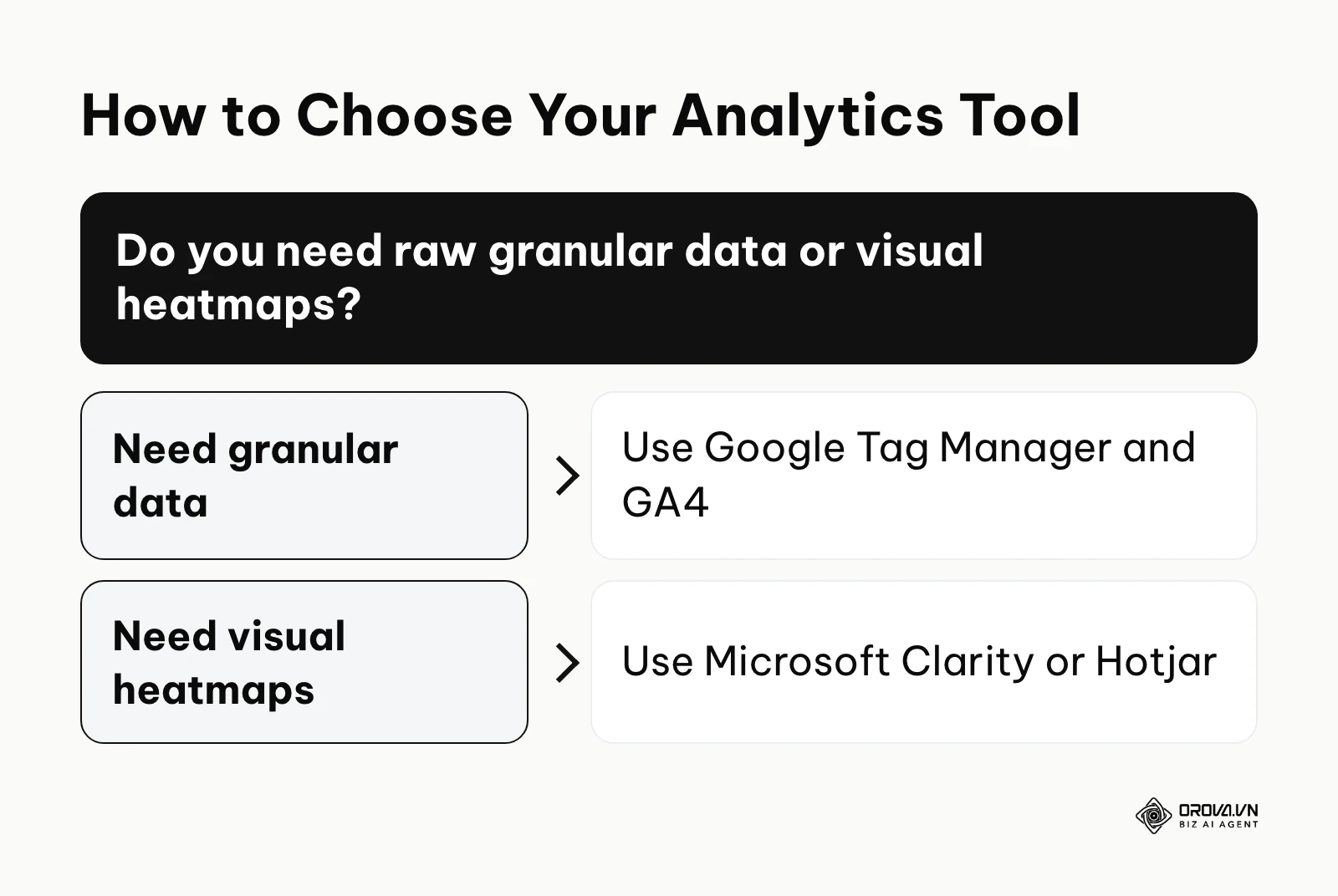
When deciding on a platform, your technical maturity and your financial budget are the primary constraints. Google Tag Manager combined with GA4 remains the undisputed industry standard due to its immense flexibility, deep integration ecosystem, and zero-dollar price tag. However, this combination requires a very steep learning curve and constant maintenance.
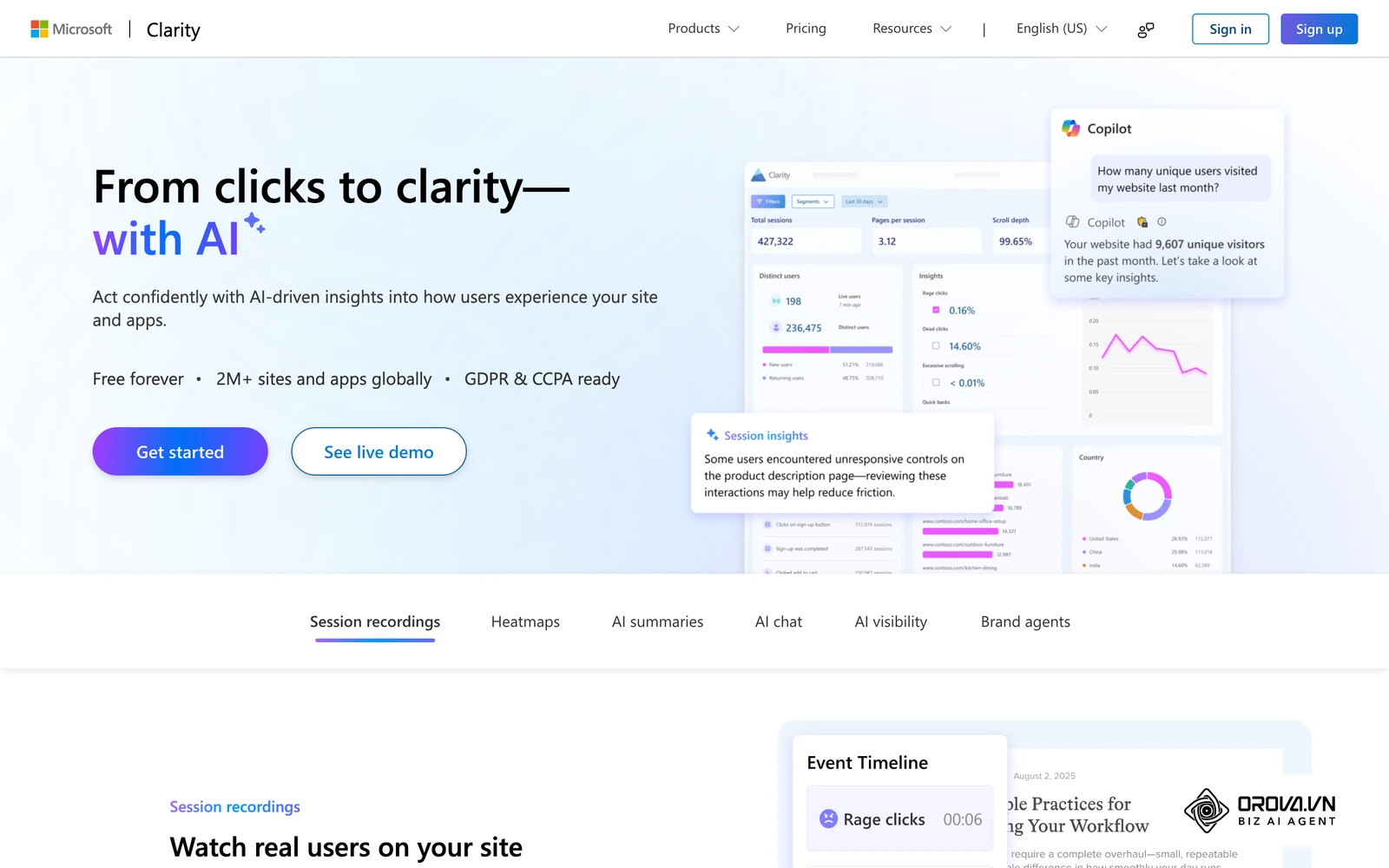
Conversely, tools like Hotjar or CrazyEgg offer incredibly intuitive out-of-the-box visual tracking but require a recurring monthly cost that scales rapidly with your traffic. For smaller teams with limited budgets, Microsoft Clarity provides an excellent free alternative offering heatmaps and basic click data, though it severely lacks the granular event manipulation and raw data exporting capabilities of the Google ecosystem.
The step-by-step guide to setting up click tracking
This section provides a comprehensive, highly technical blueprint for deploying click tracking using the industry-standard combination of Google Tag Manager (GTM) and Google Analytics 4 (GA4). This specific method ensures your tracking architecture is robust, highly scalable, and relatively independent of hardcoded developer changes.
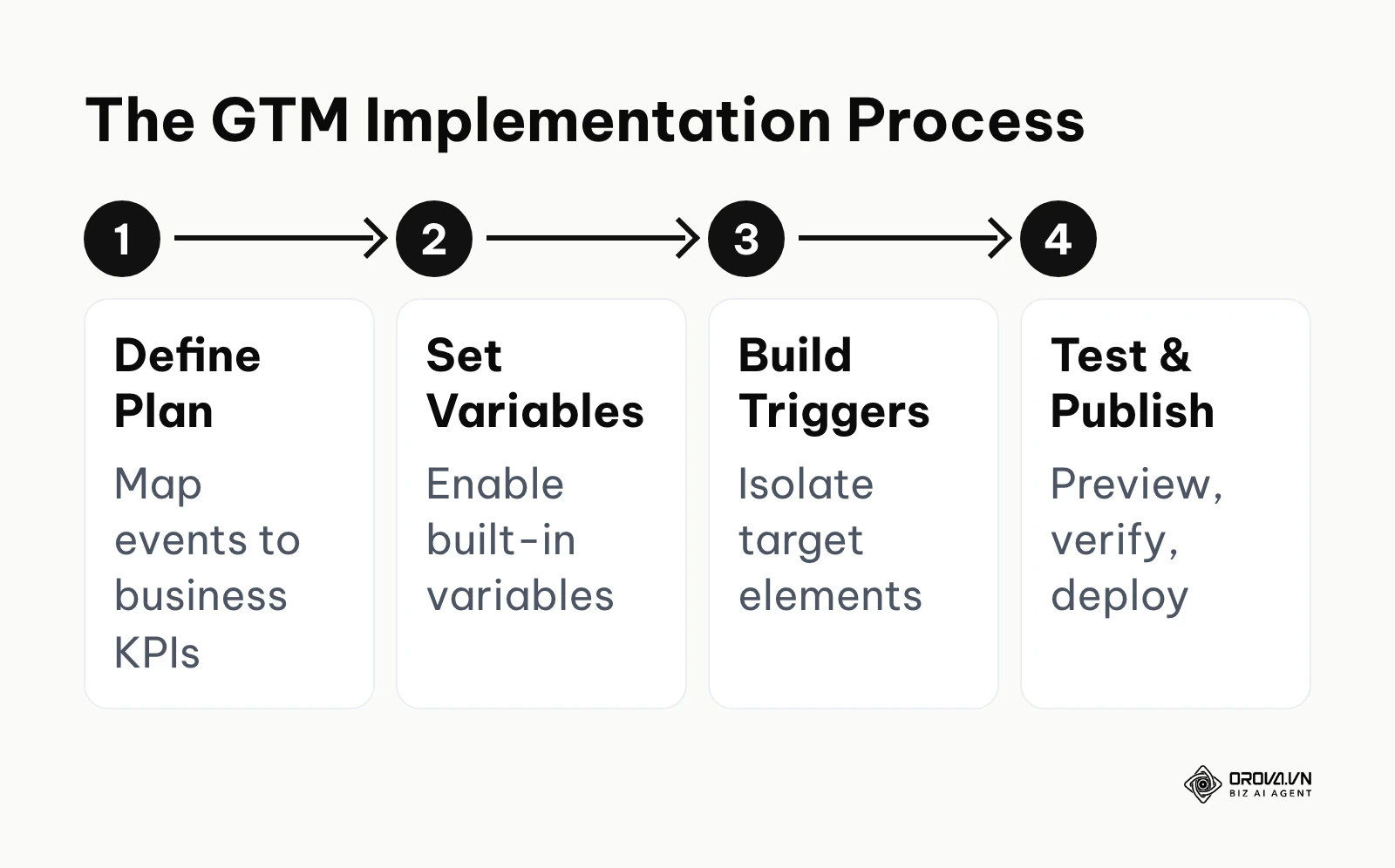
Step 1: Defining your tracking architecture and avoiding data overload
- What to do: Create a strict, standardized naming convention and a comprehensive measurement plan before touching any software tools.
- How to do it: Open a blank spreadsheet. Define the Event Name, the Event Parameters, and the precise CSS selector or HTML ID that uniquely identifies the target element on your website.
- Signs of success: You possess a thoroughly documented blueprint where every single planned event ties directly and logically to a larger business KPI.
- Common errors: Utilizing vague, generic event names like "click1" or "button_click" without passing any descriptive parameters alongside them, which renders the data completely useless when you attempt to analyze it in GA4 reporting.
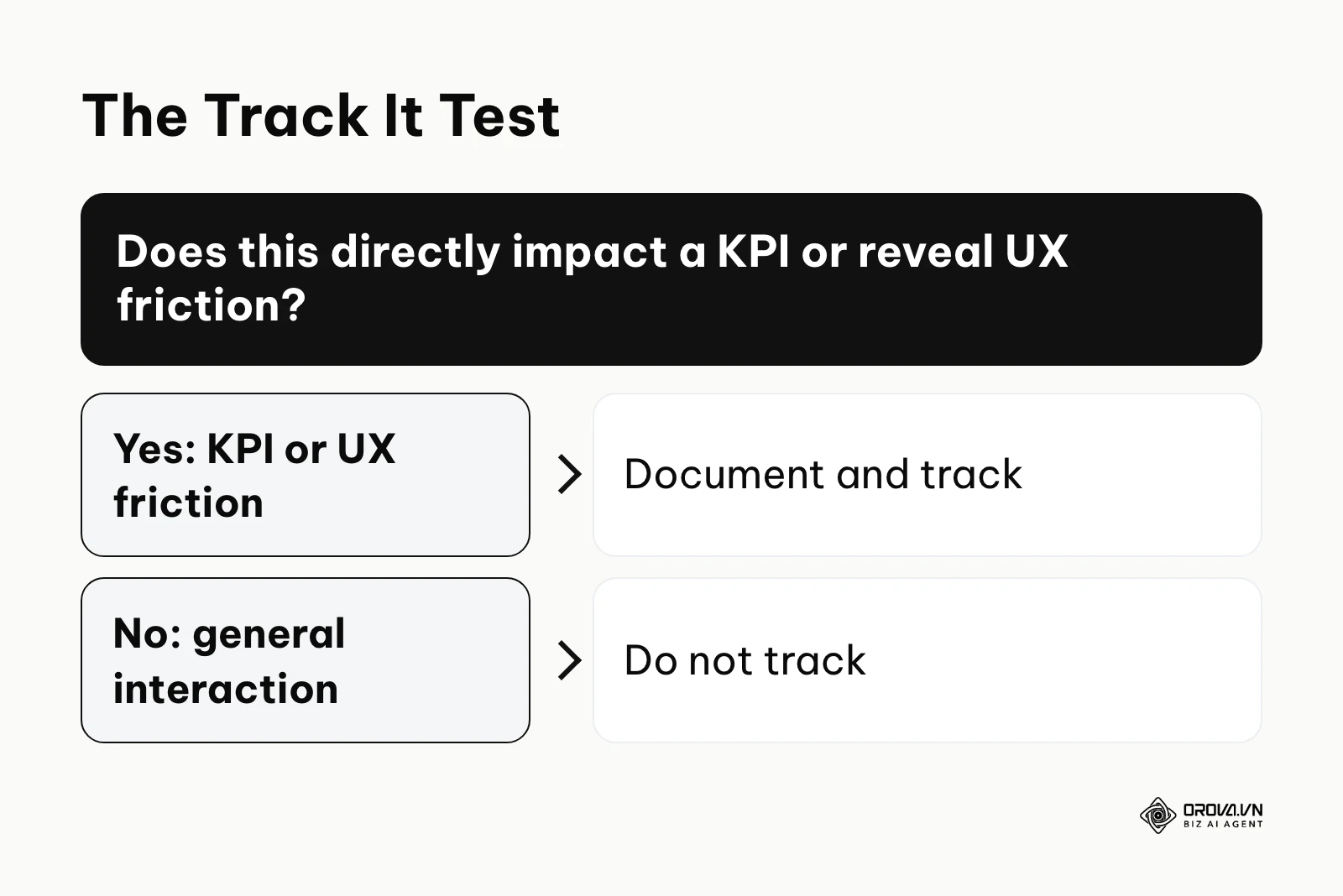
Many junior marketers fall quickly into the trap of auto-tracking everything they can find. This inherently leads to severe data overload, where you spend significantly more time filtering out irrelevant clicks on blank spaces than analyzing actual conversion drivers. A disciplined, documented architecture is your ultimate defense against this analytical chaos.
Step 2: Configuring Google Tag Manager (GTM) variables
- What to do: Enable GTM's built-in click variables to intelligently capture dynamic data directly from the webpage's Document Object Model (DOM).
- How to do it: Navigate directly to GTM, select the Variables menu, and click Configure. Manually check the boxes for Click Classes, Click Element, Click ID, Click Target, Click URL, and Click Text.
- Signs of success: When you enter the GTM Preview Mode and click an element on your site, the Variables tab dynamically populates with the specific, detailed attributes of the clicked element.
- Common errors: Simply forgetting to enable these built-in variables entirely, resulting in GTM successfully triggering tags but passing completely blank or undefined data payloads to your analytics platform.
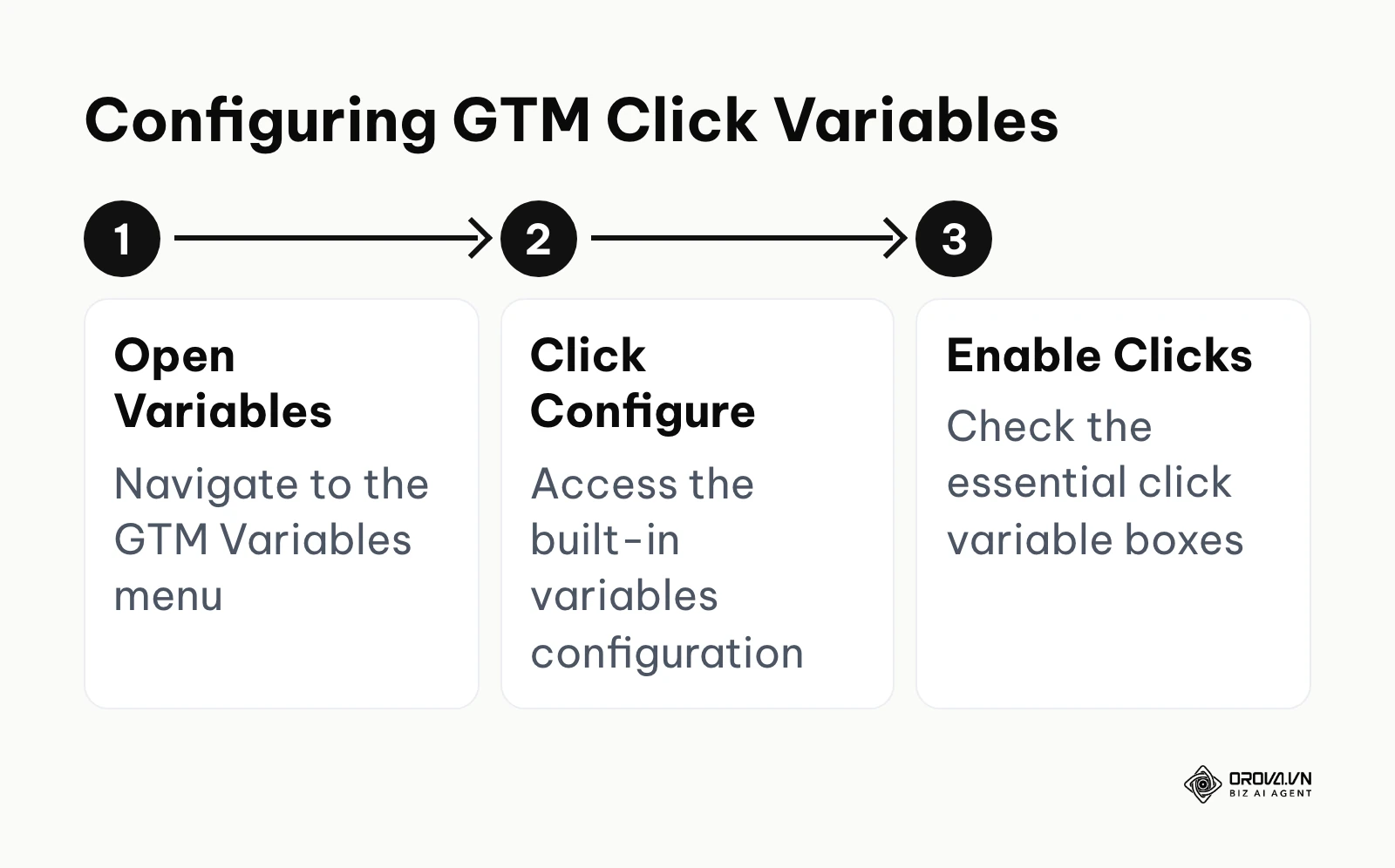
Variables act as the essential lifeblood of highly scalable tracking. Instead of manually creating fifty different tags for fifty different buttons, you create one intelligent, dynamic tag that utilizes the Click Text variable to differentiate the incoming data automatically. This approach reduces container bloat and significantly improves website loading performance.
Step 3: Creating precision triggers for specific elements
- What to do: Build strict conditional rules within GTM that dictate exactly when a click should fire a corresponding tag.
- How to do it: Go to the Triggers menu and click New. Choose the Trigger Type: "Click - All Elements" or "Click - Just Links". Set it to specifically fire on "Some Clicks". Define the exact condition, for example: Click Classes contains "btn-primary".
- Signs of success: The configured trigger successfully isolates the exact target element without accidentally firing on neighboring, visually similar, but unrelated elements.
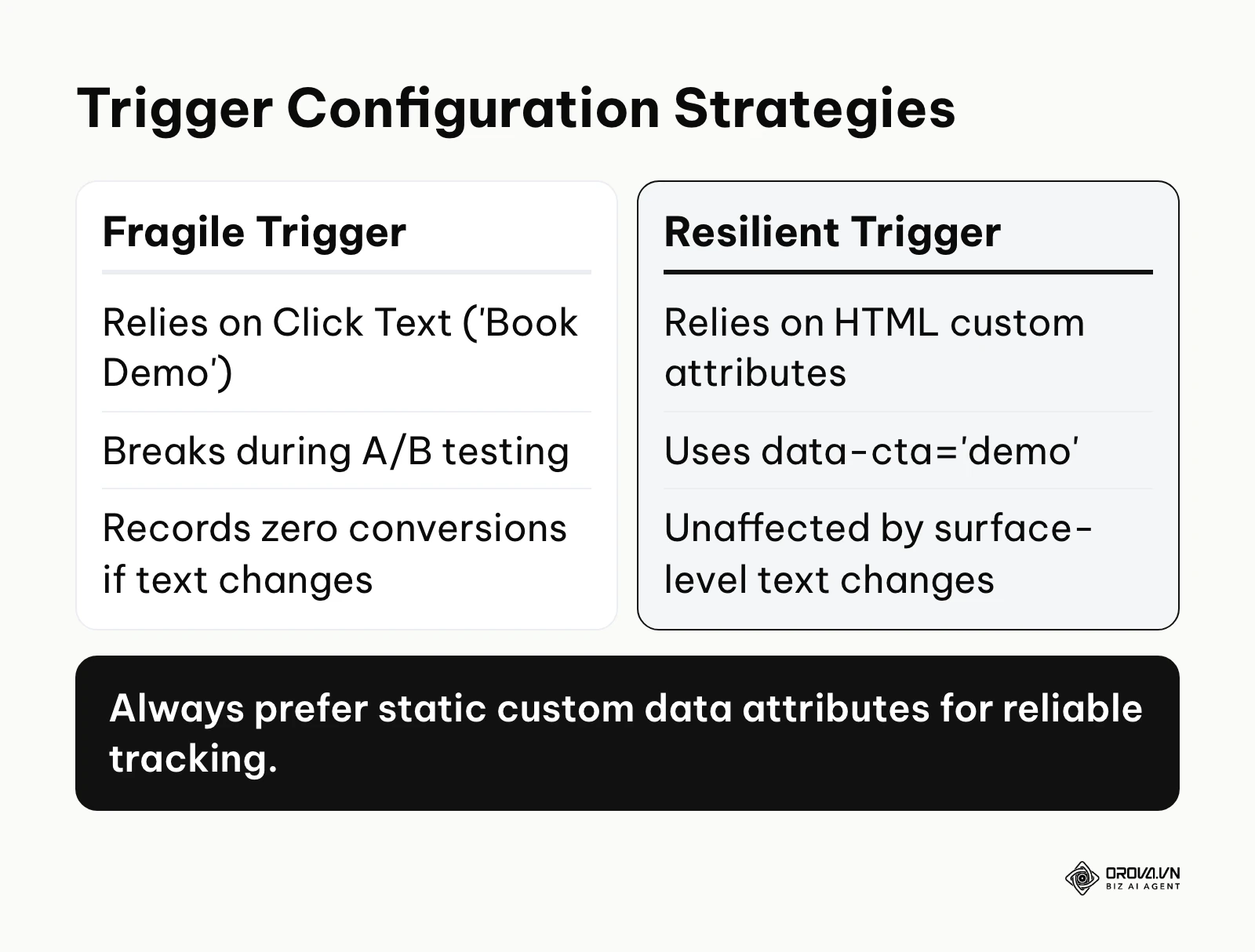
- Common errors: Relying heavily on Click Text when the website supports multiple languages, or relying on Click Classes when your developers frequently update the site's underlying CSS framework. Always prefer a static Click ID or custom data attributes whenever possible.
Example scenario:
- Context: A mid-sized B2B software company needed to track crucial clicks on a new "Book Demo" button that appeared prominently in both the website header and the global footer.
- Steps taken: The lead marketer initially set up a basic trigger based on the condition where Click Text exactly equals "Book Demo". They then created a standard GA4 event tag attached directly to this trigger.
- Hurdle: A week later, the aggressive marketing team ran an A/B test on the button text, quietly changing the header button to read "Get a Demo" instead. The tracking instantly broke because the rigid trigger condition was no longer met, resulting in zero recorded conversions for the new variant over an entire weekend.
- Result: The technical team immediately updated the trigger to rely on a highly stable HTML attribute called data-cta="demo", which was permanently added by the developers. The tracking instantly became incredibly resilient to surface-level text changes, ensuring flawless attribution regardless of future marketing copy experiments.
Step 4: Building the GA4 Event Tag and mapping parameters
- What to do: Connect your customized GTM trigger to Google Analytics 4 and ensure it passes the rich variable data.
- How to do it: Create a New Tag and select Google Analytics: GA4 Event. Input your unique Measurement ID. Set the specific Event Name. Expand the Event Parameters section and add a Name and Value pair for every piece of data you wish to collect. Assign the trigger you carefully created in Step 3.
- Signs of success: The tag configuration interface clearly maps your dynamic GTM variables directly to standardized, recognizable GA4 parameters.
- Common errors: Sending brilliant custom parameters from GTM but completely forgetting to register those exact custom dimensions within the GA4 property settings interface, causing the valuable data to remain permanently hidden in standard reports.
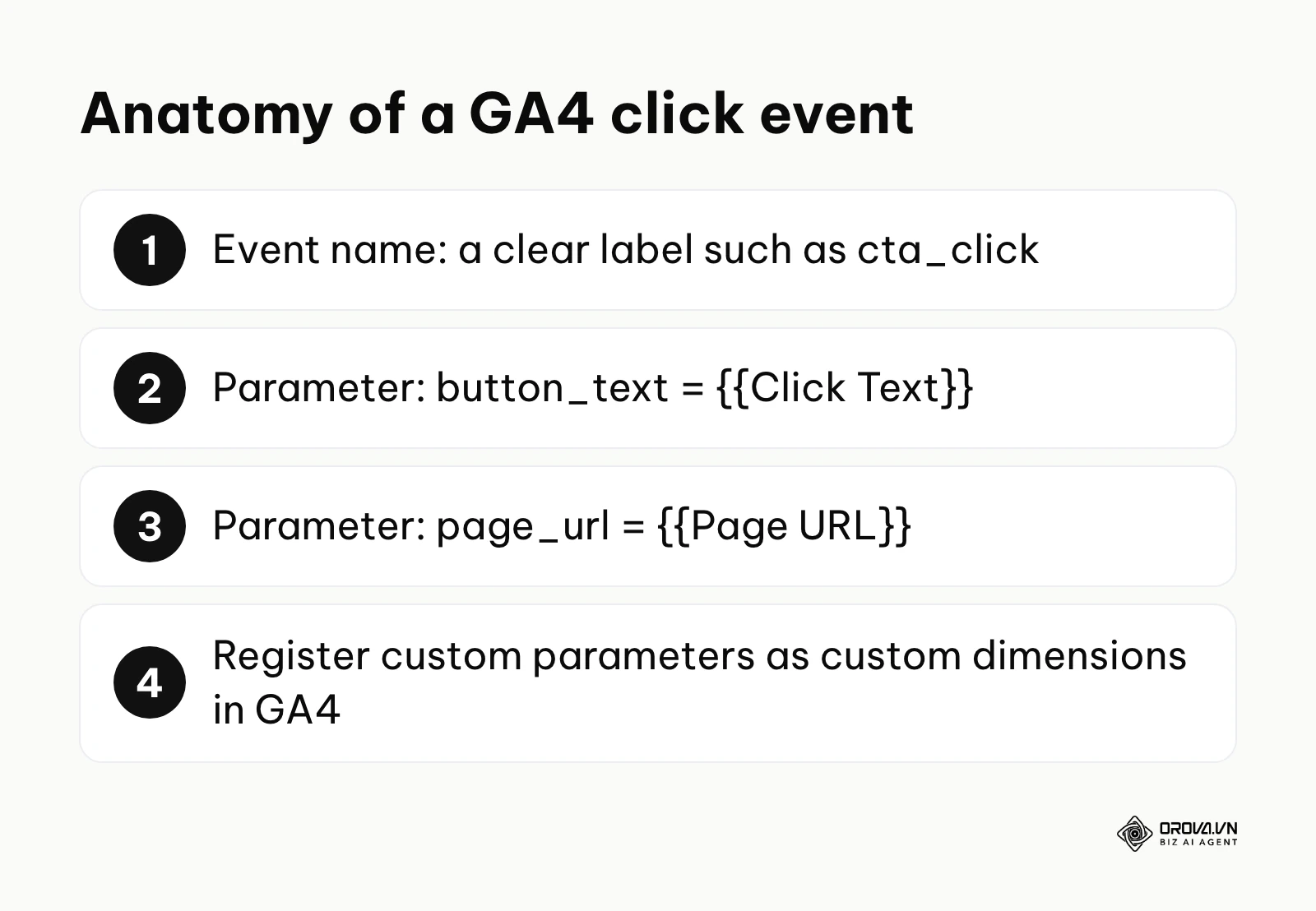
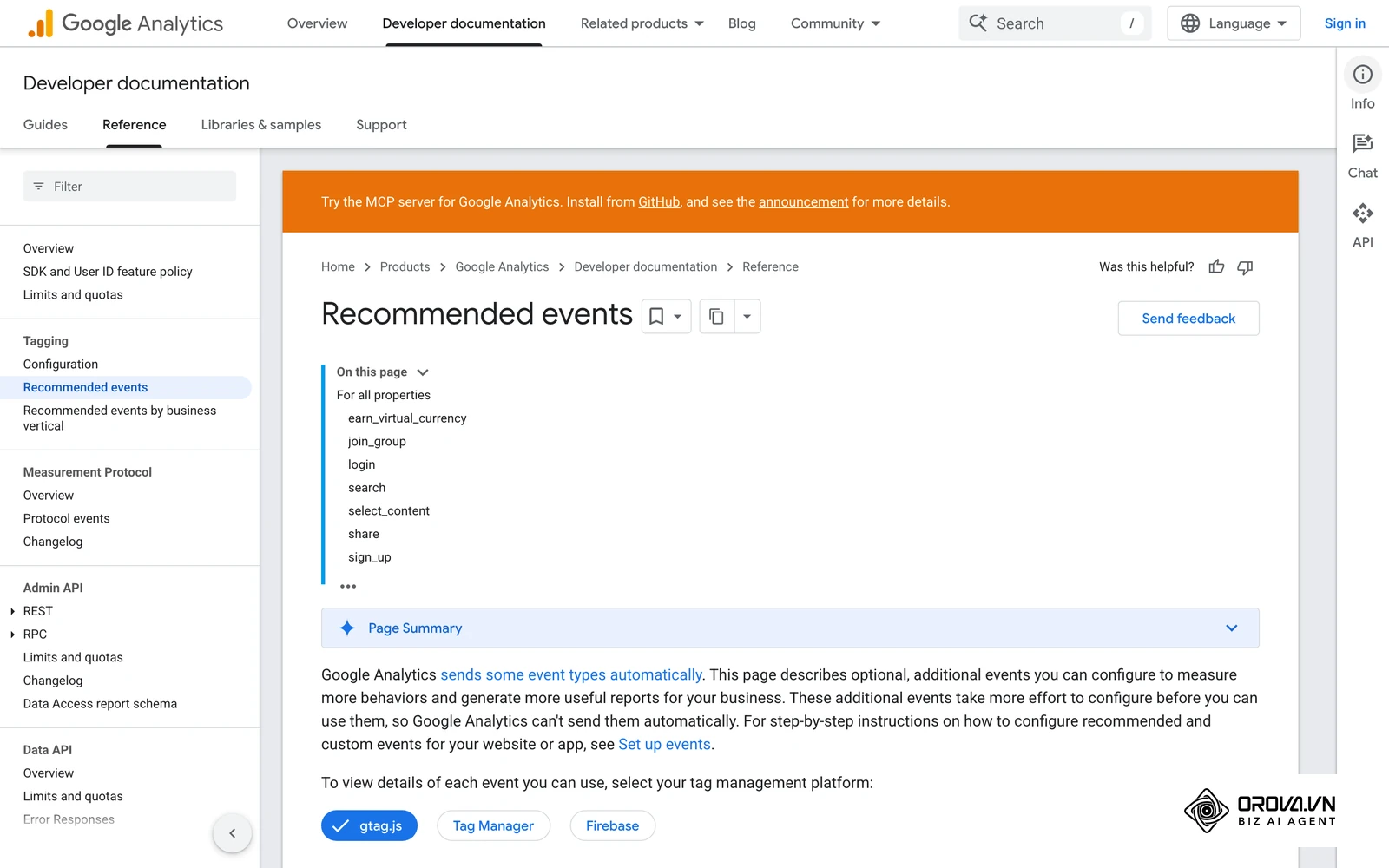
Google's GA4 documentation recommends using its predefined (recommended) event names whenever one fits your action, because they help unlock existing and future reporting features. To accelerate your technical implementation, you can utilize a structured JSON format to import tags. Below is a conceptual representation of how GTM exports a tag configuration, illustrating the underlying complexity of the system.
{
  "exportFormatVersion": 2,
  "exportTime": "2026-10-07",
  "containerVersion": {
    "tag": [
      {
        "name": "GA4 - CTA Click Event",
        "type": "gaawe",
        "parameter": [
          { "type": "template", "key": "eventName", "value": "cta_click" },
          { "type": "list", "key": "eventParameters", "list": [
              { "type": "map", "map": [
                  { "type": "template", "key": "name", "value": "button_text" },
                  { "type": "template", "key": "value", "value": "{{Click Text}}" }
                ]
              },
              { "type": "map", "map": [
                  { "type": "template", "key": "name", "value": "page_url" },
                  { "type": "template", "key": "value", "value": "{{Page URL}}" }
                ]
              }
            ]
          }
        ]
      }
    ]
  }
}
This structural blueprint highlights exactly how the GTM engine processes variables and pushes them into the data layer before transmitting them directly to Google's analytics servers.
Step 5: Implementing Redirect Link Tracking for external campaigns
- What to do: Track user clicks that occur entirely outside your primary website, such as deep within promotional emails, social media profiles, or messaging app broadcasts.
- How to do it: Instead of relying on on-page JavaScript execution, you must use specialized tracking URLs heavily decorated with UTM parameters or utilize dedicated short links. The user clicks the link, briefly hits a high-speed tracking server, and is immediately redirected to the final destination.
- Signs of success: Clicks originating from untethered third-party platforms are accurately and instantly captured before the user even begins to load your website's heavy JavaScript payload.
- Common errors: Creating unnecessarily complex redirect chains that significantly slow down the user experience, cause browser security warnings, or actively trigger aggressive spam filters in enterprise email clients.
This specialized method is absolutely crucial when you are attempting to optimize a broad marketing campaign across multiple unowned channels. You simply cannot install your GTM container inside a user's personal email inbox or within a native mobile application. By diligently using redirect tracking, you guarantee that the initial click intent is securely captured regardless of the hostile external environment.
Step 6: Testing, debugging, and publishing your container
- What to do: Rigorously verify that your configured tags fire under the exact right conditions and successfully pass the correct data payloads before pushing them to the live production environment.
- How to do it: Click the Preview button in the GTM workspace. Connect securely to your live site. Perform the intended click actions yourself. Verify carefully in the Tag Assistant window that the tag actually fired. Simultaneously, open your GA4 interface, navigate to Admin, and open the DebugView to confirm the payload successfully arrived on Google's remote servers.
- Signs of success: The GTM preview interface visually confirms the tag firing exactly once per intended click, and the GA4 DebugView displays the captured event with all expected custom parameters perfectly populated.
- Common errors: Successfully testing the setup on a local development environment but carelessly forgetting to change the GA4 Measurement ID back to the live production string when publishing the final container.
Testing is not an optional phase; it is the most critical step in the entire process. Deploying untested tags can severely break website functionality, inflate bounce rates artificially, or permanently corrupt your historical marketing data.
If you run multi-channel campaigns, a tag manager setup cannot follow clicks on links you share outside your website. With Orova Link & QR, you can create short links and dynamic QR codes that count every click and scan, with statistics by day, device, country and source.
Deep analysis: Privacy, Ad Blockers, and Tracking Mechanisms
The technical landscape of digital measurement is fundamentally shifting beneath our feet. As we progress deeply through the privacy-focused era, relying purely on traditional client-side JavaScript execution is becoming increasingly precarious and highly inaccurate.
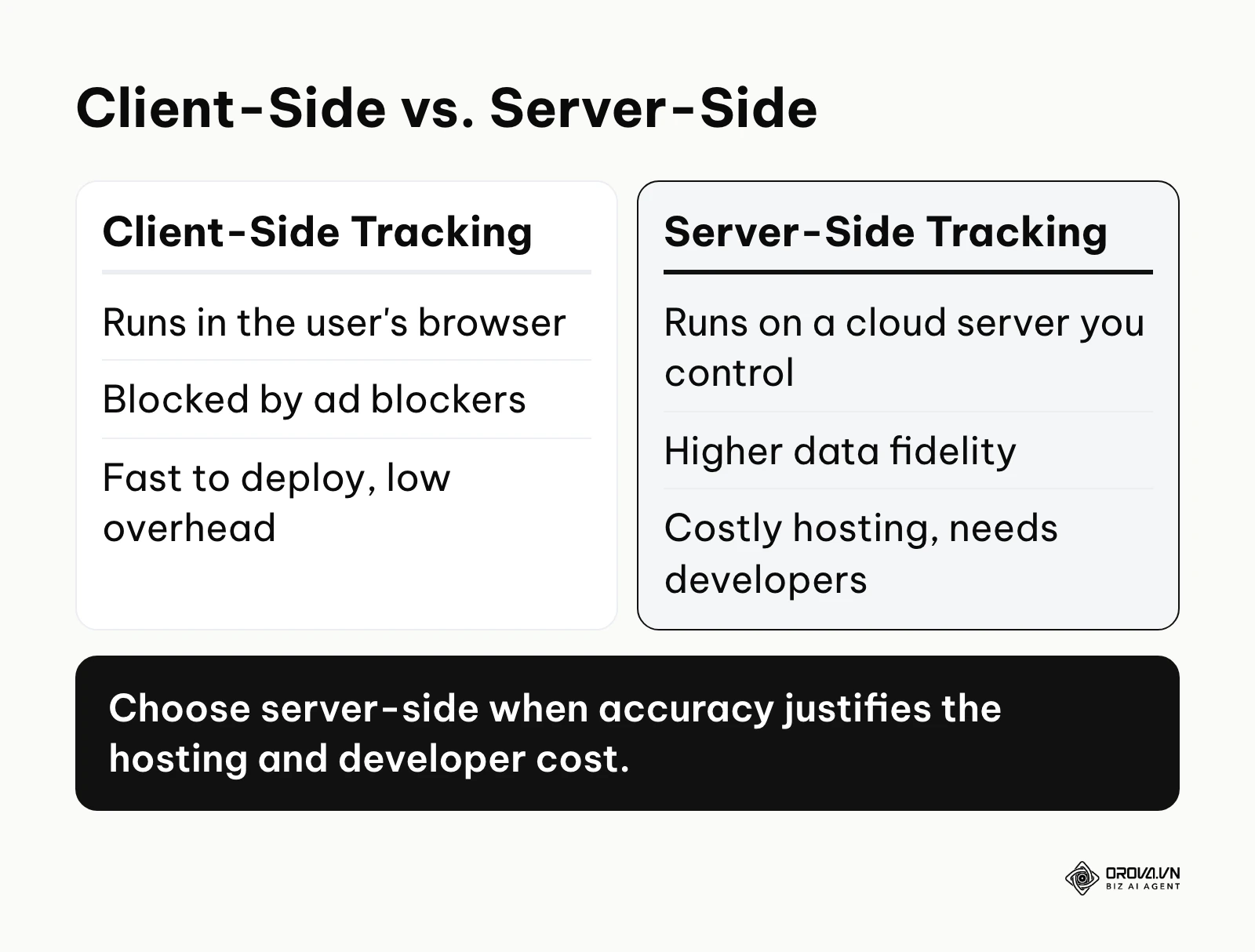
Traditional click tracking operates primarily on the client-side. When a user clicks an element, their personal web browser executes the downloaded JavaScript to build and send a data payload to remote analytics servers. However, stringent privacy regulations mandate explicit user consent before deploying any tracking cookies. Furthermore, browser-level protections like Safari's Intelligent Tracking Prevention shorten cookie lifespans, and ad blockers stop requests to known analytics domains before they leave the browser.
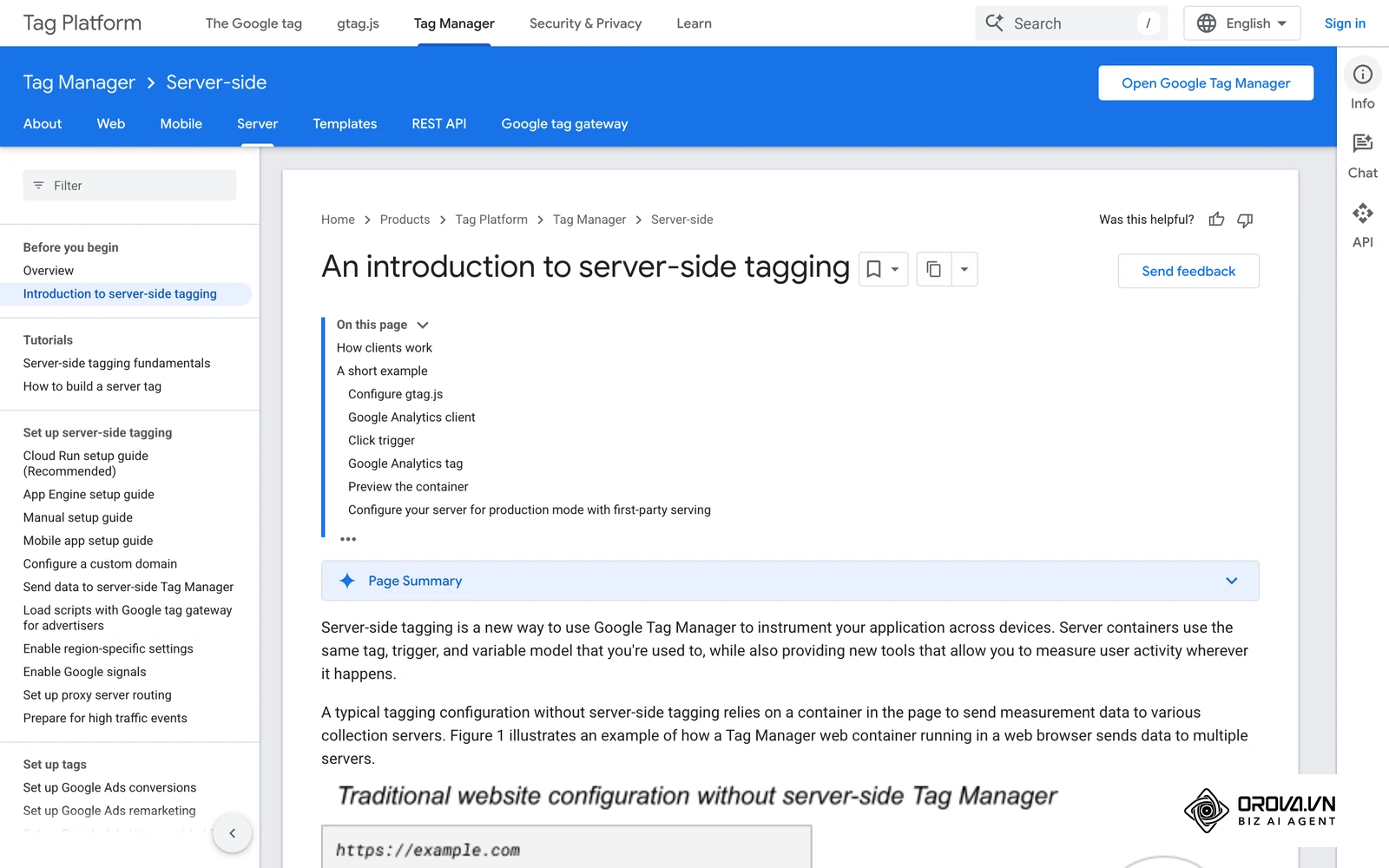
Server-side tracking mitigates this catastrophic data loss by physically moving the measurement tag execution from the unpredictable user's browser directly to an isolated cloud server you control. The browser sends a single, simplified stream of first-party data to your secure server, which then processes, anonymizes, and selectively distributes the data to various marketing endpoints. This architecture ensures significantly higher data fidelity and complies much more easily with strict government privacy mandates.
| Method | Ideal Use Case | Critical Weakness |
|---|---|---|
| Client-Side Tracking | Small to mid-sized websites needing rapid deployment with minimal technical overhead. | Highly susceptible to ad blockers and modern browser privacy restrictions. |
| Server-Side Tracking | Enterprise sites requiring maximum data accuracy, payload control, and enhanced security. | Expensive to host and requires advanced developer resources to properly configure. |
| Redirect Link Tracking | Email marketing, messaging app campaigns, offline print media, and social media profile links. | Relies heavily on third-party link shortening services; can add latency. |
Example scenario:
- Context: A massive global e-commerce retailer noticed a highly concerning 25% discrepancy between the outbound clicks reported by their paid ad platforms and the actual inbound sessions recorded in their Google Analytics property.
- Steps taken: The senior analytics team conducted a deep technical audit of the incoming traffic and identified that a massive segment of their European audience was utilizing strict browser ad blockers, effectively preventing the standard GA4 client-side script from executing upon click.
- Hurdle: They legally could not force users to disable these ad blockers, nor could they afford to permanently lose vital visibility on the return on investment of their high-budget advertising campaigns.
- Result: The engineering team fully migrated their primary conversion tracking infrastructure to a complex Server-Side GTM container. By cleverly routing all tracking requests through a custom first-party subdomain, they made measurement far less dependent on client-side scripts, recovering a large share of the missing attribution data within two weeks while still respecting each visitor's consent choices.
Under EU rules (the ePrivacy Directive together with the GDPR), you generally cannot set non-essential tracking cookies or collect personal identifiers without the user actively opting in. This legal framework forces companies to choose between gathering less data legally or risking massive fines. Server-side architecture allows you to strip out personally identifiable information before it ever reaches third-party vendors, effectively solving this monumental compliance challenge.
Measuring results: Click data analysis and combining metrics
Collecting millions of data points is merely the preamble; the actual business value lies entirely in the analysis phase. A high click count is completely meaningless in a vacuum. You must establish a rigid analytical framework for interpreting what those raw numbers actually represent regarding user intent and potential frustration.
| Metric | Meaning / Implication | Warning Sign |
|---|---|---|
| Click-Through Rate | Percentage of viewers who clicked an element. Indicates visibility and copy effectiveness. | Clearly lower than your other CTAs or than the same CTA in the previous period. |
| Time to First Click | Seconds elapsed before the user engages. Indicates page clarity and cognitive load. | Noticeably longer than on your comparable pages. |
| Rage Clicks | Multiple rapid clicks on the same element. Indicates severe UI failure or slow processing. | A cluster that keeps recurring on the same element. |
| Error Clicks | Clicks resulting in a JavaScript console error. Indicates fundamentally broken functionality. | Any recurring occurrence. |
To actively prevent analysis paralysis, you must employ highly structured "If-Then" logic when reviewing your dashboards. If a non-clickable element receives a high volume of clicks, then users strongly expect it to do something functional. You must add a zoom function, link it to a detailed specifications page, or visually differentiate it from truly interactive elements.
If a primary CTA receives high clicks but the subsequent form has a massive abandonment rate, then the initial button copy unfortunately set the wrong expectation. If the overall page has exceptionally high traffic but the primary CTA receives almost zero clicks, then you have a severe visual hierarchy problem that needs immediate redesigning.
Example scenario:
- Context: A specialized B2B software agency launched a brand new service page designed to capture high-value enterprise leads through a complex request form.
- Steps taken: The marketing director rigorously tracked the "Request Quote" button clicks using GTM and compared those numbers against the actual final form submissions recorded in their backend database.
- Hurdle: They discovered an incredibly high volume of initial button clicks, but a devastating 90% drop-off rate immediately afterward. Upon deeper analysis, they realized the required form demanded 15 separate fields of information, instantly overwhelming the highly interested users.
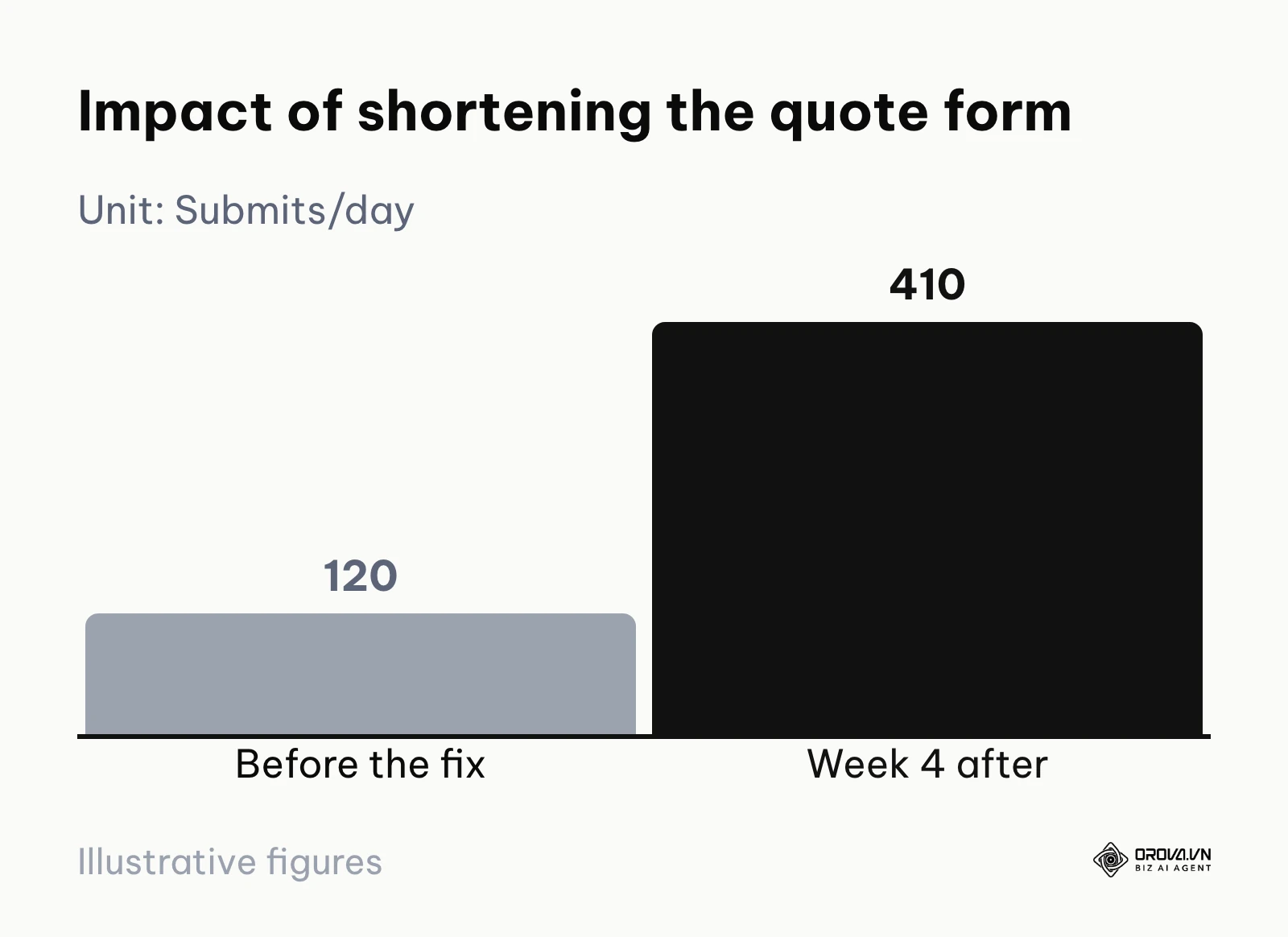
- Result: They ruthlessly shortened the form to require only an email address and a company name. As a direct result of reducing this friction, completed submissions increased drastically from 120 per day to 410 per day by week four, validating the hypothesis perfectly.
Never analyze click data in total isolation. Combining click tracking with other behavioral metrics provides a multi-dimensional view of user engagement, which is absolutely vital for calculating true marketing ROI. If you meticulously track clicks alongside vertical scroll depth, you can mathematically determine if a low CTR is due to terrible copywriting, or simply because most users never actually scrolled far enough down the page to physically see the button on their screen.
Ready to measure the clicks that happen beyond your website? Orova Link & QR gives you trackable short links, a UTM link builder and dynamic QR codes whose destination you can change after printing. Sign up and use it free until July 7, 2027.
Common click tracking mistakes and how to fix them
Even highly experienced technical marketers stumble frequently when configuring incredibly complex analytics environments. Avoid these widespread, damaging pitfalls to comprehensively ensure your marketing data remains pristine and actionable for senior leadership.
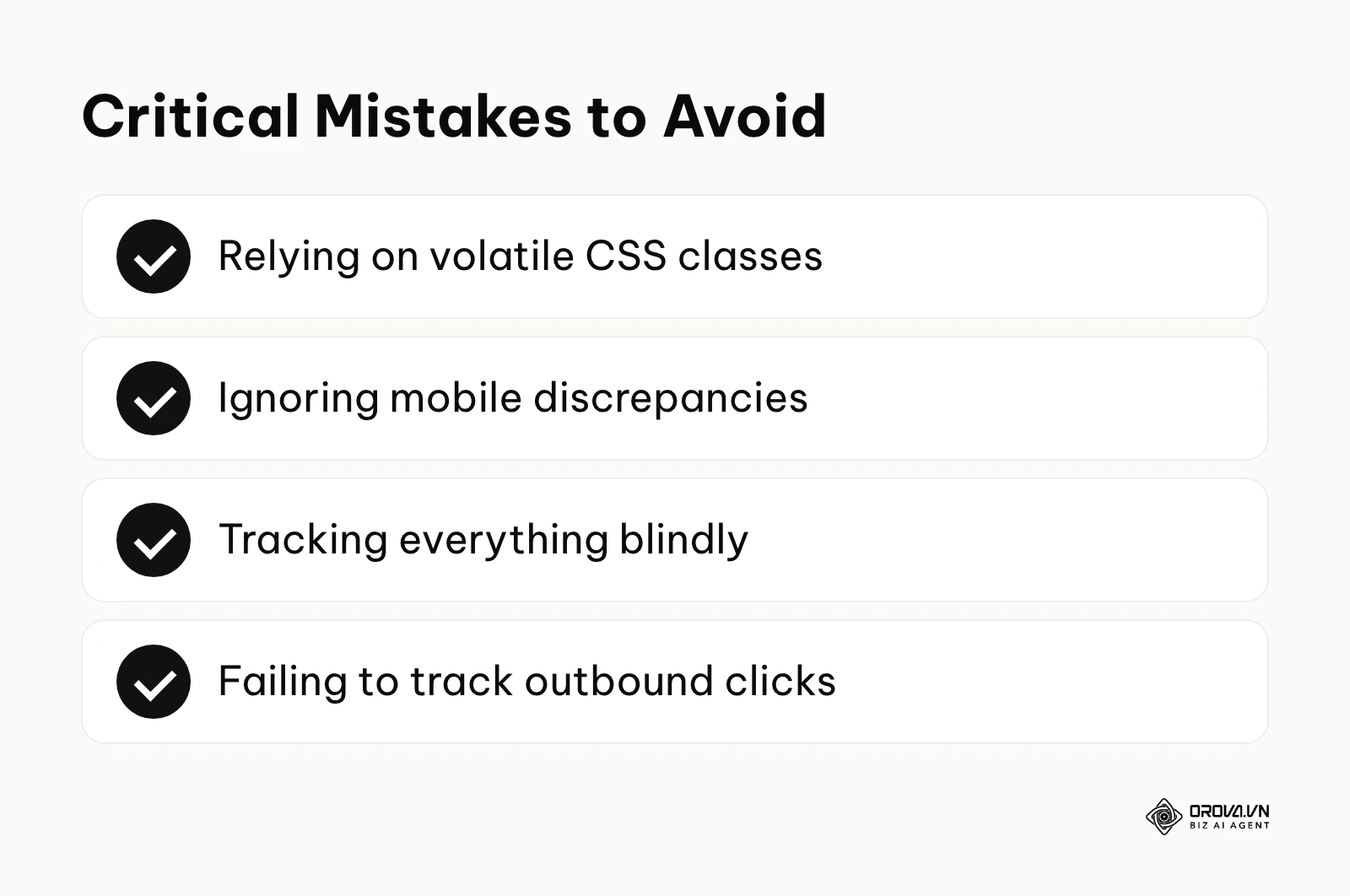
- Tracking highly volatile CSS classes: Frontend developers frequently update styling frameworks to keep the site modern. If your critical trigger relies entirely on a generic class like "btn-blue", the very next minor site redesign will silently break your entire tracking infrastructure without generating any error alerts.
- Fix: Always collaborate closely with your engineering team to implement custom, static data attributes specifically reserved for tracking purposes.
- Ignoring massive mobile versus desktop discrepancies: A beautiful button that is highly prominent on a wide desktop screen might be deeply hidden inside a clunky hamburger menu on a mobile device. Aggregating this data together hides severe mobile UX flaws from your view.
- Fix: Always purposefully segment your click reports by the specific device category.
- The catastrophic Data Overload trap: Creating a blanket, lazy rule that automatically tracks every single click occurring anywhere on the webpage generates immense statistical noise. This makes it mathematically impossible to spot the critical conversion friction points hiding within the database.
- Fix: Adopt a remarkably strict measurement plan. Only actively track the specific clicks that directly contribute to a defined micro-conversion or macro-conversion.
- Failing to track outbound affiliate traffic: If you run a lucrative software directory, an affiliate review site, or a comprehensive link in bio profile page, your primary conversion event actually happens entirely off-site. Standard GA4 pageviews absolutely cannot track where users go after they leave your domain.
- Fix: Implement specific outbound link click triggers to precisely monitor exactly which external partners are receiving your hard-earned traffic.
- Fundamentally confusing click tracking with visual heatmaps: Assuming quantitative click data provides rich visual context is a highly dangerous analytical error. An event report simply states a button was clicked; it completely fails to show you the messy, chaotic, and hesitant paths users took across the screen to finally get there.
- Fix: Use event tracking strictly for precise, numerical conversion measurement, and actively supplement it with visual heatmap software for qualitative UX discovery.
Future trends in click tracking: author's perspective
The technical landscape of digital measurement is currently undergoing a massive tectonic shift, aggressively driven by global privacy regulations and the breathtakingly rapid advancement of artificial intelligence. Based on the current trajectory of enterprise analytics platforms up to 2026, I foresee several radical, permanent changes in how we monitor user behavior over the next few years.
AI-driven anomaly detection will replace manual dashboards
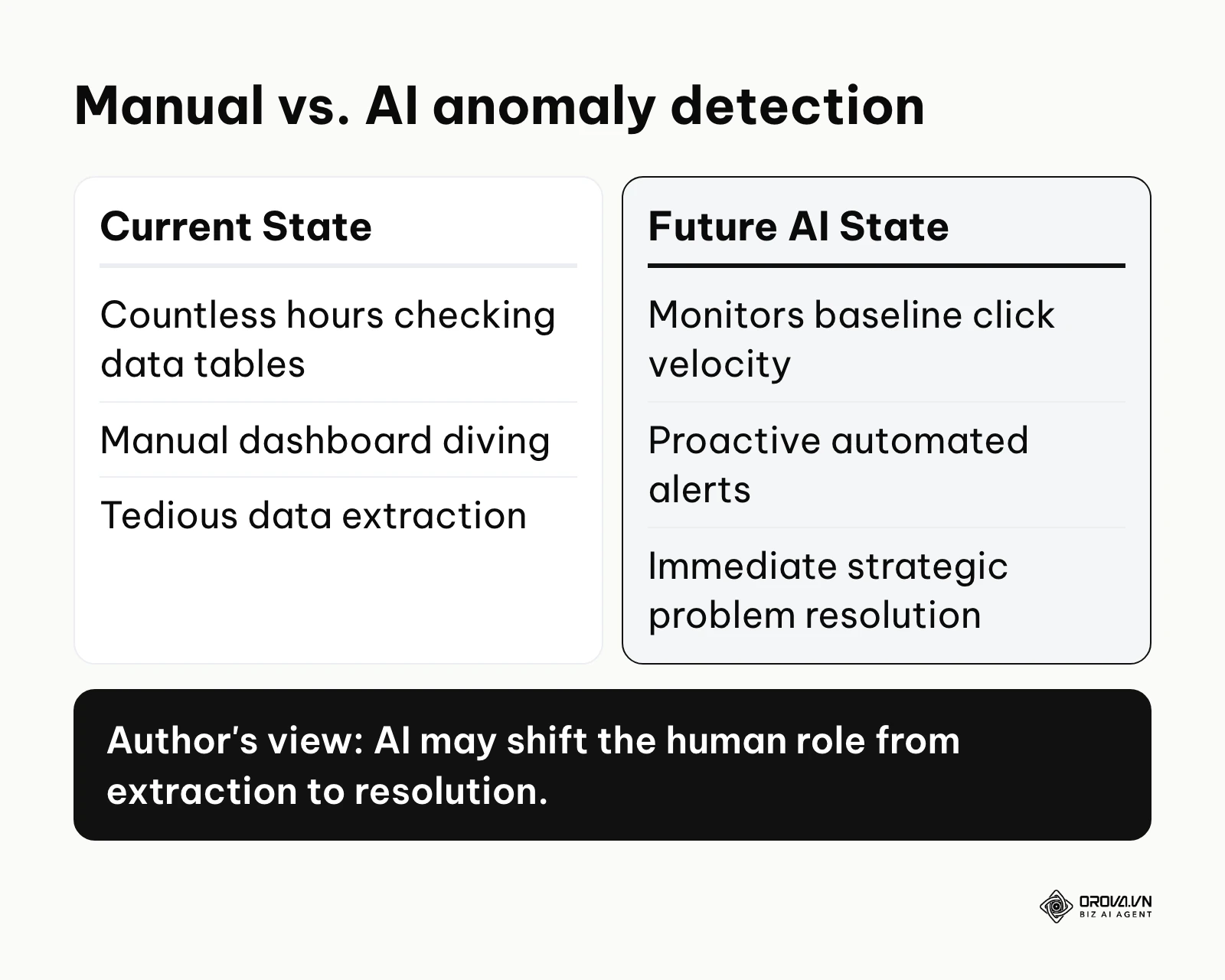
Currently, talented marketers spend countless hours cross-referencing massive data tables to discover a sudden, unexplained drop in checkout clicks. I believe that in the coming years, much of this manual dashboard diving will become unnecessary. I expect analytics platforms to increasingly build in AI agents that constantly monitor your baseline click velocity and proactively alert you. This fundamentally shifts the human role from tedious data extraction to immediate, strategic problem resolution. I strongly advise you to start familiarizing yourself with automated alerting systems right now to adequately prepare for this inevitable shift.
Server-side tracking will become the absolute baseline
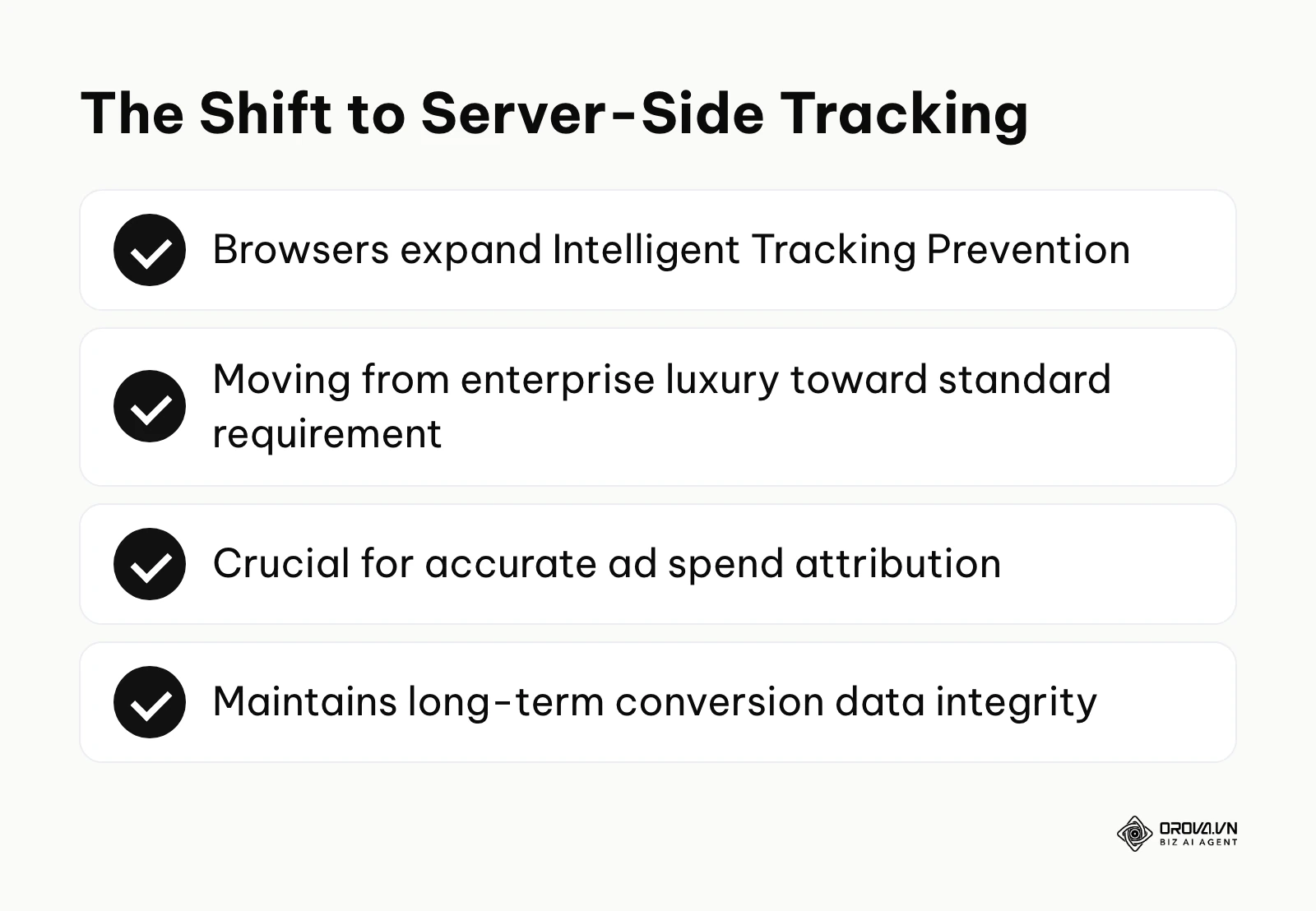
The golden days of easily dropping a simple JavaScript snippet into a website header and effortlessly tracking everything are permanently ending. With browsers aggressively expanding Intelligent Tracking Prevention protocols, I expect server-side tracking to gradually move from being an "enterprise luxury" toward a standard requirement for many serious online businesses. If you rely heavily on accurate attribution for optimizing ad spend, you must begin the difficult process of migrating your core conversion events to robust server-side containers today to maintain long-term data integrity.
Predictive intent modeling via micro-interactions
We are rapidly moving beyond simply recording a click long after it happens. I predict analytics tools will increasingly focus on analyzing pre-click behavior—calculating cursor velocity, measuring hover duration, and identifying scroll hesitation to accurately predict true user intent. Advanced AI models will process these biometric-adjacent signals in real-time to dynamically alter the website layout before the user even decides to click. While this sounds like futuristic science fiction, some of the building blocks already exist in enterprise personalization tools today.
Frequently asked questions about click tracking
How does click tracking fundamentally differ from heatmaps?
Click tracking via robust tools like GTM records quantitative, highly structured event data straight into a database. Conversely, heatmaps aggregate visual data, creating a brightly colored overlay on a static screenshot of your site to show general, fuzzy areas of high interaction. Event tracking is strictly for precise mathematical funnel measurement, while heatmaps exist purely for qualitative UX discovery and presentation.
Will implementing heavy tracking scripts severely slow down my website load time?
Yes, poorly implemented tracking can severely degrade your frontend performance. Every single client-side tag requires the user's browser to download and execute additional JavaScript code. To effectively mitigate this risk, utilize a tag management system, intelligently defer non-essential scripts, and regularly audit your container to permanently remove legacy tags.
How can artificial intelligence improve click data analysis?
Artificial intelligence excels flawlessly at processing massive, chaotic datasets to identify completely non-obvious correlations. Instead of a human manually segmenting data for hours, an AI can instantly reveal that users arriving from a specific marketing channel on mobile devices have a significantly higher error click rate on your pricing tab.
Are standard click tracking methods actually legal under GDPR?
Generally yes, provided you obtain explicit, informed consent before firing tracking scripts that set non-essential cookies or collect personal data. You cannot legally deploy tracking cookies or collect sensitive personal identifiers without the user actively opting in via a strictly compliant cookie consent banner.
Why are my GTM click events absolutely not appearing in GA4 reports?
The single most common reason is failing to register the custom event parameters within the GA4 interface. Sending the data accurately from GTM is only half the battle; you must navigate to GA4 and explicitly map your GTM parameter names to custom dimensions. Additionally, standard reports can take 24 to 48 hours to process new data.
Where to start?
Staring blankly at an empty tag management container or attempting to decipher a messy analytics dashboard can be entirely paralyzing for a beginner. Your immediate next step depends entirely on your current operational maturity and technical confidence. Do not attempt to track everything on day one.
If you have absolutely zero tracking currently in place: Do not start by immediately installing complex GTM scripts on your entire site. Your very first task, which you can easily complete in one focused afternoon, is to create a detailed Measurement Plan document. Open a spreadsheet and precisely list the top three critical actions a user can take on your primary landing page. Define exactly what those buttons look like in the code and what specific business value they represent to your bottom line.
If your current analytics dashboard is a chaotic mess of unnamed events: Your first vital step is to execute a rigorous, uncompromising tag audit. Open your cluttered GTM container, aggressively pause every single tag that hasn't actively recorded data in the last thirty days, and strictly standardize the naming convention of your remaining core tags. Stop collecting useless garbage data before trying to analyze it.
If you run complex offline-to-online marketing campaigns: You desperately need to bridge the physical and digital divide immediately. Your single most impactful step today is to implement a robust redirect tracking system. Use QR codes and short links with scan tracking for all printed materials (and check first whether free QR codes are permanent), ensuring that every physical interaction is instantly logged in your digital analytics funnel before the user even loads your homepage.
About the author

Builder of Orova
Nguyễn Đỗ Trọng Ân has 8 years of experience in marketing, including 6 years managing market development across Asia. He builds Orova, a Biz AI Agent that never sleeps: it plans, runs and optimizes work for businesses.
Run your business with AI Agents
Orova is the always-on Biz AI Agent — it plans, runs, and optimizes the work for you.
Save time, unlock productivity.