
Sprout Social Inbox: a 2026 setup guide for large teams

Social media managers often find themselves drowning in a sea of browser tabs. When a brand runs multiple campaigns across platforms, notifications for comments, direct messages, and brand mentions pile up faster than any human can process. Jumping between Facebook, Instagram, LinkedIn, and X natively is not just frustrating; it actively damages customer relationships when urgent inquiries slip through the cracks. The sprout social inbox (officially the Smart Inbox) is Sprout Social's unified feed that pulls comments, direct messages, and mentions from connected networks into one place, with tags, saved replies, collision detection, automated rules, and case assignment for teams. It is worth the effort mainly for teams that share a high message volume; a single small page rarely needs it. However, simply adopting a tool does not guarantee results. Without a deep understanding of its configuration, teams end up recreating the exact same mess inside a new interface. This comprehensive guide will dissect the platform, revealing the exact setups, routing rules, and automation techniques required to build a flawless customer communication machine.
What is the Sprout Social Inbox and Who Actually Needs It?
The Sprout Social Inbox is a centralized workspace that aggregates messages, comments, and mentions from all connected social networks into one unified feed. It is best suited to teams that handle a large volume of inbound messages and need shared collaboration tools. If your organization operates a single brand page with minimal daily engagement, you should look elsewhere.
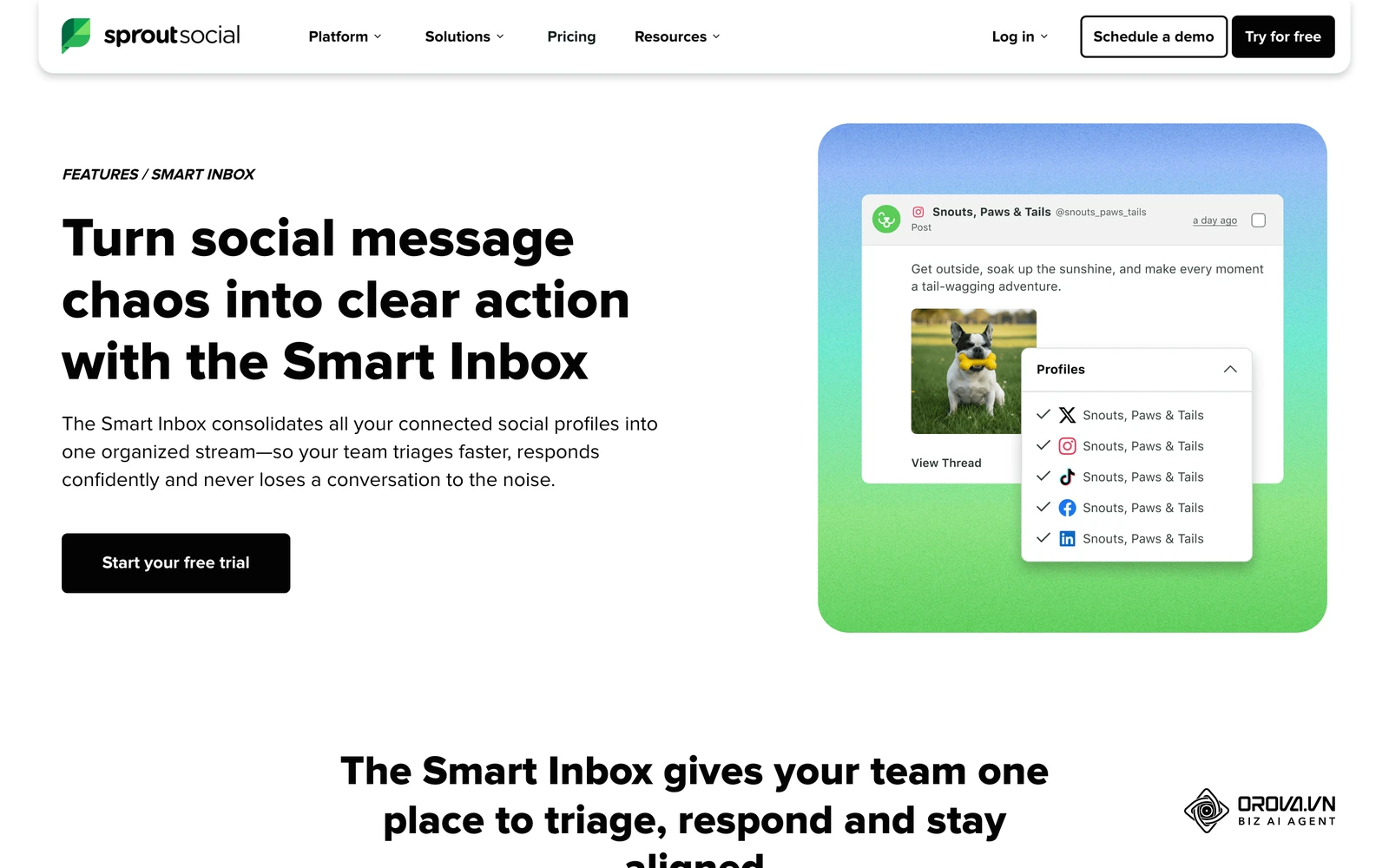
When evaluating this platform, you must understand that it is fundamentally a team collaboration engine masquerading as a social tool. The true power lies in its ability to route tasks, prevent agents from stepping on each other's toes, and measure response times precisely. For small teams, these enterprise-grade features often feel unnecessarily complex and cumbersome. Conversely, for large marketing agencies or global customer support departments, these exact features are the difference between maintaining brand reputation and facing a public relations disaster. It is crucial to evaluate your actual message volume before committing to the learning curve.
Preparation: What to Gather Before Setting Up Your Smart Inbox
Before you begin learning how to use sprout social smart inbox, you must lay a solid administrative foundation. You cannot simply plug in your accounts and expect the software to magically organize your internal workflow. Large teams need a structured, documented approach to avoid systemic chaos during the onboarding phase.
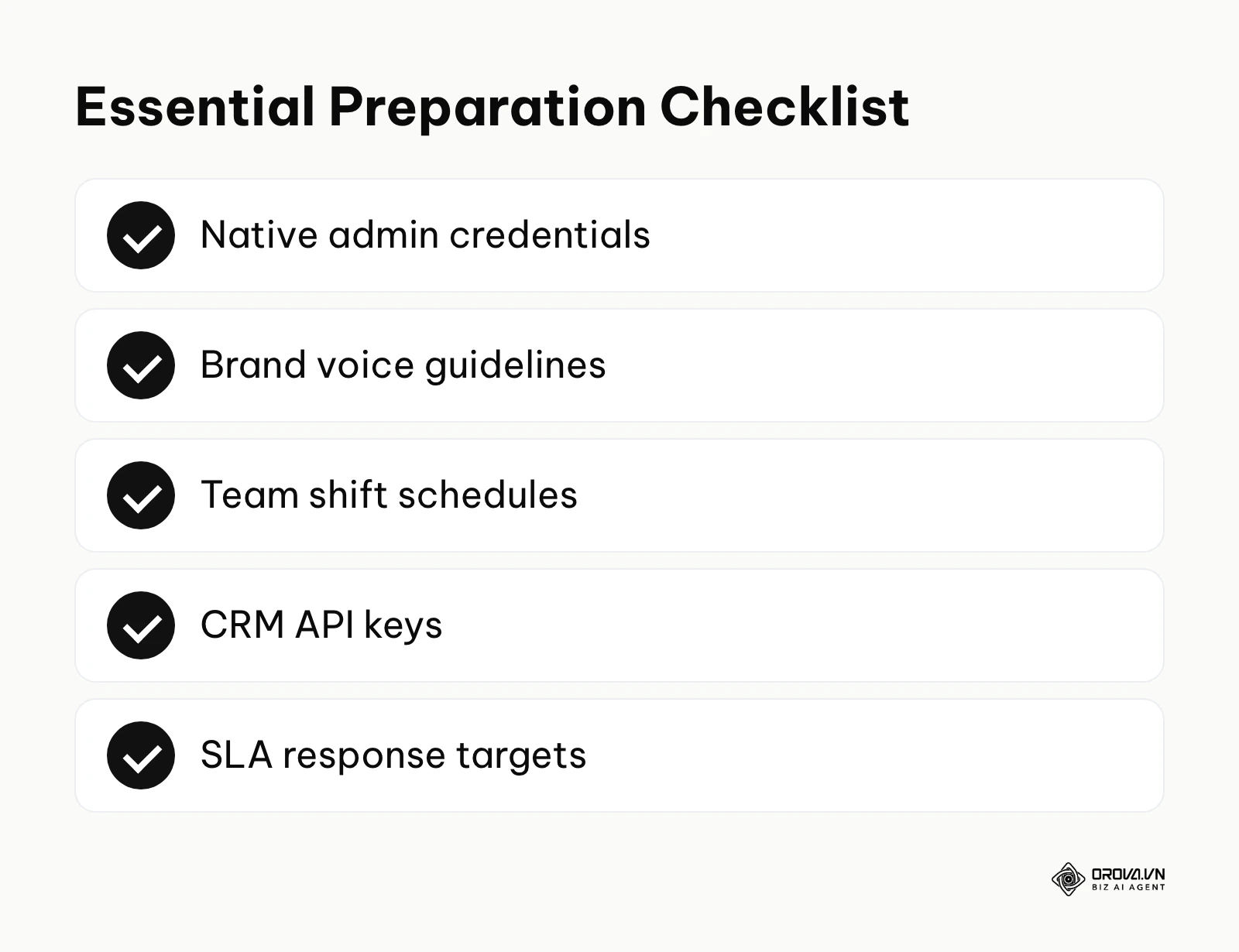
Gathering the right assets beforehand saves countless hours of backtracking. If you skip this preparation phase, you will inevitably hit roadblocks when trying to configure automated rules or assign user roles. You will find yourself pausing the setup to hunt down passwords or debate brand voice guidelines with the marketing department. Treat this preparation as a mandatory prerequisite for success. If your organization currently utilizes a social media scheduler for outbound content, you should also document its current posting frequency to align your inbound support staffing accordingly.
| Required Item | Where to source it | Estimated time to complete |
|---|---|---|
| Native admin credentials | Platform owners or IT department | 1 to 2 hours |
| Brand voice guidelines | Marketing or Communications lead | 2 to 3 days |
| Team shift schedules | Human Resources or Team Managers | 1 day |
| CRM API keys | IT or Sales Operations | 2 to 4 hours |
| SLA response targets | Customer Success Director | 1 week |
Having these items ready ensures that your technical setup aligns perfectly with your business goals. For instance, knowing your SLA response targets allows you to configure accurate alert thresholds immediately, rather than guessing and adjusting later.
The 10-Step Blueprint to Configure Sprout Social Smart Inbox
Implementing a unified stream for a large organization is a complex project that requires deliberate execution. This blueprint breaks down the process into ten distinct, sequential stages. Following this path ensures that you do not just activate features blindly, but instead build a logical, scalable architecture for your entire team.
Step 1: Connecting your social profiles and authenticating
The absolute first action is to securely bind your native social media accounts to the platform. This process relies on OAuth tokens, which grant Sprout Social permission to read and write data on your behalf without storing your actual passwords. You add each network from the profile settings and authorize them one by one.
It is vital that the person performing this step holds the highest level of administrative access on the native platforms. For example, connecting a Facebook business page requires you to be a full admin in the Meta Business Manager, not just an editor. You will click the connect button, authenticate via the popup window, and grant all requested permissions. Do not uncheck any permission boxes during this flow, as doing so will severely cripple the tool's ability to fetch direct messages or sync comments.
A clear sign of correct implementation is seeing the profile avatars populate in your dashboard with a green connected status. A common mistake at this stage is using a personal employee account to authenticate corporate pages. If that employee leaves the company and their native access is revoked, the connection will break instantly, halting all incoming messages. Always use dedicated corporate credentials for authentication whenever possible.
Step 2: Defining user roles and permissions
Once the accounts are connected, you must invite your team members and assign them strict boundaries. The platform offers granular control over who can view, reply, or manage settings for each specific profile. Sprout describes these as role-based profile permissions, so start by mapping your team hierarchy into them.
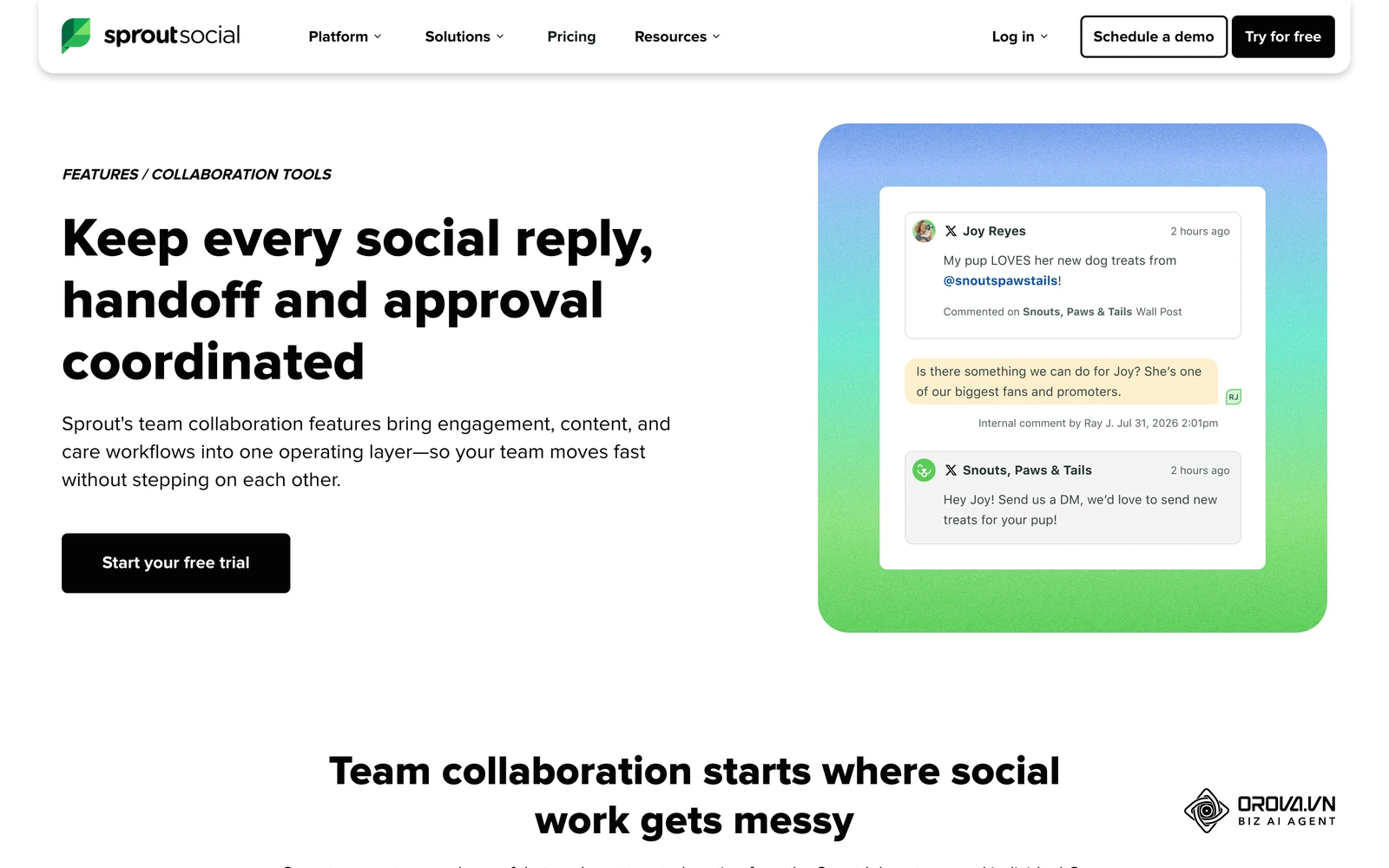
You should assign roles based strictly on daily responsibilities. Junior agents should receive the most limited access that still lets them reply to customers, so they cannot accidentally disconnect profiles or alter overarching automation rules. Managers should receive full administrative rights to oversee workflows and pull reports. You must explicitly define these permissions for every single user invited to the workspace.
When this is done correctly, your junior staff will only see the tools they need to execute their job, reducing interface clutter and preventing catastrophic errors. A frequent mistake is granting global administrator access to everyone on the team simply because it is faster to set up. This lazy approach inevitably leads to someone accidentally deleting a crucial tag or altering a filter view, which disrupts the entire department's workflow.
Step 3: Creating custom Inbox Views for focus
By default, the Smart Inbox displays every single message from every connected profile in one overwhelming chronological list. To make the tool usable, you must create custom views that slice this massive feed into manageable, specific queues. You do this with the inbox filters.
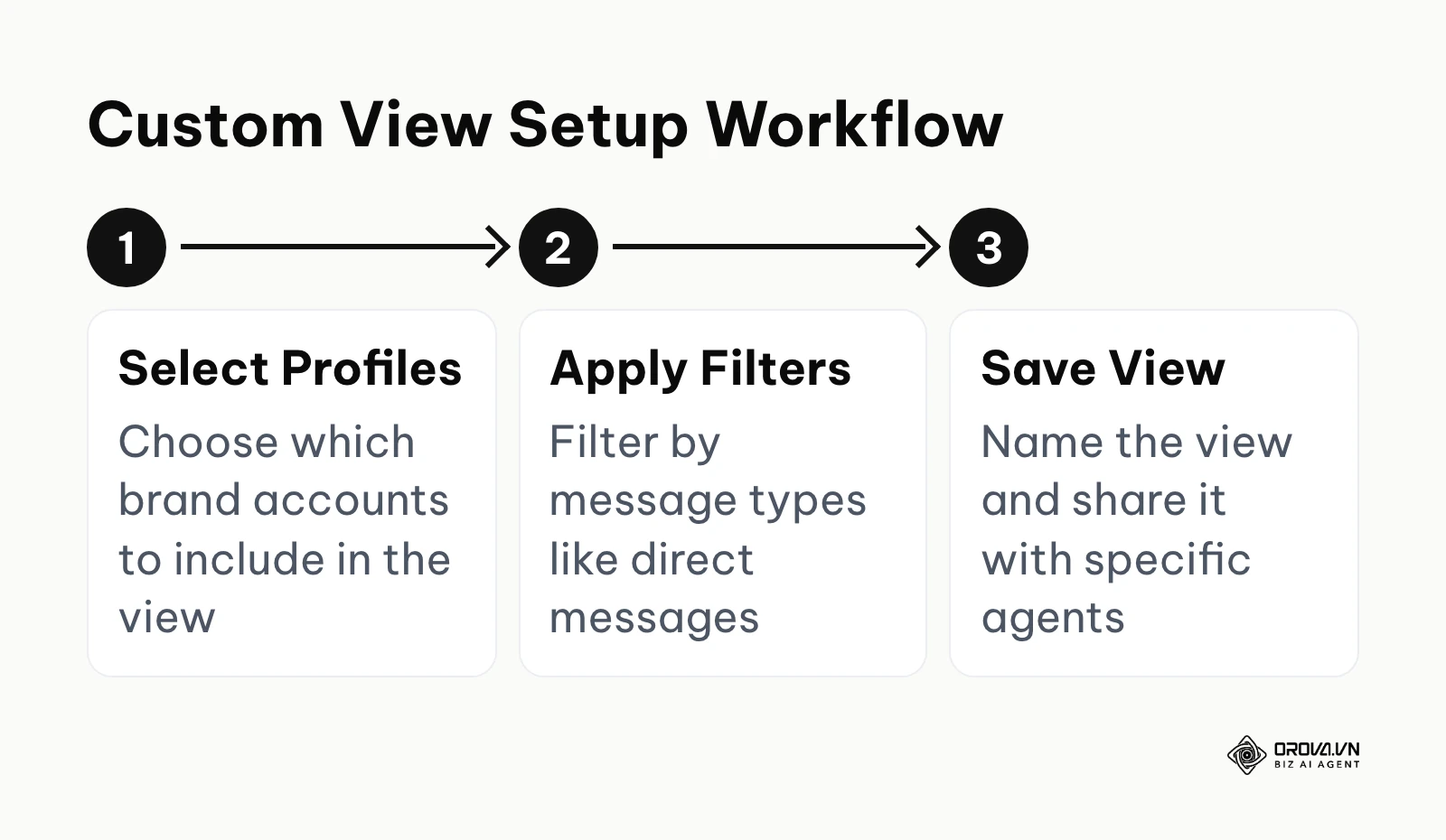
You can filter the feed by specific profiles, message types, or applied tags. For example, you might create a view that only displays direct messages from Twitter and Instagram, completely filtering out public comments and brand mentions. Once you configure a filter combination that makes sense for a specific workflow, you save it as a view, name it descriptively, and choose whether to share it with your team or keep it private.
Illustrative example: A mid-size marketing agency managing fifteen different brands struggled with notification overload. The team took the step of creating custom Inbox Views for each specific brand, applying filters for direct messages only, and assigning designated agents to monitor those specific views. A stumbling block occurred when they initially missed urgent comments on paid ad posts because their strict filter entirely excluded them. They fixed this by editing the view to explicitly include comments on paid ad posts. The visible result was a clean, highly organized dashboard where agents immediately saw their assigned tickets without endless scrolling.
Step 4: Setting up automated tagging rules for incoming messages
Manual tagging is slow and prone to human error. To scale your operations, use Sprout's Automated Rules to categorize messages as they arrive.
You will build rules using simple "If/Then" statements. For instance, you can instruct the system: If a message contains the exact words "shipping", "tracking", or "delivery", then automatically apply the tag "Logistics". You must carefully consider the vocabulary your actual customers use when building these keyword lists. Do not rely on internal corporate jargon; use the colloquial terms that appear in real inquiries.
A properly functioning tagging system will result in a colorful, instantly readable inbox where agents can visually identify the nature of a ticket before reading it. The most common mistake here is creating overlapping rules that conflict with one another. If one rule tags the word "broken" as a technical issue, and another rule tags it as a refund request, the message can end up with both tags, creating immense confusion for the agent trying to resolve the problem.
Step 5: Configuring Collision Detection to prevent duplicate replies
When multiple agents work in the same queue, there is a high risk that two people will attempt to answer the exact same customer simultaneously. This not only wastes labor hours but also risks sending conflicting information to the user. You must ensure that the collision detection feature is actively functioning within your workspace.
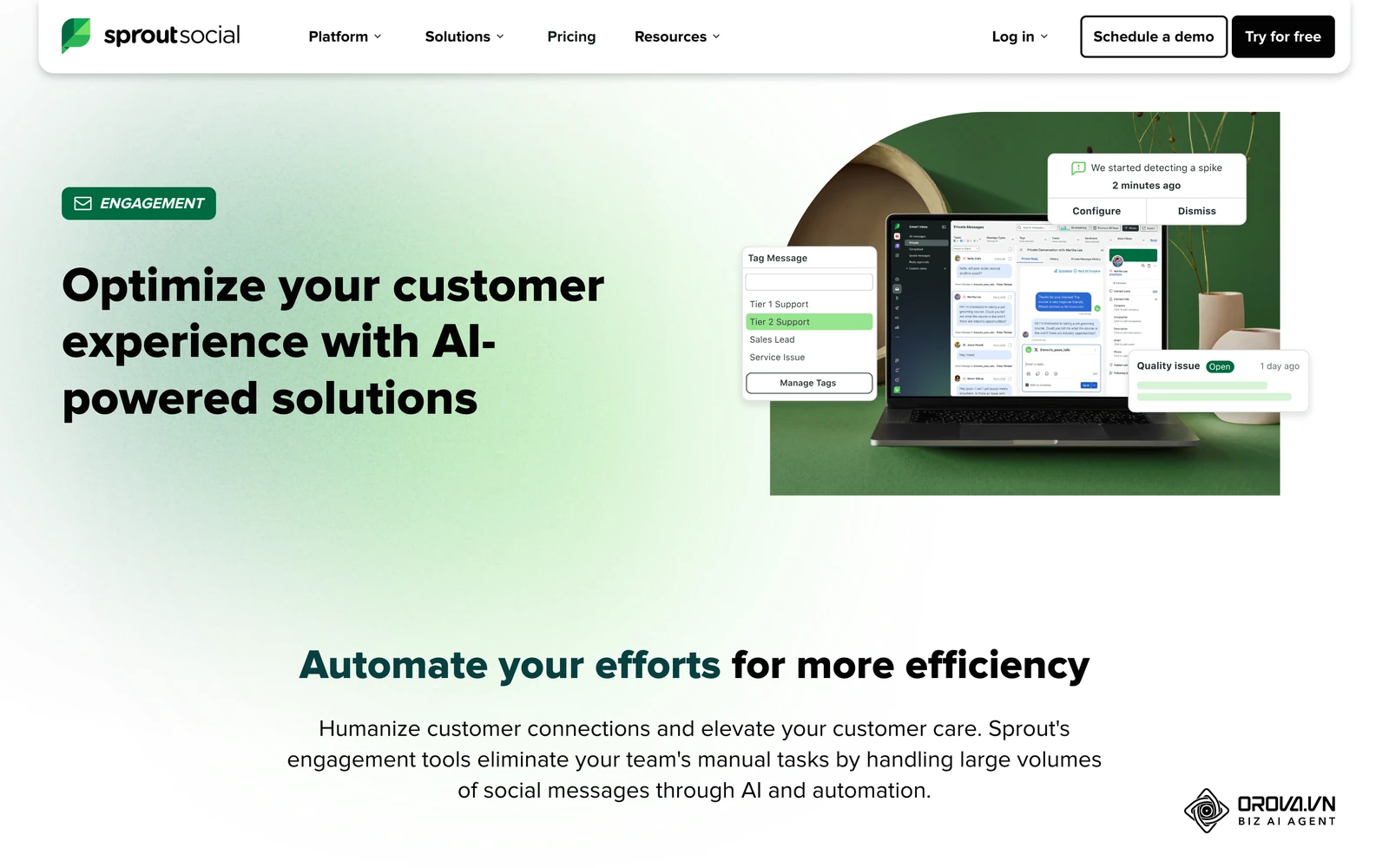
This feature operates passively in the background. When an agent is already composing a reply, Sprout flags this to teammates who open the same message. You do not need to configure complex settings for this; you simply need to train your team to recognize and respect the visual cues. Instruct your staff that if they see the indicator that a colleague is already replying, they must immediately back out of the ticket and move to the next item in the queue.
The sign of success here is a complete elimination of duplicate responses sent to customers. A common failure point is poor team communication. If agents ignore the visual indicators and attempt to race each other to send a reply, the software cannot physically stop them. You must enforce strict behavioral protocols during training to ensure the technology actually solves the problem.
Step 6: Building a Saved Replies library for FAQs
Typing out the exact same answer to common questions drains agent energy and hurts your response time metrics. You must build a comprehensive library of saved replies that agents can insert with a single click. Sprout calls these Saved Replies.
You should compile your most frequently asked questions—covering topics like return policies, business hours, and password resets. Draft clear, polite, and accurate answers for each. When creating these assets, use placeholder brackets like [Customer Name] to remind agents to personalize the message before hitting send. Organize these replies into logical folders so they are easy to find during a stressful shift.
When executed correctly, agents will resolve repetitive inquiries in seconds rather than minutes. The biggest mistake managers make is writing saved replies that sound overly robotic or overly formal for social media. If a canned response sounds like a legal document, customers will react negatively. Keep the tone conversational, helpful, and aligned with your documented brand voice guidelines.
Step 7: Activating the AI Assist for draft generation
Artificial intelligence is rapidly altering how teams handle inbound volume. Sprout's AI Assist recommends alternative replies to adjust tone of voice or strengthen a draft. Check with your account administrator that it is available and turned on for your workspace.
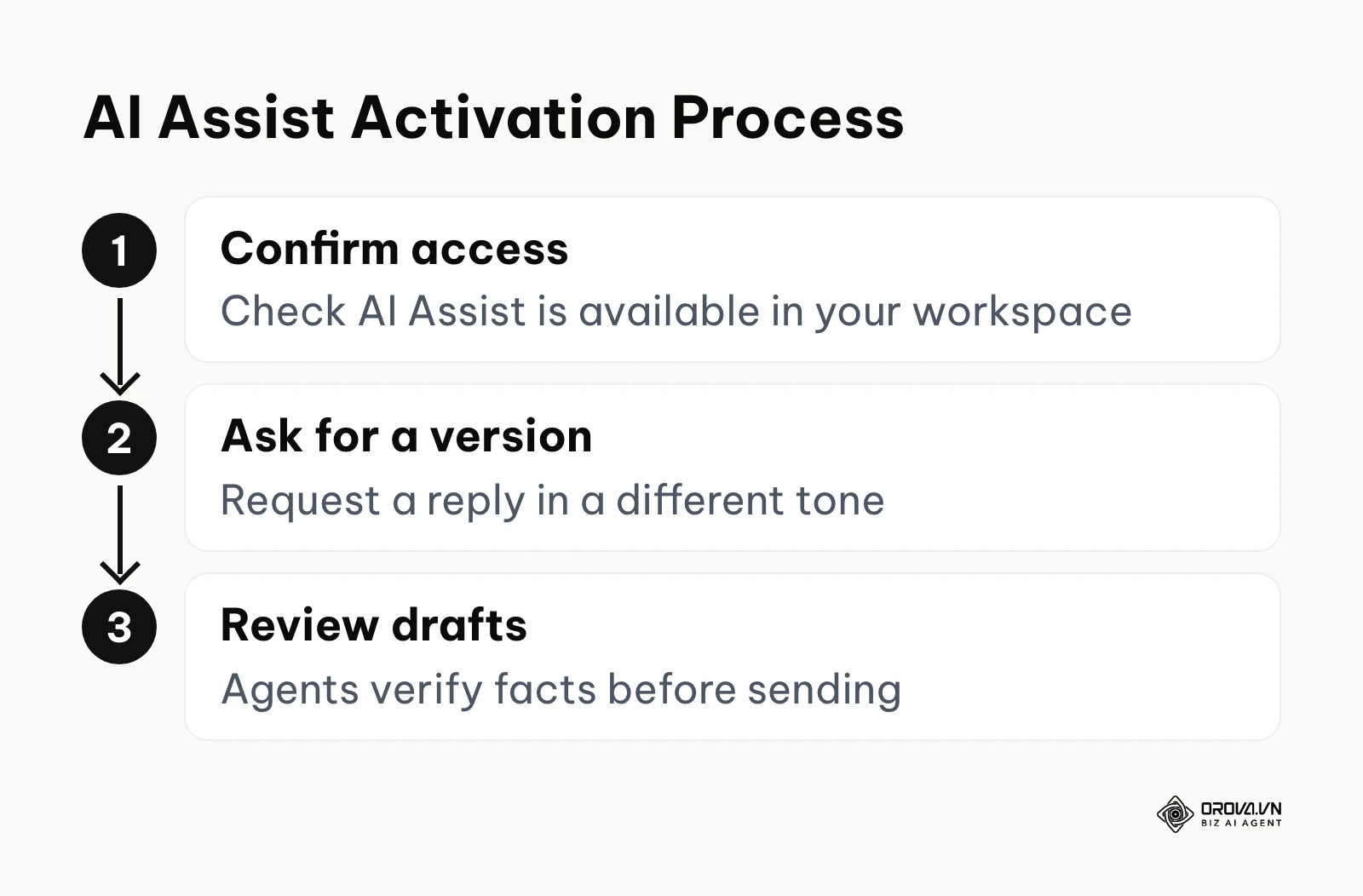
Once available, agents can ask for an alternative version of a reply in a different tone, such as more empathetic or more concise. The agent reads the suggested text, makes any necessary minor edits to ensure factual accuracy, and then sends it. This feature is particularly useful for complex inquiries that require a nuanced tone but do not necessarily require deep technical research.
The sign of a well-implemented AI setup is a sharp decrease in the time it takes agents to draft long-form responses. However, a critical mistake is allowing agents to blindly trust the AI without human review. Language models can and will hallucinate facts, invent non-existent company policies, or misinterpret sarcasm. You must enforce a strict policy that every AI-generated draft must be read and verified by a human before transmission.
Step 8: Integrating CRM data directly
Social media interactions do not exist in a vacuum; they are part of a broader customer journey. To provide excellent service, your agents need historical context. You should integrate your existing Customer Relationship Management system directly into the inbox interface. Sprout lists integrations with Salesforce, Zendesk, HubSpot, and Microsoft Dynamics 365, among others.
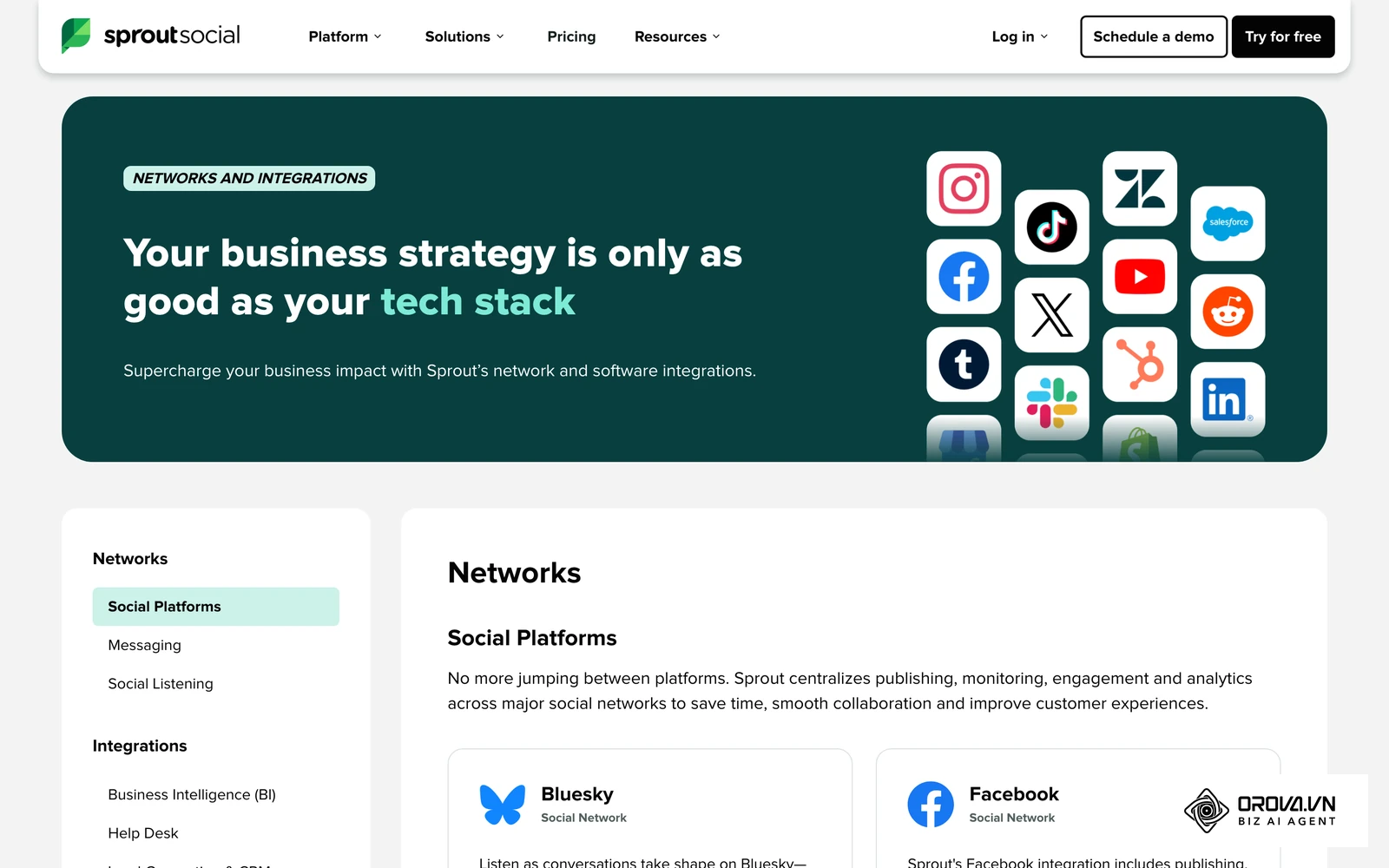
For Salesforce, Sprout describes matching social contacts to records by profile, name, or email for a unified customer view. What appears next to a conversation depends on the CRM and how it is configured, so test it with real records. When the match works, agents can say, "I see you placed an order last week," rather than asking basic qualifying questions.
Success is visible when agents no longer need to open a separate browser tab to verify a customer's identity. The most frequent stumbling block is poor data hygiene within the CRM itself. If your CRM is filled with duplicate records or outdated contact information, the integration will pull incorrect data, leading to embarrassing interactions where an agent references the wrong account entirely.
Step 9: Creating automated spam filters
The public nature of social media means your inbox will inevitably attract spam, bot comments, and irrelevant promotional links. Forcing human agents to manually delete these messages wastes massive amounts of time. You can use Automated Rules to filter out much of this noise.
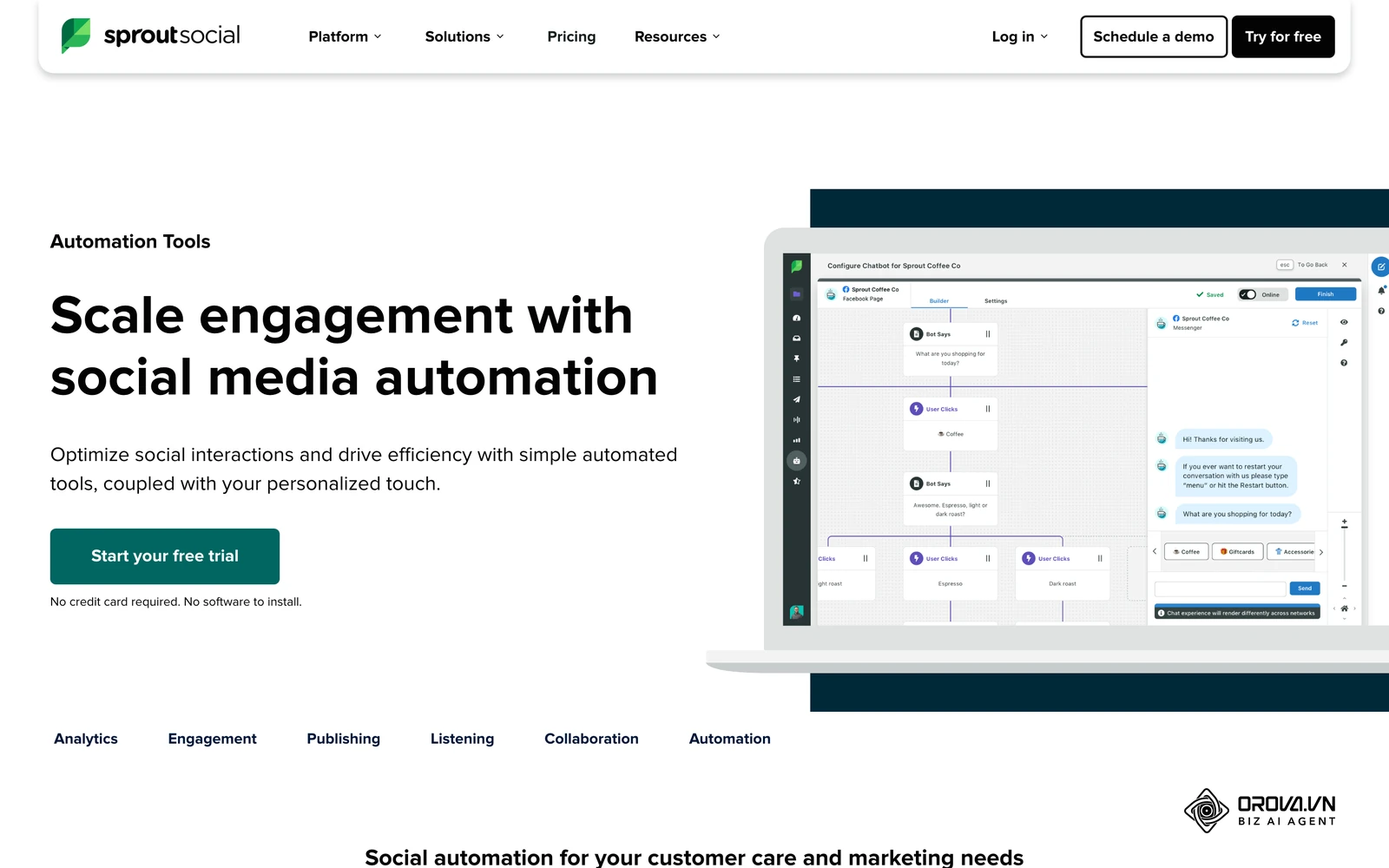
You do this by creating rules that target specific, highly predictable spam behaviors. For example, create a rule that looks for messages containing words like "crypto", "forex", "invest now", or URLs from known spam domains. Set the action so these messages are tagged and moved out of the active queue. This ensures the garbage is removed from the active queue before it ever distracts a human worker.
A correct implementation results in agents genuinely feeling that the volume of inbound noise has plummeted. A dangerous mistake is making the spam keywords too broad. If you filter the word "buy", you might accidentally hide legitimate customers asking how to buy your product. Always review your archived spam folder periodically to ensure you are not catching false positives and ignoring real sales opportunities.
Step 10: Setting up the mobile app for on-the-go moderation
Social media crises rarely wait for standard business hours to explode. Your core management team needs the ability to monitor the situation and take action from anywhere. You should require your senior staff to install and configure the Sprout Social mobile app on their devices.
Once installed, users must log in and carefully configure their push notification settings. It is vital that they do not turn on notifications for every single message, as their phone will quickly become unusable. Instead, they should configure push alerts specifically for messages that trigger high-priority automated tags, or for messages originating from recognized VIP accounts. This ensures they are only interrupted for genuine emergencies.
The ultimate sign of success is a manager's ability to reply to a critical PR issue from their phone while away from the desk. The common mistake is poor notification hygiene. If a manager's phone buzzes constantly for trivial comments, they will eventually mute the application entirely, rendering the mobile setup completely useless when a real crisis actually strikes.
If your team struggles to balance inbox management with content creation, it is time to upgrade. With Orova Social, you can easily publish to social channels, schedule posts and write captions with AI. It centralizes your entire outbound strategy across multiple platforms from a single interface.
In-Depth Analysis: 3 Advanced Sprout Social Inbox Workflows
Understanding features is only the baseline; applying them to solve specific business problems is the real challenge. When evaluating sprout social inbox alternatives, you must heavily scrutinize whether those competing platforms possess the structural depth to support the following advanced operational workflows.
| Workflow Method | When it fits best | Core weakness |
|---|---|---|
| Customer Service Triage | High volume of technical support tickets | Requires strict and constant tagging maintenance |
| Sales and Lead Generation | B2B companies looking for purchase intent | Can severely clutter the inbox with false signals |
| Crisis Management | Managing PR disasters or product recalls | Demands constant human monitoring and rapid adjustment |
Workflow 1: Customer Service Triage
In a triage workflow, the primary goal is to categorize and route incoming issues to the agent most qualified to solve them, mimicking a traditional call center. You begin by creating distinct tiers of support. Tier one handles basic FAQs, while tier two handles complex billing or technical faults. You then build automated rules that look for specific keywords and apply corresponding tags, which in turn move the message into specific custom views assigned to the appropriate tier.
This method excels at reducing the time a customer waits for a competent answer. Instead of a junior agent spending twenty minutes trying to figure out a technical problem, the system instantly routes that ticket to a senior engineer. The weakness of this approach is that it is highly fragile. If a customer uses unexpected vocabulary to describe their problem, the automated rules will fail to trigger, leaving the message stranded in a general, unassigned queue.
Workflow 2: Sales and Lead Generation
For B2B organizations, the inbox is not just for complaints; it is a vital pipeline for revenue. This workflow focuses on identifying purchase intent hidden within casual social conversations. You configure rules to highlight messages asking for pricing, feature comparisons, or demo requests. These messages are immediately tagged as 'Leads' and routed to a specific view monitored exclusively by the sales development team.
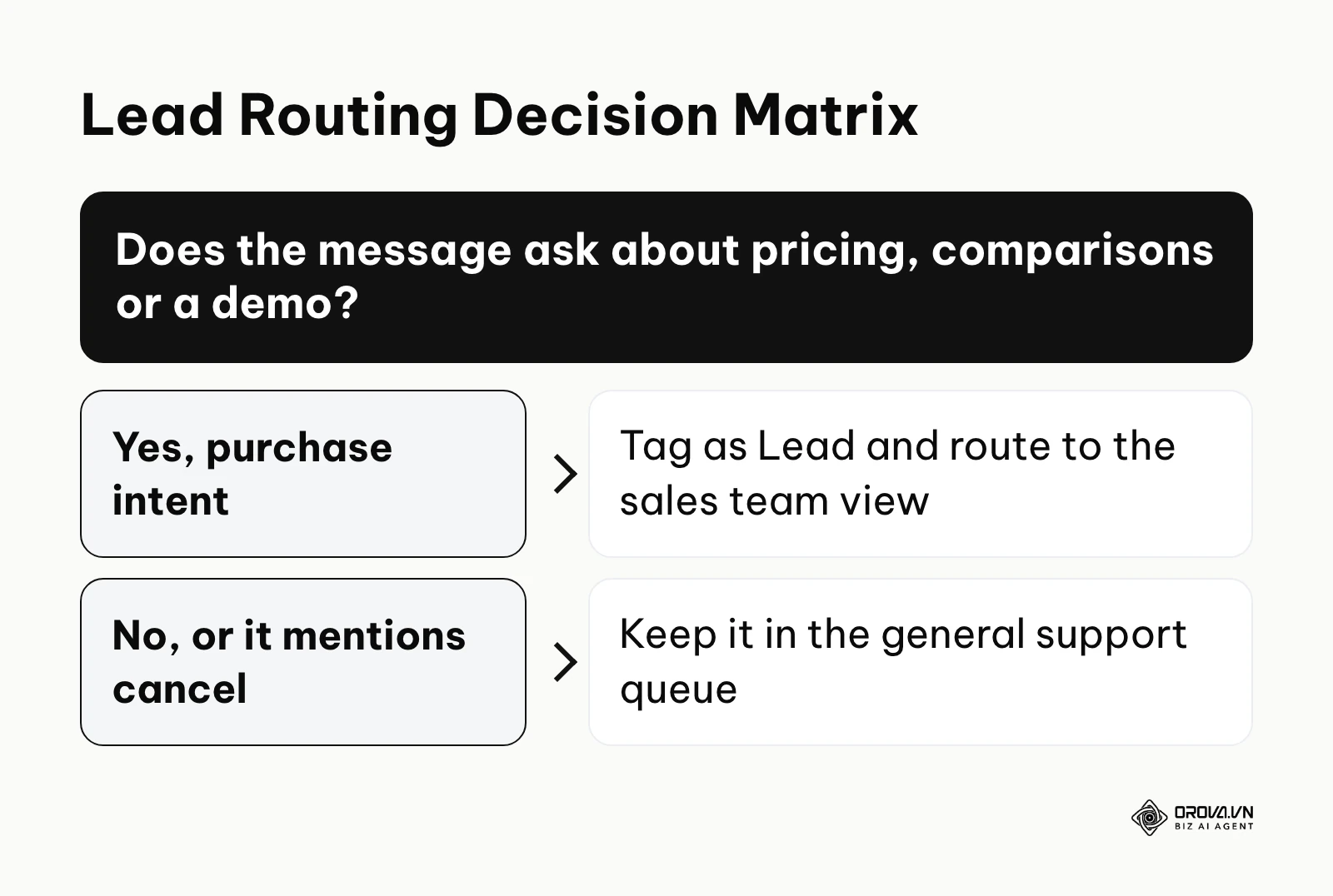
Illustrative example: A software company launched a new feature and expected a surge of interest. The marketing team set up a routing rule to tag any direct message containing the words "upgrade", "pricing", or "demo" and assigned these directly to the sales team's view. A stumbling block arose when users complained about existing pricing, triggering the rule and sending angry support tickets to the sales team. They fixed this by adding negative keywords to the rule, excluding messages that also contained the word "cancel". The visible result was a highly qualified list of prospects delivered straight to the sales team, separating revenue opportunities from general support chatter.
Workflow 3: Crisis Management and Escalation
When a brand faces a public relations nightmare, the standard rules of engagement change entirely. The crisis management workflow requires you to temporarily abandon standard routing and consolidate power. You immediately create a new, high-priority custom view specifically for crisis-related keywords. You stop using AI-suggested replies for this queue to prevent inappropriate, robotic responses. You then assign your most experienced public relations staff to monitor this single queue exclusively.
This approach allows a brand to speak with a unified, carefully vetted voice during a chaotic event. By filtering the crisis communication into a separate view, the rest of the support team can continue handling standard, unrelated inquiries without being overwhelmed by the negativity. If you fail to utilize social listening tools alongside this workflow to monitor broader sentiment, you risk missing the full scale of the crisis as it unfolds outside of your direct mentions.
Measuring ROI: Does the Sprout Social Inbox Save Enough Time?
Any team tool needs a clear demonstration of return on investment. You must prove that the tool saves labor hours and protects revenue. To do this, track specific performance metrics in the platform's reports. If you are serious about measuring overall brand health, you must also consider how your inbox efficiency impacts metrics discussed in guides on how to calculate engagement rate.

| Metric Name | Meaning and Importance | Suggested warning threshold |
|---|---|---|
| First Reply Time | The duration a customer waits for an initial human response | Greater than 2 hours |
| Resolution Time | The total time from the first message to a closed ticket | Greater than 24 hours |
| Reply Rate | The percentage of inbound messages receiving any reply | Less than 90% |
| Volume per Agent | The total number of tickets handled by one person daily | Greater than 150 tickets |
To calculate the actual ROI of the tool, you must establish a baseline of how much time your team spent managing messages natively before the implementation. Track the average time it takes an agent to resolve a ticket using the new Smart Inbox, factoring in the speed boosts provided by Saved Replies and AI Assist. By multiplying the hours saved per week by the average hourly wage of your agents, you generate a hard financial number. Illustrative example: if your team spent 40 hours per week on messages before and 25 hours after, it saves 15 hours per week; at an average hourly wage of 20 in your local currency, that is 15 × 20 = 300 per week in labor time. This concrete data is exactly what leadership requires when it comes time to renew the software contract. You can further analyze these efficiency gains by utilizing dedicated social analytics tools to cross-reference response times with customer sentiment improvements.
Handling inbound messages is just one aspect of growth; consistent posting is equally important. Orova Social lets you cut long videos into 9:16 vertical clips with subtitles and schedule them across your channels. It is free until July 7, 2027, giving your brand plenty of time to build a steady publishing rhythm.
6 Common Mistakes When Managing the Unified Stream
Even with a perfect technical setup, human behavior can rapidly degrade the effectiveness of a unified stream. If your team falls into bad habits, the software will quickly become a cluttered, unmanageable mess. Recognizing and correcting these behavioral errors is a continuous managerial responsibility.
Mistake 1: Over-tagging messages
Managers often get overly ambitious and create dozens of highly specific tags, hoping for incredibly granular reporting. In reality, forcing agents to choose between fifty slightly different tags causes decision paralysis and slows down response times. Agents will eventually give up and start applying a generic "misc" tag to everything. You must keep your tag taxonomy lean, focusing only on broad categories that actually influence business decisions.
Mistake 2: Relying too heavily on AI Assist without human review
The allure of artificial intelligence is strong, and lazy agents will inevitably try to let the machine do all the work. If agents blindly send AI-generated drafts without reading them, they will eventually transmit false information to a customer.
Illustrative example: A financial technology company enabled AI Assist to help with initial user inquiries. Agents configured the AI to maintain a polite tone and began generating replies for account access issues. A stumbling block occurred when the AI hallucinated a completely non-existent policy regarding wire transfer limits, confidently giving a customer incorrect legal information. The team immediately caught this during the mandatory human review phase and rewrote the draft before sending. The visible result was a refined workflow where agents used AI for structure but rigorously manually verified every factual claim, thereby protecting the brand from legal liability.
Mistake 3: Forgetting to clear the filter views
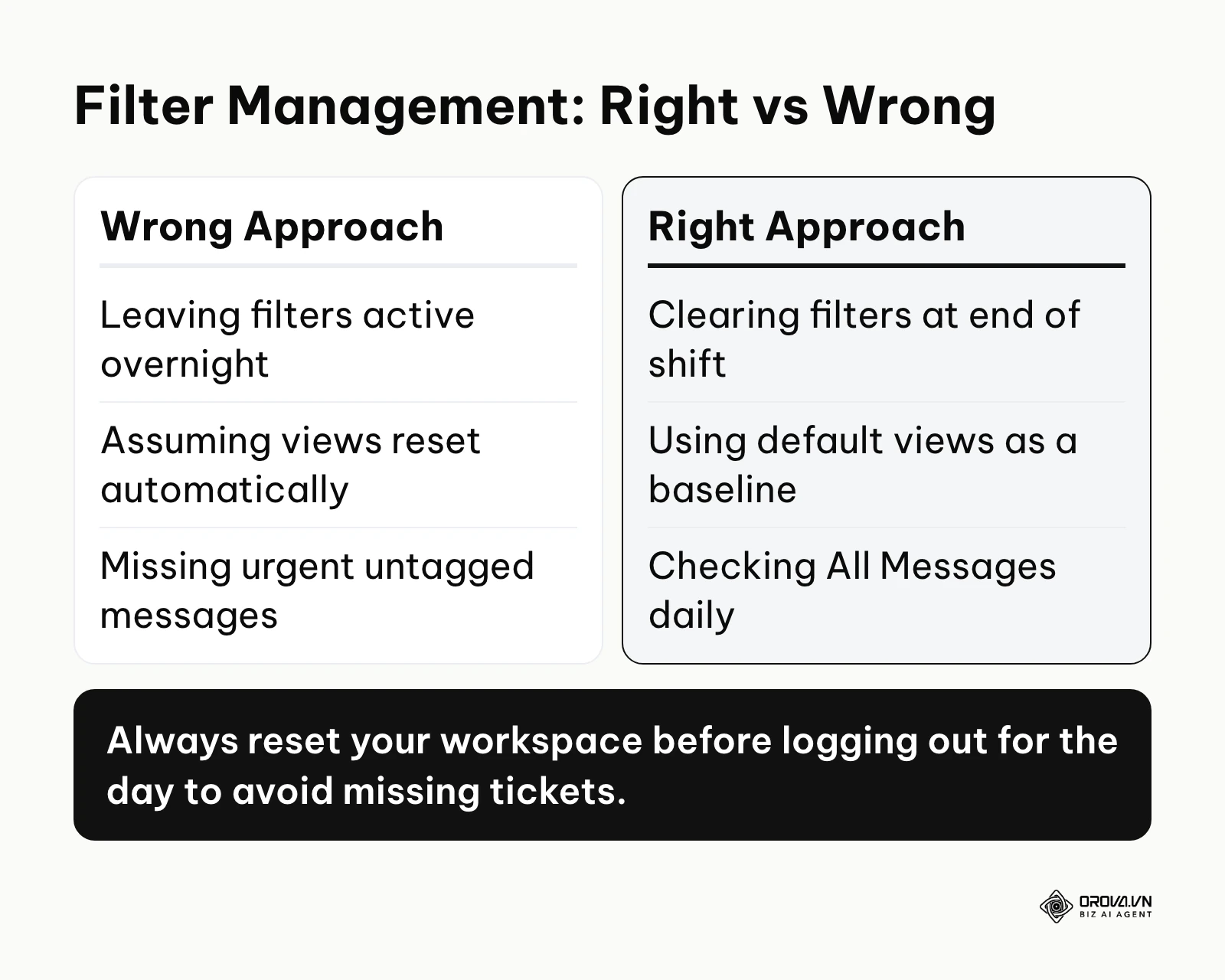
Agents often apply a specific filter to find a particular type of message, resolve the issue, and then forget to turn the filter off. When they return to their dashboard later, they assume the inbox is empty, completely oblivious to the hundreds of new messages hidden by their active filter. You must train your team to obsessively clear their filters and return to their baseline custom view after completing any specific search task.
Mistake 4: Not flagging key stakeholders
Every brand has high-value customers, influential journalists, or vocal critics who require immediate, specialized attention. Failing to identify these individuals means their messages get buried in the general queue alongside mundane inquiries. Flag these important accounts, for example with a dedicated tag, a rule, and a custom view watched by senior staff. This ensures their messages stand out and reach senior staff quickly, preventing minor issues with major stakeholders from escalating.
Mistake 5: Moving ticket discussions outside the inbox
Sprout supports case assignment so that ownership of a conversation stays visible inside the inbox. When agents instead rely on external chat apps like Slack to discuss a ticket, the context is easily lost. If a new agent takes over the ticket the next day, they have no idea what was previously discussed. Keep ownership and context in the inbox itself, using assignment and whatever note features your workspace provides, rather than in side channels.
Mistake 6: Leaving the inbox unmanaged during off-hours
Social media is a global, twenty-four-hour environment. If your team logs off at five o'clock on Friday and ignores the inbox until Monday morning, a minor complaint can mutate into a viral crisis over the weekend. You do not necessarily need staff working around the clock, but you should set clear wait-time expectations during off-hours, for example with the away messages that some networks offer natively. Furthermore, senior staff must monitor mobile alerts for critical keyword triggers during the weekend.
Social Media Inbox Trends in the Next Few Years: My Predictions
The landscape of social customer care is evolving rapidly, driven heavily by advancements in machine learning and changing consumer expectations. Based on current technological trajectories, I anticipate several major shifts in how enterprise teams manage their inboxes in the near future.
AI will move from drafting to full autonomous resolution
As of 2026, we are already seeing artificial intelligence comfortably drafting highly accurate replies for human review. I expect the human review step to become lighter for simple tier-one queries. The AI may not just suggest an answer; it may handle basic questions about shipping times, store hours, and return policies with only spot checks. You should prepare for this by rigidly standardizing your internal knowledge bases now, as future AI agents will rely entirely on the quality of your documentation to operate safely.
Direct CRM integration will become the default, not an add-on
Currently, connecting a social inbox to a CRM system often takes real setup work. I suspect that buyers will increasingly treat this integration as a baseline requirement for any software in this category. Customers no longer tolerate repeating their account information to a social media manager. I believe that the dividing line between marketing software and customer service software will keep blurring. You should begin cleaning your CRM data immediately, ensuring that every customer record is accurate and ready to be synchronized seamlessly with social identities.
Video replies in the inbox will become standard
Consumers are increasingly favoring short-form video over text. I suspect that text-only replies to complex support questions will feel increasingly limited. Platforms may start to prioritize the ability for agents to instantly record and send a quick, personalized screen-recording or webcam video directly within the inbox interface to resolve technical issues visually. While text will remain for quick queries, you should prepare your team by investing in basic camera setups and training agents to communicate professionally on video, rather than hiding behind a keyboard.
Frequently Asked Questions About Sprout Social Inbox
Navigating the complexities of enterprise social media management software naturally generates numerous tactical questions. Here are clear answers to the most common inquiries teams have when evaluating their setup.
Is Sprout Social worth the cost compared to alternatives?
The value depends on your organizational complexity. When looking at sprout social vs hootsuite inbox capabilities, compare the specific features you need, such as routing rules, collision detection, case assignment, and CRM integrations, using each vendor's current documentation and a trial. If you have a large team that needs strict collaboration guards and CRM context, measure the labor hours saved with the ROI method above. If you are a small team of two people, a simpler setup may be enough.
How does the Smart Inbox handle spam without hiding real queries?
The approach in this guide relies on user-defined Automated Rules. You build rules targeting exact phrases or links, and route matching messages out of the active queue. Because you control the exact parameters, you can tune them and review the filtered messages regularly so legitimate customer questions are not hidden from your agents.
Can I connect my CRM directly to the Smart Inbox?
Yes. Sprout lists integrations with CRM and help desk tools such as Salesforce, Zendesk, HubSpot, and Microsoft Dynamics 365. This connection matters because it brings customer context closer to the social conversation. This empowers agents to provide deeply personalized service without ever breaking their workflow to open a new browser window.
How does AI assist impact response times?
AI suggestions can shorten the time it takes an agent to compose a complex reply. Instead of rewriting a nuanced explanation from scratch, the agent starts from a suggested version. The agent still has to verify facts and adjust the tone, so measure average handling time before and after to see the real effect on your team.
Does the inbox support Zalo or Telegram?
Zalo and Telegram do not appear among the networks Sprout lists on its integrations page, which does include WhatsApp alongside the major social networks. Check that page for the current list before you buy. If your primary audience relies heavily on these networks, you should review strategies for advanced Zalo OA management to ensure you are not isolating a key demographic.
Where Should You Start?
Staring at a new, empty software workspace can induce immediate decision paralysis. Instead of trying to configure everything simultaneously, you should identify your current organizational bottleneck and address it with a single, focused action today.
If you have just started and the interface is empty, your immediate first step is to securely authenticate all of your native brand profiles. Do not worry about tagging rules or AI just yet. Focus entirely on mapping your accounts, ensuring the OAuth connections are stable, and verifying that incoming messages are successfully flowing into the raw, unfiltered master dashboard.
If your team is currently overwhelmed by an unmanageable volume of messages, your first step is to build three custom Inbox Views. Create one view exclusively for direct messages, one for public comments, and one for brand mentions. By simply separating the private, high-intent support tickets from the public marketing chatter, you will instantly bring a sense of calm and prioritization to your team's workflow.
If you are actively comparing tools and have not yet made a purchase, your first step is to map out your current team structure on a physical whiteboard. Document exactly who handles what type of message today, and identify where the communication breakdowns occur. You cannot accurately evaluate whether a sprout social inbox setup will fix your problems until you clearly define what those problems actually are.
About the author

Builder of Orova
Nguyễn Đỗ Trọng Ân has 8 years of experience in marketing, including 6 years managing market development across Asia. He builds Orova, a Biz AI Agent that never sleeps: it plans, runs and optimizes work for businesses.
Run your business with AI Agents
Orova is the always-on Biz AI Agent — it plans, runs, and optimizes the work for you.
Save time, unlock productivity.