
Google Ads campaign setup (2026): A step-by-step guide that protects your budget

A safe Google Ads campaign setup comes down to seven steps: choose a Search campaign without a preset goal, set a daily budget that covers at least 10 clicks, start with a capped bidding strategy, switch off Search Partners, the Display Network and "presence or interest" targeting, add phrase and exact match keywords plus negatives, write a full responsive search ad, and install conversion tracking before you launch. Many small business owners skip half of these, follow the default prompts, and find their budget exhausted in a matter of days. Those defaults tend to favor reach over control, so your ads can reach people who have no real intention of buying your product or service. If you have experienced a high volume of clicks but zero inquiries, you are not alone.
The process requires a defensive mindset. You have to actively opt out of features that drain your budget and aggressively filter out bad traffic before spending a single dollar. This guide provides an extremely detailed, step-by-step breakdown of how to build a highly controlled search advertising structure. It aims to bridge the gap between basic platform familiarity and actual profitability, equipping you with practical lists, formulas, and strategies to guard your marketing budget.
Google Ads campaign setup: Core definition and purpose
A google ads campaign setup is the foundational process of configuring targeting parameters, budget limits, keyword triggers, and ad copy within the Google Ads platform. You perform this setup to intercept potential customers precisely when they are actively searching for your specific solutions. It is suitable for businesses ready to pay for high-intent traffic, but you should not rush into it if your website is broken or if you cannot clearly define your ideal customer profile. If you are still unsure what an ad campaign is and how it fits into your wider marketing plan, read that primer first; this guide stays on the setup screens, one step at a time.
What to prepare before launching your Google Ads campaign
Before you ever click the "New Campaign" button, you need a solid foundation. Rushing into the platform without these elements will often result in paused ads, wasted spend, or critical tracking errors. You must treat the preparation phase with as much seriousness as the active management phase. A successful launch requires a combination of technical readiness, financial planning, and content creation.
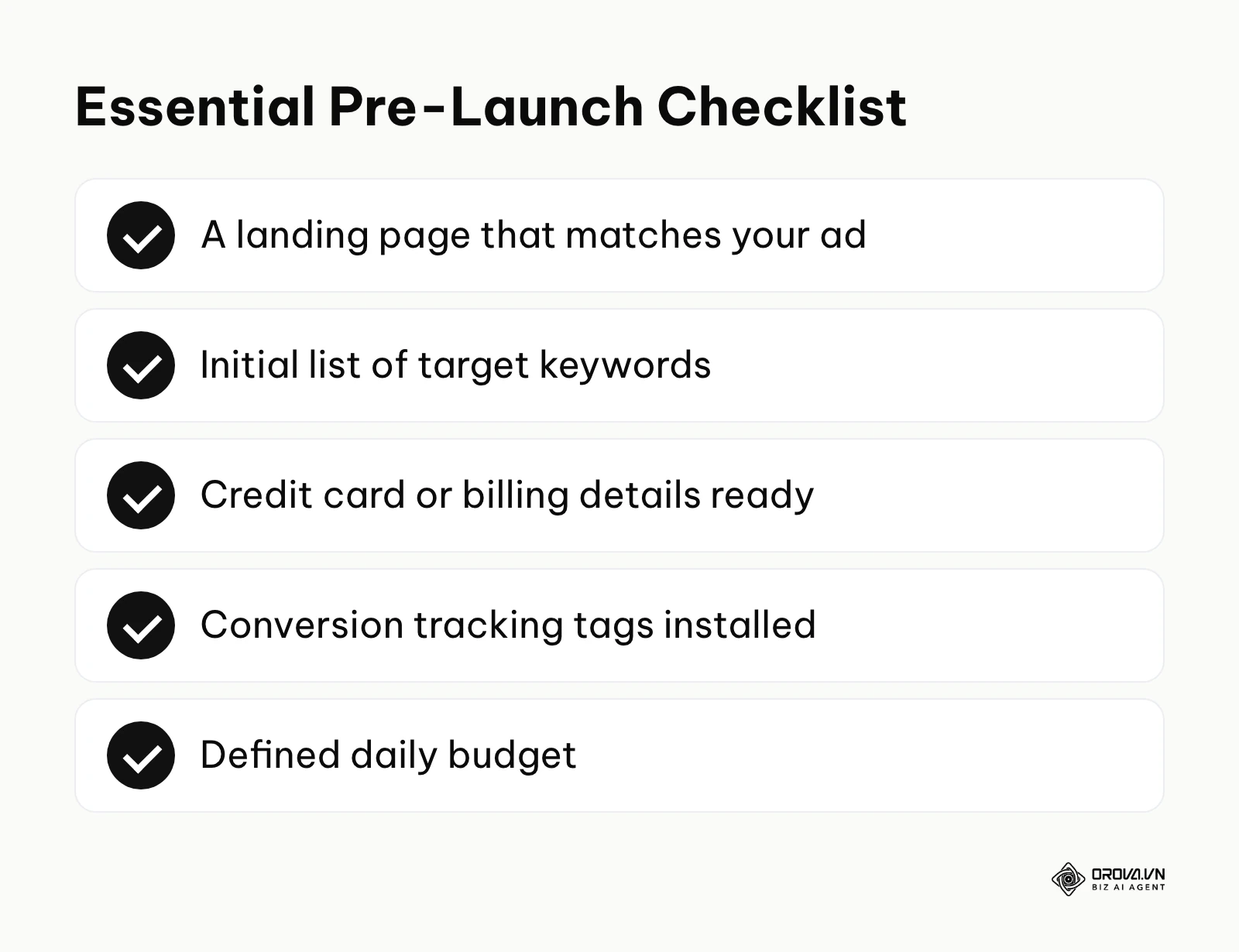
The table below outlines exactly what assets and information you need to gather, where you can find or create them, and realistically how long the preparation will take.
| Item required | Where to obtain it | Time required |
|---|---|---|
| Landing page URL | Built on your website platform (e.g., WordPress, Shopify) | 2 to 5 hours |
| Initial keyword list | Google Keyword Planner or brainstorming sessions | 1 to 2 hours |
| Credit card details | Your business bank account or financial department | 5 minutes |
| Conversion tracking tags | Google Tag Manager or hardcoded by your developer | 2 to 4 hours |
| Defined daily budget | Calculated using the minimum budget formula | 15 minutes |
| Three ad headlines | Drafted in a document based on customer pain points | 30 minutes |
Your landing page URL is arguably the most critical component. It is the specific page on your website where users will arrive after clicking your ad. If you send paid traffic to a generic homepage, users usually get confused and leave immediately. You must ensure the landing page directly answers the promise made in your ad copy. If your ad promotes "Emergency Roof Repair," the landing page must explicitly state "Emergency Roof Repair" and provide a highly visible phone number or contact form.
Equally important is the setup of conversion tracking tags. You cannot evaluate a campaign if you do not know which clicks led to actual business value. You will need to install small snippets of code on your website, particularly on the "Thank You" page that appears after someone submits a form or completes a purchase. Doing this before launch allows the platform's machine learning algorithms to start recognizing patterns immediately.
Step-by-step Google Ads campaign setup: The foolproof process
Creating a profitable campaign involves navigating a maze of settings. Google often suggests the path of least resistance, which is rarely the most cost-effective path. This section breaks down the workflow into granular steps, showing you exactly what to do, how to execute it, how to verify you did it correctly, and what common traps to avoid.
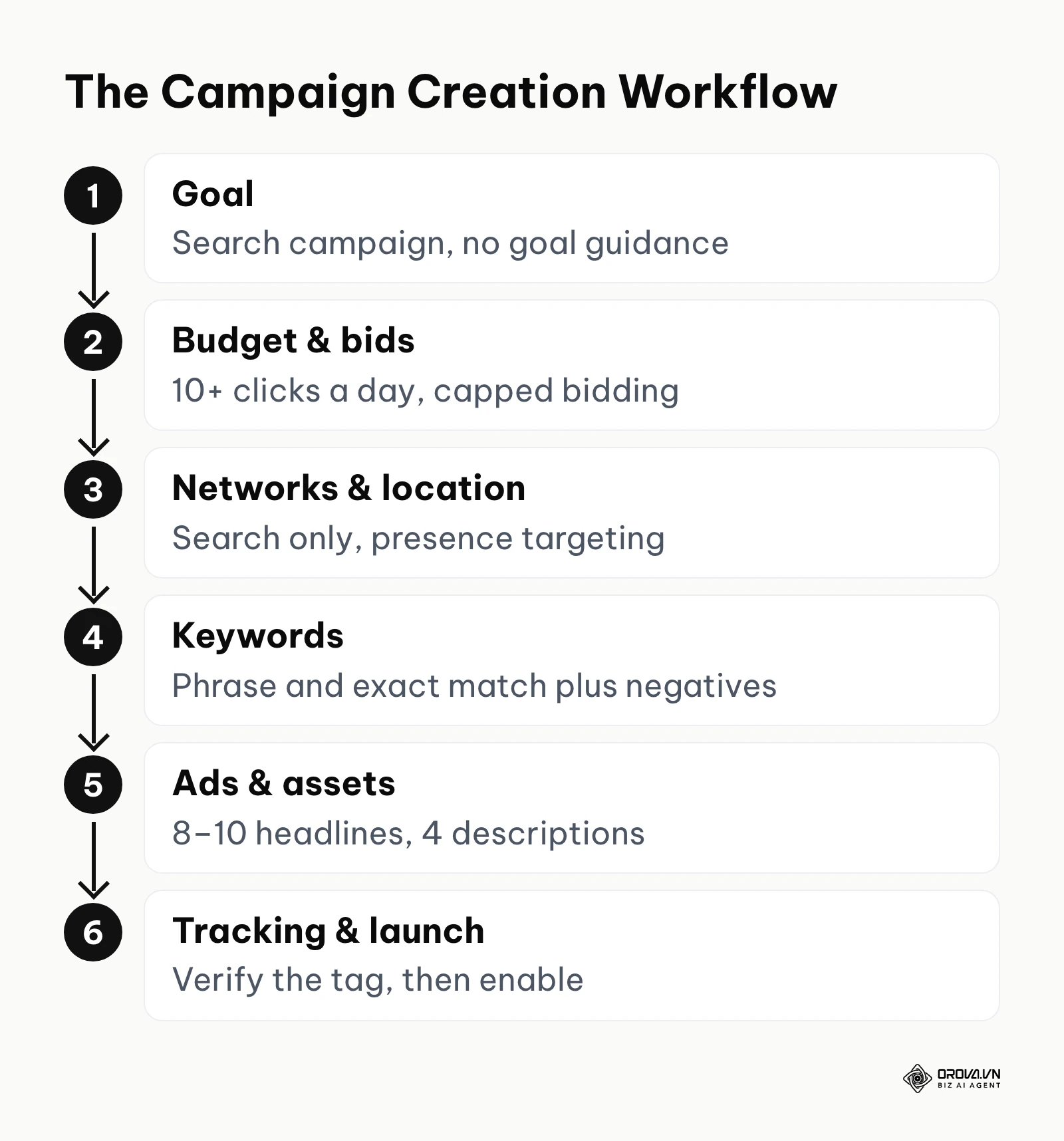
Step 1: Defining your campaign goal and structure
When you start a new campaign, the platform immediately asks you to select a goal. You will see large tiles offering options such as Sales, Leads, Website traffic, App promotion, and Local store visits and promotions. While these seem helpful, they act as hidden filters that restrict the settings you can control later in the process.
For instance, if you choose "Sales" or "Leads," the platform might push you aggressively toward fully automated campaign types like Performance Max, hiding the traditional Search campaign options that give beginners the most control. If you have an e-commerce store, you might eventually explore google shopping advertising, but for a foundational text-based search campaign, you need complete visibility into every setting.
- What to do: You must bypass the predefined goals to maintain maximum control over your settings.
- How to execute: Click the option that says "Create a campaign without a goal's guidance." On the next screen, when asked to select a campaign type, choose "Search." You will then be prompted to select the results you want to get from this campaign. You can leave these checkboxes blank for now and simply click "Continue." Name your campaign clearly, using a naming convention like "Search - US - NonBrand - Emergency Plumbing" so you can easily identify it later.
- Sign of success: You progress to the bidding and budget screens without being forced to input a specific return on ad spend (ROAS) target or being locked into a Performance Max setup.
- Common error: Selecting "Leads" and then accidentally confirming a Performance Max campaign, which will spend your money across YouTube, Display, and Gmail without letting you see which specific keywords triggered your ads.
Step 2: Setting a realistic daily budget
One of the biggest mysteries for beginners is knowing how much money to commit. The older advice of "just spend what you are comfortable losing" is mathematically flawed. If your budget is too low, your campaign will never gather enough data to optimize, and your ads will only show sporadically. To succeed, you need enough budget to generate a statistically significant number of clicks per day.
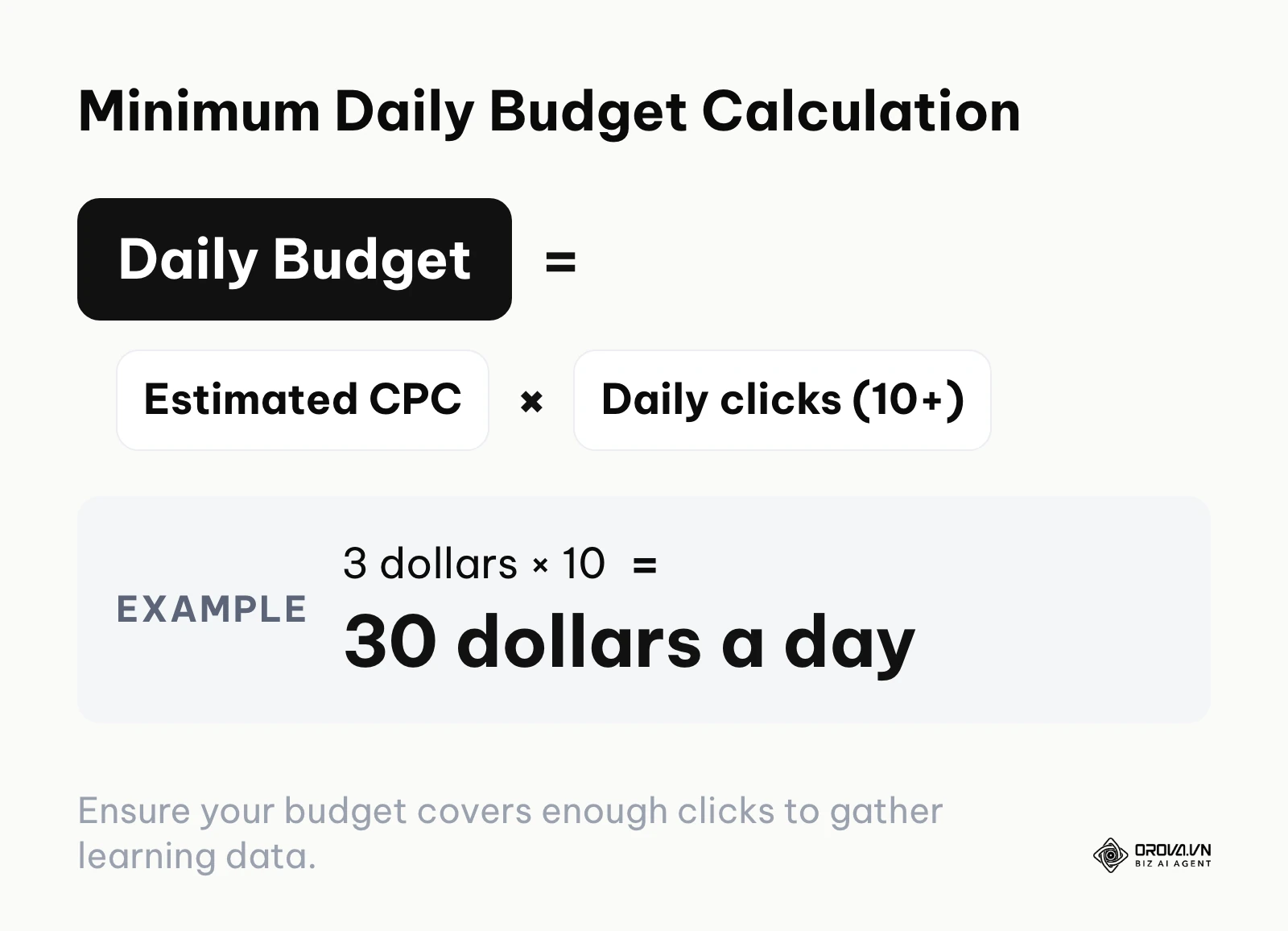
You should calculate your minimum daily budget based on your expected cost per click (CPC). You can find estimated CPCs using the Google Keyword Planner. As a rule of thumb, your daily budget should accommodate at least 10 clicks per day. If a click costs 3 dollars, your daily budget must be at least 30 dollars. This ensures the system has enough volume to test different times of day and different user profiles. For a deeper understanding of budgeting structures, you can read more about google ads pricing.
- What to do: Establish a daily budget that supports a minimum of 10 to 15 clicks based on your industry's average CPC.
- How to execute: Locate the "Budget" section in the campaign creation flow. Enter your calculated daily amount in the provided text field. Remember that the platform operates on a monthly charging limit. It may spend up to twice your daily budget on days with high search volume, but it will not exceed your daily budget multiplied by the average number of days in a month (30.4) over the course of a billing cycle.
- Sign of success: Your ads run consistently throughout the day rather than displaying a status of "Limited by budget" shortly after breakfast.
- Common error: Setting a 5-dollar daily budget when the industry average CPC is 4 dollars. Your ad will get one click, and then the system will pause your visibility for the rest of the day, completely crippling the learning phase.
Step 3: Selecting the right bidding strategy
Bidding strategy determines how the platform spends your daily budget in the auction. You are presented with a choice between manual control and various automated options (Smart Bidding). The automated options, like Maximize Conversions or Target CPA, rely heavily on historical data. If you have a brand new account, the algorithm has no idea what a converting user looks like for your business.
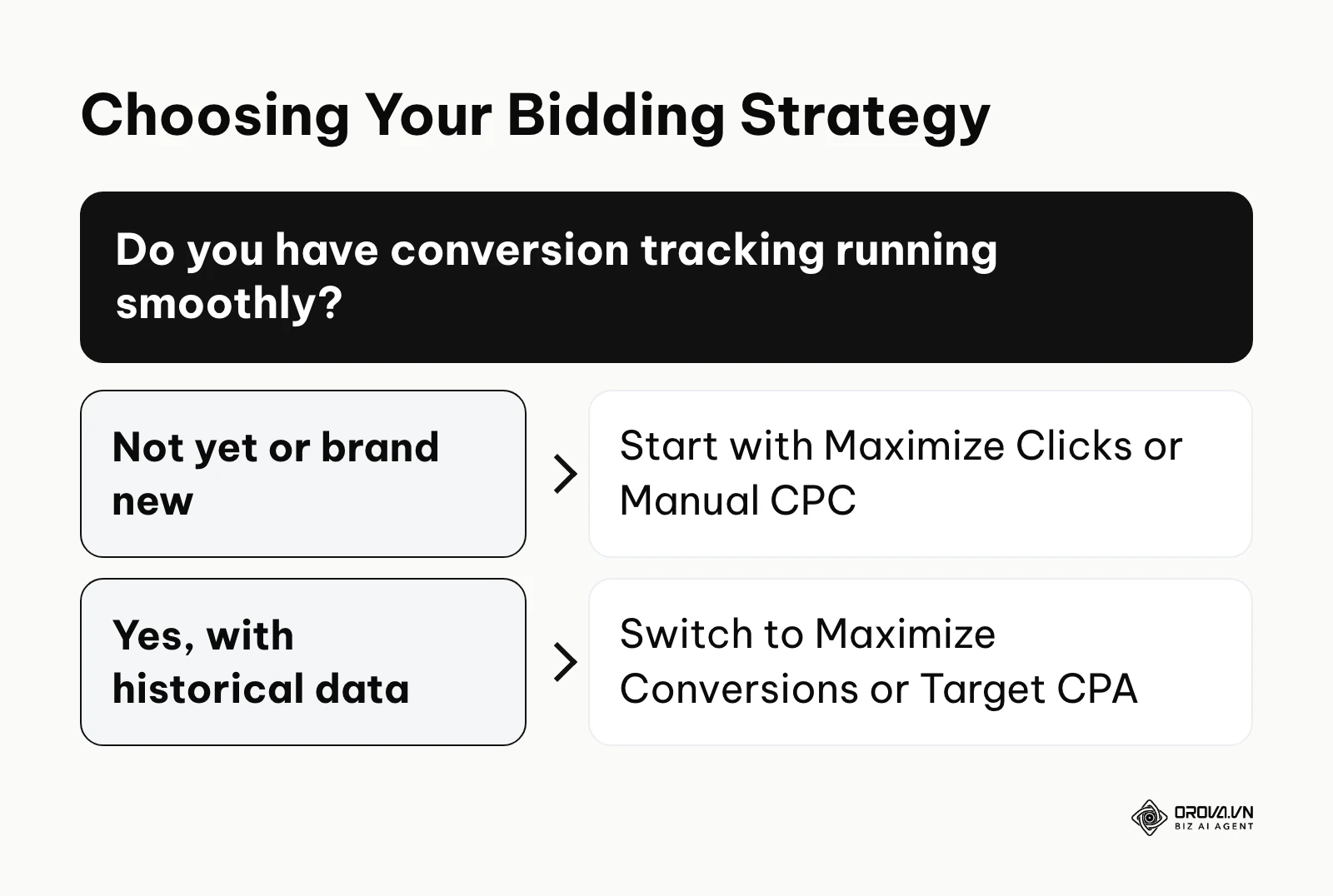
Starting with an advanced automated strategy on a new account often results in wild spending fluctuations. The system will aggressively bid on irrelevant queries just to see what happens, burning through your cash rapidly. Therefore, a more conservative approach is necessary during the initial weeks.
Example scenario: You are a marketing manager for a local plumbing company starting a new campaign. First, you set up a search campaign. Second, you choose the Maximize Clicks strategy. Third, you set a daily budget of 50 dollars without a bid limit. However, you notice that your ads are appearing for irrelevant queries because the automated strategy is pushing for cheap, low-quality clicks. You fix this by switching back to Manual CPC and setting a maximum bid limit to regain control over where your ads appear. As a result, you start seeing your ads trigger only when local users actively search for emergency plumbing services on their mobile screens.
- What to do: Choose a bidding strategy that focuses on traffic acquisition with safety guardrails until you establish a conversion baseline.
- How to execute: In the Bidding section, the default is usually "Conversions." Click the small blue text that says, "Or, select a bid strategy directly (not recommended)." Despite the warning, click it. Select either "Manual CPC" (which allows you to set the exact maximum amount you will pay per click for each keyword) or "Maximize Clicks." If you choose Maximize Clicks, you MUST check the box that says "Set a maximum cost per click bid limit" and enter a realistic ceiling (for example, 5 dollars). This prevents the system from bidding 25 dollars on a single click just to win the auction.
- Sign of success: Your average CPC remains steady, and you are not shocked by a single, massive charge for an accidental click.
- Common error: Leaving the bid strategy on "Maximize Conversions" without any conversion data, causing the algorithm to spend your entire daily budget on three highly expensive, irrelevant clicks before noon.
Step 4: Configuring network and location settings
This step contains the most dangerous default settings in the entire platform. When you create a Search campaign, Google naturally wants to maximize your reach. By default, it will opt you into Search Partners (hundreds of non-Google websites, plus YouTube and other Google sites, that show search ads) and the Display Network (millions of websites and apps where banner ads appear).
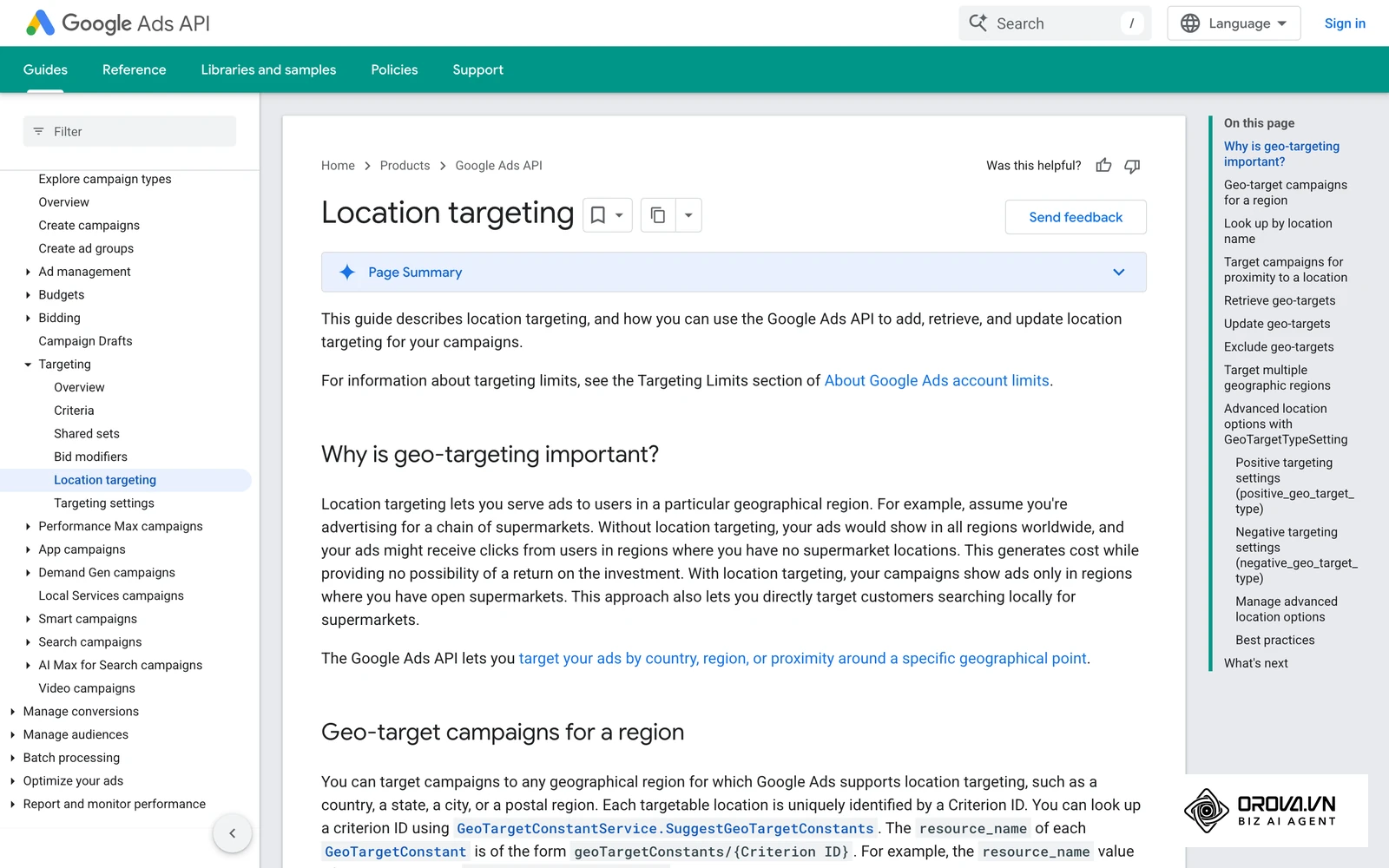
Including the Display Network in a Search campaign can expand reach, but those placements usually earn a lower click-through rate. In practice, showing text ads intended for active searchers on random mobile gaming apps or news articles is a massive waste of money. The user intent on the Display Network is passive, whereas search intent is active. Mixing them ruins your data.
Furthermore, location targeting has a subtle trap. If you target "New York," the default setting is "Presence or interest." This means your ads can show to someone physically in New York, OR someone sitting in London who has shown "interest" in New York. If you are a local plumber in New York, you do not want to pay for clicks from London.
Example scenario: You are an independent consultant launching a lead generation campaign. First, you create your campaign. Second, you follow Google's prompts. Third, you leave the Display Network expansion ticked. After two days, you realize your ads are showing on random mobile gaming apps, draining your budget without bringing leads. You fix this by navigating to campaign settings and unchecking the Display Network box entirely. Consequently, your dashboard shows impressions exclusively on the Google Search results page, directly connecting you with users who are actively typing your exact service keywords.
- What to do: Restrict your campaign to the Google Search engine only and restrict locations to people physically present in your target area.
- How to execute: In the Networks section, physically uncheck the boxes for "Include Google search partners" and "Include Google Display Network." Next, navigate to the Location section. Click "Location options." Change the setting from the default "Presence or interest" to the second option: "Presence: People in or regularly in your targeted locations."
- Sign of success: Your performance reports show impressions strictly from Google.com, and your geographical reports show traffic exclusively from the zip codes or cities you selected.
- Common error: Ignoring the small checkboxes, resulting in half your budget being spent on low-quality clicks from unknown partner sites or foreign countries.
Here is a quick checklist of default settings you need to turn off to protect your budget:
| Setting Name | Where it is located | Why Google wants it on | Why you MUST turn it off |
|---|---|---|---|
| Search Partners | Campaign Settings > Networks | Increases available inventory | Lowers your click-through rate; traffic quality is highly inconsistent. |
| Display Network | Campaign Settings > Networks | Spends budget faster across millions of sites | Mixes active search intent with passive browsing intent, ruining conversion rates. |
| Presence or interest | Campaign Settings > Locations > Location Options | Reaches a broader global audience | You end up paying for international clicks when you only serve local customers. |
| Auto-apply recommendations | Recommendations page > Auto-apply | Allows the AI to make changes without asking | The system will automatically add broad match keywords and change your budget, causing chaos. |
Step 5: Building keyword and negative keyword lists
Keywords are the bridge between what a user types and the ads you show. However, not all keywords operate the same way. You have three primary match types: Broad match, Phrase match, and Exact match. Broad match allows your ad to show for synonyms, related concepts, and misspellings. It offers maximum reach but minimal control. Phrase match requires the core meaning of your phrase to be present. Exact match requires the search query to have the same specific intent as your keyword.
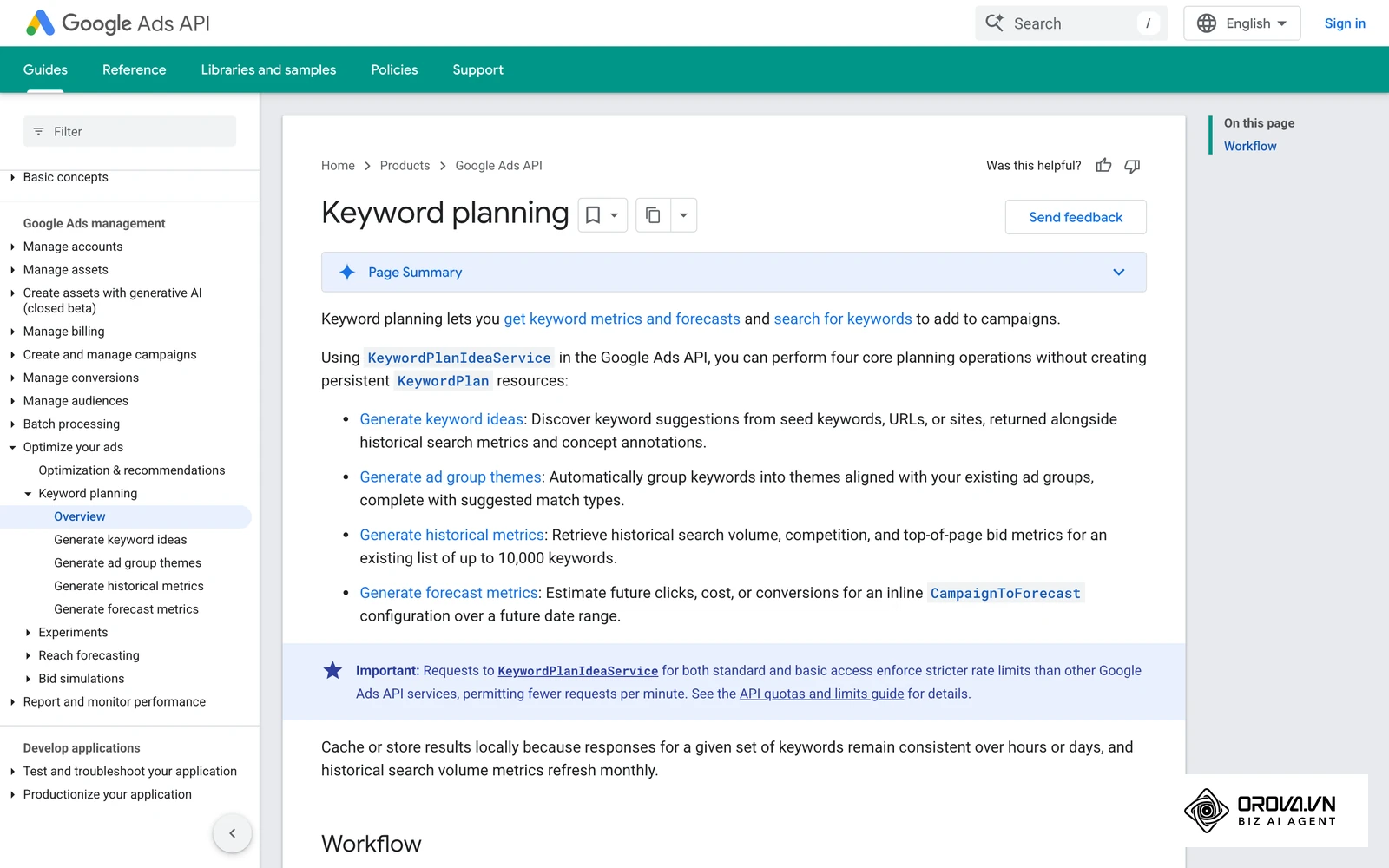
For beginners, relying on Exact match and Phrase match is crucial. Broad match can easily misinterpret your business. For example, if you use the broad match keyword office furniture, Google might show your ad for "home office decoration ideas" or "used office chairs free." Managing your google ads quality score becomes much easier when you tightly control your keyword themes.
Equally important are negative keywords. These are terms you add to tell the system, "Never show my ad if the user's search contains this word." Adding a massive list of negative keywords from day one prevents you from paying for clicks from job seekers, bargain hunters, or DIY enthusiasts.
- What to do: Build small, tightly themed ad groups using Phrase and Exact match, and implement a robust negative keyword list before launching.
- How to execute: When entering keywords, use quotation marks for phrase match (e.g., "emergency plumber") and square brackets for exact match (e.g., [emergency plumber]). Then, navigate to the Negative Keywords tab in your campaign dashboard. Paste a comprehensive list of universally irrelevant terms.
- Sign of success: Your Search Terms report shows a high percentage of relevant, purchase-intent queries within the first week of running.
- Common error: Entering twenty broad match keywords without any punctuation into a single ad group, causing your ads to trigger for completely unrelated and unprofitable searches.
A copy-paste starter negative keyword list for day 1: You can copy this block into your campaign's negative keyword list to block common low-quality traffic sources. Before pasting, delete any word that describes what you actually sell: a training company should remove "course" and "training", and a store running promotions should keep "sale" and "discount" off the list.
Careers/Jobs: career, careers, employment, full time, full-time, hiring, intern, internship, internships, job, jobs, part time, part-time, recruiter, recruiting, resume, resumes, salary, salaries, vacancy, vacancies. Free/Bargain: bargain, cheap, clearance, closeout, discount, discounted, free, freebie, freebies, hack, hacks, inexpensive, liquidation, lowest price, open source, pirate, pirated, promo, promo code, promotional, sale, torrent, torrents. Information/DIY: article, articles, blog, books, case study, case studies, define, definition, diagram, diy, do it yourself, document, documentation, download, example, examples, guide, historical, history, how to, how-to, infographic, learn, learning, magazine, manual, map, maps, news, photo, photograph, photographs, photos, picture, pictures, podcast, quote, quotes, research, review, reviews, sample, samples, screenshot, screenshots, statistics, stats, template, templates, tutorial, tutorials, video, videos, what is, white paper, whitepaper, youtube. Education/Training: class, classes, college, course, courses, degree, education, high school, school, schools, student, students, training, university. Others: amazon, craigslist, ebay, facebook, instagram, linkedin, pinterest, reddit, tiktok, twitter, wikipedia.
Step 6: Crafting compelling ad copy and assets
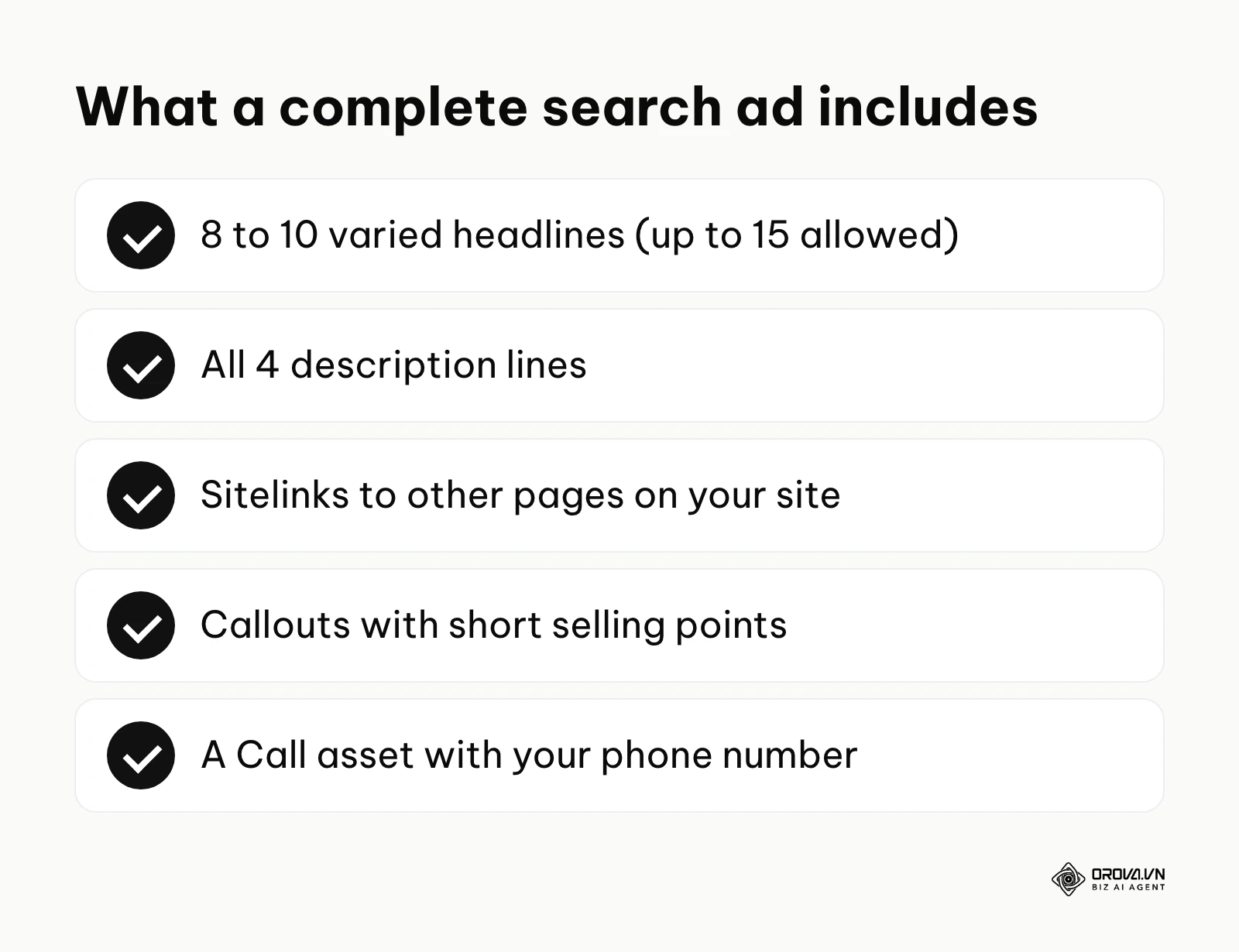
Once you have your keywords, you need to write the actual text that users will read. Currently, Google uses Responsive Search Ads (RSAs). Instead of writing one static ad, you provide up to 15 different headlines and 4 descriptions. The machine learning algorithm then tests various combinations to see which version gets the most clicks.
Writing good ad copy involves balancing emotional appeal with clear, relevant information. Your first headline should ideally include the keyword the user searched for. Your descriptions should highlight unique selling propositions (USPs) like "24/7 Availability," "Free Estimates," or "Over 10 Years in Business." Furthermore, you must utilize ad assets (formerly known as extensions). These are extra pieces of information like site links, callouts, and phone numbers that make your ad physically larger on the screen. For a full method to plan, write and test those headlines, see our responsive search ads framework.
- What to do: Write varied headlines that address user intent, highlight benefits, and utilize all relevant ad assets to maximize visibility.
- How to execute: In the Ad creation screen, fill out at least 8 to 10 headlines and all 4 description lines. Use the "pinning" feature sparingly. If you pin a headline to Position 1, you force the system to always show that specific text first. While this gives you control, it limits the algorithm's ability to test. After saving the ad, navigate to the "Assets" tab and add Sitelinks (links to other pages on your site), Callouts (short bullet points), and a Call asset (your phone number).
- Sign of success: Your ad achieves a "Good" or "Excellent" Ad Strength rating in the creation tool, and your live ads take up significant vertical space on mobile devices.
- Common error: Writing repetitive headlines (e.g., "Best Plumber," "Top Plumber," "Great Plumber") that give the algorithm no meaningful variations to test, resulting in a low click-through rate.
<CTA_1_PLACEHOLDER>
Step 7: Setting up conversion tracking and launching
The final step is arguably the most critical for long-term success. Conversion tracking is the process of recording when a click leads to a valuable action on your website. Without it, you are flying blind. You will be able to see how much money you spent and how many clicks you received, but you will have absolutely no idea which keywords or ads actually generated sales or leads.
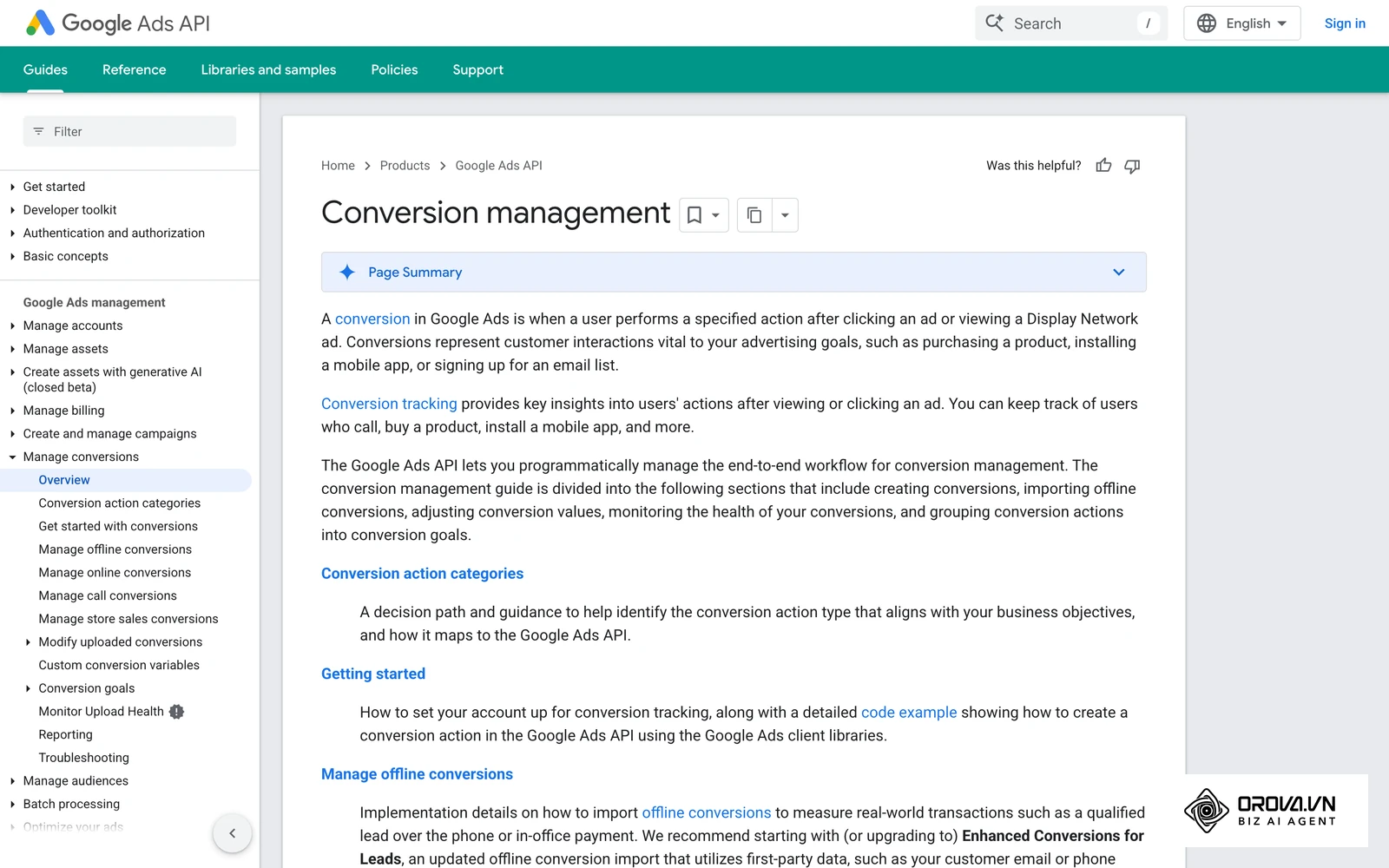
Importing key events into your ads account lets the bidding algorithms optimize for actual business value instead of raw clicks. You can set up tracking by installing the Google tag directly on your site, using Google Tag Manager, or linking your Google Analytics 4 (GA4) account and importing key events.
Example scenario: You run a boutique e-commerce store and just launched your first search ads. First, you add your product keywords. Second, you set up the campaign. Third, you launch it without configuring proper conversion tracking tags. A week later, you have traffic but cannot tell which keywords generated the three sales you received. You resolve this by importing your Google Analytics 4 purchase events into Google Ads. Moving forward, you can open your campaign dashboard and clearly see a conversion icon lighting up next to the specific keywords that successfully generated a sale.
- What to do: Define what a successful action looks like (e.g., a form submission, a phone call, a purchase) and configure the tracking tags before turning the campaign on.
- How to execute: Navigate to the "Goals" menu, then click "Conversions" and "Summary." Click "New conversion action." Choose your source (Website, App, Phone calls, or Import). Follow the prompts to generate the tracking code. Install the Google tag on every page of your site, and place the event snippet only on the page that loads after the user completes the action (the "Thank You" or order confirmation page). Verify the tag is firing using Google Tag Assistant. Once verified, review all your campaign settings one last time, and hit "Enable" to launch your campaign.
- Sign of success: Within a few days of launching, the "Conversions" column in your campaign dashboard starts populating with numbers greater than zero.
- Common error: Placing the conversion event snippet on every single page of the website, including the homepage, tricking the system into counting every single visitor as a "lead" and destroying your data accuracy.
OROVA ADS applies AI Agent to automate and optimize ad performance on Google, Meta and TikTok. Scale your budget safely, monitor 24/7 and expand your business quickly.
Experience the solution at orova.vn/ads
Deep analysis: Google Ads match types and network trade-offs
Understanding the nuances of the platform requires a deep analysis of how different structural choices impact your budget and results. The two biggest levers you pull during a google ads campaign setup are keyword match types and network distribution. The choices you make here determine whether your campaign acts like a highly targeted sniper rifle or a wildly unpredictable shotgun.
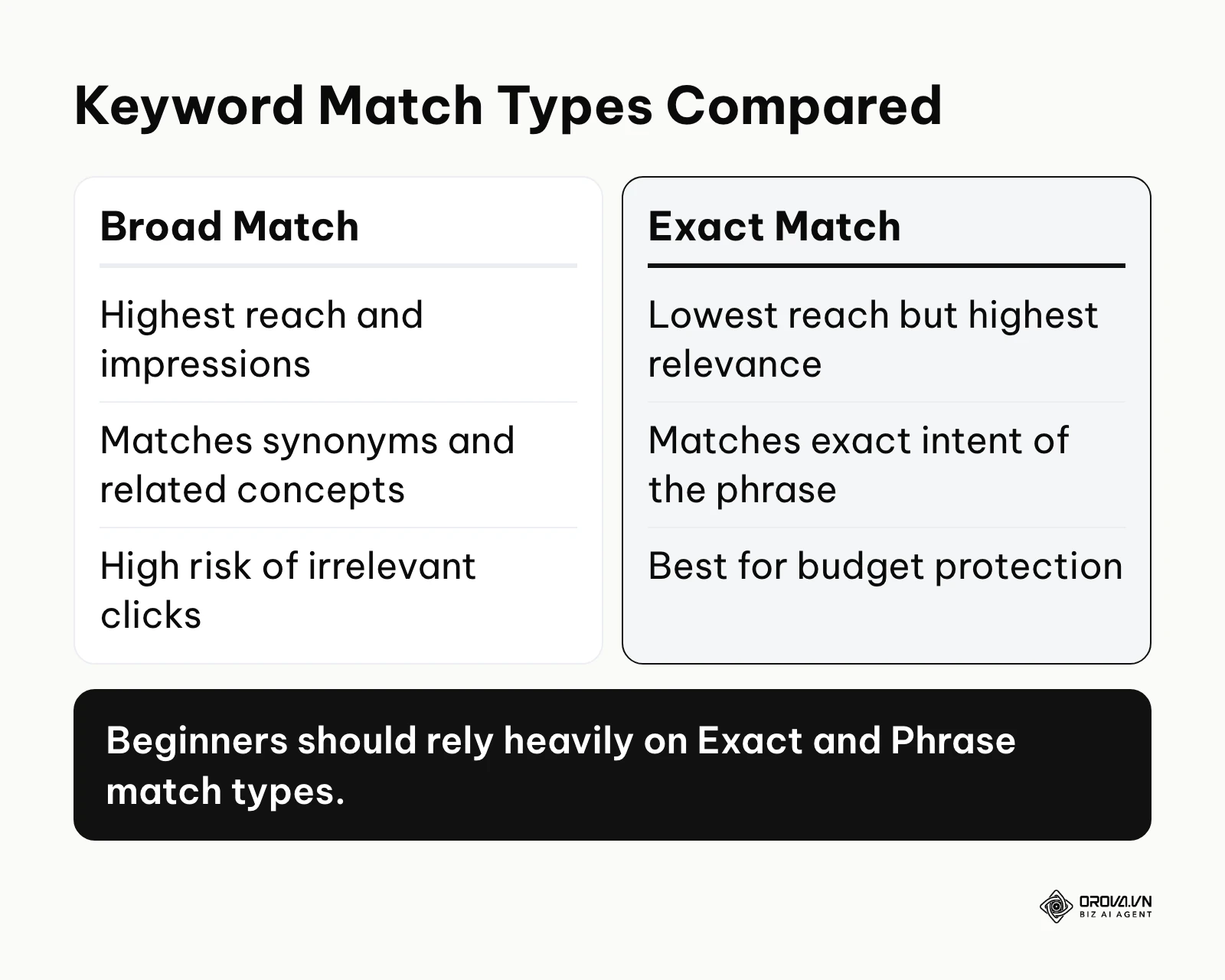
The table below contrasts the different match types and network selections, outlining when they are appropriate and where their weaknesses lie.
| Strategy Choice | When it is appropriate to use | Critical weaknesses and risks |
|---|---|---|
| Broad Match Keywords | Large budgets seeking massive reach; requires strong Smart Bidding and huge negative lists | Extreme risk of budget waste on irrelevant synonyms and loose thematic matches. |
| Phrase Match Keywords | The standard balance for most businesses; good mix of control and volume | Can still trigger for queries where the intent changes due to words added before or after the phrase. |
| Exact Match Keywords | Strict budget constraints; targeting high-intent, expensive keywords | Very low search volume; you might miss out on profitable long-tail variations of your keywords. |
| Search Network Only | High-intent lead generation and e-commerce focusing on immediate action | Higher average CPCs due to intense competition for active searchers. |
| Including Display Network | Pure brand awareness campaigns with separate, dedicated budgets | Near-zero conversion intent; CTR is abysmal, muddying your overall campaign metrics. |
When you operate on strict budgets, the trade-off is clear: you must sacrifice total traffic volume in favor of extreme relevance. An Exact Match strategy limits how often your ads appear, but it guarantees that when they do appear, the user is looking exactly for what you offer. Conversely, utilizing Broad Match might get you hundreds of clicks a day, but if those clicks come from people searching for "how to fix my own plumbing," your budget is effectively gone.
Measuring results: How to evaluate your Google Ads performance
Once your campaign is live, you need to know how to interpret the numbers. The platform provides dozens of columns, but only a handful truly matter for evaluating the health of a new campaign. It is important to note that the system enters a "Learning Phase" upon launch. During this period, which can last from several days to a few weeks depending on how many conversions the campaign records, performance may fluctuate as the algorithm tests different variables. You should avoid making drastic changes during this time. For the weekly routines that follow launch, see our guide to PPC ad management.
The table below outlines the critical metrics you must monitor, what they signify, and rule-of-thumb warning signs that suggest a problem. Treat the thresholds as starting points, not industry benchmarks.
| Metric | What it signifies | Rule-of-thumb warning sign |
|---|---|---|
| Click-Through Rate (CTR) | The percentage of people who saw your ad and clicked it. Indicates ad relevance. | Consistently below 2% for search campaigns indicates poor ad copy or irrelevant keywords. |
| Cost Per Click (CPC) | The actual amount you pay each time someone clicks your ad. | Spikes of 50% or more above your historical average indicate aggressive competitor bidding. |
| Conversion Rate (CVR) | The percentage of clicks that result in a defined lead or sale. | Below 1% means your landing page is failing to persuade, or your traffic is irrelevant. |
| Cost Per Acquisition (CPA) | The total cost divided by the number of conversions. Indicates profitability. | When the CPA exceeds the profit margin of the actual product or service you are selling. |
| Search Impression Share | The percentage of times your ad appeared out of the total eligible searches. | Below 20% indicates your budget is severely restricted or your bids are too low. |
To view these metrics, navigate to the "Campaigns" tab and click the "Columns" icon to customize your view. Always analyze the data over a statistically significant timeframe—looking at a single day's performance often leads to panic and poor decision-making. Conversion rates vary widely from one industry to another, so do not expect miracles in the first week.
Want to scale your budget but afraid of breaking performance? 📉
Integrate OROVA ADS now - an AI Agent that automatically monitors and optimizes Google, Meta, TikTok ads 24/7. Now, expanding and replicating your Performance Ads team is just one click away.
🚀 Try it now at: orova.vn/ads
Common Google Ads mistakes that drain your budget
Even with a careful setup, ongoing management is where many campaigns fail. Beginners often fall into predictable traps that slowly siphon money away from profitable keywords. Recognizing these mistakes early can save you thousands of dollars over the lifetime of your account.
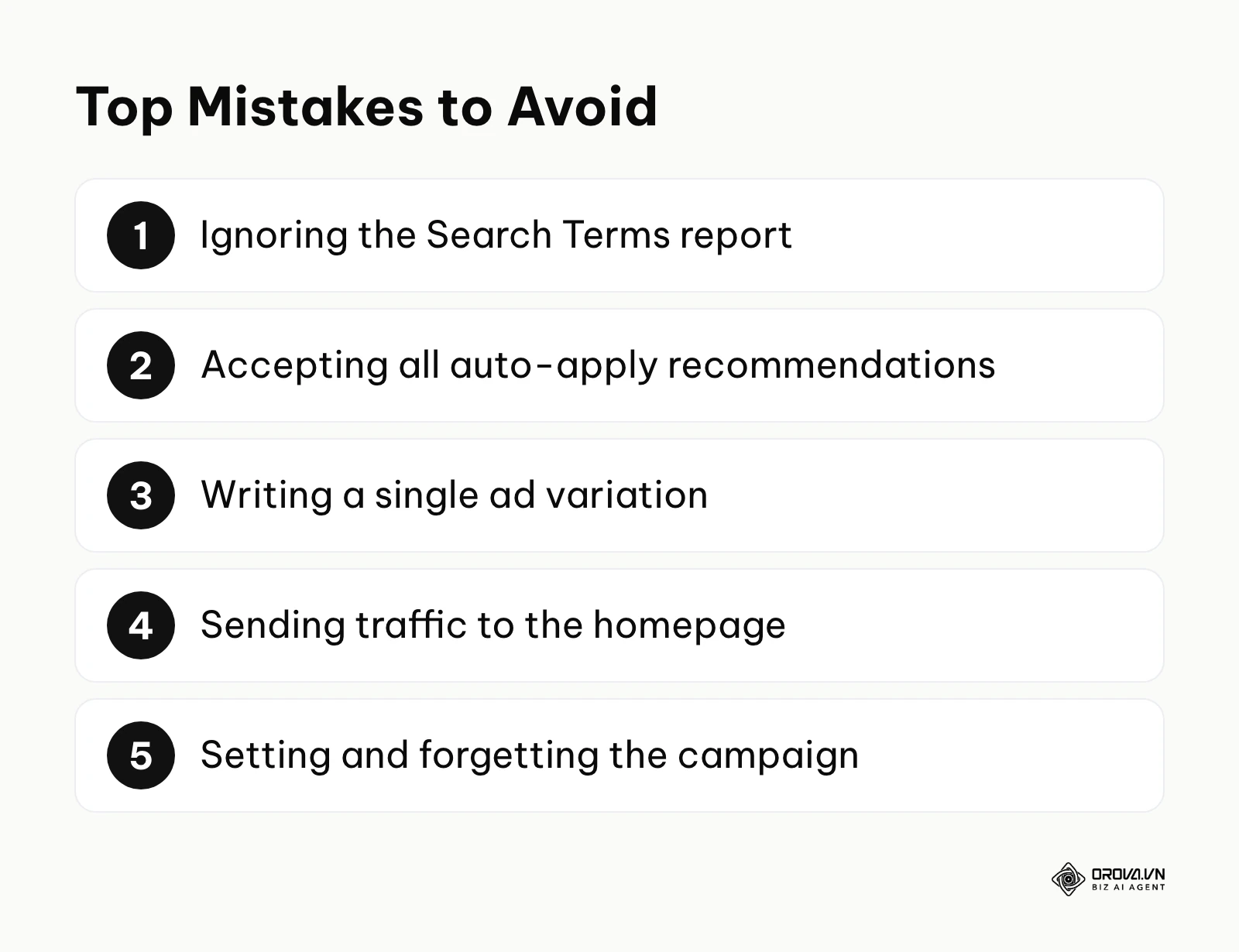
- Ignoring the Search Terms report: This is the most costly mistake you can make. The Keywords tab shows what you bid on; the Search Terms tab shows what users actually typed to trigger your ad. If you do not review this report weekly and add irrelevant terms to your negative keyword list, you will continuously pay for bad traffic. The consequence is a high CPA and a depleted budget. The fix is setting a calendar reminder every Friday to comb through the report.
- Accepting all auto-apply recommendations: Google provides an "Optimization Score" and regularly suggests changes to improve it. These suggestions often include adding broad match keywords or raising your budget. Clicking "Apply All" blindly will often ruin your carefully crafted structure. The consequence is a loss of control over what triggers your ads. The fix is navigating to the Auto-apply settings and turning off all automated keyword and budget changes.
- Writing a single ad variation: If you only provide one headline and one description, you are guessing what appeals to your audience. The consequence is stagnation; you will never improve your CTR because you are not testing anything new. The fix is ensuring every ad group has at least one robust Responsive Search Ad with 10+ varied headlines.
- Sending traffic to the homepage: Your homepage is a menu; your landing page should be a specialized tool. Sending a user looking for "commercial roof repair" to a homepage that talks about the company's history creates friction. The consequence is a high bounce rate and low conversion rate. The fix is building dedicated landing pages that mirror the exact promise made in the ad copy.
- Setting and forgetting the campaign: Google Ads is not a passive investment. Competitors change their bids, search trends evolve, and algorithms update. The consequence of inaction is a slow decline in performance as the market passes you by. The fix is establishing a routine of checking bids, pausing underperforming ads, and testing new keywords regularly, whether you do it yourself, hire an agency, or hand routine checks to a Google Ads agent.
<CTA_2_PLACEHOLDER>
Future trends in Google Ads and search advertising: My predictions
As someone who closely monitors the evolution of paid search platforms, I see significant shifts on the horizon. The landscape is changing rapidly, driven by technological advancements and shifting user behaviors. As of 2026, the traditional methods of manual bidding and rigid keyword control are giving way to new paradigms. Here are my top three predictions for where search advertising is heading in the next few years.
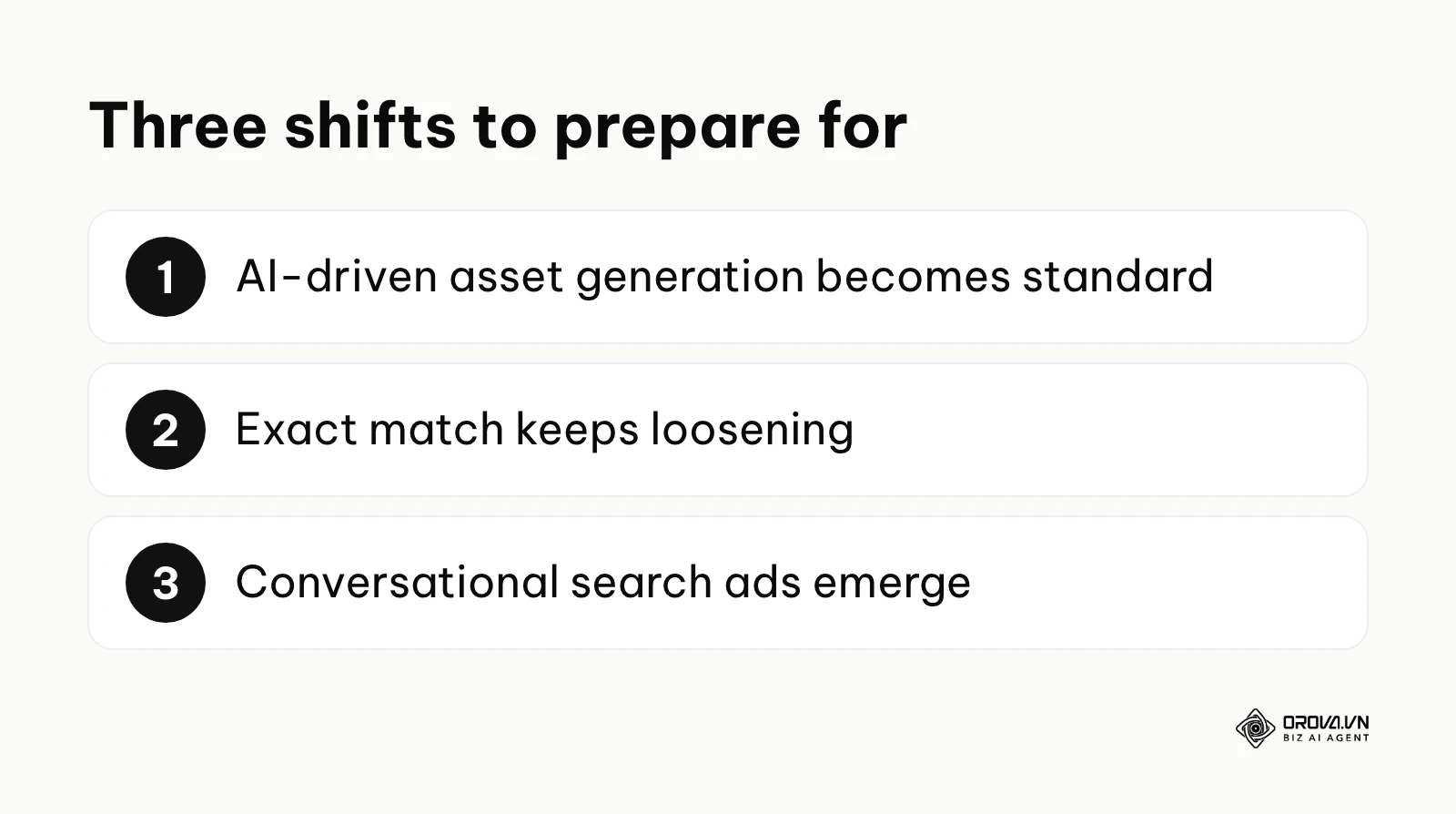
AI-driven asset generation will become standard
We are already seeing the platform introduce tools that suggest headlines and generate background images for display ads. I believe that over the next few years, manually typing out every headline will matter less and less. AI agents are likely to construct more ad copy on the fly, tailored to the individual searcher's psychological profile and real-time context. The algorithms may analyze the searcher's context and assemble an ad that appeals specifically to them. You should prepare for this by focusing less on writing clever taglines and more on feeding the AI high-quality raw data, such as deep product catalogs and comprehensive customer personas.
Exact match will keep loosening
The platform has been steadily loosening the definition of "exact match" for years, allowing for plurals, misspellings, and "close variants." I would not be surprised if match types keep fading into the background in favor of intent-based targeting. Instead of bidding on the phrase "buy running shoes," you will bid on the abstract concept of a user who intends to run. While this removes granular control, it simplifies the setup process. You need to prepare by shifting your focus away from keyword obsession and toward conversion tracking accuracy. If you cannot target keywords precisely, you must ensure the system knows exactly what a successful conversion looks like so it can find the right intent on its own.
The rise of conversational search ads
With the integration of AI-powered chat interfaces into search engines, the way users find information is changing from typing keywords to asking complex questions. I expect some ads to evolve from static links into interactive conversational formats. A user might ask the search engine, "What is the best CRM for a small plumbing business?" and the ad will be a sponsored response that asks follow-up questions to qualify the lead directly within the search results. To prepare for this, businesses must build robust knowledge bases and ensure their websites are structured perfectly so that external AI agents can crawl and understand their specific offerings.
Frequently asked questions about Google Ads campaign setup
How much should I spend in my first month?
Your first month is primarily about data acquisition. You should calculate a daily budget that allows for 10 to 15 clicks a day based on average CPCs. If your average CPC is 2 dollars, you need about 20 to 30 dollars a day, translating to roughly 600 to 900 dollars for the first month. Do not expect this initial investment to be highly profitable; view it as the cost of learning what keywords actually drive sales.
Why is my ad running and getting clicks, but no one is buying?
This usually stems from a disconnect between the ad copy and the landing page, or a misalignment of search intent. If your ad promises a "Free Audit" but the landing page demands credit card details, users will bounce. Alternatively, you might be using broad match keywords, resulting in clicks from users who are researching a topic rather than looking to purchase a solution.
Should I choose Manual CPC or Maximize Clicks for a brand new campaign?
For a completely new account with zero historical conversion data, Manual CPC or Maximize Clicks (with a strict bid limit) are the safest choices. They allow you to control costs while generating the initial traffic needed to secure your first conversions. Once you have a steady stream of conversions (many advertisers wait for roughly 15 to 30 a month), you can transition to a Smart Bidding strategy like Maximize Conversions.
How long does the Learning Phase typically last?
When you launch a campaign or make a significant change to your bidding strategy, the system enters a Learning Phase. This period can last from several days to a few weeks, depending on your budget and conversion volume. During this time, performance can be erratic as the algorithm tests different auctions. You should avoid making major adjustments to budgets or keywords during this phase, as doing so will reset the learning process.
How can AI improve my campaign management?
AI can handle the massive volume of data analysis required to adjust bids in real-time. It processes signals like user location, device, time of day, and past browsing history to determine the optimal bid for every single auction—a task impossible for a human to do manually. AI also assists in identifying new negative keyword opportunities and testing ad copy variations continuously.
Where to start with Google Ads?
Reading about campaign structures is easy, but taking the first practical step can feel daunting. Depending on your current situation, there is a specific, actionable task you can complete today in less than an hour to move forward. Choose the scenario that best matches your reality and execute the corresponding step.
If you are completely new and have no website ready: Your first step has nothing to do with the Google Ads platform itself. Open a blank spreadsheet and begin mapping out your target audience and their search intent. Create three columns: "What they want to buy," "Questions they are asking," and "Words that mean they are NOT my customer." Fill this sheet with at least 50 terms. This document will become the blueprint for both your future landing page and your exact match keyword list, saving you hours of confusion later.
If you have a website but are working with a very limited budget: Create a Google Ads account, but do not enter your billing information yet. Navigate directly to the "Tools and Settings" menu and open the Keyword Planner. Use this tool to input your core services and discover the estimated CPCs for your area. Your goal for this session is strictly research: you need to calculate exactly how much a 15-click-per-day budget will cost you. This gives you a concrete financial target to prepare for before you turn on any live ads.
If you ran ads previously, lost money, and are afraid to try again: Log back into your old account, navigate to your previous campaign, and open the "Search Terms" report (not the Keywords report). Set the date range to "All time." Spend an hour reviewing exactly what phrases people typed to trigger your ads. You will likely find dozens of irrelevant queries. Highlight these, export the list, and use them as the foundation for your massive negative keyword list when you eventually build a new, tightly controlled campaign. By taking these initial actions, you will be well on your way to mastering your own Google Ads campaign setup.
About the author

Builder of Orova
Nguyễn Đỗ Trọng Ân has 8 years of experience in marketing, including 6 years managing market development across Asia. He builds Orova, a Biz AI Agent that never sleeps: it plans, runs and optimizes work for businesses.
Run your business with AI Agents
Orova is the always-on Biz AI Agent — it plans, runs, and optimizes the work for you.
Save time, unlock productivity.