
Orova là một đồng đội AI cho doanh nghiệp: quảng cáo, SEO, phân tích số liệu, link rút gọn, tuyển dụng và đào tạo. Mọi thứ chạy trong trình duyệt.
Trang này viết cho người chưa từng mở Orova. Mỗi khái niệm mới đều được giải thích trước khi dùng tới.
Bạn cần đúng hai thứ để bắt đầu: một tài khoản (email và mật khẩu của bạn) và một workspace (chỗ làm việc chứa dữ liệu của một thương hiệu).
01 · Tổng quan
Orova là gì và 10 phút đầu bạn làm gì
Đọc mục này trước. Nó cho bạn bản đồ của cả trang, để các bước sau không còn lạ.
Orova
Một bộ công cụ AI cho doanh nghiệp, dùng ngay trên trình duyệt. Bạn không cài đặt gì, chỉ cần đăng nhập.
Module
Một phần việc của Orova, ví dụ Ads, SEO, Insight, Link & QR, Recruit, Training. Giống như từng gian trong một toà nhà.
Workspace
Chỗ làm việc riêng của một thương hiệu. Một quán cà phê và một công ty phần mềm nên nằm ở hai workspace khác nhau.
Đường đi luôn giống nhau, dù bạn định dùng module nào: tài khoản → workspace → module → kết quả.
- Tạo tài khoản bằng email của bạn, rồi bấm link trong thư để xác thực.
- Tạo workspace đầu tiên và đặt tên cho nó, ví dụ tên thương hiệu của bạn.
- Chọn module ở thanh menu trên cùng hoặc ở trang hub.
- Nhận kết quả: bài viết, chiến dịch, báo cáo, mã QR… tuỳ module bạn mở.
Mẹo
Đọc theo thứ tự
Workspace đầu tiên.Lưu ý
Ảnh minh hoạ
02 · Tạo tài khoản
Tạo tài khoản và xác thực email
Bốn ô để điền, một thư để bấm. Xong bước này là bạn vào được Orova.
Tài khoản
Email và mật khẩu của riêng bạn. Một tài khoản vào được nhiều workspace, giống một chìa khoá mở được nhiều phòng.
Xác thực email
Bạn bấm link trong thư Orova gửi để chứng minh hộp thư đó là của bạn. Chưa xác thực thì chưa đăng nhập được.
Ô chống bot
Một ô nhỏ bạn tick để hệ thống biết bạn là người thật, không phải máy. Ô này chỉ hiện ở bản chạy thật.
Mở trang Tạo tài khoản của Orova. Trang này chỉ hỏi bốn thông tin, không hỏi thẻ ngân hàng.
| Ô / nút | Ý nghĩa | Ghi chú |
|---|---|---|
Họ và tên | Tên thật của bạn, hiện cho đồng nghiệp thấy trong workspace | Tối đa 120 ký tự |
Email | Hộp thư nhận link xác thực và mọi thông báo sau này | Dùng email bạn mở được ngay |
Mật khẩu | Mật khẩu để đăng nhập lần sau | Tối thiểu 8 ký tự |
Nhập lại mật khẩu | Gõ lại y hệt ô trên để tránh gõ nhầm | Lệch một ký tự là báo lỗi |
| Ô tick điều khoản | Bạn đồng ý với điều khoản sử dụng | Bắt buộc, không tick thì không gửi được |
| Ô chống bot | Xác minh bạn là người thật | Chỉ hiện ở bản chạy thật, chờ ô chuyển sang dấu tích |
Đăng ký miễn phí | Nút gửi biểu mẫu và tạo tài khoản | Bấm xong là thư xác thực được gửi đi |
Làm theo thứ tự này
- 1
Điền bốn ô thông tin. Trên trang
Tạo tài khoản, điềnHọ và tên,Email,Mật khẩuvàNhập lại mật khẩu. Mật khẩu ngắn hơn 8 ký tự sẽ bị báo lỗi ngay khi bấm gửi.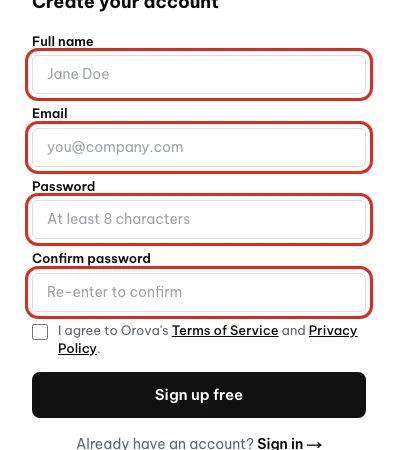
Điền họ tên, email, mật khẩu và nhập lại mật khẩu. - 2
Tick điều khoản và vượt ô chống bot. Tick ô đồng ý điều khoản. Nếu có ô chống bot, bấm vào đó và chờ tới khi hiện dấu tích. Chưa xong ô này thì Orova báo: Vui lòng hoàn tất bước xác minh chống bot rồi thử lại.
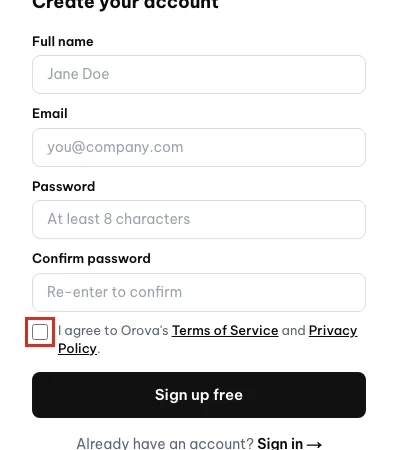
Tick ô đồng ý điều khoản trước khi đăng ký. - 3
Bấm Đăng ký miễn phí. Bấm nút
Đăng ký miễn phí. Màn hình chuyển sang trangKiểm tra hộp thư của bạn, và Orova gửi một thư xác thực tới email vừa điền.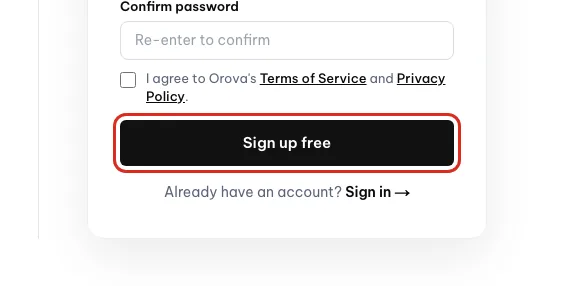
Bấm Sign up free để tạo tài khoản. - 4
Mở hộp thư và bấm link trong thư. Mở email từ Orova, bấm link xác thực trong thư. Trình duyệt mở lại Orova và hiện trang
Xác thực thành công. Từ đây bạn được tự động đăng nhập.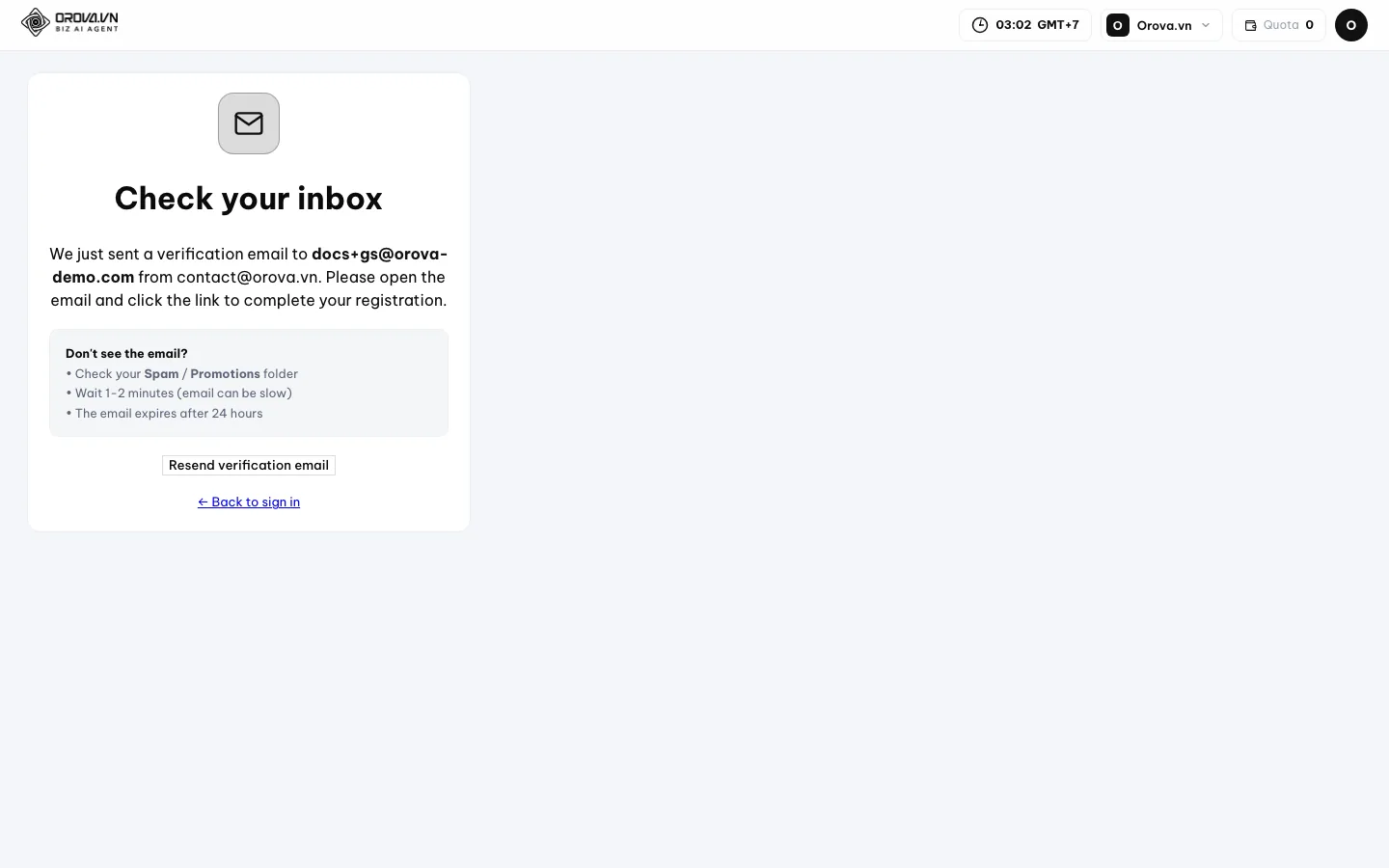
Orova gửi link xác nhận tới email bạn vừa nhập.
Cẩn thận
Link xác thực hết hạn sau 24 giờ
Kiểm tra hộp thư của bạn và bấm Gửi lại email xác thực.Không thấy thư xác thực thì làm gì
- Mở thư mục Spam hoặc Quảng cáo trong hộp thư, thư hay rơi vào đó.
- Đợi 1–2 phút, thư có thể tới chậm.
- Bấm
Gửi lại email xác thựctrên trangKiểm tra hộp thư của bạn. - Kiểm tra lại xem bạn có gõ nhầm địa chỉ email lúc đăng ký không.
Lưu ý
Email đã có người dùng
Quên mật khẩu? nếu không nhớ mật khẩu.03 · Đăng nhập
Đăng nhập và lấy lại mật khẩu
Vào lại Orova những lần sau, và cách xử lý khi màn hình báo đỏ.
Đăng nhập
Bạn khai báo email và mật khẩu để Orova biết bạn là ai, rồi mở đúng dữ liệu của bạn.
Khoá tạm
Sau nhiều lần gõ sai mật khẩu, Orova tạm chặn để bảo vệ tài khoản. Chờ hết thời gian ghi trên màn hình là vào lại được.
Trang Đăng nhập có hai ô: Email và Mật khẩu, kèm link Quên mật khẩu? ngay bên dưới.
Đăng nhập
- 1
Điền email và mật khẩu. Trên trang
Đăng nhập, điền đúng email bạn đã xác thực và mật khẩu. Nếu có ô chống bot, hoàn tất ô đó trước.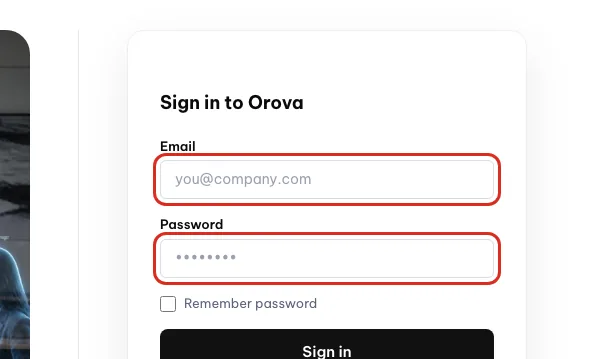
Nhập email và mật khẩu đã dùng khi đăng ký. - 2
Bấm Đăng nhập. Bấm nút
Đăng nhập. Orova đưa bạn vào thẳng nơi làm việc: chưa có workspace thì mở trang tạo workspace mới; đã có thì mở workspace bạn dùng gần nhất.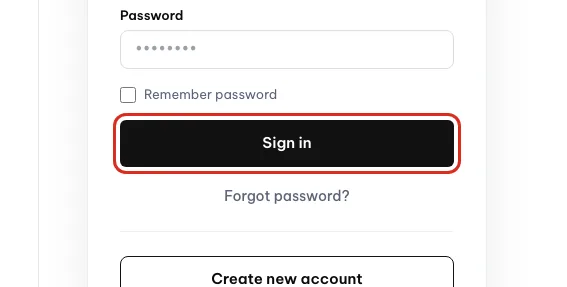
Bấm Sign in để vào workspace.
Ba câu báo lỗi hay gặp
| Màn hình báo | Nghĩa là | Cách xử lý |
|---|---|---|
| Email hoặc mật khẩu không đúng. | Sai một trong hai ô, Orova không nói rõ ô nào để bảo vệ tài khoản | Gõ lại chậm, kiểm tra phím hoa và bố cục bàn phím |
| Quá nhiều lần đăng nhập sai. Vui lòng thử lại sau… | Tài khoản bị khoá tạm vì sai nhiều lần liên tiếp | Chờ đúng khoảng thời gian ghi trên màn hình rồi thử lại |
| Email chưa được xác thực | Bạn đã đăng ký nhưng chưa bấm link trong thư | Bấm Gửi lại email xác thực rồi mở thư, xem lại mục trên |
| Tài khoản đã bị khoá. | Tài khoản bị ngừng hoạt động | Liên hệ contact@orova.vn theo hướng dẫn trên màn hình |
Quên mật khẩu
Đặt lại mật khẩu trong ba bước
- 1
Bấm Quên mật khẩu?. Trên trang
Đăng nhập, bấm linkQuên mật khẩu?. TrangQuên mật khẩumở ra với đúng một ô email.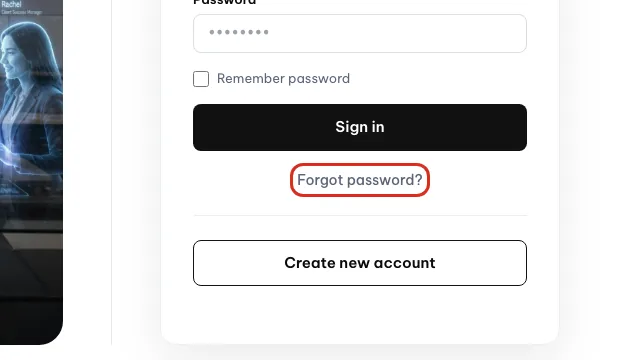
Quên mật khẩu thì bấm Forgot password?. - 2
Điền email và gửi. Điền email bạn dùng để đăng ký rồi bấm nút gửi. Orova gửi một thư chứa link đặt lại mật khẩu. Mở hộp thư và bấm link đó.
- 3
Đặt mật khẩu mới. Trang
Đặt mật khẩu mớimở ra. Gõ mật khẩu mới tối thiểu 8 ký tự, gõ lại lần nữa, rồi bấm lưu. Xong là bạn đăng nhập được bằng mật khẩu mới.
Cẩn thận
Link đặt lại chỉ dùng được một lần
Quên mật khẩu? để xin link mới.Mẹo
Đổi ngôn ngữ giao diện
Tài khoản sau khi đăng nhập.04 · Workspace đầu tiên
Tạo workspace đầu tiên
Workspace là chỗ chứa mọi thứ bạn làm. Không có nó thì chưa mở được module nào.
Workspace
Không gian làm việc riêng của một thương hiệu: có ví quota riêng, dữ liệu riêng, thành viên riêng, kết nối riêng.
ID workspace (slug)
Mã ngắn cố định nằm trên thanh địa chỉ, ví dụ phần demoads01 trong đường dẫn. Tên workspace đổi được, mã này thì không.
Hub module
Trang lưới thẻ liệt kê mọi module của workspace. Xem như sảnh chính, từ đây bạn bước vào từng gian.
Nếu tài khoản của bạn chưa có workspace nào, Orova tự đưa bạn tới trang tạo mới ngay sau khi đăng nhập.
Tạo workspace
- 1
Mở trang tạo workspace. Trang
Tạo workspace đầu tiênchỉ có một ô duy nhất:Tên workspace. Bên dưới có dòng nhắc: Có thể đổi sau. - 2
Đặt tên. Gõ tên thương hiệu hoặc tên công ty, dài từ 2 đến 160 ký tự. Gợi ý ngay trong ô: Ví dụ: Thương hiệu Cà phê A. Quá ngắn hoặc quá dài đều bị báo lỗi.
- 3
Bấm Tạo workspace. Bấm nút
Tạo workspace. Orova tự sinh mã ID từ tên bạn vừa đặt, rồi mở workspace mới. Việc này chạy trong một, hai giây. - 4
Nhìn quanh trang hub. Mở trang hub để thấy toàn bộ module dưới dạng lưới thẻ. Mỗi thẻ có tên module, một dòng mô tả ngắn, nhãn trạng thái và nút
Mở module.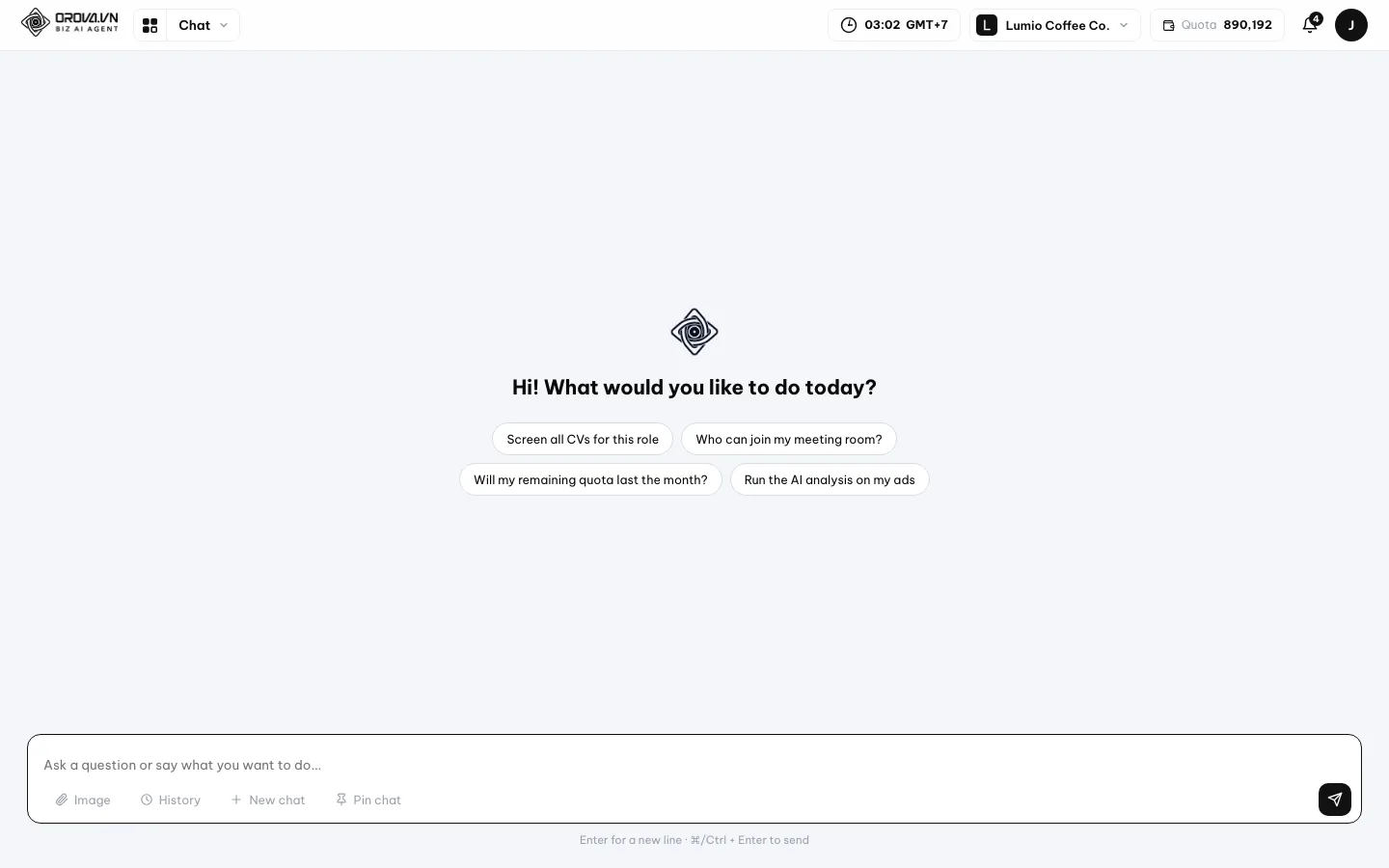
Đây là màn hình đầu tiên sau khi đăng nhập.
| Phần trên thẻ | Ý nghĩa | Ghi chú |
|---|---|---|
| Tên module | Phần việc mà module đó lo | Ví dụ Orova Ads, Orova SEO |
| Dòng mô tả ngắn | Một câu nói module dùng để làm gì | Đọc để chọn đúng chỗ cần vào |
Sẵn sàng | Module đã chạy ổn định, dùng được ngay | Trạng thái thường gặp nhất |
Thử nghiệm | Module đang mở thử, dùng được nhưng còn hoàn thiện | Có thể thay đổi giao diện |
Sắp ra mắt | Chưa mở, chỉ hiện để bạn biết trước | Chưa bấm vào được |
Mở module | Nút vào thẳng module đó | Bằng với bấm tên module ở thanh trên |
Nhiều thương hiệu thì làm sao
Mỗi thương hiệu nên có một workspace riêng. Dữ liệu, ví quota và thành viên của hai workspace tách hẳn nhau.
- Tạo thêm workspace: mở danh sách workspace rồi chọn tạo mới, làm lại đúng ba bước trên.
- Chuyển qua lại: bấm tên workspace ở thanh trên, chọn workspace khác trong danh sách xổ xuống.
- Sau khi chuyển, toàn bộ dữ liệu bạn nhìn thấy đổi theo workspace mới. Số quota trên thanh trên cũng đổi.
Lưu ý
Có giới hạn số workspace
05 · Đi lại trong Orova
Đi lại giữa các module
Một thanh menu trên cùng là đủ để tới mọi nơi. Mục này giải thích từng phần của thanh đó.
Thanh menu module
Dải chữ nằm ngang trên cùng mọi trang trong workspace. Mỗi chữ là một module, bấm vào là đi thẳng tới đó.
Panel tính năng con
Bảng nhỏ xổ ra khi bạn rê chuột vào một module, liệt kê các màn hình bên trong module đó.
Quota
Đơn vị Orova dùng để chạy AI. Mỗi tác vụ AI trừ một ít quota, và số ước tính luôn hiện trước khi bạn bấm.
Thanh menu chia hai nhóm việc: nhóm Marketing và nhóm HR (tuyển dụng, đào tạo).
Dùng thanh menu
- 1
Nhìn thanh trên cùng. Thanh liệt kê lần lượt
Giao tiếp,Orova Ads,Orova SEO,Orova Insight,Orova Link & QR,Orova Recruit,Orova Training. Bấm một mục là mở module đó.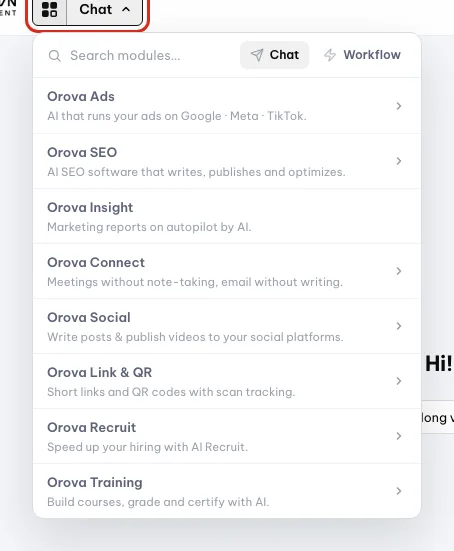
Bấm nút lưới để xem toàn bộ module. - 2
Rê chuột để xem bên trong. Rê chuột vào một module, ví dụ
Orova Ads. Một panel xổ xuống liệt kê các màn hình con. Bấm thẳng vào màn hình bạn cần, khỏi phải vào module rồi tìm tiếp.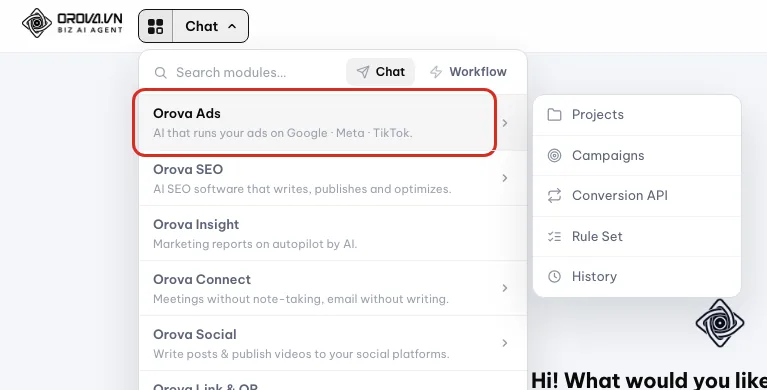
Rê chuột vào module để xem các trang con như Projects, Campaigns. - 3
Đọc góc phải thanh trên. Góc phải hiện số quota còn lại của workspace và chuông thông báo. Số quota tự cập nhật sau mỗi tác vụ AI, bạn không phải tải lại trang.

Số quota còn lại và chuông thông báo nằm ở đây. - 4
Đổi workspace khi cần. Bấm tên workspace ở thanh trên để xổ danh sách, rồi chọn workspace khác. Trang tải lại với dữ liệu của workspace vừa chọn.
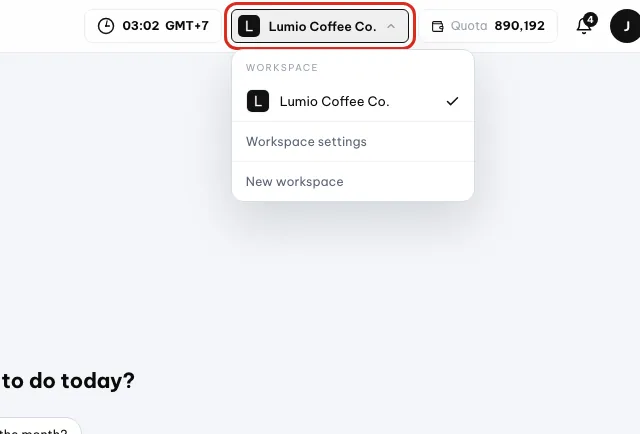
Chọn workspace khác trong danh sách này để chuyển.
Vì sao bạn thấy ít module hơn trong ảnh
- Quyền chưa bật: module mà nhóm quyền của bạn không được xem thì biến mất khỏi thanh menu, chứ không mờ đi. Nhờ chủ workspace mở quyền cho bạn.
- Module đang hoàn thiện: một số module chỉ mở cho nhóm dùng thử, tài khoản thường chưa thấy.
- Bạn đang ở workspace khác: kiểm tra tên workspace ở thanh trên trước khi đi tìm tiếp.
Mẹo
Tên module trong đường dẫn có thể khác
Orova Link & QR mở ở đường dẫn bắt đầu bằng /qr. Đây là chuyện bình thường, bạn vẫn đang ở đúng module.06 · Cài đặt workspace
Cài đặt workspace và hồ sơ doanh nghiệp
Khai báo tên, logo và thông tin doanh nghiệp một lần. AI sẽ đọc phần này để tư vấn sát với bạn hơn.
Cài đặt workspace
Trang gom mọi thiết lập của một workspace: thông tin, thành viên, phòng ban, quyền, gói, quota, hỗ trợ.
Mô tả doanh nghiệp
Vài câu bạn tự viết về công việc của mình. AI đọc đoạn này để hiểu bạn bán gì, cho ai, rồi viết nội dung sát hơn.
Hồ sơ doanh nghiệp
Thông tin pháp nhân như tên công ty, mã số thuế, địa chỉ, số tài khoản. Orova in các thông tin này lên báo giá, hợp đồng.
Bản ghi DNS TXT
Một dòng chữ bạn thêm vào phần quản lý tên miền của website. Nó chứng minh website là của bạn, giống như treo biển tên trước cửa.
Mở Cài đặt của workspace. Trang này có một hàng tab ngang, bấm tab nào thì nội dung bên dưới đổi theo.
| Tab | Ý nghĩa | Ghi chú |
|---|---|---|
Thông tin | Tên, ID, mô tả, logo và hồ sơ doanh nghiệp | Tab mở sẵn khi vào trang |
Thành viên | Danh sách người trong workspace và lời mời | Xem mục sau của trang này |
Phòng ban | Cây tổ chức của workspace | Xem dạng danh sách hoặc sơ đồ |
Phân quyền | Nhóm quyền chi tiết theo module | Chỉ hiện khi bạn có quyền quản lý |
Gói | Thuê bao tháng và mua thêm quota | Chỉ hiện khi bạn có quyền thanh toán |
Quota | Ví quota và lịch sử giao dịch | Ai trong workspace cũng xem được |
Hỗ trợ | Gửi yêu cầu tới đội Orova | Có cả lịch sử trao đổi |
Khai báo thông tin workspace
- 1
Đổi tên workspace. Ở tab
Thông tin, sửa ôTên workspacerồi lưu. Tên này hiện khắp nơi trong Orova. ÔID workspacebên cạnh chỉ đọc, có dòng nhắc: Mã định danh cố định — không thể thay đổi.
Bấm vào tên để đổi tên workspace. - 2
Viết mô tả doanh nghiệp cho kỹ. Trong ô
Mô tả doanh nghiệp, viết rõ lĩnh vực, sản phẩm hoặc dịch vụ, và khách hàng mục tiêu. Viết càng rõ, nội dung AI sinh ra càng sát việc của bạn. Vài câu là đủ. - 3
Tải logo lên. Bấm
Tải logo lên, chọn một ảnh PNG, JPG, WEBP hoặc SVG, dung lượng dưới 2 MB. Ảnh sai định dạng hoặc quá nặng sẽ bị từ chối kèm báo lỗi. Muốn bỏ logo, bấmXoá logo, dùng chữ cái đầu. - 4
Điền hồ sơ doanh nghiệp. Cuộn xuống khối
Hồ sơ doanh nghiệp, điền tên pháp nhân, mã số thuế, địa chỉ, quốc gia, lĩnh vực, email liên hệ, hotline, website, ngân hàng, số tài khoản và đơn vị tiền tệ. Thiếu ô nào để trống cũng được, bổ sung sau.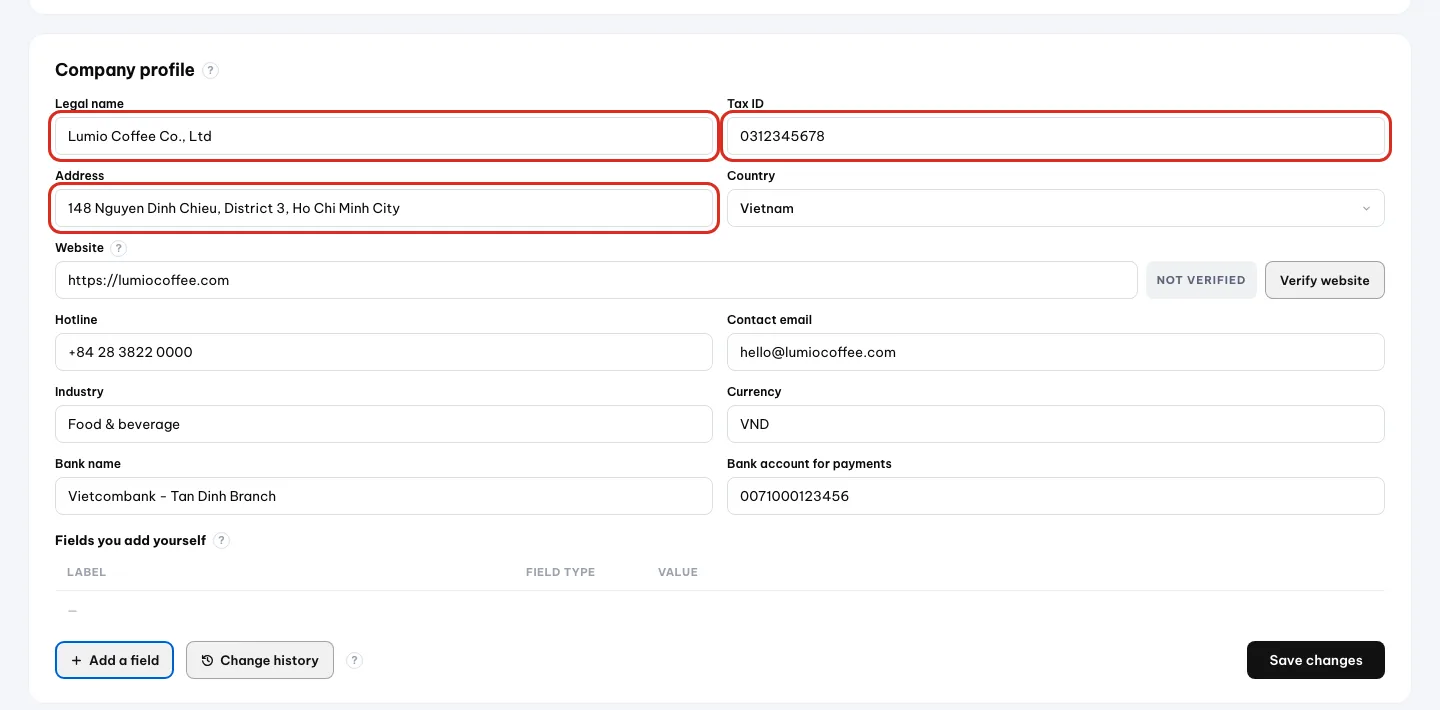
Điền tên pháp nhân, mã số thuế, địa chỉ và các ô còn lại rồi lưu. - 5
Thêm ô riêng nếu cần. Ngành của bạn có thông tin đặc thù thì thêm ô tuỳ chỉnh, ví dụ Số cửa hàng. Ô tự thêm có thể sửa tên, xoá, hoặc kéo để đổi thứ tự.

Bấm Add a field để tạo trường riêng.
Xác minh website bằng bản ghi DNS TXT
Xác minh giúp Orova biết website trong hồ sơ đúng là của bạn. Trạng thái chuyển từ Chưa xác minh sang Đã xác minh.
Bốn bước xác minh
- 1
Lưu website trước. Điền ô website trong
Hồ sơ doanh nghiệpvà lưu. Chưa lưu mà bấm xác minh, Orova báo: Nhập và lưu website trước khi xác minh.
Nhập và lưu website trước khi xác minh. - 2
Lấy bản ghi TXT. Mở khối
Xác minh website. Orova hiện một dòng chữ TXT dành riêng cho bạn. Sao chép nguyên dòng đó, đừng sửa một ký tự nào. - 3
Dán vào nơi quản lý tên miền. Đăng nhập nơi bạn mua tên miền, vào phần quản lý DNS, thêm một bản ghi loại TXT rồi dán dòng vừa chép vào. Lưu lại.
- 4
Quay lại Orova và bấm kiểm tra. Bấm nút kiểm tra trong khối
Xác minh website. Bản ghi DNS có thể mất vài phút tới vài giờ mới lan ra, nên chưa thấy ngay là bình thường. Orova báo: Chưa thấy bản ghi TXT… thì đợi rồi kiểm lại.
Lưu ý
Đừng bấm kiểm tra liên tục
Xem lại ai đã sửa gì
Bấm Lịch sử thay đổi trong khối hồ sơ để xem các lần sửa gần đây. Orova giữ lịch sử 90 ngày, ghi rõ ai sửa ô nào, lúc nào.
Cẩn thận
Vùng nguy hiểm: xoá workspace
Thông tin có khối xoá workspace vĩnh viễn. Bạn phải gõ đúng tên workspace, bấm Gửi email xác nhận xoá, rồi bấm link trong thư. Xoá rồi không lấy lại được dữ liệu.07 · Mời đồng đội
Mời người vào làm cùng
Thêm đồng nghiệp vào workspace, chọn vai trò cho họ, chia nhóm quyền và xếp phòng ban.
Thành viên
Thành viên là người được vào chung một workspace với bạn. Họ dùng tài khoản riêng của họ, nhưng nhìn thấy cùng dữ liệu và tiêu chung một ví quota.
Vai trò
Vai trò quyết định người đó được làm gì. Owner là người tạo workspace. Admin quản lý thành viên. Editor làm việc chuyên môn. Viewer chỉ xem.
Lời mời
Lời mời là một email chứa đường dẫn tham gia. Giống tấm vé vào cửa: chỉ đúng email được mời mới dùng được, và vé có hạn.
Bạn làm việc này ở trang Cài đặt workspace, tab Thành viên. Nên mời người khác ngay khi bạn bắt đầu làm thật, để không ai phải gửi file qua lại.
| Nút / ô | Ý nghĩa | Ghi chú |
|---|---|---|
| Bảng thành viên | Danh sách người đang ở trong workspace | Có cột Vai trò và cột Ngày vào |
| Ô email | Địa chỉ email của người bạn muốn mời | Gợi ý sẵn dạng email@congty.com |
| Admin — quản lý thành viên | Vai trò cho người quản lý đội | Mời thêm người, đổi vai trò người khác |
| Editor — quản lý tác vụ | Vai trò cho người làm chuyên môn | Chạy tác vụ, không quản lý thành viên |
| Gửi lời mời | Gửi email mời tới địa chỉ vừa điền | Lời mời có hiệu lực 7 ngày |
| Đang chờ chấp nhận | Khối liệt kê lời mời chưa ai bấm | Kèm số lượng trong ngoặc |
| Huỷ lời mời | Thu hồi một lời mời đang chờ | Hệ thống hỏi lại trước khi huỷ |
Mời người đầu tiên
- 1
Mở Cài đặt workspace. Ở thanh trên, vào phần cài đặt của workspace đang mở. Trang này có một hàng tab:
Thông tin,Thành viên,Phòng ban, và tuỳ quyền của bạn thì có thêmPhân quyền,Gói,Quota,Hỗ trợ. - 2
Bấm tab Thành viên. Bảng thành viên hiện ra. Nếu bạn vừa tạo workspace thì bảng chỉ có một dòng: chính bạn, vai trò Owner.
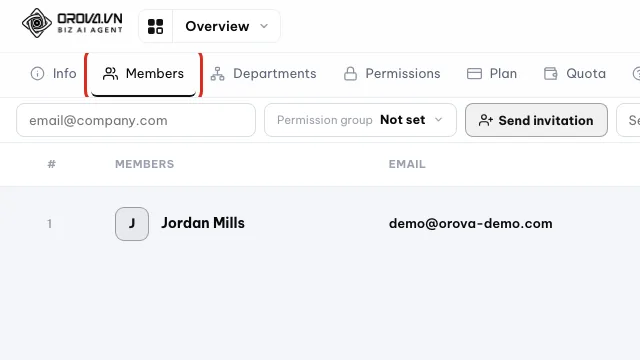
Mở tab Members để xem ai đang ở trong workspace. - 3
Điền email người bạn muốn mời. Kéo xuống khối mời thành viên mới. Gõ đúng email công việc của họ. Sai một ký tự là thư đi lạc, và người đó sẽ không nhận được gì.

Gõ email của người bạn muốn mời. - 4
Chọn vai trò. Chọn
Admin — quản lý thành viênnếu người đó sẽ mời thêm người khác. ChọnEditor — quản lý tác vụnếu người đó chỉ chạy công việc chuyên môn. Không chắc thì chọn Editor, đổi sau được.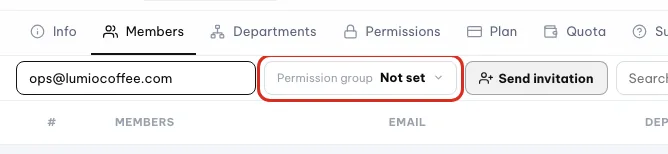
Chọn nhóm quyền cho người được mời. - 5
Bấm Gửi lời mời. Hệ thống gửi ngay một email kèm đường dẫn xác nhận. Dòng vừa gửi xuất hiện trong khối
Đang chờ chấp nhậncùng số đếm trong ngoặc.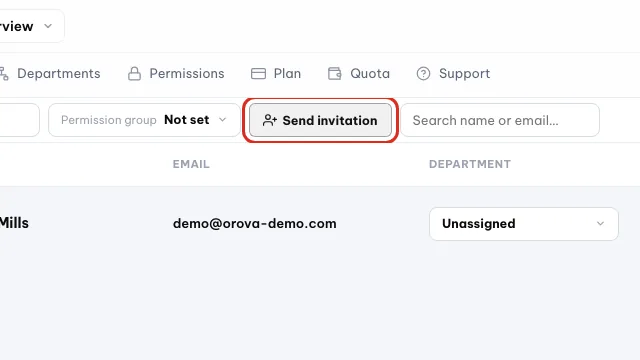
Bấm Send invitation để gửi thư mời. - 6
Nhắc người kia mở thư. Người được mời bấm đường dẫn trong thư. Nếu họ chưa đăng nhập, trang hiện tiêu đề
Lời mời tham gia workspacekèm email được mời. Họ bấmTham gia workspacelà xong, tên họ nhảy vào bảng thành viên.
Cẩn thận
Gửi lời mời là gửi email thật
Gửi lời mời sẽ gửi thư ngay tới địa chỉ bạn điền. Kiểm lại email trước khi bấm. Điền nhầm thì vào khối Đang chờ chấp nhận bấm Huỷ lời mời.Lưu ý
Lời mời có hạn 7 ngày
Lời mời đã hết hạn. Bạn chỉ cần gửi lại một lời mời mới cho đúng email đó.Người được mời nhìn thấy gì
Trang mời có năm trạng thái. Biết trước để bạn hỗ trợ đồng nghiệp nhanh hơn khi họ kêu không vào được.
Lời mời tham gia workspace— bình thường, người đó chưa đăng nhập. Đăng nhập xong là tham gia được.- Nút
Tham gia workspace— trạng thái chuẩn khi đã đăng nhập đúng tài khoản. Có link phụ để quyết định sau. Sai tài khoản— họ đang đăng nhập bằng email khác. Phải đăng xuất rồi vào lại bằng đúng email được mời.Lời mời đã hết hạn— quá 7 ngày. Bạn gửi lại lời mời mới.Lời mời không hợp lệ— đường dẫn đã dùng rồi hoặc không tồn tại.
Đổi vai trò và gỡ thành viên
- 1
Đổi vai trò. Trong bảng thành viên, đổi ô vai trò của dòng đó sang Admin hoặc Editor. Thay đổi có hiệu lực ngay lần họ tải lại trang.
- 2
Gỡ một người ra khỏi workspace. Bấm nút gỡ ở cuối dòng thành viên. Người đó mất quyền vào workspace này, nhưng tài khoản cá nhân của họ vẫn còn.
Lưu ý
Nhóm quyền chi tiết
Nhóm quyền
Nhóm quyền là một bộ quyền chi tiết theo từng module, đặt tên sẵn rồi gán cho thành viên. Giống chùm chìa khoá: mỗi chìa mở một phòng.
Vai trò là mức thô. Nhóm quyền là mức tinh: bạn quyết định nhóm đó được xem hay được dùng từng module. Tab Phân quyền chỉ hiện với người có quyền quản lý.
- 1
Mở tab Phân quyền. Trang liệt kê các nhóm quyền đang có của workspace. Bạn tạo thêm nhóm mới bằng nút tạo nhóm ở đầu danh sách.

Mở Permissions để quản lý nhóm quyền. - 2
Bấm vào một nhóm để sửa. Màn hình hiện ma trận: mỗi dòng một module, mỗi cột một loại quyền. Tick ô nào là nhóm đó được phép việc đó.
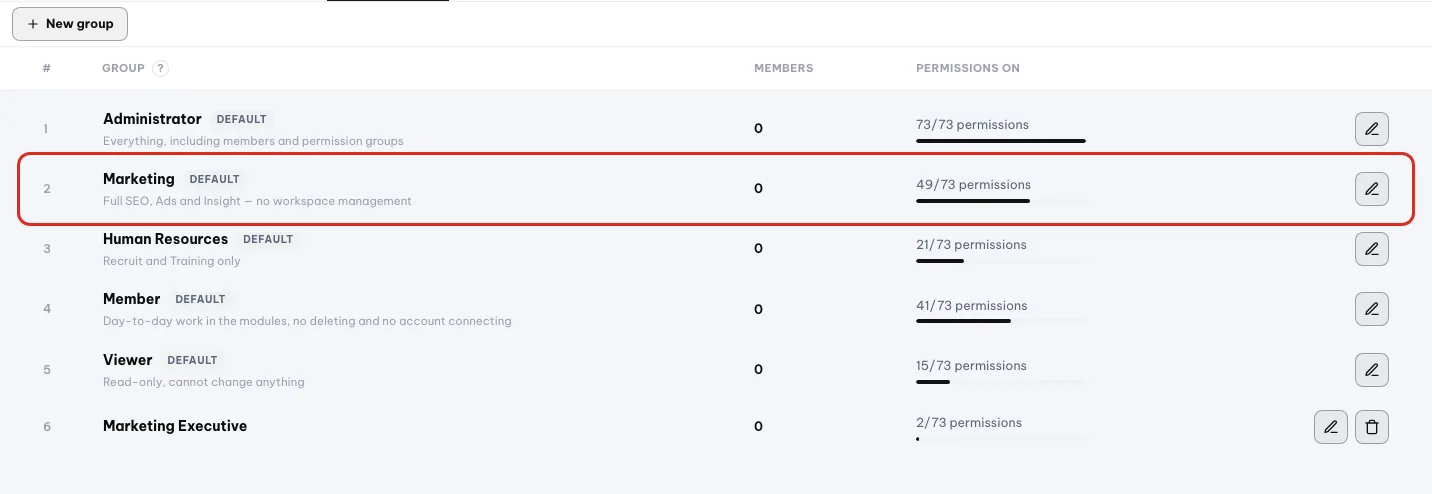
Bấm cây bút ở một nhóm để sửa các quyền được bật. - 3
Gán nhóm quyền cho thành viên. Quay lại tab
Thành viên, chọn nhóm quyền cho dòng thành viên cần đổi. Họ tải lại trang là thấy hiệu lực.
Mẹo
Phòng ban
Phòng ban
Phòng ban là cây tổ chức bên trong workspace. Dùng để biết ai thuộc bộ phận nào và ai thấy dữ liệu của ai.
- 1
Mở tab Phòng ban. Có hai kiểu xem:
Danh sáchvàSơ đồ. Danh sách để thêm sửa nhanh, sơ đồ để nhìn tổng thể cấp trên cấp dưới.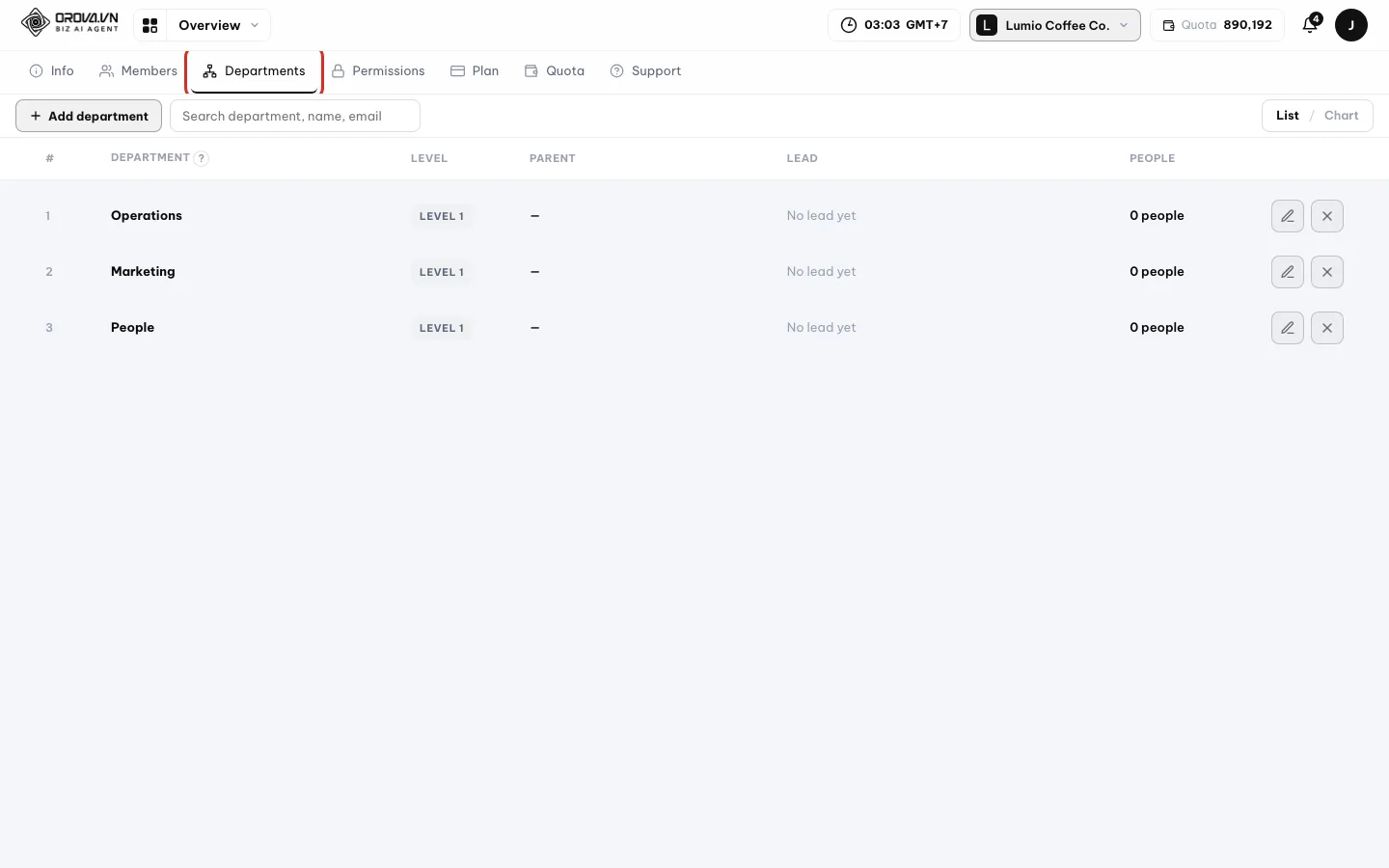
Mở tab Departments để dựng sơ đồ phòng ban. - 2
Thêm một phòng ban. Điền
Tên phòng ban. ChọnPhòng chanếu phòng này nằm dưới một phòng khác. ChọnTrưởng phòngtừ danh sách thành viên. Bỏ trống phòng cha thì phòng nằm ở cấp cao nhất. - 3
Xếp cấp bằng kéo thả. Kéo một phòng thả vào phòng khác để cho nó thành phòng con. Cây cho phép tối đa 10 cấp. Phòng chưa xếp nằm trong nhóm
Chưa xếpkèm số đếm.
Lưu ý
Ba lỗi hay gặp khi xếp phòng
Xoá các phòng con trước. nghĩa là phòng đang còn cấp dưới. Phòng này đã có trưởng. nghĩa là bạn phải gỡ trưởng cũ trước. Không thể đặt phòng vào chính nhánh dưới của nó. nghĩa là bạn đang kéo phòng cha vào phòng con của nó.08 · Quota và thanh toán
Quota, ví và tiền
Hiểu quota là gì, đọc lịch sử tiêu quota, chọn gói tháng, mua thêm quota và trả tiền bằng chuyển khoản.
Quota
Quota là đơn vị Orova dùng để chạy AI. Giống tiền xu trong máy: mỗi lần nhờ AI làm một việc, máy trừ một ít xu.
Ví quota của workspace
Ví là chỗ chứa quota, thuộc về workspace chứ không thuộc về một người. Mọi thành viên tiêu chung một ví.
Gói
Gói là thuê bao theo tháng, tự cộng quota định kỳ vào ví. Mọi gói dùng được hết tính năng, chỉ khác nhau ở lượng quota.
Gói quota lẻ
Gói lẻ là mua thêm quota một lần, không phải thuê bao. Dùng khi tháng này bạn làm nhiều hơn bình thường.
Số quota ước tính luôn hiện trước khi bạn bấm chạy một tác vụ AI. Bạn nhìn số đó rồi mới quyết định, không bị trừ bất ngờ.
Xem ví quota
- 1
Mở trang Ví Quota của workspace. Vào phần ví trong workspace. Tiêu đề trang là
Ví Quotakèm tên workspace của bạn.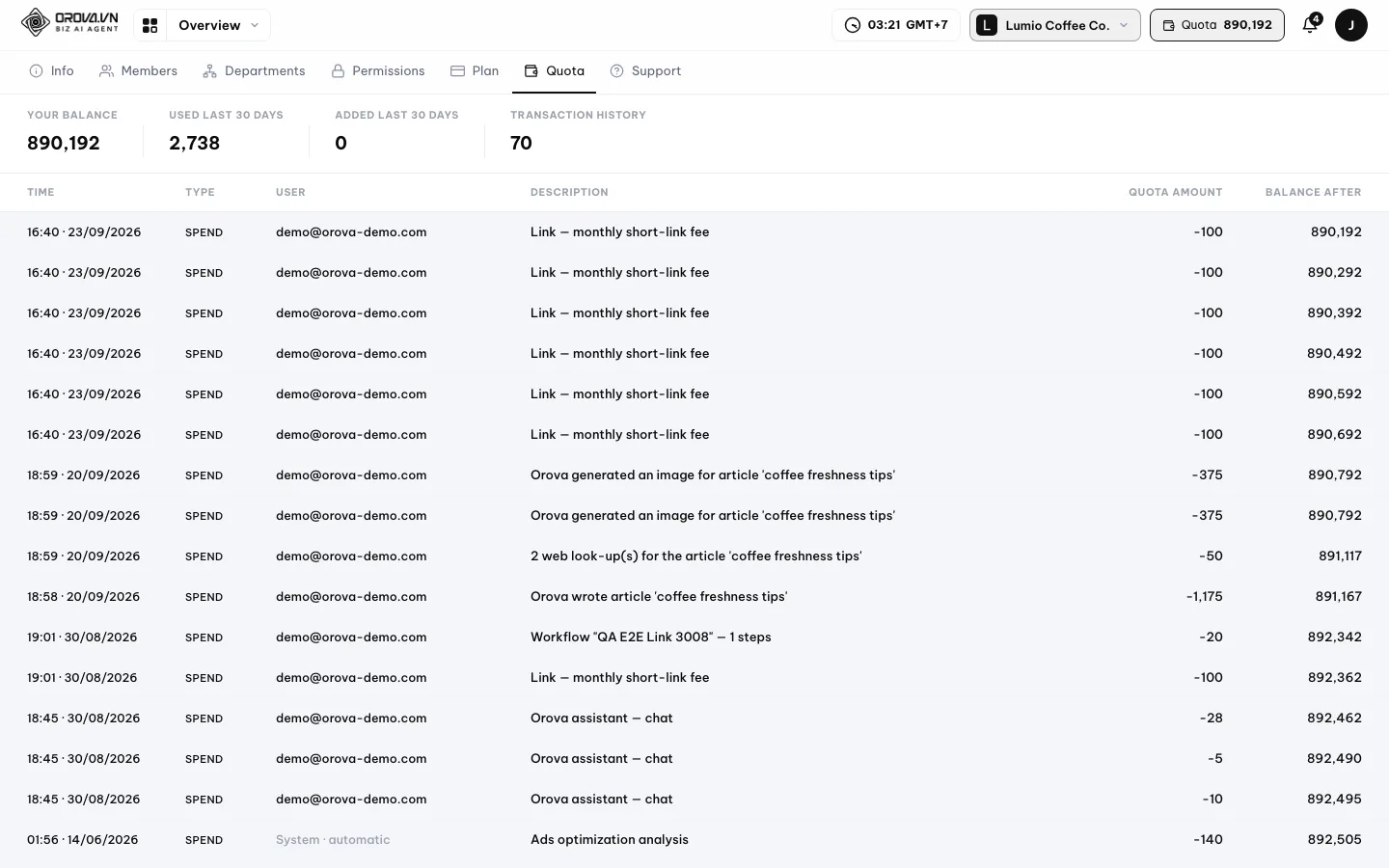
Ví cho thấy số dư và mọi lần cộng trừ quota. - 2
Đọc hàng bốn số liệu ở trên cùng.
Số dư của bạnlà quota còn lại.Đã dùng 30 ngày qualà mức tiêu gần đây.Được cộng 30 ngày qualà quota mới vào ví.Lịch sử giao dịchlà số dòng giao dịch đang có.
Đọc bốn số này trước để nắm tình hình quota.
| Cột | Ý nghĩa | Ghi chú |
|---|---|---|
| Thời gian | Lúc giao dịch xảy ra | Mới nhất nằm trên cùng |
| Loại | Nạp, Trừ, Hoàn, Tặng hoặc Điều chỉnh | Xem giải thích ngay dưới bảng này |
| Người dùng | Thành viên gây ra giao dịch | Trống thì hiện Hệ thống · tự động |
| Mô tả | Việc gì đã tiêu hoặc cộng quota | Ví dụ tên tác vụ AI vừa chạy |
| Số quota | Lượng quota cộng vào hoặc trừ ra | Trừ hiển thị dấu âm |
| Số dư sau | Số dư của ví ngay sau giao dịch đó | Dùng để dò lại khi thấy lệch |
Nạp— bạn mua thêm quota và đã thanh toán thành công.Trừ— một tác vụ AI vừa chạy và tiêu quota.Hoàn— tác vụ hỏng giữa chừng, hệ thống trả lại quota.Tặng— Orova cộng quota, ví dụ quota tặng lúc mở tài khoản.Điều chỉnh— sửa số dư theo yêu cầu hỗ trợ.
Lưu ý
Chưa có giao dịch nào. Bắt đầu dùng AI để xem chi tiết ở đây. Chạy một tác vụ bất kỳ là bảng có dữ liệu.Việc nào tốn nhiều quota
Ngay trên trang ví có bảng ước lượng do Orova công bố cho từng loại việc. Quy luật chung dễ nhớ: việc càng dài, càng nhiều dữ liệu thì càng tốn.
- Rẻ nhất: các lượt kiểm tra nhanh, ví dụ khám sức khoẻ website.
- Trung bình: sinh một ảnh, viết một bài ngắn, phân tích một đối thủ.
- Đắt nhất: bài dài chuẩn SEO và phân tích cả website kèm bộ từ khoá lớn.
Mẹo
Trang Gói: gói SEO và gói Ads
Trang Gói chia hai phần: gói cho SEO và gói cho Ads. Mỗi module có thuê bao riêng, bạn không bắt buộc phải mua cả hai.
| Nút / ô | Ý nghĩa | Ghi chú |
|---|---|---|
| Gói hiện tại | Gói bạn đang dùng cho module đó | Có nhãn Đang dùng |
| Quota/tháng | Lượng quota gói cộng mỗi kỳ | Số lấy theo gói bạn chọn |
| Gia hạn kế tiếp | Ngày kỳ tiếp theo bắt đầu | Chỉ hiện khi đang bật gia hạn |
| Tự động gia hạn | Tự thu tiền và cộng quota mỗi kỳ | Tắt được bằng huỷ gia hạn |
| Còn lại / Đến ngày | Thời gian gói còn hiệu lực | Vẫn dùng được tới hết ngày đó |
| Mua thêm quota | Khối mua gói quota lẻ | Có ba mức: Gói nhỏ, Gói vừa, Gói lớn |
Đổi gói hoặc huỷ gia hạn
- 1
Mở trang Gói. Tab
Góinằm trong hàng tab của Cài đặt workspace. Tab này chỉ hiện với người có quyền thanh toán.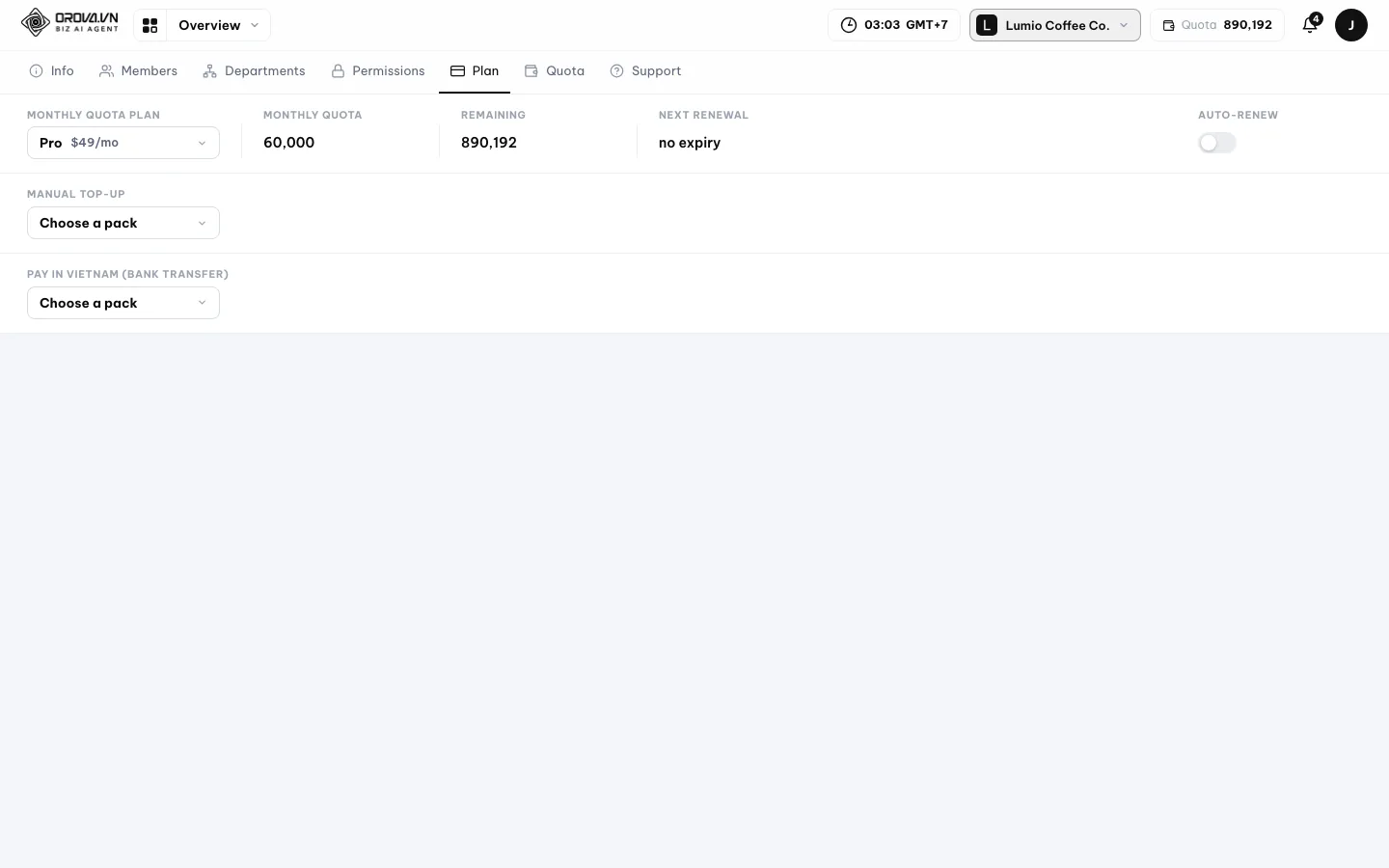
Trang Plan liệt kê gói, gói mua thêm và cách thanh toán. - 2
Chọn gói muốn dùng. Bấm nút đăng ký ở gói đó. Trang chuyển sang cổng thanh toán. Thanh toán xong bạn được đưa về Orova kèm thông báo đã đăng ký.
- 3
Huỷ gia hạn khi không muốn dùng tiếp. Bấm huỷ gia hạn. Gói vẫn còn hiệu lực tới ngày hết hạn, chỉ là kỳ sau không thu tiền nữa. Muốn quay về mức miễn phí thì chọn về gói miễn phí.
Cẩn thận
Nút thanh toán dẫn thẳng sang cổng thật
Mua thêm quota lẻ
- 1
Kéo tới khối mua thêm quota. Khối này có ba mức dựng sẵn:
Gói nhỏ,Gói vừa,Gói lớn. Số tiền và lượng quota hiện ngay trên từng thẻ.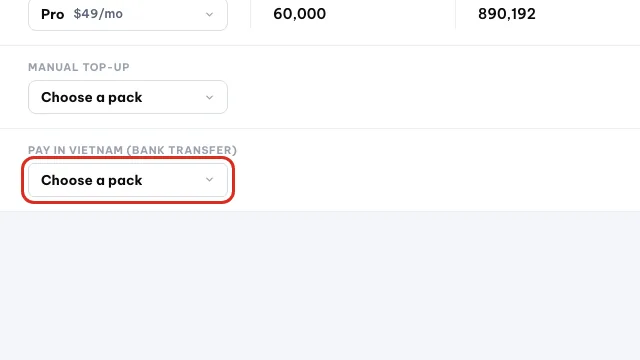
Kéo xuống khối mua thêm quota. - 2
Chọn mức rồi thanh toán. Chọn gói, chọn cách trả tiền, hoàn tất. Quota vào ví ngay khi thanh toán được xác nhận, và bạn thấy một dòng
Nạptrong lịch sử giao dịch.
Trả bằng chuyển khoản ngân hàng Việt Nam
- 1
Chọn cách trả bằng chuyển khoản. Hệ thống tạo một đơn và hiện mã QR ngân hàng kèm Ngân hàng, Số tài khoản, Chủ tài khoản, Số tiền và Nội dung chuyển khoản.
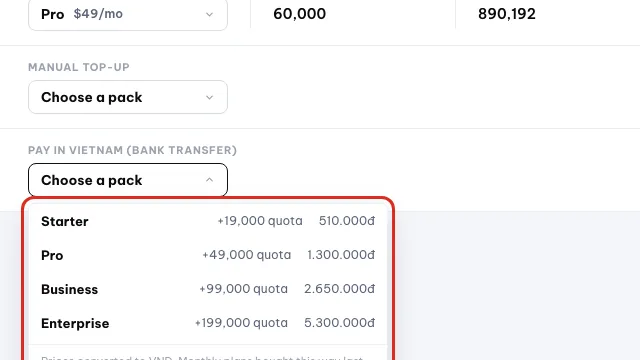
Chọn một gói để thanh toán bằng chuyển khoản tại Việt Nam. - 2
Chuyển tiền, giữ nguyên nội dung. Quét QR bằng app ngân hàng, hoặc nhập tay đúng số tài khoản và số tiền. Phần
Nội dung chuyển khoảnphải giữ y nguyên, không thêm chữ nào. - 3
Chờ trang tự báo thành công. Cứ để trang mở. Trang tự hỏi trạng thái cho tới khi ngân hàng báo về, thường trong vài phút. Xong thì hiện thông báo thành công và quota vào ví.
Cẩn thận
Sửa nội dung chuyển khoản là đơn không tự khớp
Tự động nạp khi sắp hết quota
Tự động nạp giúp công việc đang chạy không đứt giữa chừng vì hết quota. Bạn nối một phương thức thanh toán, hệ thống tự mua thêm khi ví xuống thấp.
- 1
Mở khối tự động nạp trên trang Gói. Bấm nối phương thức thanh toán, làm theo cổng thanh toán rồi quay về Orova.
- 2
Bật tự động nạp. Bật công tắc và lưu. Mỗi lần hệ thống tự nạp, bạn thấy một dòng
Nạptrong lịch sử giao dịch của ví. - 3
Ngắt khi không cần nữa. Bấm ngắt kết nối trong cùng khối. Từ lúc đó hệ thống không tự thu tiền nữa.
Lưu ý
Không thấy tab Gói
Gói và trang thanh toán chỉ mở cho vai trò được thanh toán. Vai trò khác vào thẳng đường dẫn sẽ bị từ chối. Nhờ chủ workspace thao tác giúp, hoặc xin đổi vai trò.09 · Tài khoản cá nhân
Tài khoản cá nhân của bạn
Sửa thông tin, ảnh đại diện, cách liên hệ, ngôn ngữ giao diện, báo cáo gửi email và mật khẩu.
Tài khoản cá nhân
Tài khoản là con người bạn trong Orova: email, mật khẩu, tên, ảnh. Nó đi theo bạn qua mọi workspace, khác với cài đặt của riêng một workspace.
Ảnh đại diện
Ảnh nhỏ hiện cạnh tên bạn để đồng nghiệp nhận ra ai vừa làm việc gì. Không bắt buộc, nhưng nên có khi làm việc nhiều người.
Trang Tài khoản gồm ba khối xếp dọc: Thông tin cá nhân, Cách liên hệ, Báo cáo. Sửa xong bạn bấm Lưu và thấy cờ Đã lưu hiện lên.
| Nút / ô | Ý nghĩa | Ghi chú |
|---|---|---|
| Họ tên | Tên hiện cho đồng nghiệp thấy | Nên là tên thật |
| Ngày sinh, Giới tính | Thông tin cá nhân cơ bản | Không bắt buộc |
| Chức danh, Công ty | Vị trí và nơi bạn làm việc | Hiện trong hồ sơ của bạn |
| Thành phố, Quốc gia | Nơi bạn làm việc | Giúp hiển thị đúng bối cảnh |
| Ngôn ngữ | Ngôn ngữ giao diện Orova | Đổi là toàn bộ chữ đổi theo |
| Thêm liên hệ | Thêm một dòng cách liên hệ mới | Chọn loại rồi điền giá trị |
| Báo cáo tuần | Email tổng kết mỗi tuần | Bạn chọn gửi vào thứ mấy |
| Báo cáo tháng | Email tổng kết mỗi tháng | Bạn chọn ngày trong tháng |
| Tắt | Không nhận email báo cáo | Chọn khi thấy phiền |
| Lưu | Ghi lại mọi thay đổi | Có cờ Đã lưu báo thành công |
| Thành viên từ | Ngày bạn mở tài khoản | Chỉ để xem |
Điền thông tin và đổi ảnh đại diện
- 1
Mở trang Tài khoản. Bấm vào tên hoặc ảnh của bạn ở thanh trên rồi chọn mục tài khoản. Trang mở ra ở khối
Thông tin cá nhân.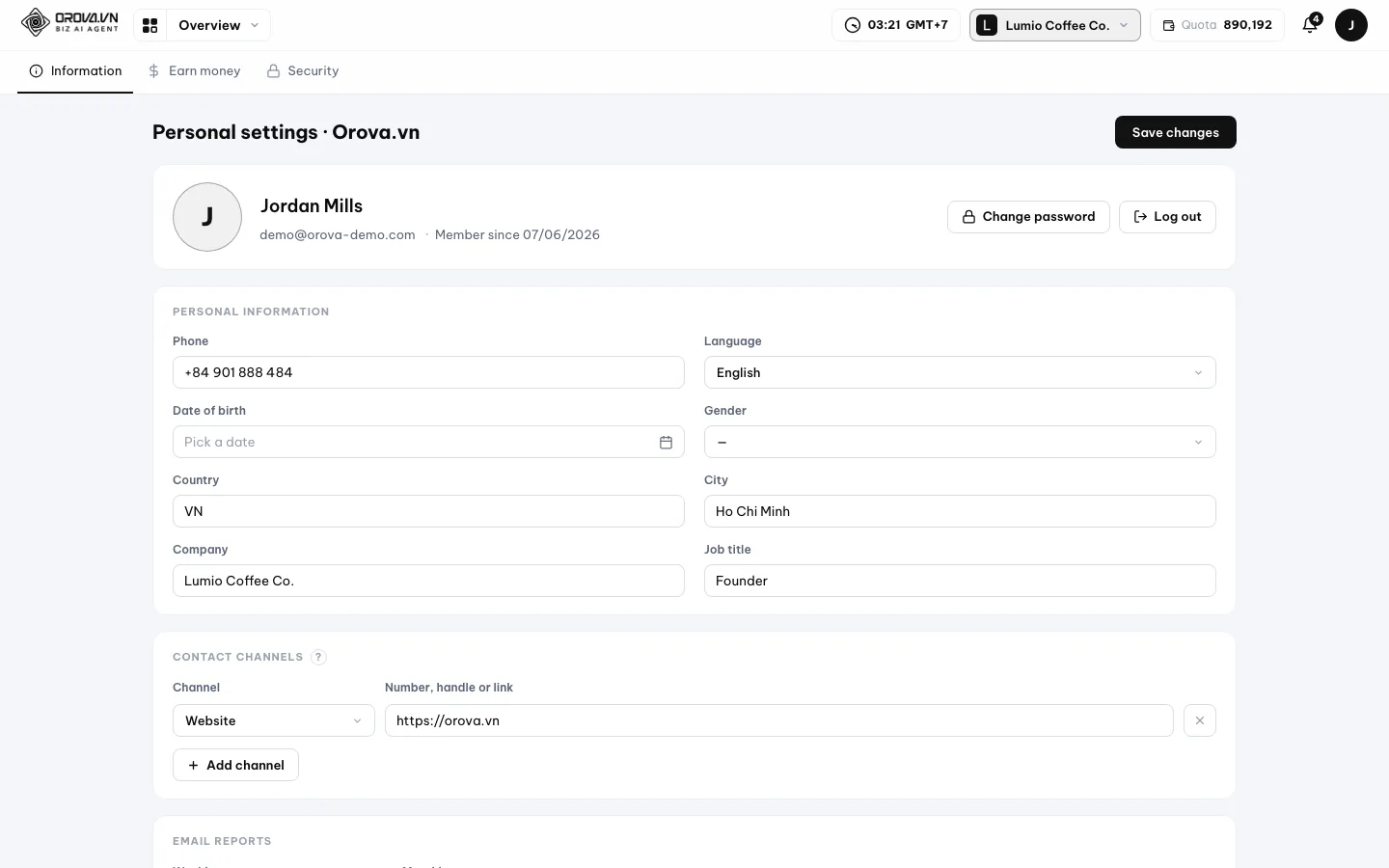
Mở Account từ ảnh đại diện để sửa thông tin cá nhân. - 2
Điền các ô rồi bấm Lưu. Điền ít nhất họ tên và chức danh. Bấm
Lưu, chờ khoảng một giây, thấy cờĐã lưulà xong.
Điền thông tin rồi bấm Save changes. - 3
Tải ảnh đại diện. Bấm vào khu vực ảnh, chọn một file ảnh trong máy. Ảnh hiện ngay sau khi tải lên. File quá nặng, sai định dạng hoặc file rỗng sẽ bị từ chối kèm thông báo lý do.
- 4
Thêm cách liên hệ. Ở khối
Cách liên hệ, bấmThêm liên hệ. Chọn loại, ví dụ số điện thoại, Zalo hay website, rồi điền giá trị. Thêm được nhiều dòng. BấmLưu.
Bấm Add channel để thêm số điện thoại, ứng dụng chat hoặc link. - 5
Đổi ngôn ngữ giao diện. Chọn ngôn ngữ trong ô
Ngôn ngữrồi lưu. Toàn bộ nhãn nút và menu đổi sang ngôn ngữ đó. Cài đặt này là của riêng bạn, không ảnh hưởng đồng nghiệp.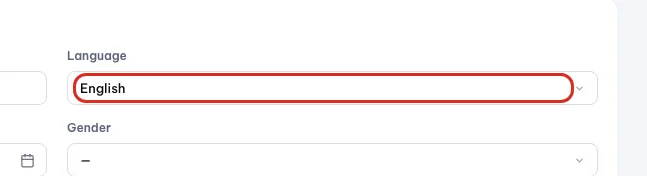
Chọn ngôn ngữ giao diện Orova cho bạn. - 6
Chọn báo cáo gửi qua email. Ở khối
Báo cáo, chọn báo cáo tuần và thứ muốn nhận, hoặc báo cáo tháng và ngày trong tháng. Không muốn nhận thì chọnTắt. BấmLưu.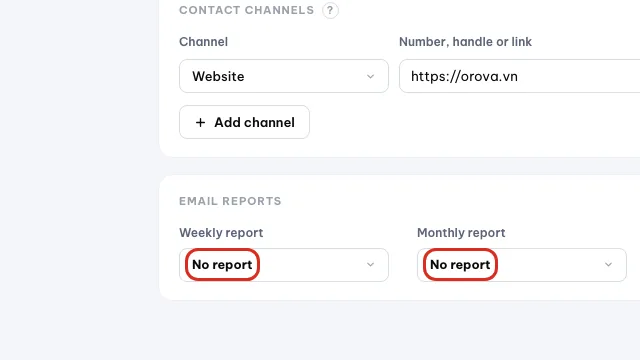
Chọn báo cáo Orova gửi email cho bạn mỗi tuần, mỗi tháng.
Lưu ý
Ba lỗi khi tải ảnh đại diện
Đổi mật khẩu
- 1
Mở trang Đổi mật khẩu. Từ trang
Tài khoản, bấm sang mục đổi mật khẩu ở hàng tab phụ. - 2
Điền ba ô. Mật khẩu hiện tại, mật khẩu mới, và nhập lại mật khẩu mới. Mật khẩu mới phải từ 8 ký tự trở lên, và hai ô sau phải giống hệt nhau.
- 3
Lưu rồi thử lại. Sau khi đổi, hãy đăng xuất và đăng nhập lại một lần bằng mật khẩu mới. Làm vậy để chắc chắn bạn nhớ đúng.
Mẹo
Quên mật khẩu? ở trang đăng nhập và đặt lại qua email.10 · Khi cần giúp
Gửi yêu cầu hỗ trợ
Cách hỏi đội Orova khi gặp trục trặc, kèm ảnh chụp màn hình, và theo dõi câu trả lời.
Yêu cầu hỗ trợ
Yêu cầu hỗ trợ là một cuộc trao đổi có lưu vết giữa bạn và đội Orova. Giống một chủ đề thư: bạn hỏi, đội trả lời, cả hai đọc lại được sau này.
Trang hỗ trợ nằm trong workspace, có hai tab: Gửi yêu cầu và Lịch sử. Dùng khi bạn gặp lỗi, cần hỏi tính năng, hoặc vướng chuyện thanh toán.
| Nút / ô | Ý nghĩa | Ghi chú |
|---|---|---|
| Thanh toán | Vướng tiền, gói, quota chưa vào ví | Kèm thời gian và số tiền đã chuyển |
| Tính năng | Hỏi cách dùng hoặc xin thêm tính năng | Mô tả việc bạn đang muốn làm |
| Kỹ thuật | Trang lỗi, nút không chạy, tác vụ treo | Kèm ảnh chụp và đường dẫn trang |
| Khác | Không thuộc ba loại trên | Vẫn nên viết rõ bối cảnh |
| Tiêu đề | Một câu tóm tắt vấn đề | Viết cụ thể, tránh chữ chung chung |
| Nội dung | Mô tả chi tiết | Bạn làm gì, chờ gì, thấy gì |
| Đính kèm | Gửi kèm ảnh chụp màn hình | Ảnh giúp xử lý nhanh hơn nhiều |
| Gửi yêu cầu | Tạo yêu cầu mới | Yêu cầu hiện ngay trong tab Lịch sử |
- 1
Mở trang hỗ trợ của workspace. Vào mục hỗ trợ trong workspace. Trang mở sẵn ở tab
Gửi yêu cầu.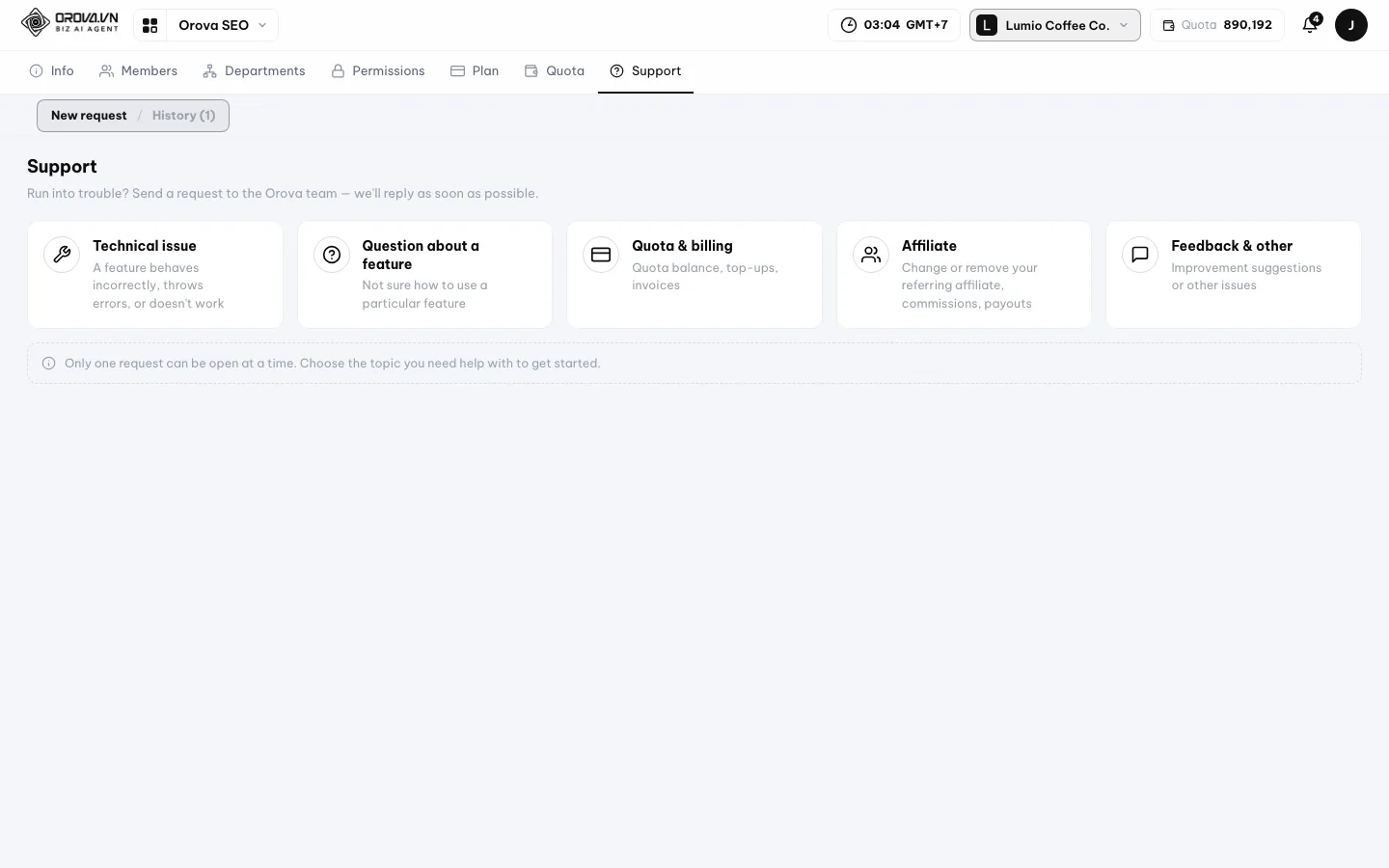
Mở Support để gửi yêu cầu tới đội Orova. - 2
Chọn chủ đề. Mỗi chủ đề có một câu mô tả ngay bên dưới. Chọn sai cũng không sao, trong ticket có nút đổi chủ đề.

Chọn chủ đề gần nhất với vấn đề của bạn. - 3
Viết tiêu đề và nội dung. Tiêu đề một câu. Nội dung nên nói ba điều: bạn đang làm gì, bạn mong thấy gì, và thực tế thấy gì. Chép nguyên văn dòng báo lỗi nếu có.
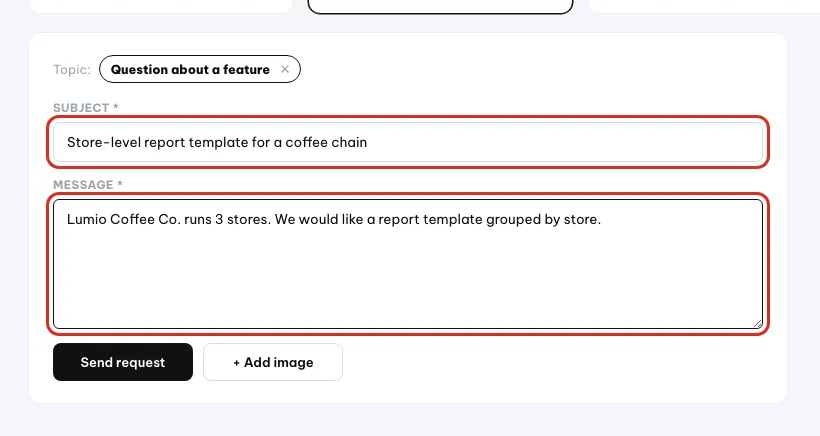
Viết tiêu đề ngắn và mô tả vấn đề. - 4
Đính kèm ảnh chụp màn hình. Bấm nút đính kèm và chọn ảnh. Một ảnh chụp toàn màn hình thường rút ngắn được vài lượt hỏi đi hỏi lại.
- 5
Bấm Gửi yêu cầu. Bạn thấy thông báo đã tạo. Yêu cầu chuyển sang tab
Lịch sửvới trạng tháiĐang mở.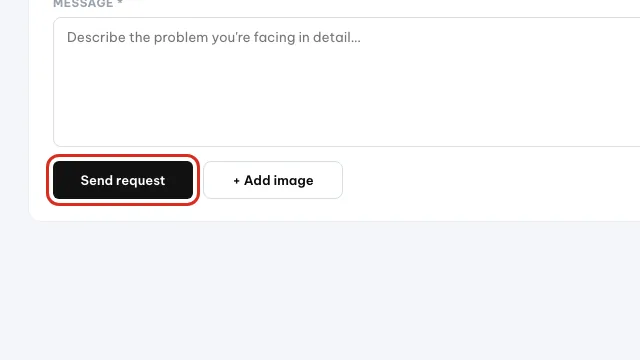
Viết xong thì bấm Send request. - 6
Theo dõi và trả lời. Mở tab
Lịch sử. Bảng có Ngày, Tiêu đề, Người gửi, Số tin và Trạng thái. Bấm vào một dòng để đọc và trả lời tiếp trong cùng ticket.
Lưu ý
Đang có yêu cầu mở cùng loại
Mẹo
11 · Kiếm tiền
Kiếm tiền cùng Orova
Bật chế độ cộng tác viên, lấy link giới thiệu và xem hoa hồng. Mục ngắn, chi tiết xem trang chính sách.
Cộng tác viên
Cộng tác viên là người giới thiệu Orova cho người khác và nhận hoa hồng khi người đó trả tiền. Bật hay không là tuỳ bạn.
Link giới thiệu
Link giới thiệu là một đường dẫn riêng có mã của bạn. Ai mở link đó rồi đăng ký thì hệ thống biết họ đến từ bạn.
- 1
Mở trang cộng tác viên và bật. Lần đầu vào, bạn thấy trang giới thiệu chương trình kèm hai ô tick: đồng ý chính sách cộng tác viên và đồng ý điều khoản bảo mật dữ liệu. Tick đủ hai ô rồi bấm
Đồng ý và bật. Thiếu một ô thì hệ thống báo bạn cần đồng ý chính sách trước.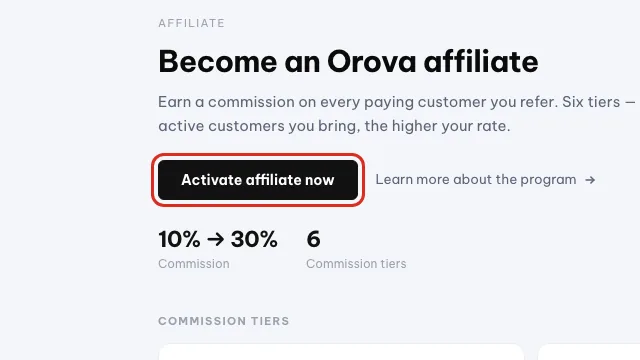
Bấm để bật cộng tác viên. Bật rồi không tắt lại được. - 2
Lấy link giới thiệu. Bật xong, tab
Trạng tháihiện mã và link giới thiệu của bạn. Sao chép rồi gửi cho người bạn muốn giới thiệu. - 3
Tạo link tuỳ chỉnh. Muốn dẫn người ta tới một trang cụ thể, ví dụ một bài blog, thì dán đường dẫn đó vào ô tạo link tuỳ chỉnh. Công cụ chỉ nhận đường dẫn thuộc orova.vn.
- 4
Xem khách hàng và hoa hồng. Tab
Khách hàngliệt kê người đăng ký qua link của bạn. TabLịch sửghi các lần phát sinh hoa hồng. Chưa có ai thì hai tab này trống, đó là bình thường. - 5
Điền thông tin nhận tiền. Tab
Thông tinlà nơi khai nơi nhận tiền, qua PayPal hoặc chuyển khoản ngân hàng Việt Nam. Khi số dư đạt mức tối thiểu ghi trên trang, nút yêu cầu chi trả mới bật.
Cẩn thận
Bật cộng tác viên là thao tác một chiều
Lưu ý
12 · Hỏi đáp
Câu hỏi thường gặp và cách chữa lỗi
Những thông báo bạn hay gặp trong tuần đầu, nguyên nhân thật và cách xử lý từng cái.
Mỗi câu dưới đây nói nguyên nhân trước, rồi tới cách sửa. Nếu vẫn kẹt, hãy gửi yêu cầu hỗ trợ kèm ảnh chụp màn hình.
Tôi không nhận được email xác thực
Thư thường rơi vào hộp Spam hoặc Quảng cáo, hoặc máy chủ thư của bạn nhận chậm. Kiểm hai hộp đó, đợi một đến hai phút, rồi bấm Gửi lại email xác thực ở màn Kiểm tra hộp thư của bạn. Nếu trang hiện băng đỏ báo lỗi gửi thư, hãy thử lại sau ít phút.
Trang báo đường dẫn xác thực không hợp lệ hoặc đã hết hạn
Link xác thực chỉ dùng một lần và hết hạn sau 24 giờ. Mở lại trang kiểm tra hộp thư và bấm gửi lại email xác thực, rồi bấm link mới nhất trong thư mới. Nếu trang báo tài khoản đã xác thực rồi thì bạn cứ đăng nhập bình thường.
Đăng nhập báo Email hoặc mật khẩu không đúng
Sai một trong hai ô, thường do bàn phím đang bật chữ hoa hoặc gõ nhầm dấu cách ở cuối email. Gõ lại chậm, kiểm phím Caps Lock. Vẫn sai thì bấm Quên mật khẩu? để đặt mật khẩu mới qua email.
Trang báo quá nhiều lần đăng nhập sai
Hệ thống khoá tạm để chống dò mật khẩu, kèm thời gian chờ ngay trong thông báo. Đừng thử tiếp vì mỗi lần sai lại kéo dài thêm. Chờ hết thời gian ghi trên màn hình, rồi đặt lại mật khẩu cho chắc.
Trang báo tài khoản đã bị khoá
Tài khoản đang bị khoá phía Orova, không phải do bạn gõ sai. Liên hệ theo địa chỉ hỗ trợ hiện trong thông báo, nêu rõ email tài khoản để đội kiểm tra.
Bấm link mời nhưng trang báo Sai tài khoản
Bạn đang đăng nhập bằng một email khác với email được mời. Đăng xuất, đăng nhập lại bằng đúng email trong thư mời, rồi bấm lại link. Nếu bạn chưa có tài khoản cho email đó, hãy đăng ký trước.
Lời mời báo đã hết hạn
Lời mời chỉ sống 7 ngày. Nhờ chủ workspace vào tab Thành viên gửi lại một lời mời mới cho đúng email của bạn. Lời mời cũ có thể huỷ trong khối Đang chờ chấp nhận.
Tôi không thấy tab Gói trong Cài đặt
Tab này chỉ mở cho vai trò có quyền thanh toán. Vai trò khác vào thẳng đường dẫn sẽ bị từ chối. Nhờ chủ workspace mua gói, hoặc xin đổi vai trò cho bạn.
Menu của tôi ít module hơn trong ảnh hướng dẫn
Hai lý do. Một là nhóm quyền của bạn chưa bật quyền xem module đó, nên module biến mất khỏi menu thay vì mờ đi. Hai là module đang trong giai đoạn hoàn thiện và chưa mở cho mọi tài khoản. Nhờ chủ workspace kiểm tab Phân quyền trước.
Xác minh website báo chưa thấy bản ghi TXT
Bản ghi DNS bạn vừa thêm chưa lan ra toàn mạng, việc này có thể mất vài giờ. Kiểm lại xem đã dán đúng chuỗi TXT chưa, rồi thử lại sau. Nếu trang nhắc bạn kiểm hơi nhanh thì đợi một phút rồi bấm lại. Nếu trang bảo nhập website trước, hãy lưu địa chỉ website ở hồ sơ doanh nghiệp rồi mới xác minh.
Tôi chuyển khoản rồi mà quota chưa vào ví
Thường do nội dung chuyển khoản bị sửa nên hệ thống không khớp được đơn, hoặc ngân hàng báo về chậm. Mở lại trang ví xem đã có dòng Nạp chưa. Chưa có thì gửi yêu cầu hỗ trợ chủ đề Thanh toán, kèm ảnh chụp giao dịch và thời gian chuyển.
Đang chạy thì hết quota
Ví đã cạn nên tác vụ AI không chạy tiếp được. Vào trang ví xem số dư và mức tiêu 30 ngày qua, rồi mua thêm quota lẻ hoặc nâng gói. Muốn khỏi đứt việc lần sau thì bật tự động nạp.
Tôi muốn xoá một workspace
Vào Cài đặt workspace, kéo xuống vùng nguy hiểm, gõ đúng tên workspace rồi bấm gửi email xác nhận xoá. Bạn phải mở thư và bấm link trong đó thì workspace mới bị xoá. Việc này không hoàn tác được, toàn bộ dữ liệu và lịch sử của workspace mất theo.
Cẩn thận
Xoá workspace là vĩnh viễn
/ Cần hỗ trợ?
Không tìm thấy điều bạn cần? Mở mục Hỗ trợ trong workspace, hoặc gửi tin nhắn cho chúng tôi.