
Orova はビジネスのための AI チームメイトです。広告、SEO、分析、短縮リンク、採用、研修を扱い、すべてブラウザーの中で動きます。
このページは、Orova を一度も開いたことがない方に向けて書かれています。新しい概念は、必要になる前に必ず説明します。
始めるのに必要なものは 2 つだけです。アカウント(ご自身のメールアドレスとパスワード)と、ワークスペース(1 つのブランドのデータを保管する場所)です。
01 · 概要
Orova とは何か、最初の 10 分で何をするか
まずこのセクションを読んでください。ページ全体の地図になるので、この先で戸惑うことがなくなります。
Orova
ブラウザーから直接使える、ビジネス向けの AI ツール群です。インストールするものはなく、サインインするだけです。
モジュール
Orova の中の 1 つの業務領域です。たとえば Ads、SEO、Insight、Link & QR、Recruit、Training。1 つの建物の中にある部屋のようなものと考えてください。
ワークスペース
1 つのブランド専用の作業場所です。コーヒーショップとソフトウェア会社は、別々のワークスペースに分けます。
どのモジュールを使う場合でも、流れは常に同じです。アカウント → ワークスペース → モジュール → 成果。
- メールアドレスでアカウントを作成し、届いたメールのリンクをクリックして認証します。
- 最初のワークスペースを作成し、名前を付けます。たとえばブランド名にします。
- 上部のメニューバー、またはハブページからモジュールを選びます。
- 成果を受け取ります。開いたモジュールに応じて、記事、キャンペーン、レポート、QR コードなどが得られます。
Tip
順番どおりに読む
First workspace(最初のワークスペース)へ進んでください。Note
スクリーンショットについて
02 · アカウント作成
アカウントを作成してメールを認証する
入力欄は 4 つ、クリックするメールは 1 通だけ。これが終われば Orova の中に入れます。
アカウント
ご自身のメールアドレスとパスワードです。1 つのアカウントで多くのワークスペースに入れます。いくつもの部屋を開けられる 1 本の鍵のようなものです。
メール認証
Orova が送るメールのリンクをクリックして、その受信箱があなたのものだと証明します。認証が済むまではサインインできません。
ボット対策チェック
機械ではなく人間であることをシステムに伝えるため、チェックを入れる小さなボックスです。本番サイトでのみ表示されます。
Orova の Create your account(アカウント作成)ページを開きます。尋ねられるのは 4 項目だけで、クレジットカードを求められることはありません。
| 入力欄 / ボタン | 意味 | 補足 |
|---|---|---|
Full name(氏名) | 本名です。ワークスペース内で同僚に表示されます | 最大 120 文字 |
Email(メールアドレス) | 認証リンクと、その後のすべての通知を受け取る受信箱 | 今すぐ開けるメールアドレスを使ってください |
Password(パスワード) | 次回からのサインインに使うパスワード | 8 文字以上 |
Confirm password(パスワードの確認) | 打ち間違いを防ぐため、同じものをもう一度入力します | 1 文字でも違うとエラーになります |
| 利用規約のチェックボックス | 利用規約に同意します | 必須です。チェックがないとフォームを送信できません |
| ボット対策チェック | あなたが実在の人間であることを確認します | 本番サイトのみ。ボックスがチェックマークに変わるまで待ってください |
Sign up free(無料で登録) | フォームを送信し、アカウントを作成します | クリックすると認証メールが送信されます |
この順番で進めます
- 1
4 つの欄を入力する.
Create your accountページで、Full name、Email、Password、Confirm passwordを入力します。8 文字未満のパスワードは、送信した時点で拒否されます。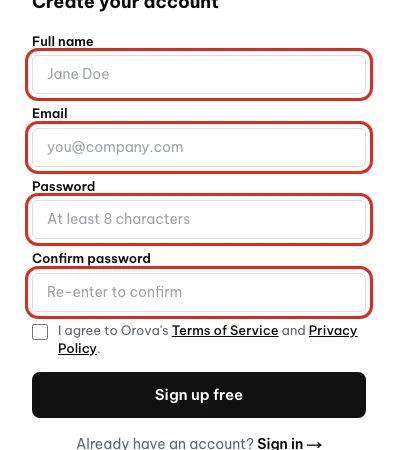
Fill in full name, email, password and confirm password. - 2
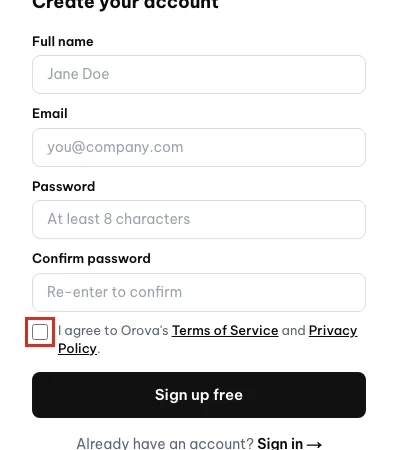
規約にチェックを入れ、ボット対策チェックを済ませる. 規約に同意するボックスにチェックを入れます。ボット対策チェックが表示されたらクリックし、チェックマークが出るまで待ちます。完了するまでは、Orova に「ボット対策の確認を完了してから、もう一度お試しください。」と表示されます。
Tick the box to agree to the terms before signing up. - 3
Sign up free をクリックする.
Sign up freeをクリックします。画面がCheck your inbox(受信箱を確認)ページに移り、Orova が入力したアドレスに認証メールを送ります。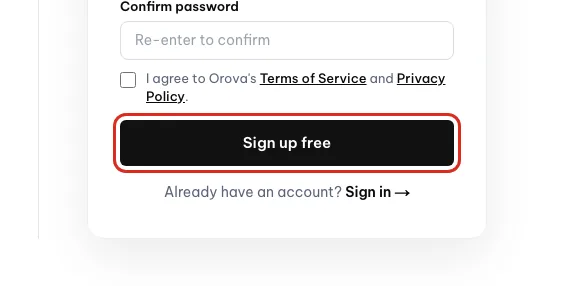
Click Sign up free to create the account. - 4
受信箱を開いてリンクをクリックする. Orova からのメールを開き、認証リンクをクリックします。ブラウザーで Orova が再び開き、
Verification successful(認証完了)ページが表示されます。ここからは自動的にサインインした状態になります。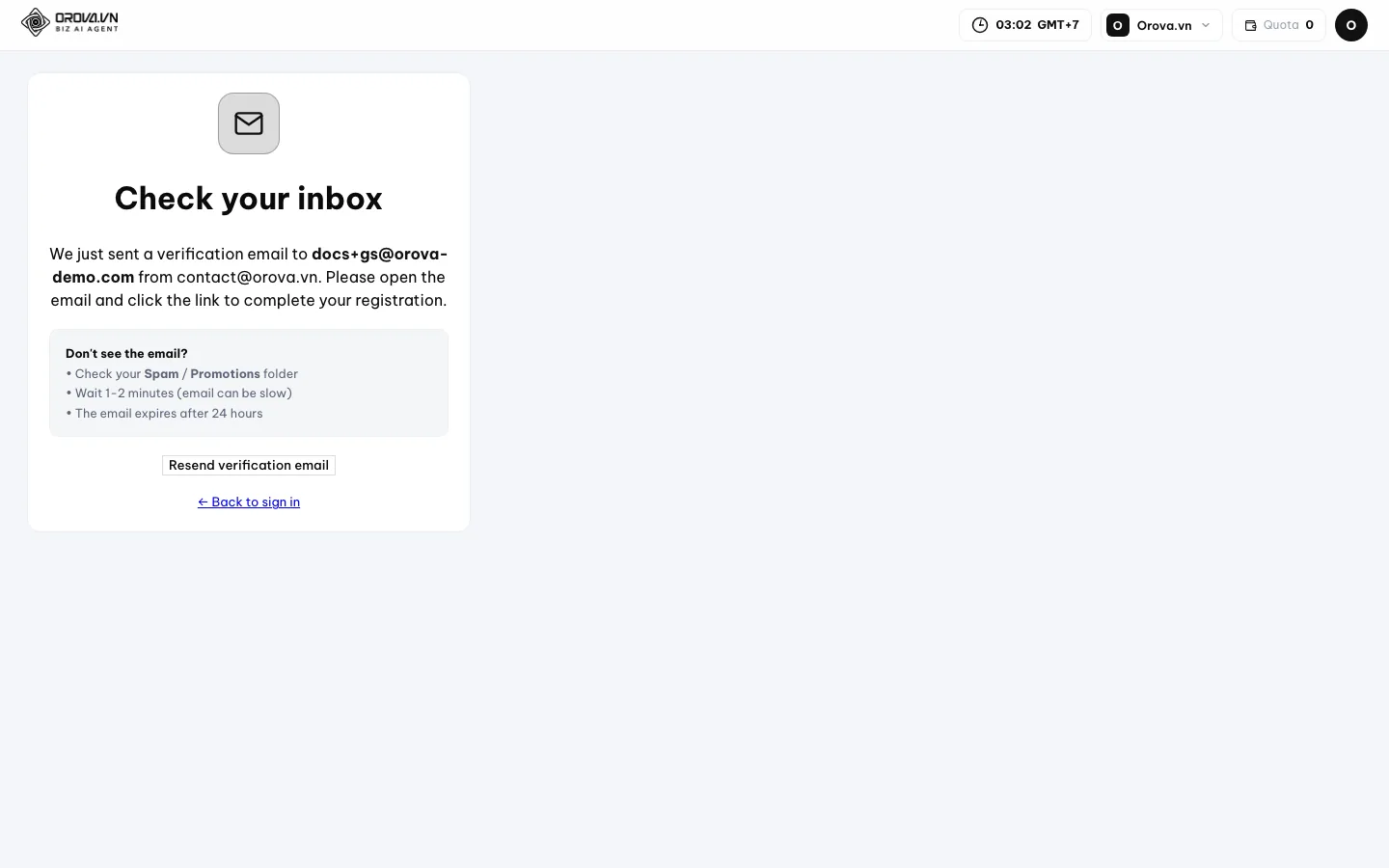
Orova sends a confirmation link to the email you entered.
Warning
認証リンクは 24 時間で期限切れになります
Check your inbox ページに戻り、Resend verification email(認証メールを再送)をクリックしてください。認証メールが届かないときは
- 受信箱の迷惑メールやプロモーションフォルダーを開いてください。よくそこに入っています。
- 1〜2 分待ってください。メールは遅れることがあります。
Check your inboxページでResend verification emailをクリックします。- 登録時にメールアドレスを打ち間違えていないか確認します。
Note
そのメールアドレスはすでに使われています
Forgot password?(パスワードをお忘れですか?)を使ってください。03 · サインイン
サインインとパスワードの再設定
あとで Orova に戻る方法と、画面が赤くなったときの対処です。
サインイン
メールアドレスとパスワードを入力し、あなたが誰かを Orova に伝えて、正しいデータを開いてもらうことです。
一時ロック
パスワードを何度も間違えると、Orova はアカウントを守るためにしばらく試行をブロックします。画面に表示された時間を待てば、もう一度試せます。
Sign in(サインイン)ページには Email と Password の 2 つの欄があり、そのすぐ下に Forgot password? のリンクがあります。
サインインする
- 1
メールアドレスとパスワードを入力する.
Sign inページで、認証済みのメールアドレスとパスワードを入力します。ボット対策チェックが表示されたら、先に済ませてください。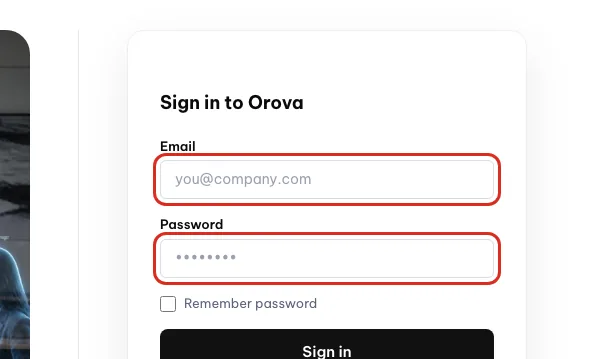
Enter the email and password you signed up with. - 2
Sign in をクリックする.
Sign inをクリックします。Orova はそのまま作業画面へ案内します。ワークスペースがまだない場合は作成ページを、すでにある場合は最後に使ったワークスペースを開きます。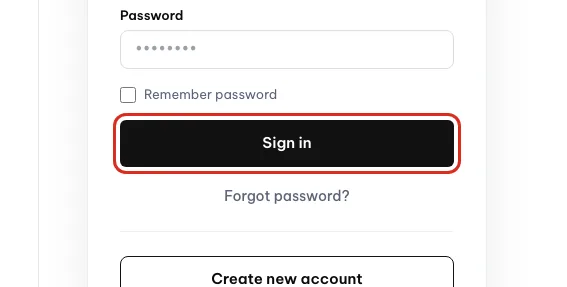
Click Sign in to open your workspace.
よく目にするエラーメッセージ
| 画面の表示 | 意味 | 対処 |
|---|---|---|
| メールアドレスまたはパスワードが正しくありません。 | 2 つの欄のどちらかが間違っています。アカウントを守るため、Orova はどちらかを示しません | ゆっくり入力し直し、Caps Lock とキーボードの入力モードを確認します |
| サインインの失敗が多すぎます。…後にもう一度お試しください。 | 間違いが続いたため、アカウントが一時的にロックされています | 画面に表示された時間どおりに待ってから、もう一度試します |
| メールがまだ認証されていません | 登録はしたものの、メールのリンクをクリックしていません | Resend verification email をクリックしてからメールを開きます。上のセクションを参照してください |
| このアカウントは無効化されています。 | アカウントが停止されています | 画面の案内に従って contact@orova.vn に連絡します |
パスワードを忘れたとき
3 ステップでパスワードを再設定する
- 1
Forgot password? をクリックする.
Sign inページでForgot password?のリンクをクリックします。メールアドレス欄が 1 つだけあるForgot password(パスワード再設定)ページが開きます。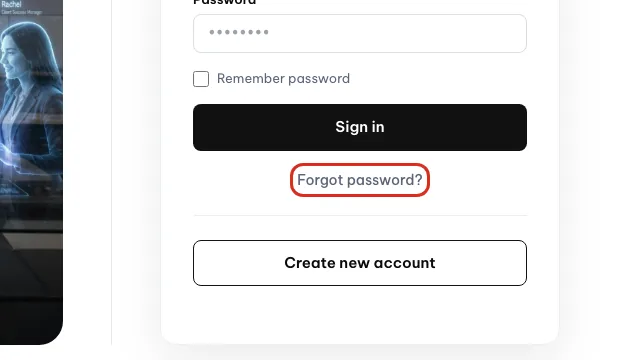
Click Forgot password? if you cannot remember it. - 2
メールアドレスを入力して送信する. 登録したメールアドレスを入力し、送信ボタンをクリックします。Orova がパスワード再設定リンク付きのメールを送ります。受信箱を開き、そのリンクをクリックしてください。
- 3
新しいパスワードを設定する.
Set a new password(新しいパスワードの設定)ページが開きます。8 文字以上の新しいパスワードを入力し、もう一度入力してから保存します。これで新しいパスワードでサインインできます。
Warning
再設定リンクは 1 回しか使えません
Forgot password? に戻って新しいリンクを請求してください。Tip
表示言語を変更する
Account(アカウント)ページで変更できます。04 · 最初のワークスペース
最初のワークスペースを作成する
ワークスペースには、あなたが行うすべてが入ります。ワークスペースがないと、モジュールを 1 つも開けません。
ワークスペース
1 つのブランド専用の空間です。専用のクォータウォレット、専用のデータ、専用のメンバー、専用の接続を持ちます。
ワークスペース ID(slug)
アドレスバーにある、短くて変わらないコードです。たとえば URL の demoads01 の部分です。ワークスペース名は変えられますが、このコードは変えられません。
モジュールハブ
ワークスペース内のすべてのモジュールを並べたグリッドのページです。各部屋へ入っていくメインロビーと考えてください。
アカウントにまだワークスペースがない場合、サインインするとすぐに Orova が作成ページへ案内します。
ワークスペースを作成する
- 1
ワークスペース作成ページを開く.
Create your first workspace(最初のワークスペースを作成)ページには、入力欄が 1 つだけあります。Workspace name(ワークスペース名)です。その下に「あとで変更できます。」という案内があります。 - 2
名前を付ける. ブランド名や会社名を、2〜160 文字で入力します。欄内のヒントには「例: Coffee Brand A」とあります。短すぎたり長すぎたりすると拒否されます。
- 3
Create workspace をクリックする.
Create workspace(ワークスペースを作成)をクリックします。Orova は入力した名前から ID コードを生成し、新しいワークスペースを開きます。1〜2 秒かかります。 - 4
ハブページを見て回る. ハブページを開くと、すべてのモジュールがカードのグリッドで表示されます。各カードには、モジュール名、1 行の説明、ステータスラベル、
Open module(モジュールを開く)ボタンがあります。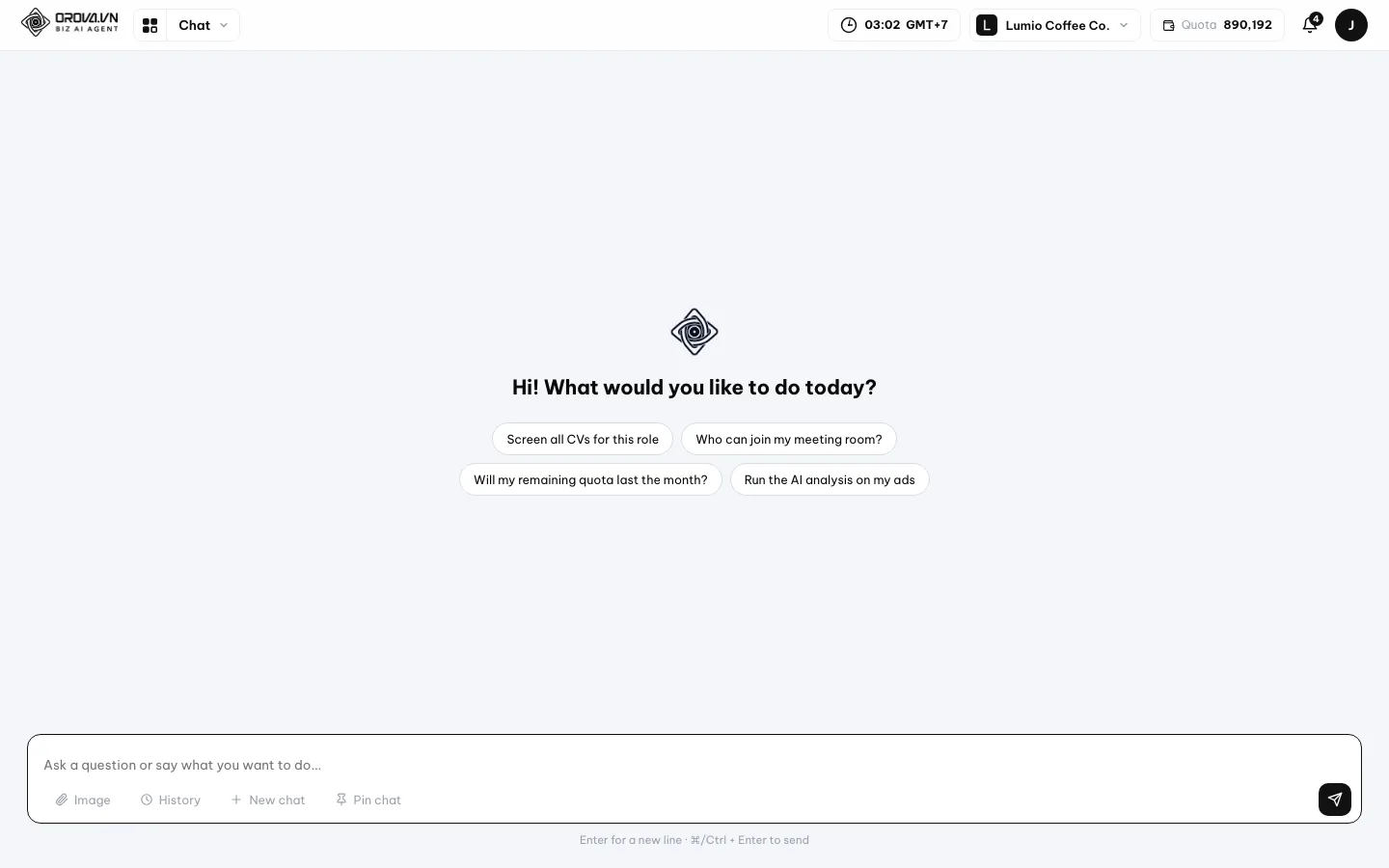
This is the first screen after you sign in.
| カードの部分 | 意味 | 補足 |
|---|---|---|
| モジュール名 | そのモジュールが扱う業務領域 | 例: Orova Ads、Orova SEO |
| 1 行の説明 | モジュールの用途を表す 1 文 | 読んで、行き先を選ぶ参考にします |
Ready(利用可能) | モジュールは安定しており、今すぐ使えます | もっとも一般的なステータス |
Beta(ベータ) | 試用として公開中のモジュール。使えますが、まだ改良中です | 画面が変わることがあります |
Coming soon(近日公開) | まだ公開されていません。予定を知らせるために表示しています | クリックできません |
Open module | そのモジュールへ直接移動するボタン | 上部バーでモジュール名をクリックするのと同じです |
ブランドが複数ある場合
ブランドごとに専用のワークスペースを用意してください。2 つのワークスペースの間で、データ、クォータウォレット、メンバーは完全に分かれています。
- ワークスペースを追加する: ワークスペース一覧を開き、新規作成を選んで、同じ 3 ステップを繰り返します。
- 切り替える: 上部バーのワークスペース名をクリックし、ドロップダウンの一覧から別のワークスペースを選びます。
- 切り替えると、表示されるものはすべて新しいワークスペースのものに変わります。上部バーのクォータの数値も変わります。
Note
ワークスペースの数には上限があります
05 · 画面の移動
モジュール間を移動する
上部の 1 本のメニューバーから、どこへでも行けます。このセクションでは、その各部分を説明します。
モジュールメニューバー
ワークスペース内のすべてのページの上部にある、横一列の名前の並びです。それぞれの名前が 1 つのモジュールで、クリックするとそこへ直接移動します。
機能パネル
モジュールにマウスを乗せると下に開く小さなパネルです。そのモジュール内の画面が一覧表示されます。
クォータ
Orova が AI を動かすために使う単位です。AI のタスクごとに少しずつクォータを消費し、クリックする前に必ず見積もりが表示されます。
メニューバーは 2 つの業務グループに分かれています。マーケティングと HR(採用、研修)です。
メニューバーの使い方
- 1
上部バーを見る. バーには順に
Chat、Orova Ads、Orova SEO、Orova Insight、Orova Link & QR、Orova Recruit、Orova Trainingが並びます。項目をクリックすると、そのモジュールが開きます。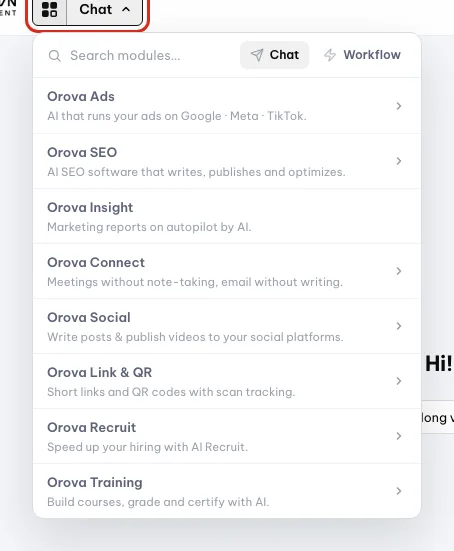
Click the grid button to see every module. - 2
マウスを乗せて中身を見る.
Orova Adsなどのモジュールにマウスを乗せます。パネルが開き、その中の画面が一覧表示されます。モジュールに入ってから探すのではなく、必要な画面を直接クリックしてください。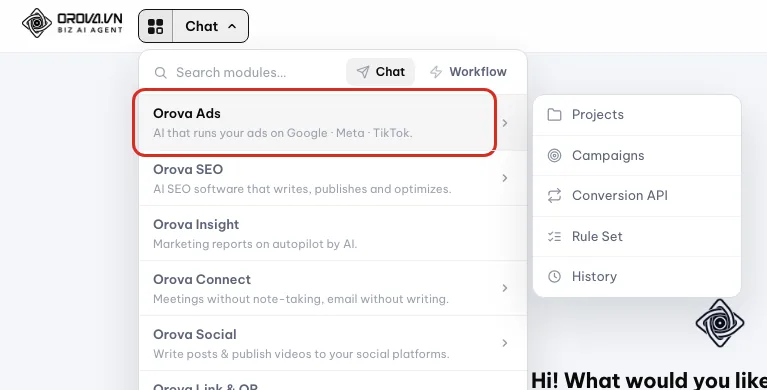
Hover a module to see its pages, such as Projects and Campaigns. - 3
上部バーの右端を見る. 右端には、ワークスペースの残りクォータと通知ベルがあります。クォータの数値は AI のタスクが終わるたびに自動で更新されるので、ページを再読み込みする必要はありません。

The quota balance and the notification bell sit here. - 4
必要に応じてワークスペースを切り替える. 上部バーのワークスペース名をクリックして一覧を開き、別のワークスペースを選びます。選んだワークスペースのデータでページが再読み込みされます。
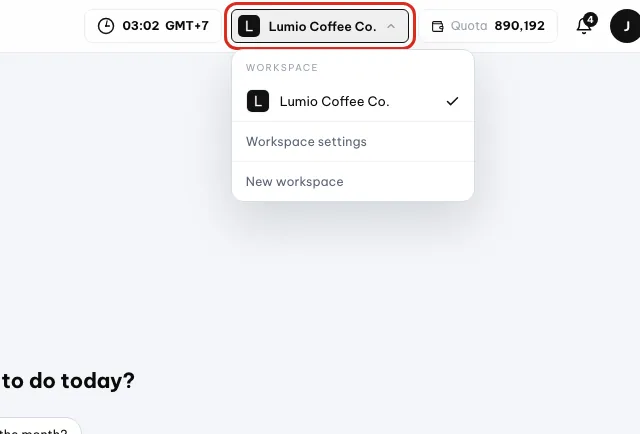
Pick another workspace from this list to switch.
スクリーンショットよりモジュールが少ない理由
- 権限が付与されていない: 権限グループで閲覧できないモジュールは、グレー表示ではなくメニューバーから消えます。ワークスペースのオーナーにアクセス権の付与を依頼してください。
- モジュールが仕上げ中: 一部のモジュールは試用グループにのみ公開されており、通常のアカウントにはまだ表示されません。
- 別のワークスペースにいる: これ以上探す前に、上部バーのワークスペース名を確認してください。
Tip
URL のモジュール名は異なることがあります
Orova Link & QR は /qr で始まるパスで開きます。これは正常で、正しいモジュールにいます。06 · ワークスペースの設定
ワークスペースの設定と会社プロフィール
名前、ロゴ、会社情報を一度登録しておきましょう。AI はこのセクションを読んで、より的確に提案します。
ワークスペースの設定
ワークスペースのすべての設定をまとめたページです。情報、メンバー、部署、権限、プラン、クォータ、サポートがあります。
事業内容の説明
あなたの事業について書く数文です。AI はこれを読んで、何を誰に売っているのかを理解し、それに合ったコンテンツを書きます。
会社プロフィール
会社名、税番号、住所、銀行口座などの法的な情報です。Orova は見積書や契約書にこれを印字します。
DNS TXT レコード
ドメインの管理画面に追加する 1 行のテキストです。ドアに表札を掛けるように、そのウェブサイトがあなたのものであることを証明します。
ワークスペースの Settings(設定)を開きます。ページには横一列のタブがあり、タブをクリックすると下の内容が切り替わります。
| タブ | 意味 | 補足 |
|---|---|---|
Info(情報) | 名前、ID、説明、ロゴ、会社プロフィール | 最初に開くタブ |
Members(メンバー) | ワークスペースのメンバーと、承認待ちの招待 | このページの次のセクションを参照 |
Departments(部署) | ワークスペースの組織ツリー | リストまたは組織図で表示できます |
Permissions(権限) | モジュールごとの詳細な権限グループ | 管理権限がある場合のみ表示されます |
Plan(プラン) | 月額プランと、追加クォータの購入 | 支払い権限がある場合のみ表示されます |
Quota(クォータ) | クォータウォレットと取引履歴 | ワークスペースの全員が閲覧できます |
Support(サポート) | Orova チームに依頼を送る | やり取りの履歴も含みます |
ワークスペースの情報を登録する
- 1
ワークスペース名を変更する.
InfoタブでWorkspace name欄を編集して保存します。この名前は Orova のあらゆる場所に表示されます。隣のWorkspace ID(ワークスペース ID)欄は読み取り専用で、「変更できない固定の識別子です」と案内されています。
Click the name to rename the workspace. - 2
事業内容の説明を丁寧に書く.
Business description(事業内容の説明)欄に、業種、製品やサービス、対象の顧客を具体的に書きます。はっきり書くほど、AI の成果物が実際の事業に近づきます。数文で十分です。 - 3
ロゴをアップロードする.
Upload logo(ロゴをアップロード)をクリックし、2 MB 未満の PNG、JPG、WEBP、SVG 画像を選びます。形式が違うファイルや重すぎるファイルはエラーで拒否されます。ロゴを外すにはRemove logo, use the first letter(ロゴを削除して頭文字を使う)をクリックします。 - 4
会社プロフィールを入力する.
Company profile(会社プロフィール)ブロックまでスクロールし、正式名称、税番号、住所、国、業種、連絡先メール、ホットライン、ウェブサイト、銀行、口座番号、通貨を入力します。空欄があってもかまいません。あとで補えます。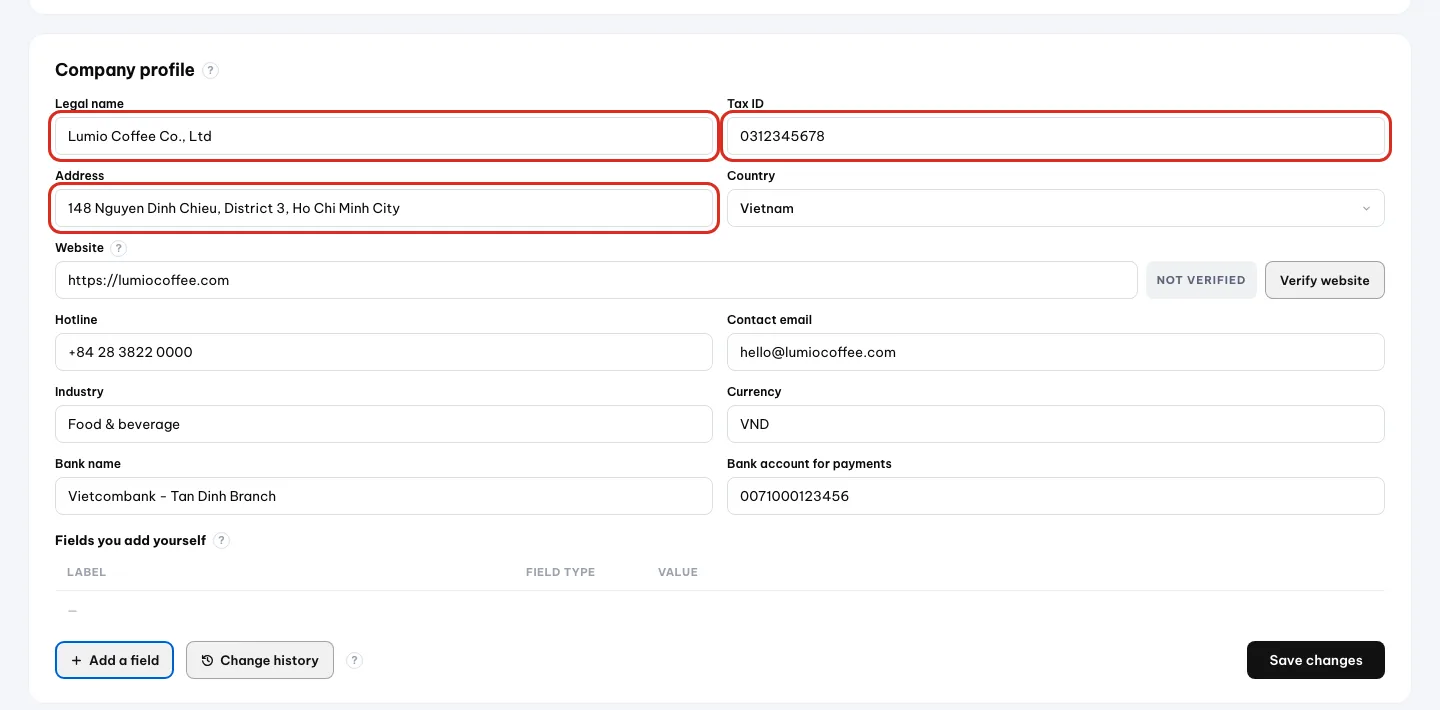
Fill in legal name, tax ID, address and the rest, then save. - 5
必要なら独自の項目を追加する. 業種特有の情報がある場合は、カスタム項目を追加します。たとえば「店舗数」です。追加した項目は、名前の変更、削除、ドラッグによる並べ替えができます。

Click Add a field to create your own field.
DNS TXT レコードでウェブサイトを認証する
認証すると、プロフィールのウェブサイトが本当にあなたのものだと Orova に伝わります。ステータスが Not verified(未認証)から Verified(認証済み)に変わります。
認証の 4 ステップ
- 1
先にウェブサイトを保存する.
Company profileのウェブサイト欄を入力して保存します。保存前に認証をクリックすると、Orova に「認証する前にウェブサイトを入力して保存してください。」と表示されます。
Enter and save your website before verifying it. - 2
TXT レコードを取得する.
Verify website(ウェブサイトの認証)ブロックを開きます。Orova があなた用に生成した TXT の 1 行が表示されます。1 文字も変えずに、行全体をコピーしてください。 - 3
ドメインの管理画面に貼り付ける. ドメインを購入したサービスにサインインし、DNS 管理を開いて、種類が TXT のレコードを追加し、コピーした行を貼り付けます。保存してください。
- 4
Orova に戻って確認を実行する.
Verify websiteブロックの確認ボタンをクリックします。DNS レコードの反映には数分から数時間かかることがあるので、すぐに見つからなくても正常です。Orova に「TXT レコードはまだ見つかりません…」と表示されたら、時間をおいてもう一度確認してください。
Note
確認ボタンを連打しない
誰が何を変更したかを確認する
プロフィールブロックの Change history(変更履歴)をクリックすると、最近の編集を確認できます。Orova は履歴を 90 日間保存し、誰がどの項目をいつ変更したかを記録します。
Warning
危険ゾーン: ワークスペースの削除
Info タブの一番下に、ワークスペースを完全に削除するブロックがあります。ワークスペース名を正確に入力し、Send deletion confirmation email(削除確認メールを送信)をクリックしてから、メール内のリンクをクリックする必要があります。削除したデータは復元できません。07 · チームを招待
一緒に働く人を招待する
同僚をワークスペースに追加し、ロールを選び、権限をグループにまとめ、部署を整えます。
メンバー
メンバーとは、あなたとワークスペースを共有する人です。各自のアカウントでサインインしますが、同じデータを見て、同じクォータウォレットから消費します。
ロール
ロールは、その人ができることを決めます。Owner はワークスペースを作成した人です。Admin はメンバーを管理します。Editor は実際の作業を行います。Viewer は閲覧だけができます。
招待
招待とは、参加リンクが入ったメールです。チケットのようなもので、招待されたメールアドレスでしか使えず、有効期限があります。
この操作は、ワークスペース設定ページの Members タブで行います。本格的に作業を始めたらすぐに他の人を招待しましょう。ファイルをやり取りする必要がなくなります。
| ボタン / 入力欄 | 意味 | 補足 |
|---|---|---|
| メンバー表 | 現在ワークスペースにいる人の一覧 | Role(ロール)列と Joined(参加日)列があります |
| メールアドレス欄 | 招待したい人のメールアドレス | プレースホルダーに email@company.com と表示されます |
| Admin — manages members | チームを運営する人のロール | 人を招待し、他の人のロールを変更します |
| Editor — manages tasks | 実際の作業を行う人のロール | タスクを実行しますが、メンバーは管理しません |
| Send invitation | 入力したアドレスに招待メールを送ります | 招待の有効期間は 7 日間です |
| Pending acceptance | まだ誰も承認していない招待を一覧するブロック | 件数が括弧内に表示されます |
| Cancel invitation | 承認待ちの招待を取り消します | 先に確認を求められます |
最初の 1 人を招待する
- 1
ワークスペースの設定を開く. 上部バーから、開いているワークスペースの設定を開きます。ページにはタブが並んでいます。
Info、Members、Departments、そしてロールによってはPermissions、Plan、Quota、Supportも表示されます。 - 2
Members タブをクリックする. メンバー表が表示されます。ワークスペースを作成したばかりなら、表は 1 行だけです。Owner であるあなたです。
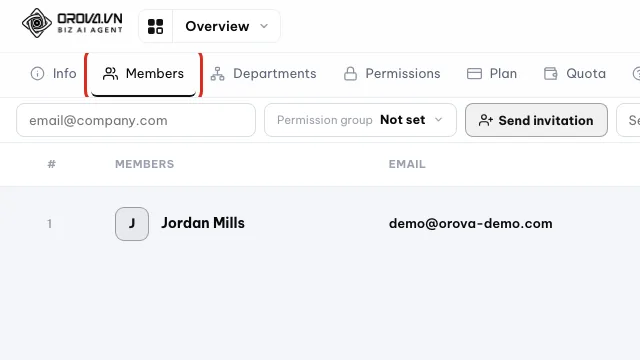
Open the Members tab to see who is in the workspace. - 3
招待したい人のメールアドレスを入力する. 招待ブロックまでスクロールします。相手の仕事用メールアドレスを正確に入力してください。1 文字違うだけでメールは別の宛先に届き、相手には何も届きません。

Type the email of the person you want to invite. - 4
ロールを選ぶ. 相手が他の人を招待する場合は
Admin — manages members(Admin — メンバーを管理)を選びます。実際の作業だけを行う場合はEditor — manages tasks(Editor — タスクを管理)を選びます。迷ったら Editor を選んでください。あとで変更できます。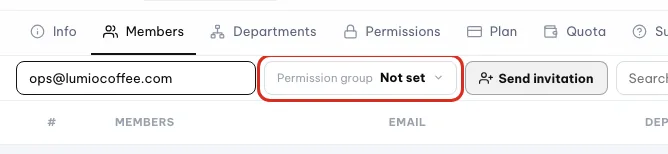
Choose which permission group the new member gets. - 5
Send invitation をクリックする. システムが確認リンク付きのメールをすぐに送ります。新しい行が
Pending acceptance(承認待ち)ブロックに、括弧内の件数とともに表示されます。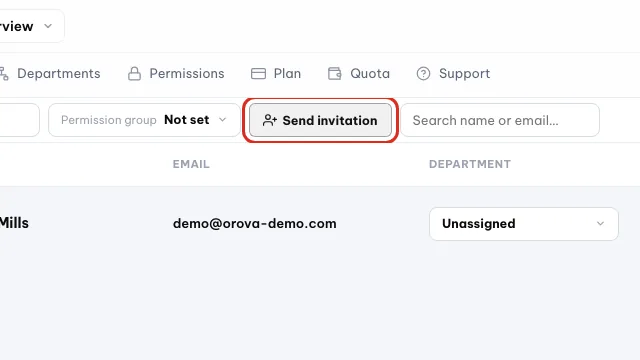
Click Send invitation to email the invite. - 6
相手にメールを開くよう伝える. 招待された人はメール内のリンクをクリックします。サインインしていない場合、ページには
Workspace invitation(ワークスペースへの招待)という見出しと、招待されたメールアドレスが表示されます。Join workspace(ワークスペースに参加)をクリックすれば完了で、その人の名前がメンバー表に表示されます。
Warning
招待を送ると実際にメールが送信されます
Send invitation(招待を送信)をクリックすると、入力したアドレスにすぐメールが送られます。クリックする前にアドレスを確認してください。打ち間違えた場合は、Pending acceptance ブロックを開いて Cancel invitation(招待を取り消す)をクリックします。Note
招待の有効期間は 7 日間です
Invitation expired(招待の期限切れ)と表示されます。同じメールアドレスに新しい招待を送るだけで大丈夫です。招待された人に見える画面
招待ページには 5 つの状態があります。あらかじめ知っておけば、同僚が「入れない」と言ったときに素早く手助けできます。
Workspace invitation— 正常です。その人はまだサインインしていません。サインインすれば参加できます。Join workspaceボタン — 正しいアカウントでサインインしているときの標準の状態です。あとで決めるための補助リンクもあります。Wrong account(別のアカウント)— 別のメールアドレスでサインインしています。サインアウトして、招待されたメールアドレスで入り直す必要があります。Invitation expired— 7 日以上経っています。新しい招待を送ってください。Invalid invitation(無効な招待)— リンクがすでに使われているか、存在しません。
ロールの変更とメンバーの削除
- 1
ロールを変更する. メンバー表で、その行のロール欄を Admin または Editor に切り替えます。相手が次にページを再読み込みしたときに反映されます。
- 2
ワークスペースから外す. メンバー行の末尾にある削除ボタンをクリックします。その人はこのワークスペースにアクセスできなくなりますが、個人のアカウントは残ります。
Note
詳細な権限グループ
権限グループ
権限グループとは、モジュールごとの権限に名前を付けてまとめたもので、メンバーに割り当てます。キーリングのようなもので、1 本の鍵で 1 つの部屋が開きます。
ロールは大まかな単位です。権限グループは細かな単位で、グループが各モジュールを閲覧できるか、使えるかを決めます。Permissions タブは、管理が許可されている人にだけ表示されます。
- 1
Permissions タブを開く. このワークスペースにある権限グループが一覧表示されます。一覧の上部にあるグループ作成ボタンで新しいグループを追加します。

Open Permissions to manage permission groups. - 2
グループをクリックして編集する. 画面にマトリクスが表示されます。行がモジュール、列が権限の種類です。ボックスにチェックを入れると、そのグループにその操作が許可されます。
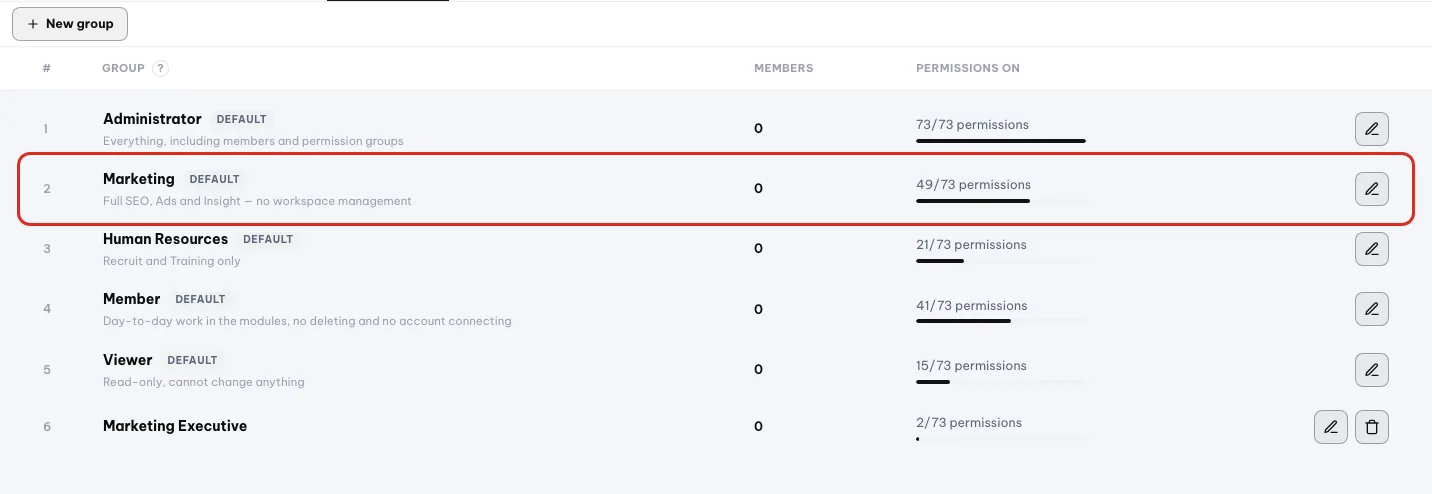
Click a group's pencil to edit which permissions it turns on. - 3
メンバーに権限グループを割り当てる.
Membersタブに戻り、変更したいメンバーの行で権限グループを選びます。相手がページを再読み込みすれば反映されます。
Tip
部署
部署
部署はワークスペース内の組織図です。誰がどの部門に属し、誰が誰のデータを見られるかを把握するために使います。
- 1
Departments タブを開く. 表示は 2 種類あります。
List(リスト)とChart(組織図)です。リストは素早い追加と編集に、組織図は階層全体をひと目で見るのに向いています。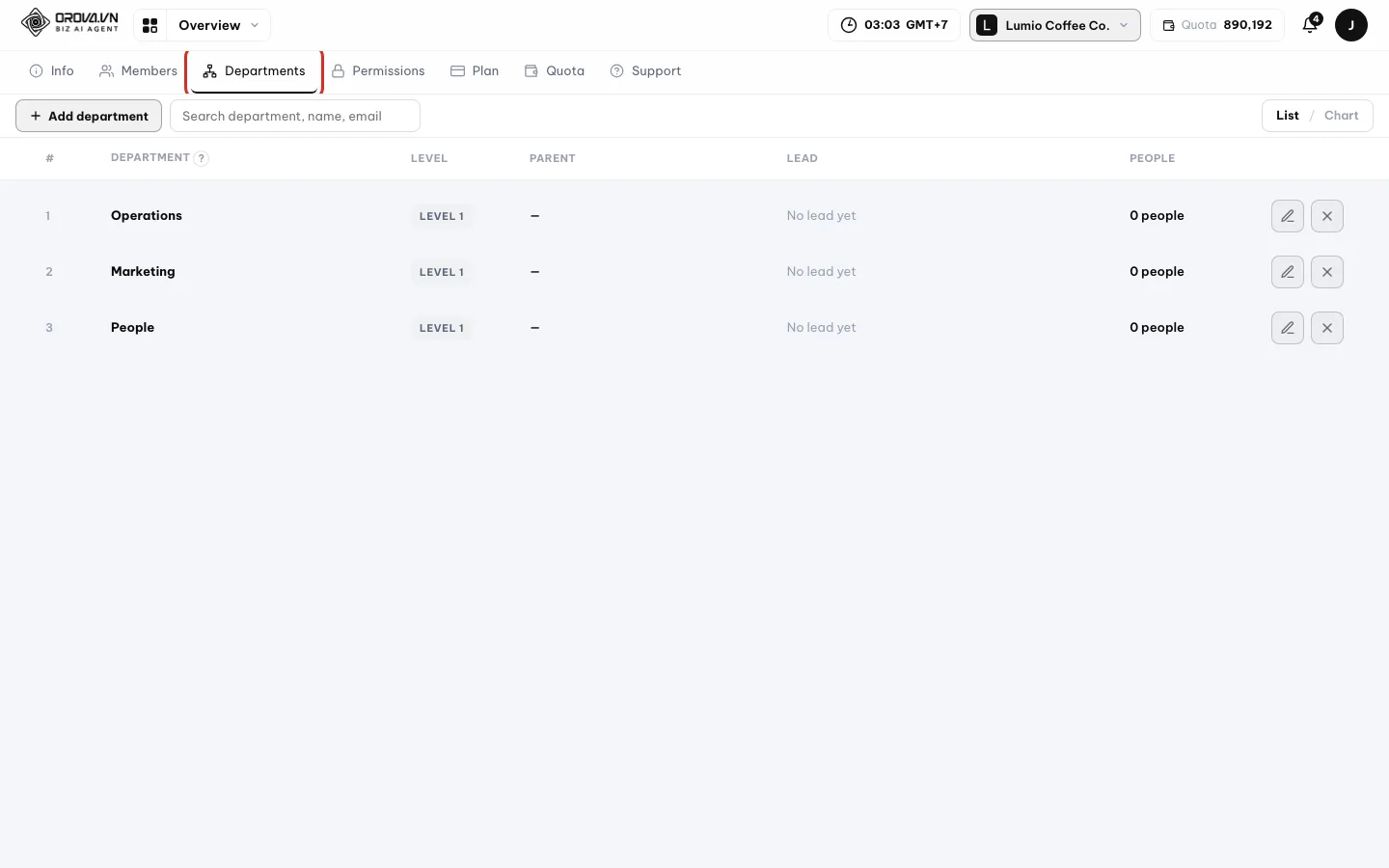
Open the Departments tab to build your team structure. - 2
部署を追加する.
Department name(部署名)を入力します。別の部署の下に置く場合はParent department(親部署)を選びます。メンバー一覧からDepartment lead(部署の責任者)を選びます。親部署を空にすると、その部署は最上位に置かれます。 - 3
ドラッグで階層を整える. 部署を別の部署の上にドラッグすると、その子部署になります。ツリーは最大 10 階層まで作れます。まだ配置していない部署は、件数付きの
Unassigned(未割り当て)グループに入ります。
Note
部署を整えるときによくある 3 つのエラー
Delete sub-departments first. は、その部署にまだ子部署があるという意味です。This department already has a lead. は、先に現在の責任者を外す必要があるという意味です。A department can't be moved under its own branch. は、親部署を自分の子部署の中へドラッグしているという意味です。08 · クォータと支払い
クォータ、ウォレット、お支払い
クォータとは何かを理解し、クォータの履歴を読み、月額プランを選び、追加クォータを購入し、銀行振込で支払います。
クォータ
クォータは、Orova が AI を動かすために使う単位です。機械に入れるコインのようなもので、AI に何かを頼むたびに機械がコインを数枚受け取ります。
ワークスペースのクォータウォレット
ウォレットにはクォータが入っており、個人ではなくワークスペースに属します。すべてのメンバーが同じウォレットから消費します。
プラン
プランは、決まった周期でウォレットにクォータを追加する月額サブスクリプションです。どのプランでもすべての機能が使え、違いは受け取れるクォータの量だけです。
クォータパック
パックは、サブスクリプションではなく 1 回限りの追加クォータの購入です。いつもより作業量が多い月に使います。
AI タスクの実行をクリックする前に、必ずクォータの見積もりが表示されます。その数値を見てから決めるので、知らないうちに差し引かれることはありません。
クォータウォレットを確認する
- 1
ワークスペースのクォータウォレットページを開く. ワークスペースのウォレットのセクションに移動します。ページのタイトルは
Quota wallet(クォータウォレット)の後にワークスペース名が続きます。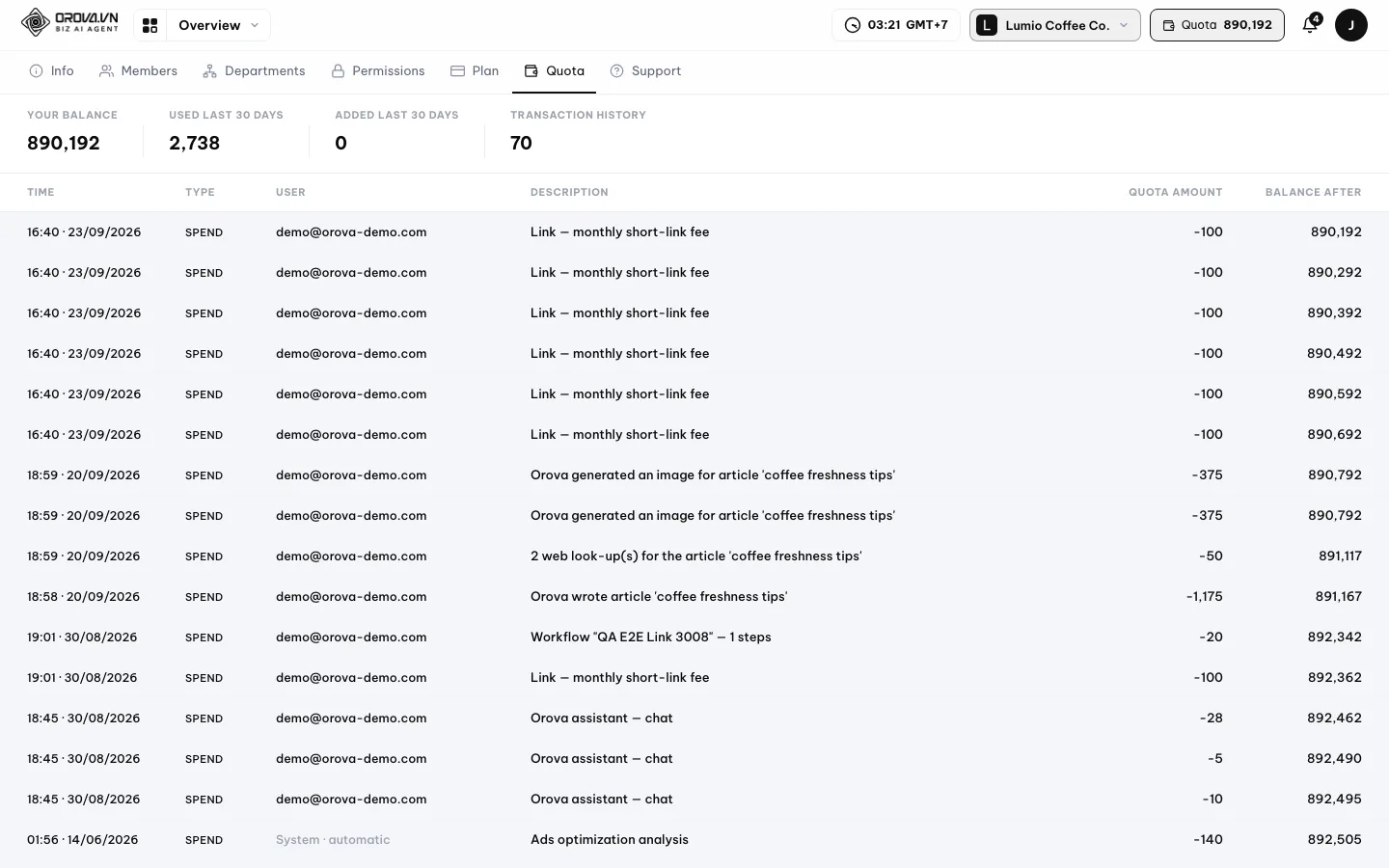
The wallet shows the balance and every quota movement. - 2
上部に並ぶ 4 つの数値を読む.
Your balance(残高)は残っているクォータです。Used last 30 days(過去 30 日の使用量)は最近消費した量です。Added last 30 days(過去 30 日の追加量)は新たに入ってきたクォータです。Transaction history(取引履歴)は取引の行数です。
Read these four numbers first to know where you stand.
| 列 | 意味 | 補足 |
|---|---|---|
| 時刻 | 取引が発生した日時 | 新しいものが上に表示されます |
| 種類 | チャージ、消費、返還、付与、調整のいずれか | この表のすぐ下の説明を参照 |
| ユーザー | 取引を発生させたメンバー | 空欄の場合は System · automatic と表示されます |
| 説明 | 何がクォータを消費または追加したか | 例: 実行したばかりの AI タスク名 |
| クォータ量 | 入った、または出たクォータの量 | 消費はマイナス記号付きで表示されます |
| 取引後の残高 | その取引の直後のウォレット残高 | 数値がおかしいときにさかのぼって確認するのに使います |
Top-up(チャージ)— 追加クォータを購入し、支払いが完了しました。Spend(消費)— AI タスクが実行され、クォータを使いました。Refund(返還)— タスクが途中で失敗し、システムがクォータを返しました。Grant(付与)— Orova がクォータを追加しました。たとえばアカウント開設時のウェルカムクォータです。Adjustment(調整)— サポートを通じて行われた残高の修正です。
Note
No transactions yet. Start using AI to see the details here.(まだ取引はありません。AI を使い始めると、ここに詳細が表示されます。)と表示されます。何かタスクを実行すれば表が埋まります。クォータを多く使うタスク
ウォレットページには、タスクの種類ごとに Orova が公開している見積もり表があります。覚えやすい原則は、作業が長く、扱うデータが多いほどコストが高いということです。
- もっとも安い: ウェブサイトの健康診断のような、手早いチェック。
- 中程度: 画像 1 枚の生成、短い記事 1 本の作成、競合 1 社の分析。
- もっとも高い: SEO に対応した長い記事や、大量のキーワードを使ったサイト全体の分析。
Tip
Plan ページ: SEO プランと Ads プラン
Plan ページは 2 つの部分に分かれています。SEO のプランと Ads のプランです。モジュールごとに別々のサブスクリプションがあり、両方を購入する必要はありません。
| ボタン / 入力欄 | 意味 | 補足 |
|---|---|---|
| 現在のプラン | そのモジュールで利用中のプラン | In use(利用中)ラベルが付きます |
| 月間クォータ | プランが各周期に追加するクォータの量 | 数値は選んだプランによって決まります |
| 次回の更新 | 次の周期が始まる日 | 自動更新がオンのときだけ表示されます |
| 自動更新 | 周期ごとに自動で課金し、クォータを追加します | 更新をキャンセルするとオフになります |
| 残り / 期限 | プランが有効な期間 | その日まで使い続けられます |
| クォータを追加購入 | 1 回限りのクォータパックのブロック | 3 つのサイズ: Small pack、Medium pack、Large pack |
プランの変更と更新のキャンセル
- 1
Plan ページを開く.
Planタブは、ワークスペース設定のタブの並びにあります。このタブは、支払いの操作が許可されている人にだけ表示されます。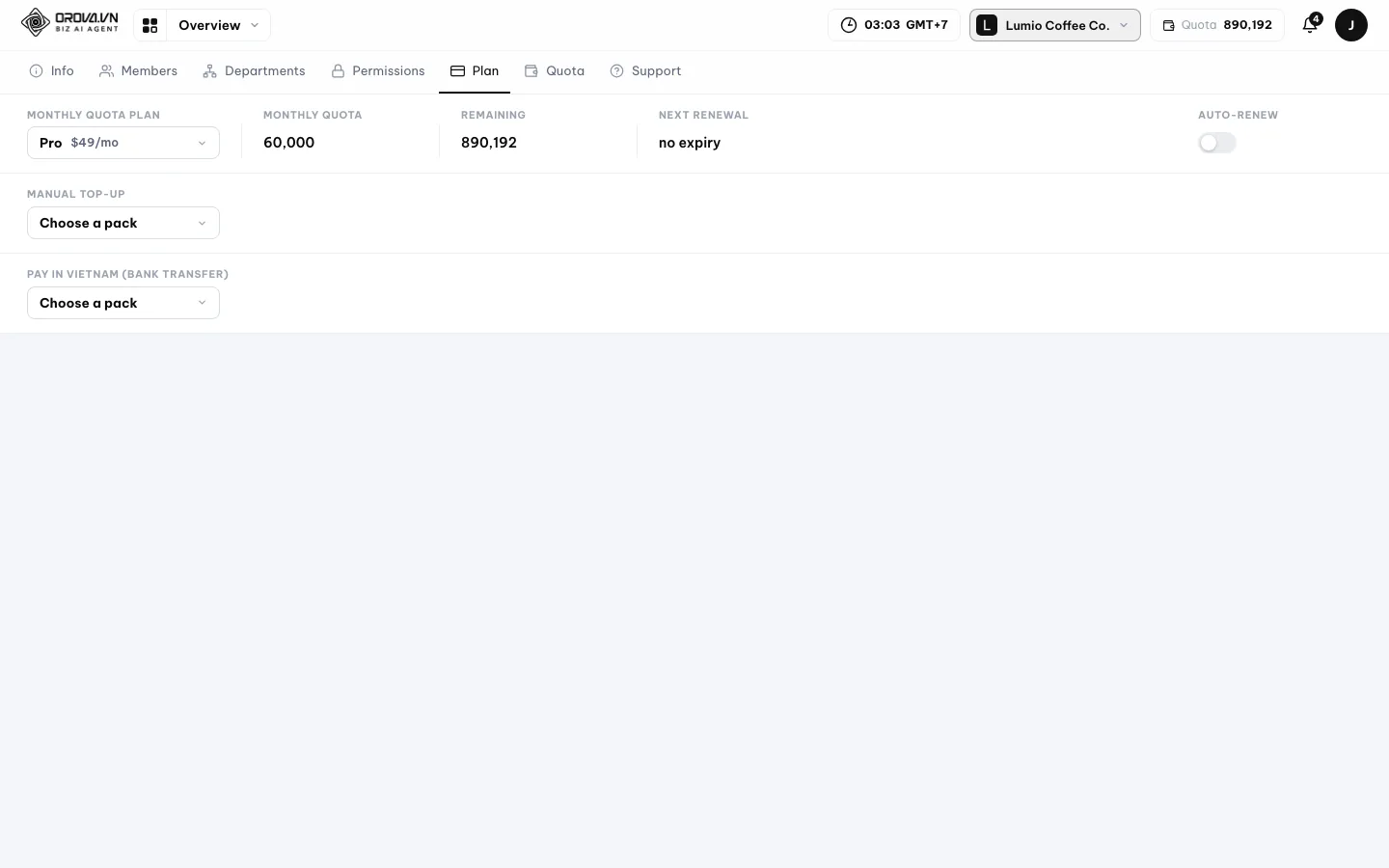
The Plan page lists plans, top-up packs and payment options. - 2
希望するプランを選ぶ. そのプランの申し込みをクリックします。ページが決済ゲートウェイに移ります。支払いが済むと Orova に戻り、申し込みを確認するメッセージが表示されます。
- 3
不要になったら更新をキャンセルする. 更新のキャンセルをクリックします。プランは有効期限まで引き続き有効で、次の周期に課金されなくなるだけです。無料のレベルに戻すには、無料プランを選んでください。
Warning
支払いボタンは本物の決済ゲートウェイに直結しています
1 回限りのクォータパックを購入する
- 1
クォータ追加購入のブロックまでスクロールする. このブロックには、あらかじめ用意された 3 つのサイズがあります。
Small pack(小パック)、Medium pack(中パック)、Large pack(大パック)です。各カードに価格とクォータ量が表示されています。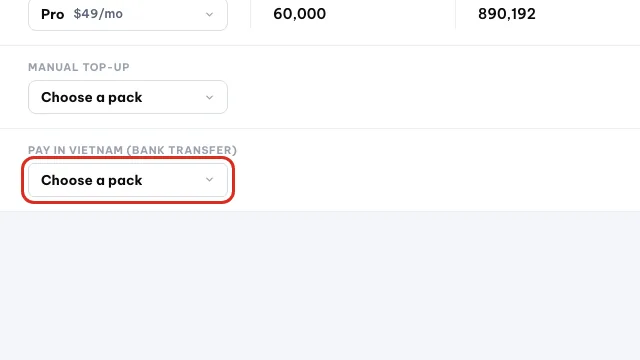
Scroll down to the block for buying more quota. - 2
サイズを選んで支払う. パックを選び、支払い方法を選んで、完了します。支払いが確認され次第、クォータがウォレットに入り、取引履歴に
Top-upの行が表示されます。
ベトナムの銀行振込で支払う
- 1
銀行振込での支払いを選ぶ. システムが注文を作成し、銀行の QR コードと、銀行名、口座番号、口座名義、金額、振込メモを表示します。
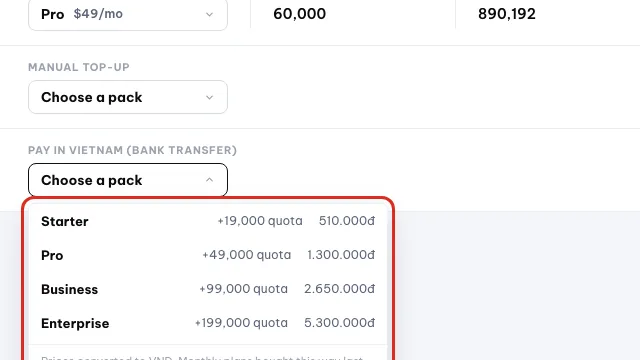
Pick a pack to pay by bank transfer in Vietnam. - 2
送金する。メモは変えない. 銀行アプリで QR を読み取るか、口座番号と金額を手で入力します。
Transfer memo(振込メモ)は、1 語も付け加えず、表示どおりのままにする必要があります。 - 3
ページが成功を知らせるまで待つ. ページは開いたままにしてください。銀行から結果が返ってくるまでステータスを確認し続けます。通常は数分以内です。その後、成功のメッセージが表示され、クォータがウォレットに入ります。
Warning
振込メモを変えると注文と一致しません
クォータが少なくなったら自動チャージ
自動チャージを使うと、クォータ切れで作業が途中で止まるのを防げます。支払い方法を接続しておけば、ウォレットの残高が少なくなったときにシステムが追加購入します。
- 1
Plan ページの自動チャージのブロックを開く. 支払い方法の接続をクリックし、決済ゲートウェイの案内に従ってから、Orova に戻ります。
- 2
自動チャージをオンにする. スイッチを切り替えて保存します。システムがチャージするたびに、ウォレットの取引履歴に
Top-upの行が表示されます。 - 3
不要になったら接続を解除する. 同じブロックで接続の解除をクリックします。その時点から、システムは課金を停止します。
Note
Plan タブが見当たらない
Plan タブと支払いページは、支払いの操作が許可されたロールにだけ開きます。それ以外のロールが URL に直接アクセスしても拒否されます。ワークスペースのオーナーに代わりに操作してもらうか、別のロールを依頼してください。09 · 個人アカウント
あなたの個人アカウント
個人情報、プロフィール写真、連絡手段、表示言語、メールレポート、パスワードを編集します。
個人アカウント
アカウントは Orova の中のあなた自身です。メールアドレス、パスワード、名前、写真。1 つのワークスペースに属する設定とは違い、すべてのワークスペースであなたについて回ります。
プロフィール写真
名前の横に表示される小さな写真で、同僚が誰が何をしたかを見分けられます。必須ではありませんが、複数人で作業するなら設定しておく価値があります。
Account ページには 3 つのブロックが縦に並んでいます。Personal information(個人情報)、Contact channels(連絡手段)、Reports(レポート)です。編集が終わったら Save(保存)をクリックすると、Saved(保存しました)の表示が出ます。
| ボタン / 入力欄 | 意味 | 補足 |
|---|---|---|
| 氏名 | 同僚に表示される名前 | 本名を使ってください |
| 生年月日、性別 | 基本的な個人情報 | 任意 |
| 役職、会社 | あなたの役職と勤務先 | プロフィールに表示されます |
| 市区町村、国 | 働いている場所 | 適切な状況に合わせた表示に役立ちます |
| 言語 | Orova の表示言語 | 変更すると、すべてのラベルが切り替わります |
| Add contact | 連絡先の行を新しく追加します | 種類を選んでから値を入力します |
| 週次レポート | 毎週届くまとめのメール | 送信する曜日を選べます |
| 月次レポート | 毎月届くまとめのメール | 送信する日にちを選べます |
| Off | レポートメールを受け取りません | 邪魔になるときに選びます |
| Save | すべての変更を記録します | Saved の表示で確認できます |
| 登録日 | アカウントを開設した日 | 読み取り専用 |
情報を入力して写真を変更する
- 1
Account ページを開く. 上部バーであなたの名前か写真をクリックし、アカウントの項目を選びます。ページは
Personal informationブロックから開きます。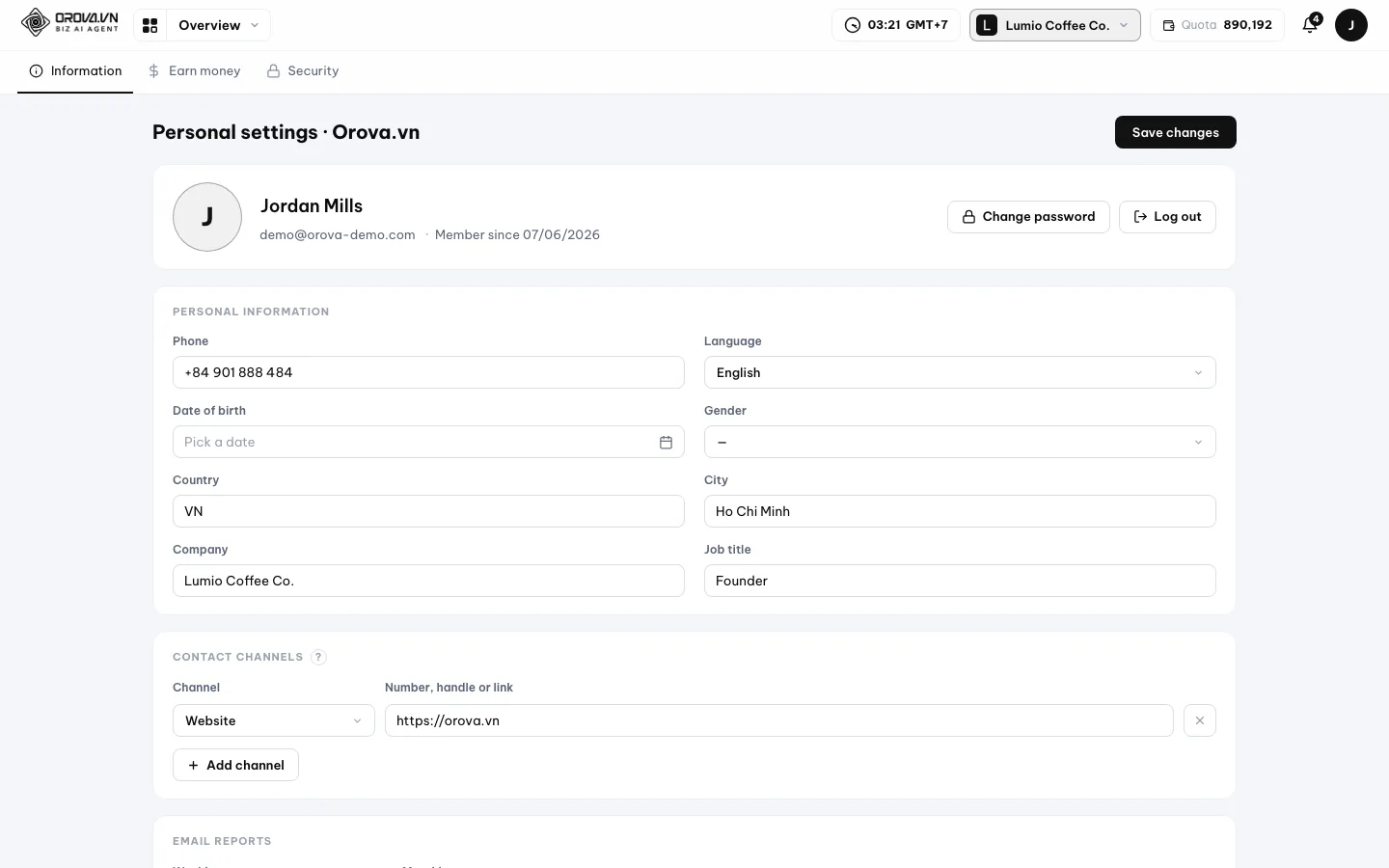
Open Account from the avatar to edit your personal details. - 2
欄を入力して Save をクリックする. 少なくとも氏名と役職を入力します。
Saveをクリックして 1 秒ほど待ち、Savedの表示が出れば完了です。
Fill in your details, then click Save changes. - 3
プロフィール写真をアップロードする. 写真の部分をクリックし、パソコンから画像ファイルを選びます。アップロードが終わるとすぐに表示されます。大きすぎるファイル、形式が違うファイル、空のファイルは、理由を示すメッセージとともに拒否されます。
- 4
連絡手段を追加する.
Contact channelsブロックでAdd contact(連絡先を追加)をクリックします。電話番号、Zalo、ウェブサイトなどの種類を選び、値を入力します。複数の行を追加できます。Saveをクリックします。
Click Add channel to add a phone, chat app or link. - 5
表示言語を変更する.
Language(言語)欄で言語を選び、保存します。すべてのボタンのラベルとメニューがその言語に切り替わります。この設定はあなただけのもので、同僚には影響しません。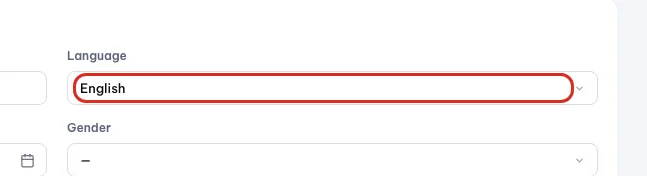
Pick the language Orova uses for your interface. - 6
メールで届くレポートを選ぶ.
Reportsブロックで、週次レポートと希望の曜日、または月次レポートと日にちを選びます。不要な場合はOff(オフ)を選びます。Saveをクリックします。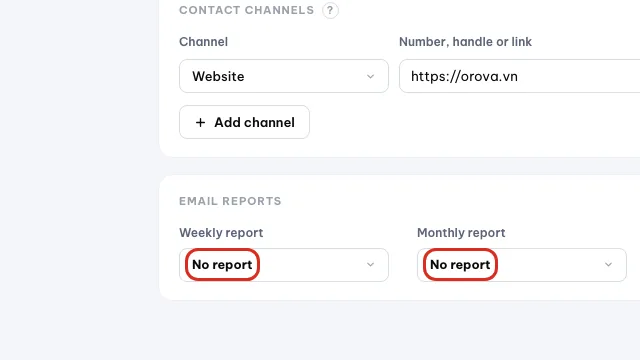
Choose which reports Orova emails you each week and month.
Note
プロフィール写真のアップロードで起きる 3 つのエラー
パスワードを変更する
- 1
パスワード変更ページを開く.
Accountページから、サブのタブの並びにあるパスワード変更の項目に切り替えます。 - 2
3 つの欄を入力する. 現在のパスワード、新しいパスワード、新しいパスワードの確認です。新しいパスワードは 8 文字以上で、最後の 2 つの欄は完全に一致している必要があります。
- 3
保存して試す. 変更したら、一度サインアウトし、新しいパスワードでサインインし直してください。正しく覚えていることを確実に確かめられます。
Tip
Forgot password? をクリックして、メールで再設定してください。10 · サポート
サポートへの依頼を送る
問題が起きたときに、スクリーンショットを添えて Orova チームに問い合わせ、回答を追う方法です。
サポート依頼
サポート依頼は、あなたと Orova チームの間で記録されるやり取りです。メールのスレッドのように、あなたが質問し、チームが回答し、あとで双方が読み返せます。
サポートページはワークスペースの中にあり、New request(新しい依頼)と History(履歴)の 2 つのタブがあります。エラーが起きたとき、機能について質問したいとき、支払いの問題があったときに使います。
| ボタン / 入力欄 | 意味 | 補足 |
|---|---|---|
| Quota & billing | お金、プラン、ウォレットに届いていないクォータ | 振込の日時と金額を添えてください |
| Question about a feature | 使い方の質問、または機能のリクエスト | やろうとしていることを説明してください |
| Technical issue | 壊れたページ、反応しないボタン、止まったタスク | スクリーンショットとページの URL を添えてください |
| Feedback & other | 上の 3 つ以外のすべて | それでも状況を説明する価値があります |
| Subject | 問題を要約する 1 文 | 具体的に書き、あいまいな表現は避けます |
| Message | 詳しい説明 | 何をしたか、何を期待したか、何が表示されたか |
| Add image | スクリーンショットを添付します | 画像があると解決がずっと速くなります |
| Send request | 新しい依頼を作成します | すぐに History タブに表示されます |
- 1
ワークスペースのサポートページを開く. ワークスペースのサポートのセクションに移動します。ページは
New requestタブから開きます。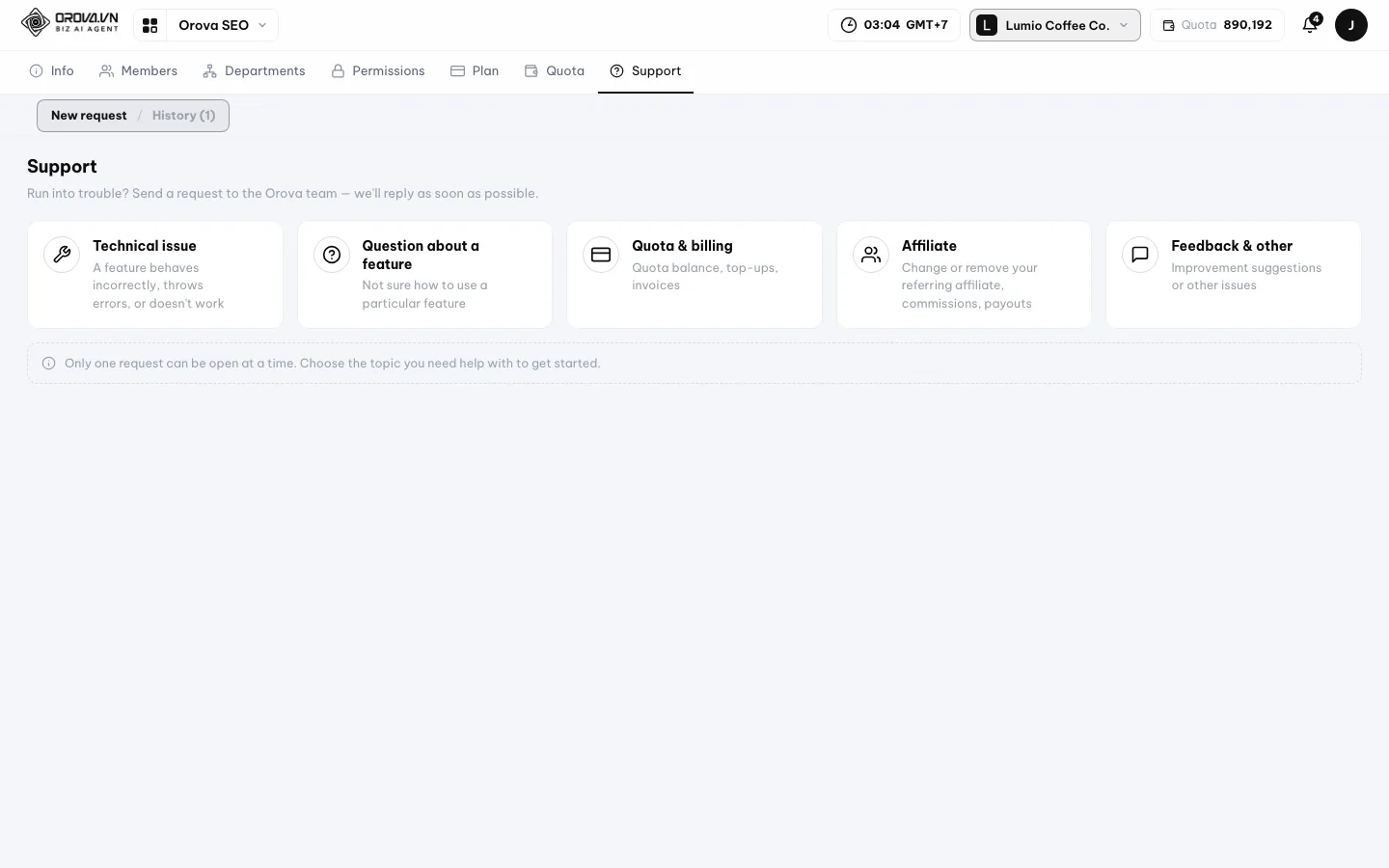
Open Support to send a request to the Orova team. - 2
トピックを選ぶ. 各トピックのすぐ下に短い説明があります。間違ったトピックを選んでも大丈夫です。依頼の中にトピックを変更するボタンがあります。

Pick the topic closest to your issue. - 3
件名とメッセージを書く. 件名は 1 文です。メッセージには 3 つのことを書きます。何をしていたか、何が表示されると期待したか、実際に何が表示されたか。エラーの文言があれば、そのまま書き写してください。
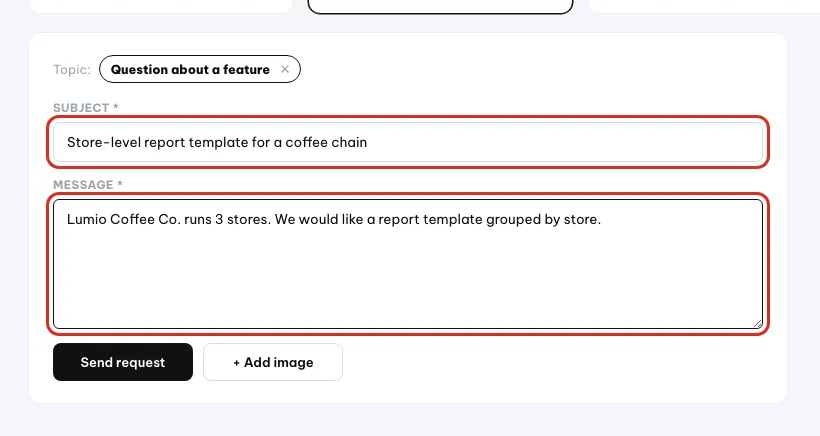
Write a short subject and describe the problem. - 4
スクリーンショットを添付する. 添付ボタンをクリックして画像を選びます。全画面のスクリーンショット 1 枚で、何往復ものやり取りが省けることがよくあります。
- 5
Send request をクリックする. 作成を確認するメッセージが表示されます。依頼は
Historyタブに移り、ステータスはOpen(対応中)になります。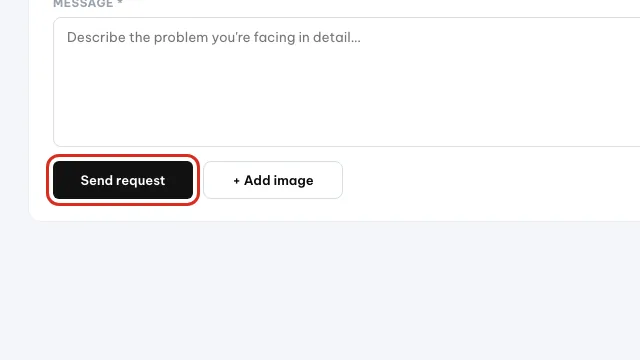
Click Send request when you are done. - 6
経過を追って返信する.
Historyタブを開きます。表には日付、件名、送信者、メッセージ数、ステータスが表示されます。行をクリックして内容を読み、同じ依頼の中で返信を続けてください。
Note
このトピックの依頼がすでに対応中です
Tip
11 · Orova で収益を得る
Orova で収益を得る
アフィリエイトモードをオンにし、紹介リンクを受け取り、報酬を確認します。短いセクションです。詳細はポリシーのページにあります。
アフィリエイト
アフィリエイトとは、Orova を他の人に紹介し、その人が支払ったときに報酬を得る人のことです。オンにするかどうかは完全にあなたの自由です。
紹介リンク
紹介リンクとは、あなたのコードが入った自分専用の URL です。そのリンクを開いてから登録した人は、あなた経由として記録されます。
- 1
アフィリエイトページを開いてオンにする. 初めてアクセスすると、2 つのチェックボックスがあるプログラムのページが表示されます。アフィリエイトポリシーへの同意と、アフィリエイトのデータプライバシー条項への同意です。両方にチェックを入れてから
Agree and activate(同意して有効化)をクリックします。1 つでも抜けていると、先にポリシーに同意する必要があると表示されます。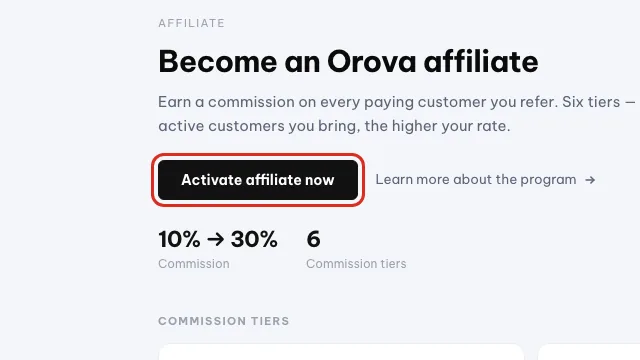
Click to turn on affiliate. This cannot be undone. - 2
紹介リンクを受け取る. オンにすると、
Overview(概要)タブにあなたのコードと紹介リンクが表示されます。コピーして、紹介したい人に送ってください。 - 3
カスタムリンクを作成する. ブログ記事など特定のページへ誘導したい場合は、その URL をカスタムリンク欄に貼り付けます。このツールは orova.vn の URL のみ受け付けます。
- 4
顧客と報酬を確認する.
Customers(顧客)タブには、あなたのリンクから登録した人が一覧表示されます。History(履歴)タブには、報酬に関するすべての出来事が記録されます。誰かが登録するまでは両方のタブが空ですが、それが正常です。 - 5
受け取り情報を入力する.
Payout info(受け取り情報)タブで、PayPal またはベトナムの銀行振込のどちらで受け取るかを登録します。残高がページに表示された最低額に達すると、支払い請求ボタンが有効になります。
Warning
アフィリエイトモードは一度オンにすると戻せません
Note
12 · よくある質問
よくある質問と対処法
最初の 1 週間でもっとも目にしやすいメッセージと、その本当の原因、それぞれの対処法です。
以下の回答は、まず原因、次に対処法の順に書いています。それでも解決しない場合は、スクリーンショットを添えてサポートに依頼してください。
認証メールが届きません
メールは迷惑メールやプロモーションに入っていることが多く、またはメールサーバーの受信が遅れています。両方のフォルダーを確認し、1〜2 分待ってから、Check your inbox 画面で Resend verification email をクリックしてください。送信エラーを知らせる赤い帯が表示された場合は、数分後にもう一度お試しください。
認証リンクが無効か期限切れだと表示されます
認証リンクは 1 回しか使えず、24 時間で期限切れになります。受信箱の確認ページをもう一度開いて認証メールの再送をクリックし、新しいメールの最新のリンクをクリックしてください。アカウントはすでに認証済みだと表示された場合は、いつもどおりサインインしてください。
サインインでメールアドレスかパスワードが正しくないと表示されます
2 つの欄のどちらかが間違っています。よくある原因は、Caps Lock がオンになっていることや、メールアドレスの末尾に空白が入っていることです。ゆっくり入力し直し、Caps Lock キーを確認してください。それでも駄目なら、Forgot password? をクリックしてメールで新しいパスワードを設定してください。
サインインの失敗が多すぎると表示されます
パスワードの推測を防ぐため、システムが一時的にロックしています。待ち時間はメッセージに書かれています。失敗するたびに延びるので、試し続けないでください。画面に表示された時間を待ってから、念のためパスワードを再設定してください。
アカウントが無効化されていると表示されます
アカウントは Orova 側で無効化されており、入力内容の問題ではありません。メッセージに表示されたサポートのアドレスに連絡し、チームが確認できるようアカウントのメールアドレスを伝えてください。
招待リンクをクリックしたら Wrong account と表示されます
招待されたものとは別のメールアドレスでサインインしています。サインアウトし、招待に書かれたメールアドレスで正確にサインインし直してから、もう一度リンクをクリックしてください。そのメールアドレスのアカウントがまだない場合は、先に作成してください。
招待の期限が切れていると表示されます
招待の有効期間は 7 日間だけです。ワークスペースのオーナーに、Members タブからあなたのメールアドレスへ新しい招待を送ってもらってください。古い招待は Pending acceptance ブロックで取り消せます。
設定に Plan タブが表示されません
このタブは、支払いの操作が許可されたロールにだけ開きます。それ以外のロールが URL に直接アクセスしても拒否されます。ワークスペースのオーナーにプランを購入してもらうか、別のロールを付与してもらってください。
メニューのモジュールが、このガイドのスクリーンショットより少ないです
理由は 2 つです。1 つ目は、あなたの権限グループにそのモジュールの閲覧権限がないため、モジュールがグレー表示ではなくメニューから消えていること。2 つ目は、モジュールがまだ仕上げ中で、すべてのアカウントには公開されていないことです。まずワークスペースのオーナーに Permissions タブを確認してもらってください。
ウェブサイトの認証で TXT レコードがまだ見つからないと表示されます
追加したばかりの DNS レコードがまだネットワーク全体に広がっておらず、数時間かかることがあります。TXT の文字列を正しく貼り付けたか確認し、時間をおいてもう一度お試しください。確認が速すぎると表示されたら、1 分待ってからもう一度クリックしてください。先にウェブサイトを入力するよう表示されたら、認証の前に会社プロフィールにウェブサイトのアドレスを保存してください。
送金したのに、クォータがウォレットに入っていません
多くの場合、振込メモが変更されていてシステムが注文と照合できないか、銀行からの通知が遅れています。ウォレットページを開き直し、Top-up の行を探してください。見つからなければ、Quota & billing のトピックで、振込のスクリーンショットと送金した時刻を添えてサポートに依頼してください。
タスクの途中でクォータがなくなりました
ウォレットが空のため、AI タスクを続けられません。ウォレットページで残高と過去 30 日の消費量を確認し、1 回限りのクォータパックを購入するか、より大きなプランに移行してください。次回中断されないようにするには、自動チャージをオンにしてください。
ワークスペースを削除したいです
ワークスペースの設定を開き、危険ゾーンまでスクロールして、ワークスペース名を正確に入力し、削除確認メールの送信をクリックします。その後、メールを開いて中のリンクをクリックすると、ワークスペースが削除されます。この操作は元に戻せません。そのワークスペースのデータと履歴はすべて失われます。
Warning
ワークスペースの削除は取り消せません