
Orova is an AI teammate for your business: ads, SEO, analytics, short links, hiring and training. Everything runs in your browser.
This page is written for someone who has never opened Orova. Every new concept is explained before you need it.
You need exactly two things to start: an account (your own email and password) and a workspace (the place that holds one brand's data).
01 · Overview
What Orova is and what you do in your first 10 minutes
Read this section first. It gives you the map of the whole page, so nothing later feels unfamiliar.
Orova
A set of AI tools for business, used straight from your browser. There is nothing to install — you only sign in.
Module
One area of work inside Orova, for example Ads, SEO, Insight, Link & QR, Recruit, Training. Think of them as rooms in one building.
Workspace
A dedicated place to work for one brand. A coffee shop and a software company belong in two different workspaces.
The path is always the same, whichever module you plan to use: account → workspace → module → results.
- Create an account with your email, then click the link in the message to verify it.
- Create your first workspace and name it, for example after your brand.
- Pick a module from the top menu bar or from the hub page.
- Get results: articles, campaigns, reports, QR codes and more, depending on the module you open.
Tip
Read in order
First workspace.Note
About the screenshots
02 · Create account
Create an account and verify your email
Four fields to fill in, one email to click. Finish this and you are inside Orova.
Account
Your own email and password. One account can enter many workspaces, like one key that opens several rooms.
Email verification
You click the link in the message Orova sends to prove the inbox is yours. Until you verify, you cannot sign in.
Anti-bot check
A small box you tick so the system knows you are a real person, not a machine. It only appears on the live site.
Open Orova's Create your account page. It asks for four things only, and never for a bank card.
| Field / button | What it means | Notes |
|---|---|---|
Full name | Your real name, shown to colleagues inside the workspace | Up to 120 characters |
Email | The inbox that receives the verification link and every later notification | Use an email you can open right now |
Password | The password you will sign in with next time | At least 8 characters |
Confirm password | Type the same thing again so a typo cannot slip through | One character off and you get an error |
| Terms checkbox | You agree to the Terms of Service | Required — the form will not submit without it |
| Anti-bot check | Confirms you are a real person | Only on the live site; wait for the box to turn into a checkmark |
Sign up free | Submits the form and creates the account | Once you click it, the verification email goes out |
Follow this order
- 1
Fill in the four fields. On the
Create your accountpage, fill inFull name,Email,PasswordandConfirm password. A password shorter than 8 characters is rejected as soon as you submit.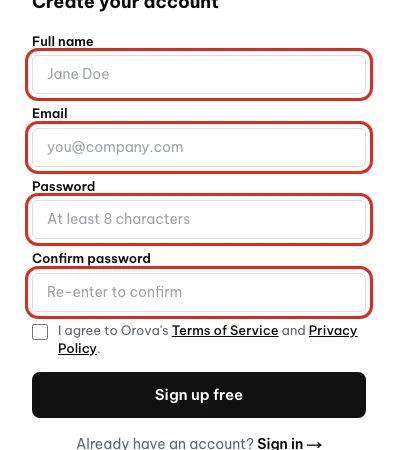
Fill in full name, email, password and confirm password. - 2
Tick the terms and clear the anti-bot check. Tick the box to agree to the terms. If an anti-bot check appears, click it and wait for the checkmark. Until it is done, Orova says: Please complete the anti-bot verification and try again.
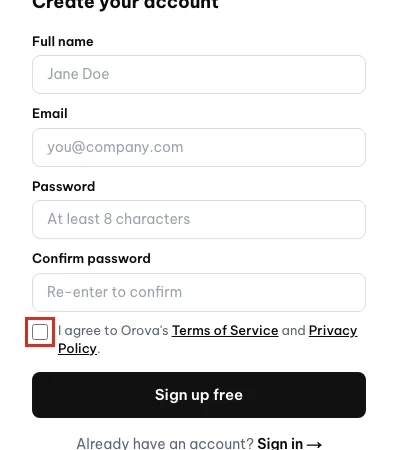
Tick the box to agree to the terms before signing up. - 3
Click Sign up free. Click
Sign up free. The screen moves to theCheck your inboxpage, and Orova sends a verification email to the address you entered.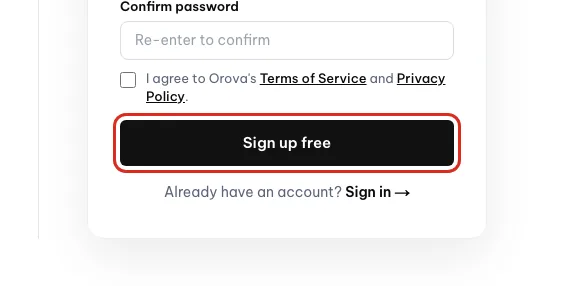
Click Sign up free to create the account. - 4
Open your inbox and click the link. Open the email from Orova and click the verification link. Your browser reopens Orova and shows the
Verification successfulpage. From here you are signed in automatically.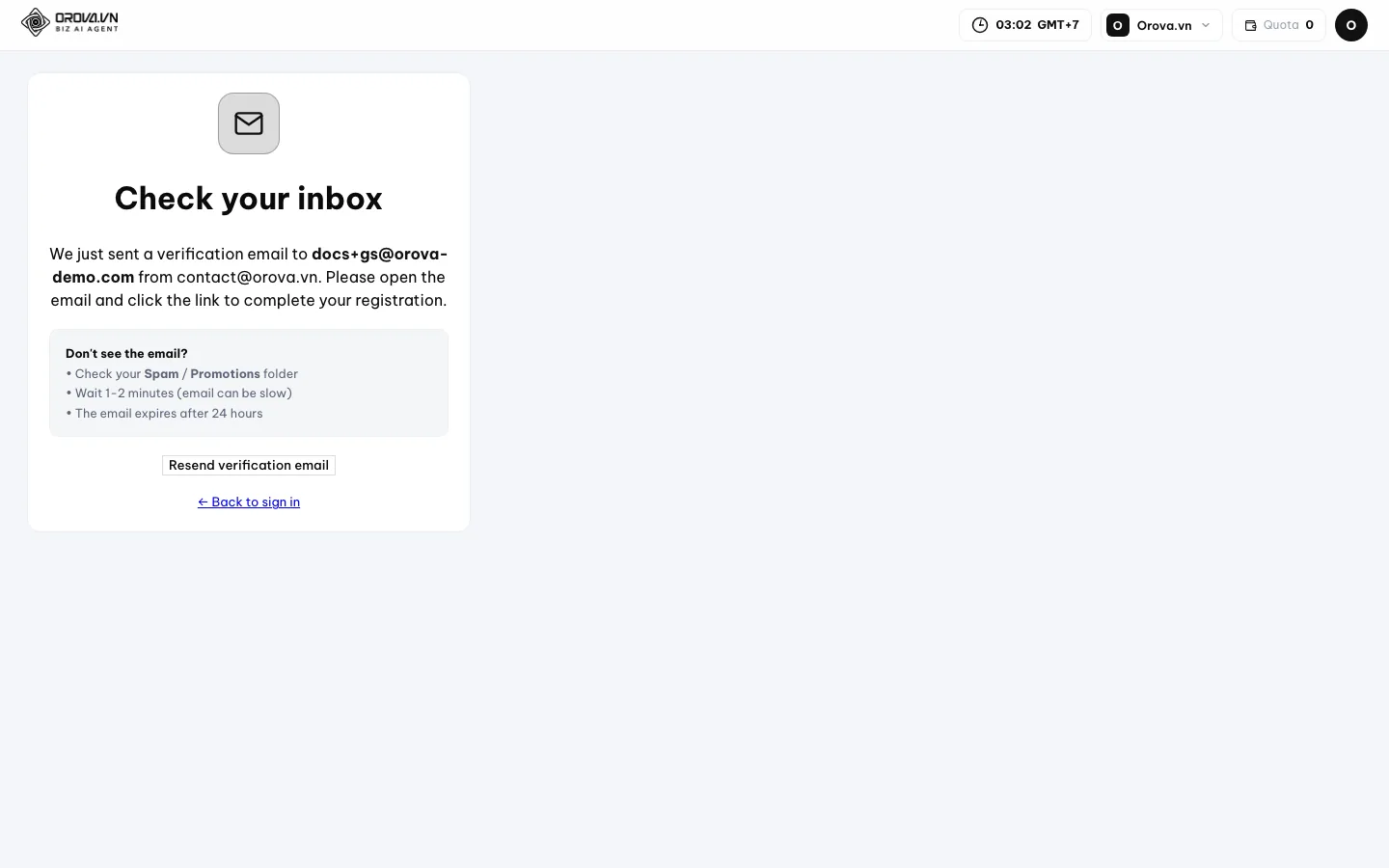
Orova sends a confirmation link to the email you entered.
Warning
The verification link expires after 24 hours
Check your inbox page and click Resend verification email.What to do if the verification email never arrives
- Open the Spam or Promotions folder in your inbox — the message often lands there.
- Wait 1–2 minutes; email can be slow.
- Click
Resend verification emailon theCheck your inboxpage. - Check whether you mistyped your email address when signing up.
Note
The email is already taken
Forgot password? if you cannot remember the password.03 · Sign in
Sign in and recover your password
How to get back into Orova later, and what to do when the screen turns red.
Sign in
You give your email and password so Orova knows who you are and opens the right data for you.
Temporary lock
After several wrong passwords, Orova blocks attempts for a while to protect the account. Wait out the time shown on screen and you can try again.
The Sign in page has two fields: Email and Password, with the Forgot password? link right below them.
Sign in
- 1
Enter your email and password. On the
Sign inpage, enter the email you verified and your password. If an anti-bot check appears, clear it first.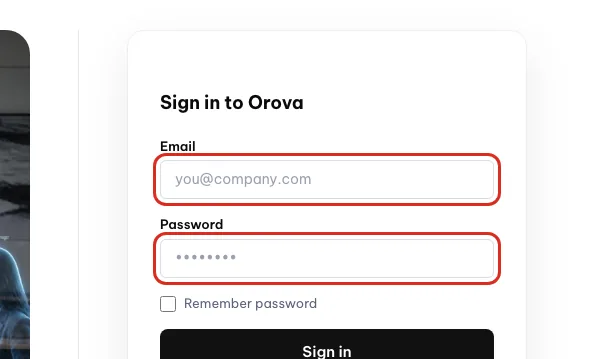
Enter the email and password you signed up with. - 2
Click Sign in. Click
Sign in. Orova takes you straight to work: no workspace yet and it opens the page for creating one; you already have one and it opens the workspace you used most recently.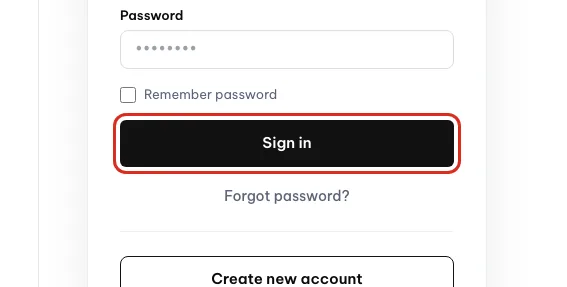
Click Sign in to open your workspace.
Three error messages you are likely to see
| The screen says | It means | What to do |
|---|---|---|
| Incorrect email or password. | One of the two fields is wrong; Orova does not say which one, to protect the account | Retype slowly, check Caps Lock and your keyboard layout |
| Too many failed sign-in attempts. Please try again in… | The account is temporarily locked after repeated wrong attempts | Wait exactly as long as the screen says, then try again |
| Email not verified yet | You signed up but never clicked the link in the email | Click Resend verification email, then open the message — see the section above |
| This account has been disabled. | The account has been deactivated | Contact contact@orova.vn as instructed on screen |
Forgot password
Reset your password in three steps
- 1
Click Forgot password?. On the
Sign inpage, click theForgot password?link. TheForgot passwordpage opens with exactly one email field.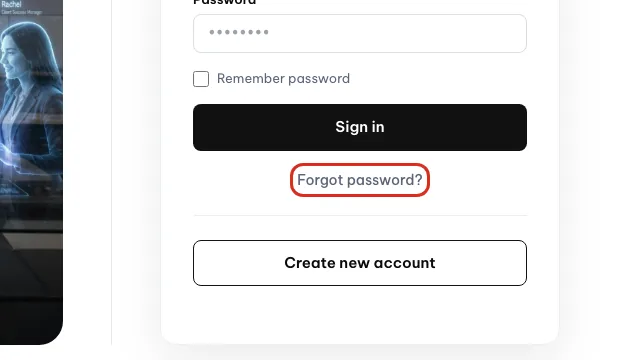
Click Forgot password? if you cannot remember it. - 2
Enter your email and send. Enter the email you signed up with and click the send button. Orova sends a message with a password reset link. Open your inbox and click that link.
- 3
Set a new password. The
Set a new passwordpage opens. Type a new password of at least 8 characters, type it again, then save. You can now sign in with the new password.
Warning
The reset link works only once
Forgot password? and request a new one.Tip
Change the interface language
Account page after signing in.04 · First workspace
Create your first workspace
A workspace holds everything you do. Without one, you cannot open a single module.
Workspace
A dedicated space for one brand: its own quota wallet, its own data, its own members, its own connections.
Workspace ID (slug)
The short, permanent code in the address bar, for example the demoads01 part of the URL. The workspace name can change; this code cannot.
Module hub
The grid page that lists every module in the workspace. Think of it as the main lobby you step into each room from.
If your account has no workspace yet, Orova takes you to the creation page right after you sign in.
Create a workspace
- 1
Open the workspace creation page. The
Create your first workspacepage has exactly one field:Workspace name. Below it is the reminder: You can change this later. - 2
Name it. Type your brand or company name, between 2 and 160 characters. The hint inside the field suggests: e.g. Coffee Brand A. Anything too short or too long is rejected.
- 3
Click Create workspace. Click
Create workspace. Orova generates the ID code from the name you just entered, then opens the new workspace. This takes a second or two. - 4
Look around the hub page. Open the hub page to see every module as a grid of cards. Each card shows the module name, a one-line description, a status label and the
Open modulebutton.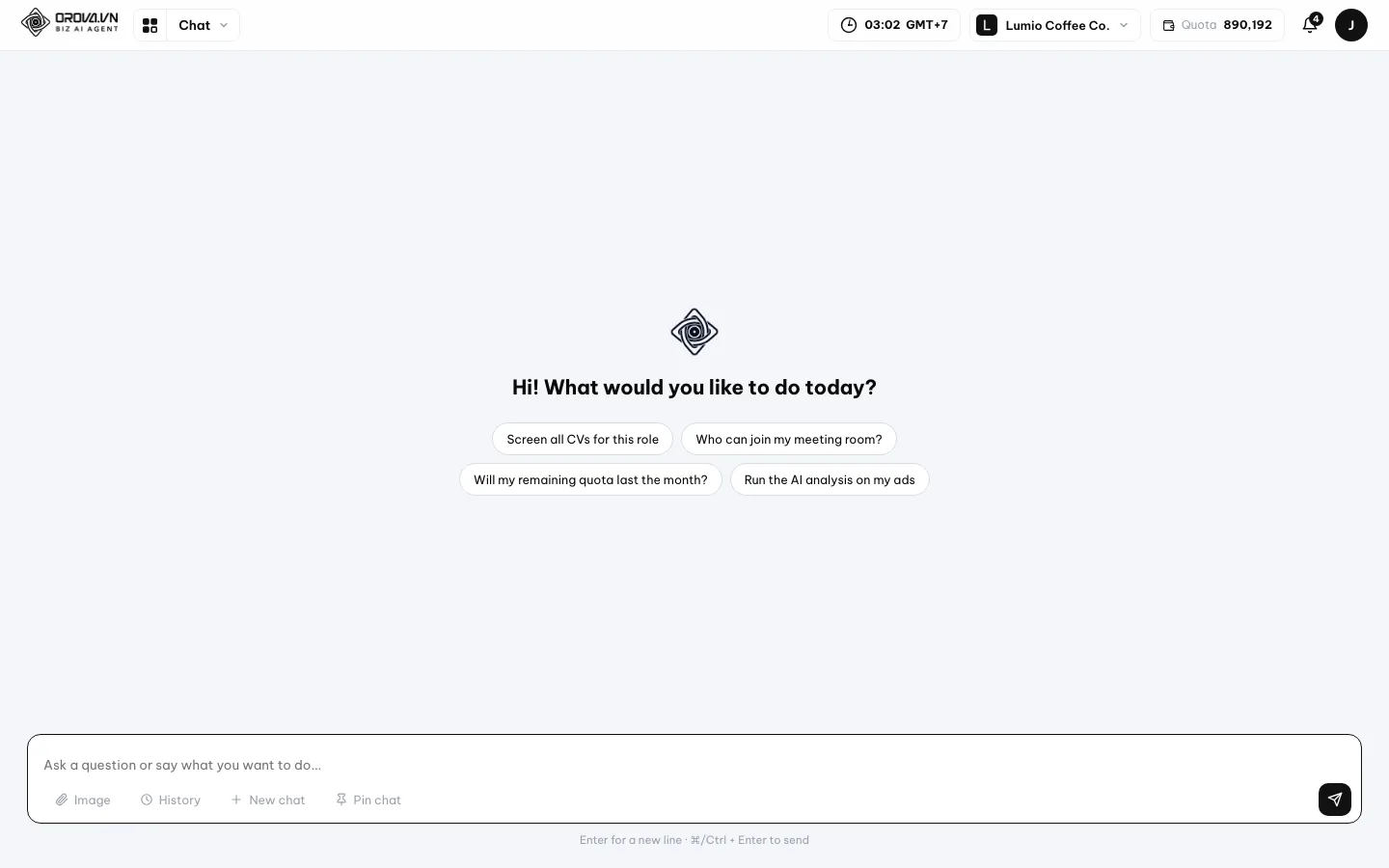
This is the first screen after you sign in.
| Part of the card | What it means | Notes |
|---|---|---|
| Module name | The area of work that module covers | For example Orova Ads, Orova SEO |
| One-line description | A single sentence on what the module is for | Read it to pick the right place to go |
Ready | The module is stable and usable right now | The most common status |
Beta | The module is open for trial — usable, but still being polished | The interface may change |
Coming soon | Not open yet, shown so you know it is coming | Not clickable |
Open module | The button that takes you straight into that module | Same as clicking the module name in the top bar |
What if you have several brands
Each brand should have its own workspace. Data, quota wallet and members are fully separated between two workspaces.
- Add another workspace: open the workspace list, choose to create a new one, and repeat the same three steps.
- Switch between them: click the workspace name in the top bar and pick another workspace from the drop-down list.
- After switching, everything you see changes to the new workspace. The quota figure in the top bar changes too.
Note
There is a limit on workspaces
05 · Getting around
Moving between modules
One menu bar at the top gets you everywhere. This section explains each part of it.
Module menu bar
The horizontal row of names at the top of every page inside a workspace. Each name is a module; click it to go straight there.
Feature panel
The small panel that drops down when you hover over a module, listing the screens inside that module.
Quota
The unit Orova uses to run AI. Every AI task spends a little quota, and the estimate always appears before you click.
The menu bar is split into two groups of work: Marketing and HR (hiring, training).
Using the menu bar
- 1
Look at the top bar. The bar lists, in order,
Chat,Orova Ads,Orova SEO,Orova Insight,Orova Link & QR,Orova Recruit,Orova Training. Click an item to open that module.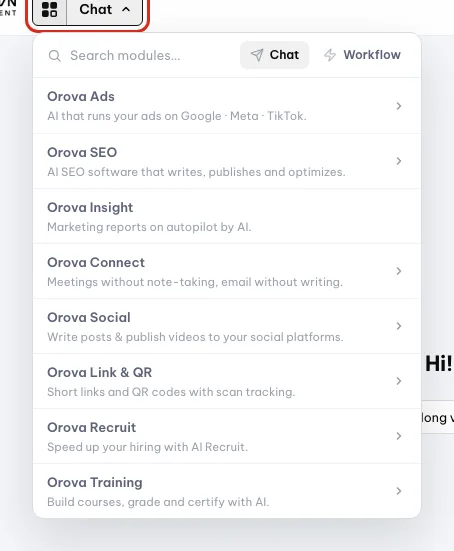
Click the grid button to see every module. - 2
Hover to see what is inside. Hover over a module, for example
Orova Ads. A panel drops down listing its inner screens. Click the screen you need directly, instead of entering the module and hunting for it.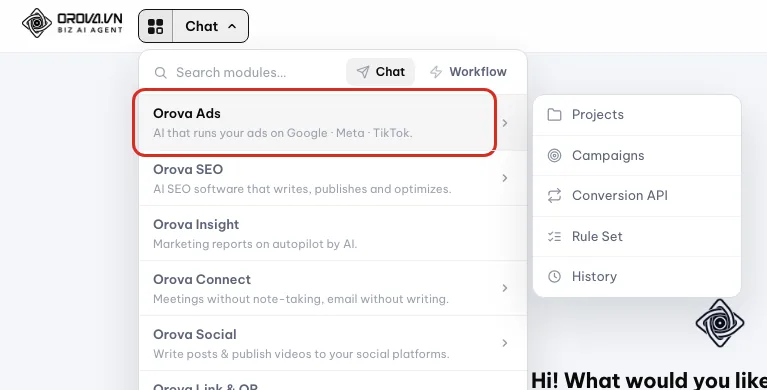
Hover a module to see its pages, such as Projects and Campaigns. - 3
Read the right end of the top bar. The right end shows the workspace's remaining quota and the notification bell. The quota figure updates itself after each AI task — no need to reload the page.

The quota balance and the notification bell sit here. - 4
Switch workspace when you need to. Click the workspace name in the top bar to open the list, then pick another workspace. The page reloads with the data of the workspace you chose.
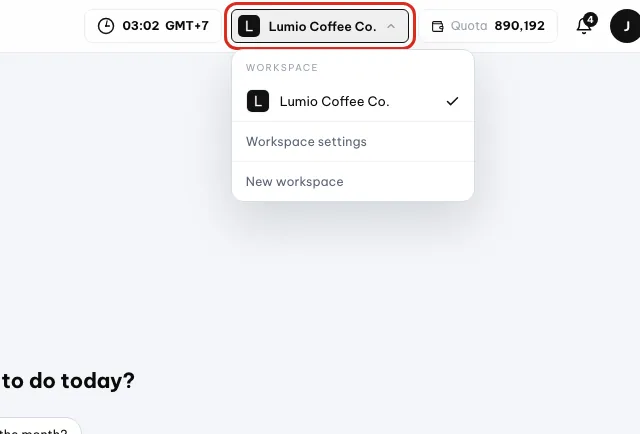
Pick another workspace from this list to switch.
Why you see fewer modules than the screenshots
- Permission not granted: a module your permission group cannot view disappears from the menu bar rather than being greyed out. Ask the workspace owner to grant you access.
- Module still being finished: some modules are open only to a trial group, so regular accounts do not see them yet.
- You are in a different workspace: check the workspace name in the top bar before hunting any further.
Tip
The module name in the URL can differ
Orova Link & QR opens on a path starting with /qr. That is normal — you are still in the right module.06 · Workspace settings
Workspace settings and company profile
Declare your name, logo and company details once. The AI reads this section to advise you more precisely.
Workspace settings
The page that gathers every setting of a workspace: info, members, departments, permissions, plan, quota, support.
Business description
A few sentences you write about what you do. The AI reads them to understand what you sell and to whom, then writes content that fits.
Company profile
Legal details such as company name, tax code, address and bank account. Orova prints them on quotes and contracts.
DNS TXT record
A line of text you add in your domain's management panel. It proves the website is yours, like putting your name on the door.
Open the workspace Settings. The page has a horizontal row of tabs; click a tab and the content below changes.
| Tab | What it means | Notes |
|---|---|---|
Info | Name, ID, description, logo and company profile | The tab that opens by default |
Members | The people in the workspace and pending invitations | See the next section of this page |
Departments | The org tree of the workspace | View it as a list or as a chart |
Permissions | Detailed permission groups per module | Only shown if you have management rights |
Plan | The monthly subscription and extra quota purchases | Only shown if you have billing rights |
Quota | The quota wallet and transaction history | Everyone in the workspace can view it |
Support | Send a request to the Orova team | Includes the history of your conversations |
Declaring your workspace details
- 1
Rename the workspace. On the
Infotab, edit theWorkspace namefield and save. This name appears everywhere in Orova. TheWorkspace IDfield next to it is read only, with the reminder: Permanent identifier — cannot be changed.
Click the name to rename the workspace. - 2
Write the business description carefully. In the
Business descriptionfield, spell out your industry, your products or services, and your target customers. The clearer you are, the closer the AI's output lands to your actual business. A few sentences are enough. - 3
Upload a logo. Click
Upload logoand pick a PNG, JPG, WEBP or SVG image under 2 MB. Files in the wrong format or too heavy are rejected with an error. To drop the logo, clickRemove logo, use the first letter. - 4
Fill in the company profile. Scroll to the
Company profileblock and fill in the legal name, tax code, address, country, industry, contact email, hotline, website, bank, account number and currency. Leaving some fields empty is fine — you can complete them later.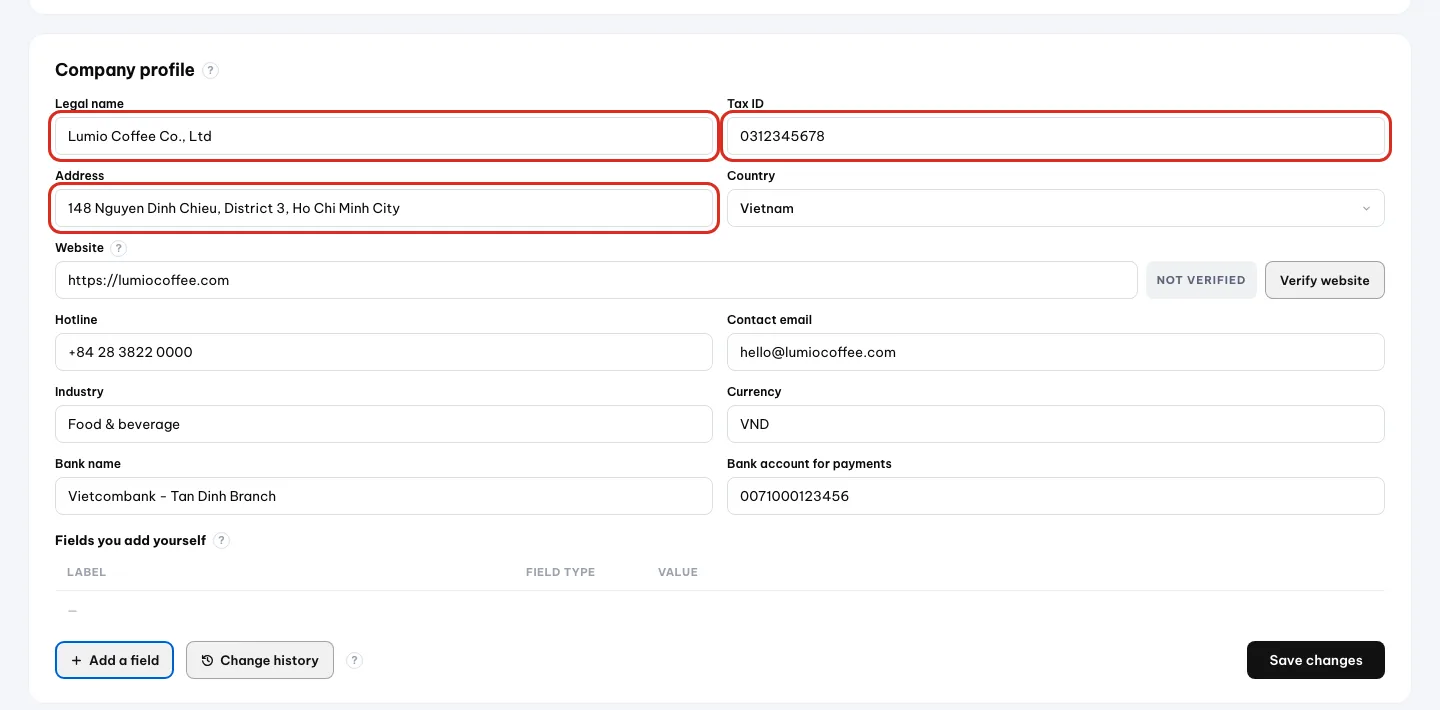
Fill in legal name, tax ID, address and the rest, then save. - 5
Add your own fields if you need them. If your industry has specific details, add a custom field, for example Number of stores. Fields you add can be renamed, deleted, or dragged to reorder.

Click Add a field to create your own field.
Verify your website with a DNS TXT record
Verification tells Orova the website in your profile really is yours. The status moves from Not verified to Verified.
Four steps to verify
- 1
Save the website first. Fill in the website field in
Company profileand save. If you click verify before saving, Orova says: Enter and save your website before verifying.
Enter and save your website before verifying it. - 2
Get the TXT record. Open the
Verify websiteblock. Orova shows a TXT line generated for you. Copy the whole line without changing a single character. - 3
Paste it where you manage your domain. Sign in where you bought the domain, go to DNS management, add a record of type TXT and paste the line you copied. Save it.
- 4
Come back to Orova and run the check. Click the check button in the
Verify websiteblock. A DNS record can take a few minutes to a few hours to propagate, so not seeing it immediately is normal. If Orova says: TXT record not found yet… then wait and check again.
Note
Do not hammer the check button
Review who changed what
Click Change history in the profile block to see recent edits. Orova keeps the history for 90 days, recording who changed which field and when.
Warning
Danger zone: deleting the workspace
Info tab is the block for deleting the workspace permanently. You must type the workspace name exactly, click Send deletion confirmation email, then click the link in the message. Once deleted, the data cannot be recovered.07 · Invite your team
Invite people to work with you
Add colleagues to your workspace, pick a role for them, group their permissions and arrange departments.
Member
A member is someone who shares a workspace with you. They sign in with their own account, but they see the same data and spend from the same quota wallet.
Role
A role decides what that person can do. The Owner is whoever created the workspace. Admins manage members. Editors do the hands-on work. Viewers can only look.
Invitation
An invitation is an email containing a join link. Think of it as a ticket: only the invited email can use it, and the ticket expires.
You do this on the workspace settings page, on the Members tab. Invite other people as soon as you start working for real, so nobody has to send files back and forth.
| Button / field | What it means | Notes |
|---|---|---|
| Member table | The list of people currently in the workspace | Has a Role column and a Joined column |
| Email field | The email address of the person you want to invite | Placeholder shows email@company.com |
| Admin — manages members | The role for someone who runs the team | Invites people, changes other people's roles |
| Editor — manages tasks | The role for someone doing the hands-on work | Runs tasks, does not manage members |
| Send invitation | Sends an invite email to the address you typed | The invitation is valid for 7 days |
| Pending acceptance | The block listing invitations nobody has accepted yet | Shows the count in parentheses |
| Cancel invitation | Withdraws a pending invitation | The system asks you to confirm first |
Invite your first person
- 1
Open workspace settings. From the top bar, open the settings of the workspace you have open. The page has a row of tabs:
Info,Members,Departments, and depending on your role alsoPermissions,Plan,Quota,Support. - 2
Click the Members tab. The member table appears. If you have just created the workspace, the table has a single row: you, as Owner.
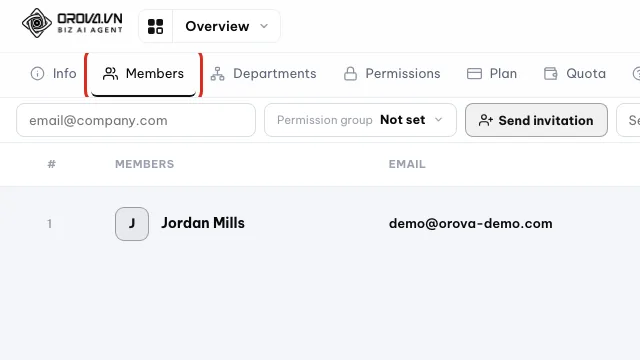
Open the Members tab to see who is in the workspace. - 3
Type the email of the person you want to invite. Scroll down to the invite block. Type their work email exactly. One wrong character and the email goes somewhere else, and that person receives nothing.

Type the email of the person you want to invite. - 4
Pick a role. Pick
Admin — manages membersif that person will invite others. PickEditor — manages tasksif they only run the hands-on work. When in doubt pick Editor; you can change it later.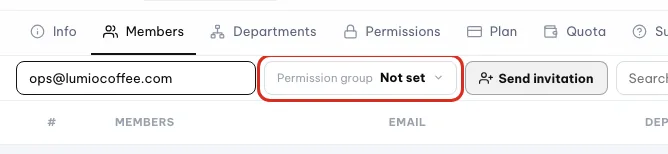
Choose which permission group the new member gets. - 5
Click Send invitation. The system sends an email with a confirmation link right away. The new row appears in the
Pending acceptanceblock along with the count in parentheses.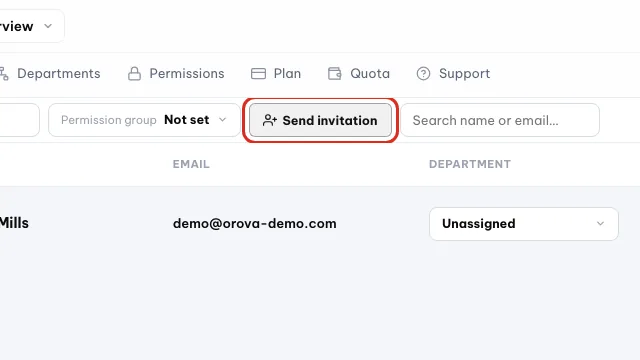
Click Send invitation to email the invite. - 6
Remind the other person to open the email. The invited person clicks the link in the email. If they are not signed in, the page shows the heading
Workspace invitationalong with the invited email. They clickJoin workspaceand that is it — their name appears in the member table.
Warning
Sending an invitation sends a real email
Send invitation sends an email to the address you typed immediately. Check the address before you click. Typed it wrong? Open the Pending acceptance block and click Cancel invitation.Note
Invitations last 7 days
Invitation expired. All you have to do is send a new invitation to that same email.What the invited person sees
The invitation page has five states. Knowing them in advance lets you help a colleague faster when they say they cannot get in.
Workspace invitation— normal; that person is not signed in yet. Once they sign in, they can join.- The
Join workspacebutton — the standard state when they are signed in with the right account. There is also a secondary link to decide later. Wrong account— they are signed in with a different email. They have to sign out and come back with the invited email.Invitation expired— more than 7 days old. Send a new invitation.Invalid invitation— the link has already been used, or it does not exist.
Change a role and remove a member
- 1
Change a role. In the member table, switch the role field on that row to Admin or Editor. It takes effect the next time they reload the page.
- 2
Remove someone from the workspace. Click the remove button at the end of the member row. That person loses access to this workspace, but their personal account stays.
Note
Detailed permission groups
Permission group
A permission group is a named set of per-module permissions that you assign to members. Like a key ring: each key opens one room.
Roles are the coarse level. Permission groups are the fine level: you decide whether the group can view or use each module. The Permissions tab only appears for people allowed to manage.
- 1
Open the Permissions tab. The page lists the permission groups this workspace has. You add a new one with the create-group button at the top of the list.

Open Permissions to manage permission groups. - 2
Click a group to edit it. The screen shows a matrix: one row per module, one column per type of permission. Ticking a box allows that group to do that thing.
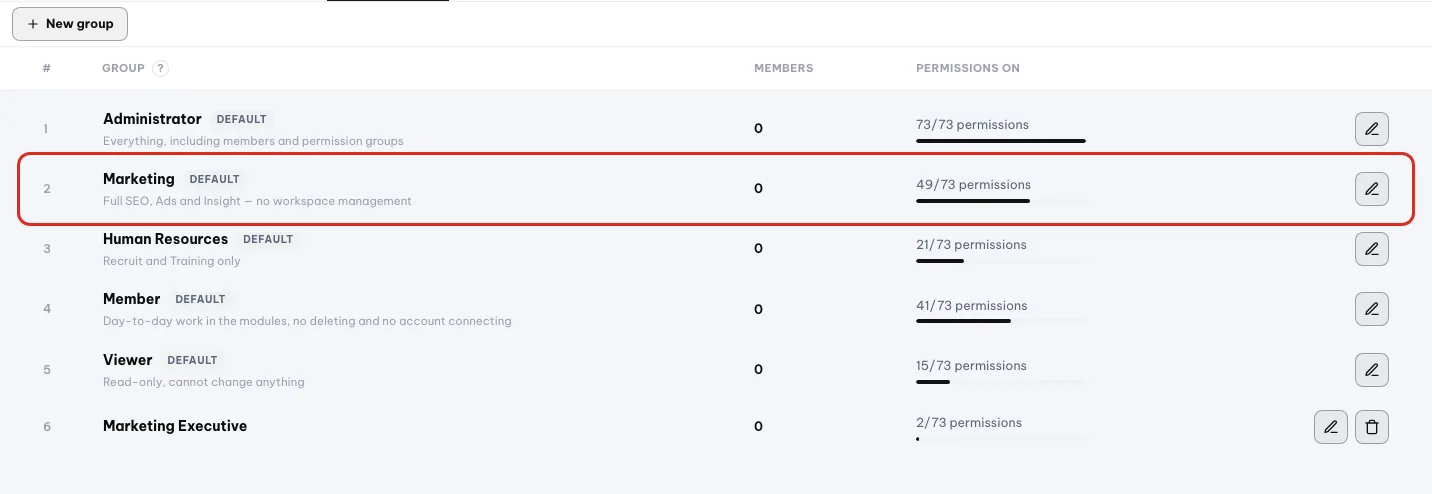
Click a group's pencil to edit which permissions it turns on. - 3
Assign a permission group to a member. Go back to the
Memberstab and pick a permission group on the member row you want to change. They reload the page and it is in effect.
Tip
Departments
Department
Departments are the org chart inside a workspace. Use them to know who belongs to which unit and who sees whose data.
- 1
Open the Departments tab. There are two views:
ListandChart. The list is for adding and editing quickly, the chart is for seeing the whole hierarchy at a glance.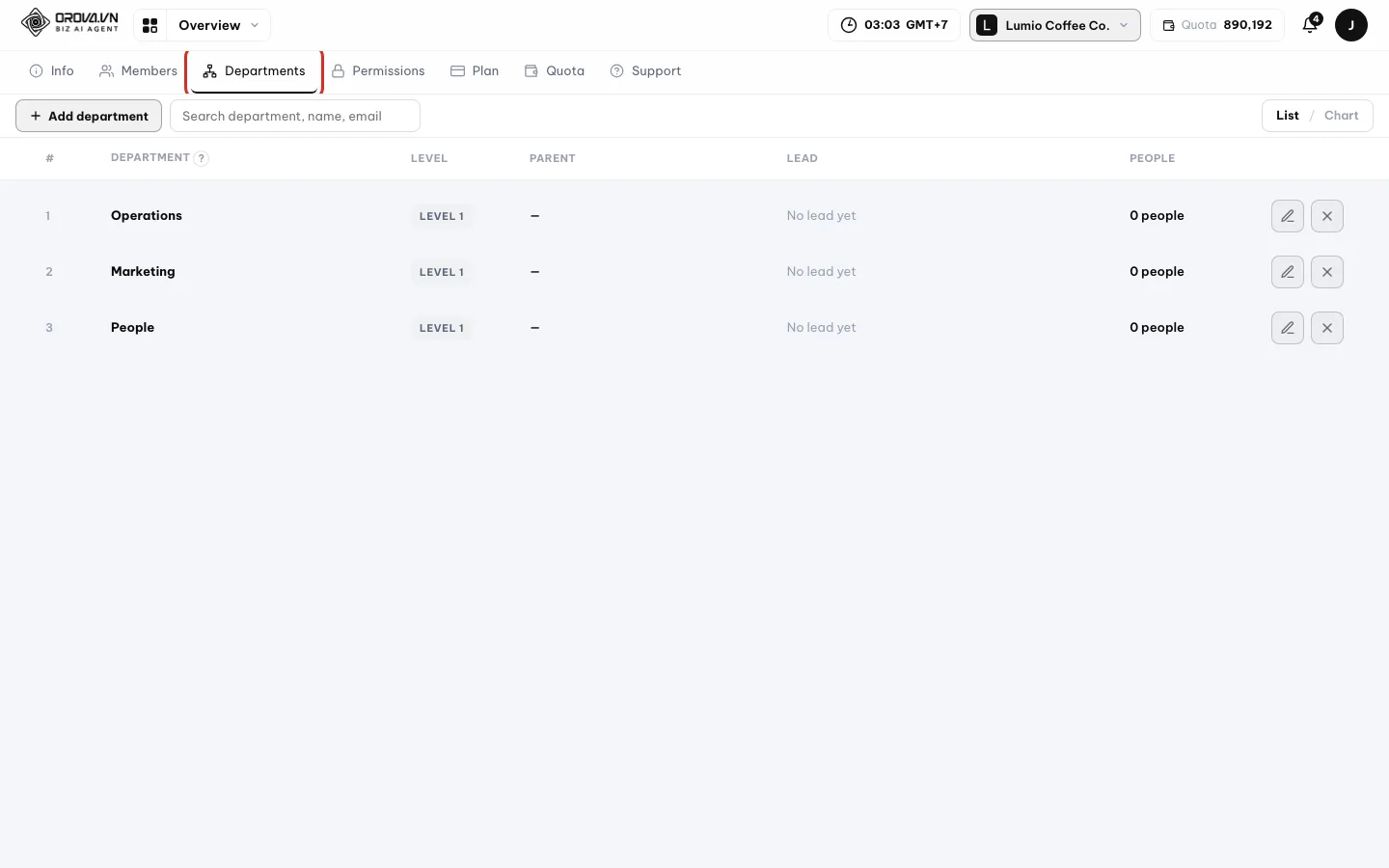
Open the Departments tab to build your team structure. - 2
Add a department. Fill in
Department name. Pick aParent departmentif this one sits under another. Pick aDepartment leadfrom the member list. Leave the parent empty and the department sits at the top level. - 3
Arrange the hierarchy by dragging. Drag one department onto another to make it a child. The tree allows up to 10 levels. Departments you have not placed sit in the
Unassignedgroup with a count.
Note
Three common errors when arranging departments
Delete sub-departments first. means the department still has children. This department already has a lead. means you have to remove the current lead first. A department can't be moved under its own branch. means you are dragging a parent into one of its own children.08 · Quota and billing
Quota, the wallet and money
Understand what quota is, read your quota history, pick a monthly plan, buy extra quota and pay by bank transfer.
Quota
Quota is the unit Orova uses to run AI. Like coins in a machine: every time you ask AI to do something, the machine takes a few coins.
Workspace quota wallet
The wallet holds your quota and belongs to the workspace, not to one person. Every member spends from the same wallet.
Plan
A plan is a monthly subscription that adds quota to the wallet on a schedule. Every plan gets every feature; plans differ only in how much quota you get.
Quota pack
A pack is a one-off purchase of extra quota, not a subscription. Use it in a month when you work more than usual.
The estimated quota always appears before you click run on an AI task. You look at that number and then decide, so nothing is deducted by surprise.
Check the quota wallet
- 1
Open the workspace Quota wallet page. Go to the wallet section of the workspace. The page title is
Quota walletfollowed by your workspace name.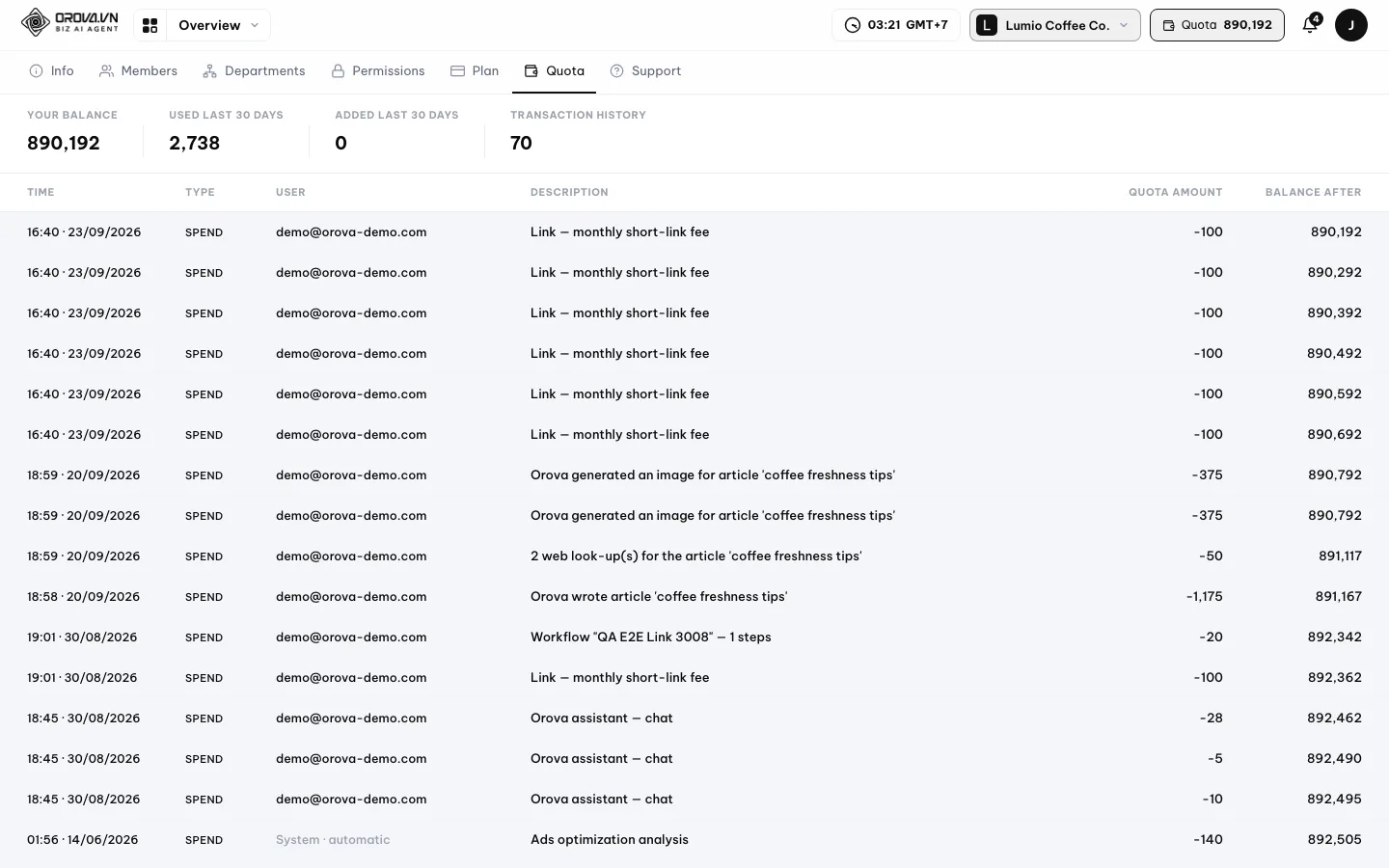
The wallet shows the balance and every quota movement. - 2
Read the row of four numbers at the top.
Your balanceis the quota you have left.Used last 30 daysis how much you have spent recently.Added last 30 daysis the new quota that came in.Transaction historyis how many transaction rows you have.
Read these four numbers first to know where you stand.
| Column | What it means | Notes |
|---|---|---|
| Time | When the transaction happened | Newest at the top |
| Type | Top-up, Spend, Refund, Grant or Adjustment | See the explanation right below this table |
| User | The member who caused the transaction | Empty shows System · automatic |
| Description | What spent or added the quota | For example the name of the AI task that just ran |
| Quota amount | How much quota came in or went out | Spending shows a minus sign |
| Balance after | The wallet balance right after that transaction | Use it to trace back when a number looks off |
Top-up— you bought extra quota and the payment went through.Spend— an AI task just ran and used quota.Refund— a task failed midway and the system gave the quota back.Grant— Orova added quota, for example the welcome quota when you opened your account.Adjustment— a balance correction made through support.
Note
No transactions yet. Start using AI to see the details here. Run any task and the table fills up.Which tasks use the most quota
The wallet page itself carries an estimate table published by Orova for each kind of task. The general rule is easy to remember: the longer the job and the more data it touches, the more it costs.
- Cheapest: quick checks, such as a website health check.
- Middle: generating one image, writing one short article, analysing one competitor.
- Most expensive: long SEO-ready articles and full site analysis with a large keyword set.
Tip
The Plan page: SEO plan and Ads plan
The Plan page has two parts: the plan for SEO and the plan for Ads. Each module has its own subscription, and you are not required to buy both.
| Button / field | What it means | Notes |
|---|---|---|
| Current plan | The plan you are on for that module | Carries the In use label |
| Monthly quota | How much quota the plan adds each cycle | The number follows the plan you pick |
| Next renewal | The day the next cycle starts | Only shown while auto-renew is on |
| Auto-renew | Charges and adds quota every cycle automatically | Turn it off by cancelling renewal |
| Remaining / until | How long the plan stays valid | You keep using it until that day |
| Buy more quota | The block for one-off quota packs | Three sizes: Small pack, Medium pack, Large pack |
Change plan or cancel renewal
- 1
Open the Plan page. The
Plantab sits in the tab row of workspace settings. This tab only appears for people allowed to handle payments.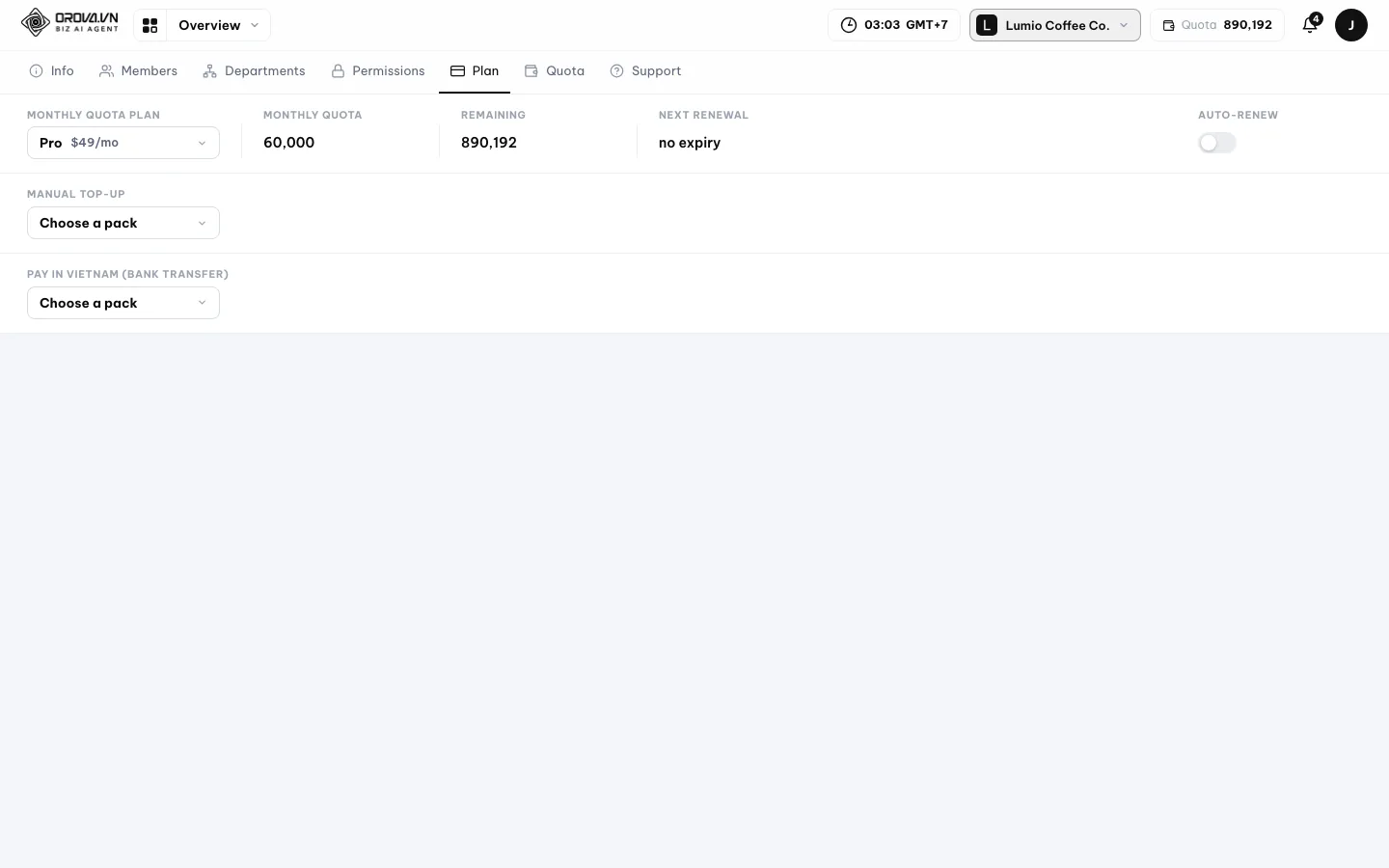
The Plan page lists plans, top-up packs and payment options. - 2
Pick the plan you want. Click subscribe on that plan. The page moves to the payment gateway. Once you have paid, you land back on Orova with a message confirming the subscription.
- 3
Cancel renewal when you no longer want it. Click cancel renewal. The plan stays valid until its expiry date; it simply will not charge you next cycle. To go back to the free level, choose the free plan.
Warning
Payment buttons go straight to the real gateway
Buy a one-off quota pack
- 1
Scroll to the buy-more-quota block. This block has three ready-made sizes:
Small pack,Medium pack,Large pack. The price and the amount of quota are shown on each card.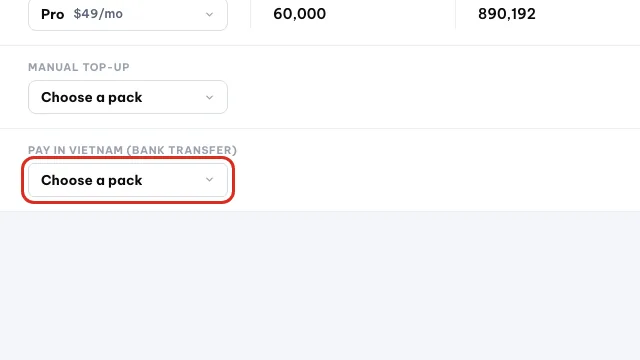
Scroll down to the block for buying more quota. - 2
Pick a size and pay. Choose the pack, choose how to pay, finish. The quota lands in the wallet as soon as the payment is confirmed, and you see a
Top-uprow in the transaction history.
Pay by Vietnamese bank transfer
- 1
Choose to pay by bank transfer. The system creates an order and shows a bank QR code along with the Bank, Account number, Account holder, Amount and Transfer memo.
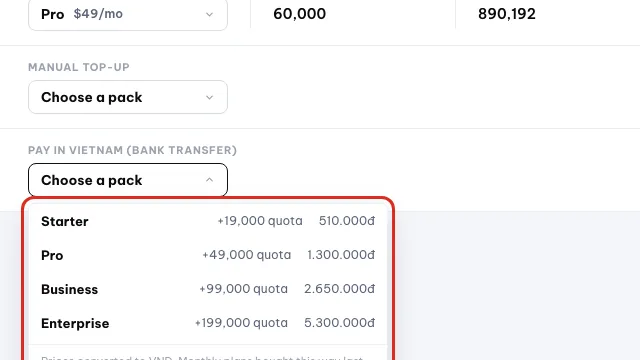
Pick a pack to pay by bank transfer in Vietnam. - 2
Transfer the money, keep the memo unchanged. Scan the QR with your banking app, or type the account number and the amount by hand. The
Transfer memohas to stay exactly as shown, without a single extra word. - 3
Wait for the page to report success. Leave the page open. It keeps checking the status until the bank reports back, usually within a few minutes. Then it shows a success message and the quota lands in the wallet.
Warning
Edit the transfer memo and the order will not match
Auto top-up when quota runs low
Auto top-up keeps work in progress from stopping halfway because quota ran out. You connect a payment method and the system buys more when the wallet gets low.
- 1
Open the auto top-up block on the Plan page. Click connect a payment method, follow the payment gateway, then come back to Orova.
- 2
Turn auto top-up on. Flip the switch and save. Every time the system tops up, you see a
Top-uprow in the wallet transaction history. - 3
Disconnect when you no longer need it. Click disconnect in the same block. From that moment the system stops charging you.
Note
The Plan tab is missing
Plan tab and the billing page only open for roles allowed to handle payments. Other roles going straight to the URL are refused. Ask the workspace owner to do it for you, or ask for a different role.09 · Personal account
Your personal account
Edit your details, profile picture, contact channels, interface language, email reports and password.
Personal account
Your account is you inside Orova: email, password, name, picture. It follows you across every workspace, unlike the settings that belong to a single workspace.
Profile picture
The small picture shown next to your name so colleagues can tell who did what. Not required, but worth having when several people work together.
The Account page has three blocks stacked vertically: Personal information, Contact channels, Reports. When you are done editing you click Save and a Saved flag appears.
| Button / field | What it means | Notes |
|---|---|---|
| Full name | The name your colleagues see | Use your real name |
| Date of birth, Gender | Basic personal details | Optional |
| Job title, Company | Your position and where you work | Shown on your profile |
| City, Country | Where you work | Helps show the right context |
| Language | The Orova interface language | Change it and every label follows |
| Add contact | Adds a new contact row | Pick a type, then fill in the value |
| Weekly report | A summary email every week | You pick which day it is sent |
| Monthly report | A summary email every month | You pick the day of the month |
| Off | Do not receive report emails | Pick this when they get in the way |
| Save | Records every change | A Saved flag confirms it |
| Member since | The day you opened your account | Read only |
Fill in your details and change your picture
- 1
Open the Account page. Click your name or your picture in the top bar, then choose the account item. The page opens on the
Personal informationblock.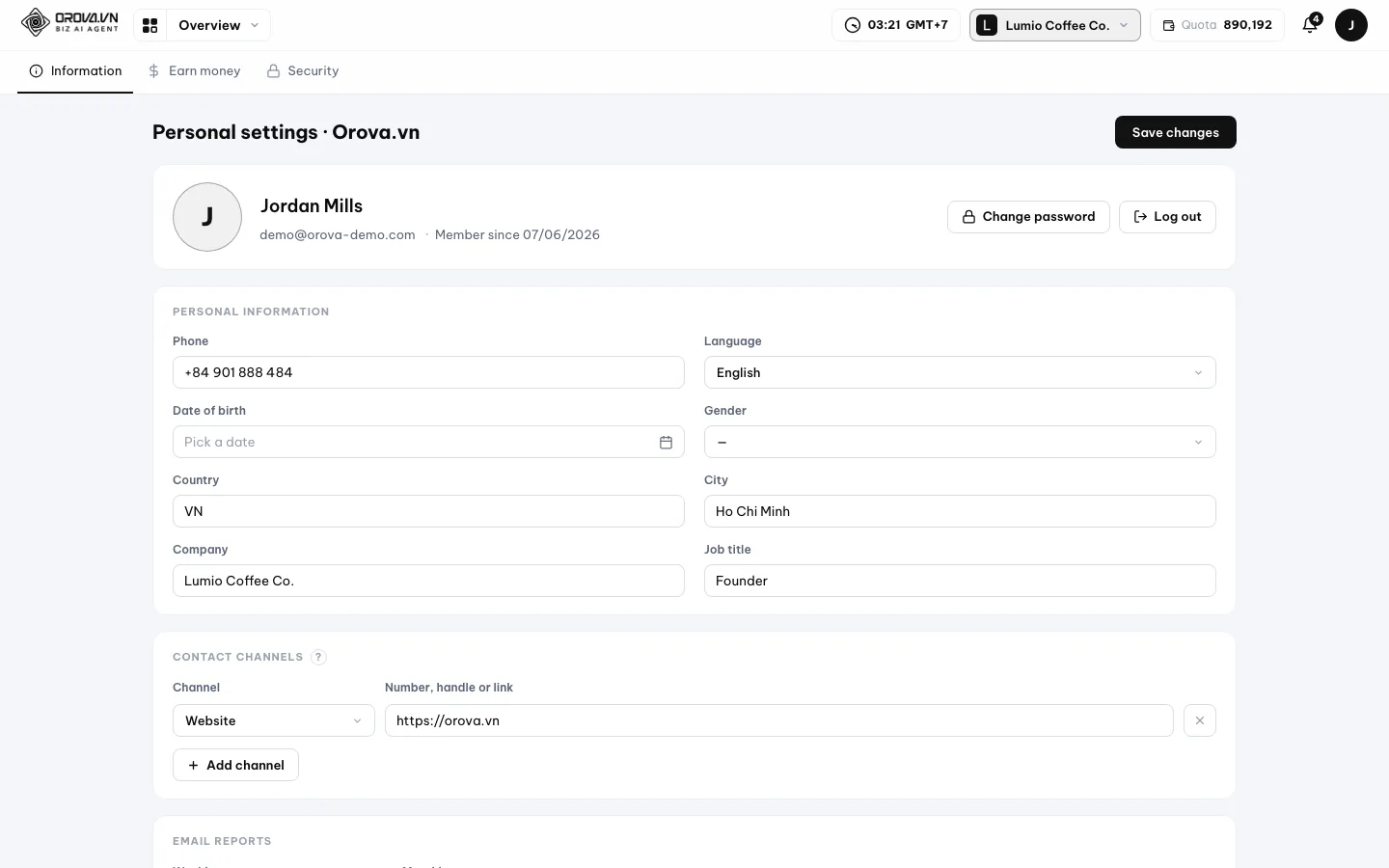
Open Account from the avatar to edit your personal details. - 2
Fill in the fields, then click Save. Fill in at least your full name and job title. Click
Save, wait about a second, and theSavedflag means you are done.
Fill in your details, then click Save changes. - 3
Upload a profile picture. Click the picture area and choose an image file from your computer. It appears as soon as it uploads. A file that is too large, in the wrong format, or empty is rejected with a message saying why.
- 4
Add a contact channel. In the
Contact channelsblock, clickAdd contact. Pick a type — a phone number, Zalo or a website, for example — then fill in the value. You can add several rows. ClickSave.
Click Add channel to add a phone, chat app or link. - 5
Change the interface language. Pick a language in the
Languagefield, then save. Every button label and menu switches to that language. This setting is yours alone and does not affect colleagues.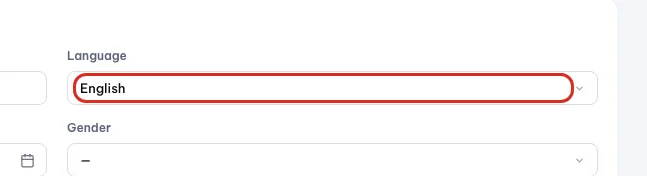
Pick the language Orova uses for your interface. - 6
Choose the reports sent by email. In the
Reportsblock, pick the weekly report and the day you want it, or the monthly report and the day of the month. ChooseOffif you do not want them. ClickSave.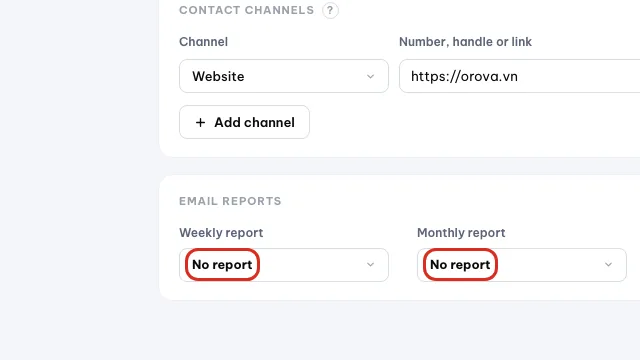
Choose which reports Orova emails you each week and month.
Note
Three errors when uploading a profile picture
Change your password
- 1
Open the Change password page. From the
Accountpage, switch to the change-password item in the secondary tab row. - 2
Fill in three fields. Your current password, the new password, and the new password again. The new password has to be at least 8 characters, and the last two fields have to match exactly.
- 3
Save, then try it. After changing it, sign out and sign back in once with the new password. That way you know for sure you remember it correctly.
Tip
Forgot password? on the sign-in page and reset it by email.10 · Getting help
Send a support request
How to ask the Orova team when something goes wrong, with screenshots, and how to follow the answer.
Support request
A support request is a recorded conversation between you and the Orova team. Like an email thread: you ask, the team answers, and both of you can read it again later.
The support page lives inside the workspace and has two tabs: New request and History. Use it when you hit an error, need to ask about a feature, or run into a billing problem.
| Button / field | What it means | Notes |
|---|---|---|
| Quota & billing | Money, plans, quota that has not reached the wallet | Include the time and the amount you transferred |
| Question about a feature | Asking how to use something, or requesting a feature | Describe what you are trying to do |
| Technical issue | A broken page, a button that does nothing, a stuck task | Include a screenshot and the page URL |
| Feedback & other | Anything outside the three above | Still worth describing the context |
| Subject | One sentence summarising the problem | Be specific, avoid vague wording |
| Message | The detailed description | What you did, what you expected, what you saw |
| Add image | Attach screenshots | Images make it much faster to solve |
| Send request | Creates the new request | It appears right away in the History tab |
- 1
Open the workspace support page. Go to the support section of the workspace. The page opens on the
New requesttab.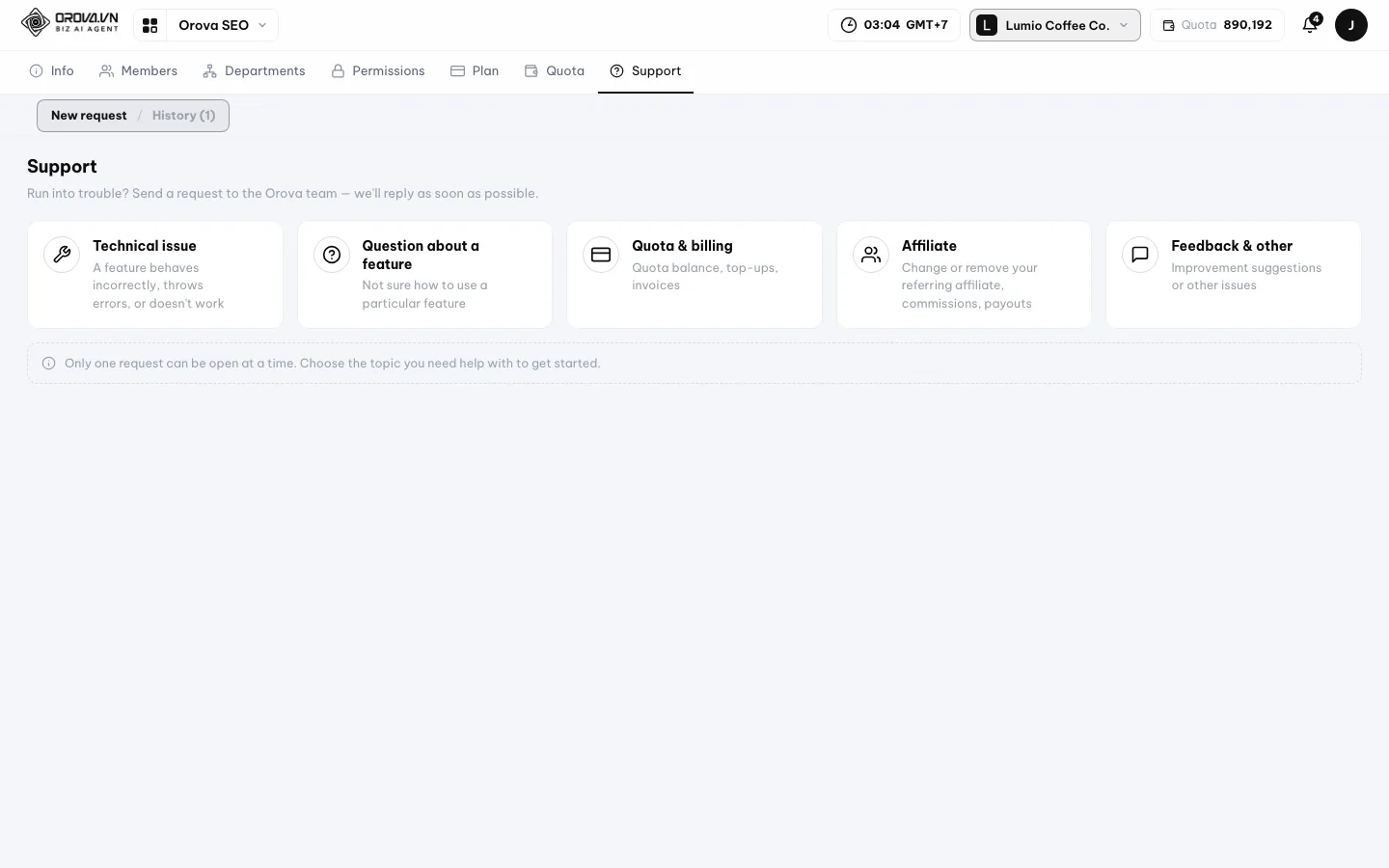
Open Support to send a request to the Orova team. - 2
Pick a topic. Each topic has a short description right beneath it. Picking the wrong one is fine — inside the request there is a button to change the topic.

Pick the topic closest to your issue. - 3
Write the subject and the message. One sentence for the subject. The message should say three things: what you were doing, what you expected to see, and what you actually saw. Copy the error text word for word if there is one.
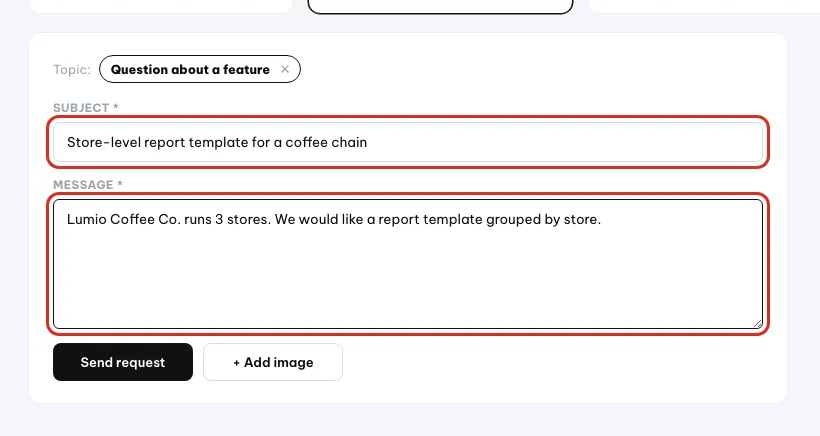
Write a short subject and describe the problem. - 4
Attach screenshots. Click the attach button and pick an image. One full-screen screenshot often saves several rounds of back and forth.
- 5
Click Send request. You see a message confirming it was created. The request moves to the
Historytab with the statusOpen.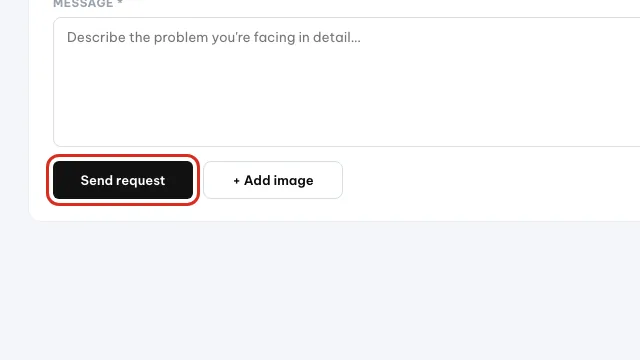
Click Send request when you are done. - 6
Follow it and reply. Open the
Historytab. The table shows Date, Subject, Sender, Messages and Status. Click a row to read it and keep replying inside the same request.
Note
You already have an open request on this topic
Tip
11 · Earn with Orova
Earn money with Orova
Turn on affiliate mode, get your referral link and check your commission. A short section — the details are on the policy page.
Affiliate
An affiliate is someone who refers Orova to other people and earns commission when those people pay. Turning it on is entirely up to you.
Referral link
A referral link is a URL of your own that carries your code. Anyone who opens that link and then signs up is recorded as coming from you.
- 1
Open the affiliate page and turn it on. The first time you go there, you see the programme page with two checkboxes: agreeing to the affiliate policy, and agreeing to the affiliate data privacy terms. Tick both, then click
Agree and activate. Miss one and the system tells you that you need to agree to the policy first.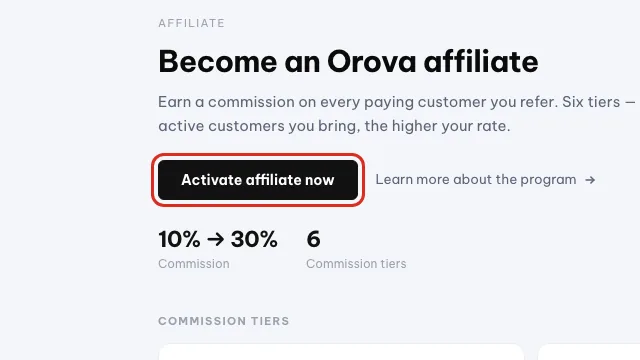
Click to turn on affiliate. This cannot be undone. - 2
Get your referral link. Once it is on, the
Overviewtab shows your code and your referral link. Copy it and send it to the people you want to refer. - 3
Create a custom link. To send people to a specific page, a blog post for example, paste that URL into the custom link field. The tool only accepts URLs that belong to orova.vn.
- 4
Check customers and commission. The
Customerstab lists the people who signed up through your link. TheHistorytab records every commission event. Until someone signs up, both tabs are empty — that is normal. - 5
Fill in your payout details. The
Payout infotab is where you declare how you want to be paid, by PayPal or by Vietnamese bank transfer. The payout request button only turns on once your balance reaches the minimum shown on the page.
Warning
Turning on affiliate mode is one way
Note
12 · FAQ
Frequently asked questions and fixes
The messages you are most likely to meet in your first week, what really causes them, and how to fix each one.
Every answer below gives the cause first, then the fix. If you are still stuck, send a support request with a screenshot.
I did not receive the verification email
The email usually lands in Spam or Promotions, or your mail server is slow to receive it. Check both folders, wait one or two minutes, then click Resend verification email on the Check your inbox screen. If the page shows a red banner about a sending error, try again in a few minutes.
The page says the verification link is invalid or has expired
A verification link works once and expires after 24 hours. Open the check-your-inbox page again and click resend verification email, then click the newest link in the new email. If the page says the account is already verified, just sign in as usual.
Sign-in says the email or password is incorrect
One of the two fields is wrong, usually because Caps Lock is on or there is a trailing space in the email. Type it again slowly and check the Caps Lock key. Still wrong? Click Forgot password? to set a new password by email.
The page says there have been too many failed sign-in attempts
The system locks you out temporarily to stop password guessing, and the waiting time is in the message itself. Do not keep trying, because every failed attempt extends it. Wait out the time shown on screen, then reset your password to be safe.
The page says the account has been disabled
The account is disabled on the Orova side; it is not about what you typed. Contact the support address shown in the message and give the account email so the team can check.
I clicked the invite link but the page says Wrong account
You are signed in with an email other than the invited one. Sign out, sign back in with the exact email from the invitation, then click the link again. If you do not have an account for that email yet, create one first.
The invitation says it has expired
An invitation only lives for 7 days. Ask the workspace owner to go to the Members tab and send a new invitation to your email. The old one can be cancelled in the Pending acceptance block.
I cannot see the Plan tab in settings
That tab only opens for roles allowed to handle payments. Other roles going straight to the URL are refused. Ask the workspace owner to buy the plan, or to give you a different role.
My menu has fewer modules than the screenshots in this guide
Two reasons. One, your permission group does not have view permission for that module, so the module disappears from the menu instead of being greyed out. Two, the module is still being finished and is not open to every account. Ask the workspace owner to check the Permissions tab first.
Website verification says the TXT record is not found yet
The DNS record you just added has not spread across the network yet, and that can take a few hours. Check that you pasted the TXT string correctly, then try again later. If the page tells you that you are checking too fast, wait a minute and click again. If it tells you to enter your website first, save the website address in the company profile before verifying.
I transferred the money but the quota is not in the wallet
Usually the transfer memo was edited, so the system cannot match the order, or the bank is slow to report back. Open the wallet page again and look for a Top-up row. If there is none, send a support request on the Quota & billing topic with a screenshot of the transfer and the time you sent it.
I ran out of quota in the middle of a task
The wallet is empty, so the AI task cannot continue. Go to the wallet page to see the balance and what you spent in the last 30 days, then buy a one-off quota pack or move to a bigger plan. To avoid being interrupted next time, turn on auto top-up.
I want to delete a workspace
Go to workspace settings, scroll down to the danger zone, type the exact workspace name and click send deletion confirmation email. You then have to open the email and click the link inside before the workspace is deleted. This cannot be undone — all the data and history of that workspace go with it.
Warning
Deleting a workspace is permanent
/ Need help?
Can't find what you need? Open Support inside your workspace, or send us a message.